Shipping Rules for Magento 2 - User Guide
Extension Installation
For Magento Marketplace Customers
Find the Composer name and version of the extension in the extension's composer.json file.
Login to your SSH and run:
composer require meetanshi/magento-2-shipping-rules --ignore-platform-reqs
Enter your authentication keys https://devdocs.magento.com/guides/v2.3/install-gde/prereq/connect-auth.html . Your public key is your username; your private key is your password.
Wait for Composer to finish updating your project dependencies and make sure there aren't any errors.
To verify that the extension installed properly, run the command:
php bin/magento module:status Meetanshi_ShippingRules --ignore-platform-reqs
By default, the extension is probably disabled.
Enable the extension and clear static view files:
php bin/magento module:enable Meetanshi_ShippingRules --clear-static-content
php bin/magento setup:upgrade
For Magento version 2.0.x to 2.1.x - php bin/magento setup:static-content:deploy
For Magento version 2.2.x & above - php bin/magento setup:static-content:deploy --f
php bin/magento cache:flush
For Meetanshi Customers
Extract the zip folder and upload our extension to the root of your Magento 2 directory via FTP.
Login to your SSH and run below commands step by step:
php bin/magento setup:upgrade
For Magento version 2.0.x to 2.1.x - php bin/magento setup:static-content:deploy
For Magento version 2.2.x & above - php bin/magento setup:static-content:deploy --f
php bin/magento cache:flush
Configuration
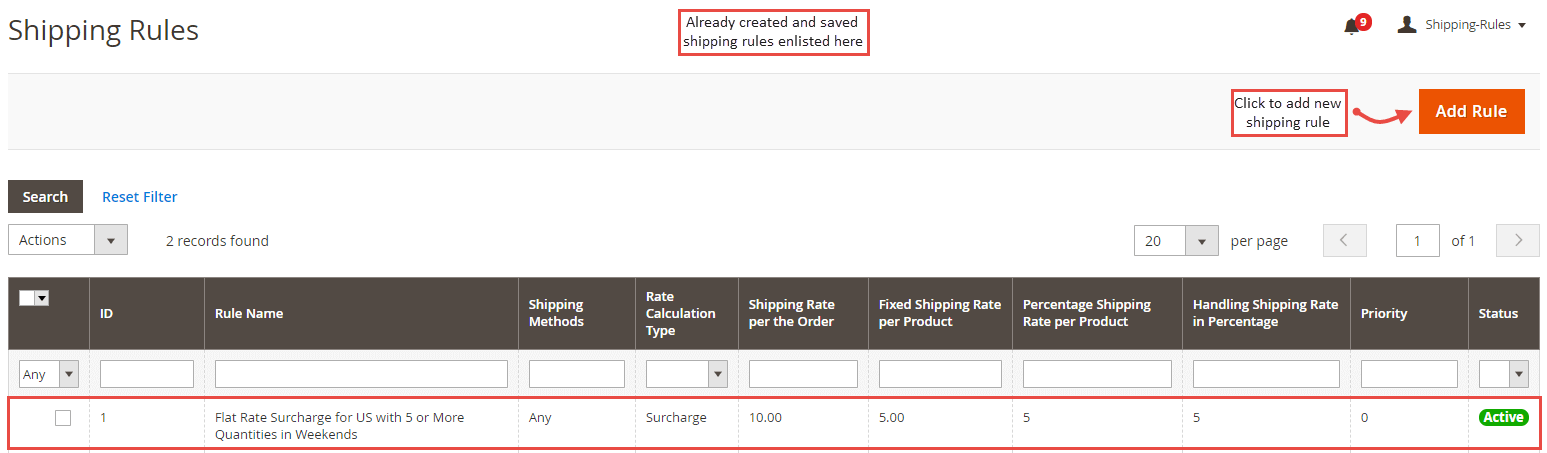
For configuring the Shipping Rules for Magento 2 extension, login to Magento 2, move to Sales > Shipping Rules from where you can add new shipping rules. Already created and saved rules enlisted here.
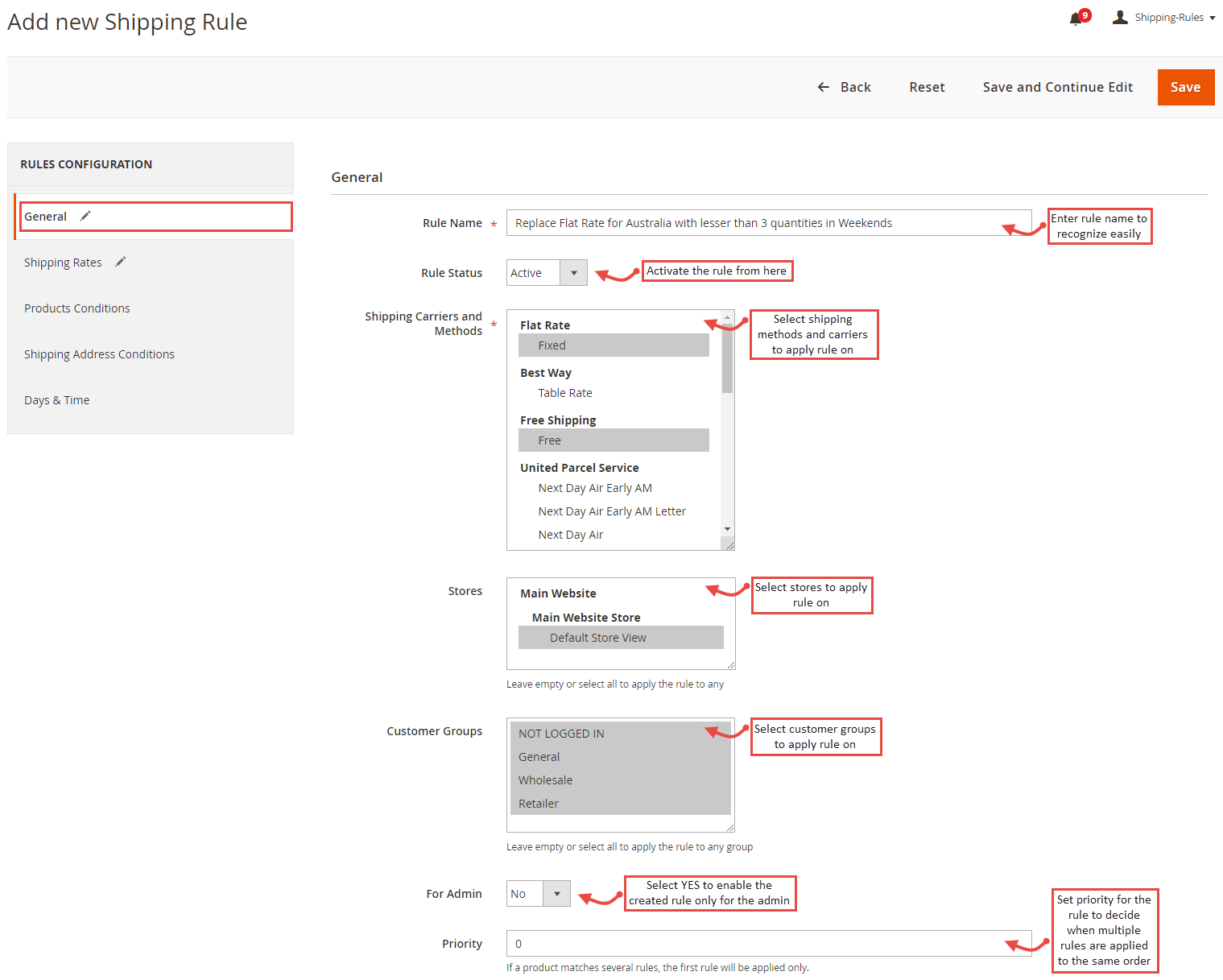
Add New Shipping Rule
- Rule Name: Enter rule name to recognize easily.
- Rule Status: Activate the shipping rule.
- Shipping Carriers and Methods: Select shipping carriers and shipping methods of the selected shipping carrier to apply the rule on all or some of the methods of the shipping carrier.
- Stores: Select stores to apply the rule on.
- Customer Groups: Select customer groups to apply the rule on.
- For Admin: Select YES to enable the created rule only in the admin panel for the backend orders.
- Priority: Set priority for the rule. It helps to decide which rule to apply when multiple rules are eligible to apply on the same order.
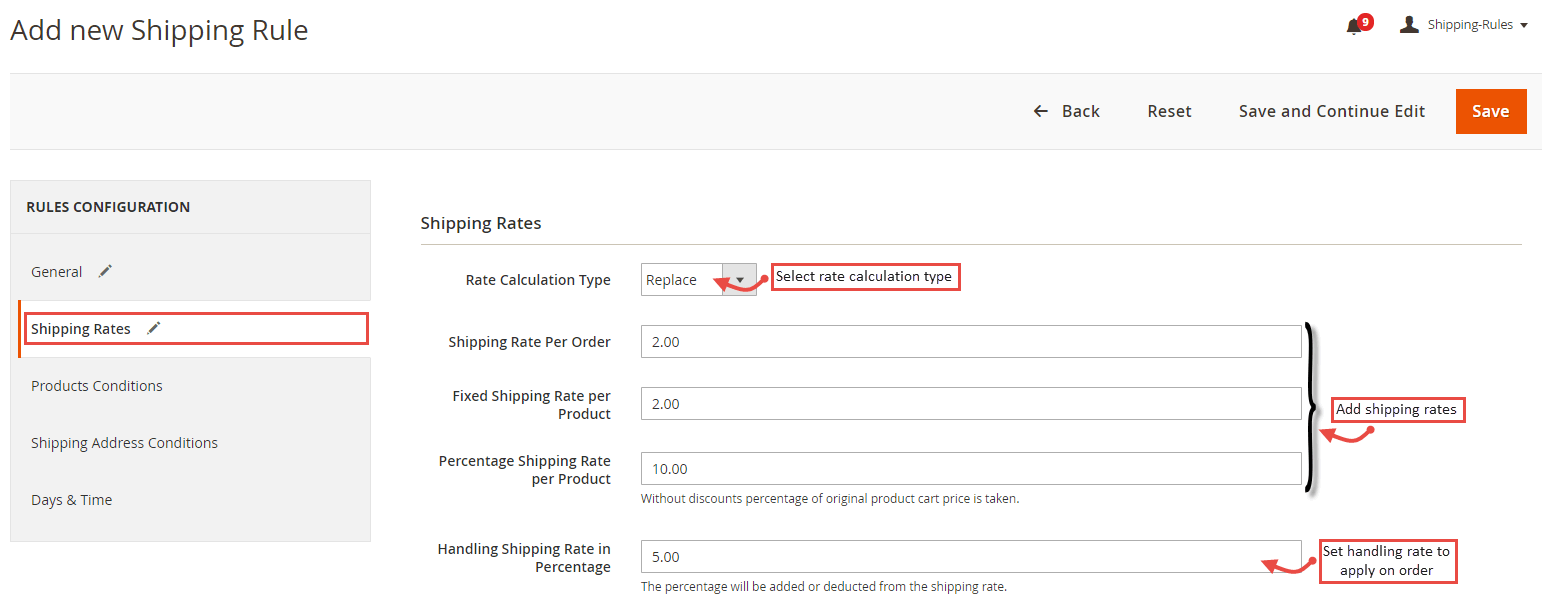
- Shipping Rates
Define shipping rates here.
- Rate Calculation Type: Select the rate calculation type.
- Replace: It will override the default shipping rate by calculating shipping rates added here.
- Discount: The calculated shipping rates will be applied as a discount.
- Surcharge: The calculated shipping charges will be added as a surcharge on orders.
- Shipping Rate per Order: Add the shipping rate to charge per order.
- Fixed Shipping Rate per Product: Add shipping rate as a fixed amount to charge per product.
- Percentage Shipping Rate per Product: Add shipping rate in percentage to charge per product.
- Handling Shipping Rate in Percentage: Set handling shipping rate to apply on order. It will be calculated based on the default shipping rate.
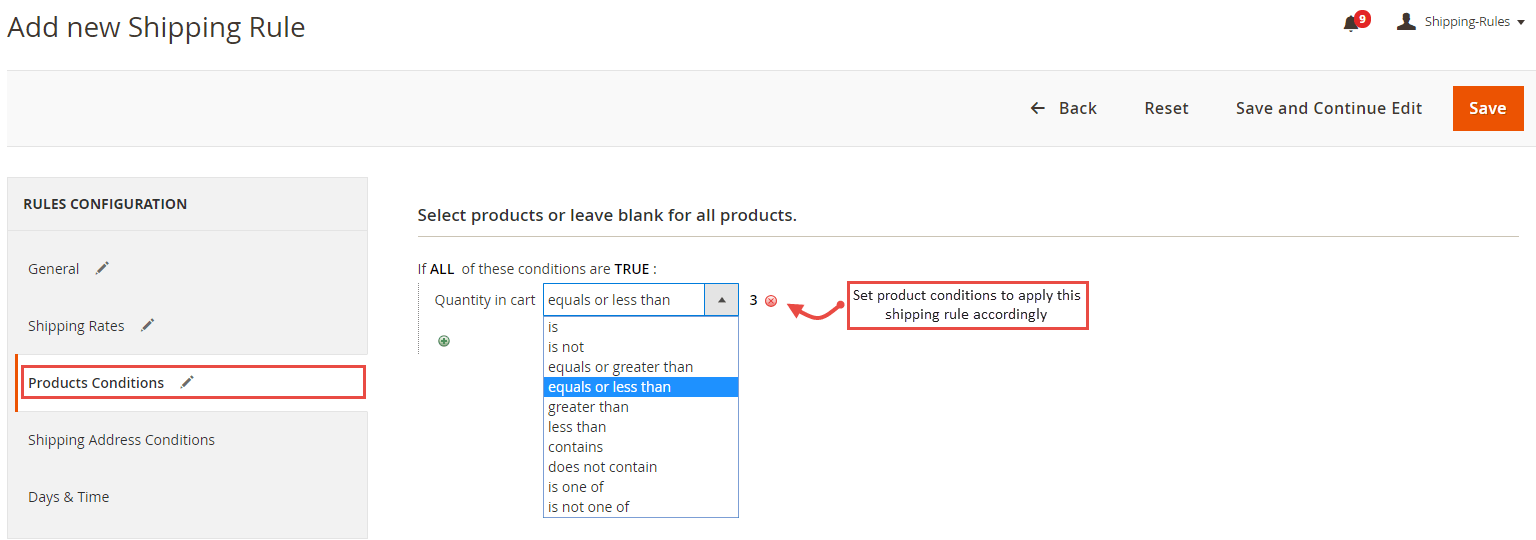
- Product Conditions
Set product conditions or combination of product attribute combination to apply shipping rule on order and charge accordingly.
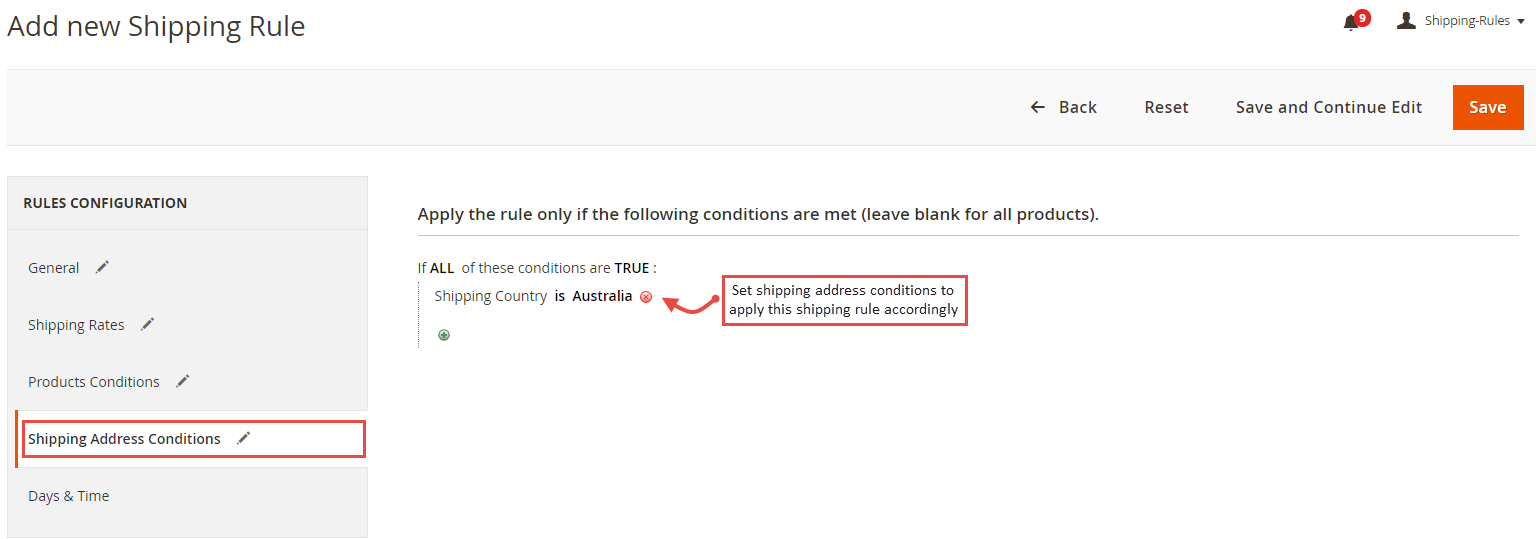
- Shipping Address Conditions
Set shipping address conditions to apply the rule on the order.
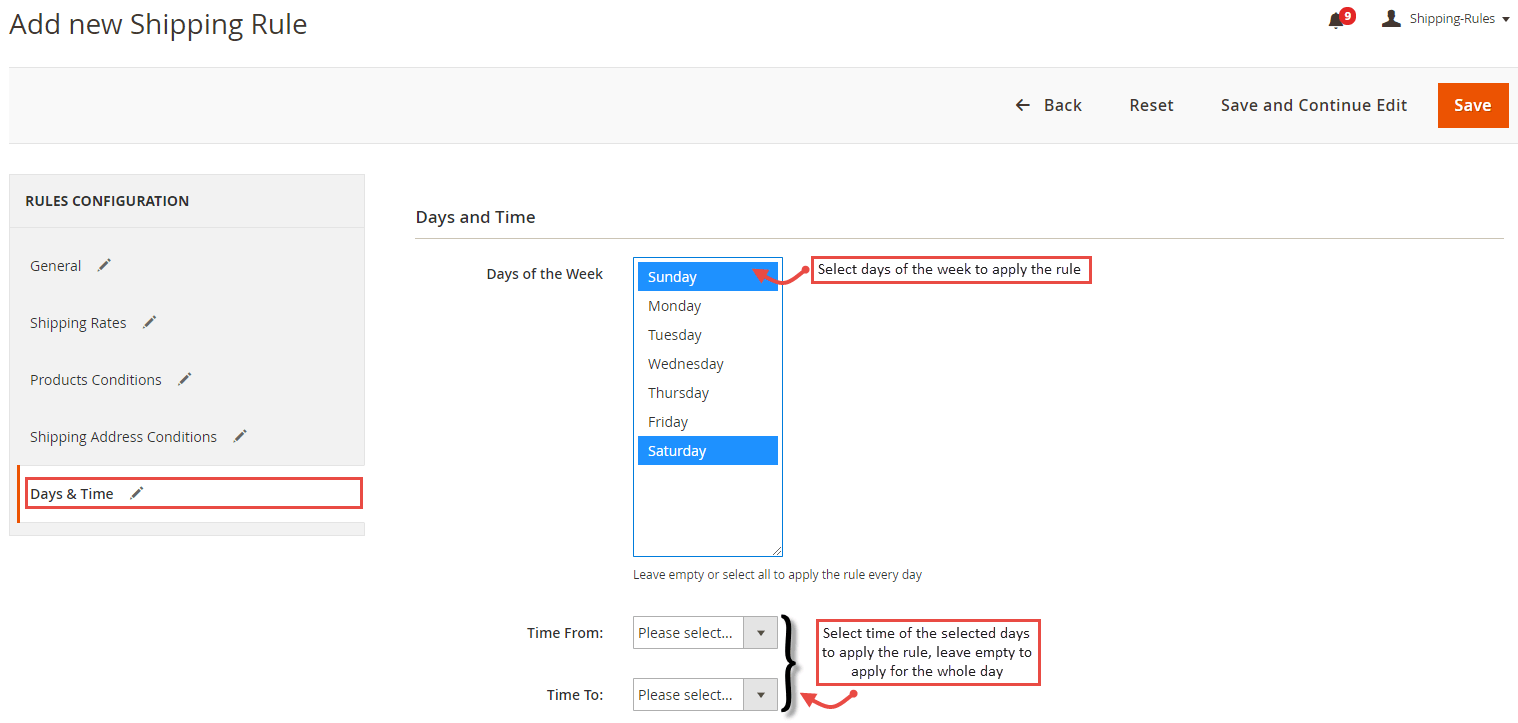
- Days and Time-Based Conditions
Set days and time for the rule to charge shipping rules only for the specific days of the week and time.
Shipping Rules in Frontend
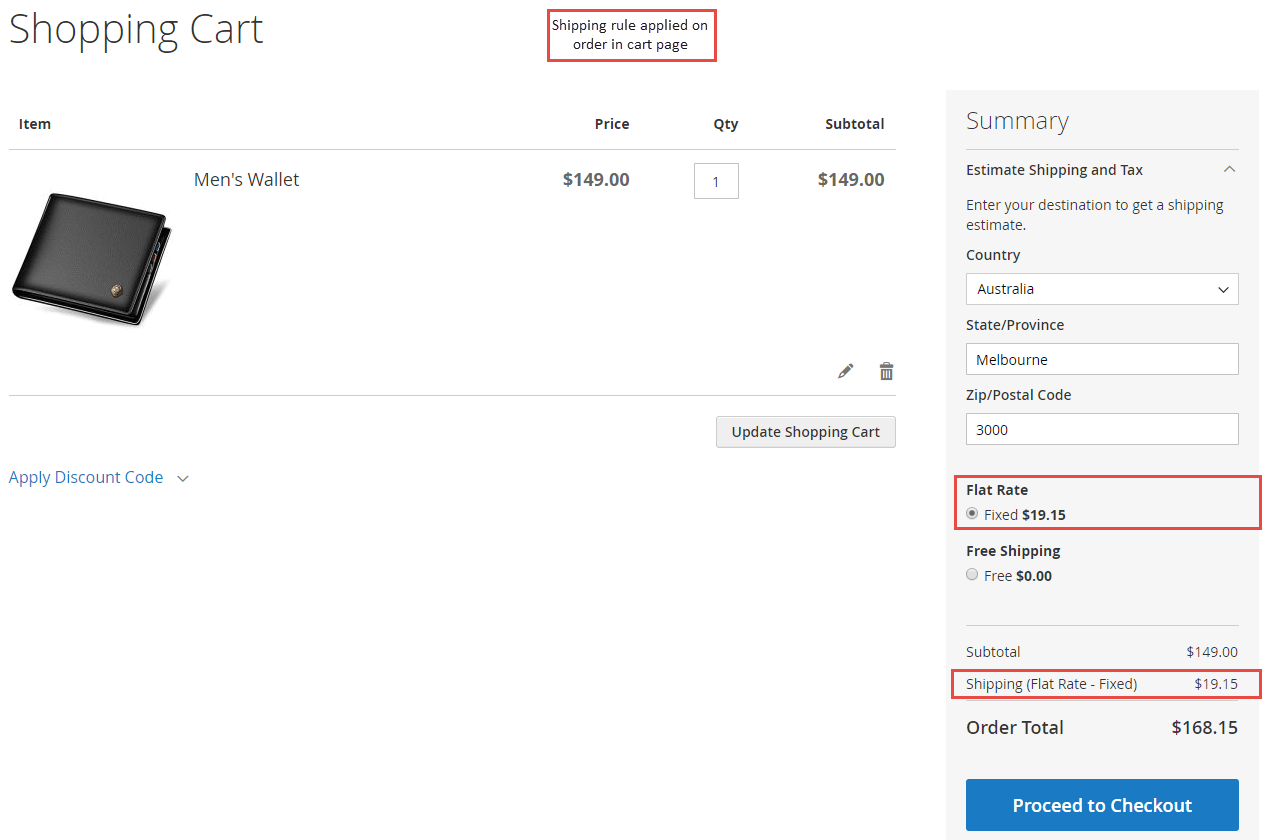
Once all the shipping rules are defined and saved, when customers add products to cart, the shipping charge is calculated and applied based on the priority and set conditions. Here,
- Product price: 149.00
- Shipping Country: Australia
- Quantity is Cart: <=3
- Rate Calculation: Shipping Rate Per Order (2.00) Fixed Shipping Rate Per Product (2.00) Percentage Shipping Rate Per Product (10%) Handling Shipping Rate 5% (Default Flat Rate $5) Total 2.00 2.00 14.9 0.25 19.15