Address Autocomplete & Validation Magento 2 - User Guide
Extension Installation
For Magento Marketplace Customers
- Find the Composer name and version of the extension in the extension’s
composer.jsonfile. - Log in to your server via SSH and run:
composer require meetanshi/magento-2-address-autocomplete-validation
Enter your authentication keys.
Wait for Composer to finish updating the project dependencies and ensure there are no errors.
Verify that the extension is installed properly:
php bin/magento module:status Meetanshi_AddressAutocomplete --ignore-platform-reqs
By default, the extension may be disabled. Enable it using:
php bin/magento module:enable Meetanshi_AddressAutocomplete --clear-static-content
- Run the setup upgrade:
php bin/magento setup:upgrade
php bin/magento setup:static-content:deploy -f
- Flush the cache:
php bin/magento cache:flush
For Meetanshi Customers
- Extract the ZIP file and upload the extension to the root of your Magento 2 directory via FTP.
- Log in to your server via SSH and run the following commands step by step:
php bin/magento setup:upgrade
- Deploy static content:
php bin/magento setup:static-content:deploy -f
php bin/magento cache:flush
Configuration
To configure Address Autocomplete & Validation extension, Open Stores > Configuration > Meetanshi > Address Autocomplete. Select the intended scope before changing fields and use Save Config after review.
General Settings
Controls autocomplete and the Google Places key. The API key field is masked and has not been validated.
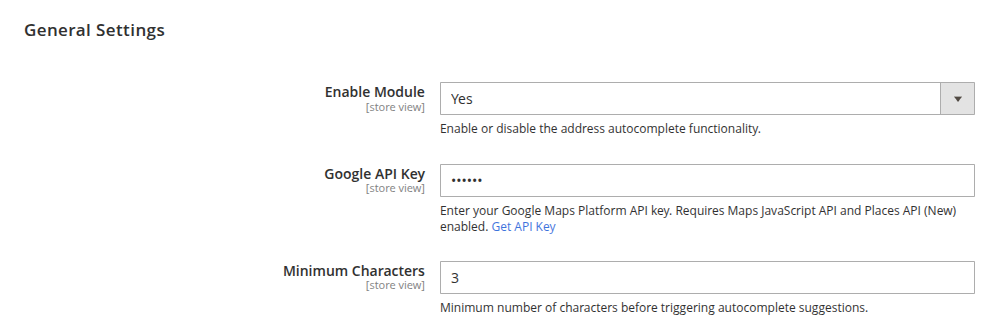
- Enable Module: Enable or disable the address autocomplete functionality.
- Google API Key: Enter your Google Maps Platform API key. Requires Maps JavaScript API and Places API (New) enabled.
- Minimum Characters: Minimum number of characters before triggering autocomplete suggestions.
Restrictions
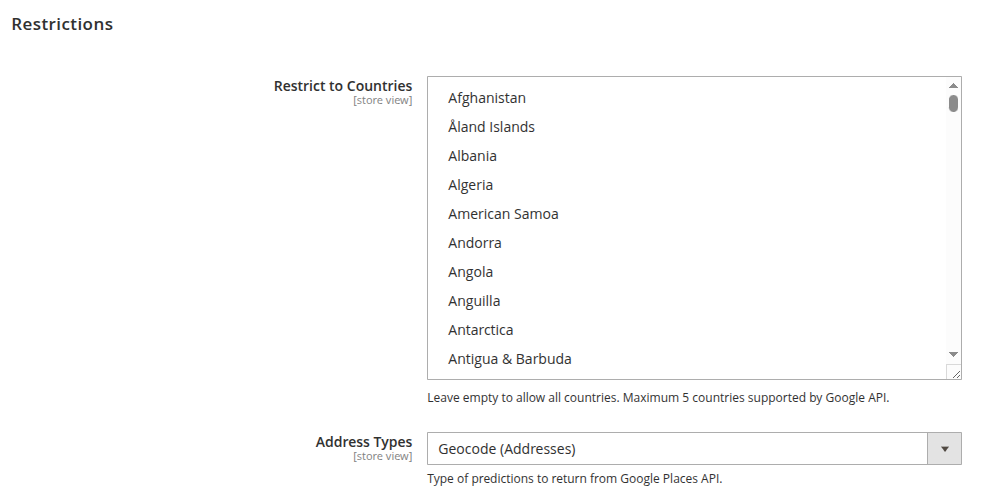
Restrict to Countries: Leave empty for all countries or choose up to five countries, as the field help allows.
Address Types: Type of predictions to return from Google Places API. Available types: Geocode (Addresses), Address (Precise Addresses), Establishment (Business Names), Regions (Cities/States), Cities Only.
Display Settings
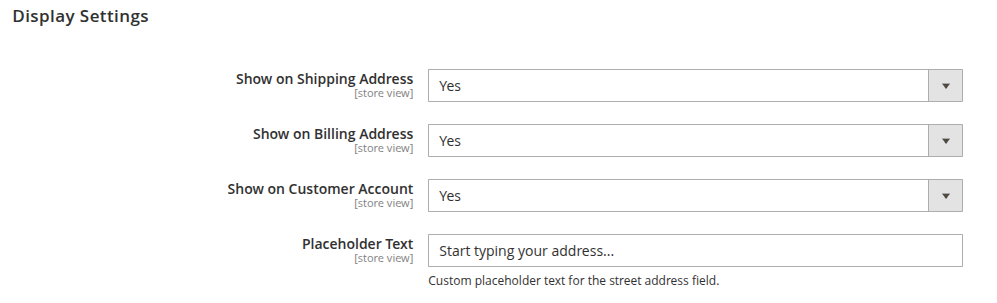
- Show on Shipping Address: Determines whether the field is displayed on the shipping address section during checkout.
- Show on Billing Address: Controls whether the field is displayed on the billing address section during checkout.
- Show on Customer Account: Specifies whether the field is visible within the customer account address management pages.
- Placeholder Text: Defines the custom helper text shown inside the street address input field.
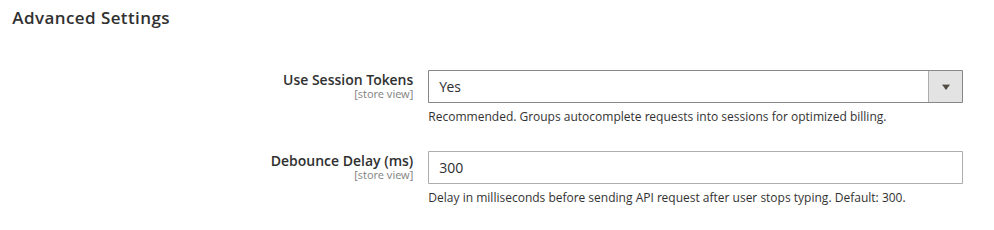
Advanced Settings
Adjust session token use and request delay.
- Use Session Tokens: Recommended. Groups autocomplete requests into sessions for optimized billing.
- Debounce Delay (ms): Delay in milliseconds before sending API request after user stops typing. Default: 300.
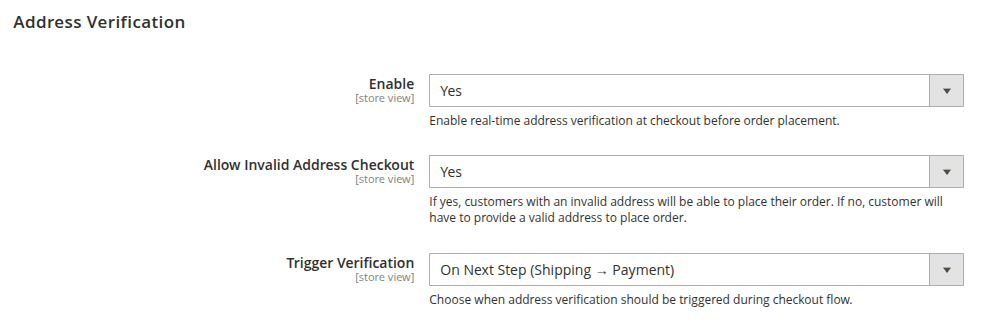
Address Verification
- Show on Shipping Address: Determines whether the field is displayed on the shipping address section during checkout.
- Show on Billing Address: Controls whether the field is displayed on the billing address section during checkout.
- Show on Customer Account: Specifies whether the field is visible within the customer account address management pages.
- Placeholder Text: Defines the custom helper text shown inside the street address input field.
Verification Service
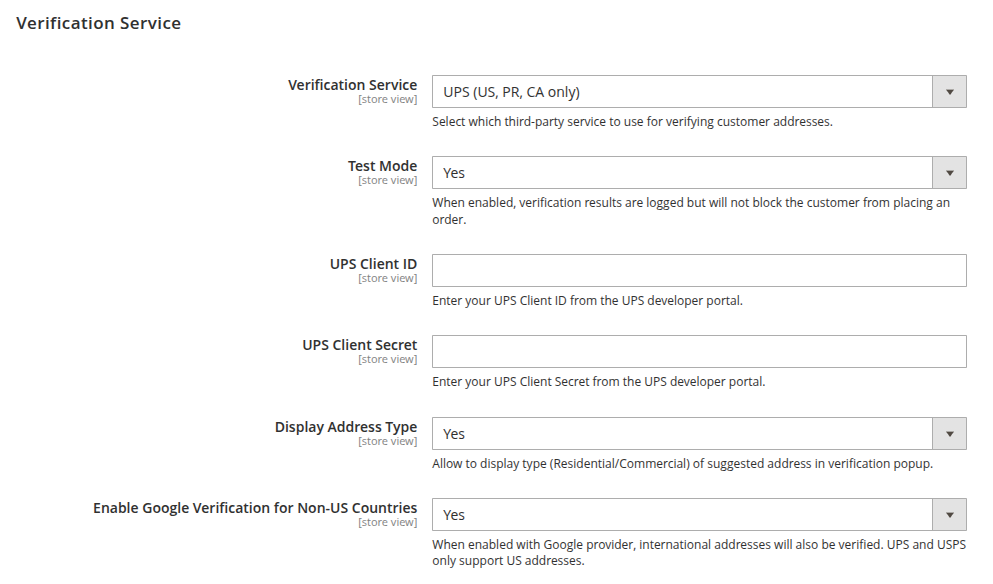
- Verification Service: Select from the following:
- Google Address Validation API
- UPS (US, PR, CA only)
- USPS (US only)
- Test Mode: When enabled, verification results are logged but will not block the customer from placing an order.
- UPS Client ID: masked credential field. Enter your UPS Client ID from the UPS developer portal.
- UPS Client Secret: masked credential field. Enter your UPS Client Secret from the UPS developer portal.
- USPS Consumer Key: masked credential field. Enter your USPS Consumer Key from the USPS developer portal.
- USPS Consumer Secret: masked credential field. Enter your USPS Consumer Secret from the USPS developer portal.
- Google Address Validation API Key: masked credential field. Enter your Google Address Validation API key. This can be different from the Places API key.
- Display Address Type: Allow to display type (Residential/Commercial) of suggested address in verification popup.
- Enable Google Verification for Non-US Countries: When enabled with Google provider, international addresses will also be verified. UPS and USPS only support US addresses.
Verification Popup Content
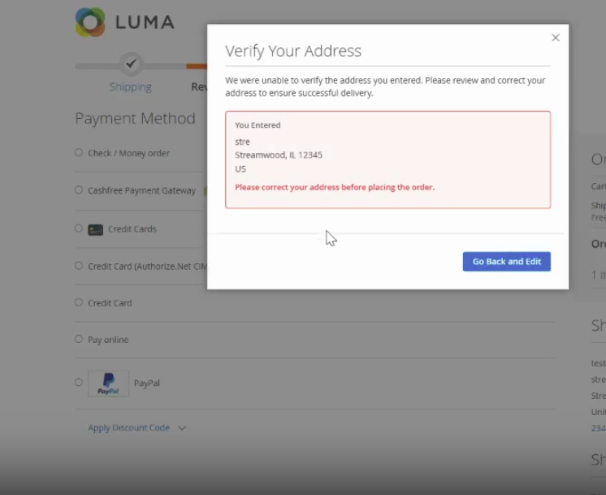
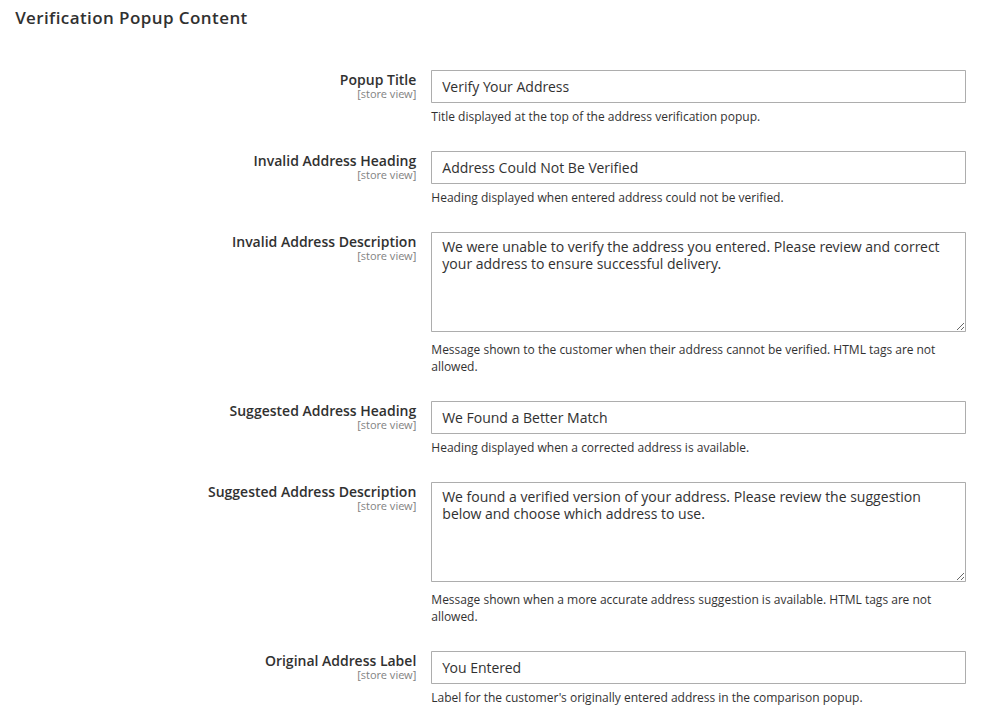
- Popup Title: Title displayed at the top of the address verification popup.
- Invalid Address Heading: Heading displayed when entered address could not be verified.
- Invalid Address Description: Please review and correct your address to ensure successful delivery. Message shown to the customer when their address cannot be verified. HTML tags are not allowed.
- Suggested Address Heading: Heading displayed when a corrected address is available.
- Suggested Address Description: Please review the suggestion below and choose which address to use. Message shown when a more accurate address suggestion is available. HTML tags are not allowed.
- Original Address Label: Label for the customer's originally entered address in the comparison popup.
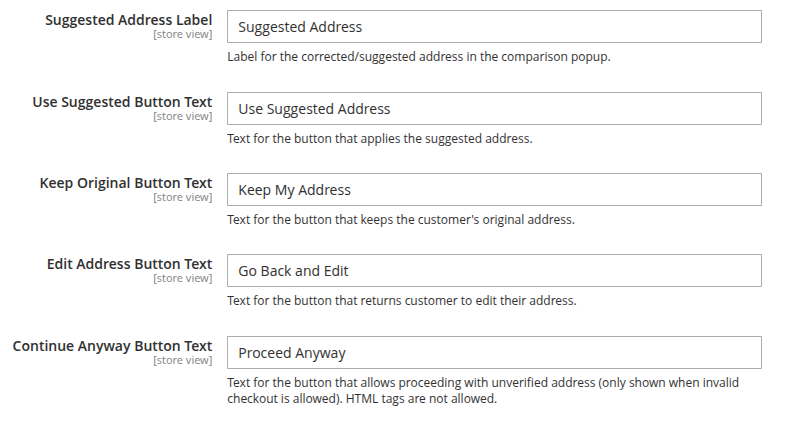
- Suggested Address Label: Label for the corrected/suggested address in the comparison popup.
- Use Suggested Button Text: Text for the button that applies the suggested address.
- Keep Original Button Text: Text for the button that keeps the customer's original address.
- Edit Address Button Text: Text for the button that returns customers to edit their address.
- Continue Anyway Button Text: Text for the button that allows proceeding with an unverified address (only shown when invalid checkout is allowed). HTML tags are not allowed.
Storefront address entry
At guest checkout, enter a shipping address and test Google autocomplete suggestions with a working Places API key. The shipping form also includes country, state/province, city, postal code, and phone fields.
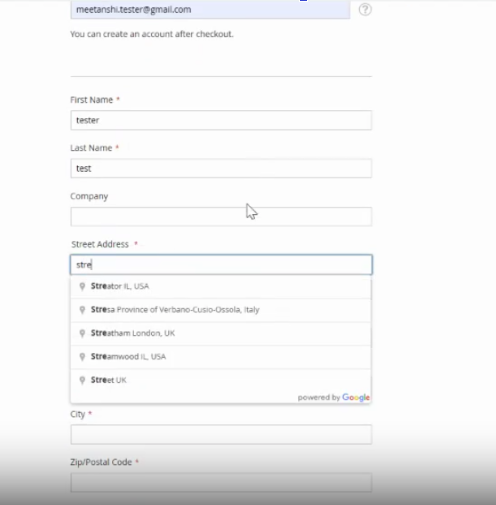
Enter a valid Google Maps Platform key, check API and domain restrictions and billing, select a supported country, and try a real address in a test environment. Test billing and saved-account address entry on your configured storefront.
Address verification at checkout
Enable verification, choose a provider, and select the trigger: On Next Step (Shipping to Payment) or Before Place Order. Test the provider response and checkout behavior with valid and invalid addresses before launch.
Configure popup labels and actions for the entered and suggested addresses. Show Proceed Anyway only when invalid-address checkout is allowed.