Magento 2 Auto Related Products - User Guide
Extension Installation
For Magento Marketplace Customers
- Find the Composer name and version of the extension in the extension's
composer.jsonfile. - Login to your SSH and run:
composer require meetanshi/magento-2-auto-related-products - Enter your authentication keys. Your public key is your username; your private key is your password.
- Wait for Composer to finish updating your project dependencies and make sure there aren't any errors.
- To verify that the extension installed properly, run the command:
php bin/magento module:status Meetanshi_AutoRelated - By default, the extension is likely disabled. Enable the extension and clear static view files:
php bin/magento module:enable Meetanshi_AutoRelated --clear-static-content php bin/magento setup:upgrade - Deploy static content:
- For Magento 2.0.x to 2.1.x:
php bin/magento setup:static-content:deploy - For Magento 2.2.x & above:
php bin/magento setup:static-content:deploy -f
- For Magento 2.0.x to 2.1.x:
- Flush the cache:
php bin/magento cache:flush
For Meetanshi Customers
- Extract the zip folder and upload our extension to the root of your Magento 2 directory via FTP.
- Login to your SSH and run below commands step by step:
php bin/magento setup:upgrade
- For Magento version 2.0.x to 2.1.x -
php bin/magento setup:static-content:deploy
- For Magento version 2.2.x & above -
php bin/magento setup:static-content:deploy --f
php bin/magento cache:flush
Extension Configuration
To configure the extension, login to Magento 2 admin panel and navigate to Stores > Configuration > Meetanshi > Auto Related Products.
General
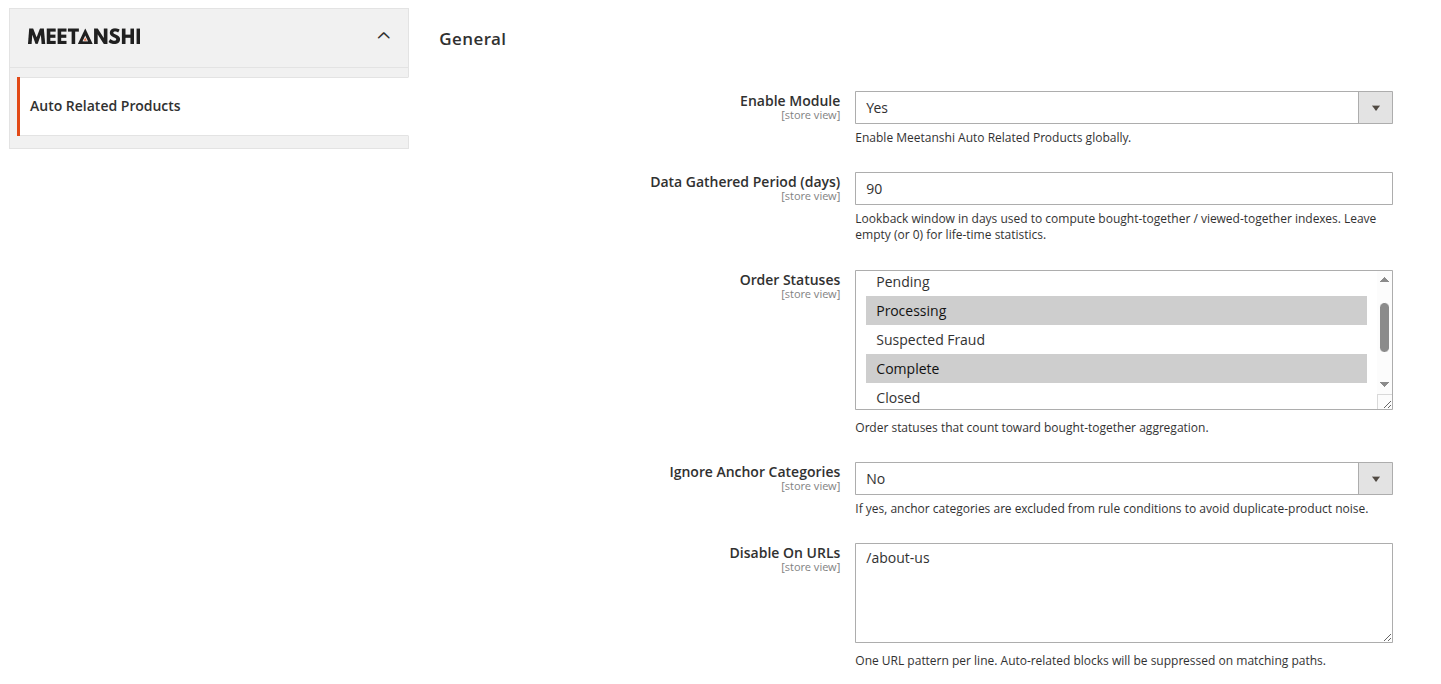
- Enable Module: Enable Meetanshi Auto Related Products globally.
- Data Gathered Period (days): Lookback window in days used to compute bought-together / viewed-together indexes. Leave empty (or 0) for life-time statistics.
- Order Statuses: Order statuses that count toward bought-together aggregation.
- Ignore Anchor Categories: If yes, anchor categories are excluded from rule conditions to avoid duplicate-product noise.
- Disable On URLs: One URL pattern per line. Auto-related blocks will be suppressed on matching paths.
Bundle Packs
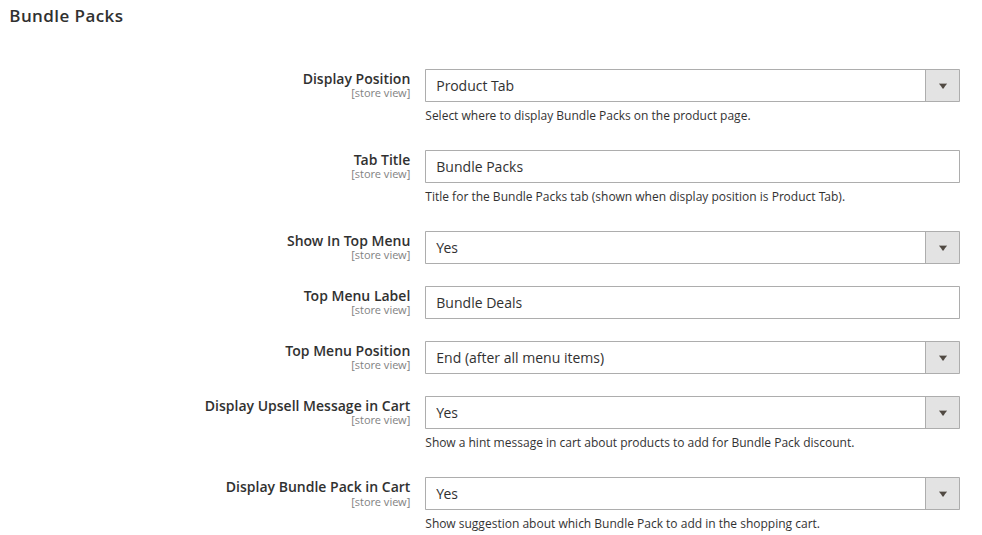
Display Position: Select where to display Bundle Packs on the product page.
Tab Title: Title for the Bundle Packs tab (shown when display position is Product Tab).
Custom Position CMS Page: Select the CMS page to display Bundle Packs on (shown when display position is Custom Position).
Show In Top Menu: Set to Yes to display bundle packs in your top navigation menu.
Top Menu Label: Enter the label to be displayed in the top menu for bundle packs.
Top Menu Position: Select the position where the bundle packs link should appear in the top menu.
Display Upsell Message in Cart: Show a hint message in cart about products to add for Bundle Pack discount.
Display Bundle Pack in Cart: Show suggestion about which Bundle Pack to add in the shopping cart.
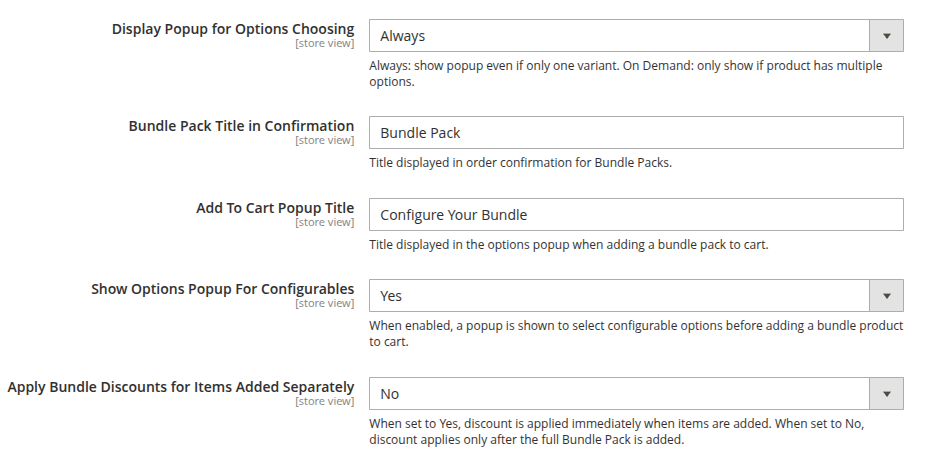
Display Popup for Options Choosing: Always: show popup even if only one variant. On Demand: only show if product has multiple options.
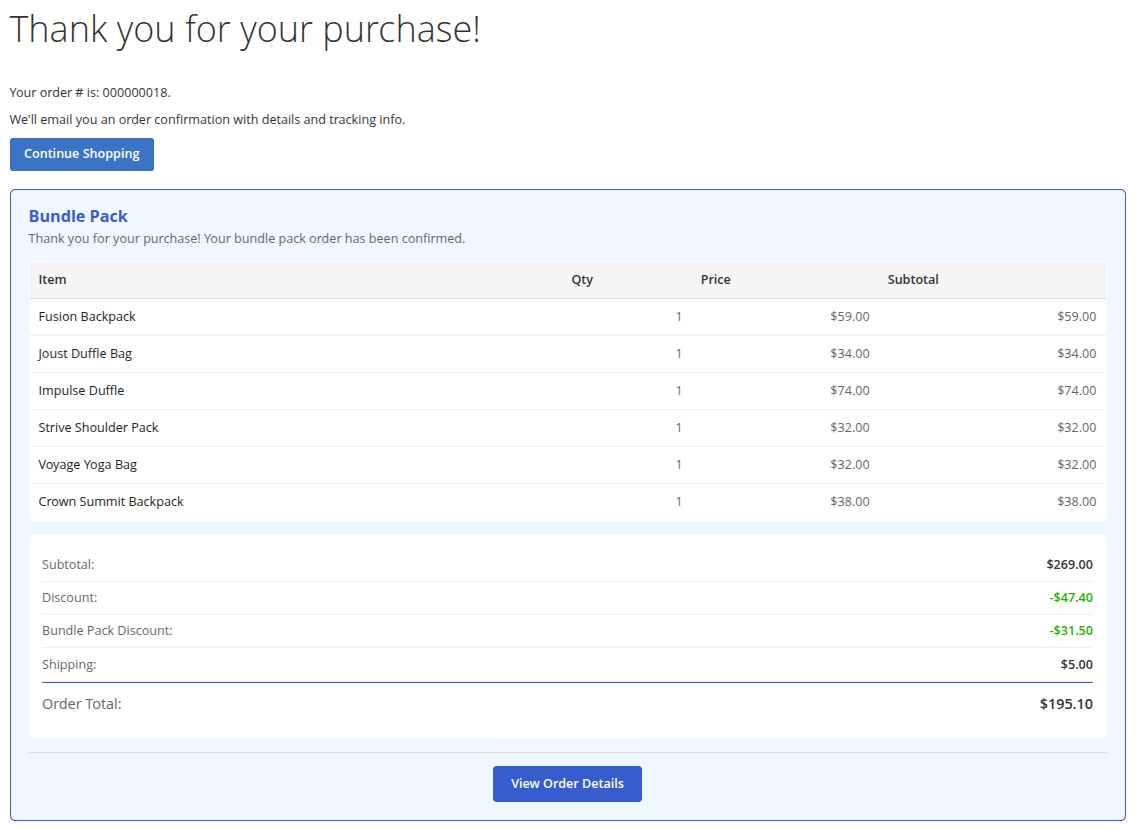
Bundle Pack Title in Confirmation: Title displayed in order confirmation for Bundle Packs.
Add To Cart Popup Title: Title displayed in the options popup when adding a bundle pack to cart.
Show Options Popup For Configurables: When enabled, a popup is shown to select configurable options before adding a bundle product to cart.
Apply Bundle Discounts for Items Added Separately: When set to Yes, discount is applied immediately when items are added. When set to No, discount applies only after the full Bundle Pack is added.
Display
- Suppress Native Related/Upsell/Cross-sell Blocks: When enabled, Magento's built-in related, upsell, and cross-sell blocks are hidden on pages where ARP rules are active for the same slot. Prevents duplicate product lists.

Statistics
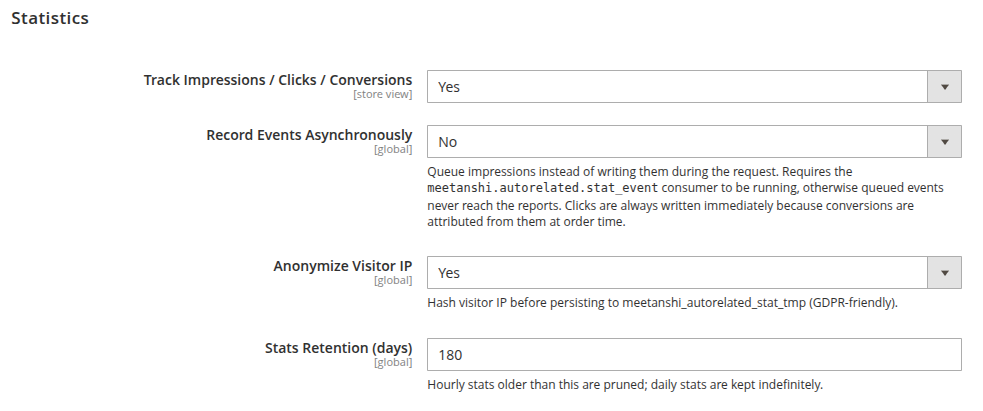
- Track Impressions / Clicks / Conversions: Enable to track interactions and conversion metrics for auto-related products.
- Record Events Asynchronously: Queue impressions instead of writing them during the request. Requires the
meetanshi.autorelated.stat_eventconsumer to be running, otherwise queued events never reach the reports. Clicks are always written immediately because conversions are attributed from them at order time. - Anonymize Visitor IP: Hash visitor IP before persisting to
meetanshi_autorelated_stat_tmp(GDPR-friendly). - Stats Retention (days): Hourly stats older than this are pruned; daily stats are kept indefinitely.
API
- Enable REST Endpoints: Set to Yes to enable REST API access for the extension's data.

Analytics
- Push Events To dataLayer (GTM / GA4): When enabled, impression and click events are pushed to
window.dataLayerfor Google Tag Manager or GA4 integration. Requires tracking to be enabled.
Hyvä
- Hyvä Template Mode: Auto detects the active theme; force on/off if you have a hybrid Luma + Hyvä deployment.

Slider / Carousel
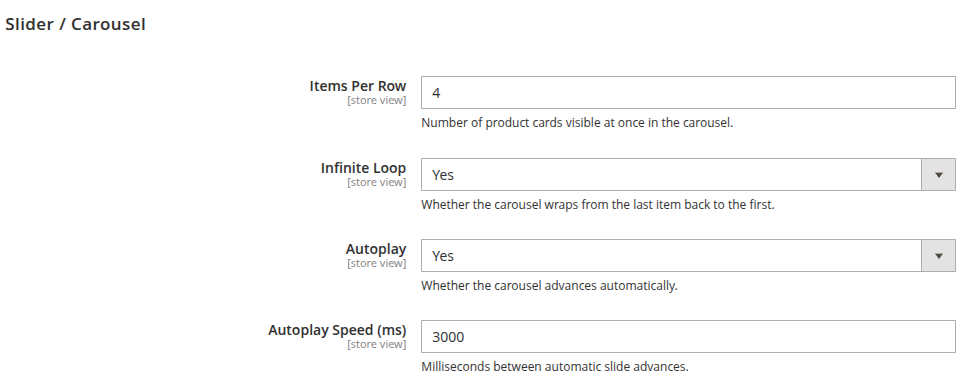
- Items Per Row: Number of product cards visible at once in the carousel.
- Infinite Loop: Whether the carousel wraps from the last item back to the first.
- Autoplay: Whether the carousel advances automatically.
- Autoplay Speed (ms): Milliseconds between automatic slide advances.
Indexer Tuning
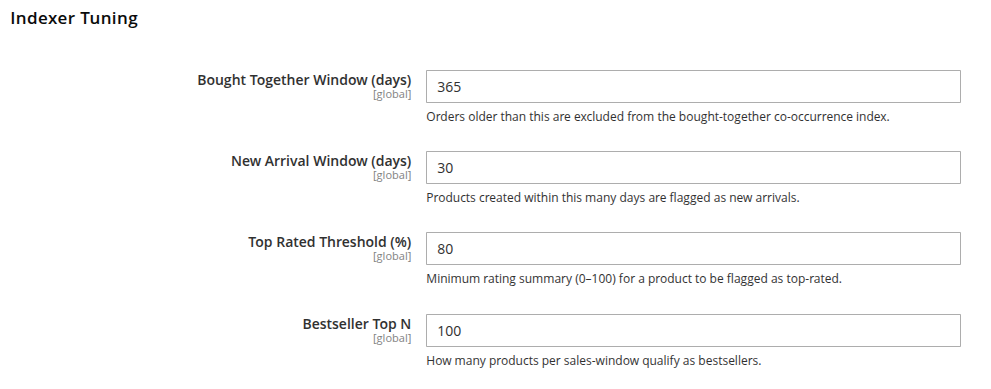
- Bought Together Window (days): Orders older than this are excluded from the bought-together co-occurrence index.
- New Arrival Window (days): Products created within this many days are flagged as new arrivals.
- Top Rated Threshold (%): Minimum rating summary (0–100) for a product to be flagged as top-rated.
- Bestseller Top N: How many products per sales-window qualify as bestsellers.
Managing Rules and Bundle Packs
The extension provides a centralized hub under the Marketing > Auto Related Products menu to manage your product relations and track their performance.
Rules
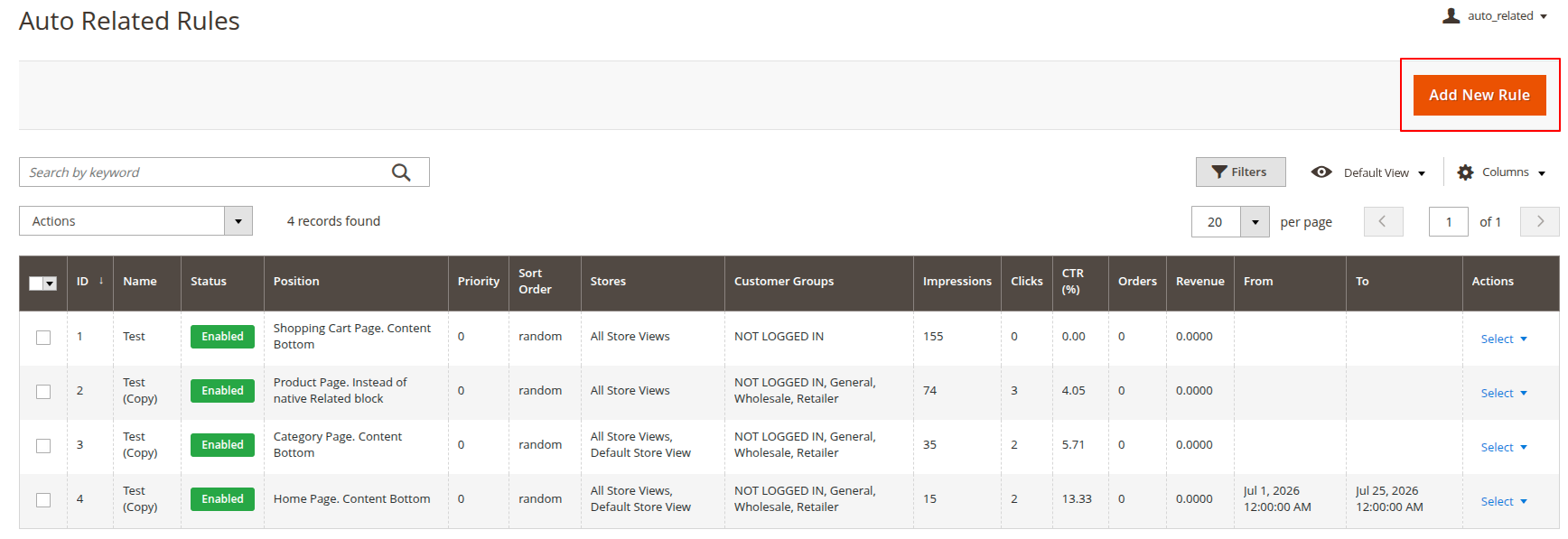
Navigate to Marketing > Auto Related Products > Rules to create and manage dynamic product display rules. Click on Add New Rule to configure the other settings
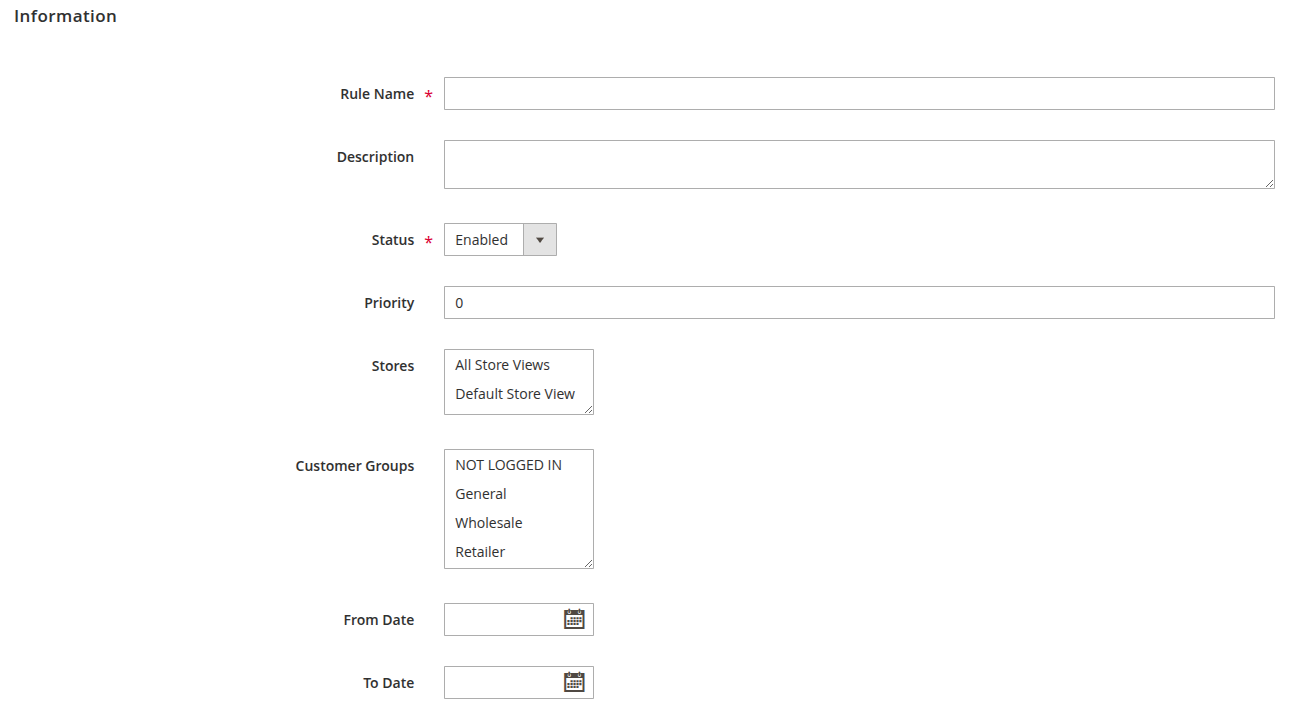
 Information:
- Rule Name: Name of the rule.
- Description: Add a brief description of the rule.
- Status: Enable or disable the rule.
- Priority: Set the priority of the rule.
- Stores: Select the store views where this rule will be active.
- Customer Groups: Select the customer groups where this rule will be active.
- From Date & To Date: Schedule the rule to be active during a specific timeframe.
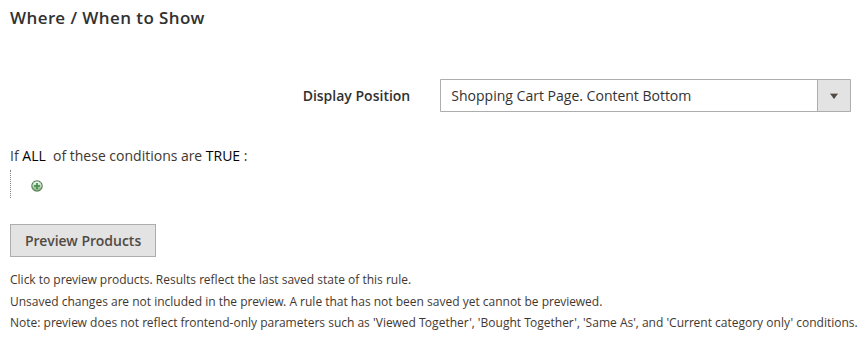
 Where / When to Show:
- Display Position: Select the display position for the related products block.
- Conditions: Define specific rules to trigger this block.
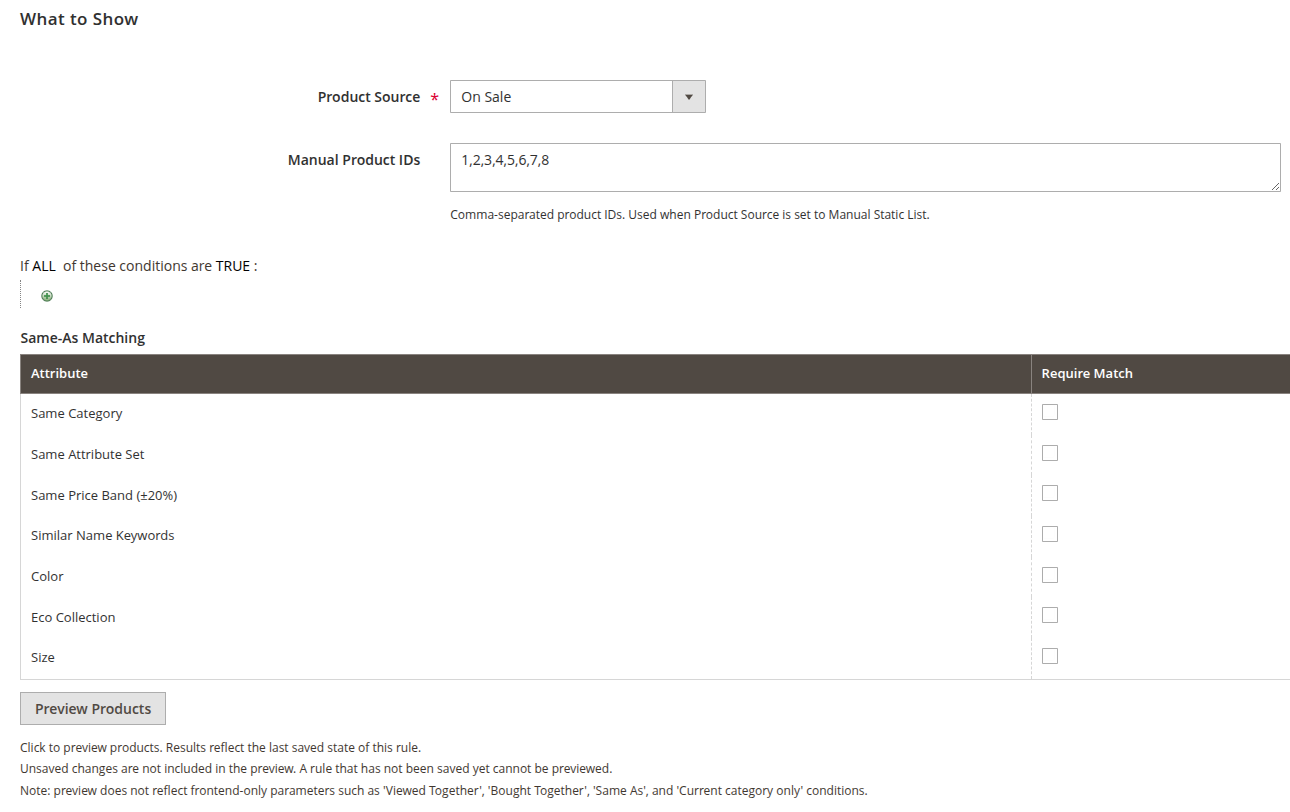
 What to Show:
 - Product Source: Choose the product source.
- Manual Product IDs: Comma-separated product IDs. Used when Product Source is set to Manual Static List.
- Product Conditions: Define specific rules for what products to show.
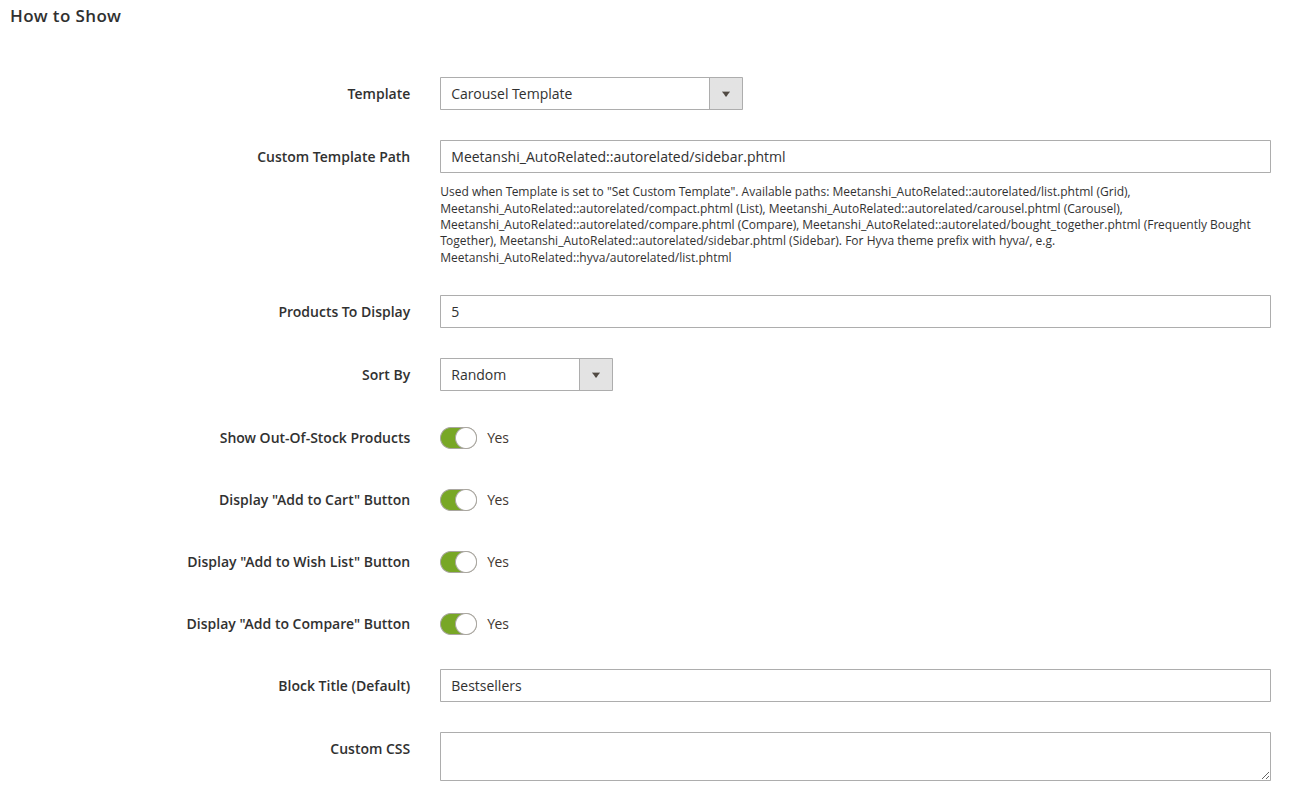
 How to Show:
 - Template: Choose the visual layout template.
- Custom Template Path: Used when Template is set to "Set Custom Template". Available paths:
Meetanshi_AutoRelated::autorelated/list.phtml(Grid),Meetanshi_AutoRelated::autorelated/compact.phtml(List),Meetanshi_AutoRelated::autorelated/carousel.phtml(Carousel),Meetanshi_AutoRelated::autorelated/compare.phtml(Compare),Meetanshi_AutoRelated::autorelated/bought_together.phtml(Frequently Bought Together),Meetanshi_AutoRelated::autorelated/sidebar.phtml(Sidebar). For Hyva theme prefix withhyva/. - Products To Display: Specify the maximum number of products to show in the block.
- Sort By: Choose how the displayed products are ordered.
- Show Out-Of-Stock Products: Choose whether to include out-of-stock items.
- Display "Add to Cart" Button: Toggle the visibility of the "Add to Cart" button.
- Display "Add to Wish List" Button: Toggle the visibility of the "Add to Wish List" button.
- Display "Add to Compare" Button: Toggle the visibility of the "Add to Compare" button.
- Block Title (Default): Enter the title to be displayed above the product block.
- Custom CSS: Add any custom styling for this specific block.
A/B Testing:
- Parent Rule ID: Leave blank for a standalone rule. Enter the ID of the master rule to make this a variant.
- Traffic Weight (%): Relative traffic share for this variant (1–100). Equal weights mean equal traffic split.

Statistics:
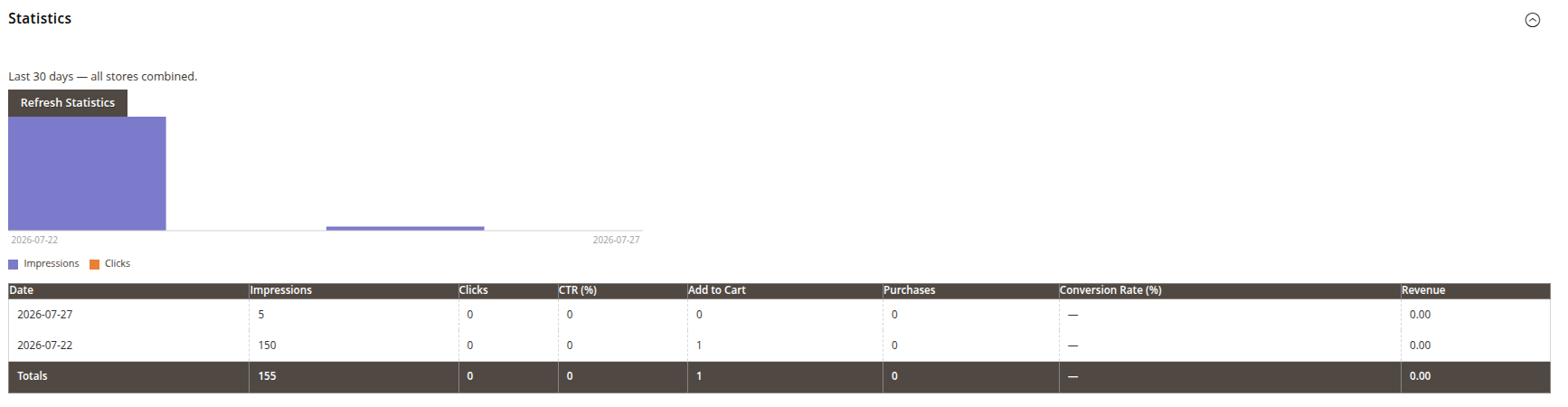
- View a graphical and tabular representation of the rule's performance over the last 30 days (all stores combined). Click Refresh Statistics to update the chart.
- The grid displays daily metrics including Impressions, Clicks, CTR (%), Add to Cart, Purchases, Conversion Rate (%), and Revenue.
Preview:
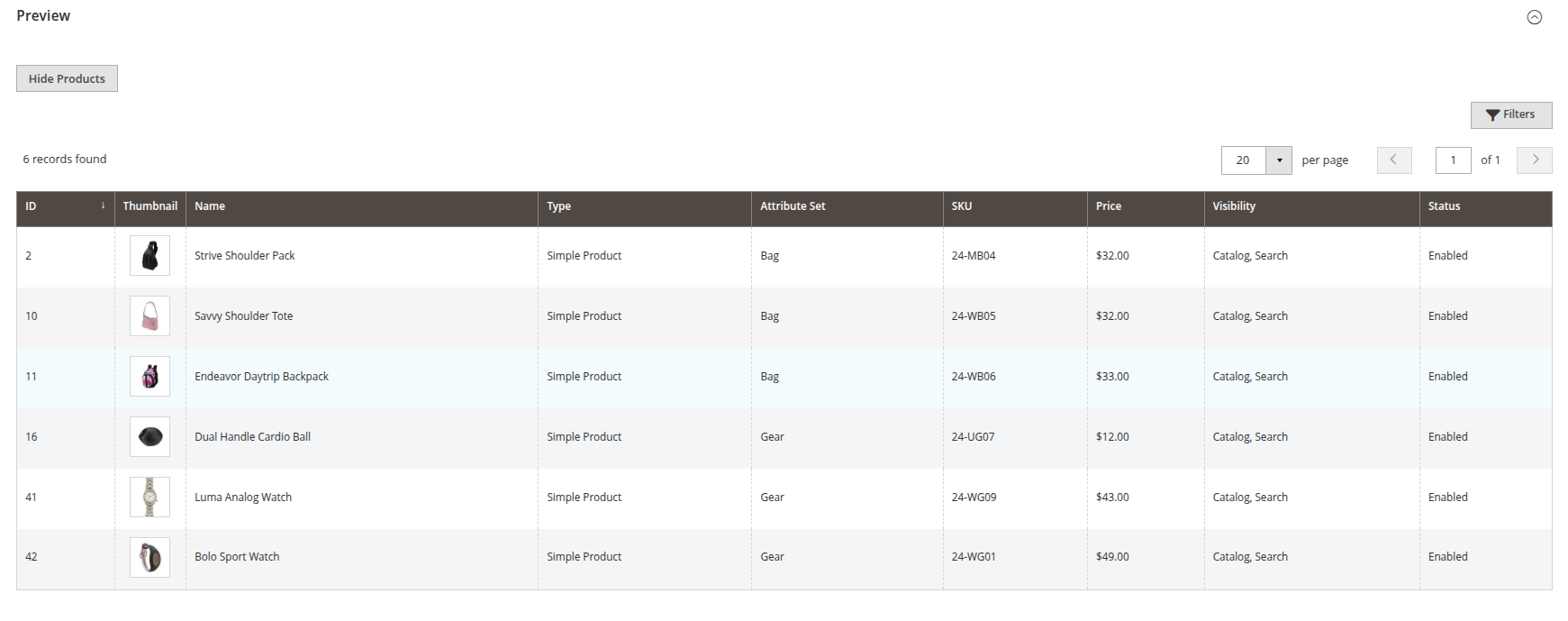
- See a real-time grid of the products that currently match the rule's conditions.
- You can toggle visibility using the Hide Products / Show Products button, and use standard grid filters to verify exactly what items will be displayed by the rule.
Bundle Packs
Navigate to Marketing > Auto Related Products > Bundle Packs to create high-converting product bundles. Click on Add New Pack to configure:
Information:
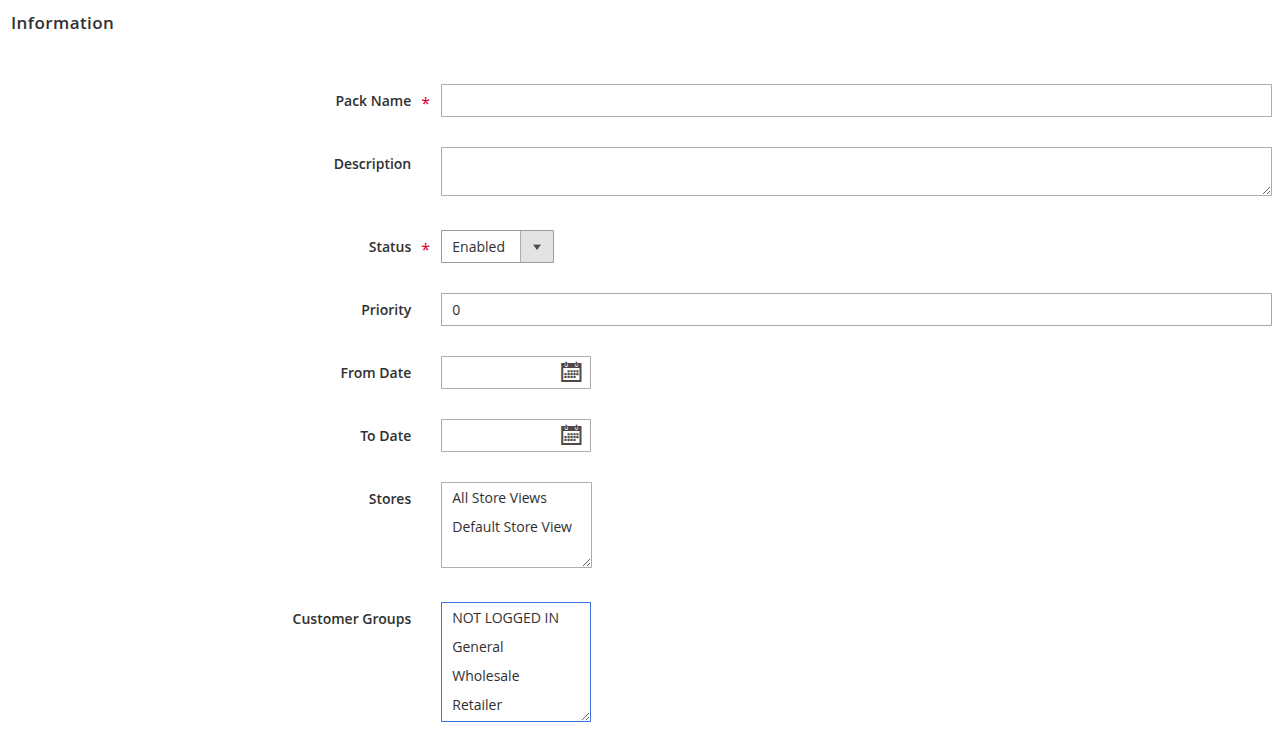
- Pack Name: Name of the bundle pack.
- Description: Add an optional description for the bundle pack.
- Status: Enable or disable the pack.
- Priority: Set the priority of the bundle pack.
- From Date & To Date: Define the start and end dates for the bundle pack.
- Stores: Select the applicable store views.
- Customer Groups: Select the applicable customer groups.
Discount Settings:
- Discount Type: Choose the discount structure (None, Percent, Fixed, or Tiered).
- Discount Value: Percent Off: enter 0–100 (e.g. 15 = 15% off the bundle total). Fixed Amount Off: enter the dollar amount to deduct (e.g. 30 = $30 off).

Bundle Pack Products:
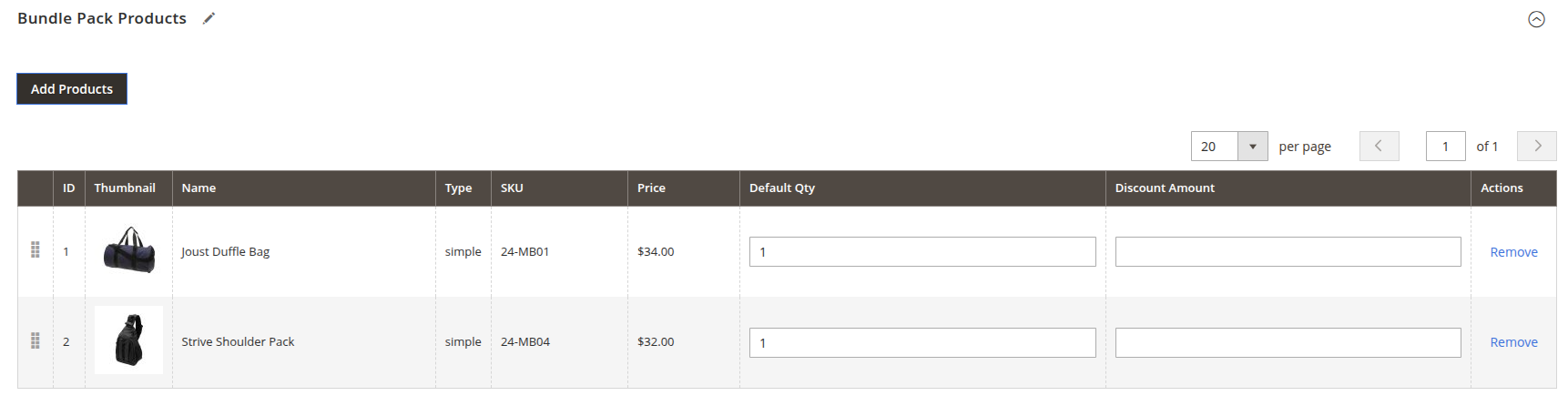
- Click Add Products to select the related products that will make up the bundle. For each selected product, you can configure the Default Qty and individual Discount Amount (if using a Tiered discount type).
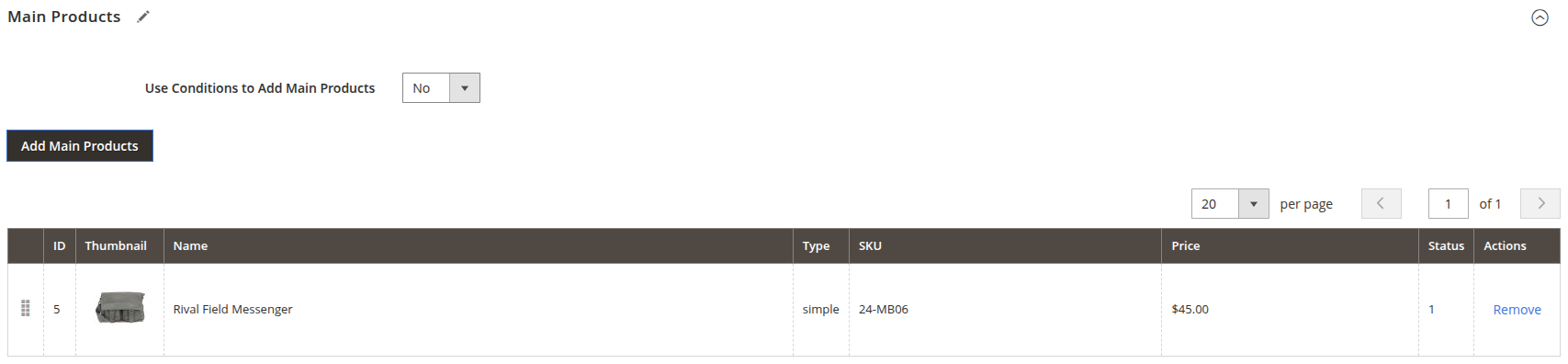
Main Products:
- Use Conditions to Add Main Products: Toggle between selecting main products manually or defining dynamic conditions to assign main products to the bundle automatically. Click Add Main Products if conditions are not used.
Performance Statistics
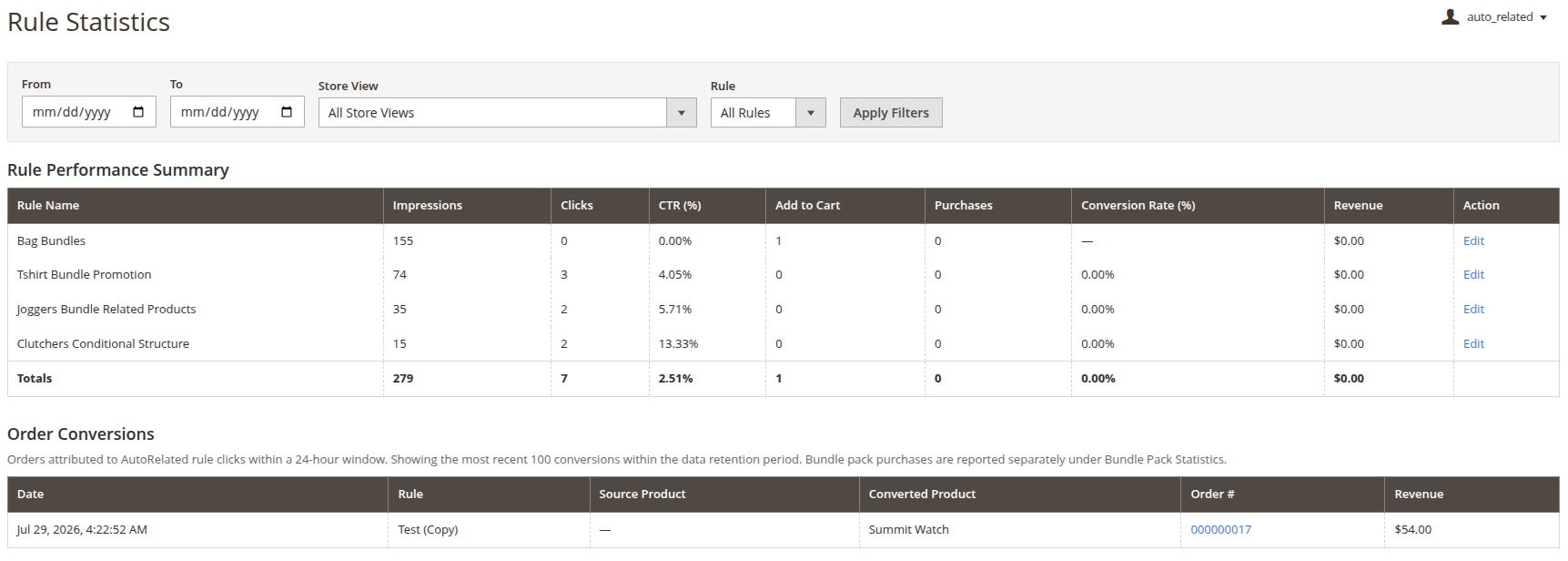
Track how your related products and bundles perform to optimise your strategy. The statistics grids display read-only metrics without any extra configurations:
- Rule Statistics: Navigate to Marketing > Auto Related Products > Rule Statistics to view impressions, clicks, CTR, and conversions for your dynamic rules.
- Bundle Pack Statistics: Navigate to Marketing > Auto Related Products > Bundle Pack Statistics to see how often specific bundle packs are viewed, added to the cart, and purchased.
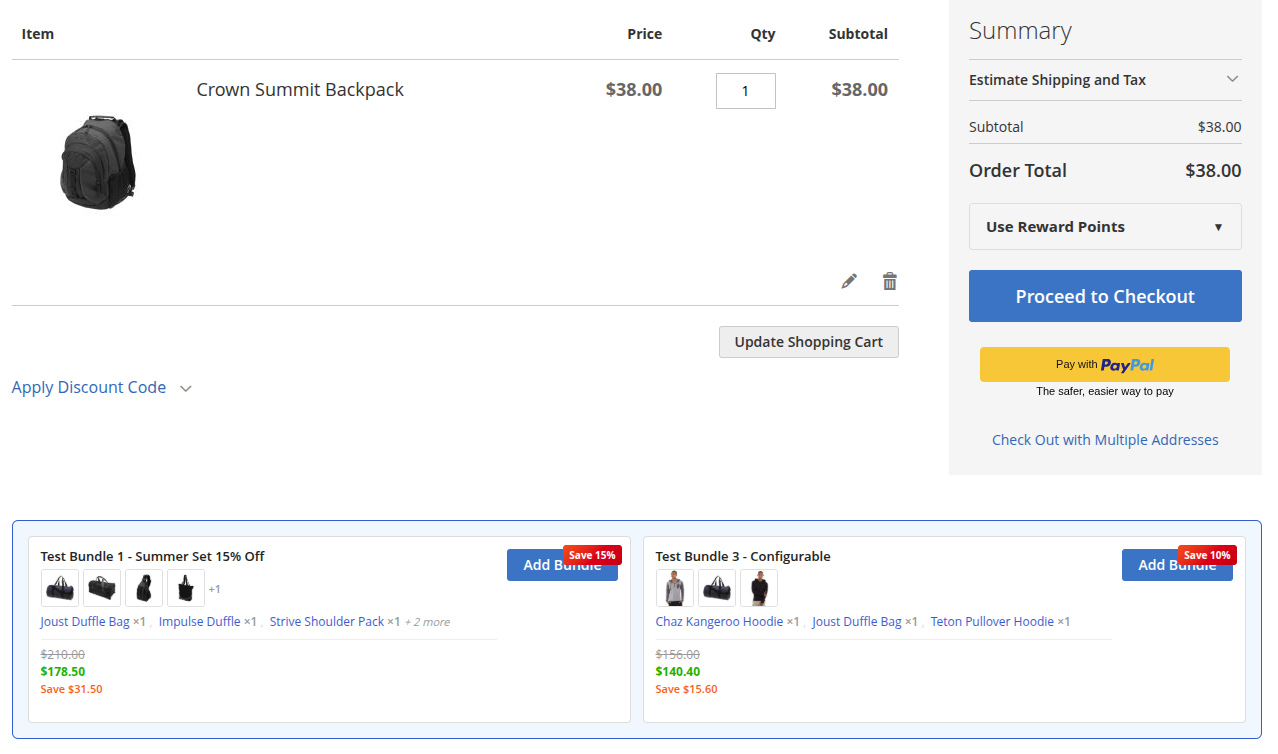
Bundle Packs on Shopping Cart Page
When configured, the extension displays attractive, conversion-optimized Bundle Pack suggestions directly on the shopping cart page. This encourages customers to increase their order value right before checkout.
Bundle Pack on Checkout Success Page
After a successful purchase, the extension displays the details of the purchased bundle pack directly on the "Thank you for your purchase!" page.