Sequel Logistics for Magento 2 - User Guide
Extension Installation
For Magento Marketplace Customers
- Create a folder structure in Magento root as app/code/Meetanshi/ CustomCarrierNumber
- Download and extract the zip folder and upload our extension files to the app/code/Meetanshi/ CustomCarrierNumber via FTP.
- Login to your SSH and run below commands step by step:
php bin/magento setup:upgrade
- For Magento version 2.0.x to 2.1.x - php bin/magento setup:static-content:deploy
- For Magento version 2.2.x & above - php bin/magento setup:static-content:deploy --f
php bin/magento cache:flush
For Meetanshi Customers
- Extract the zip folder and upload our extension to the root of your Magento 2 directory via FTP.
- Login to your SSH and run below commands step by step:
php bin/magento setup:upgrade
- For Magento version 2.0.x to 2.1.x - php bin/magento setup:static-content:deploy
- For Magento version 2.2.x & above - php bin/magento setup:static-content:deploy --f
php bin/magento cache:flush
Configuration
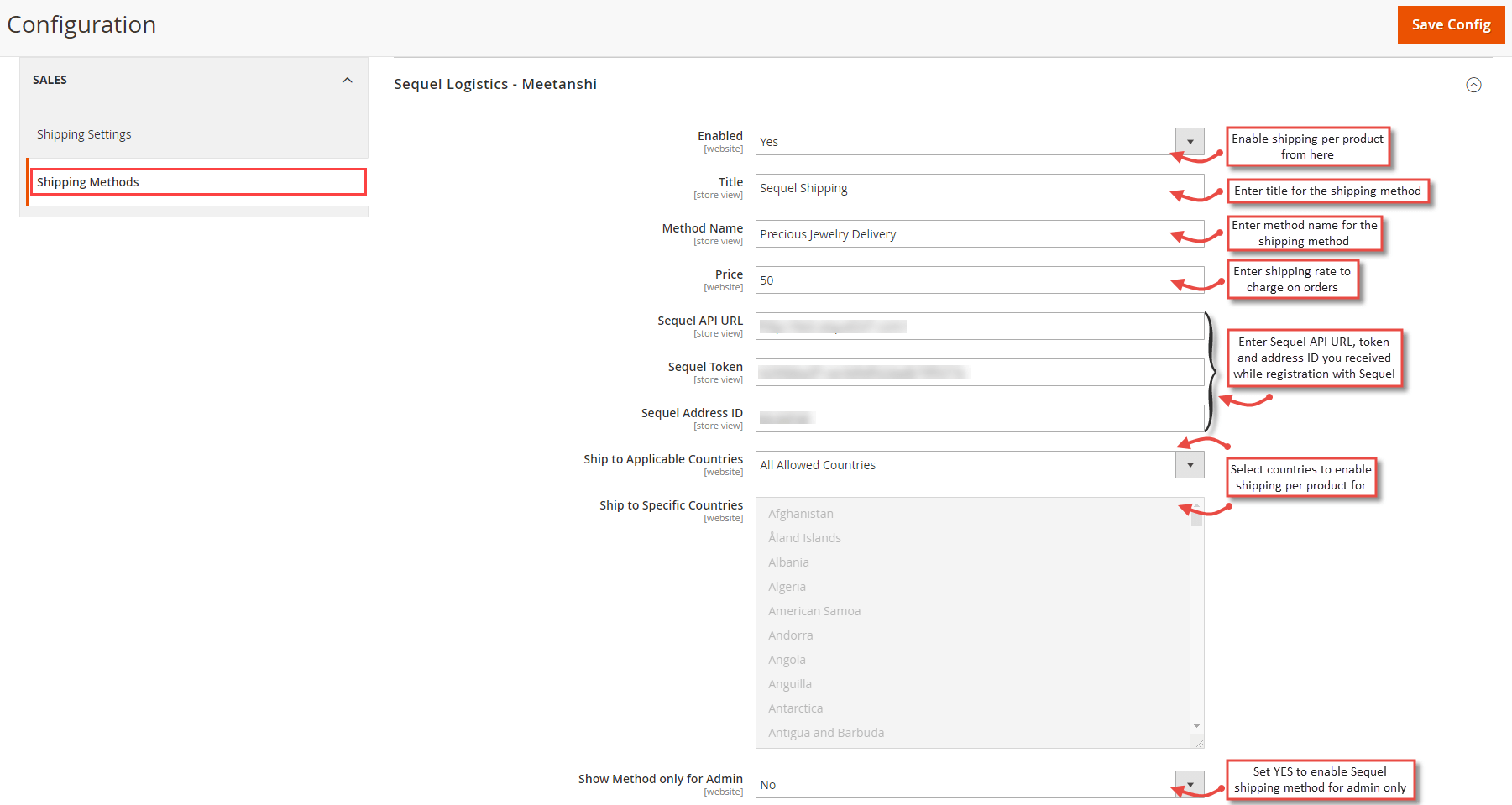
For configuring the Sequel Logistics for Magento 2 extension, login to Magento 2, move to Sales > Shipping Methods > Sequel Logistics where you can find various settings to enable the extension.
Enabled: Set "YES" to enable Sequel Logistics shipping method extension.
Title: Enter the title for the shipping method.
Method Name: Enter the method name for the Sequel Logistics.
Price: Enter shipping rate amount to charge on orders.
Ship to applicable countries: Select all allowed countries to enable Sequel Logistics for all the countries.
Ship to specific countries: Select specific countries to enable Sequel Logistics.
Show method only for admin: Set "Yes" to enable Sequel Logistics method for the admin only.
Sequel Logistics in Frontend
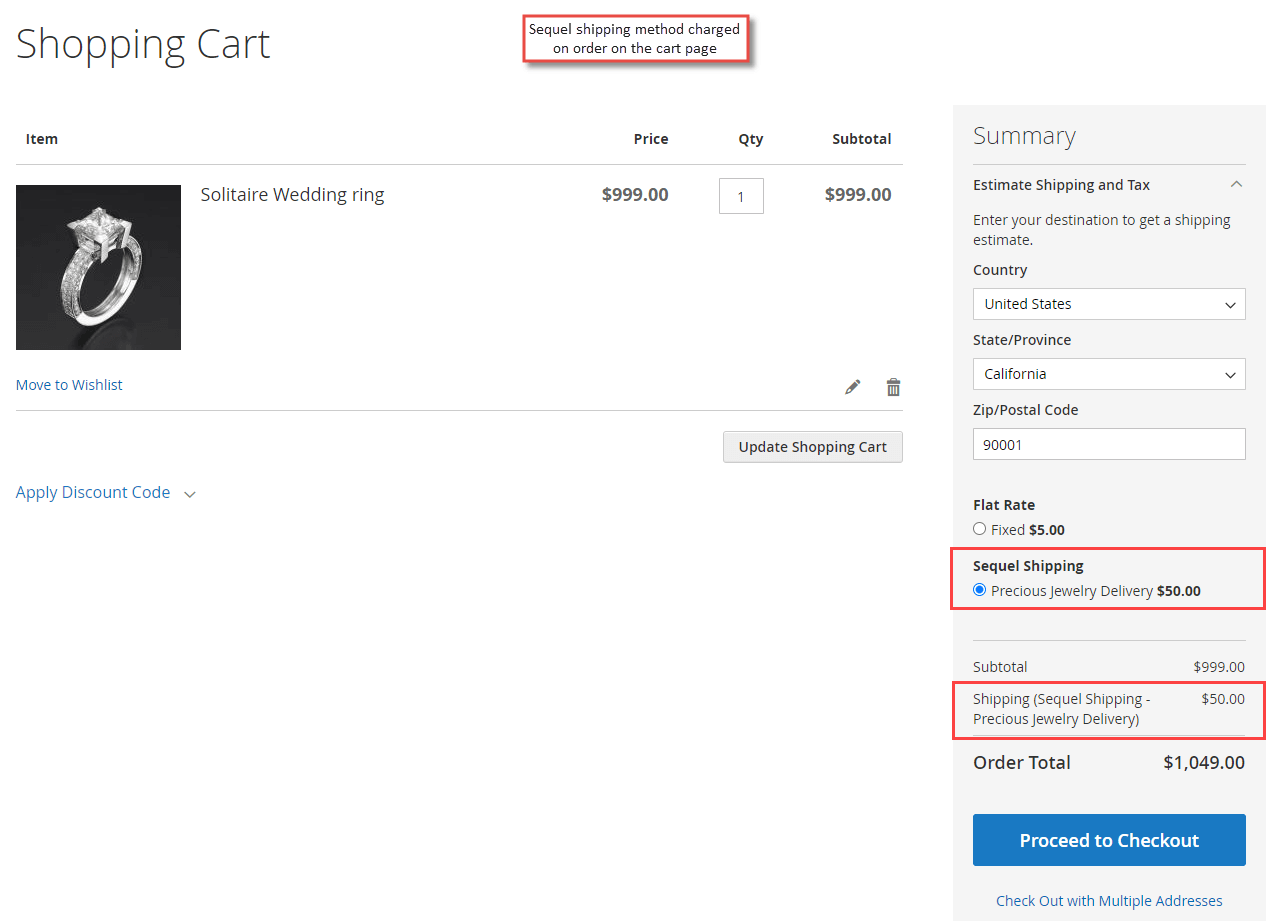
Once you have set shipping cost and configured the extension, you can see Sequel Logistics extension enabled in the frontend. After adding products to the cart, Sequel Logistics method is calculated and charged when selected.
- Sequel Logistics on Cart Page Sequel Logistics shipping method applied on order at cart page.
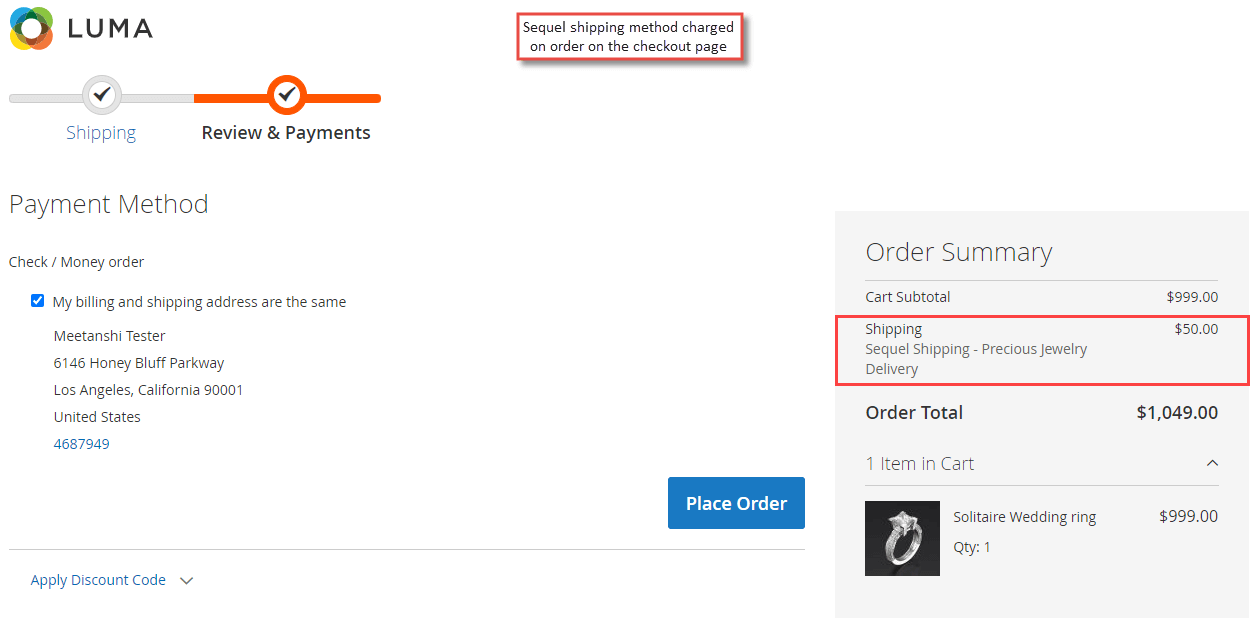
- Sequel Logistics on Checkout Page Sequel Logistics shipping method applied on order at checkout page.
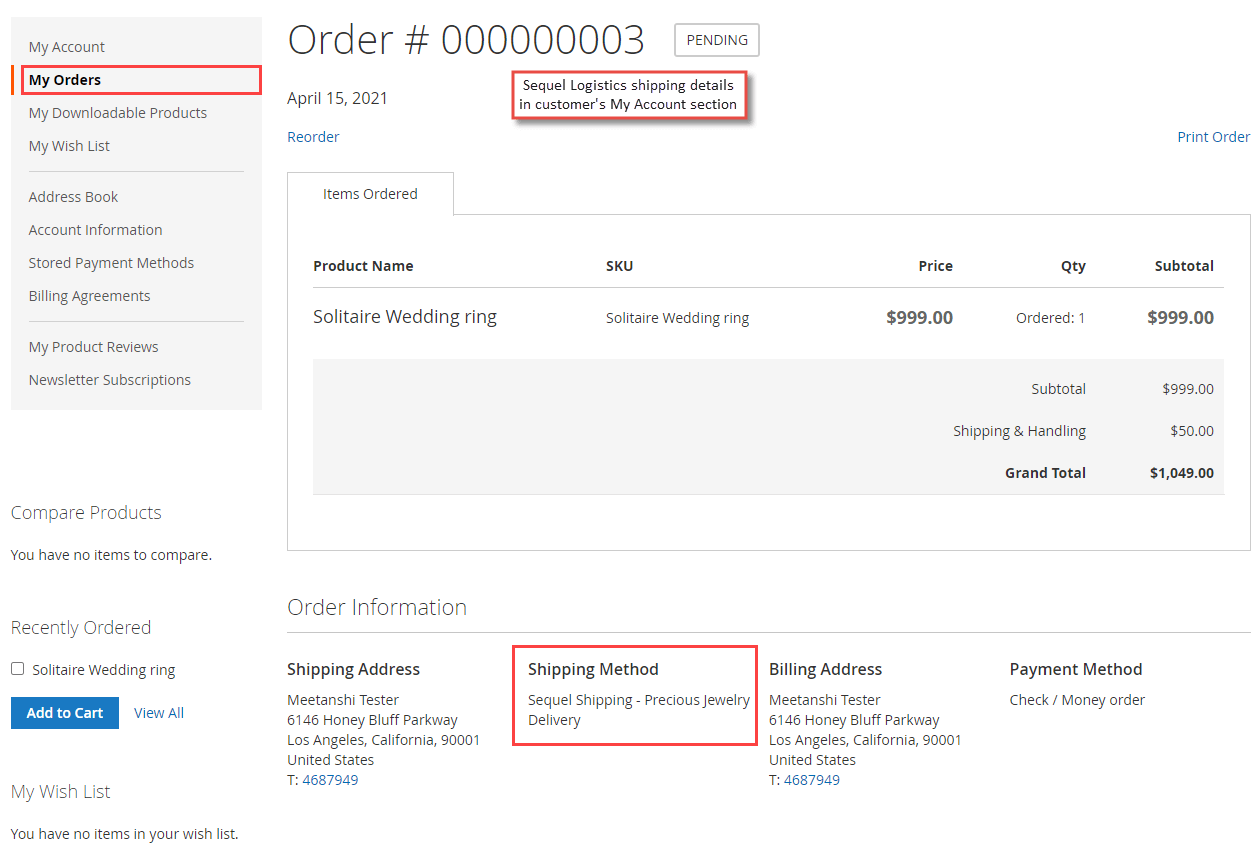
- Sequel Logistics in "My Account" Section
Once the order is placed using Sequel Logistics shipping method, under "My Orders" tab, shipping details is seen with the name of the shipping method.
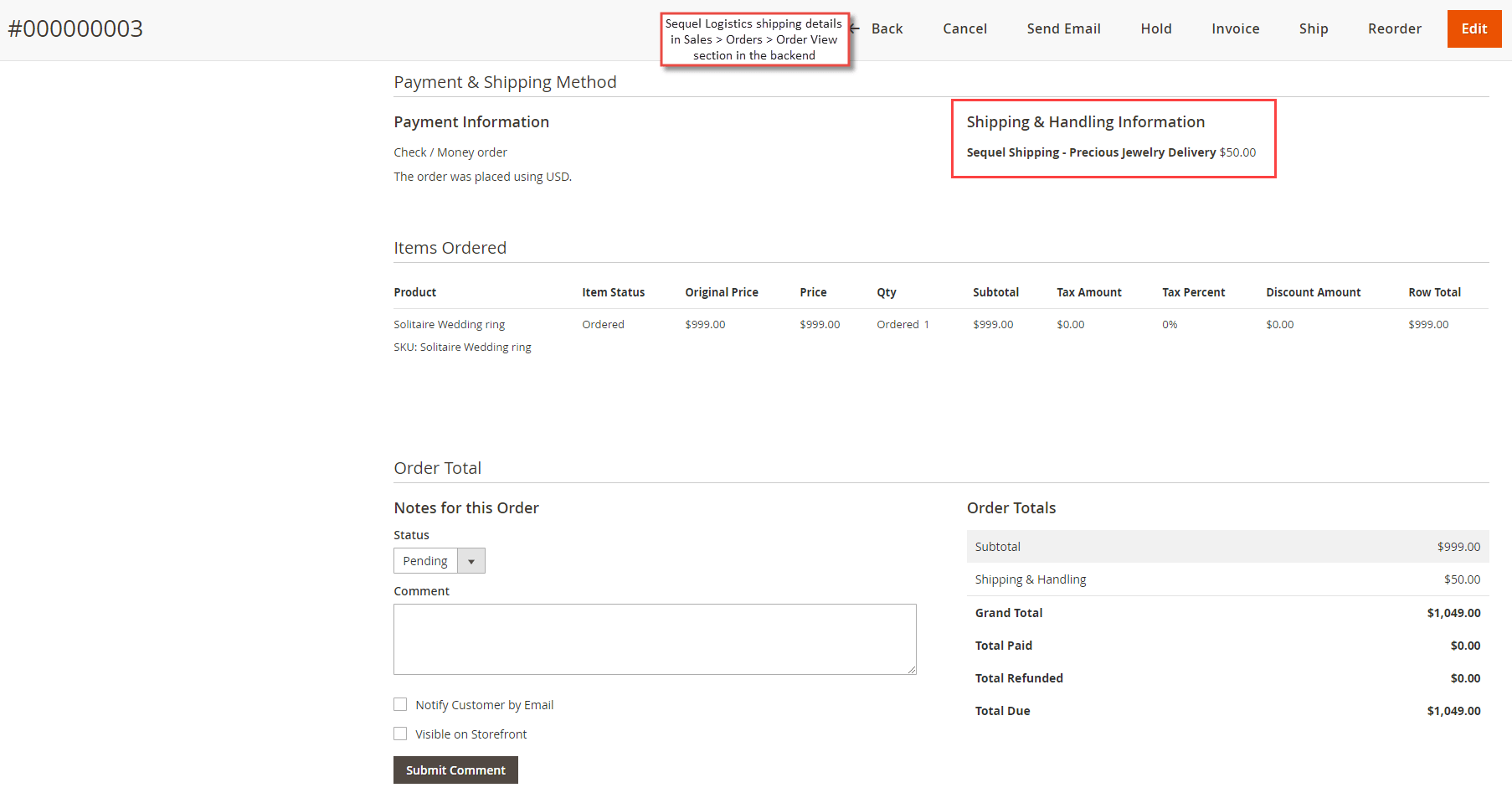
Sequel Logistics Details in Backend
Apart from the frontend, the Sequel Logistics method details can also be seen from the backend under Sales> Orders > Order View.
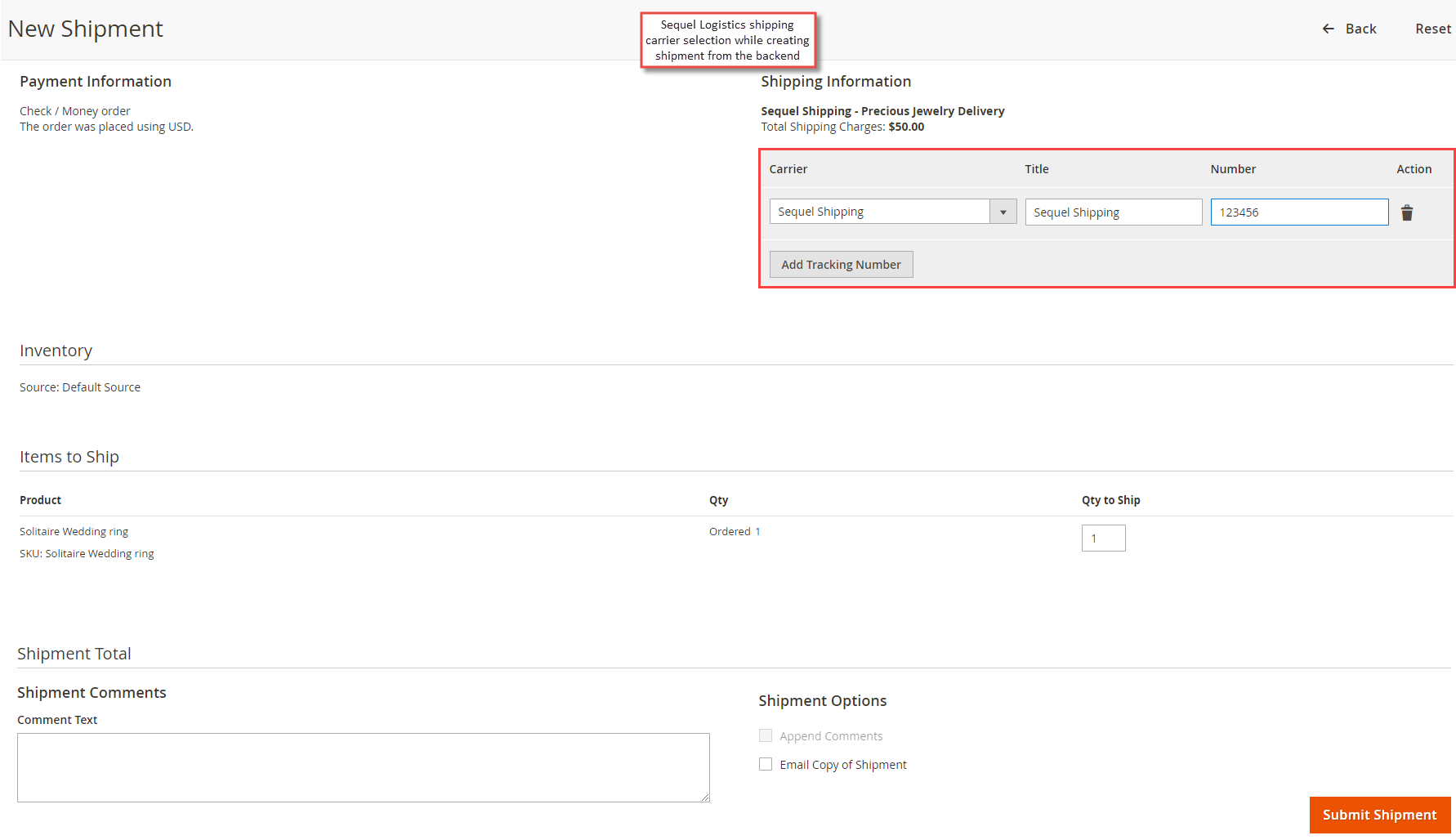
- Sequel Logistics While Creating Shipment
When the admin creates a shipment from the backend, he selects "Sequel Logistics" shipping carrier, enters the title, adds a random tracking number and submits the shipment.
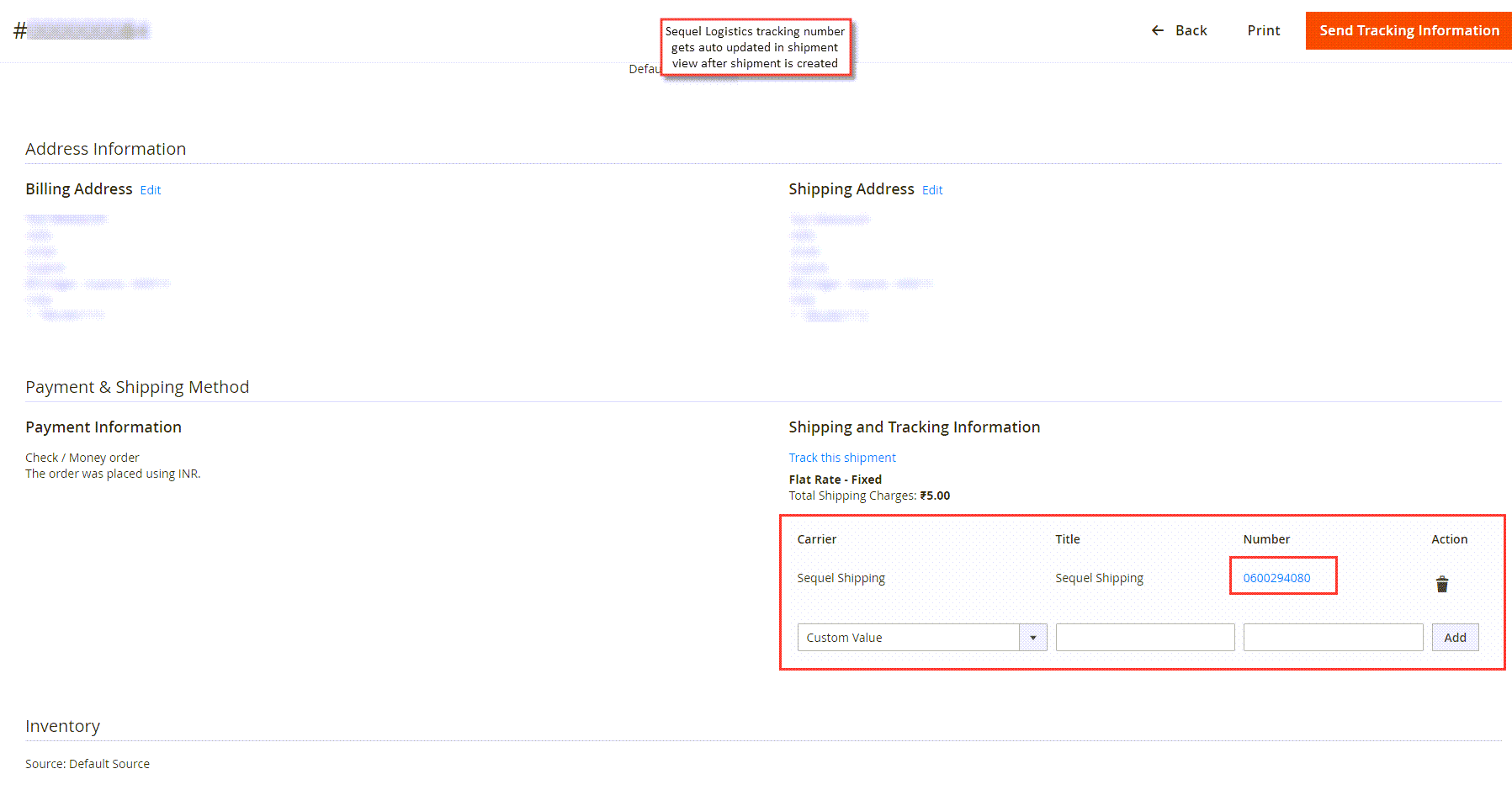
- Sequel Logistics Tracking Number Auto Updated
Immediately after the shipment is submitted, the Sequel Logistics tracking number gets auto updated. The admin can see auto updated tracking number from the Sales > Orders > Shipment > Shipment View .
Sequel Logistics Details in Shipment Email
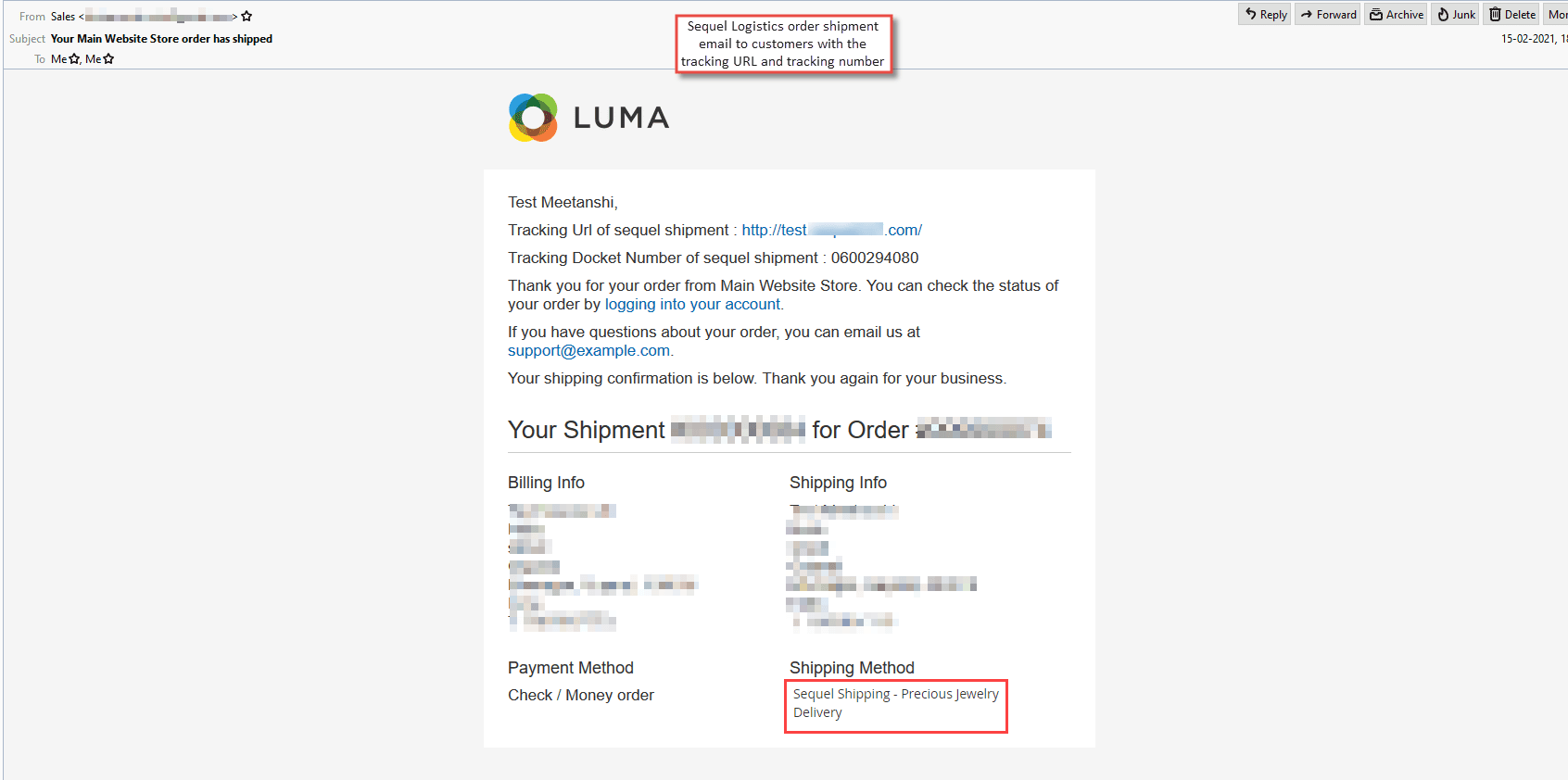
After the shipment is submitted and tracking number gets auto updated in the shipment, the customer gets the shipment email along with the details like Sequel tracking URL and docket/tracking number.