Prerequisites for Werra Theme
Before installing, ensure your system meets the following requirements:
- Node Version: v18.20.8
- NPM Version: v10.8.2
If you don’t have Hyvä installed, run these commands:
composer config --auth http-basic.hyva-themes.repo.packagist.com token {{Your token}}
composer config repositories.private-packagist composer https://hyva-themes.repo.packagist.com/{{your repo name here}}/
composer require hyva-themes/magento2-default-theme
Recommended Magento Configuration
Click to view Magento Config Commands
php bin/magento config:set customer/captcha/enable 0
php bin/magento config:set dev/template/minify_html 0
php bin/magento config:set dev/js/merge_files 0
php bin/magento config:set dev/js/enable_js_bundling 0
php bin/magento config:set dev/js/minify_files 0
php bin/magento config:set dev/js/move_script_to_bottom 0
php bin/magento config:set dev/css/merge_css_files 0
php bin/magento config:set dev/css/minify_files 0
You’ll also need Luma Checkout & Tailwind JIT to use the Werra theme:
composer require hyva-themes/magento2-luma-checkout
composer require hyva-themes/magento2-cms-tailwind-jit
1. Download & Extract Werra Package
Once the Werra Theme is purchased, extract the Werra theme ZIP into your Magento root directory.
Build Tailwind CSS:
npm --prefix app/design/frontend/Meetanshi/hyva_werra/web/tailwind/ install
npm --prefix app/design/frontend/Meetanshi/hyva_werra/web/tailwind/ audit-fix
npm --prefix app/design/frontend/Meetanshi/hyva_werra/web/tailwind/ run build
Run Magento commands:
php bin/magento se:up
php bin/magento s:s:d -f
php bin/magento s:d:c
php bin/magento c:c
php bin/magento c:f
2. Import Blocks & Pages
- Go to Meetanshi > Werra Theme Settings
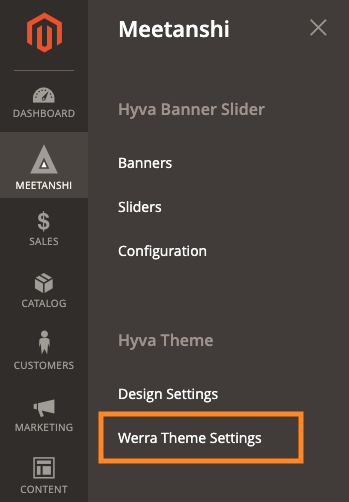
- Set Override Settings to Yes
- Click Import CMS Blocks → Import CMS Pages
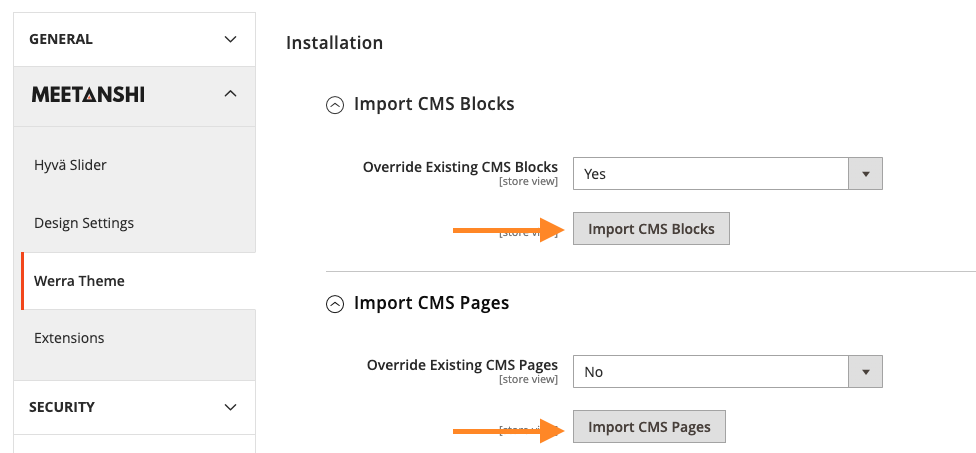
This automatically creates required CMS blocks and pages.
3. Customize Theme Design & Colors
Customize your brand design from the admin panel.
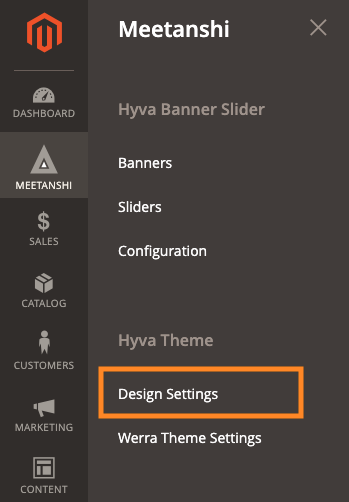
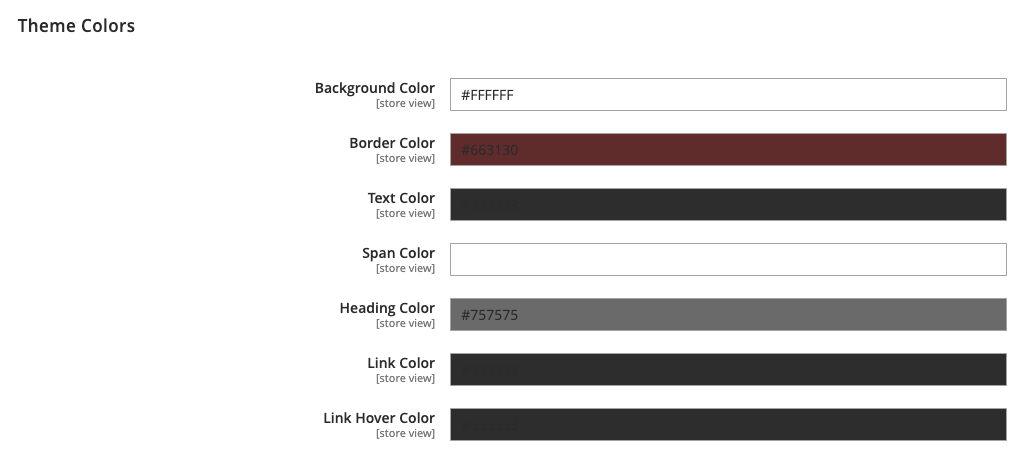
3.1 Theme Colors
Configure background, border, text, headings, links, and hover colors.
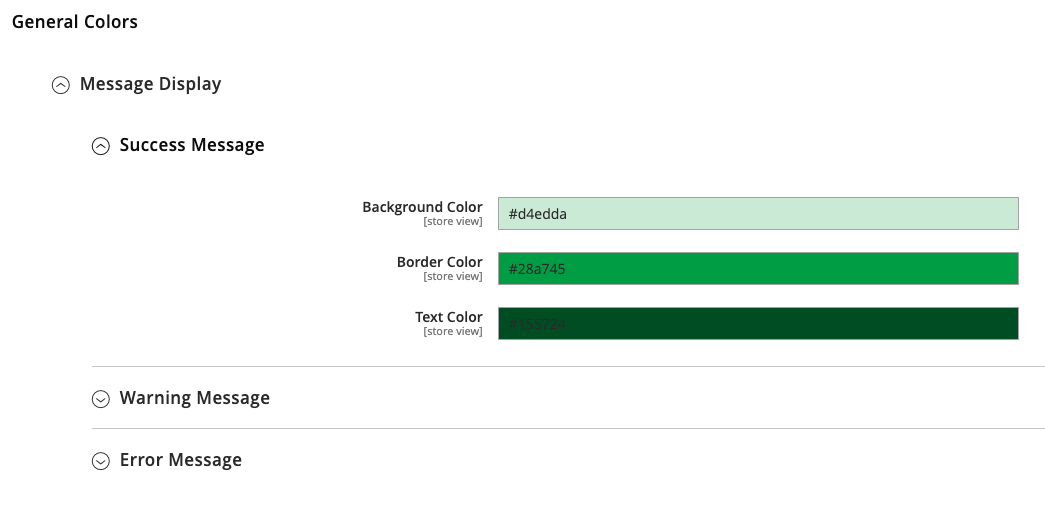
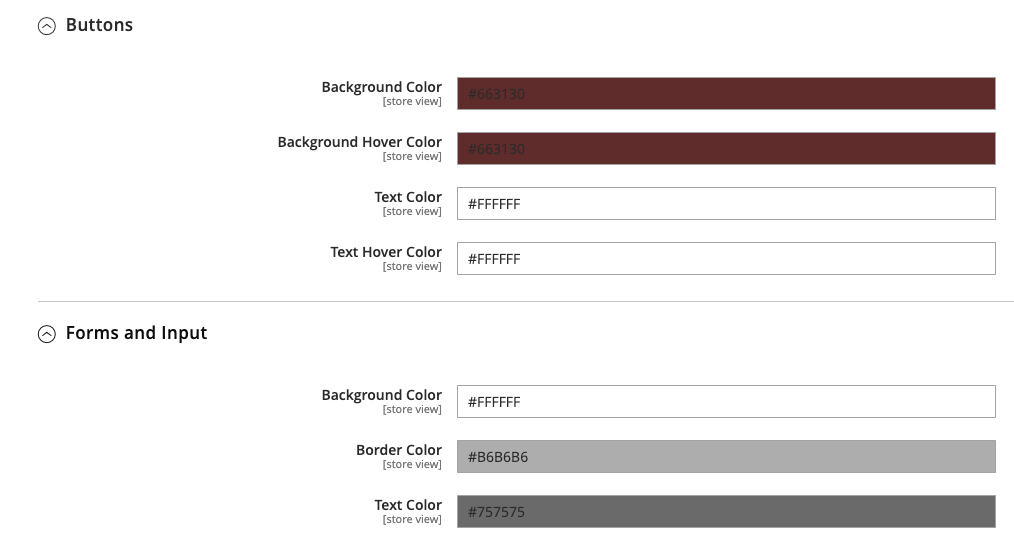
3.2 General Colors
Set colors for success, warning, error messages, buttons, and forms.
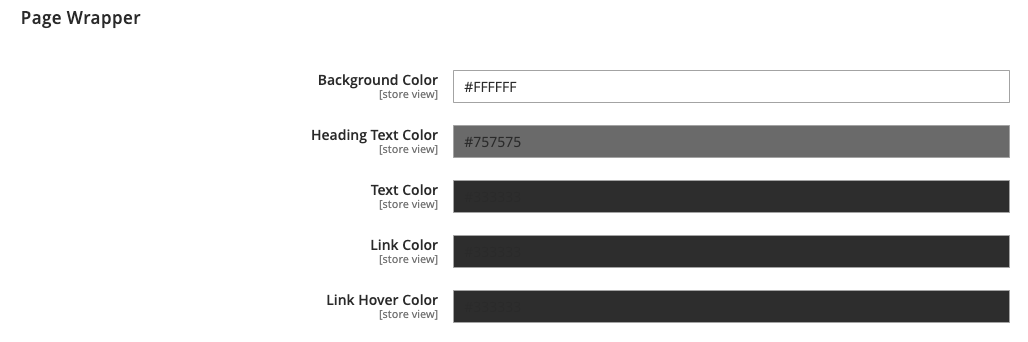
3.3 Page Wrapper
Configure page background, text, headings, and links.
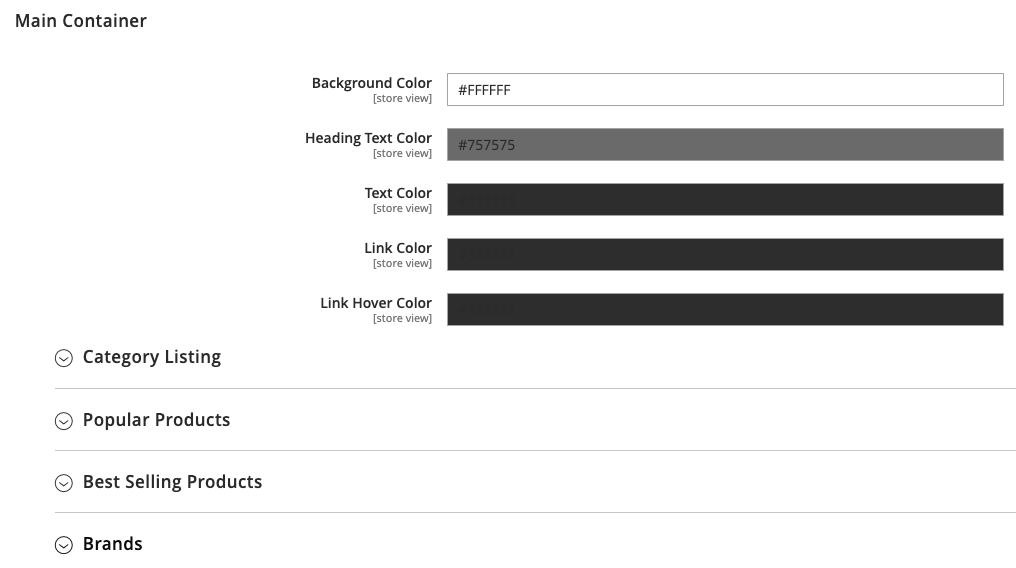
3.4 Main Container
Customize main sections like categories, popular products, best sellers, and brands.
3.5 Header
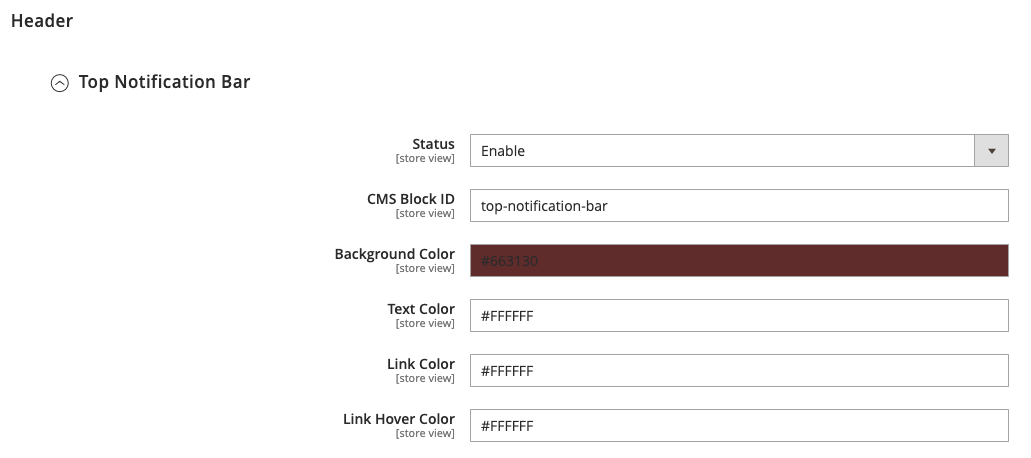
Enable the top notification bar and configure colors.
- CMS Block ID
- Background, text, link, hover colors
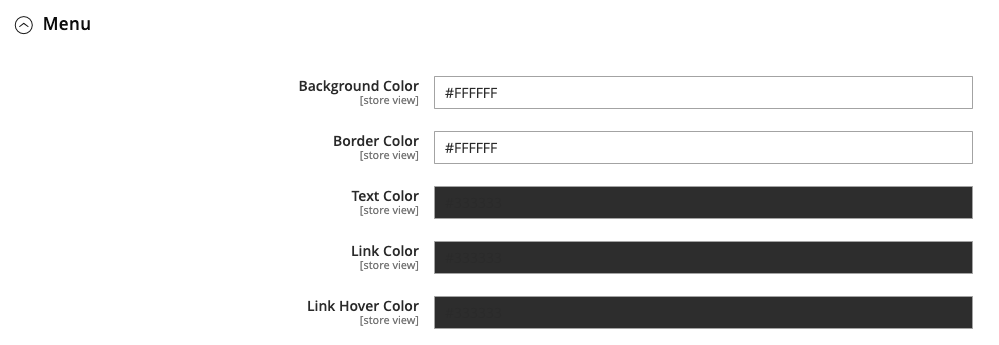
Menu bar customization:
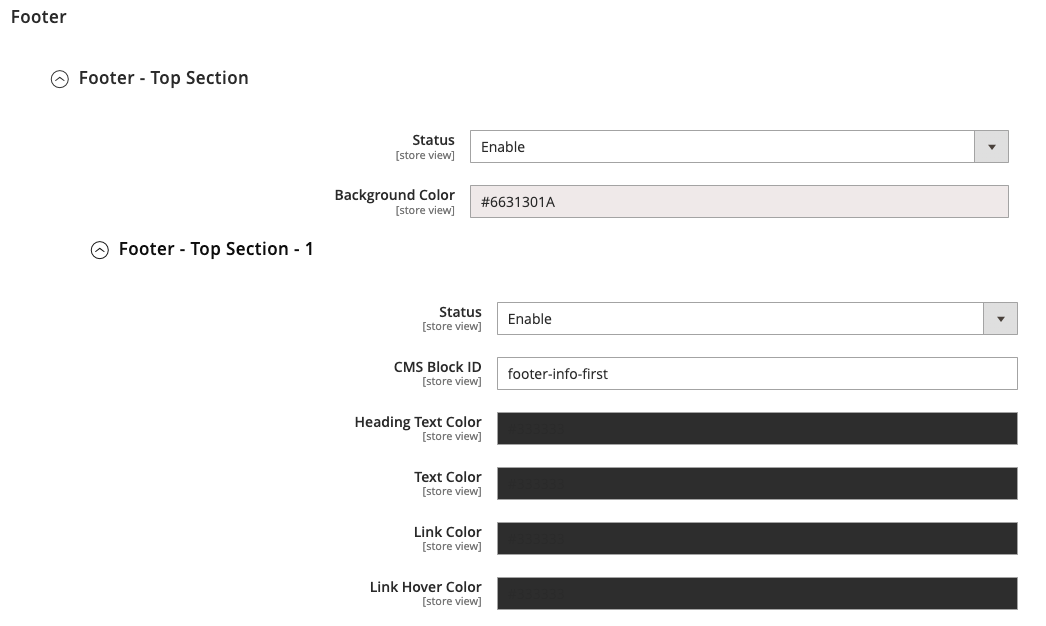
3.6 Footer
Configure top & bottom footer sections with CMS blocks and colors.
4. Configure Hyvä Homepage Banners & Sliders
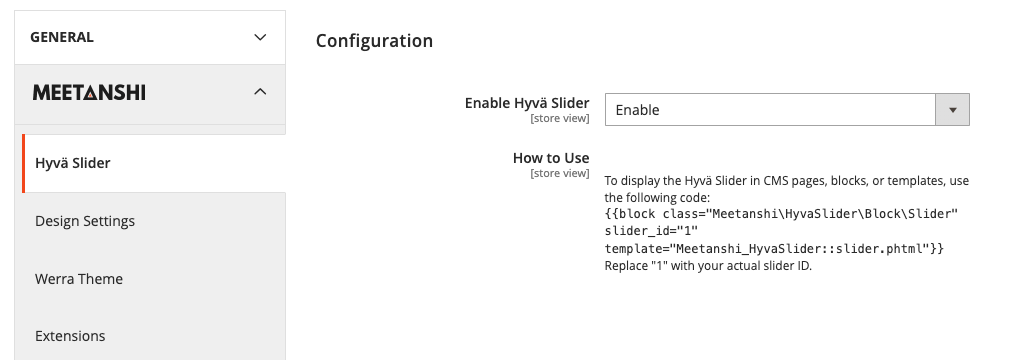
Navigate to Meetanshi > Configuration
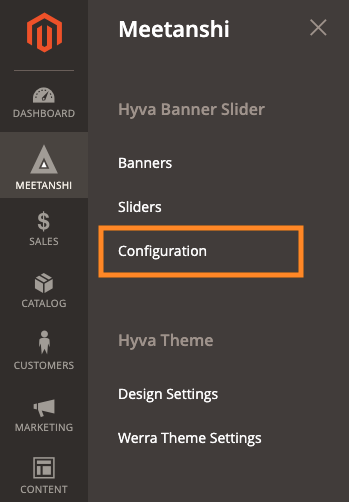
Enable Hyvä Slider and use it in CMS blocks/pages:
{{block class="Meetanshi\HyvaSlider\Block\Slider" slider_id="1" template="Meetanshi_HyvaSlider::slider.phtml"}}
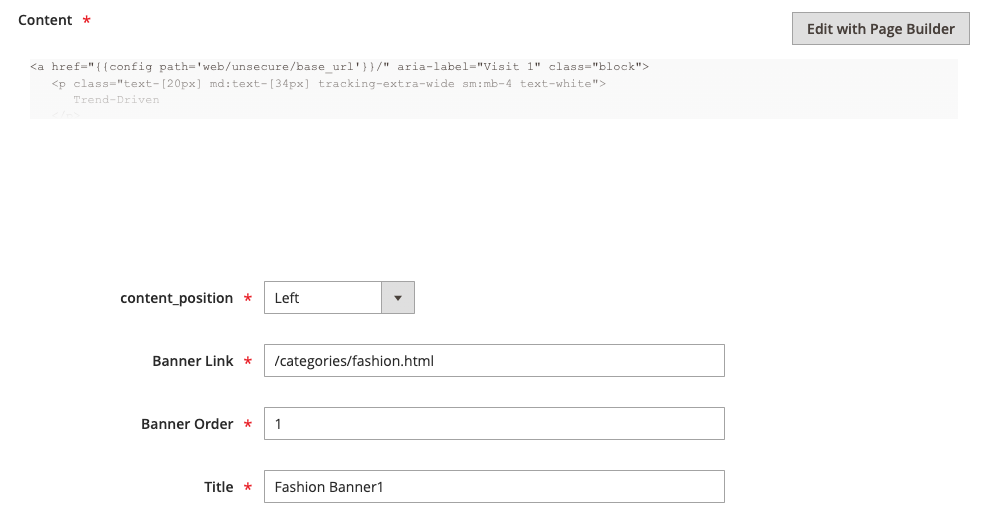
4.1 Create a Banner
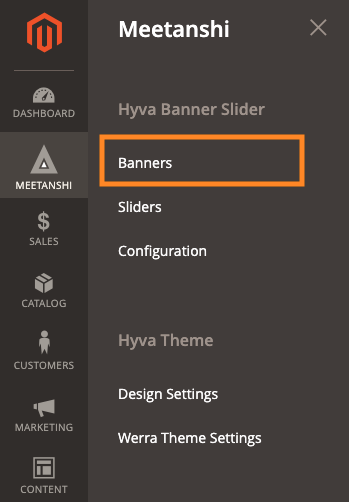
- Go to Meetanshi > Banners
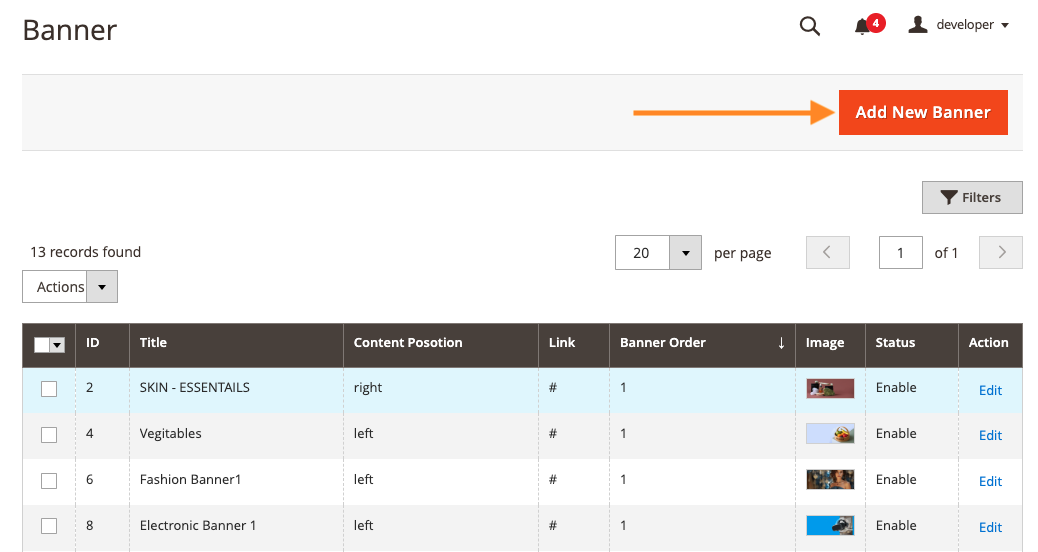
- Click Add New Banner
- Upload Desktop & Mobile images
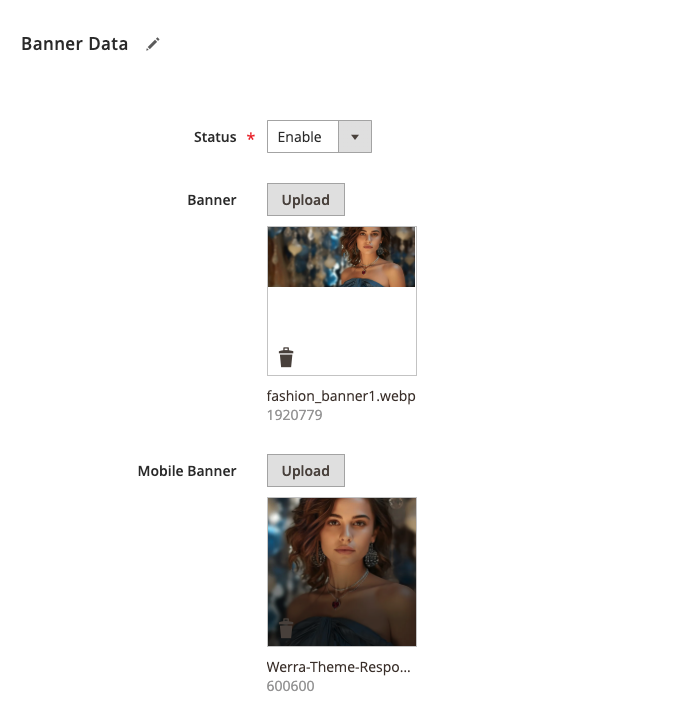
- Set position, link, order, and title
4.2 Create a Slider
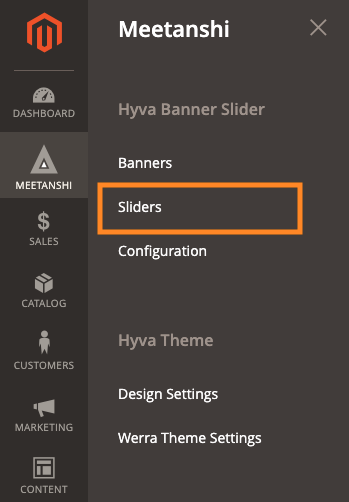
- Go to Meetanshi > Sliders
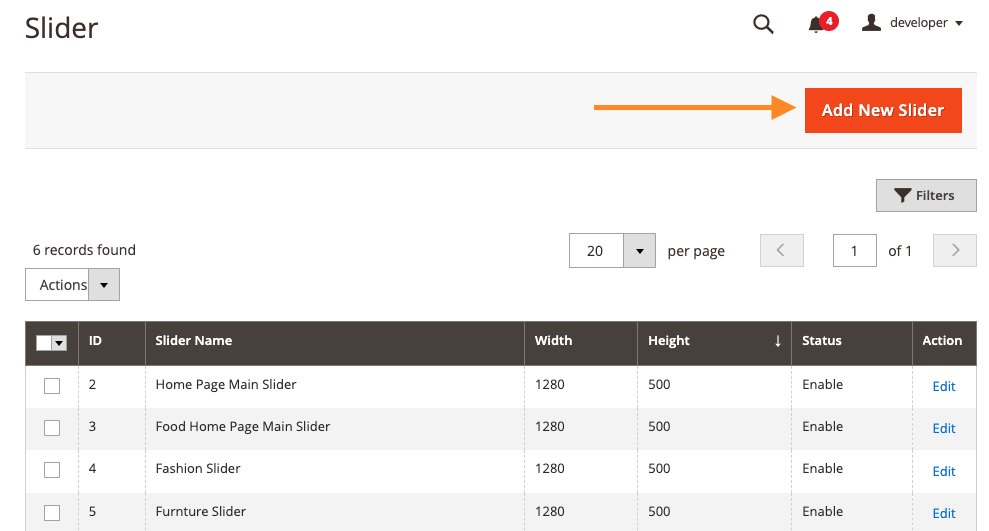
- Click Add New Slider
- Configure slider settings
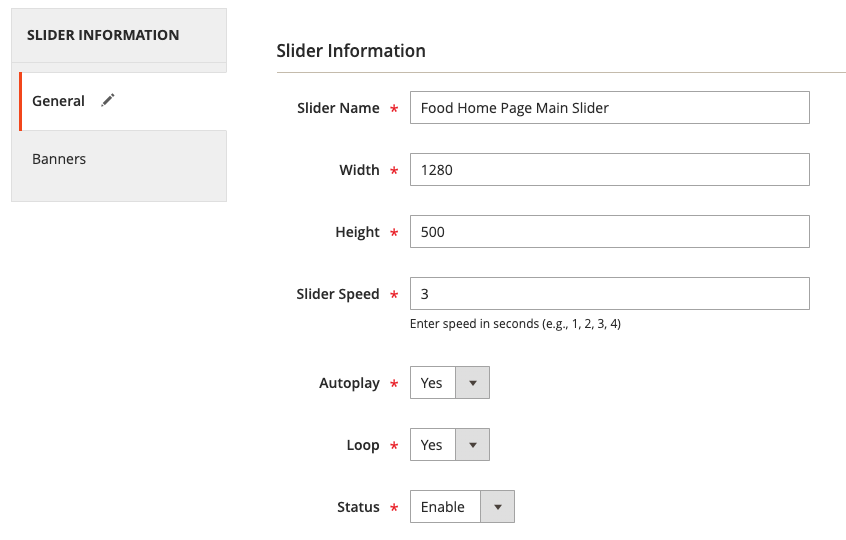
- Select banners and save
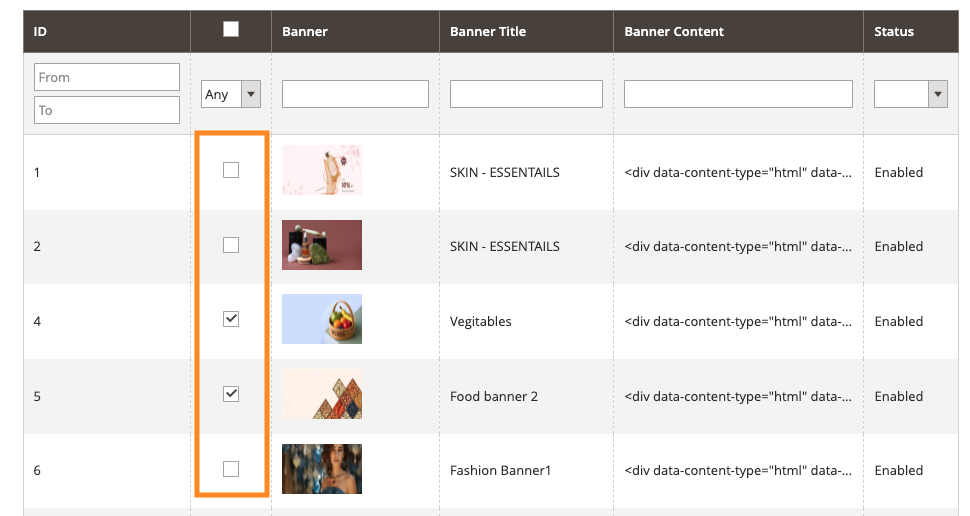
Example: Use Slider on Homepage
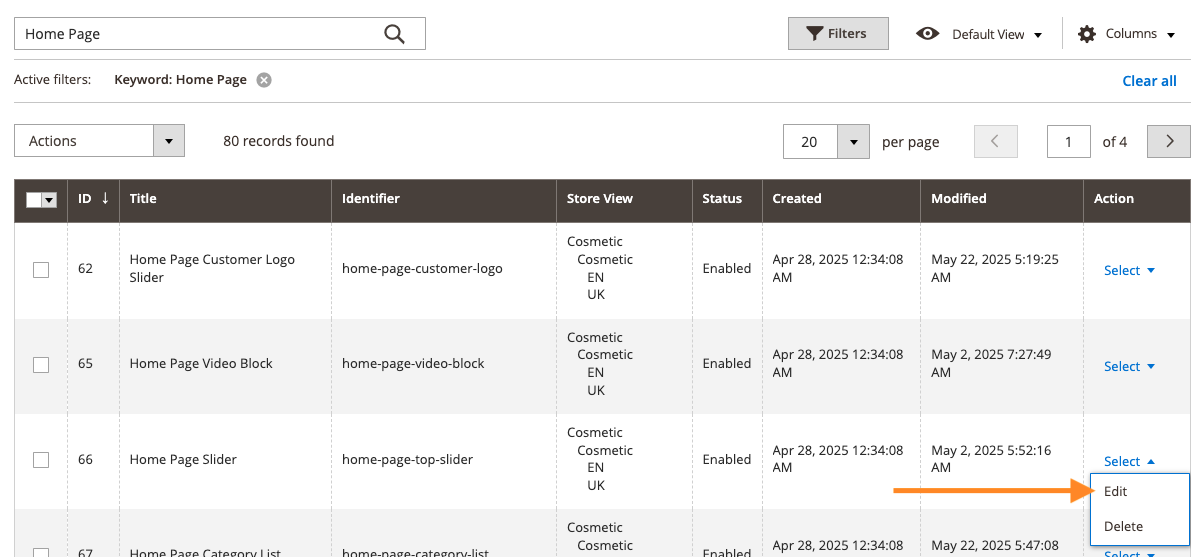
- Go to Content > Blocks
- Edit Home Page Slider
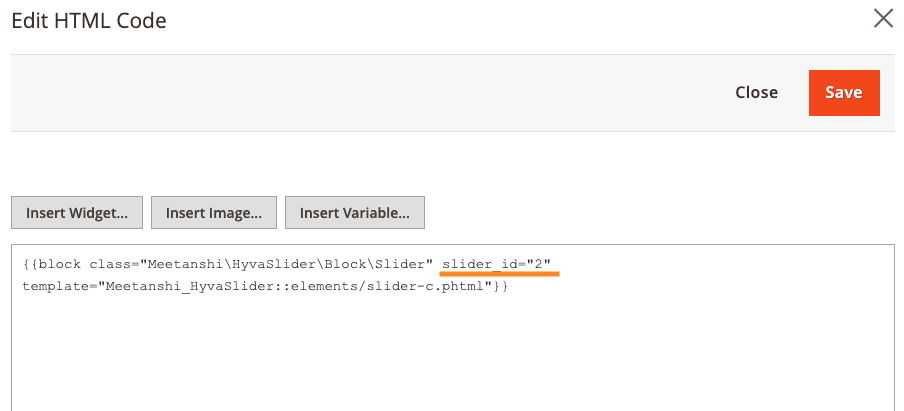
- Update the
slider_id
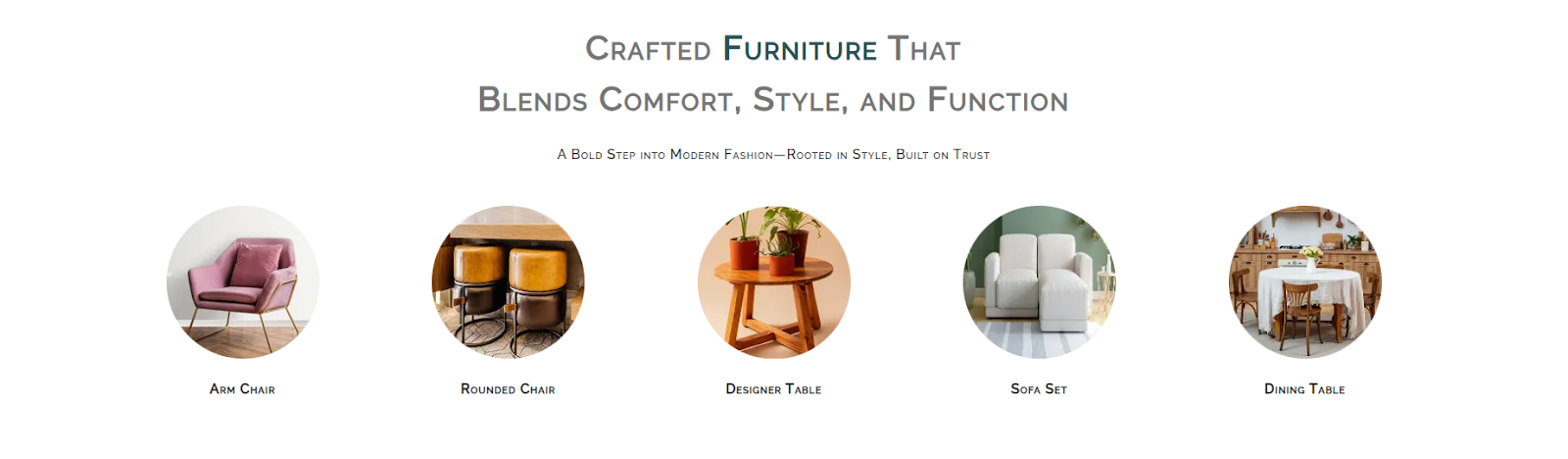
5. Configure Homepage Category Section
Edit the default homepage category block.
Go to Content > Blocks
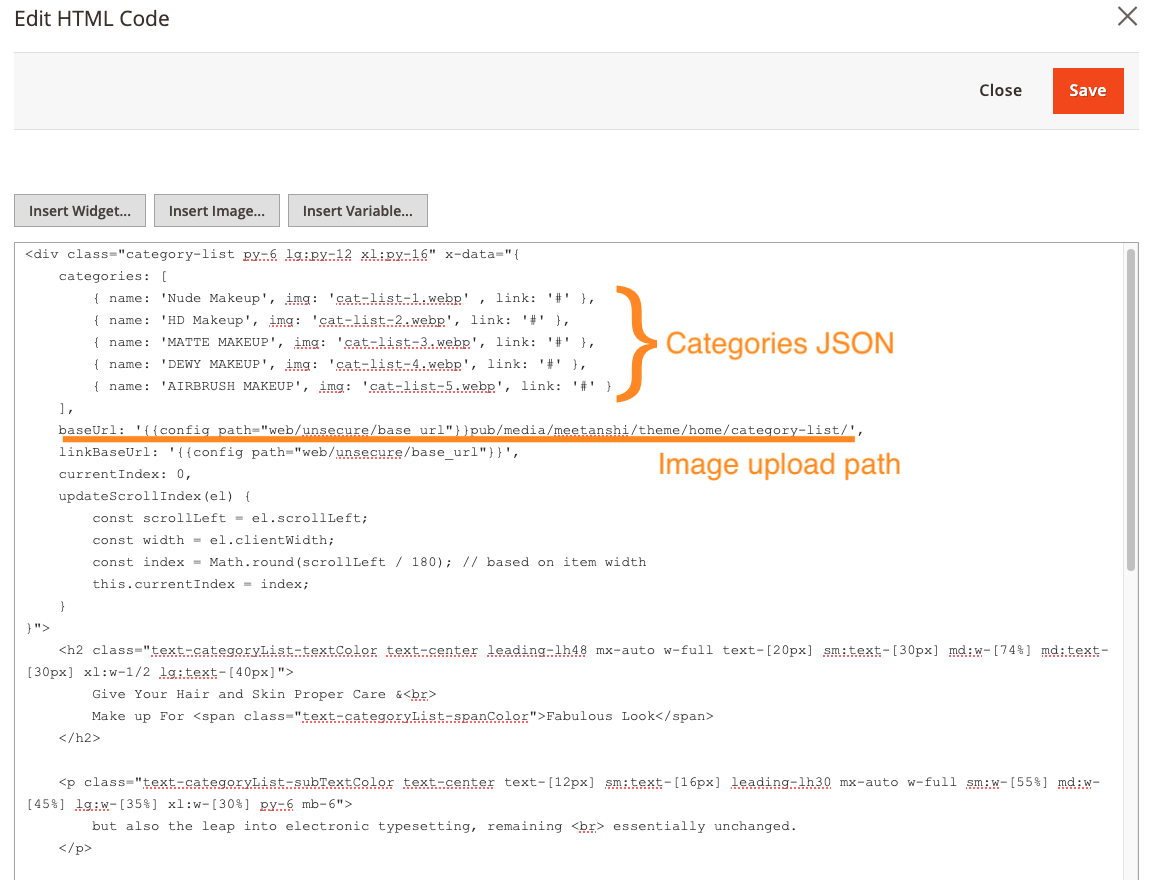
Edit Home Page Category List
Update the JSON:
- Category names, image URLs, links
- Base image URL path
Click Save to apply changes.