Email Quote for Magento 2 - User Guide
Extension Installation
For Magento Marketplace Customers
- Find the Composer name and version of the extension in the extension's composer.json file.
- Login to your SSH and run:
composer require meetanshi/magento2-email-quote
Enter your authentication keys . Your public key is your username; your private key is your password.
Wait for Composer to finish updating your project dependencies and make sure there aren't any errors.
To verify that the extension is installed properly, run the command:
php bin/magento module:status Meetanshi_Savequote --ignore-platform-reqs
By default, the extension is probably disabled.
Enable the extension and clear static view files:
php bin/magento module:enable Meetanshi_Savequote --clear-static-content
php bin/magento setup:upgrade
- For Magento version 2.0.x to 2.1.x -
php bin/magento setup:static-content:deploy
- For Magento version 2.2.x & above -
php bin/magento setup:static-content:deploy --f
php bin/magento cache:flush
For Meetanshi Customers
- Extract the zip folder and upload our extension to the root of your Magento 2 directory via FTP.
- Login to your SSH and run below commands step by step:
php bin/magento setup:upgrade
- For Magento version 2.0.x to 2.1.x -
php bin/magento setup:static-content:deploy
- For Magento version 2.2.x & above -
php bin/magento setup:static-content:deploy --f
php bin/magento cache:flush
Configuration
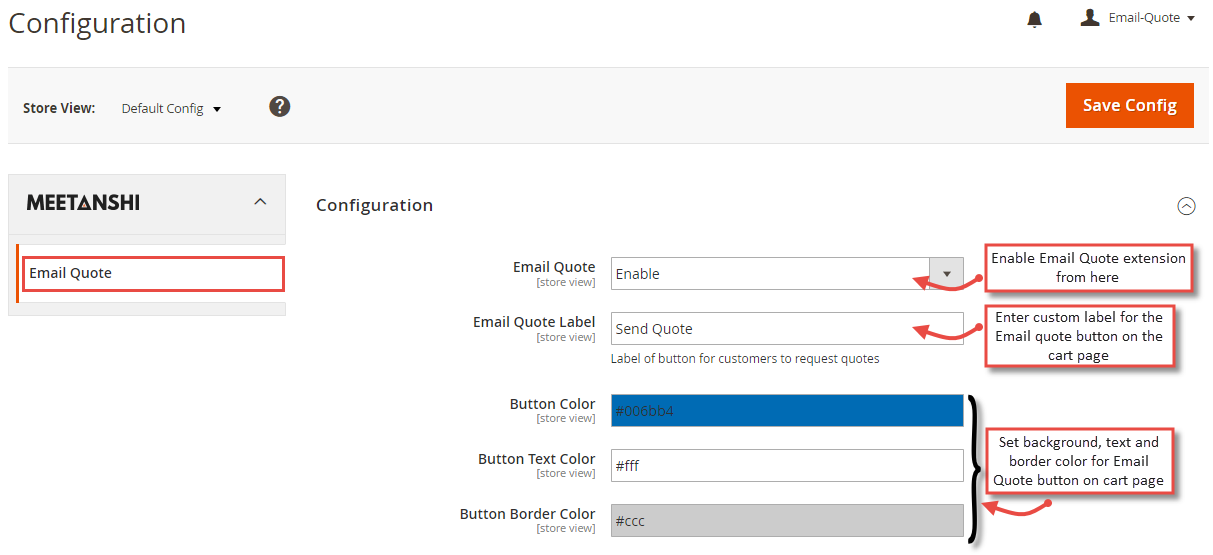
To configure the Email Quote for Magento 2 extension, login to Magento 2, move to Email Quote > Configuration where you can find various settings to enable the extension.
- Email Quote: Enable the Email Quote extension from here.
- Email Quote Label: Set custom label for the Email quote button on cart page.
- Button Color: Set the color of the Email Quote button on cart page.
- Button Text Color: Set the text color of the Email Quote button on cart page.
- Button Border Color: Set the border color of the Email Quote button on cart page.
Email Quote Settings
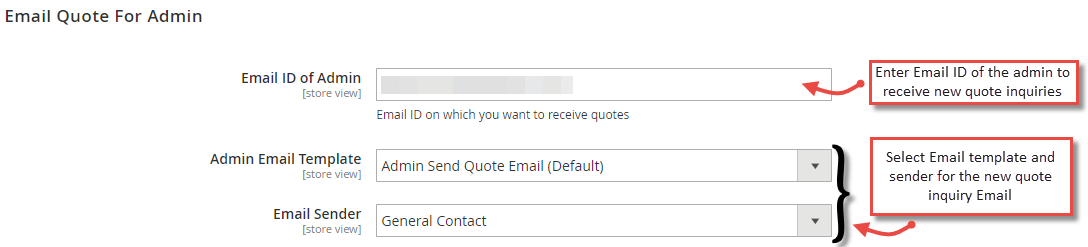
- For Admin: Configure the settings to get the email quote notifications for the new inquiries submitted by the customers.
- Email ID of Admin: Enter the Email ID of the admin to receive new quote.
- Admin Email Template: Select the template for the new quote inquiry email.
- Email Sender: Select the sender for the new quote inquiry email.
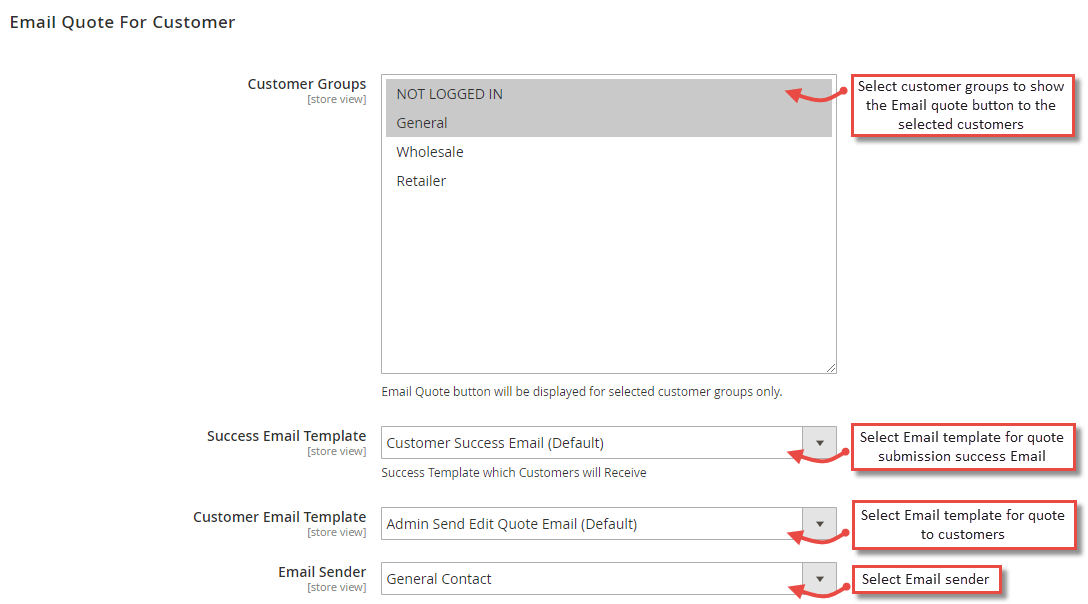
- For Customers: Configure the module for customers to receive the successful quote inquiry submission Emails.
- Customer Groups: Select the customer groups to which to allow requesting quotes from the frontend.
- Success Email Template: Select Email template for quote submission success Email.
- Customer Email Template: Select the email template to notify customers when the admin sends the quote to the customers.
- Email Sender: Select the Email sender.
PDF Attachment Settings
The extension allows to attach PDF files with emails by configuring the below settings:
- PDF Attachment: Enable PDF attachment to send quote in Email.
- PDF footer Text: Set custom footer
tlkp-------------ext for PDF.

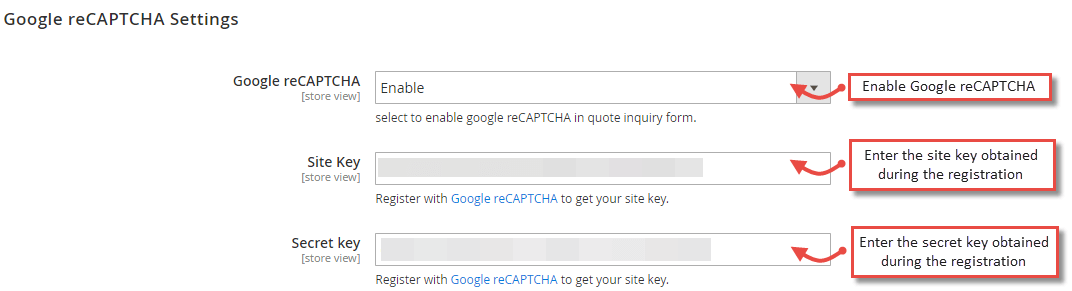
Google reCAPTCHA Settings
Google reCAPTCHA: Enable Google reCAPTCHA on the email quote inquiry form.
Site Key: Enter the site key obtained during the registration for Google reCAPTCHA v3.
Secret Key: Enter the secret key obtained during the registration for Google reCAPTCHA v3.
To enable the Google reCAPTCHA v3 (https://developers.google.com/recaptcha/docs/v3) with the Email Quote inquiry form, simply register with it to get the site key and secret key.
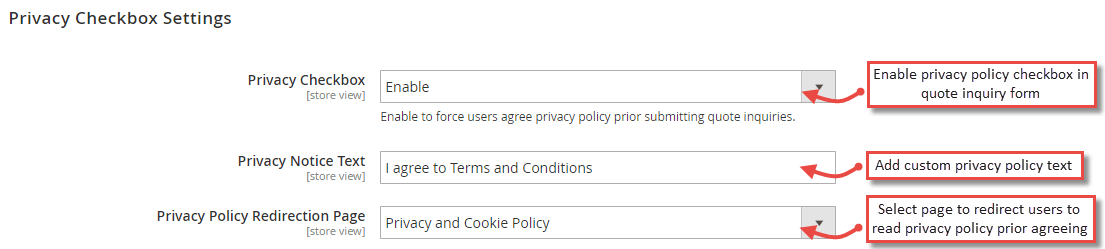
Privacy Checkbox Settings
For GDPR compliance, the extension offers privacy checkbox feature that can be configured as below:
- Privacy Checkbox: Enable the privacy policy checkbox in quote inquiry form.
- Privacy Notice Text: Add custom privacy policy text to show besides the privacy checkbox.
- Privacy Policy Redirection Page : Select page to redirect users to read privacy policy prior agreeing.
Email Quote in Frontend
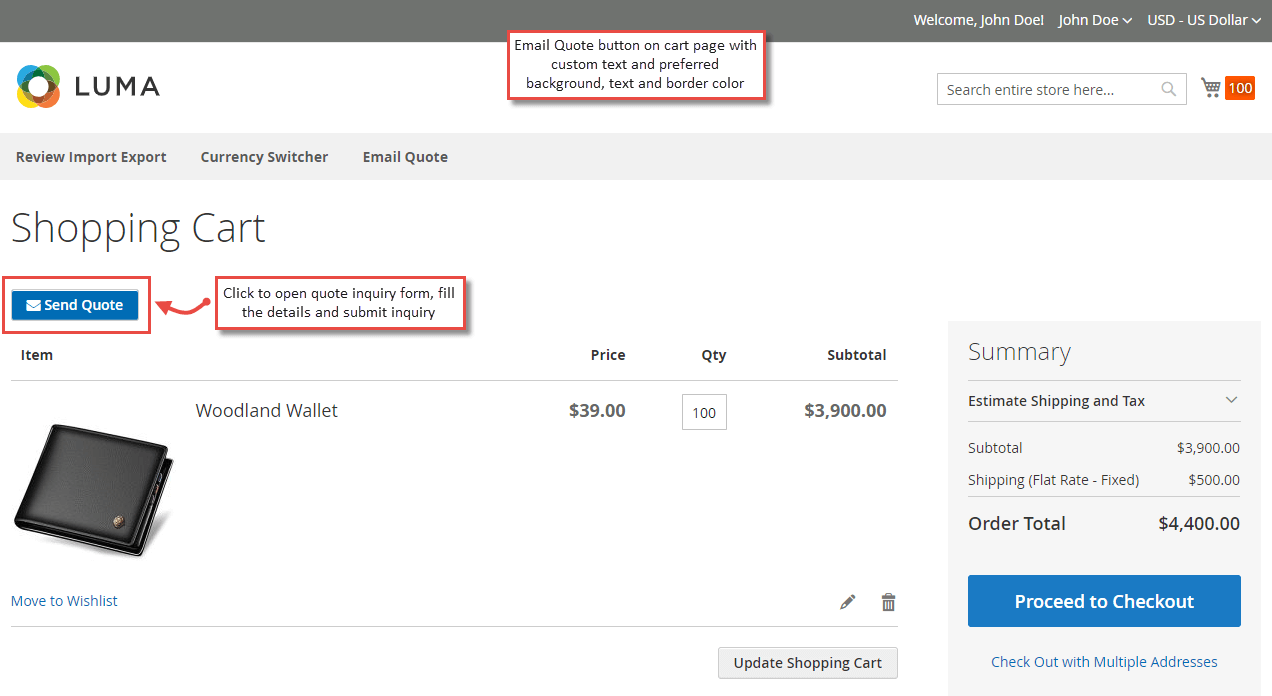
Once the extension is configured, customers can send quote inquiry to admin from the cart page using the quote inquiry form as shown here.
- Email Quote Button on Cart Page
The extension enables the "Send Quote" button with the custom text and layout on the cart page.
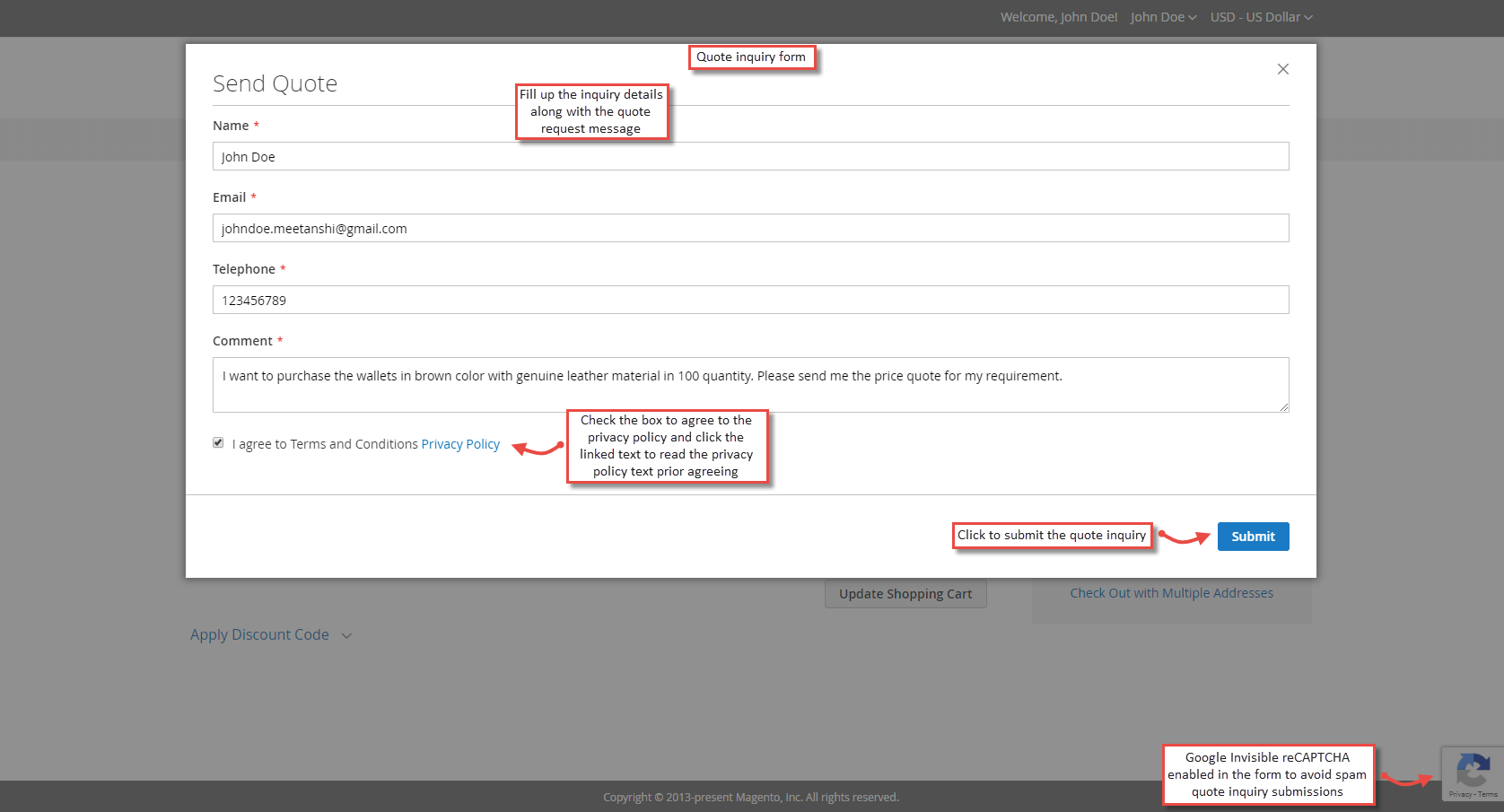
- Quote Inquiry Form
On the click of "Send Quote" button from the cart page, the quote inquiry form opens up from where the users can fill the details and add the quote request message. If the privacy policy agreement checkbox is enabled, users have to agree the same by checking the box. The users can also read the privacy policy text from the link given in the form. If Google reCAPTCHA is enabled, the badge gets shown on the form. After filling all the details, users can click to submit the quote inquiries.
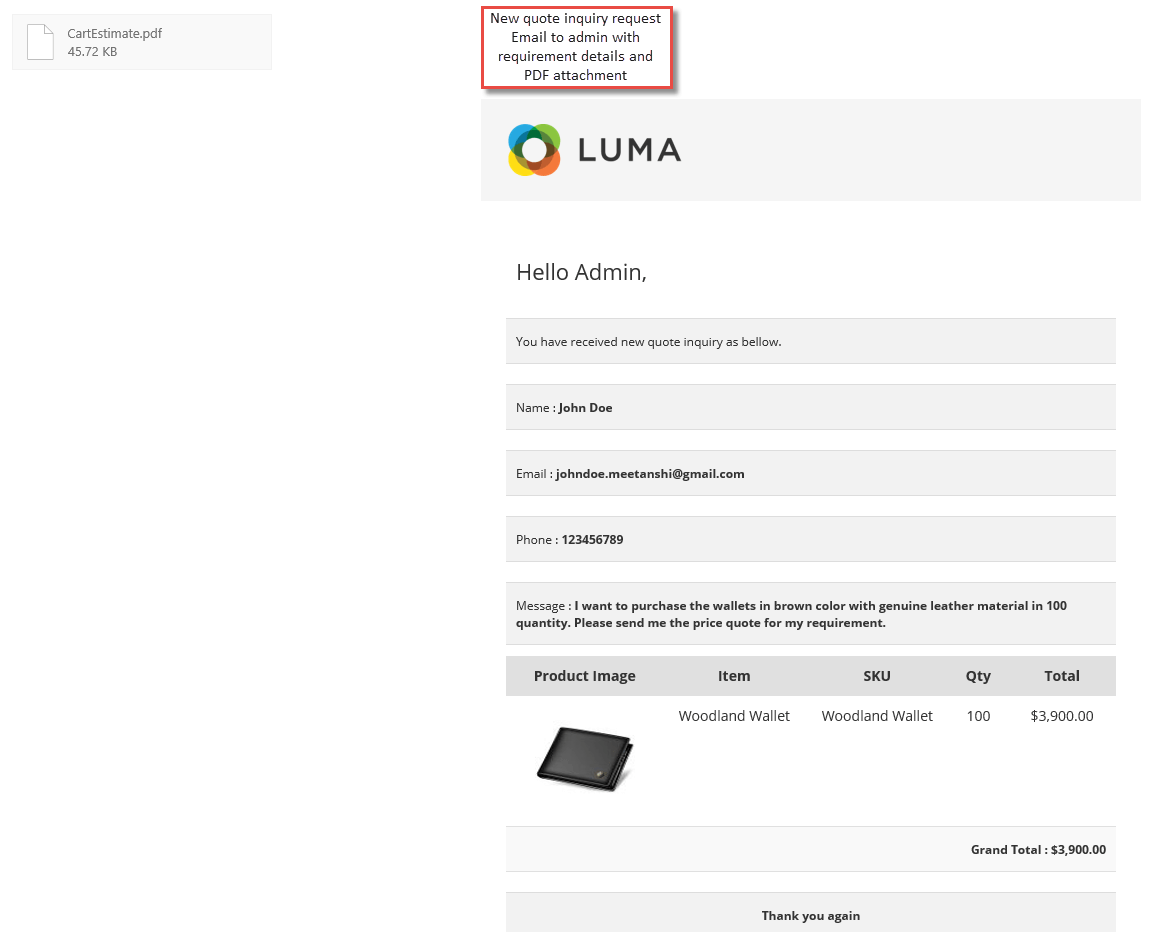
New Quote Inquiry Email to Admin
Once the quote inquiry is submitted by the user, the admin receives
an email notification. The admin can access all the details and PDF
attachments for quote inquiry.
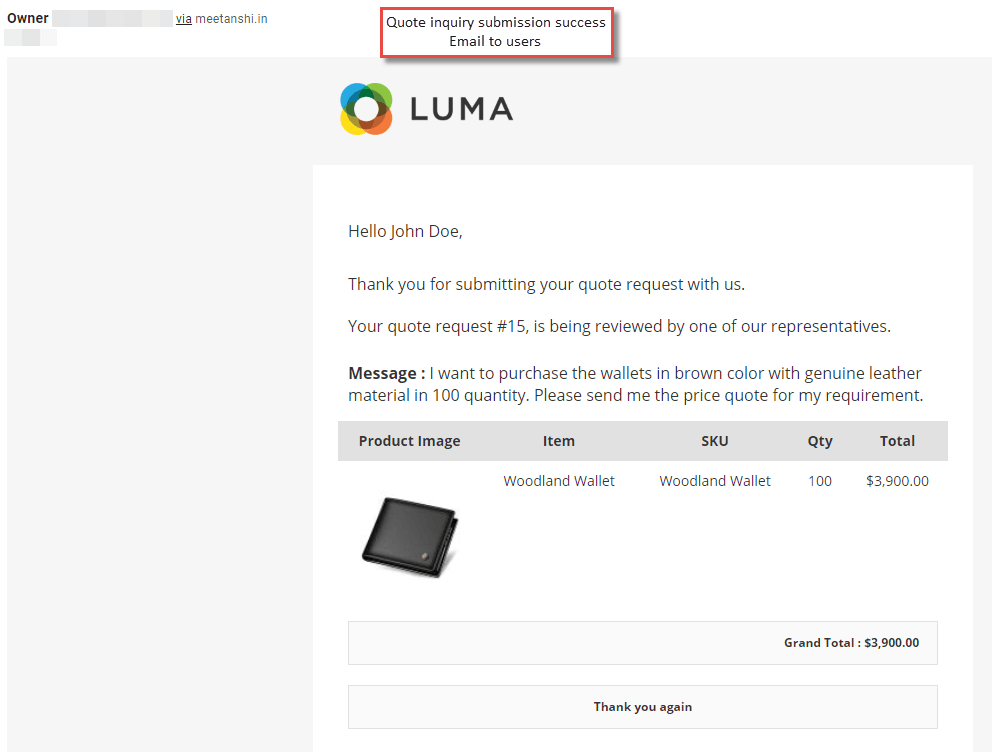
Quote Inquiry Success Email to Users
The users also get acknowledged through email about successful submission of their quote inquiries submission.
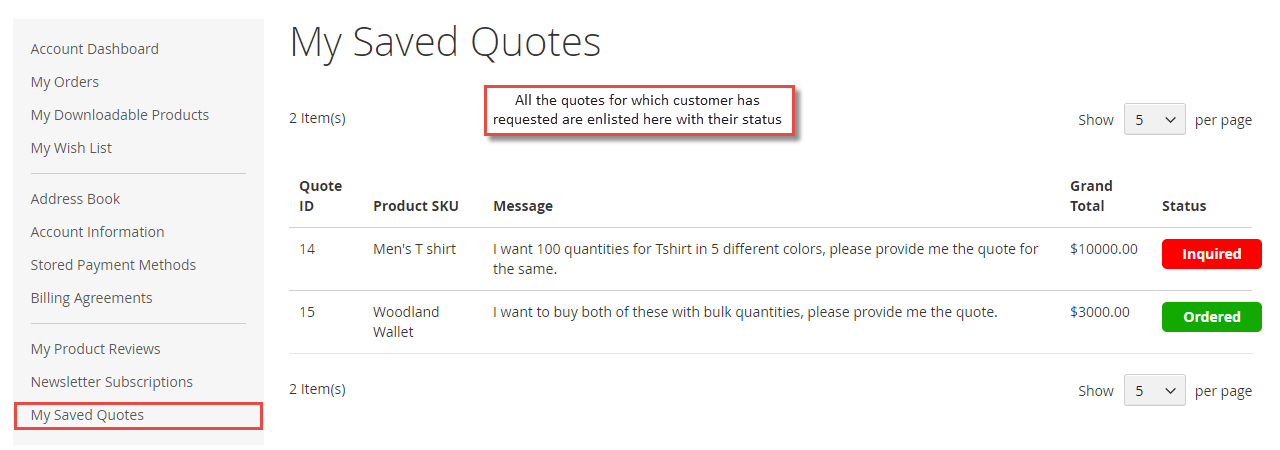
Email Quote in "My Accounts
The quote inquiries submitted by the customers are enlisted in the "My Accounts" section under "My Saved Quotes" tab along with the its status.
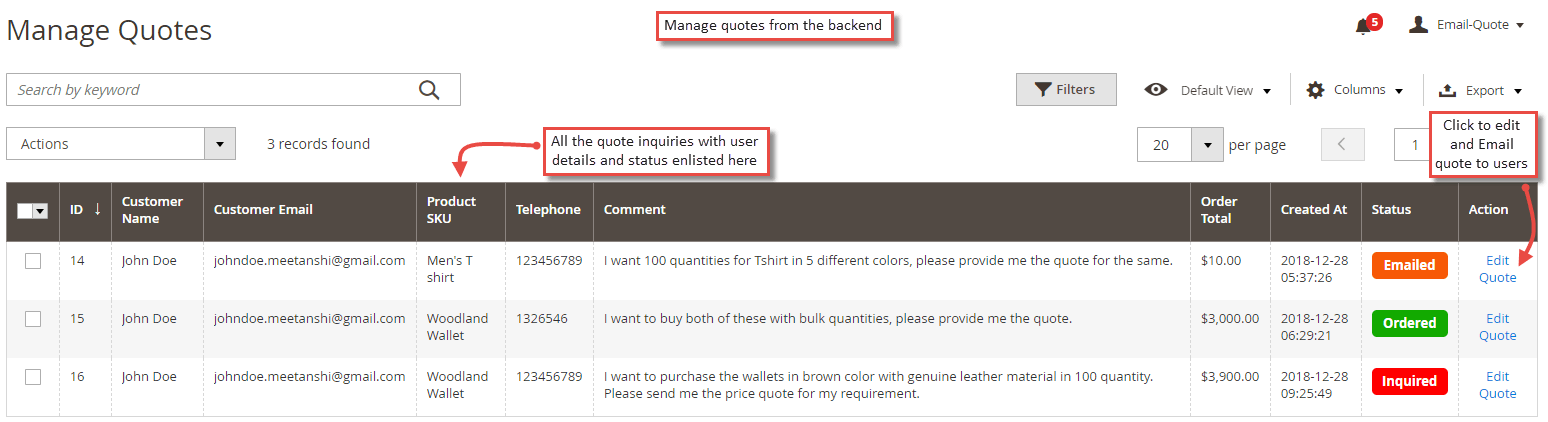
Email Quote in Backend
- Manage Quotes from Backend
The extension offers backend grid for the admin to easily manage the quote inquiries. The grid allows to edit and send Email quote to users and check the status of each inquiry easily.
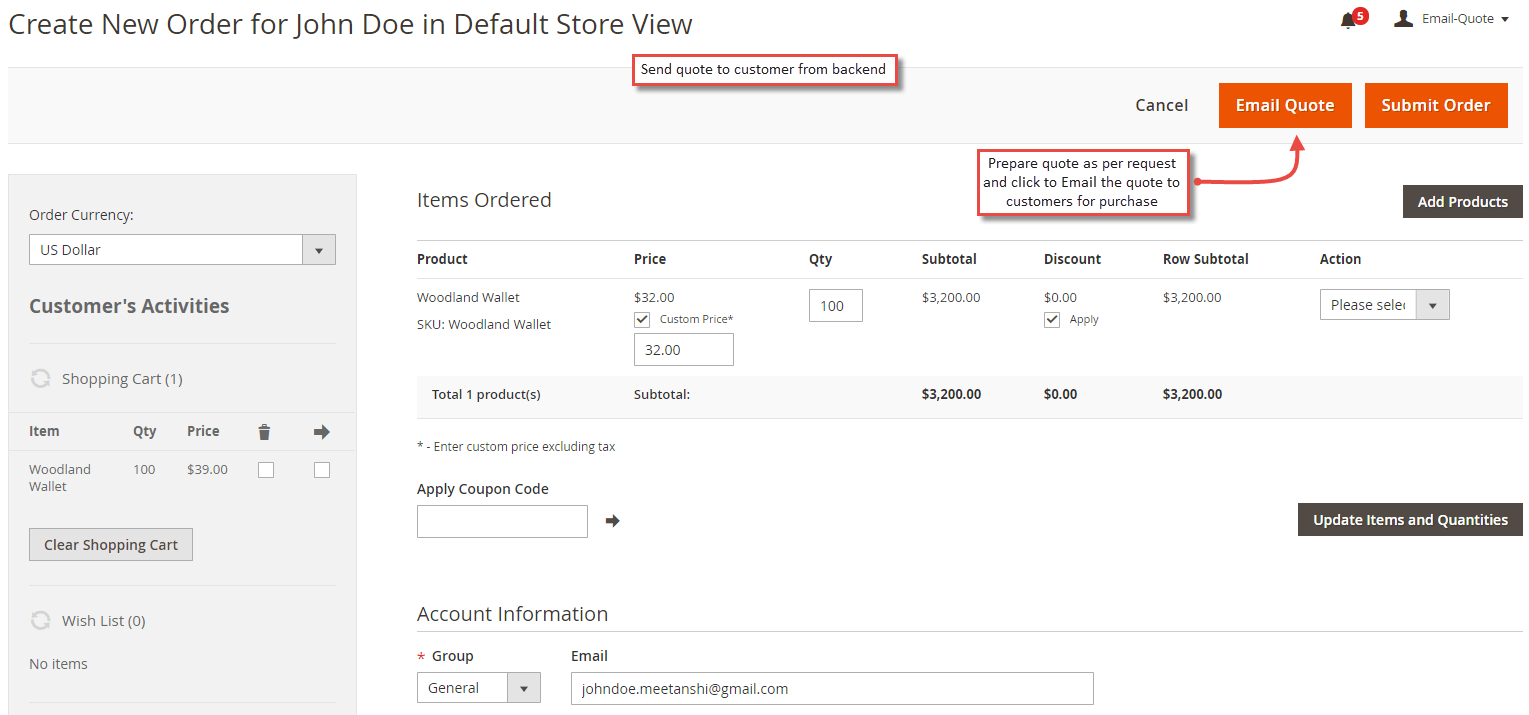
- Send Email Quote from backend
On click of the "Edit Quote" action from the grid, admin can add products, set the quantity, set custom price, apply discount and click "Email Quote" button to send customers the quote through email.
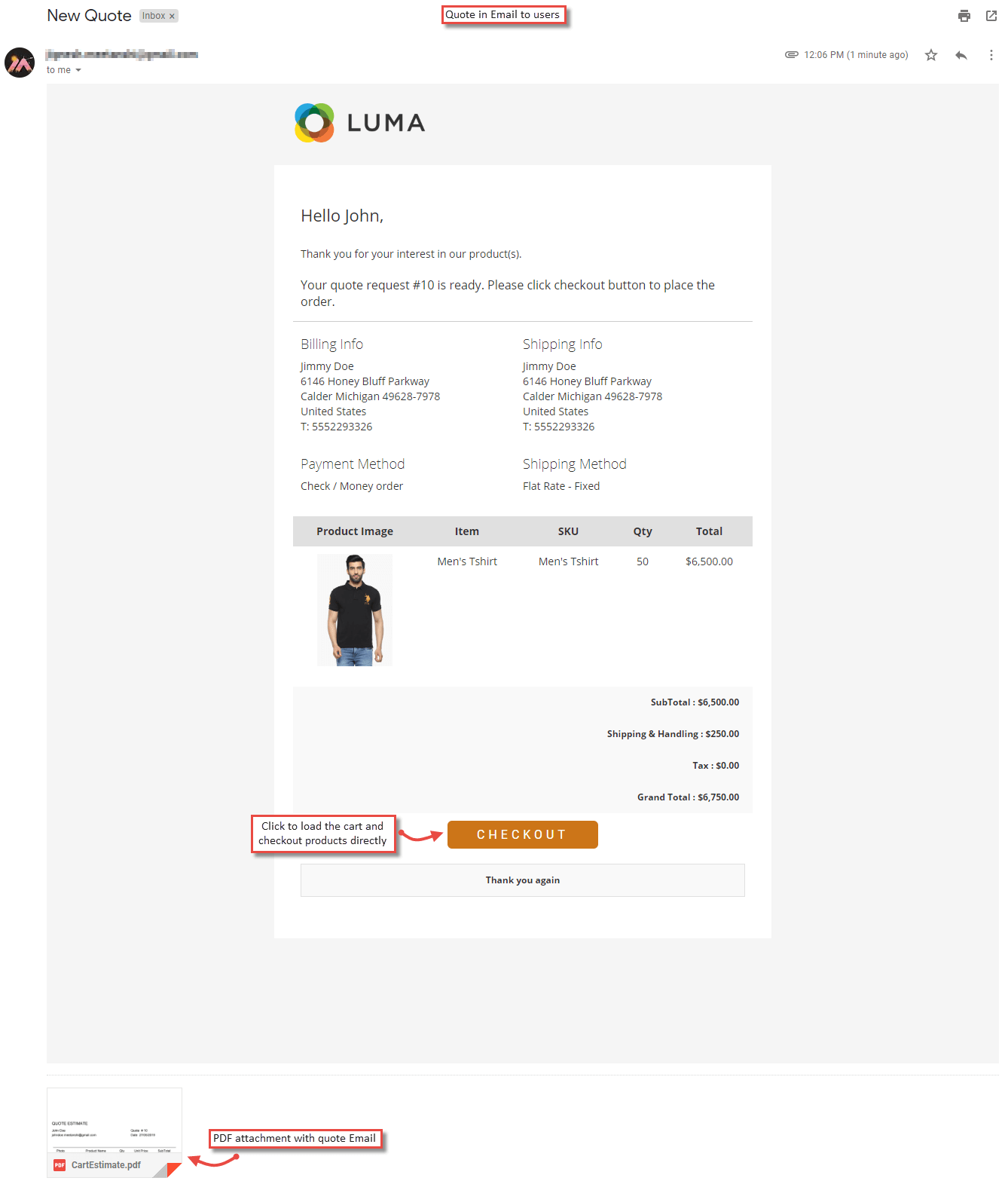
Order Quote to User in Email
Immediately after the admin emails the quote from the backend, the customer can easily make the purchase using the link sent in email and directly proceed to checkout.