Out of Stock Notification for Magento 2 - User Guide
Extension Installation
For Magento Marketplace Customers
- Create a folder structure in Magento root as app/code/Meetanshi/ OutofstockNotifier
- Download and extract the zip folder and upload our extension files to the app/code/Meetanshi/ OutofstockNotifier via FTP.
- Login to your SSH and run below commands step by step:
composer require twilio/sdk
php bin/magento setup:upgrade
- For Magento version 2.0.x to 2.1.x -
php bin/magento setup:static-content:deploy
- For Magento version 2.2.x & above -
php bin/magento setup:static-content:deploy --f
php bin/magento cache:flush
For Meetanshi Customers
- Extract the zip folder and upload our extension to the root of your Magento 2 directory via FTP.
- Login to your SSH and run below commands step by step:
composer require twilio/sdk
php bin/magento setup:upgrade
- For Magento version 2.0.x to 2.1.x -
php bin/magento setup:static-content:deploy
- For Magento version 2.2.x & above -
php bin/magento setup:static-content:deploy --f
php bin/magento cache:flush
Important: Don't forget to install Twilio library even if you are not using Twilio SMS gateway for our extension.
Extension Configuration
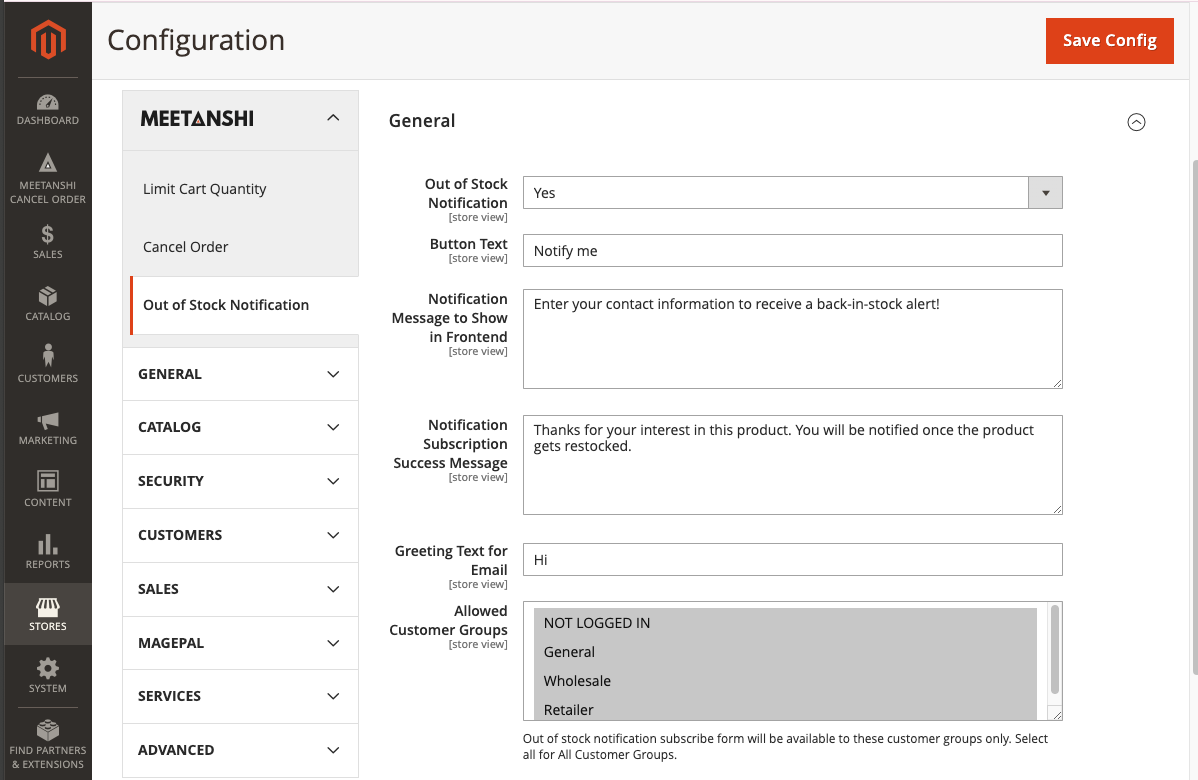
For configuring the Out of stock notification extension for Mageto 2, login to Magento 2 admin, move to Stores > Configuration > Meetanshi > Out of Stock Notification where you can find various settings to enable the extension.
General Settings
Out of Stock Notification: Enable or disable Out of Stock Notification extension from here.
Button Text: Enter button text for the out of stock notification subscription button.
Notification Message to Show in Frontend: Enter notification message to encourage customers subscribe for the out of stock notifications.
Notification Subscription Success Message: Enter success message to show customers who have subscribed for the out of stock notifications.
Greeting Text for Email: Enter the greeting text for the back-in-stock notification emails to be sent to the subscribers.
Allowed Customer Groups: Select customer groups to allow subscription for the out of stock notification.
Notification Type Options
Notification Type: Select one of the stock notification types from the two options, "Email" and "SMS".
- Email: Subscribers receive product back-in-stock notifications via Email.
- Stock Alert Email Template for Customers: Select the email template to send stock alert email notification to the subscribers. This option supports the custom email template to send the back in stock alerts with cross-sell products as well.
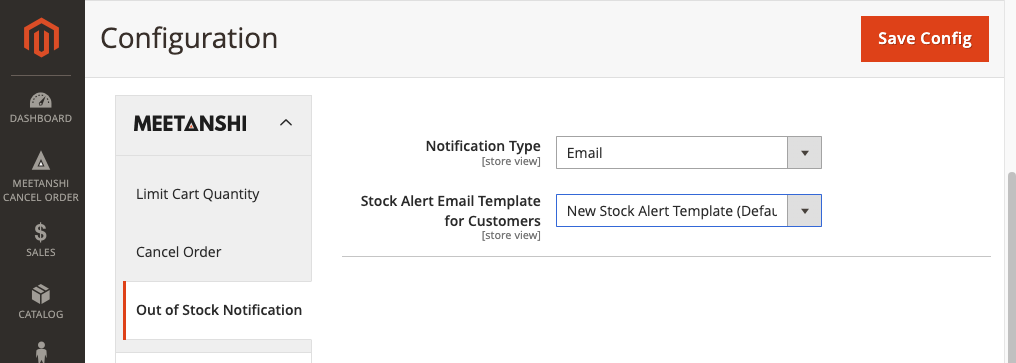
Note: Don't forget to set up cron job in Magento 2 to send the stock alert email notification to customers. The extension file runs every 10 minutes to check and send the email notifications.
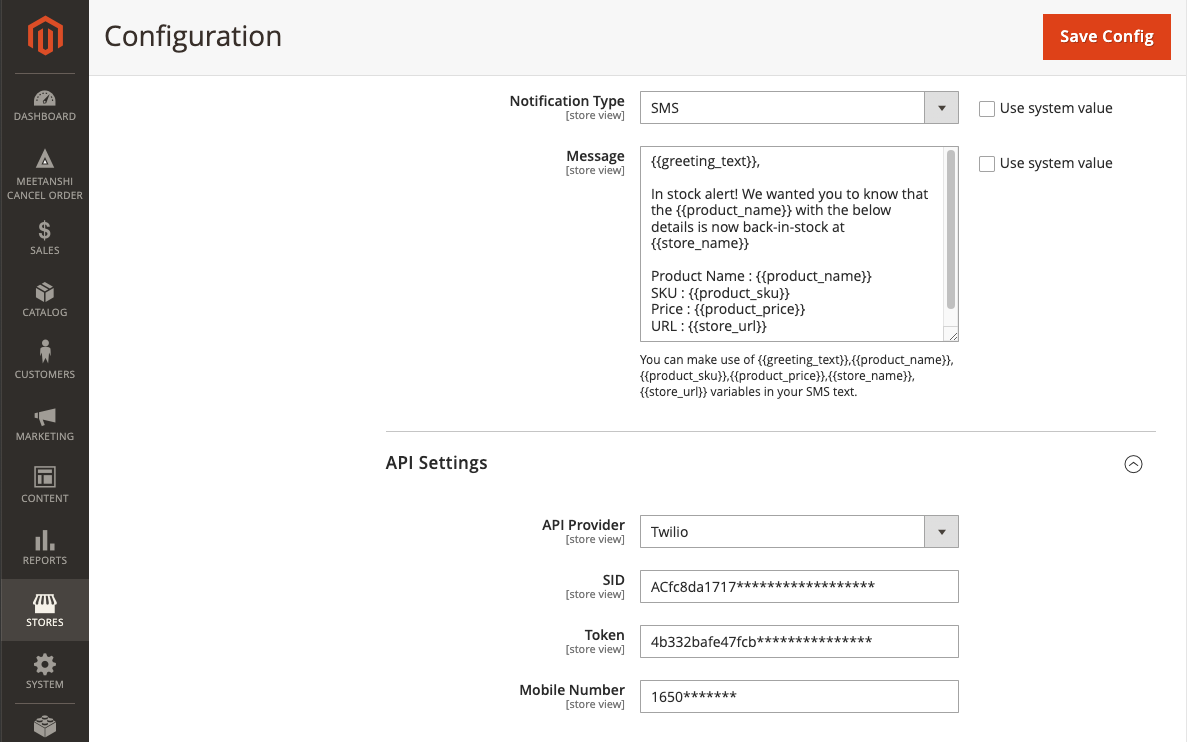
- SMS: Subscribers receive product back-in-stock notifications via SMS.
- Message: Enter back-in-stock message to be sent to the subscribers after the product is restocked either via SMS or via Email as set under the notification type.
API Settings For SMS Gateway
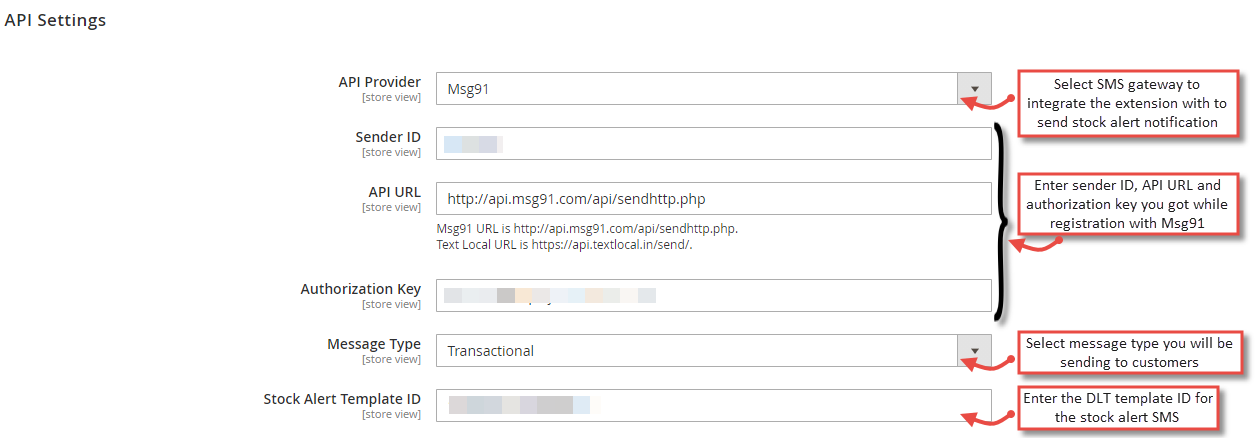
If you have set the Notification Type as "SMS" from the extension configuration, to allow compatibility of the extension with any SMS gateway, its API settings has to be configured after receiving the essential details like Sender ID, API key and URL.
- API Provider: Select one of the SMS gateway API providers from Msg91, Twilio, Textlocal, Other and add related API details.
For option "Other" SMS API Config:
If you are going to use custom SMS API other than Msg91, Twilio or Textlocal, you have to add your CURL URL as below:

Format:
https://yoursmsapi.com/sms/submitsms.jsp?user=yourusername&senderid=yoursenderid&key=yoursmskey&mobile=&message=
Sample CURL URL:
https://foxxsms.com/sms/submitsms.jsp?user=METANSHI&senderid=FOXGLV&accusage=6&key=587e05afbcXX&mobile=&message=
Enable Displaying Back-in-Stock Subscription Box
After saving the out of stock notification extension configuration you must have to enable the subscription box to display at product page. There are two options to enable the subscription box at product page,
- All Products With Out Of Stock Status
- Specific Products With Out Of Stock Status
Enable Display of Back-in-stock Subscription Box For All Products
This options automatically displays the restock alert subsciption box at any of the product (in-frontend) with the out of stock status.
To enable it,
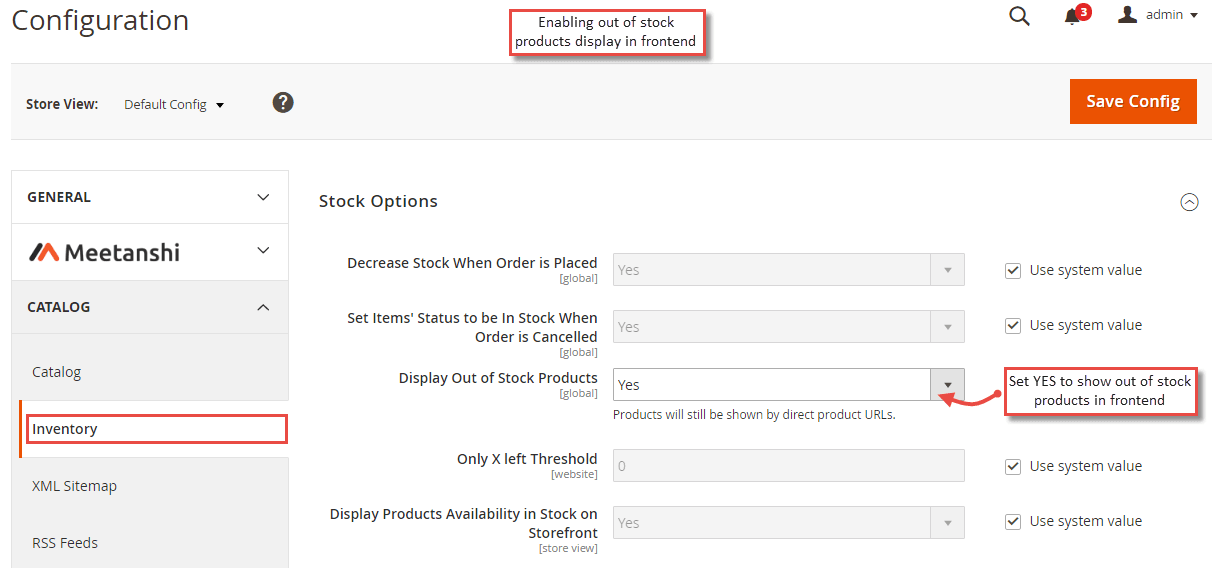
Step 1: Go to Stores > Configuration > Catalog > Inventory > Stock Options and set Display Out of Stock Products to YES .
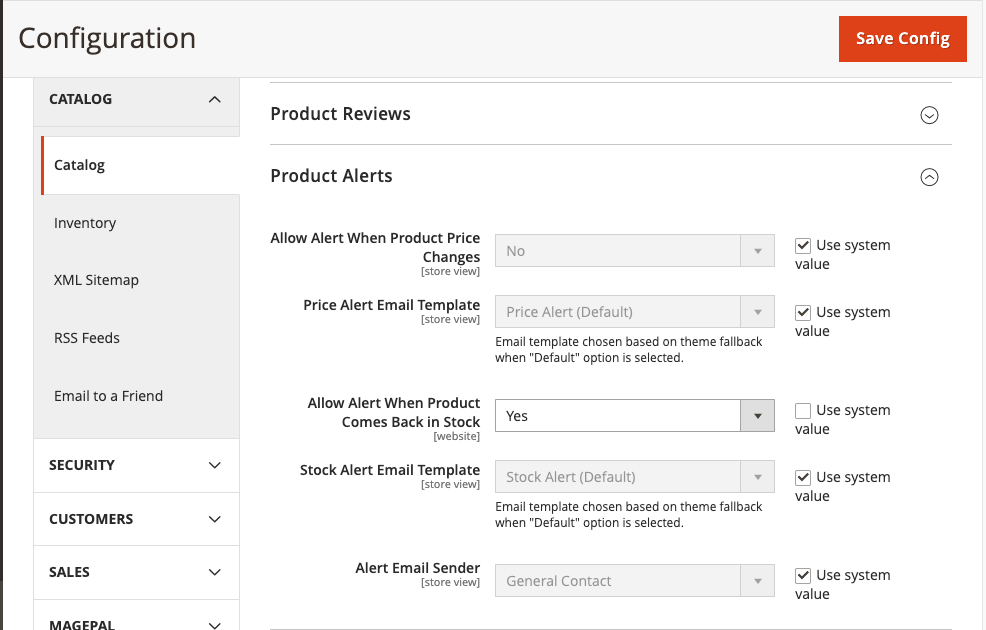
Step 2: Go to Stores > Configuration > Catalog > Catalog, Find for the Product Alerts, set Allow Alert When Product Comes Back in Stock to YES, Then set the "Product Alerts Run Settings" to set the frequency of sending the alerts. You can also get help form the complete guide on how to enable product alerts.
Enable Product Specific Out of Stock Notification
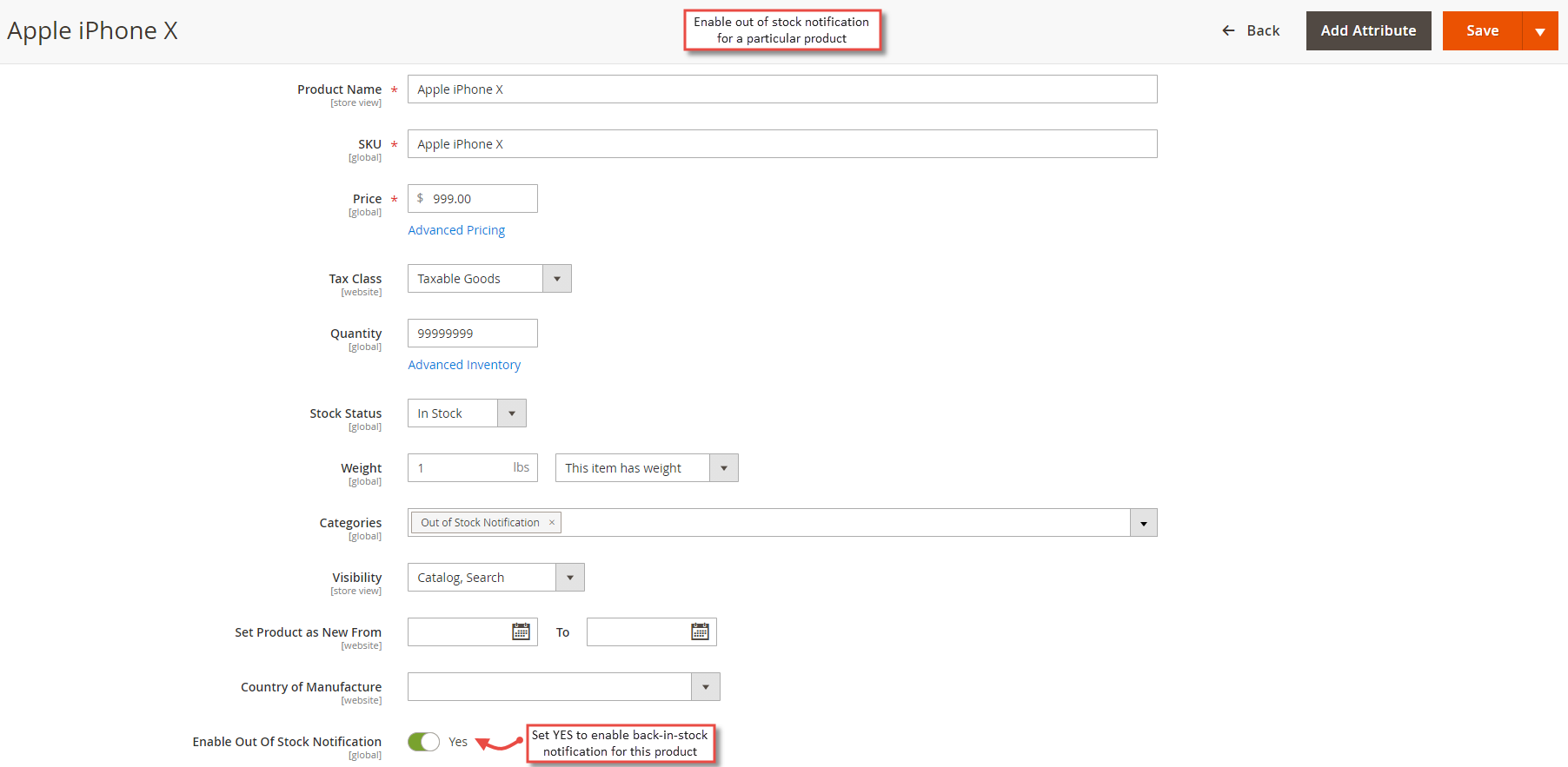
If you want to enable out of stock notification extension specifically for particular products, simply enable the extension and go to Catalog >Products . Select the product, edit and set YES to Enable Out of Stock Notification option here.
- Out of Stock Notification: Enable to allow users subscribe for the back-in-stock notification for this product.
Out of Stock Notification in Frontend
Once the extension is configured, it can be seen enabled on frontend on the out of stock product pages.
Restock Subscription & Alert Via Email
If the admin has set Notification Type as Email, users can see below subscription process in the frontend and receive email notification when product is back-in-stock.
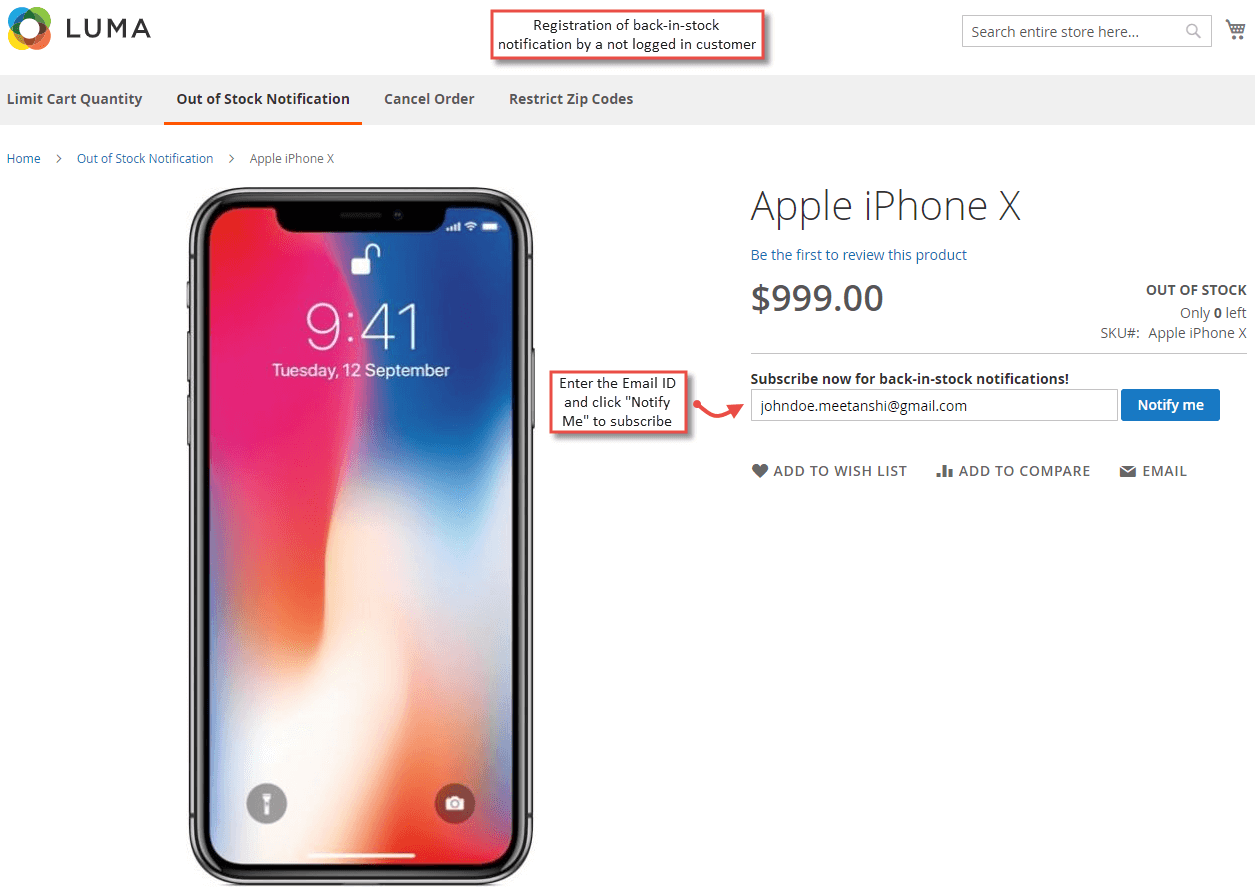
- Back-in-stock Notification Subscription by a Not Logged-in Customer
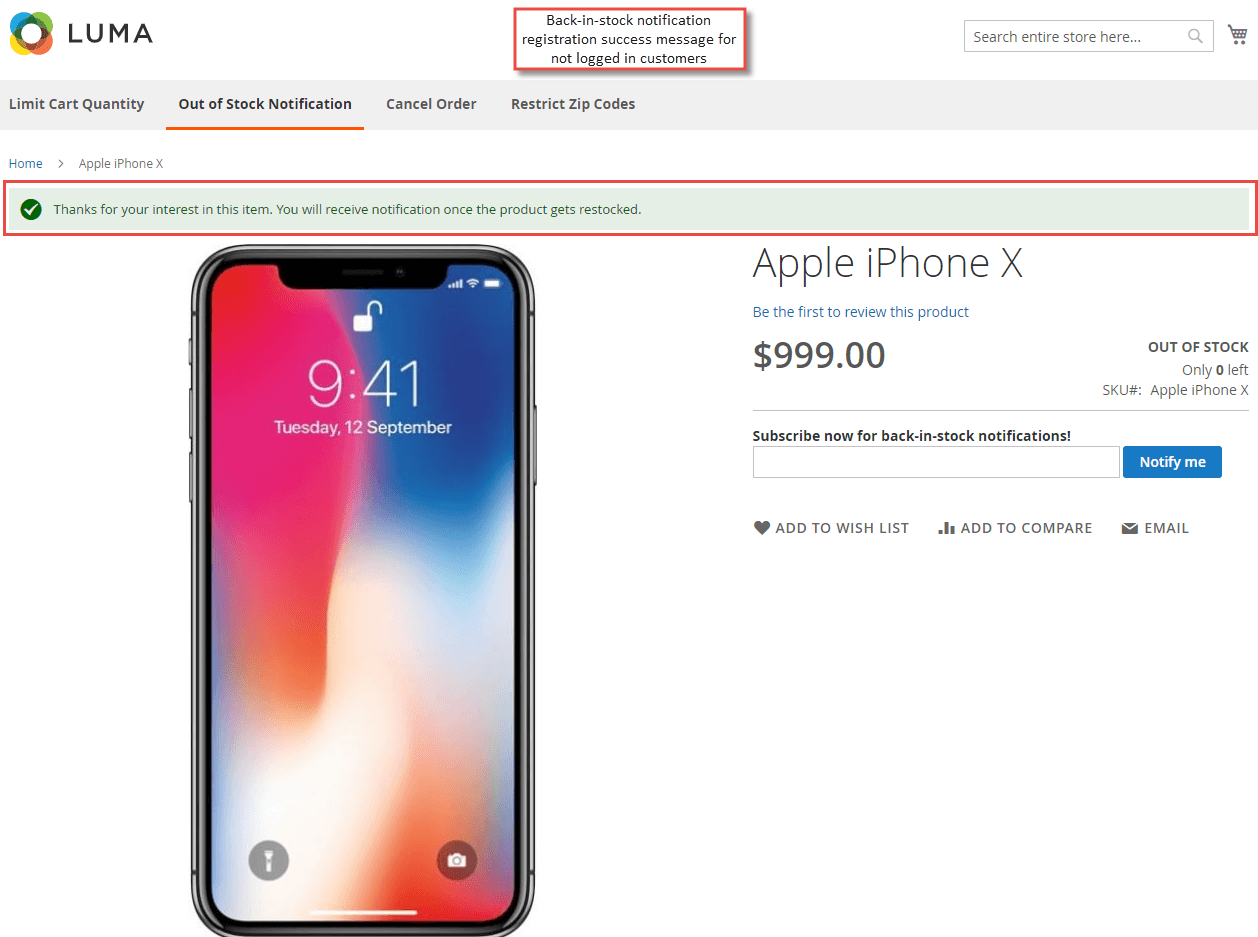
Not logged-in customers can register for the out of stock notification from the product page by adding their Email ID and clicking on the " Notify Me " button.
- Out of Stock Notification Subscription Success Message to Not Logged-in Customers
Immediately after a not logged-in user subscribes for the back-in-stock notification, he gets success message on his screen.
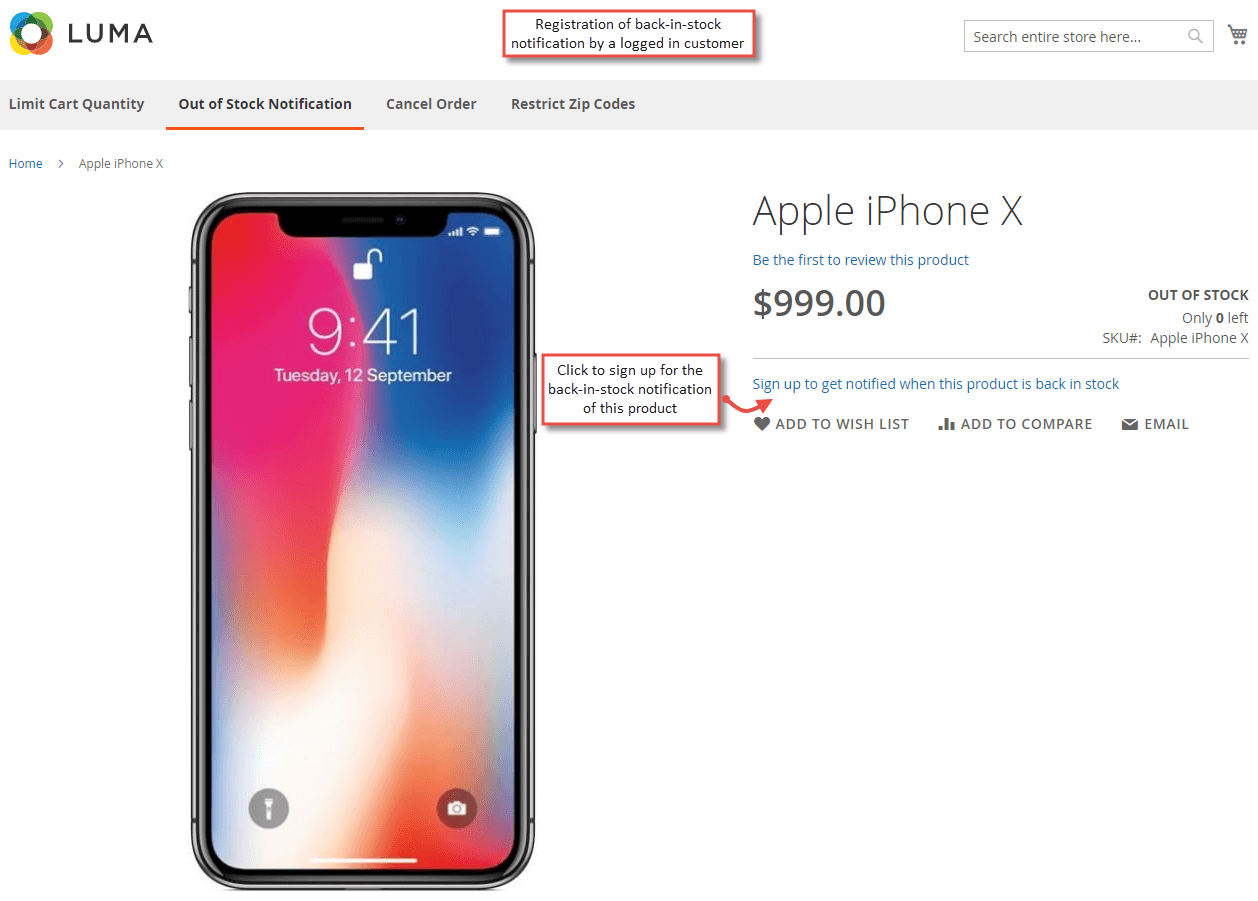
- Back-in-stock Notification Subscription by a Logged-in Customer
Logged-in customers can register for the out of stock notification from the product page just by clicking the link " Sign up to get notified when this product is back in stock ".
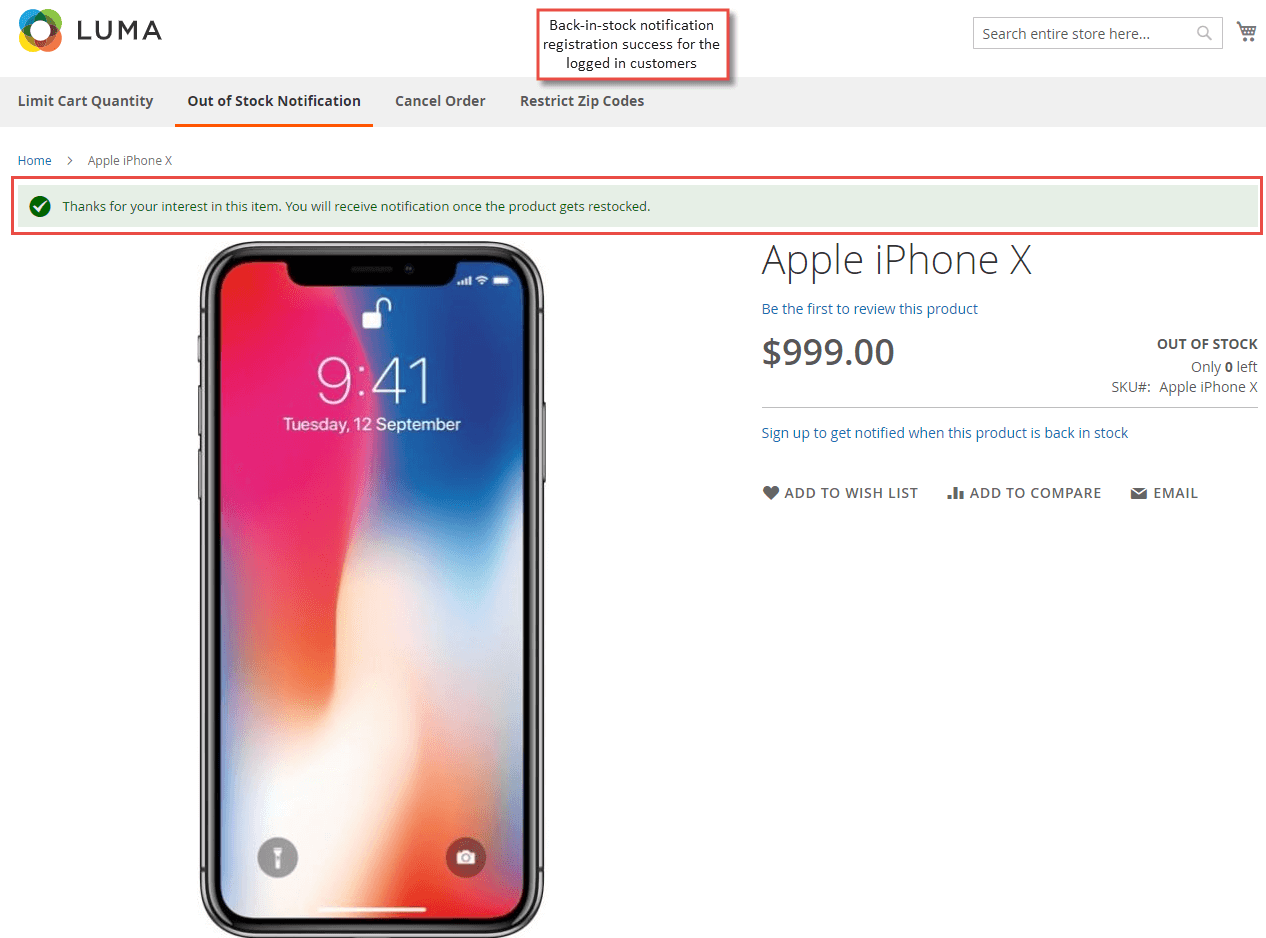
- Out of Stock Notification Subscription Success Message to Logged-in Customers
Immediately after a logged-in user subscribes for the back-in-stock notification, he gets success message on his screen.
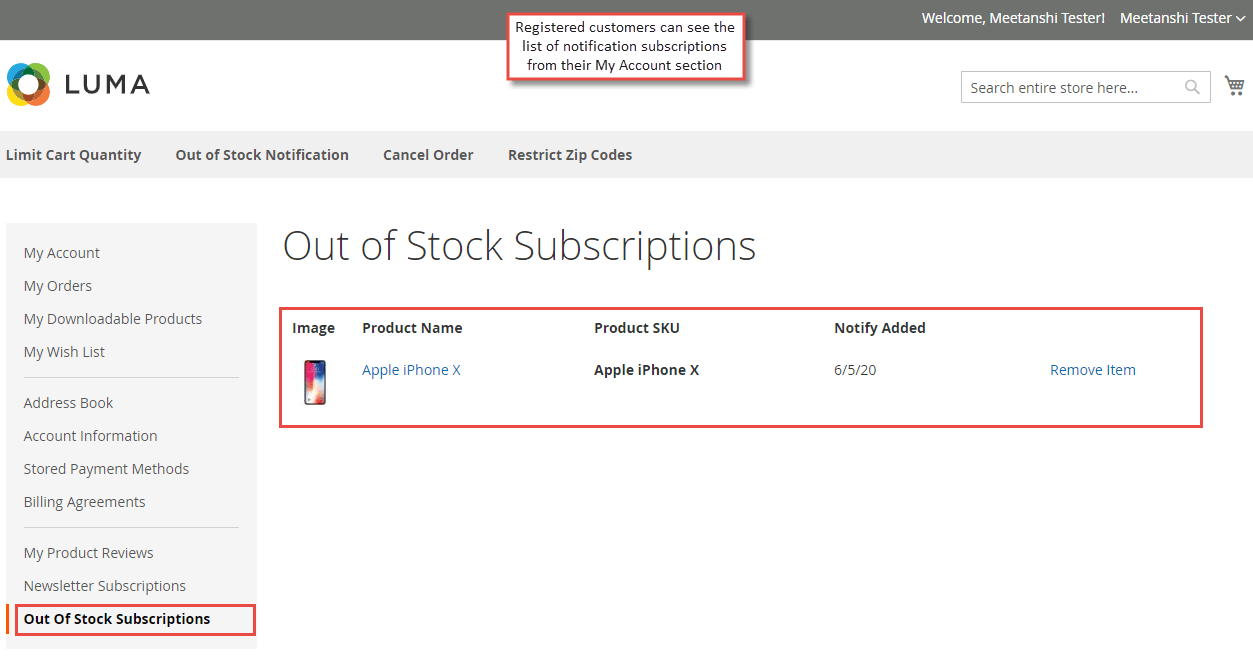
- Out of Stock Notification Subscription List in Customer's My Account Section
A logged in customer can see the list of subscription for all the out of stock products from his My Account section under the tab " Out of Stock Subscriptions ".
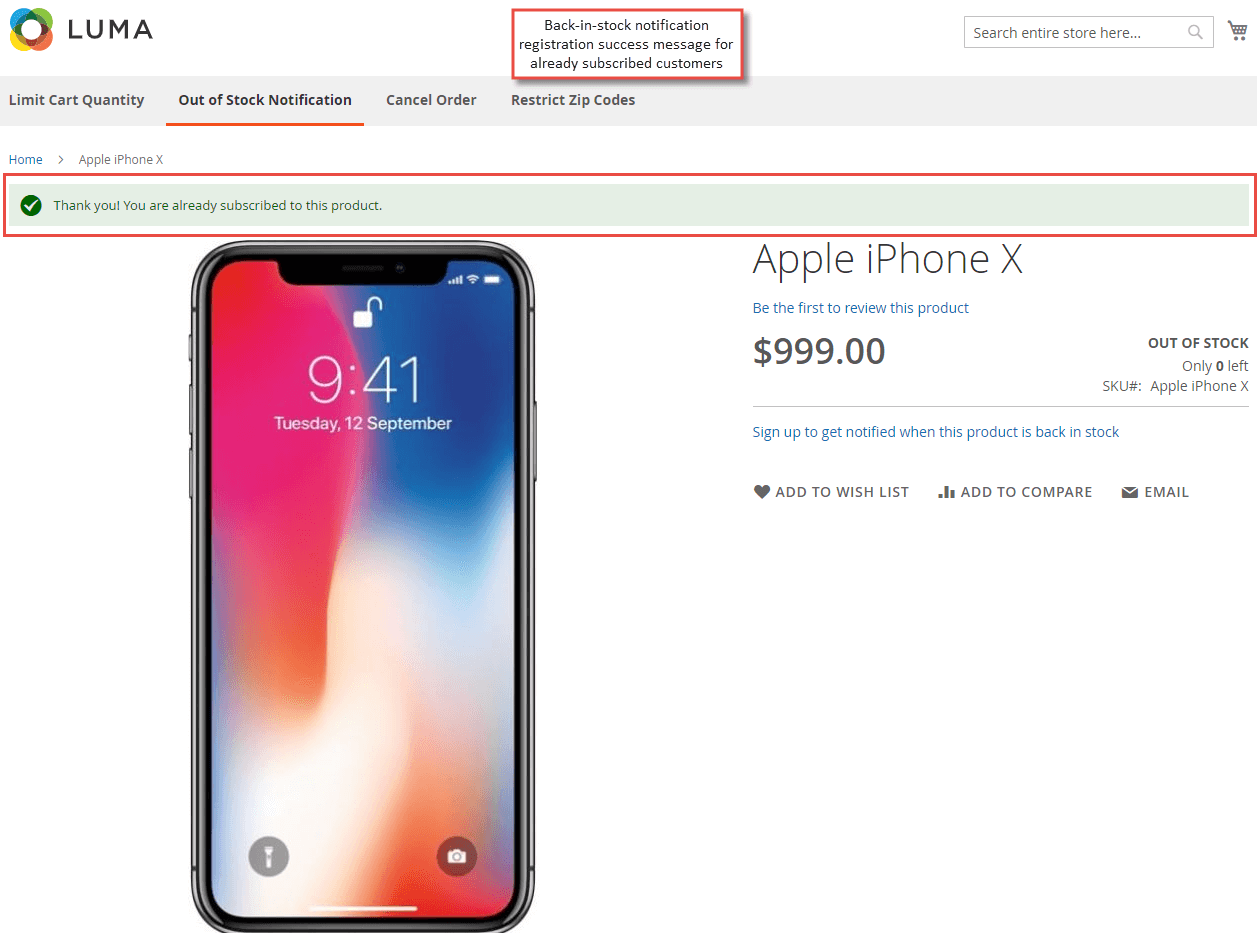
- Alert Message to Already Subscribed Users
If a user tries to subscribe for the out of stock notification for the same product repeatedly, he gets an alert message of already subscribed for the product.
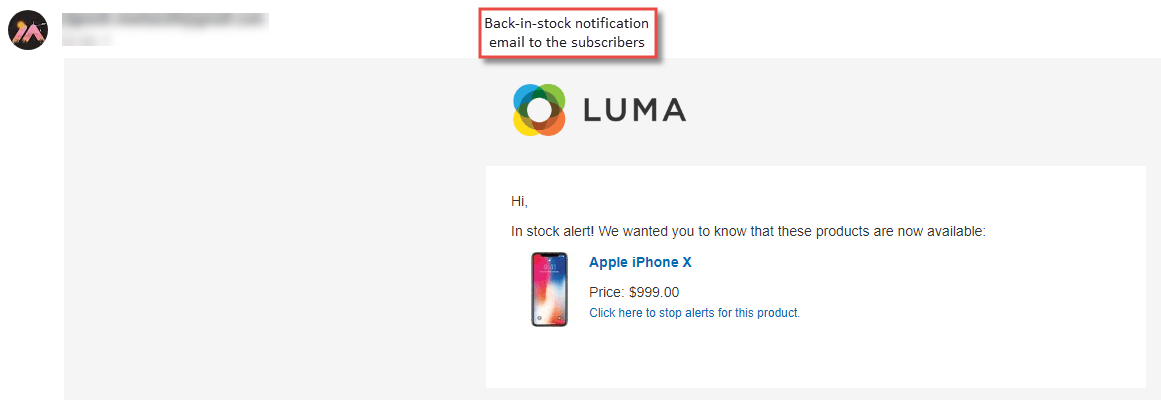
- Back-in-Stock Notification Email to Subscribers when Item Restocked
Once the out of product gets back in stock, all the subscribers who have subscribed for the back-in-stock notification receive a notification email.
Restock Subscription & Alert Via SMS
If the admin has set Notification Type as SMS (#type-sms), users can see below subscription process in the frontend and receive text message when product is back-in-stock.
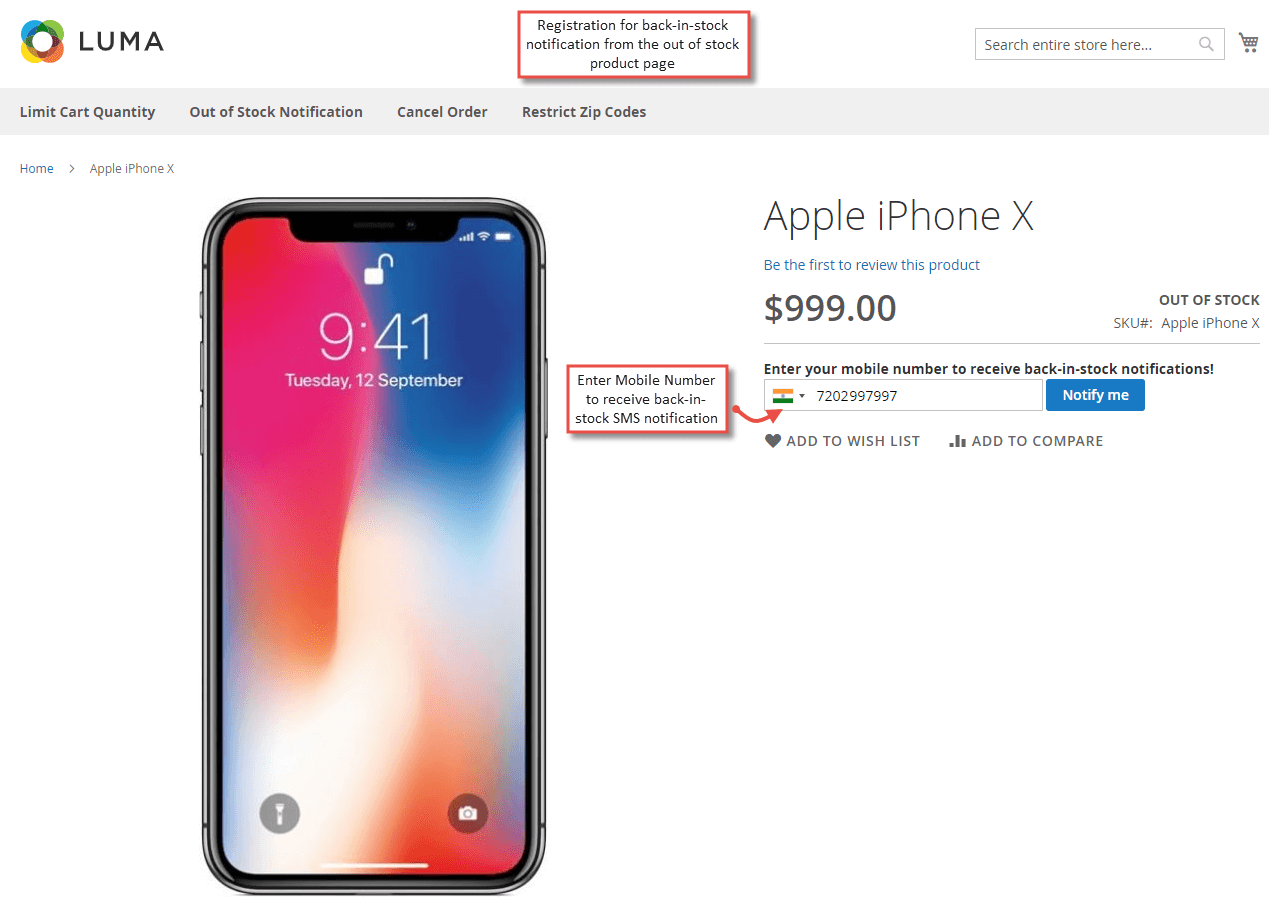
- Back-in-stock Notification Subscription Box To Add Mobile Number
Users can register for back-in-stock SMS notification from the product page. They need to add mobile number and click "Notify Me" to subscribe.
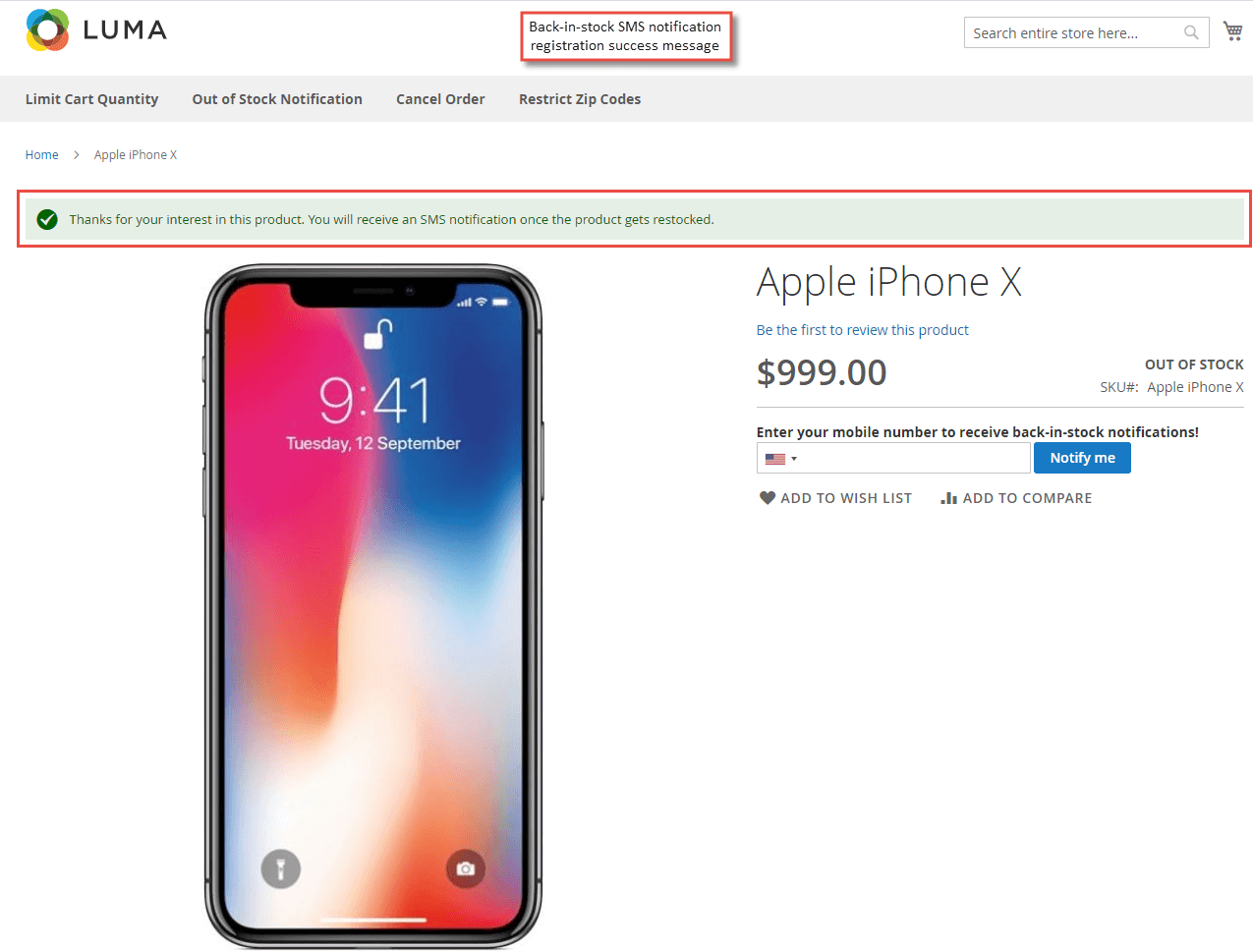
- Out of Stock Notification Subscription Success
Immediately after a user subscribes for the back-in-stock SMS notification, he gets success message.
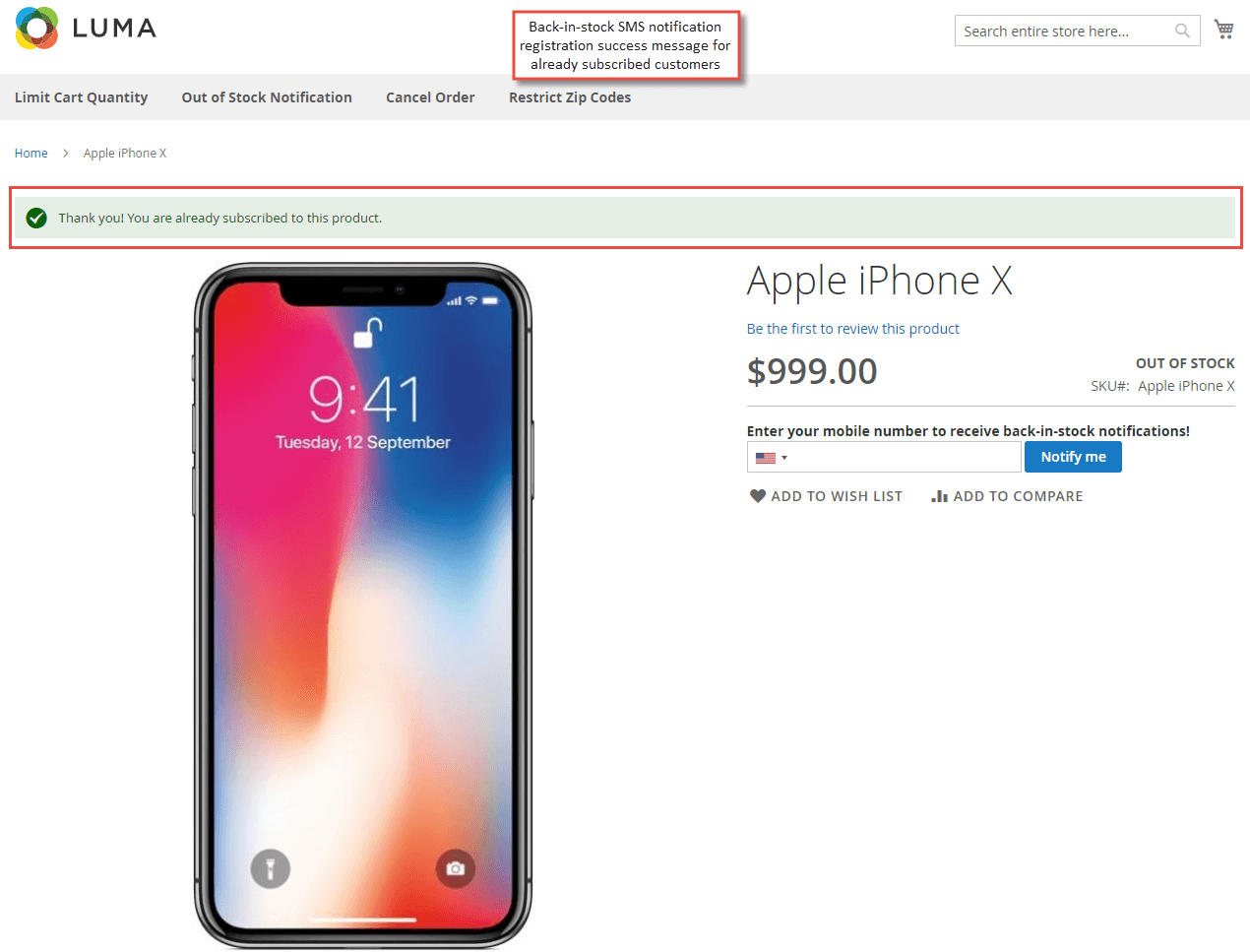
- Alert Message to Already Subscribed Users
If a user tries to subscribe for the out of stock notification for the same product repeatedly, he gets an alert message of already subscribed for the product.
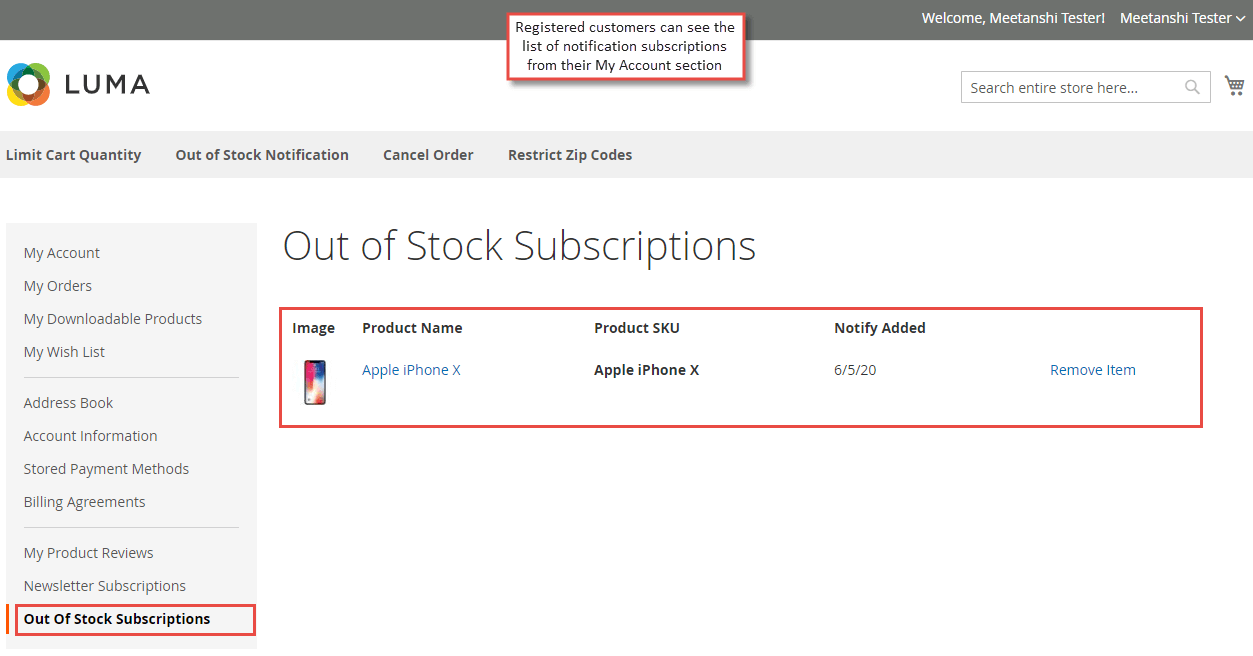
- Out of Stock Notification Subscription List in Customer's My Account Section
Logged in customers can see the list of subscription for all the out of stock products from their My Account section under the tab " Out of Stock Subscriptions ".
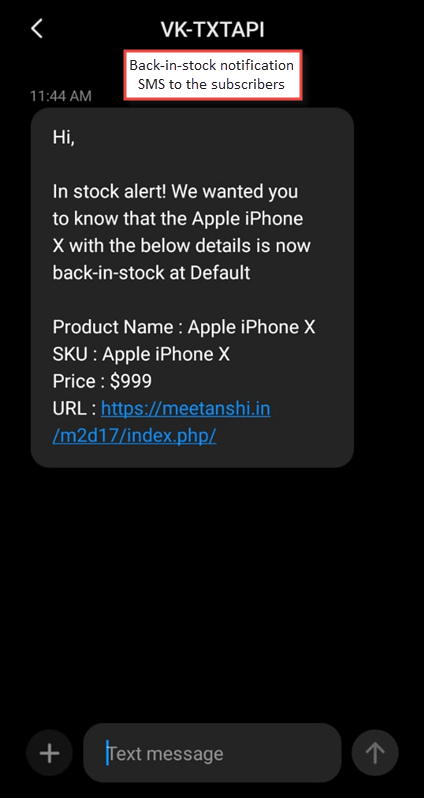
- Back-in-Stock SMS Notification to Subscriber Once the out of product gets back in stock, all the subscribers who have subscribed for the back-in-stock SMS notification receive a notification SMS on their mobile number.
Out of Stock Notification Subscribers Grid
All the subscribers who have subscribed for the notify me when product is back in stock are enlisted in a separate grid in the backend. The list contains details of subscribers like website ID, customer
Email/mobile number, notification type, product name, date and time of the subscription and the status of the notification Emails or
SMSs.

Twilio Registration
If you are going to use Twilio as an SMS gateway to send out of stock SMS notifications, you need to register with the Twilio to get Account SID, Auth Token and Twilio Phone Number.
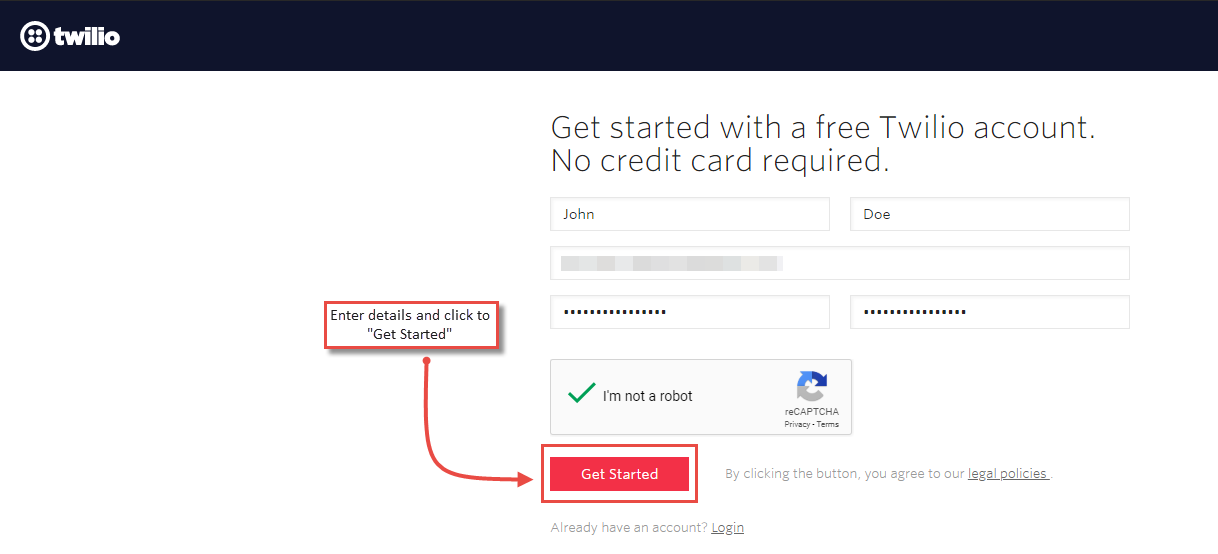
- First of all, Sign Up for the Twilio account. Add the details and click to get started.
- After the Email verification, enter your mobile number and click to "Verify".
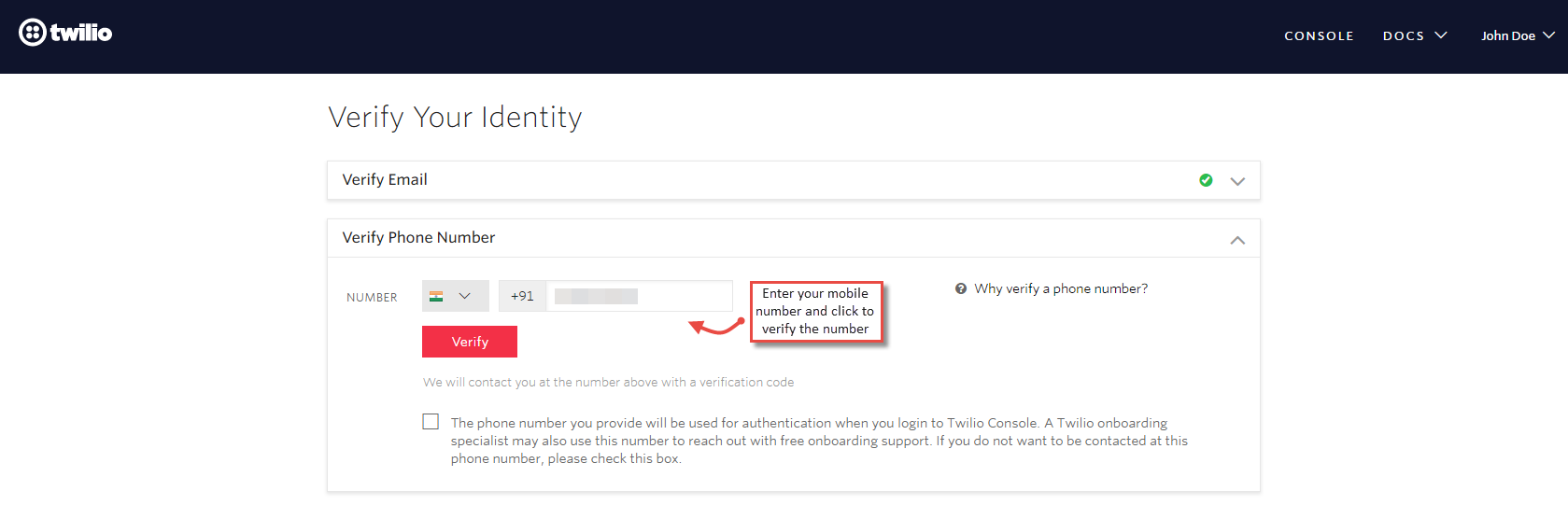
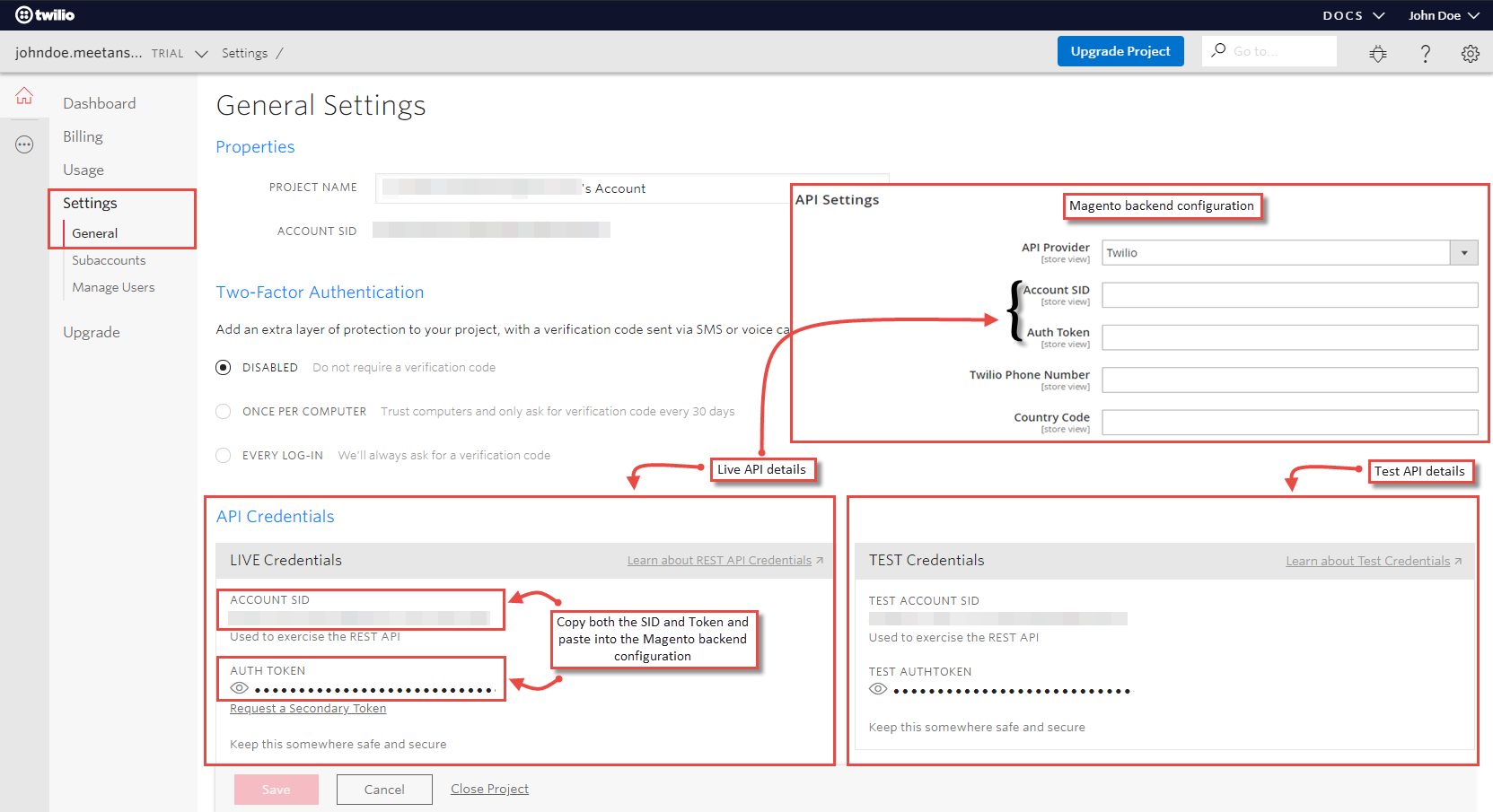
- Once you click "Verify", you will get an OTP on the added mobile number. Enter the OTP and verify the mobile number. Now move to Settings > General where you can see API details both for live and testing. Copy the Account SID and Auth Token to use them in Magento backend configuration for Twilio account.
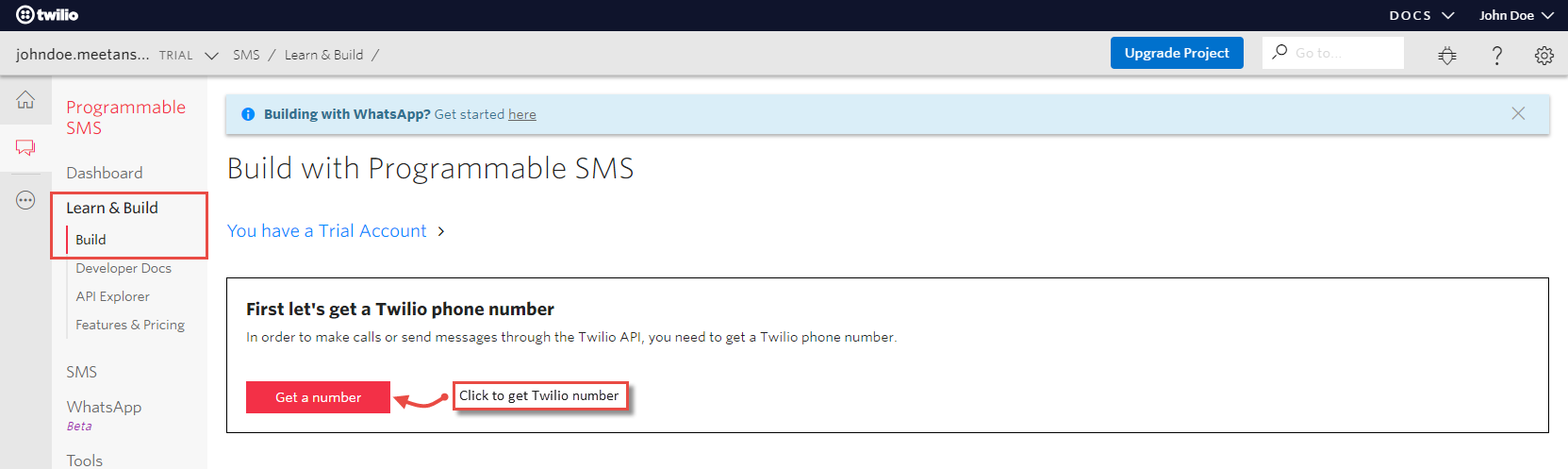
- Now, click three dots from the left sidebar, go to Programmable SMS and click Build under the Learn and Build option. From here, you can get Twilio phone number to use for sending the SMSs. Click on the " Get a number " button.
- You will get a number to choose. Click " Choose This Number ".
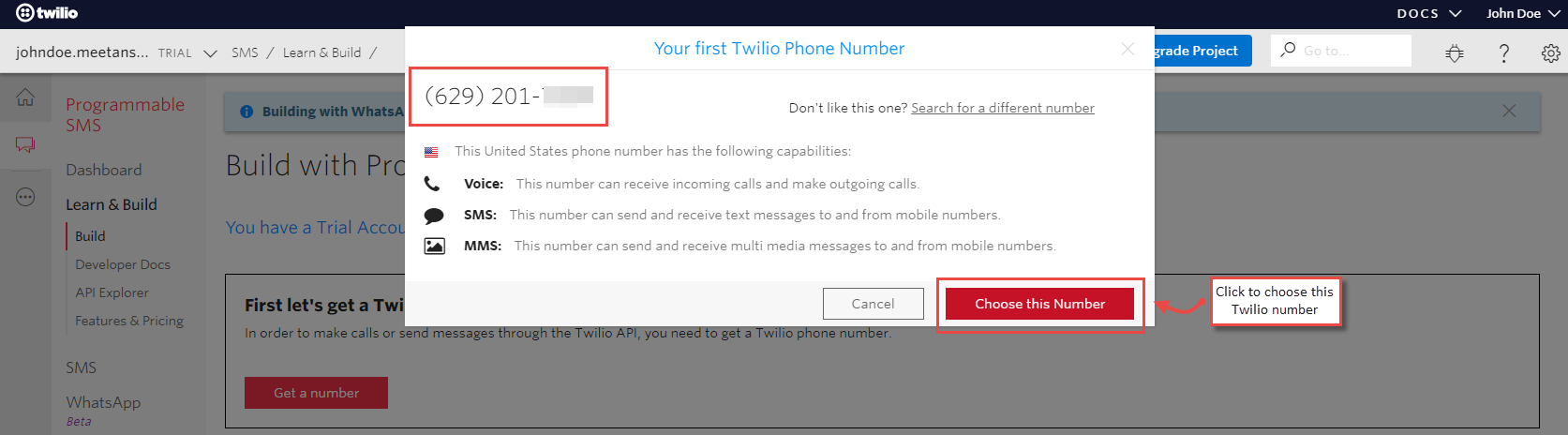
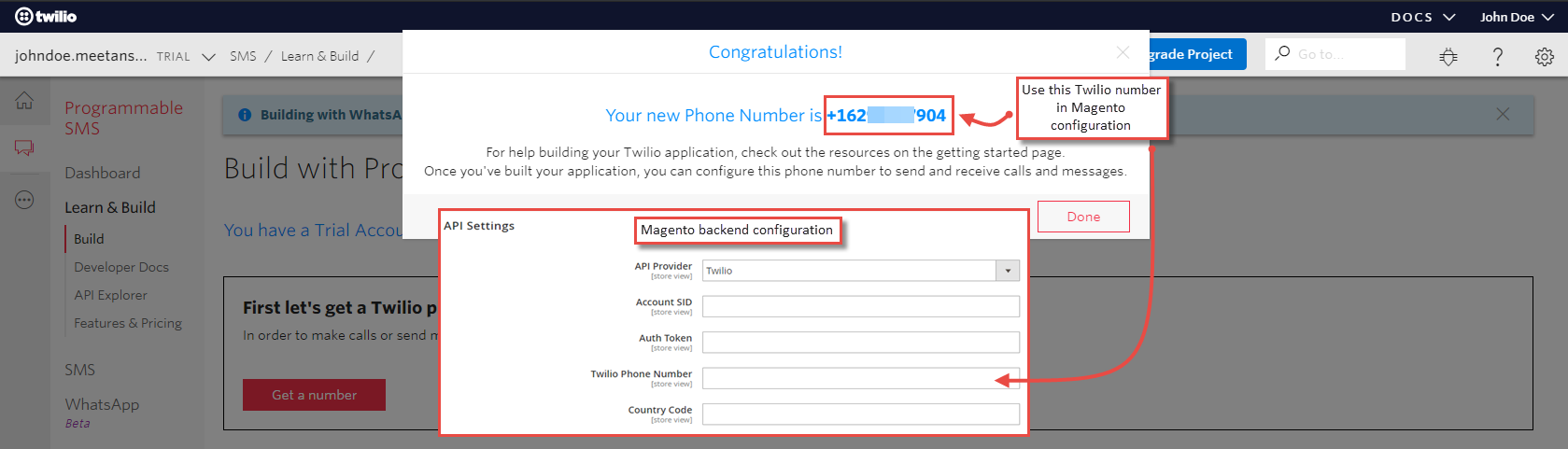
- Once you click the button, you will get a Twilio phone number. Copy this number and set it in the Magento backend configuration for Twilio account.
Msg91 Registration
The extension allows configuration of the Msg91 SMS gateway to send out of stock SMS notifications. If you choose to use Msg91 SMS gateway integration, follow the steps below to get sender ID and API key.
Note: If you are an Indian user of our Magento 2 Out of Stock Notification extension with Msg91 API , don't forget to follow DLT registration process and get your DLT templates approved for the SMS. Once you get the DLT template ID, enter the same in the respective field in Magento 2 extension configuration.
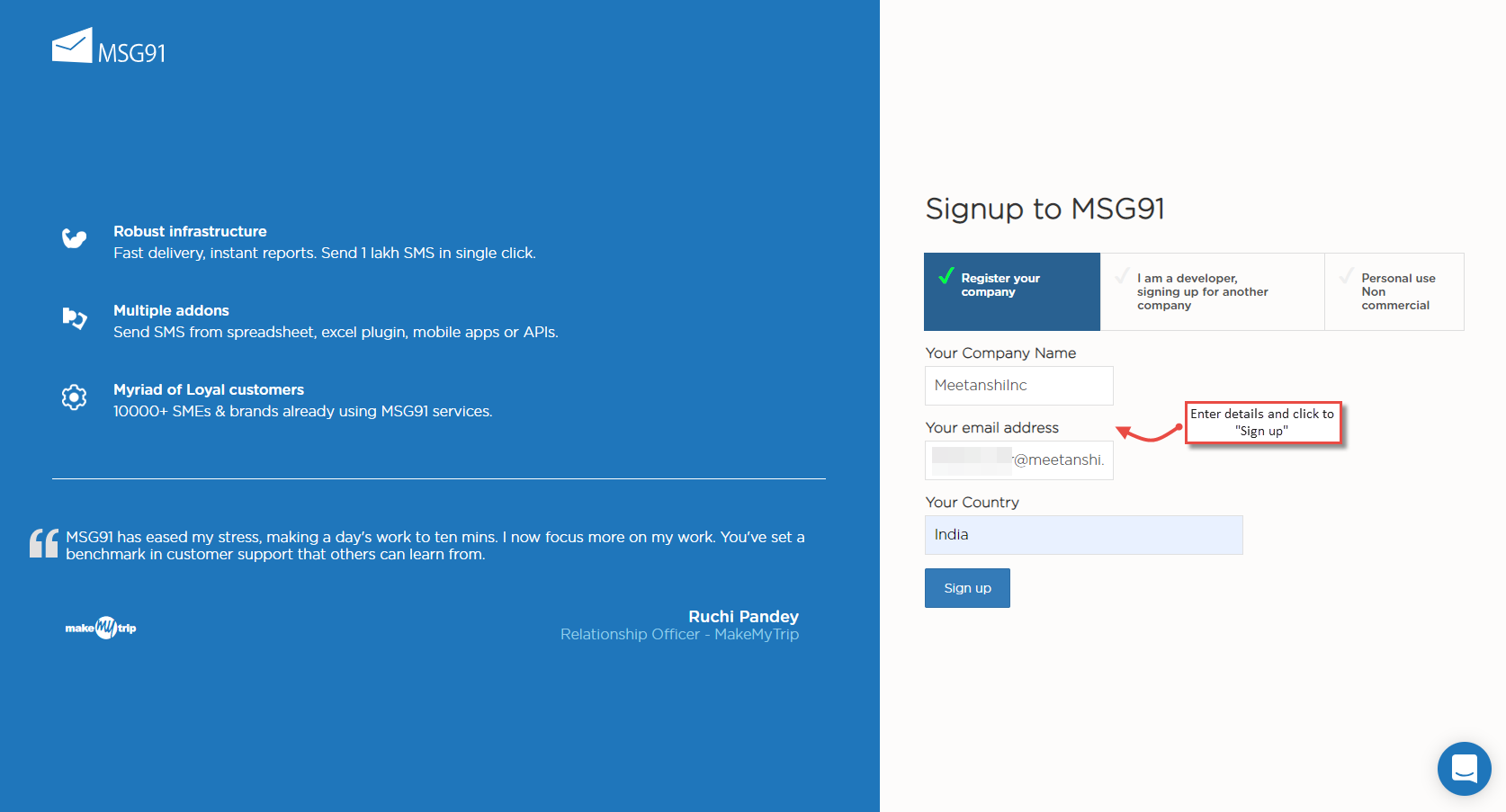
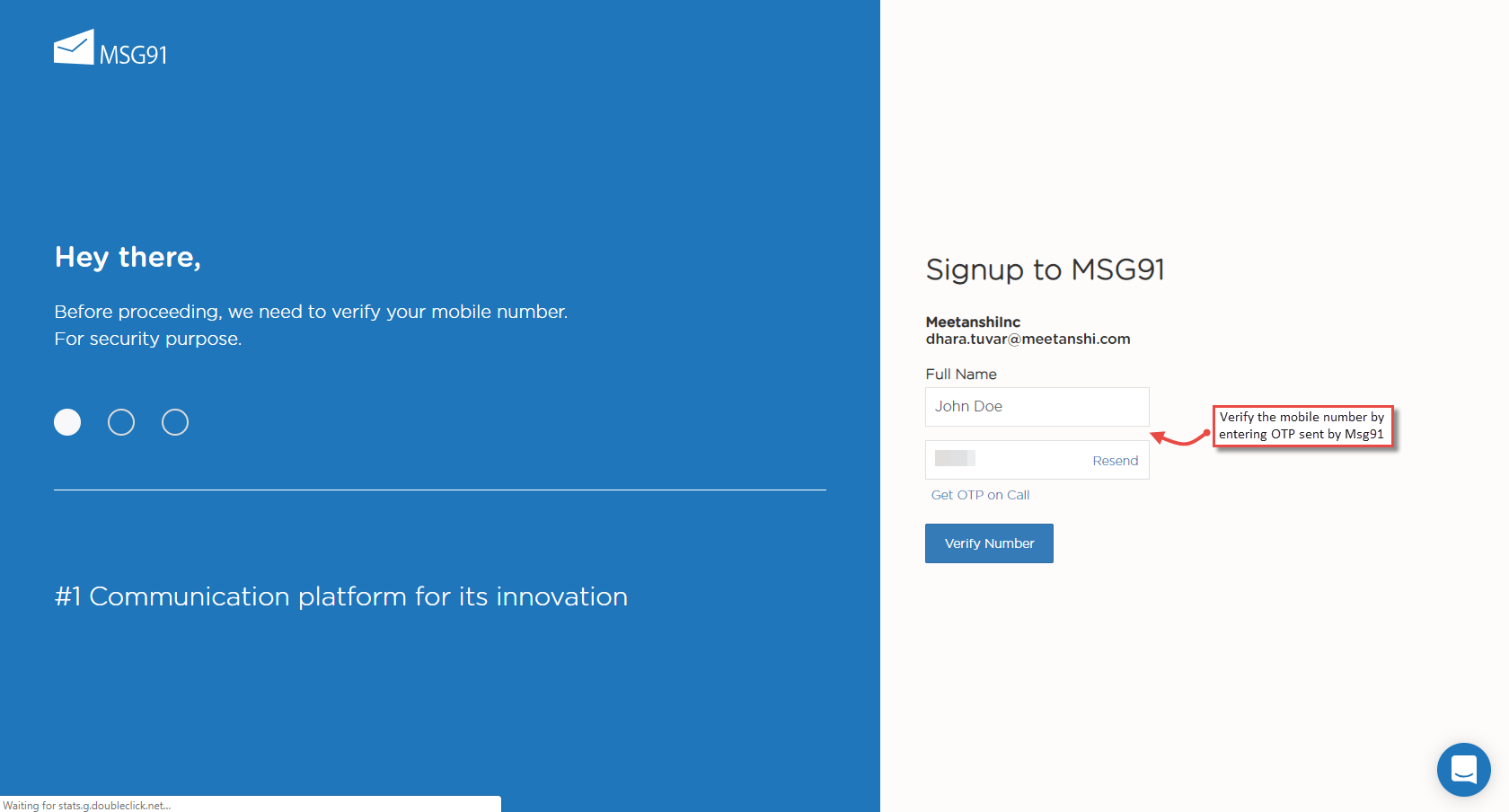
- Visit https://control.msg91.com/signup/. Enter the details and click to sign up.
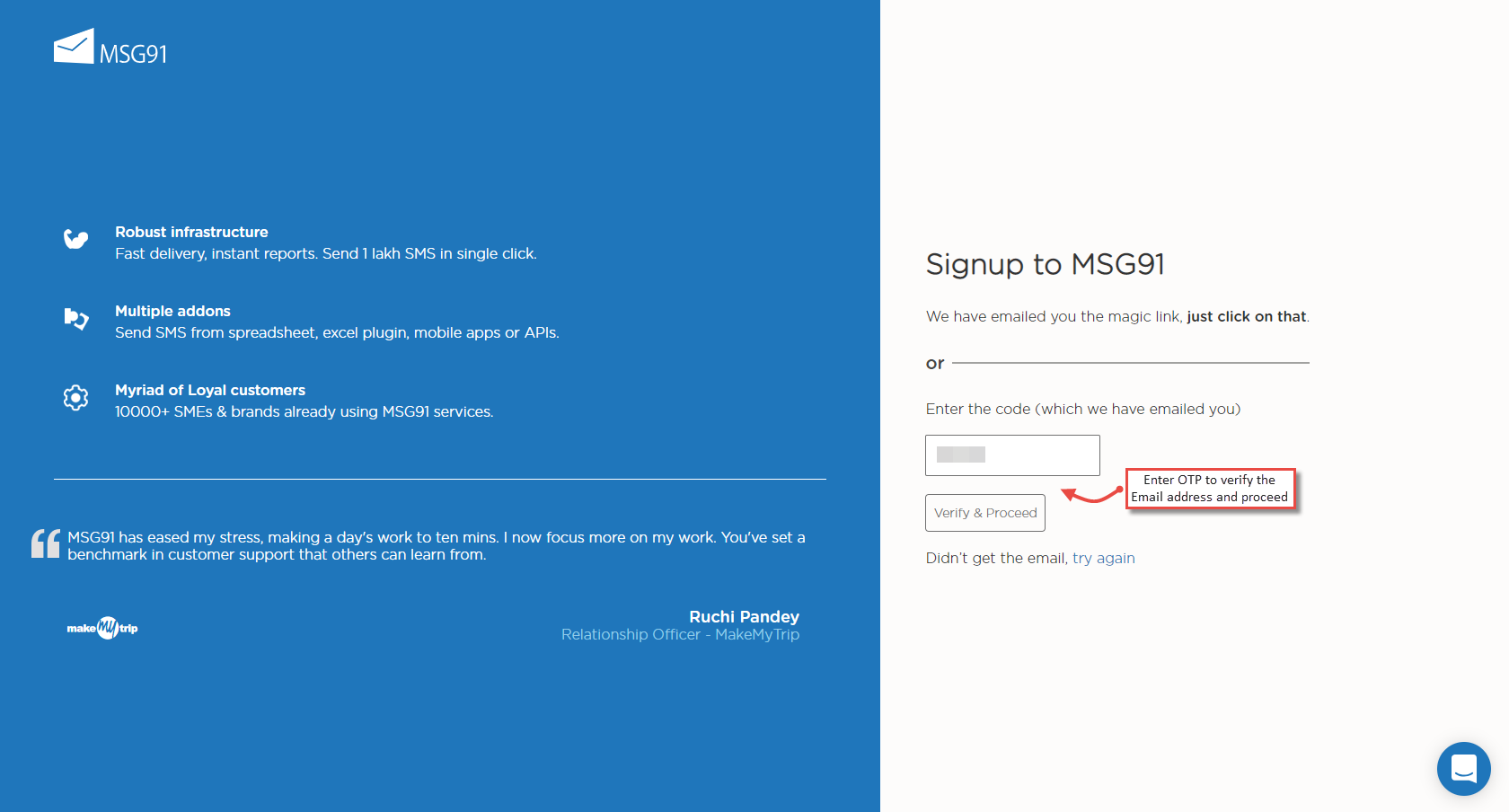
- You will get and code or a magic link in the Email to verify the Email address.
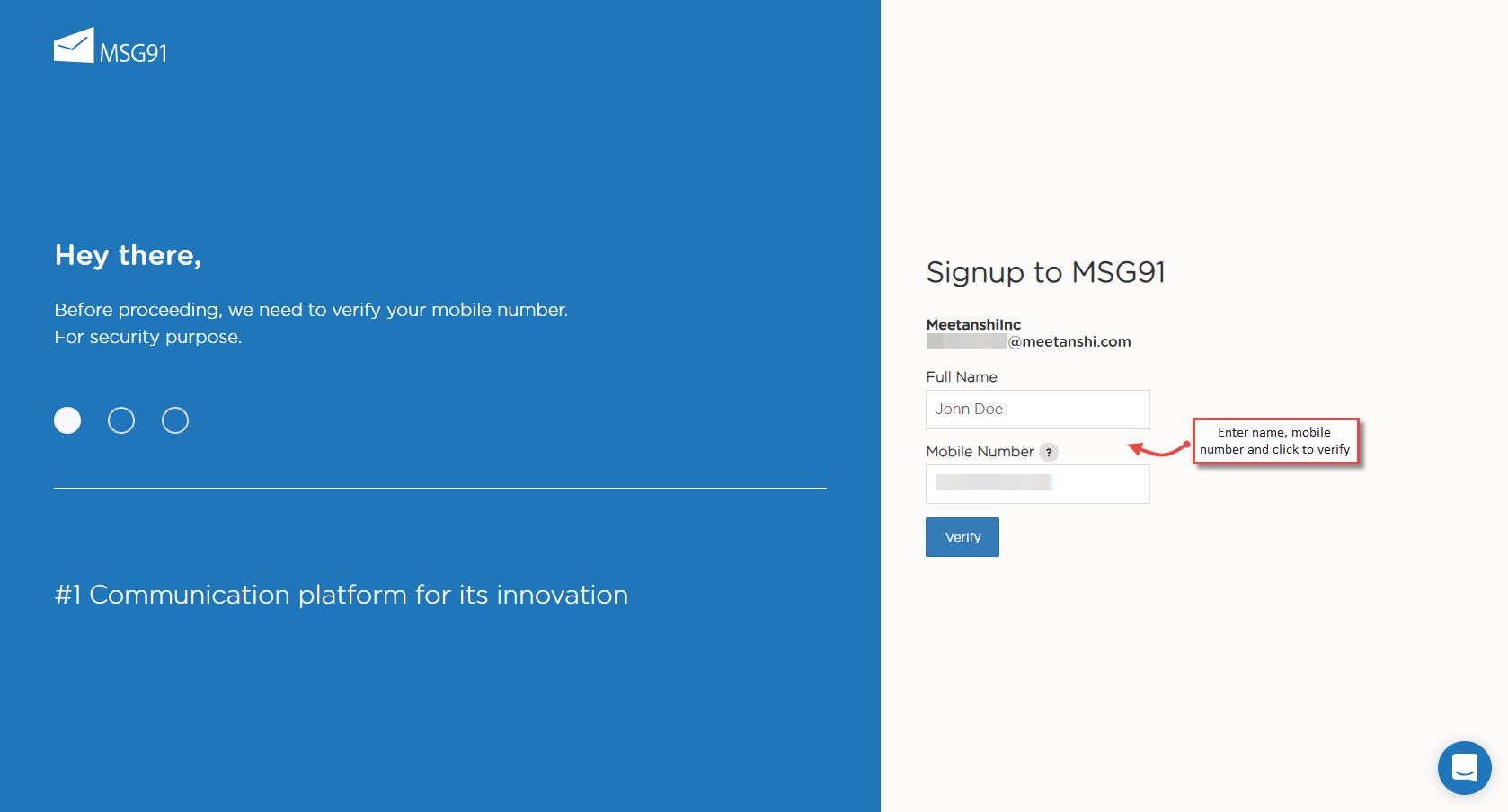
- You will be asked to enter the mobile number for verification.
- Enter the OTP to verify the mobile number and you will be registered successfully. Login with the credentials.
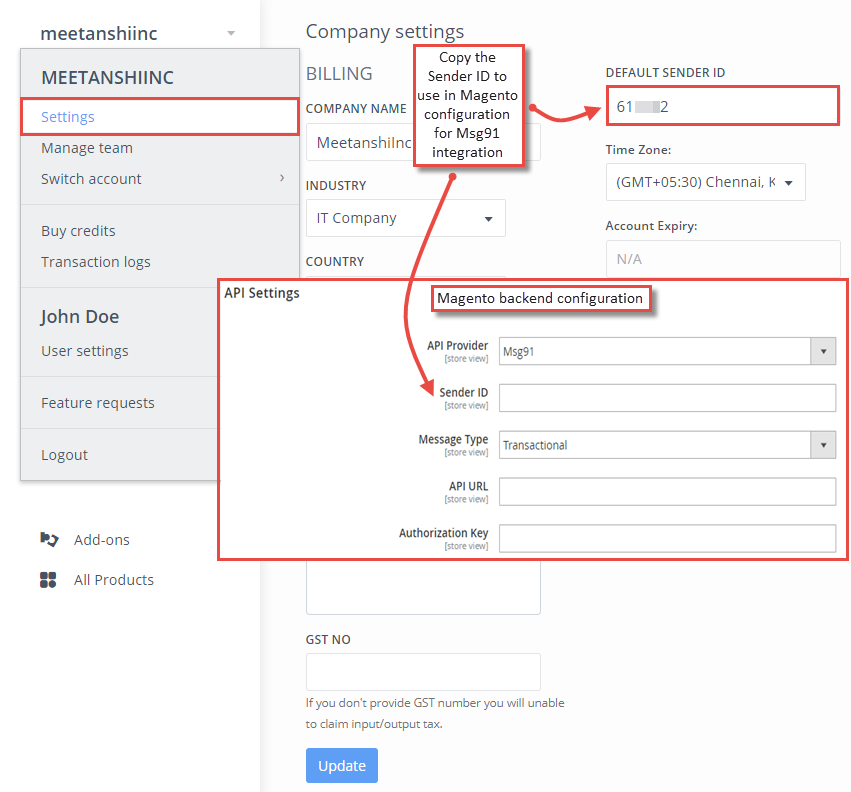
- Under the settings, you can find the Sender ID which you need to copy and paste in the Magento configuration.
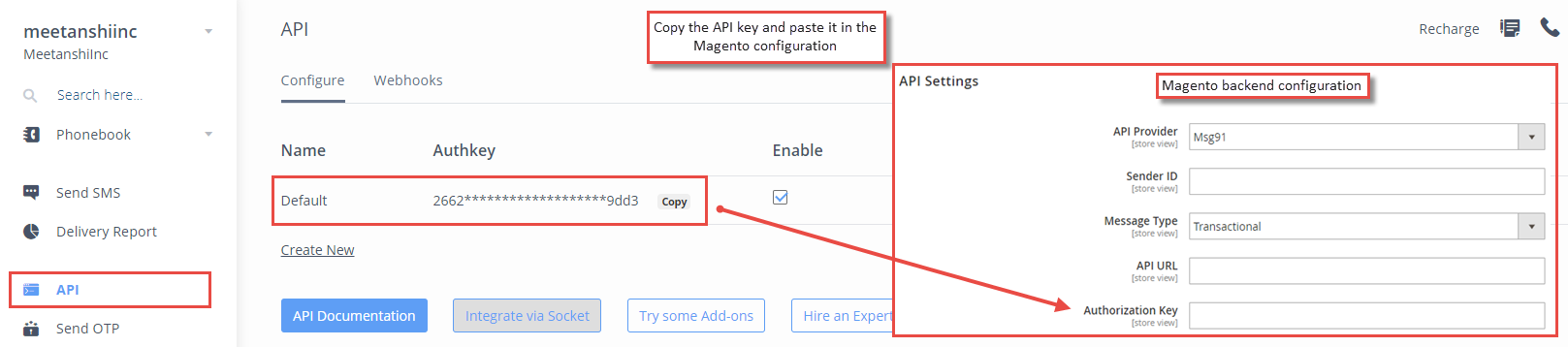
- Now move to API, where you can find the API key for the Magento configuration.
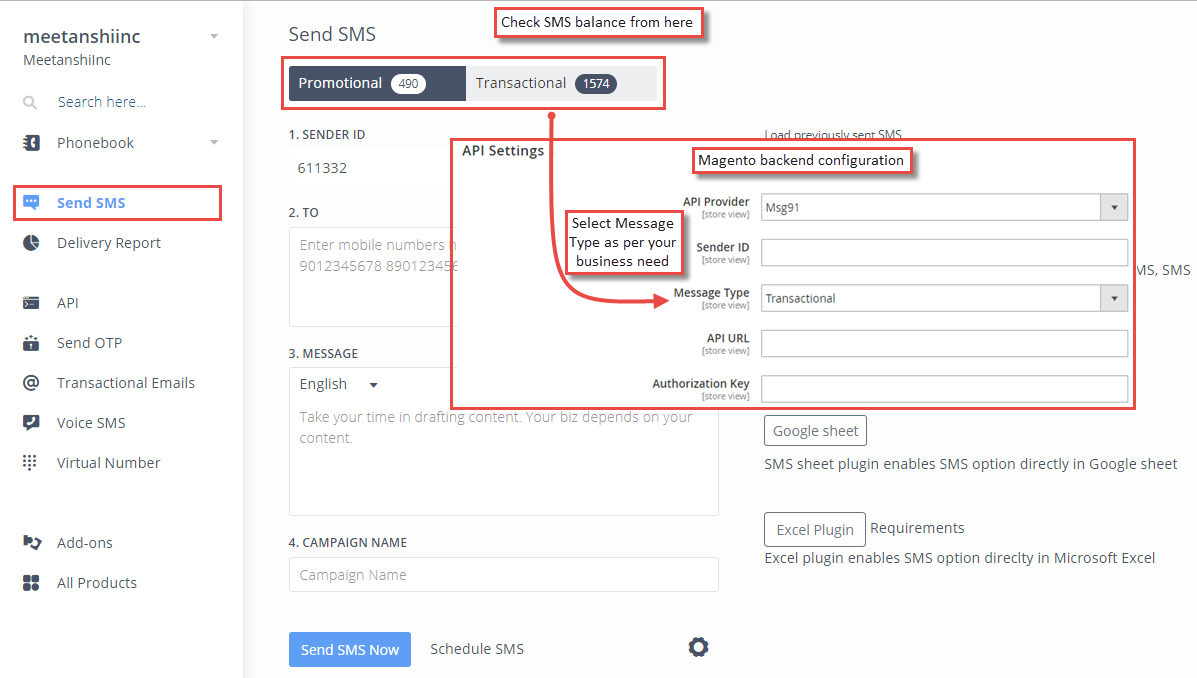
- You can find the Message type under the Send SMS tab. Select the SMS type in Msg91 configuration in Magento as per your requirement.
Textlocal Registration
The extension allows configuration of the Textlocal SMS gateway to send out of stock SMS notifications. If you choose to use Textlocal SMS gateway integration, follow the steps below to get sender ID and API key.
- Create a Textlocal account from [ https://www.textlocal.in/signup/ ]
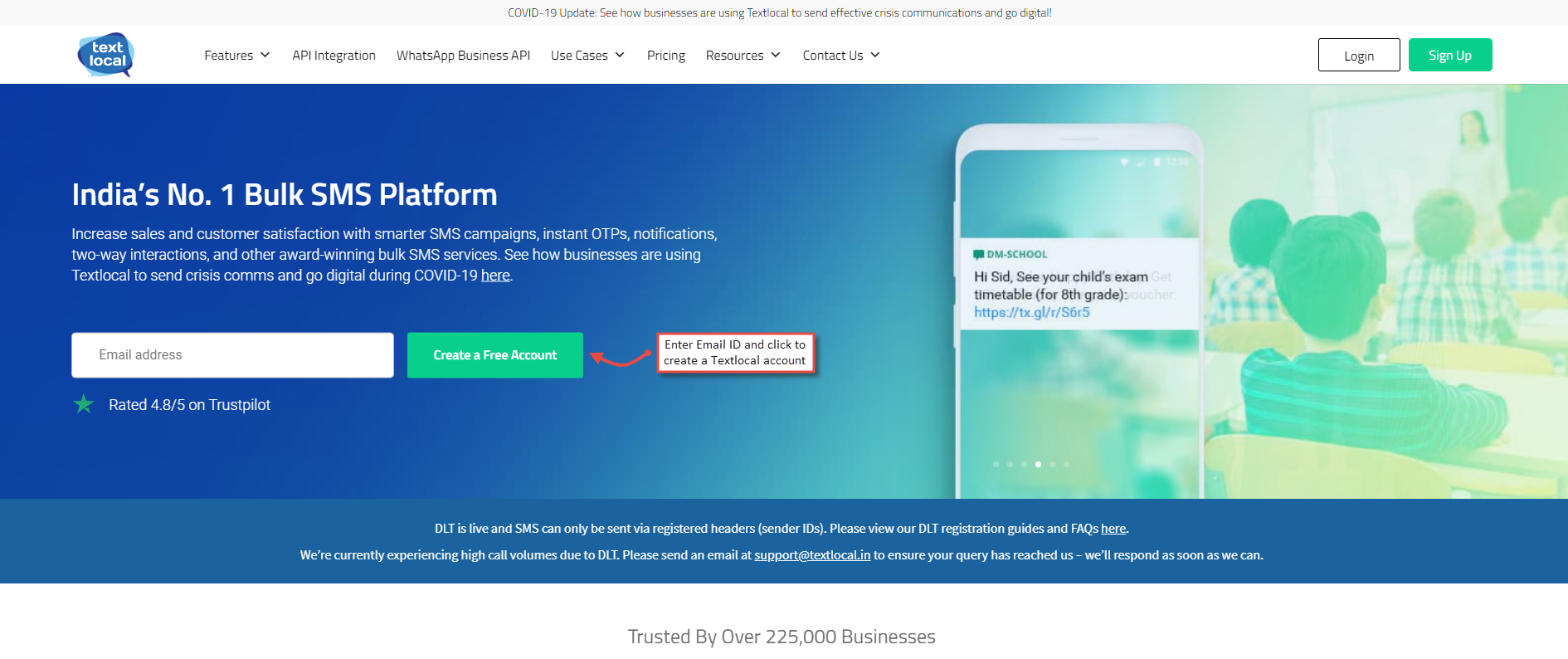
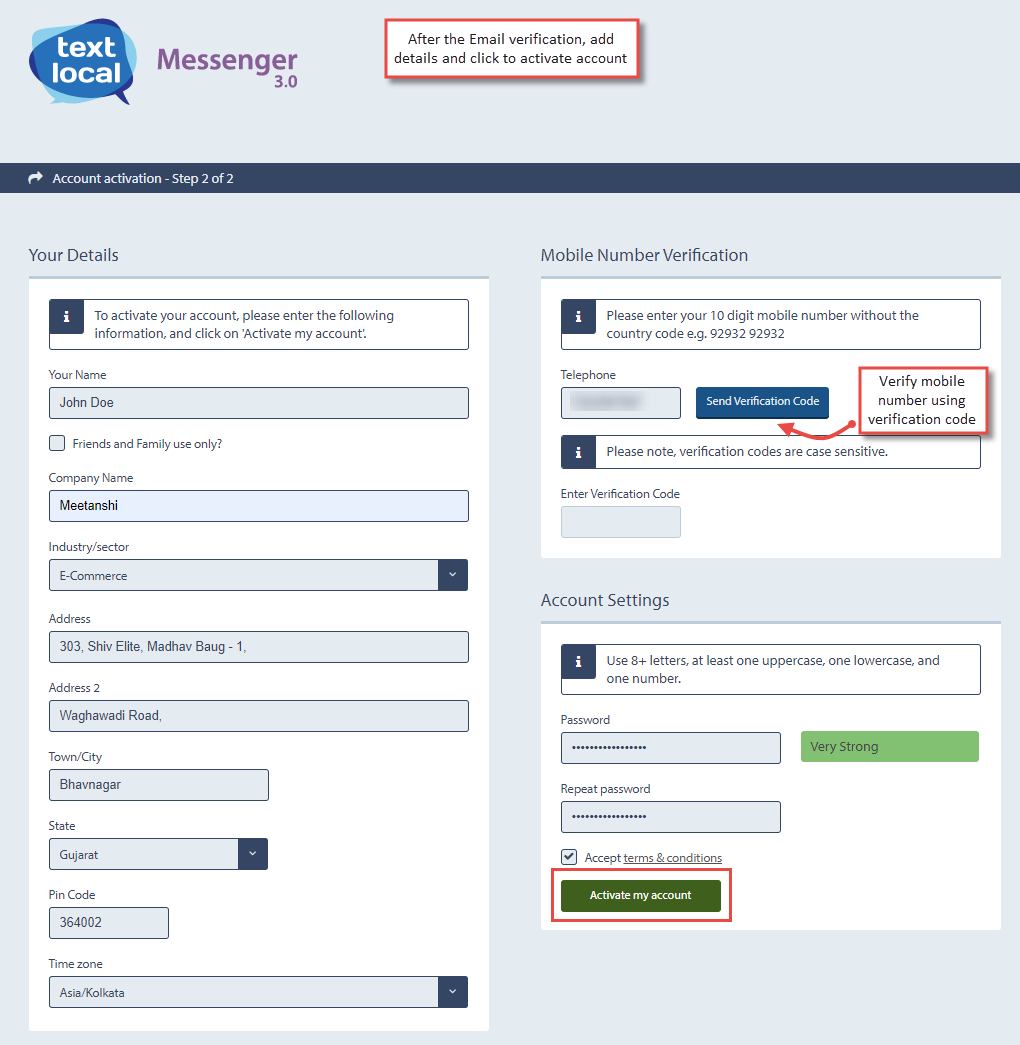
- After the registration, you will get a verification link in your registered Email ID, clicking the link will land you to add additional information page. Here, add the account details and submit to activate your Textlocal account.
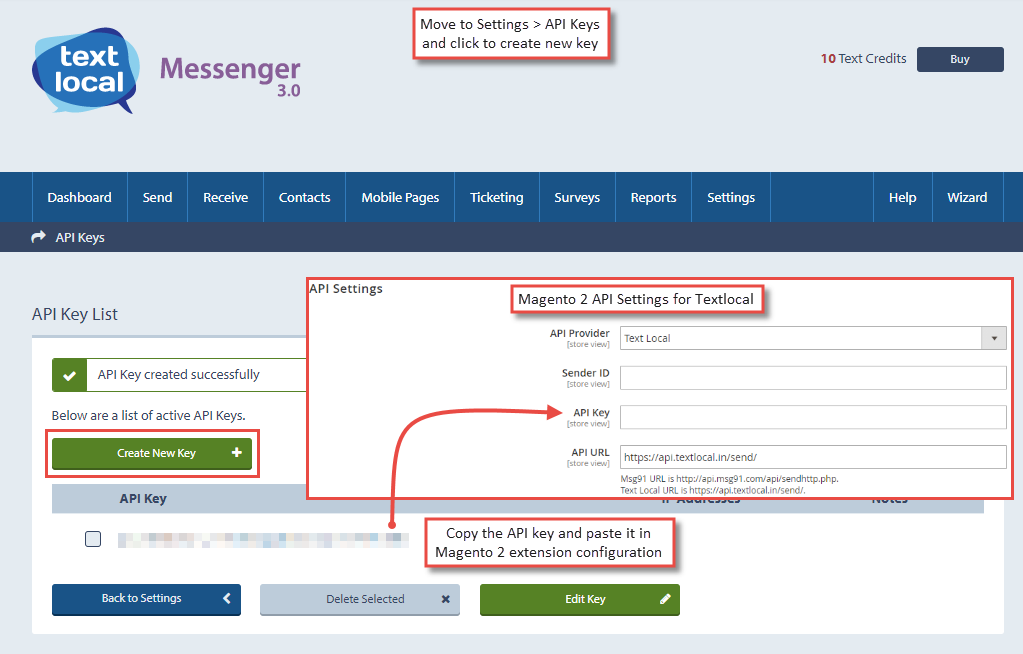
- Navigate to Settings > API Keys and create new key to use. Copy the created API Key and paste it in Magento 2 extension configuration.
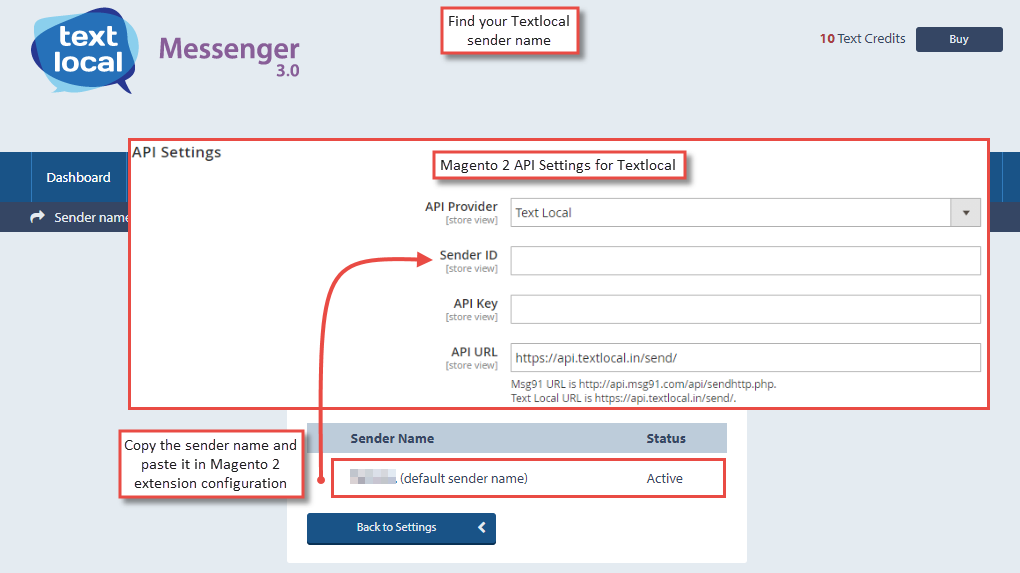
- Now move to Settings > All Settings and click on " Sender Names " to get your sender name.
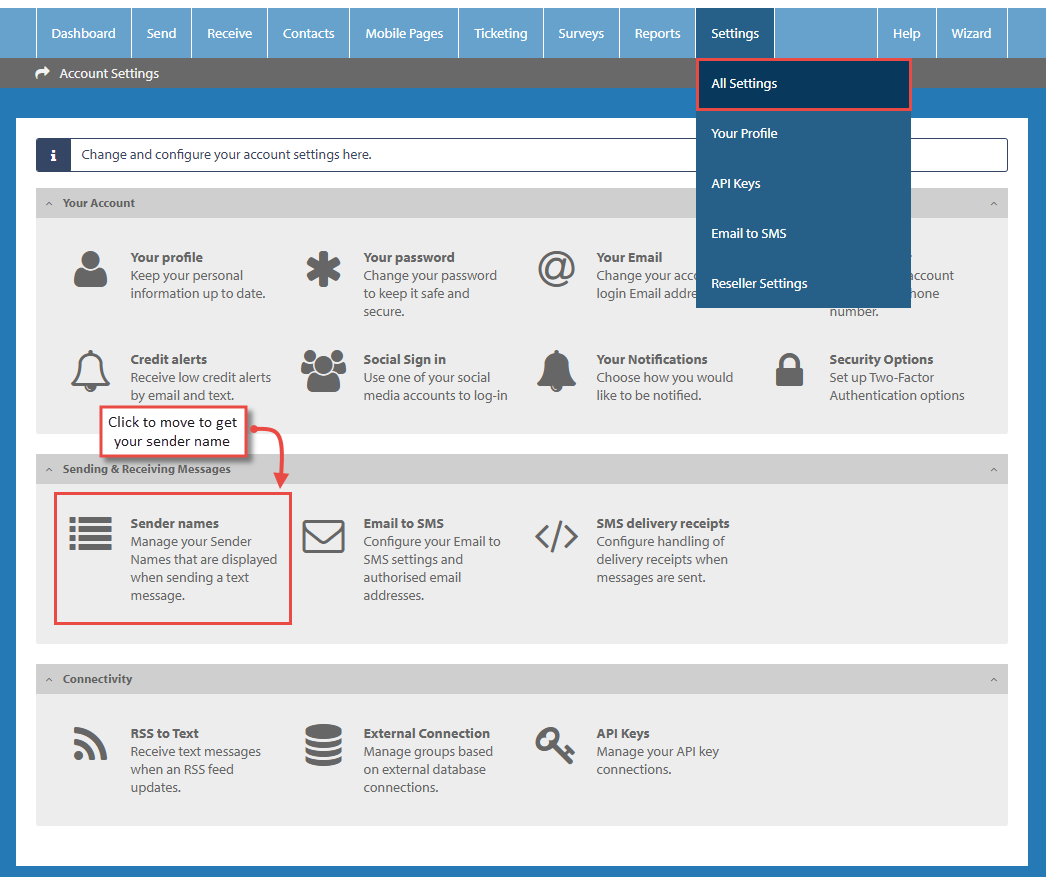
- You can copy your Textlocal sender name from here and paste it in Magento 2 extension configuration.
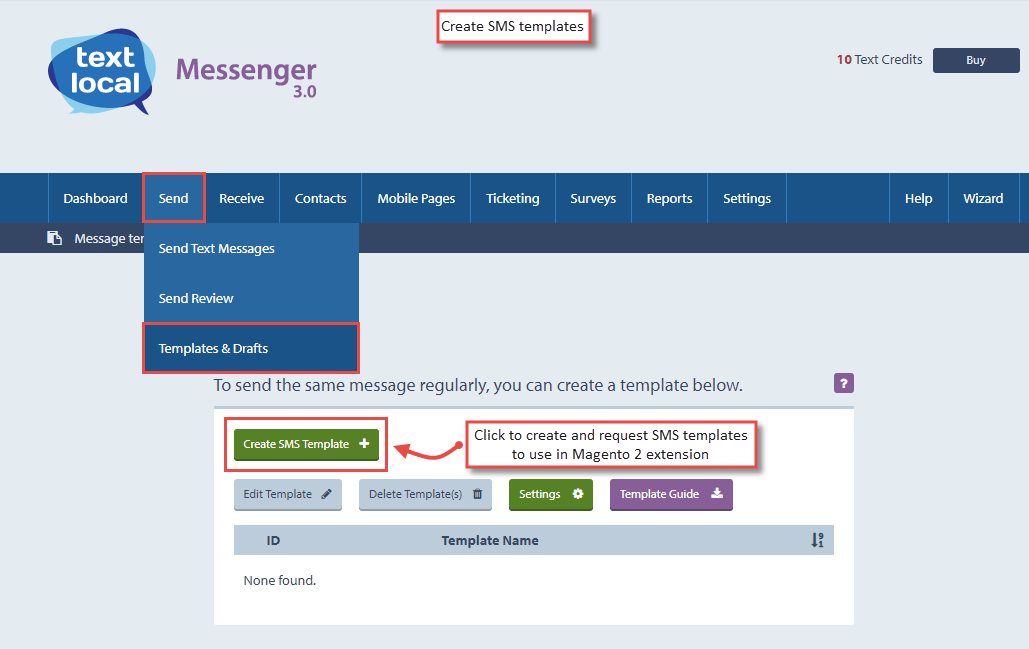
- Textlocal requires to create message template to send SMS notification. Go to Send > Templates & Drafts and click to create and request new SMS template.
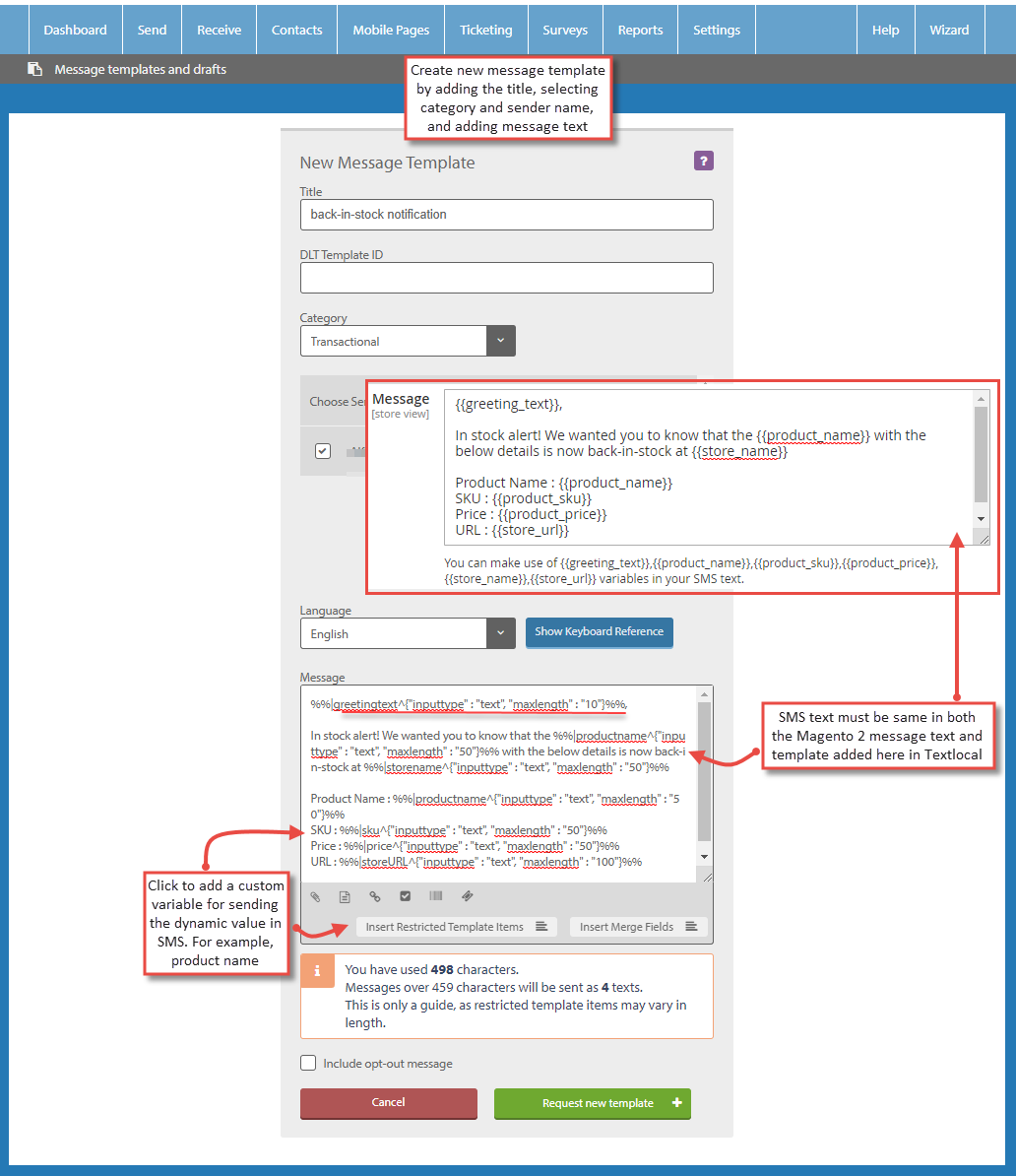
- You have to create new message template for back-in-stock SMS notification enabled in Magento 2 out of stock extension configuration. Enter title, select category and sender name. Set message text same as SMS text in Magento 2 extension configuration notification settings.
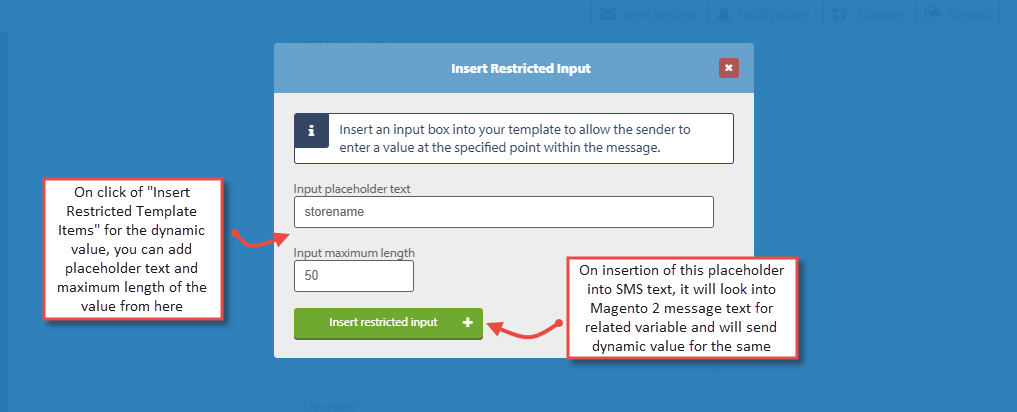
- For the dynamic values in text message input, click " Insert Restricted Template Items ". Click " Insert an Input Box " and it will open a popup to create new placeholder for the dynamic value. Add placeholder text name and set maximum length for the dynamic value. Insert it into the SMS text and while sending the message, this placeholder will match the variable in Magento 2 out of stock notification text and replace it with the real value.
- Once the message template has been created and submitted, it will take approximately a week to be approved by the Textlocal. You can send back-in- stock SMS notifications only after the message template is approved by the Textlocal.