Omnibus Price Tracker for Magento 2 - User Guide
Omnibus Price Tracker for Magento 2 helps store owners comply with EU price indication directives by automatically tracking and displaying the lowest price of a product during the last 30 days.
Extension Installation
For Marketplace Customers
- Find the Composer name and version of the extension in the extension’s
composer.jsonfile. - Log in to your server via SSH and run:
composer require meetanshi/magento2-omnibus-price-tracker
- Enter your authentication keys.
- Wait for Composer to finish updating dependencies.
- Verify the installation:
php bin/magento module:status Meetanshi_OmnibusPriceTracker
- Enable the extension:
php bin/magento module:enable Meetanshi_OmnibusPriceTracker --clear-static-contentphp bin/magento setup:upgradephp bin/magento setup:static-content:deploy -fphp bin/magento cache:flush
For Meetanshi Customers
- Extract the ZIP file and upload the extension to the
app/code/Meetanshi/OmnibusPriceTrackerdirectory via FTP. - Log in to your server via SSH and run:
php bin/magento setup:upgradephp bin/magento setup:static-content:deploy -fphp bin/magento cache:flush
Configuration
To configure the extension, log in to Magento 2, and go to Stores > Configuration > Meetanshi > Omnibus Price Tracker.
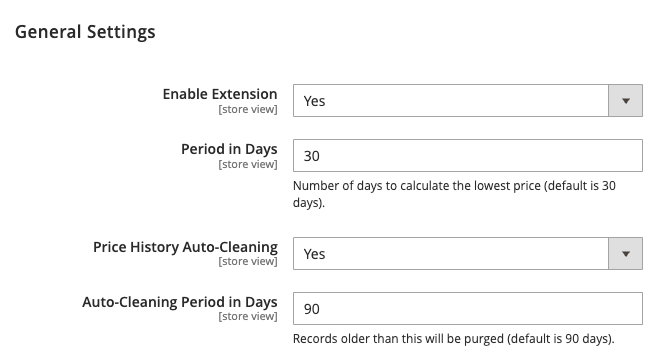
General Settings
- Enable Extension: Select Yes to enable the Omnibus price tracking and display.
- Period in Days: Enter the number of days (default 30) for which the lowest price should be calculated.
- Price History Auto-Cleaning: Select Yes to automatically remove old price history records.
- Auto-Cleaning Period in Days: Enter the number of days (default 90) after which records will be purged.
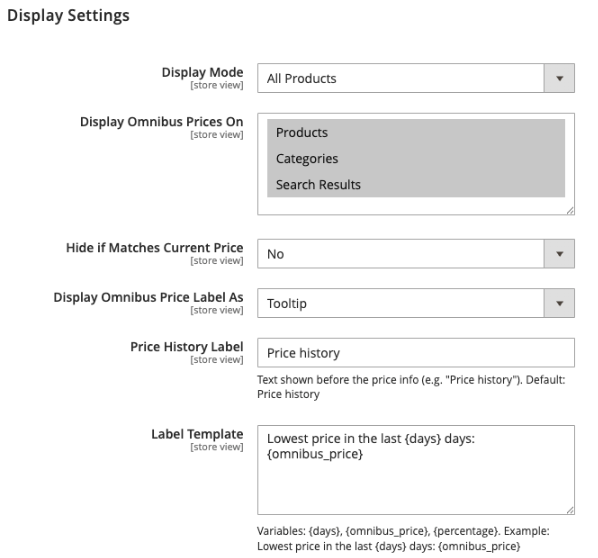
Display Settings
- Display Mode:
- All Products: Show Omnibus price for all products.
- Only Discounted Products: Show only when the product has a special price or is discounted.
- Display Omnibus Prices On: Multi-select the pages where the price should be displayed (Products, Categories, Search Results).
- Hide if Matches Current Price: Select Yes to hide the Omnibus info if the lowest price in the period is the same as the current price.
- Display Omnibus Price Label As:
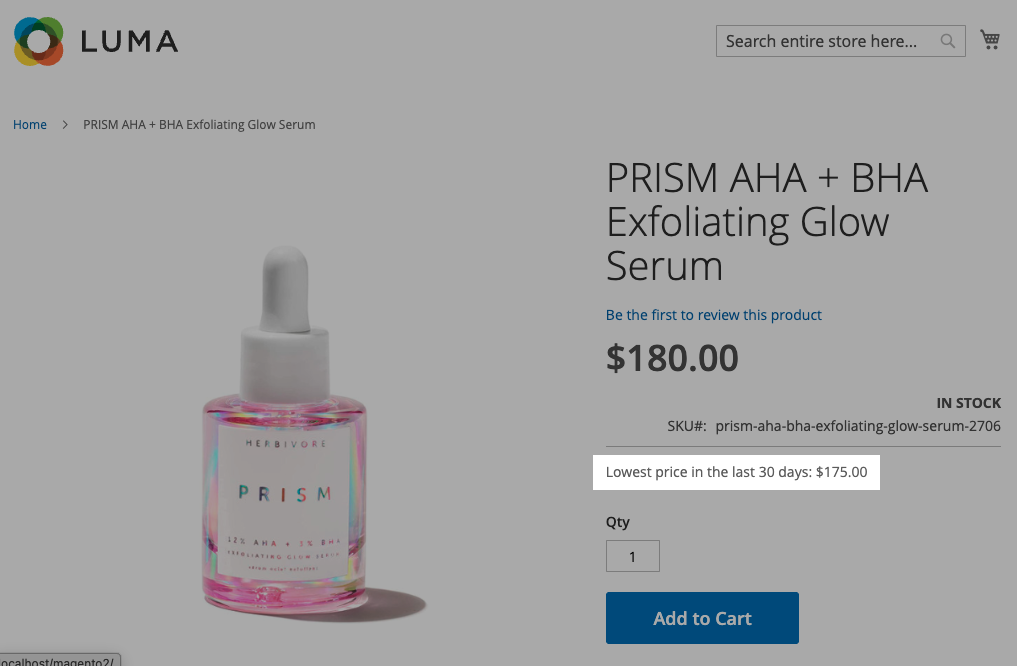
- Text: Displays the info as a plain text string.
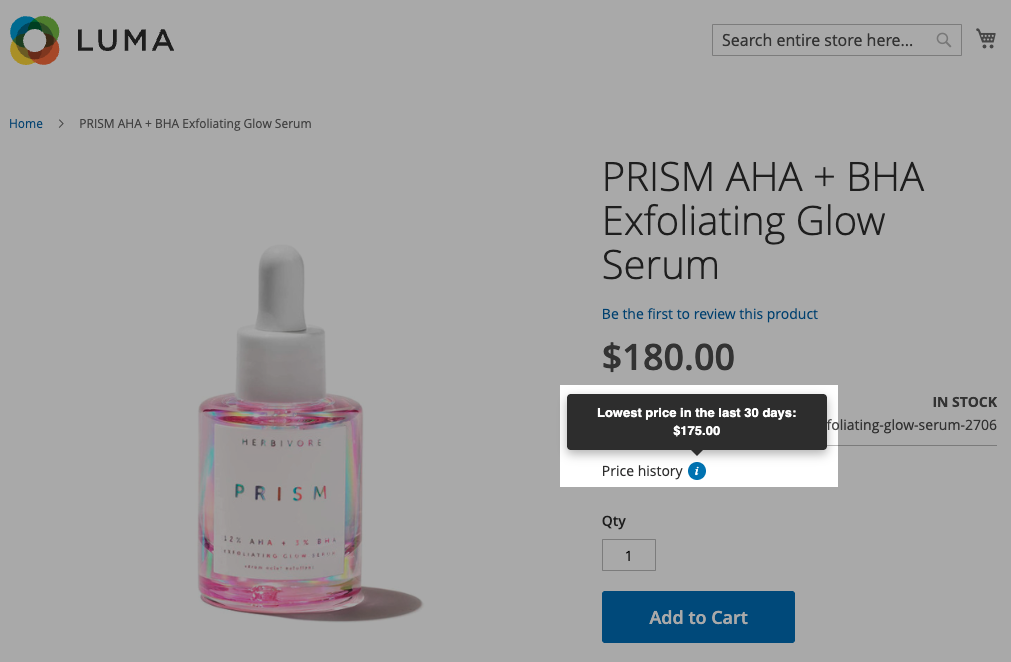
- Tooltip: Displays a label and an info "(i)" icon that shows details on hover.
- Price History Label: (Available in Tooltip mode) Enter the text to show before the info icon (e.g., "Price history").
- Label Template: Define the display format using variables:
{days},{omnibus_price}, and{percentage}.
Frontend Display
The Omnibus price information is displayed near the product price on the configured pages.
Product Page Display
Text format
Tooltip format
Search Results / Category Page Display
Text format
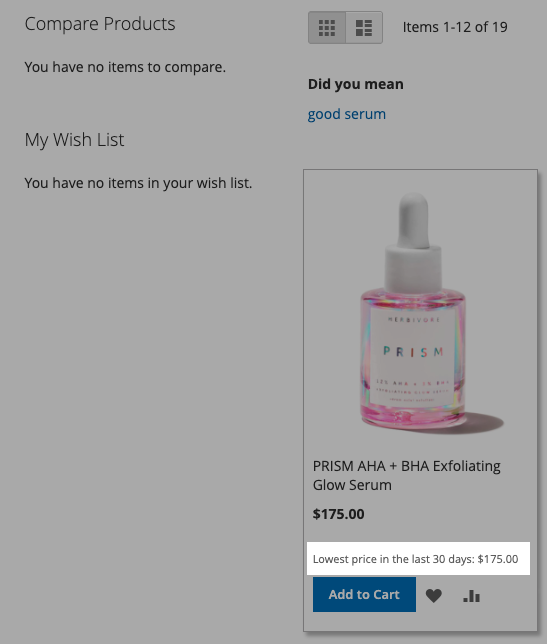
Tooltip format
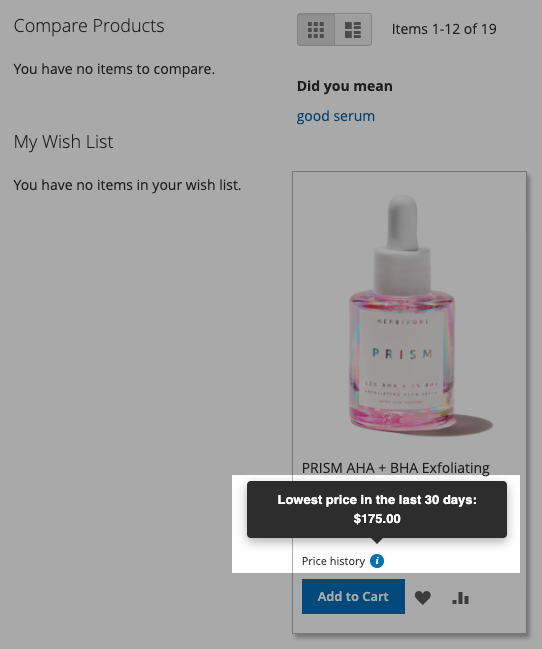
Omnibus Price History in Backend
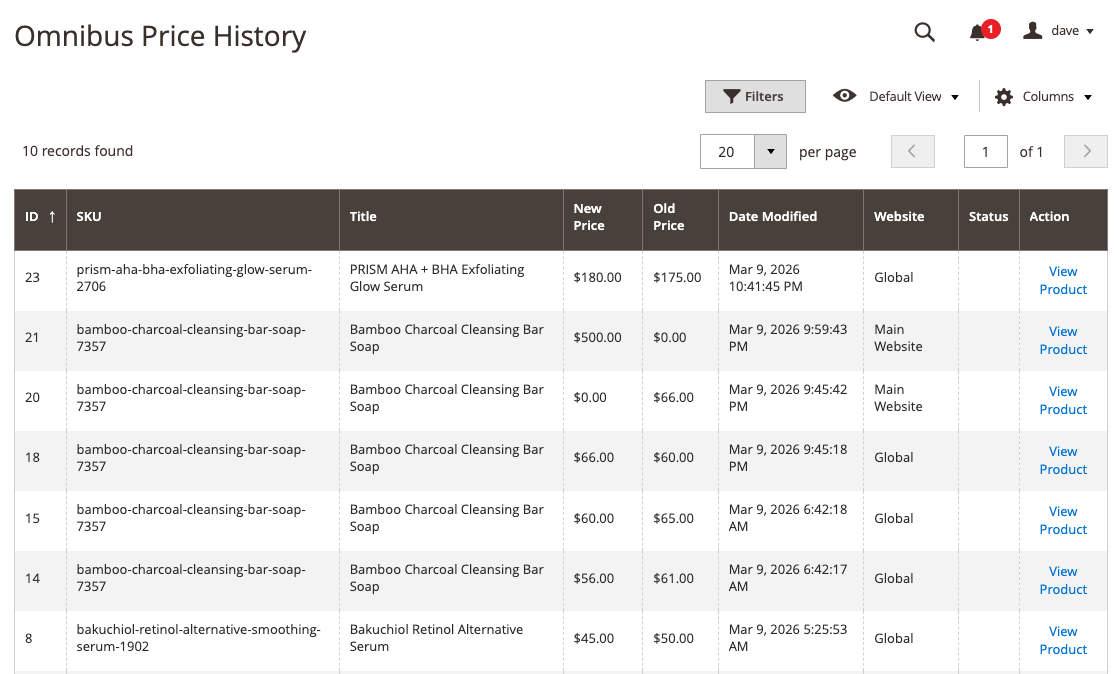
The extension provides a dedicated grid to monitor all logged price changes. Navigate to Catalog > Omnibus Price History.
The grid includes:
- ID: Unique record identifier.
- Thumbnail: Product image preview.
- SKU & Title: Product identification.
- New Price: The price after the change.
- Old Price: The price before the change.
- Price Change: Visual indicator (Green Arrow Up / Red Arrow Down) showing the movement.
- Status: Highlights if the record is the "30D Lowest" price.
- Date Modified: Timestamp of the price change.
- Website: The specific website scope of the price change.
CLI Command for Baseline Generation
If you are installing the extension on an existing store, use the following command to import current prices as the initial baseline:
php bin/magento meetanshi:omnibus:import-prices
This command iterates through all products and websites to populate the initial history.