Mass Order Actions for Magento 2 - User Guide
Streamline your order management workflow with the Mass Order Actions for Magento 2 extension. Perform bulk invoicing, shipping, status updates, and deletions directly from your Sales Order grid.
Installation Guide
Follow these steps to get the extension up and running on your Magento 2 store.
For Magento Marketplace Customers
- Get Composer Details: Find the name and version in your extension’s composer.json.
- Run Command: Log in via SSH and execute:
composer require meetanshi/magento-2-mass-order-actions - Authenticate: Enter your public/private keys when prompted.
- Finalize: Run the deployment commands listed below.
For Meetanshi Customers
- Upload: Extract the ZIP and upload contents to your Magento root via FTP.
- Deploy: Run the following commands in your SSH terminal:
php bin/magento setup:upgrade
php bin/magento setup:static-content:deploy -f
php bin/magento cache:flush
Extension Configuration
Navigate to Stores > Configuration > Meetanshi > Mass Order Actions to fine-tune your batch processing rules.
1. General Settings
| Option | Description |
|---|---|
| Enable Mass Order Actions | Global toggle to turn the extension features ON or OFF. |

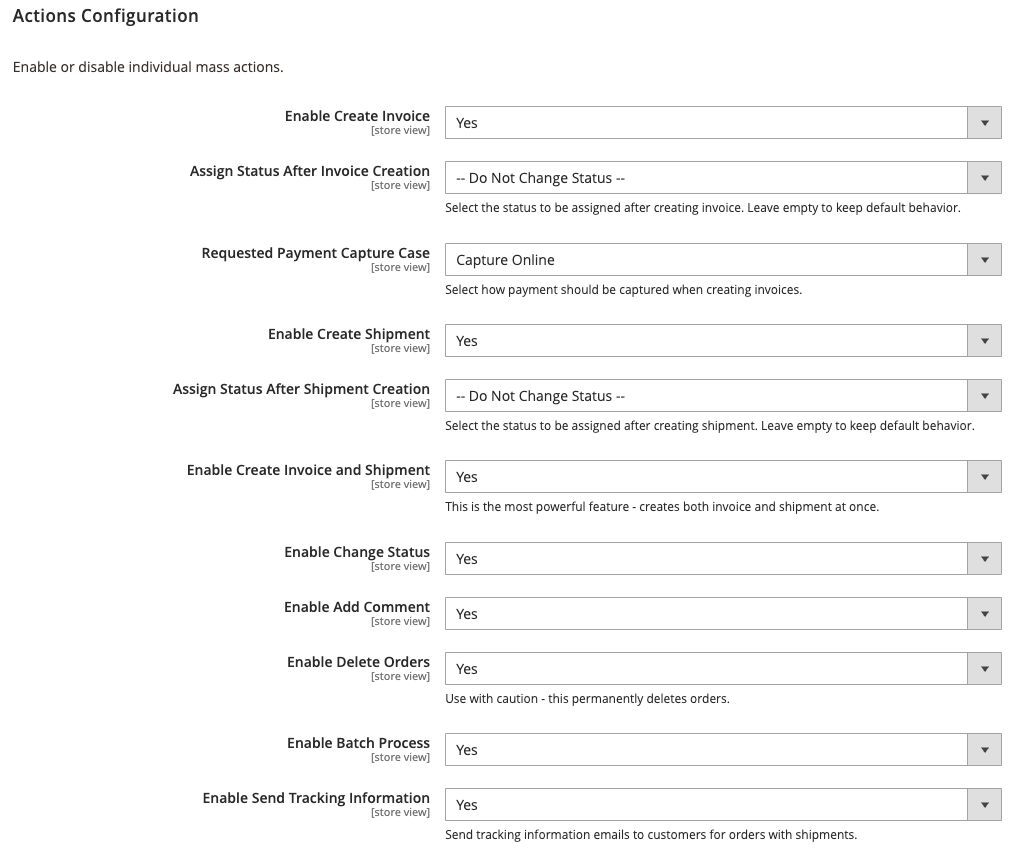
2. Actions Configuration
| Option | Logic & Behavior |
|---|---|
| Enable Create Invoice | Adds "Create Invoice" to the mass actions dropdown. |
| Assign Status (Invoice) | Automatically sets a specific status (e.g., Processing) after invoicing. |
| Payment Capture Case | Defines capture behavior: Online, Offline, or Not Capture. |
| Enable Create Shipment | Adds "Create Shipment" to the mass actions dropdown. |
| Assign Status (Shipment) | Automatically sets a specific status (e.g., Complete) after shipping. |
| Create Invoice & Shipment | Power Feature: Creates both documents in a single click. |
| Enable Change Status | Allows bulk status updates via a popup modal. |
| Enable Add Comment | Allows batch commenting with frontend visibility options. |
| Enable Delete Orders | Enables permanent removal of orders from the backend. |
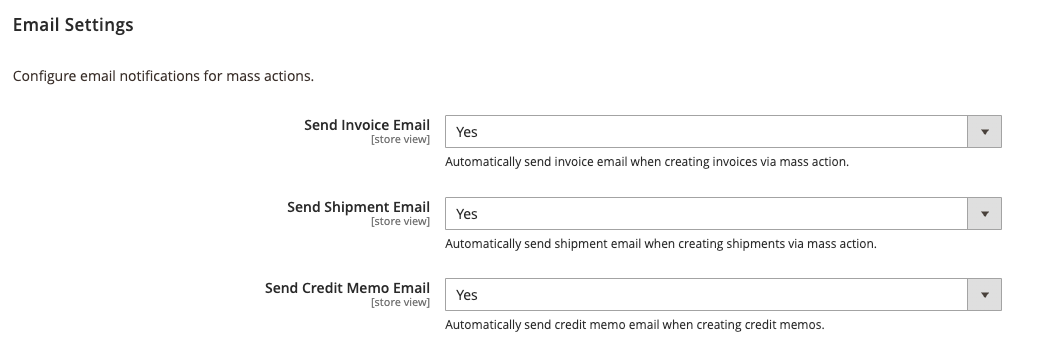
3. Email Notifications
These settings control whether customers receive standard Magento transaction emails when documents are created via mass actions.
- Send Invoice Email: ✅ Yes / ❌ No
- Send Shipment Email: ✅ Yes / ❌ No
- Send Credit Memo Email: ✅ Yes / ❌ No
Using Mass Actions in Order Grid
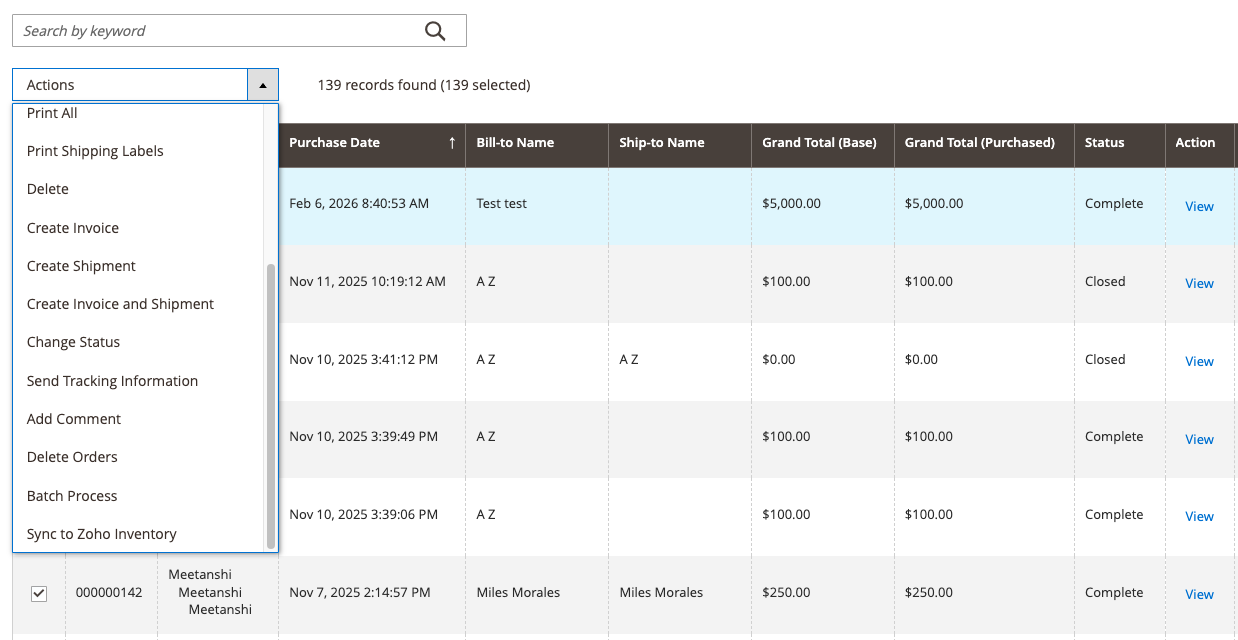
Navigate to Sales > Orders to start managing your orders in bulk.
Quick Document Creation
Select your orders and choose from the following in the Actions dropdown:
- Create Invoice: Instant batch invoicing.
- Create Shipment: Instant batch shipping.
- Create Invoice and Shipment: Processes both documents at once for maximum speed.
Bulk Status Update
- Select orders from the grid.
- Choose Change Status from the Actions menu.
- A popup modal will appear. Select the New Status.
- Click Submit to update all selected records.
Ensure the new status is valid for the current state of the selected orders to avoid Magento state-machine errors.
Batch Commenting
- Select orders and click Add Comment.
- Type your message in the text area.
- Visible on Frontend: Check this if you want the customer to see the comment in their "My Orders" section.
- Notify Customer: Send an automated email with this comment.
High-Volume "Batch Process"
For stores processing hundreds of orders, use the Batch Process action.
- Why use it?: It processes orders in chunks of 50 to prevent server timeouts.
- What it does: Automatically creates invoices and shipments for all selected eligible orders.
Mass Delete Orders
Perfect for clearing test data or removing unwanted records.
This action is permanent. Orders deleted via this mass action cannot be recovered. Always double-check your selection before confirming.