Facebook Pixel for Magento 2 - User Guide
Extension Installation
For Magento Marketplace Customers
Find the extension's Composer name and version in its composer.json file.
- Login to your SSH and run:
composer require meetanshi/magento-2-facebook-pixel
- Enter your authentication keys . Your public key is your username; your private key is your password.
- Wait for Composer to finish updating your project dependencies and make sure there aren't any errors.
- To verify that the extension is installed properly, run the command:
php bin/magento module:status Meetanshi_FBPixel
- By default, the extension is probably disabled. Enable the extension and clear static view files:
php bin/magento module:enable Meetanshi_FBPixel --clear-static-content
php bin/magento setup:upgrade
For Magento version 2.0.x to 2.1.x -
php bin/magento setup:static-content:deploy
For Magento version 2.2.x & above -
php bin/magento setup:static-content:deploy --f
php bin/magento cache:flush
For Meetanshi Customers
- Download the extension zip file and extract it to your Magento's root directory.
- Login to your SSH and run below commands step by step:
php bin/magento setup:upgrade
For Magento version 2.0.x to 2.1.x -
php bin/magento setup:static-content:deploy
For Magento version 2.2.x & above -
php bin/magento setup:static-content:deploy --f
php bin/magento cache:flush
Get Your Facebook Pixel Code
In the Facebook Events Manager , click Data Sources in the left-side menu and select the data source for which you want to set up Facebook Pixel.
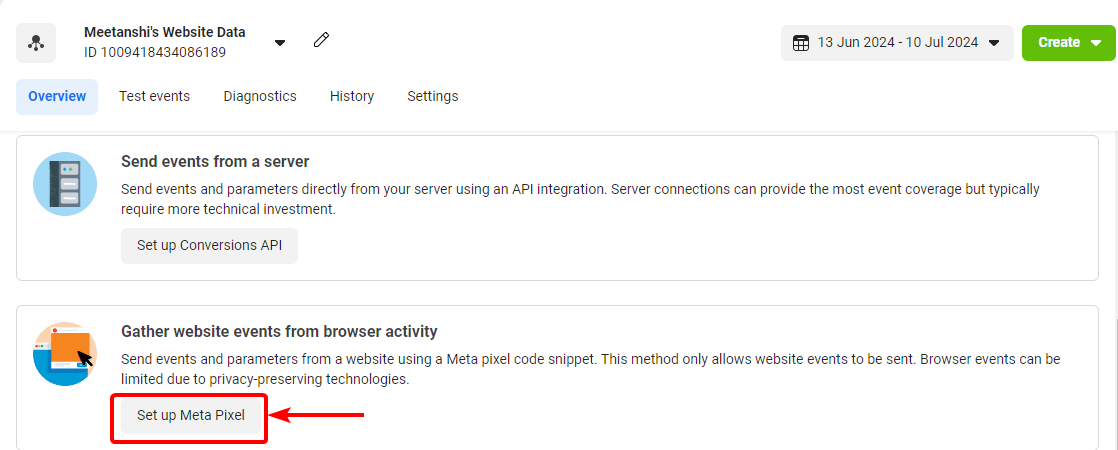
Click " Set up Meta Pixel " under the Overview tab.
In the pop-up, choose " Install Code Manually ".

Now, the base code for the Facebook Pixel will appear on the screen.
Copy it.
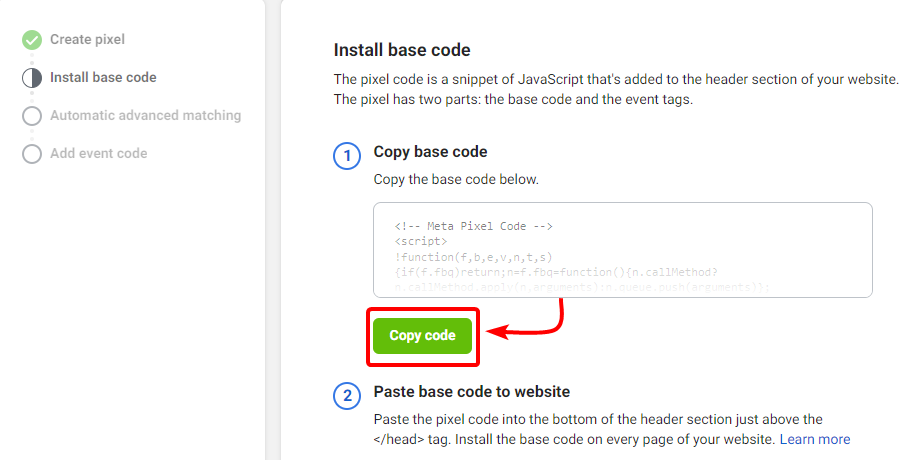
You'll need to add this base code to the extension configuration.
Configure Extension
To configure the Facebook Pixel for Magento 2, go to Stores > Configuration > Meetanshi > Facebook Meta/Pixel and configure the following settings:
- Facebook Pixel: Enable it to add Pixel code to your Magento 2 store.
- FB Pixel JS Code: Paste the code that you copied from FB Event Manager.
- Order Success page Total Calculation: Choose whether to count a sub-total or grand total
- Success Page Path: If you're using a custom checkout, add the success path here (blank if you're using default Magento's checkout)
- Exclude Orders with 0 Value: Choose if you want to exclude or include zero-value orders from the tracking
Click the " Save Config " button.

Test Facebook Pixel Events Tracking
Now you must perform any action on your website to test events and see the results.
To track those events navigate to Test Events > Confirm that your website's events are set up correctly > Enter your website URL > Click Open Website .
Events may be delayed, as test events appear in real-time, but it may take up to 30 minutes after you set up your event to see it in your analytics.
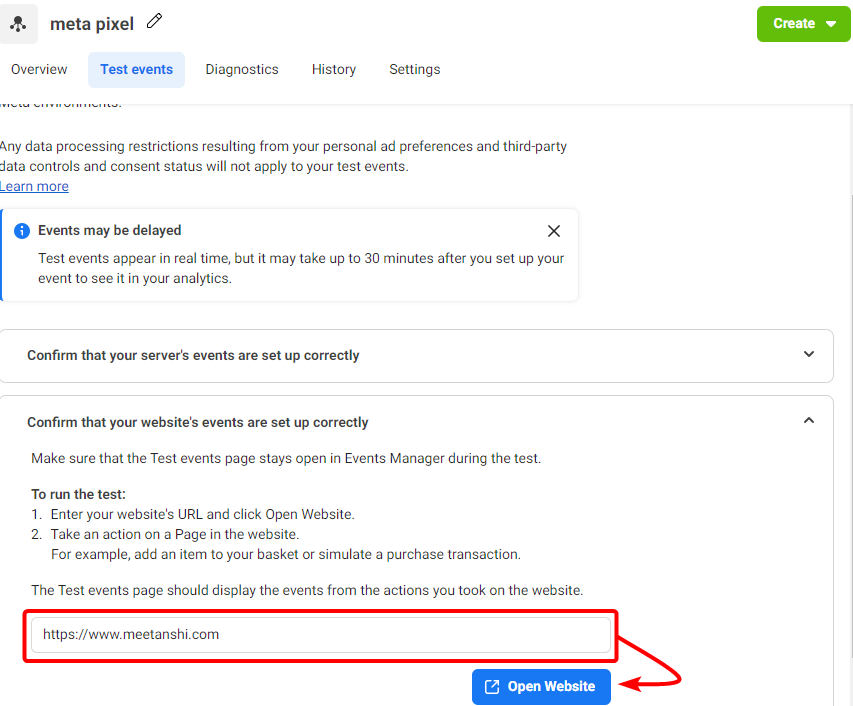
Now make the moves you want on your website and then come back to your website it will show you the tracking.
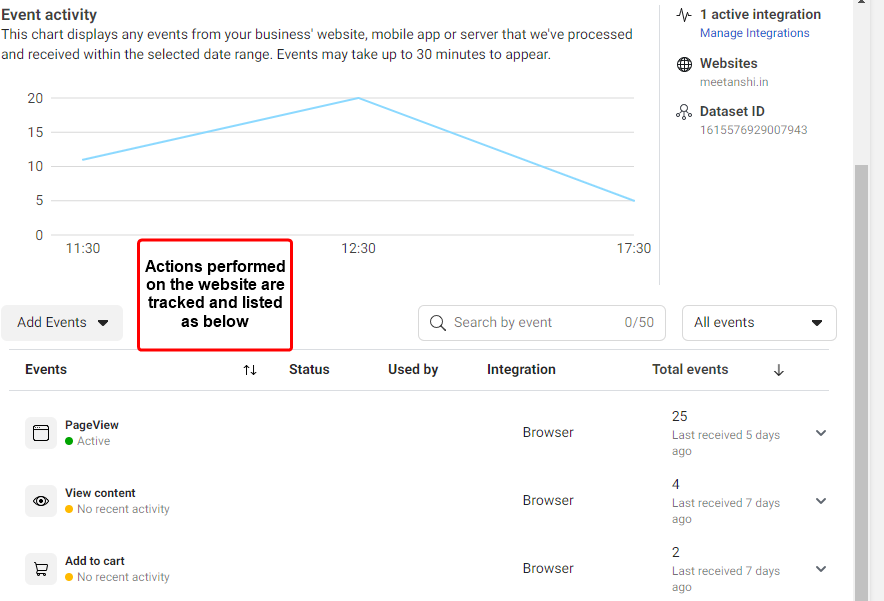
You also can install the Meta Pixel Helper Chrome extension which will instantly show you the tracked action on your website.