Custom Carrier Trackers for Magento 2 - User Guide
Extension Installation
For Magento Marketplace Customers
- Create a folder structure in Magento root as app/code/Meetanshi/ CustomCarrierTracking
- Download and extract the zip folder and upload our extension files to the app/code/Meetanshi/ CustomCarrierTracking via FTP.
- Login to your SSH and run below commands step by step:
composer require meetanshi/magento2-custom-carrier-trackers --ignore-platform-reqs
Enter your authentication keys . Your public key is your username; your private key is your password.
Wait for Composer to finish updating your project dependencies and make sure there aren't any errors.
To verify that the extension installed properly, run the command:
php bin/magento module:status Meetanshi_CustomCarrierTracking--ignore-platform-reqs
By default, the extension is probably disabled. Enable the extension and clear static view files:
php bin/magento module:enable Meetanshi_CustomCarrierTracking --clear-static-content
php bin/magento setup:upgrade
- For Magento version 2.0.x to 2.1.x -
php bin/magento setup:static-content:deploy
- For Magento version 2.2.x & above -
php bin/magento setup:static-content:deploy --f
php bin/magento cache:flush
For Meetanshi Customers
- Extract the zip folder and upload our extension to the root of your Magento 2 directory via FTP.
- Login to your SSH and run below commands step by step:
php bin/magento setup:upgrade
- For Magento version 2.0.x to 2.1.x -
php bin/magento setup:static-content:deploy
- For Magento version 2.2.x & above -
php bin/magento setup:static-content:deploy --f
php bin/magento cache:flush
Manage Custom Carrier Trackers
The extension provides the facility to manage custom carrier trackers from Reports > Manage Custom Carrier Trackers grid. All the already added and saved carrier trackers seen enlisted here.
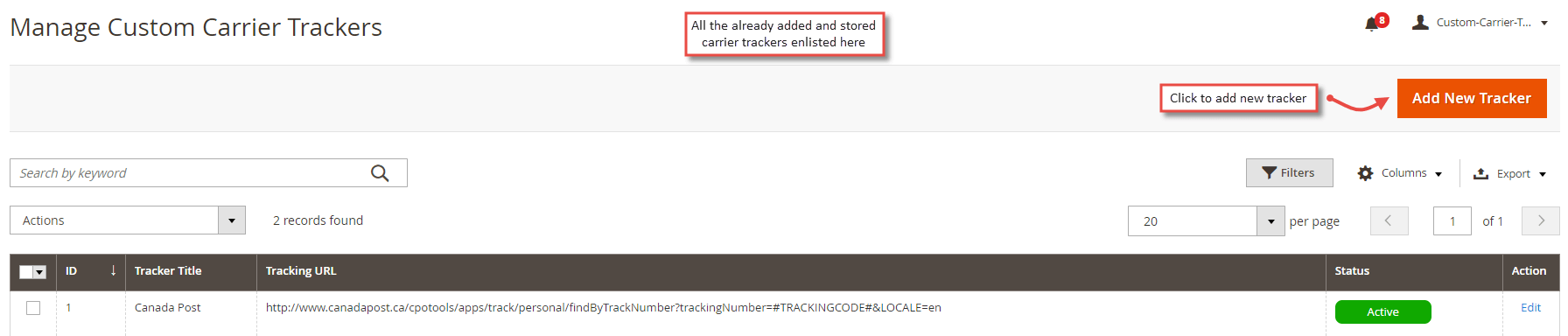
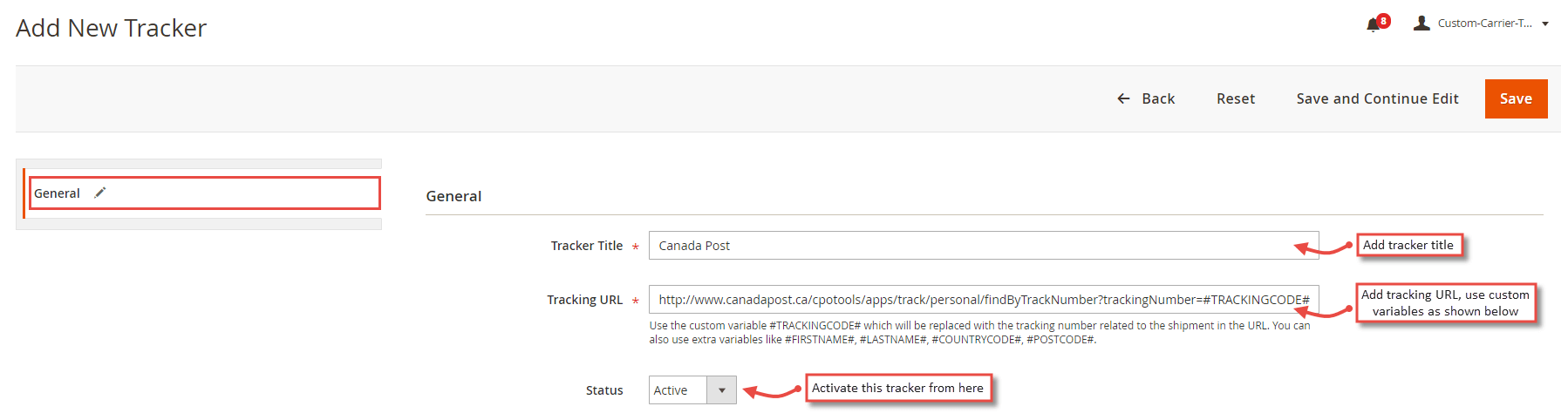
- Add New Tracker: On click of the " Add New Tracker " button from the Manage Custom Carrier Trackers grid, the admin can add a new carrier tracker.
- Tracker Title: Add a custom title from the tracker you are adding.
- Tracking URL: Add tracking URL, use the custom variables to create a tracking URL.
- Status: Activate the custom carrier tracker to show in the Configuration under the "
Select Tracker " dropdown.
Configuration
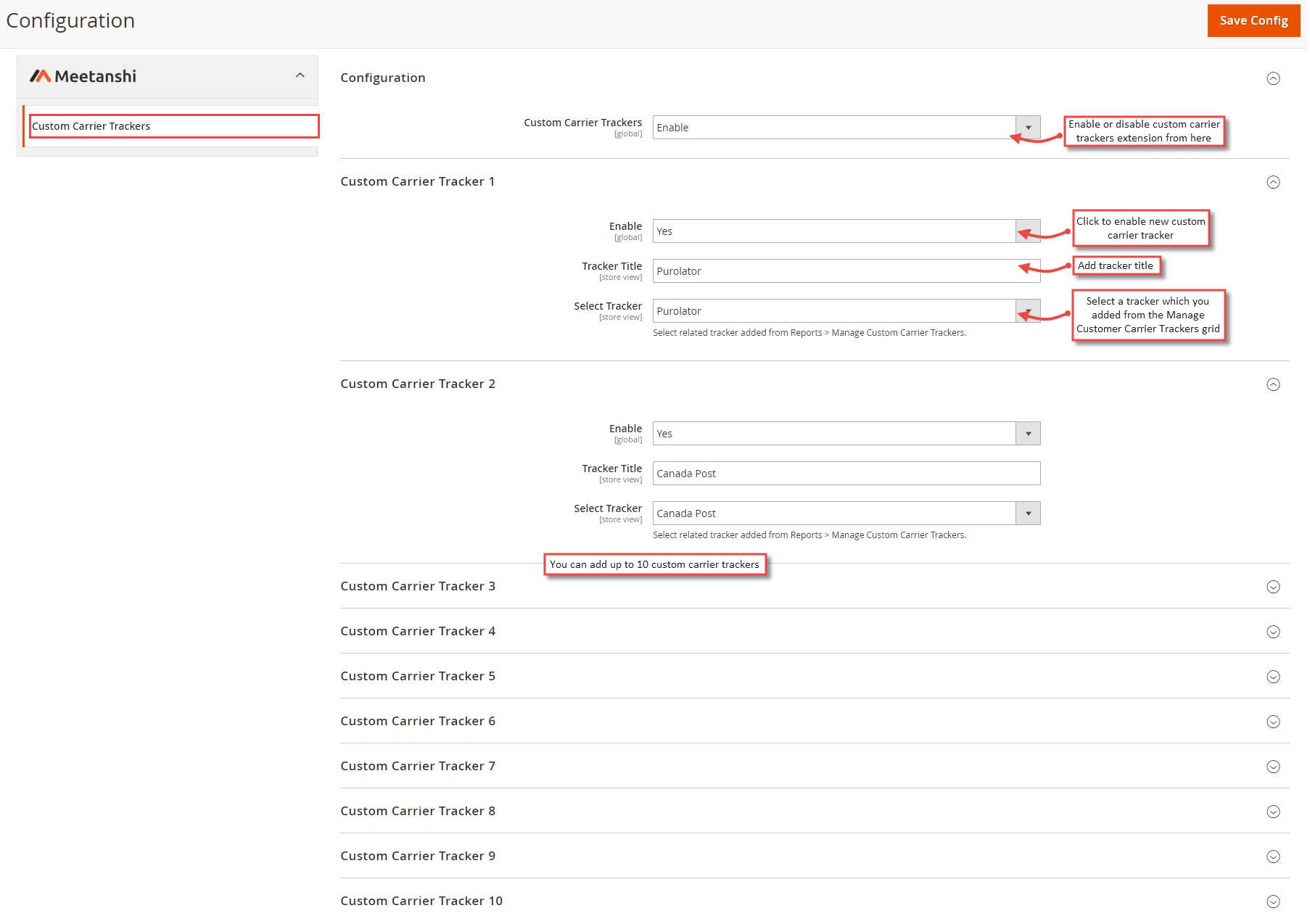
For configuring the Custom Carrier Trackers for Magento 2 extension, login to Magento 2, move to Stores > Configuration > Meetanshi > Custom Carrier Trackers where you can enable the extension.
Custom Carrier Trackers: Enable or disable Custom Carrier Trackers extension from here.
Custom Carrier Tracker 1: The extension allows to add and enable up to 10 carrier trackers.
Enable: Set YES to enable the custom carrier tracker.
Tracker Title: Enter a tracker title.
Select Tracker : Here, you can see all the custom carrier trackers you have added from Manage Custom Carrier trackers grid. Select an appropriate tracker and save configuration. You can enable up to 10 custom carrier trackers from here.
Adding Tracking Number
Once the order is placed from the frontend, the admin has to generate invoice and shipment from the backend. While generating a shipment, the admin can select a tracking carrier with a tracking number for customers to track orders.
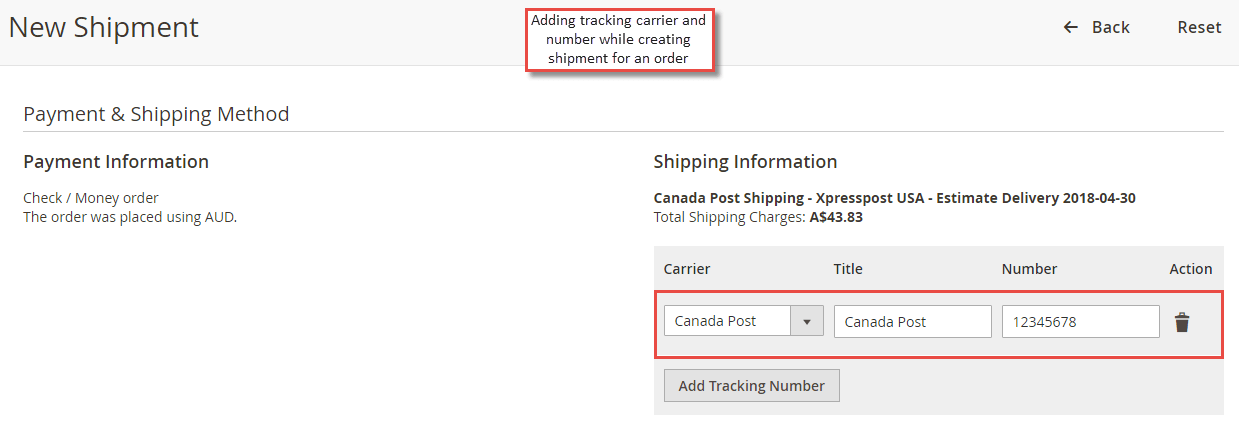
Custom Carrier Trackers in Backend
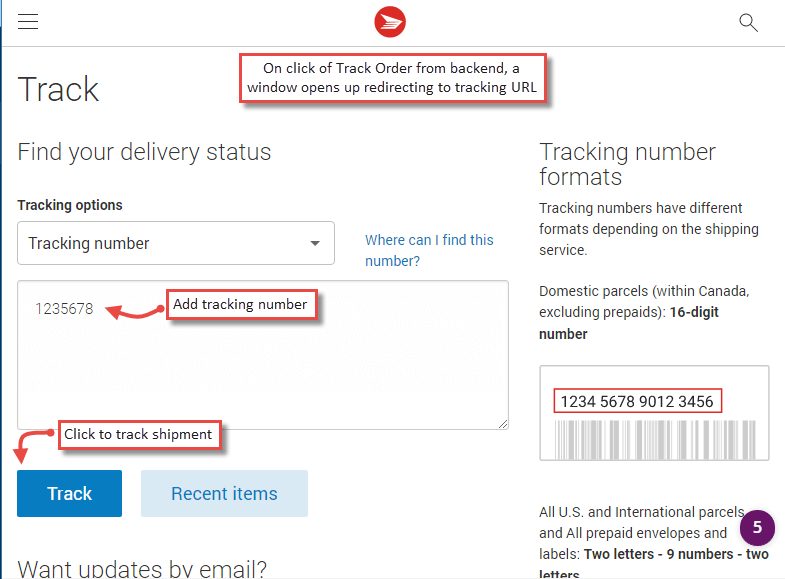
Once the tracking number has been added, the shipment can be tracked from the backend as shown below. Click the " Track " button. It will open up tracking details in a separate window.
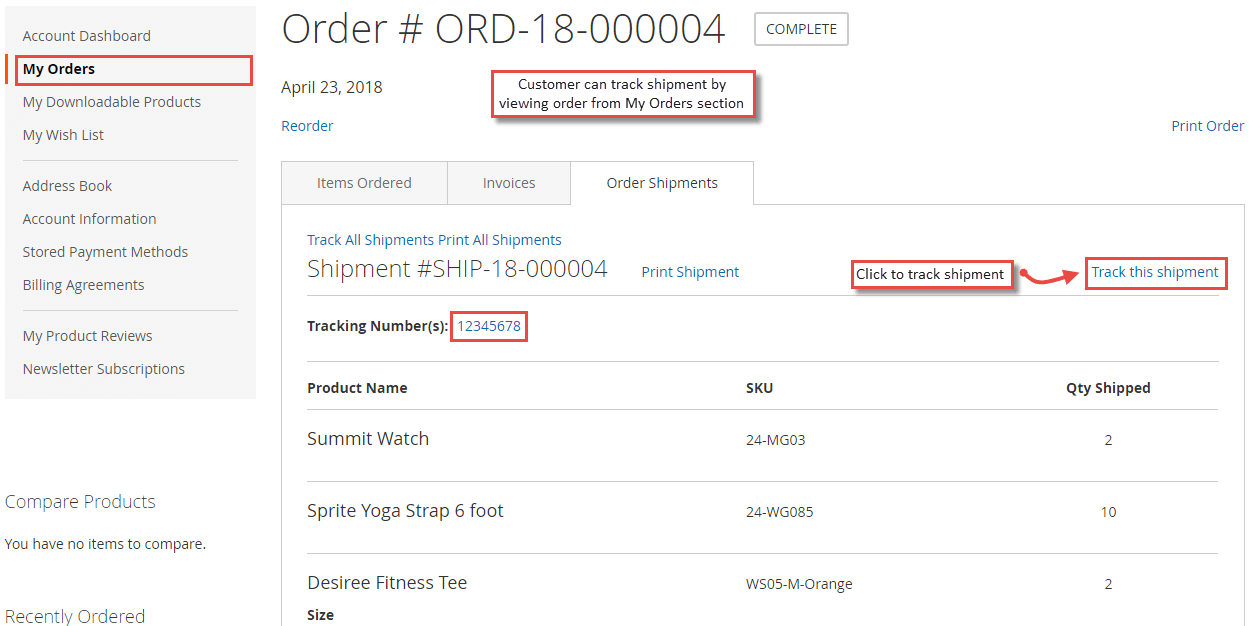
Custom Carrier Trackers in Frontend
Customers can track the shipment from the " My Orders " section as shown below. Click on the " Track this shipment " link and one can see the tracking number and the product details.
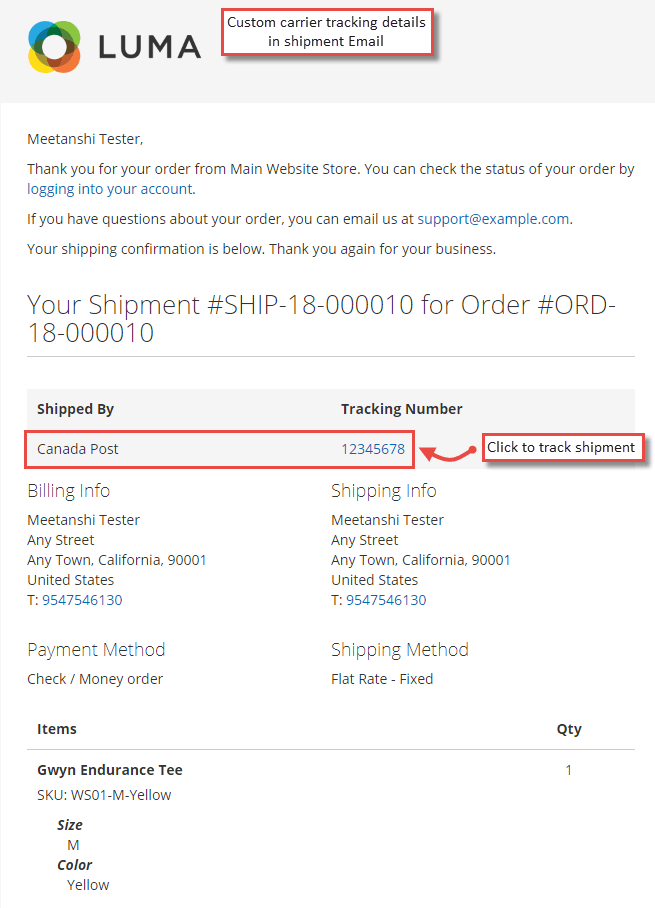
- Custom Carrier Trackers in Shipment Email
Apart from My Account section, customers can track their shipment from Emails by clicking on the tracking number.