Google UCP for Magento 2 - User Guide
Extension Installation
For Meetanshi Customers
- Extract the zip folder and upload our extension to the root of your Magento 2 directory via FTP.
- Login to your SSH and run below commands step by step:
php bin/magento setup:upgrade
- For Magento version 2.0.x to 2.1.x -
php bin/magento setup:static-content:deploy
- For Magento version 2.2.x & above -
php bin/magento setup:static-content:deploy --f
php bin/magento cache:flush
The Google UCP Agentic Checkout module by Meetanshi enables a seamless, headless checkout experience for your Magento 2 store via the Universal Checkout Protocol (UCP). It allows customers to complete purchases directly through Google's agentic interfaces using Google Pay, while all orders and payments are processed securely within your existing Magento environment.
Prerequisites:
- An active account with a supported Payment Service Provider (e.g., Stripe, Braintree).
- Access to Google Merchant Center and Google Pay & Wallet Console.
Configuration
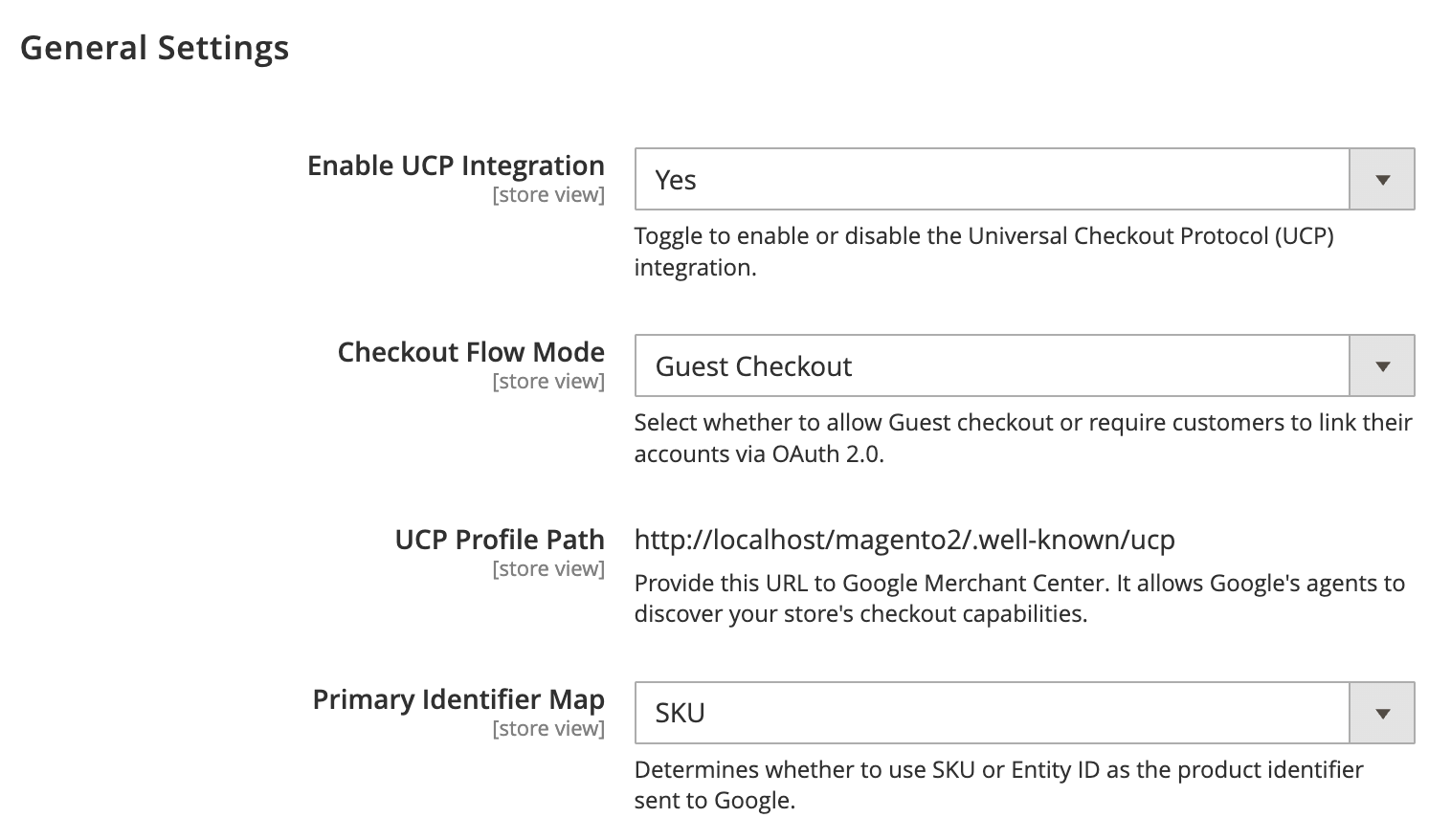
Navigate to Stores > Configuration > Sales > Google UCP Checkout to configure the extension.
- Enable UCP Integration: Set to "Yes" to activate the service.
- Checkout Flow Mode:
- Guest Checkout: Allows anyone to purchase without creating an account.
- Require Account Linking: Prompts users to link their Google account to their Magento customer account.
- Primary Identifier Map: Choose whether to send SKU or Entity ID to Google as the unique product identifier.
- UCP Profile Path: (Read-only) Provide this URL to Google during onboarding.
- Product Identifier Map: Choose whether to use SKU or Entity ID for product identification.
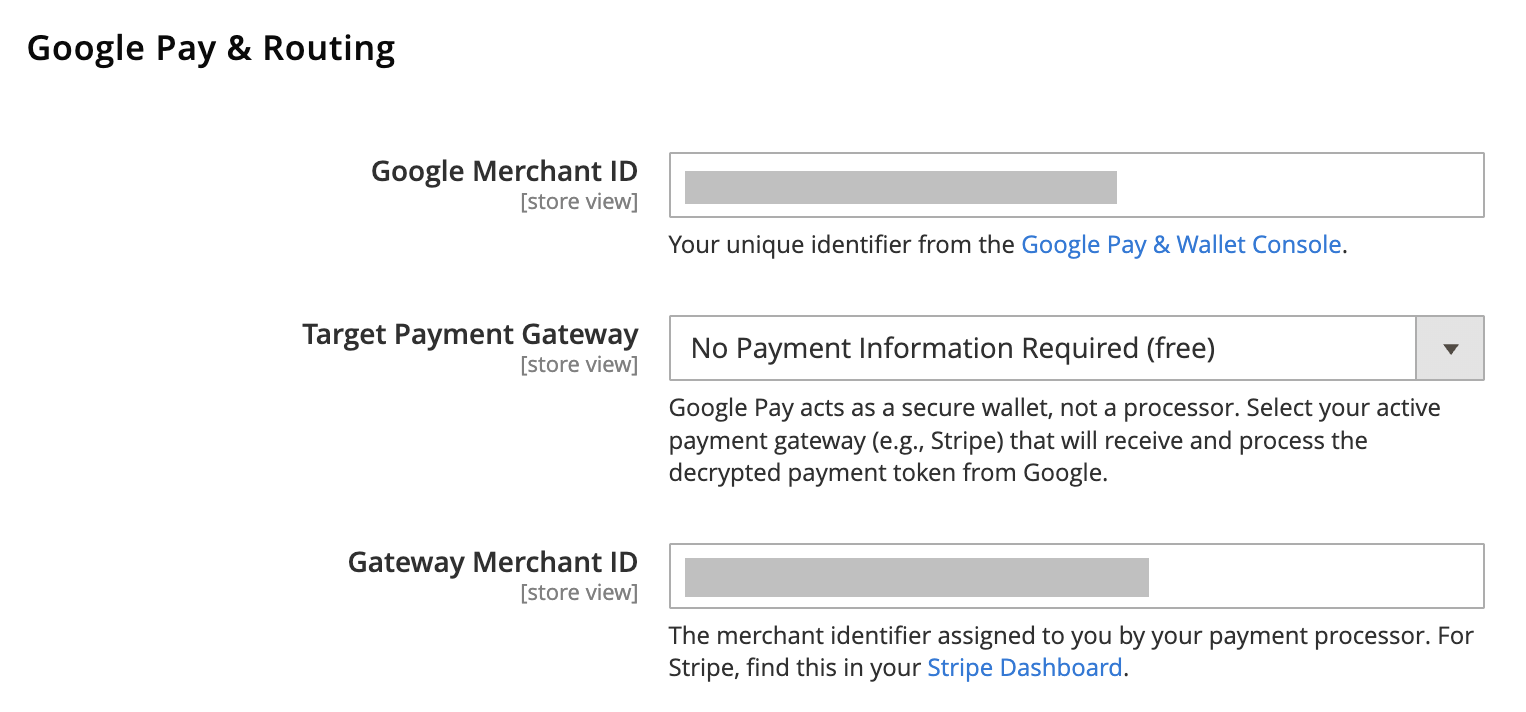
Google Pay & Routing
You can configure how payments are handled once the customer confirms the purchase.
- Google Merchant ID: Your unique ID from Google (see Section 4 for instructions).
- Target Payment Gateway: Select your active Magento payment gateway (e.g., Stripe) that will process the Google Pay token.
- Gateway Merchant ID: Your account ID from your payment processor (e.g., Stripe Account ID).
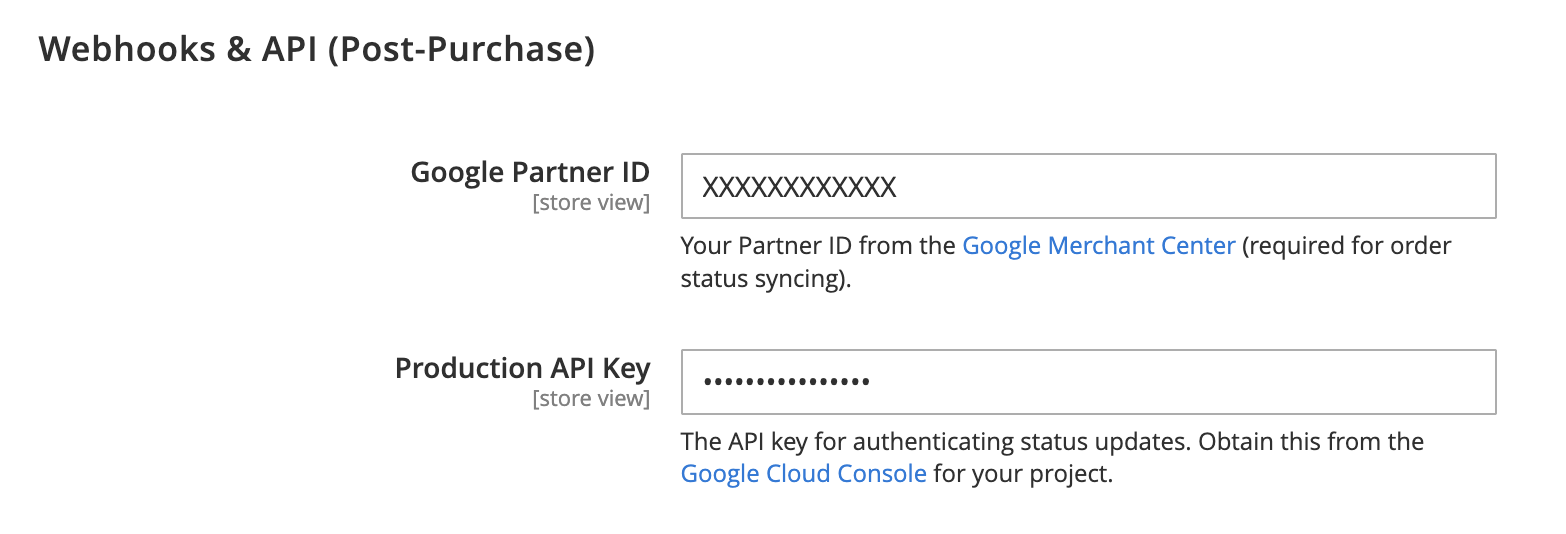
Webhooks & API
The extension enables real-time order status syncing (e.g., notifying Google when an order is shipped) via webhooks and APIs.
- Google Partner ID: Your unique ID from Google Merchant Center.
- Production API Key: Authenticates your store with Google's API.
Once everything looks good, Save the configuration.
Manage Product Eligibility
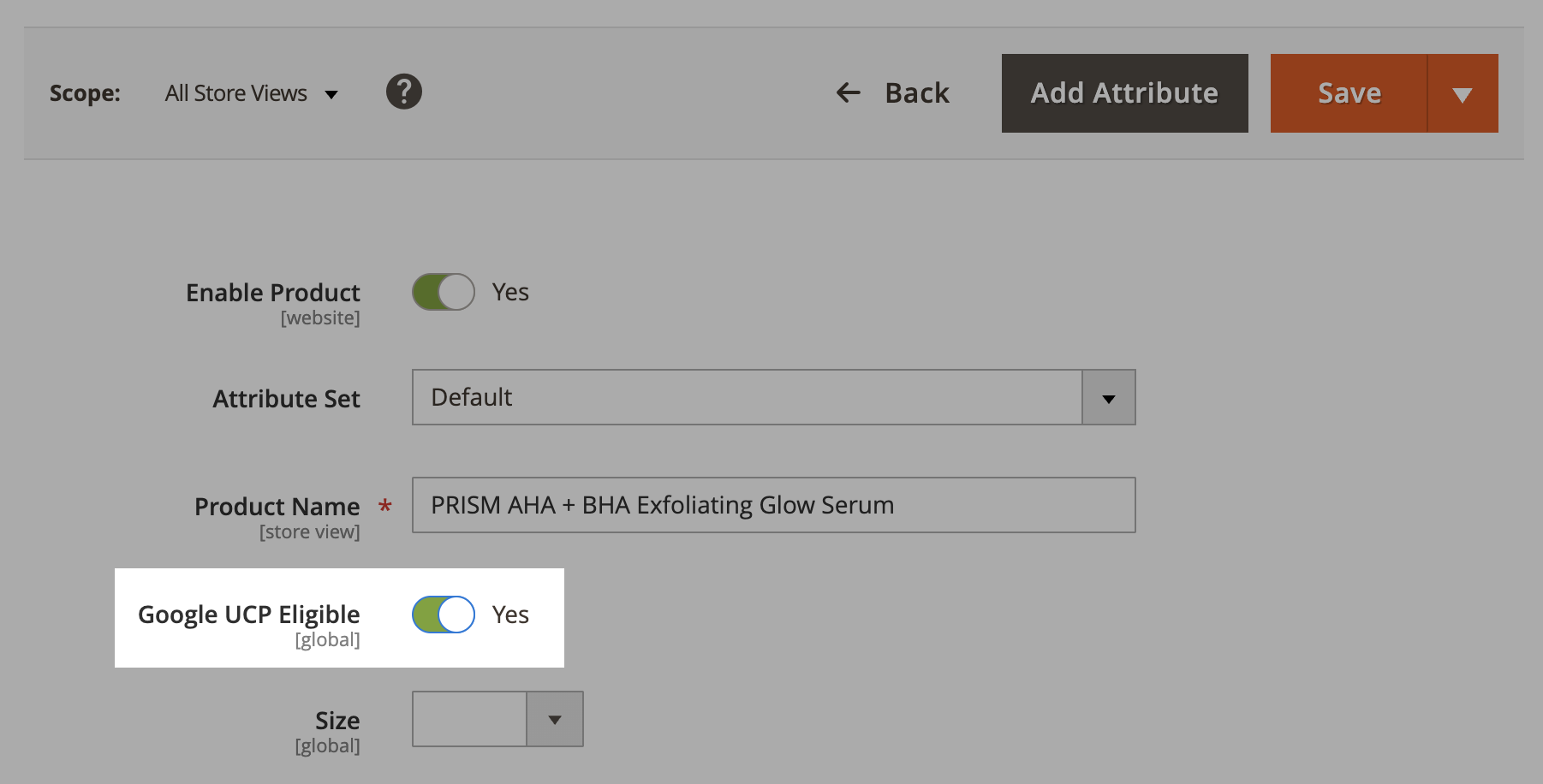
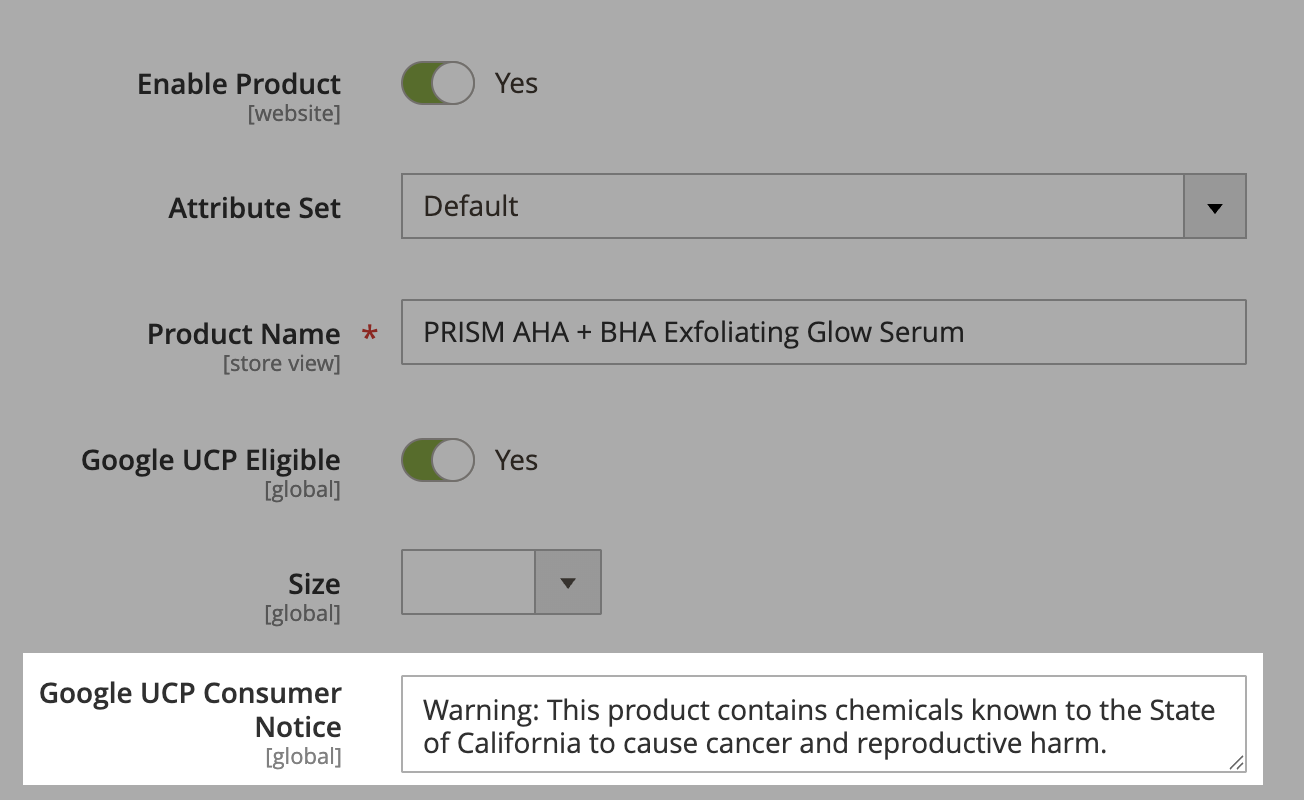
The module automatically adds a Google UCP Eligible attribute to all products, defaulting to Yes. This means all the products in the store become eligible for Agentic Commerce.
If you want to exclude certain products, you can set this attribute to No in product edit.
Go to Catalog > Products and edit the desired product. In the General group, you can modify the Google UCP Eligible attribute to control the product’s visibility for Agentic Commerce.
Certain products may require legal disclosures (e.g., California Prop 65), which you can add to the Google UCP Consumer Notice field in product edit. This helps you to stay compliant with Google's requirements and make the products eligible.
Verification & Troubleshooting
Verify the Discovery Profile
Ensure Google can "see" your store by visiting: https://yourstore.com/.well-known/ucp
You should see a JSON response containing your service endpoints and public keys.
Test the Checkout API
You can perform a test checkout using the following CURL command (replace placeholders with your data):
curl -X POST https://yourstore.com/rest/V1/ucp/checkout/session \
-H "Content-Type: application/json" \
-d '{"line_items": [{"id": "line_1", "item": {"id": "YOUR_SKU"}, "quantity": 1}]}'
Common Issues
- 404 Not Found on /.well-known: Ensure the module is enabled and you have cleared the Magento cache.
- Invalid Signature: Check that you haven't manually modified the
google_ucp_checkout/cryptographysettings in the database. - Payment Failure: Ensure the Target Payment Gateway is active and the Gateway Merchant ID is correct.
FAQs
How to Obtain Required Credentials from Google?
1. Google Merchant ID
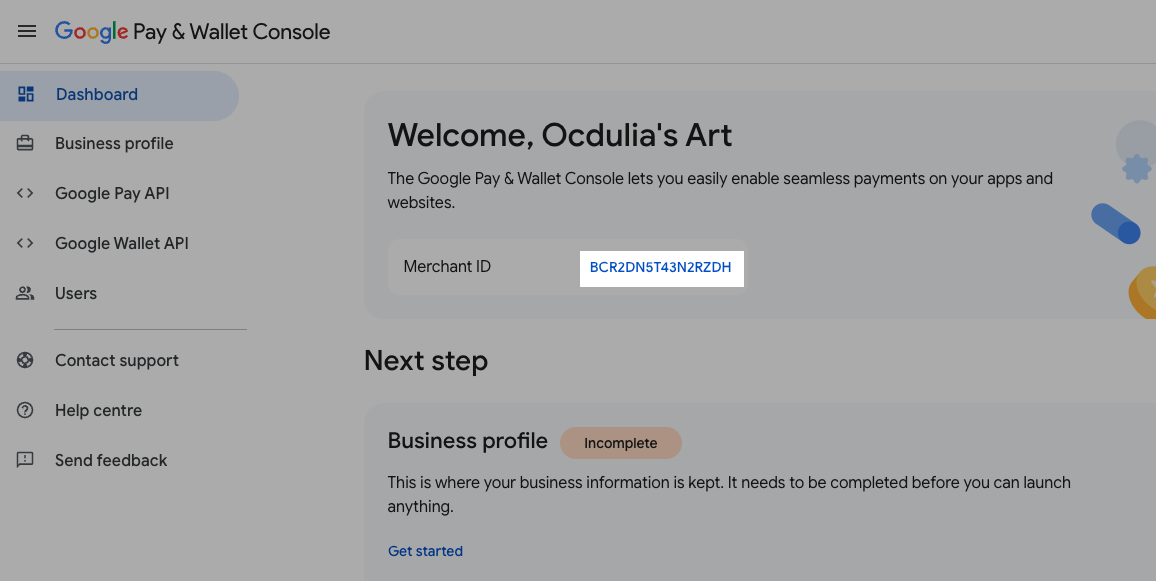
- Log in to the Google Pay & Wallet Console.
- Navigate to the Settings or Business Profile section.
- Copy the Merchant ID displayed at the top or in the profile details.
2. Google Partner ID
- Log in to Google Merchant Center.
- Look for your Account ID in the top-right corner or under Settings > Account Settings.
3. API Key
- Go to the Google Cloud Console.
- Select the project associated with your Google integration.
- Go to APIs & Services > Credentials.
- Click Create Credentials > API Key.
- Copy the generated key and paste it into the Production API Key field in Magento.