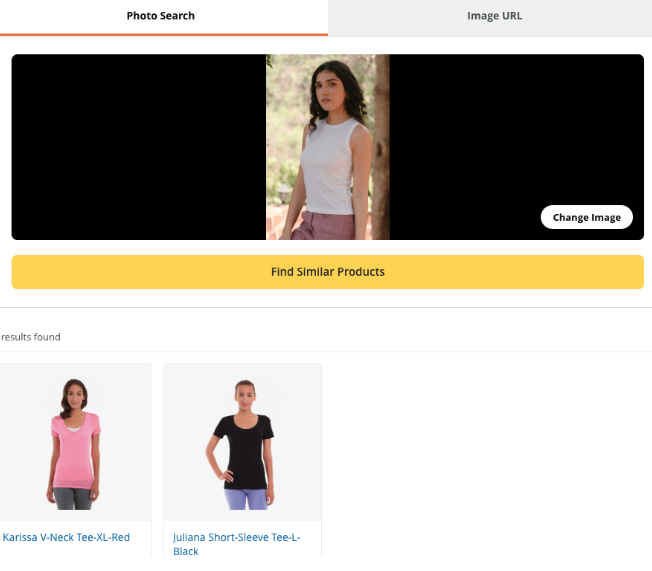
Magento 2 Image Search Extension Installation Guide
Prerequisites
Before installing the extension, ensure your server meets the following requirements:
- Magento 2 compatible environment
- PHP versions supported:
- 7.3.x
- 7.4.x
- 8.1.x
- 8.2.x
- 8.3.x
- 8.4.x
- Python 3.9 or higher installed
- Composer installed and configured
- SSH access to the Magento server
- Internet access enabled on the server to install Python dependencies
To verify Python installation, run:
python3 --version
If Python is not installed, install it using:
sudo apt update
sudo apt install python3 python3-pip python3-venv -y
1. Extension Installation
Installation via Composer
Find the Composer name and version of the extension in the extension's composer.json file.
Login to your SSH and run:
composer require meetanshi/module-imagesearch --ignore-platform-reqs
Enter your authentication keys.
Your public key is your username; your private key is your password.Wait for Composer to finish updating your project dependencies and make sure there aren't any errors.
To verify that the extension installed properly, run the command:
php bin/magento module:status Meetanshi_ImageSearch --ignore-platform-reqs
By default, the extension is probably disabled.
Enable the extension and clear static view files:
php bin/magento module:enable Meetanshi_ImageSearch --clear-static-content
php bin/magento setup:upgrade
- For Magento version 2.0.x to 2.1.x:
php bin/magento setup:static-content:deploy
- For Magento version 2.2.x & above:
php bin/magento setup:static-content:deploy -f
php bin/magento cache:flush
Manual Installation (ZIP Upload)
Extract the zip folder and upload our extension to the root of your Magento 2 directory via FTP.
Login to your SSH and run below commands step by step:
php bin/magento setup:upgrade
- For Magento version 2.0.x to 2.1.x:
php bin/magento setup:static-content:deploy
- For Magento version 2.2.x & above:
php bin/magento setup:static-content:deploy -f
php bin/magento cache:flush
2. Python Dependencies Installation
To process image vectors and enable AI image search functionality, specific Python dependencies must be installed on your server.
Important: Ensure Python 3.9 or higher is installed before proceeding.
Install via Composer
Run the following commands from the Magento root directory:
cd vendor/meetanshi/module-imagesearch/scripts
Install Python virtual environment package:
sudo apt install python3-venv -y
Create a virtual environment:
python3 -m venv venv
Activate the virtual environment:
source venv/bin/activate
Install required Python packages:
pip install -r requirements.txt
Manual Installation
Run the following commands from the Magento root directory:
cd app/code/Meetanshi/ImageSearch/scripts
Install Python virtual environment package:
sudo apt install python3-venv -y
Create a virtual environment:
python3 -m venv venv
Activate the virtual environment:
source venv/bin/activate
Install required Python packages:
pip install -r requirements.txt
Verify Installation
To verify all dependencies are installed correctly, run:
pip list
If you face permission-related issues while creating files or installing dependencies, contact your system administrator.
3. Pinecone Setup & Configuration
Before configuring the extension, you must set up a Pinecone account to handle the image vector data. Log in to the Pinecone Dashboard and navigate to the API Keys section.
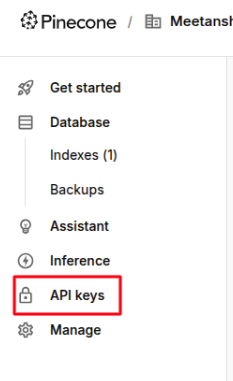
Click Add New API Key, provide a name, and click Create Key.
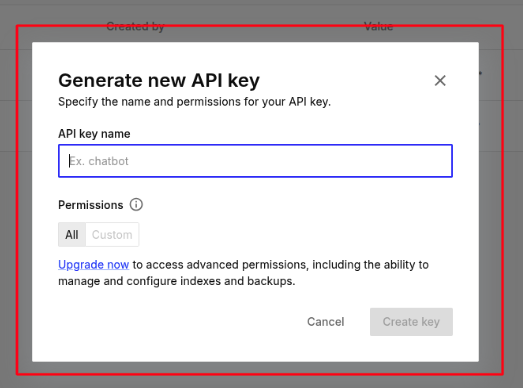
Note: Copy and store this key securely; you will need it for the Magento configuration.
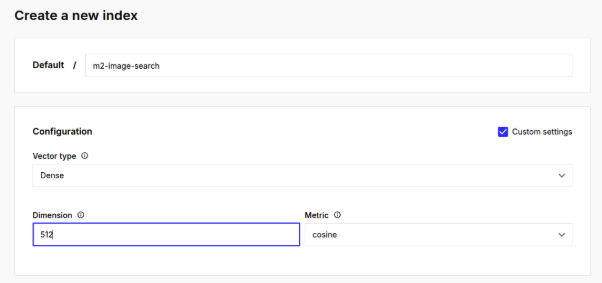
Now, you’ll need to create an index in Pinecone to store the images in vector data. To do this, navigate to the Indexes section and create a new index:
- Name: m2-img-search
- Vector Type: Dense
- Dimensions: 512
- Metric: cosine
- Region: us-east-1
- Cloud Provider: AWS
4. Extension Configuration
Once your Pinecone index is ready, log in to your Magento Admin, go to Stores > Configuration > Meetanshi > Image Search to configure these settings:
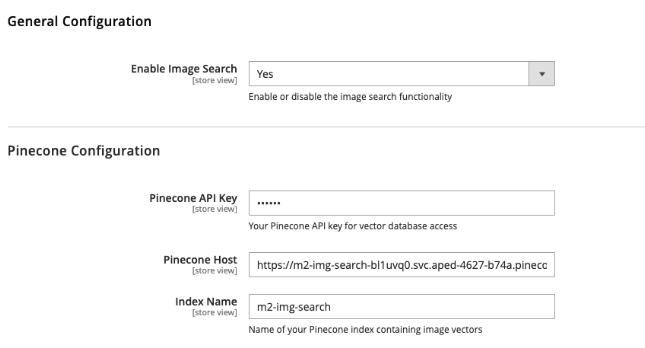
- Enable Image Search: Select Yes.
Then enter the Pinecone configuration as per the account details:
- Pinecone API Key: Enter the key generated in Section 1.
- Pinecone Host: Enter the host URL provided in your Pinecone dashboard (e.g., https://m2-img-search-bl1uvq0.svc.aped-4627-b74a.pinecone.io).
- Index Name: Set to m2-img-search.
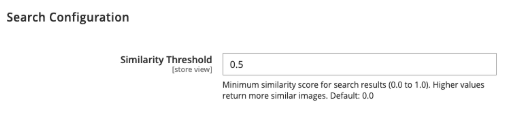
In the search configuration, set the Similarity Threshold value (range: 0.0 to 1.0). A higher value (e.g., 0.9) ensures only very similar images are shown, while a lower value (e.g., 0.3) broadens the results.
5. Product Synchronization
Your product data must be synced to Pinecone before the image search will function. You can follow the steps given in the extension configuration to do this.
There are 2 ways:
- Bulk sync via admin products grid
- Use CLI commands to sync products
5.1 Sync via Admin Grid
Navigate to Catalog > Products, and select the products you want to sync. In the Actions dropdown, select Sync to Pinecone.
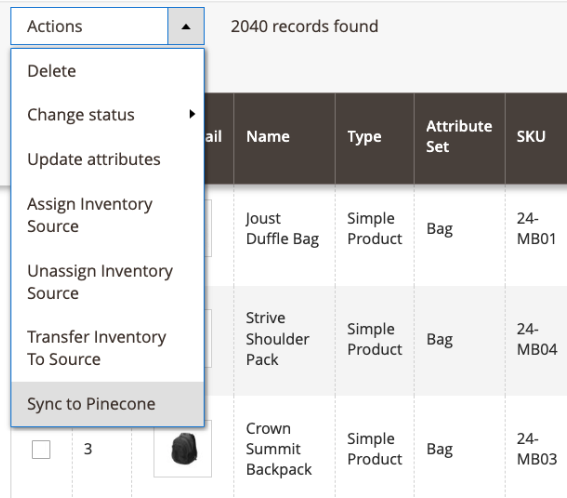
The sync will be processed via your Magento cron configuration.
5.2 Via Command Line (CLI)
For faster processing or scheduled tasks, use the following commands:
Customers can upload images to instantly view visually similar products from your store.
php bin/magento meetanshi:imagesearch:sync
Sync Specific Product IDs
php bin/magento meetanshi:imagesearch:sync -p 1,2,3
Set Batch Size (Default: 100)
php bin/magento meetanshi:imagesearch:sync -b 50
Force Re-sync
php bin/magento meetanshi:imagesearch:sync -f
6. Front-end Search
Once the extension is configured and product images are synced, the Image Search page will be available at: https://your-website.com/imagesearch/