Axis Bank Easy Pay for Magento 2 - User Guide
Extension Installation
For Magento Marketplace Customers
Find the extension's Composer name and version in its composer.json file.
Login to your SSH and run:
composer require meetanshi/magento2-axis-bank-easy-pay
- Enter your authentication keys https://experienceleague.adobe.com/en/docs/commerce-operations/installation-guide/prerequisites/authentication-keys . Your public key is your username; your private key is your password.
- Wait for Composer to finish updating your project dependencies and make sure there aren't any errors.
- To verify that the extension is installed properly, run the command:
php bin/magento module:status Meetanshi_Axis
- By default, the extension is probably disabled. Enable the extension and clear static view files:
php bin/magento module:enable Meetanshi_Axis --clear-static-content
php bin/magento setup:upgrade
- For Magento version 2.0.x to 2.1.x -
php bin/magento setup:static-content:deploy
- For Magento version 2.2.x & above
php bin/magento setup:static-content:deploy --f
php bin/magento cache:flush
For Meetanshi Customers
- Extract the zip folder and upload our extension to the root of your Magento 2 directory via FTP.
- Login to your SSH and run below commands step by step:
php bin/magento setup:upgrade
- For Magento version 2.0.x to 2.1.x -
php bin/magento setup:static-content:deploy
- For Magento version 2.2.x & above -
php bin/magento setup:static-content:deploy --f
php bin/magento cache:flush
Configuration
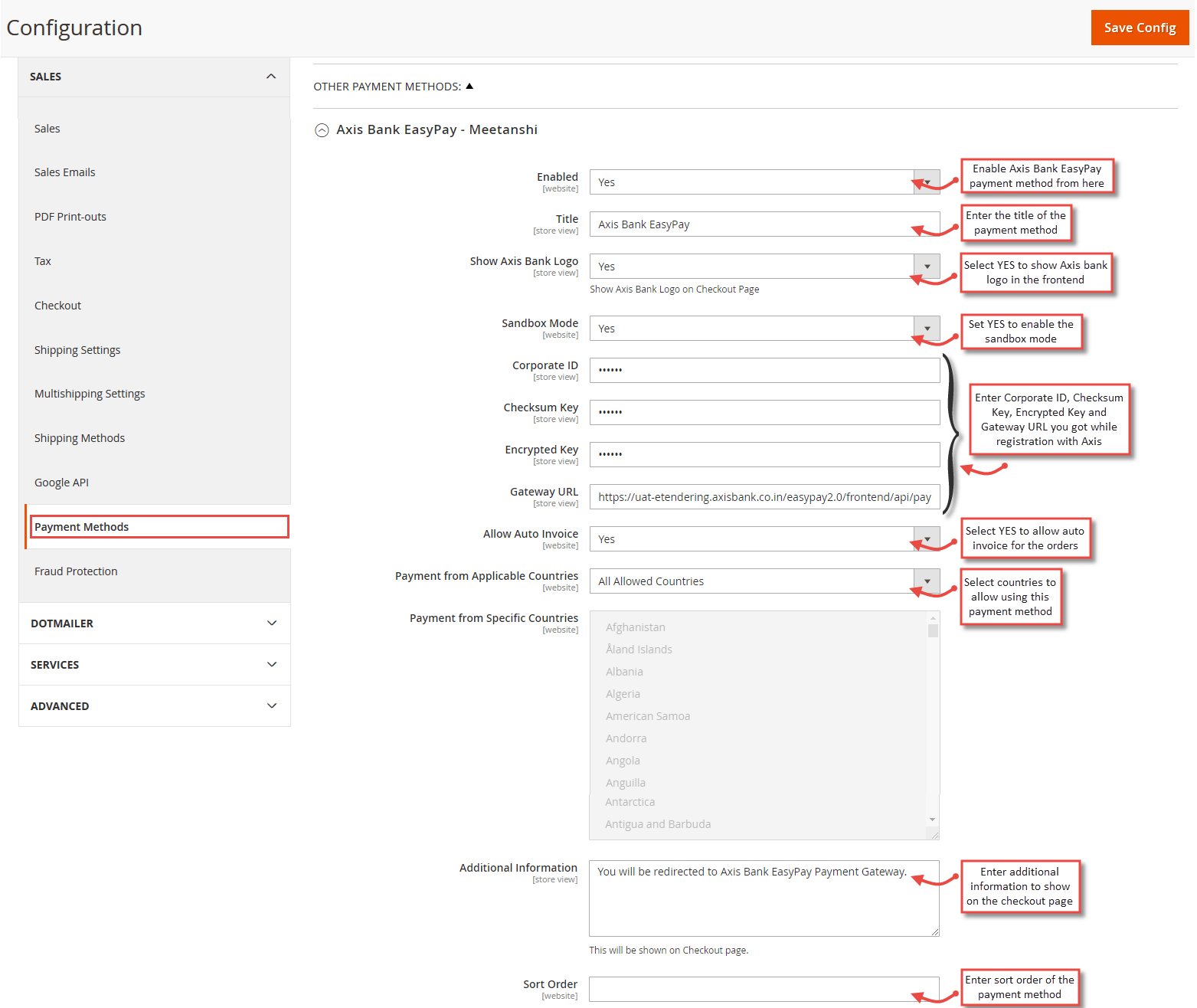
For configuring the Axis Bank Easy Pay for Magento 2 extension, log in to Magento 2, move to Sales > Payments Methods > Axis Bank Easy Pay - Meetanshi where you can find various settings to enable the extension.
Enabled: Set "YES" to enable the payment method.
Title: Set the title of the payment method to be displayed in the frontend.
Show Axis Bank Logo: Set YES to show Axis bank logo along with the payment method in the frontend.
Sandbox Mode: Select YES to enable sandbox mode.
Corporate ID: Enter the corporate ID provided by Axis bank Easy Pay payment gateway.
Checksum Key: Enter the checksum key provided by Axis bank Easy Pay payment gateway.
Encrypted Key: Enter the encrypted key provided by Axis bank Easy Pay payment gateway.
Gateway URL: Enter the gateway URL - https://uat-etendering.axisbank.co.in/easypay2.0/frontend/api/payment
Allow Auto Invoice: Select YES to generate auto invoices for the order placed using this payment method.
Payment from Applicable Countries: Select countries to allow using this payment method.
Additional Information: Enter additional information to show along with the payment method in the frontend.
Sort Order: Enter Sort Order of the payment method display in the frontend.
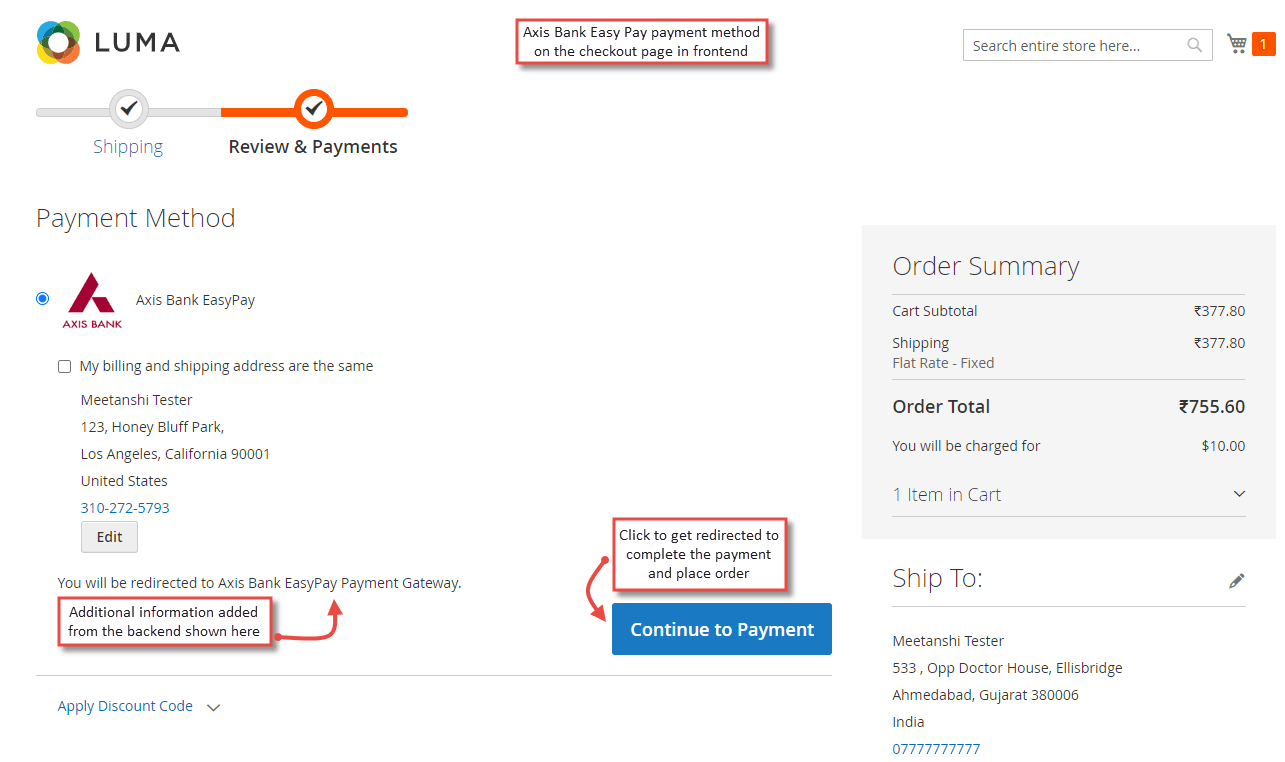
Axis Bank Easy Pay Payment Method in Frontend
Once the payment method is configured, Axis Bank Easy Pay method is shown on the frontend while checking out the products. Just select the Axis Bank Easy Pay payment method and click "Continue to Payment" to get redirected to the hosted payment page to finish the payments.
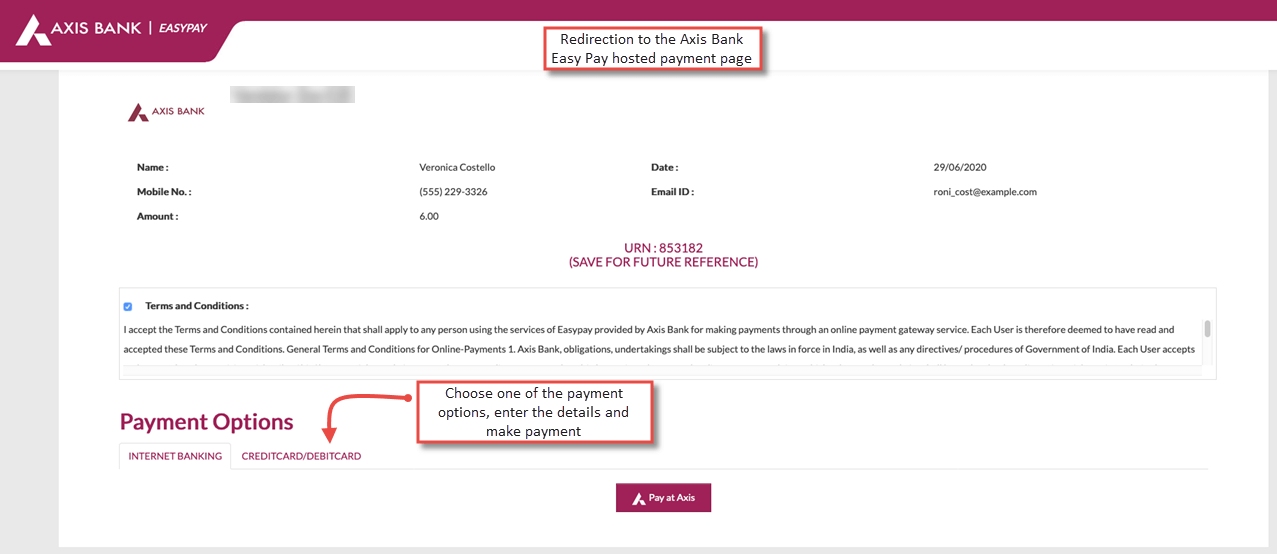
- Redirection to Axis Bank Easy Pay Hosted Payment Page
On click of the "Continue to Payment" button, customers are redirected to the Axis Bank Easy Pay hosted payment page to select one of the options and enter the payment details.
- Axis Bank Easy Pay Payment Confirmation
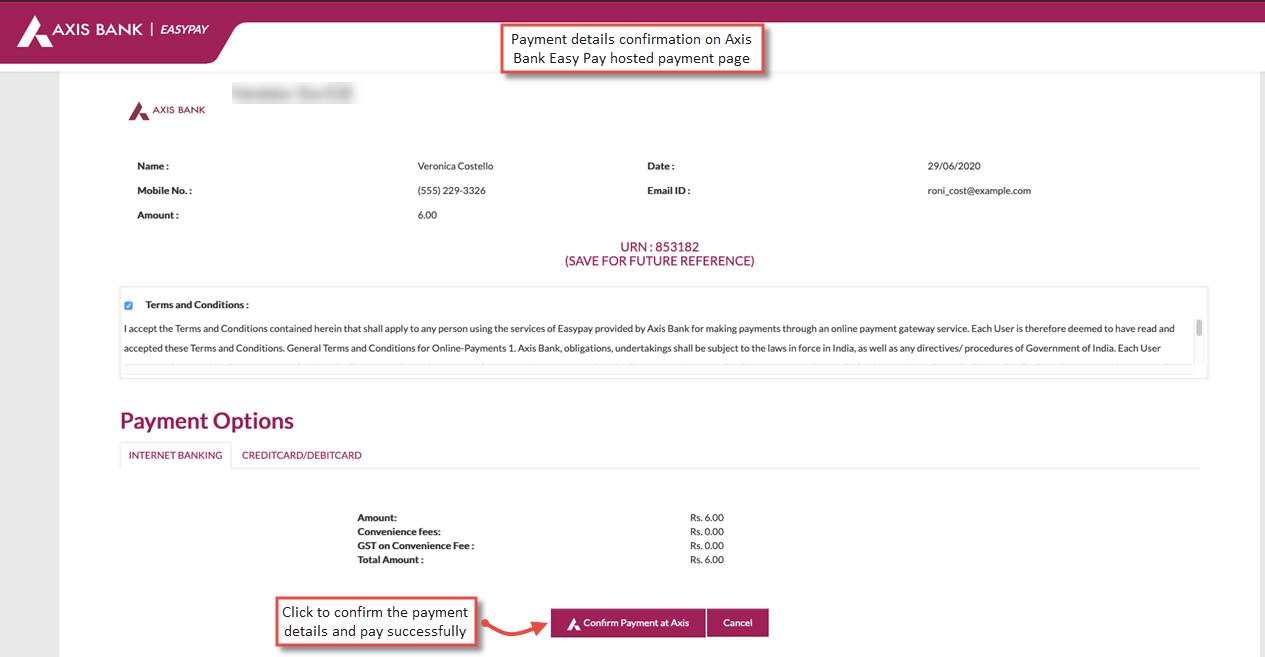
Once the payment details is entered by the customers, it asks to confirm and finish the payment for the successful order placement.
- Axis Bank Easy Pay Payment Details in "My Account" section
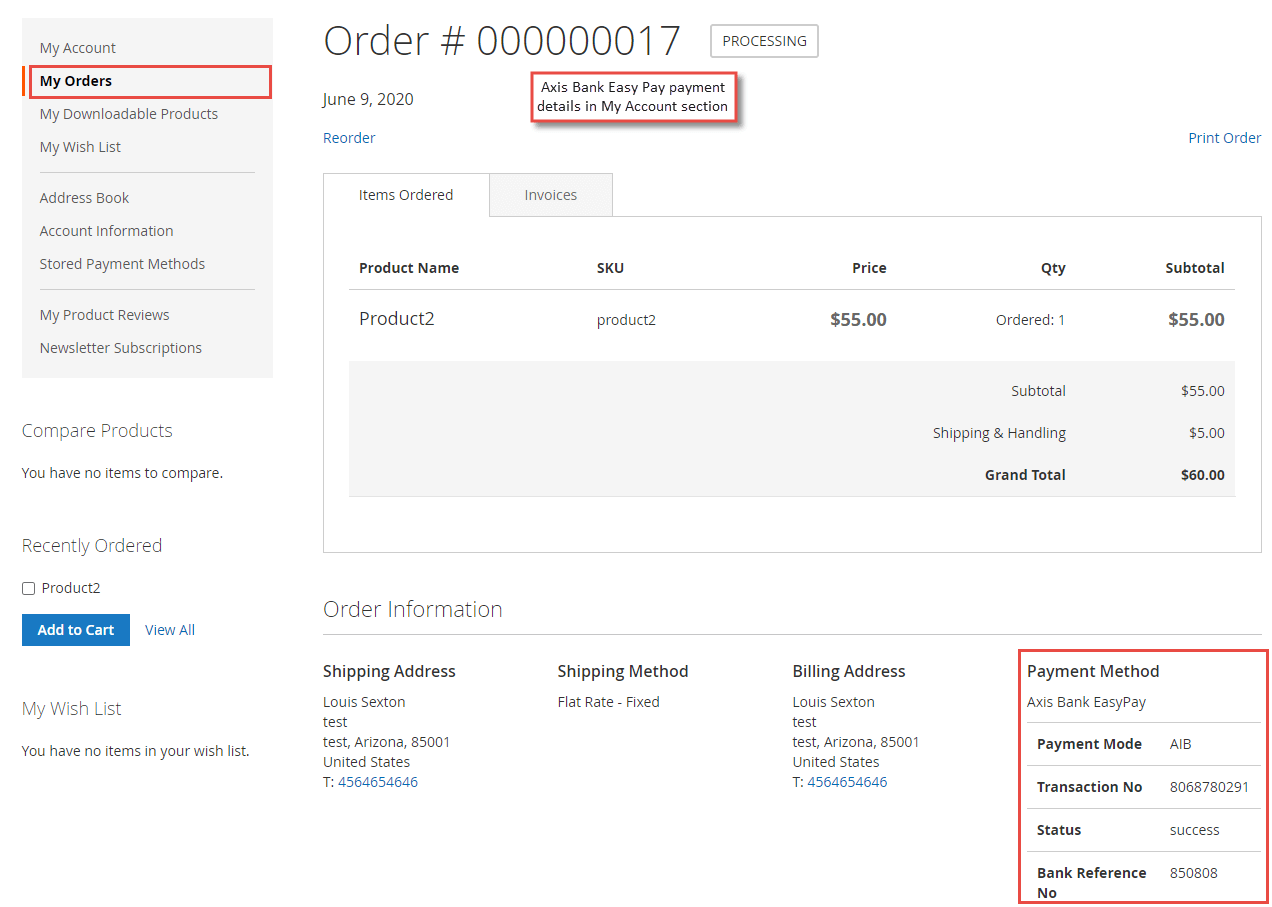
Once the order is placed, the Axis Bank Easy Pay Payment details are shown in the Account dashboard, in "My Orders" tab which includes payment mode, transaction number, status and bank reference number.
Axis Bank Easy Pay Payment Details in Backend
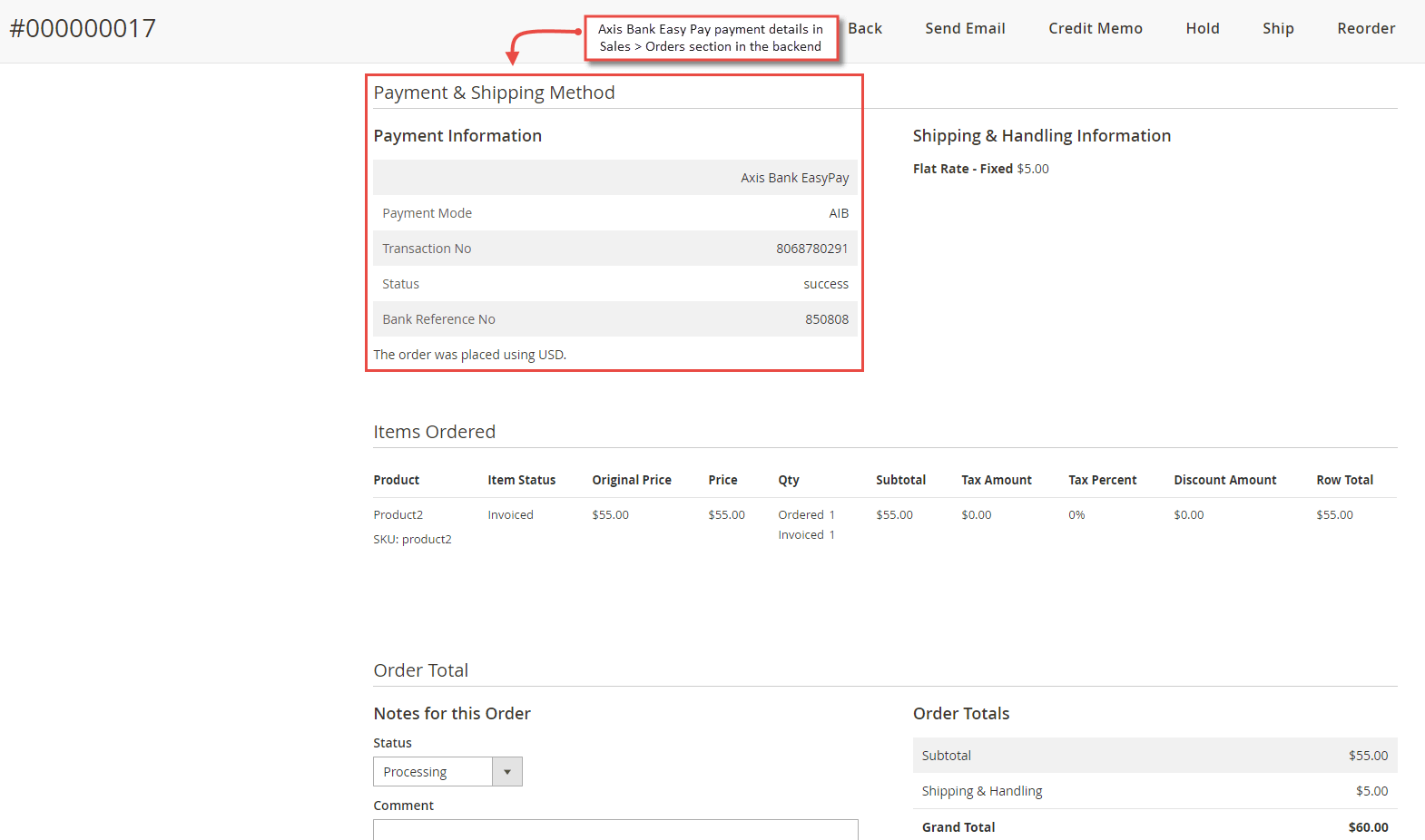
Apart from the frontend, the admin can also view Axis Bank Easy Pay payment details in the Sales > Orders > Order View section in the backend. It displays the payment details like authorize ID, Receipt number, transaction number, and required transaction ID.