Australia Post Shipping for Magento 2 - User Guide
Extension Installation
For Magento Marketplace Customers:
Find the extension's Composer name and version in its composer.json file.
- Login to your SSH and run:
composer require meetanshi/magento-2-australia-post-shipping
Enter your authentication keys. Your public key is your username; your private key is your password.
Wait for Composer to finish updating your project dependencies and ensure there aren't any errors.
To verify that the extension is installed properly, run the command:
php bin/magento module:status Meetanshi_Auspost
- By default, the extension is probably disabled. Enable the extension and clear static view files:
php bin/magento module:status Meetanshi_Auspost --clear-static-content
php bin/magento setup:upgrade
- For Magento version 2.0.x to 2.1.x:
php bin/magento setup:static-content:deploy
- For Magento version 2.2.x & above:
php bin/magento setup:static-content:deploy -f
php bin/magento cache:flush
For Meetanshi Customers:
- Download the extension zip file and extract it from your Magento root.
- Login to your SSH and run the below commands step by step:
php bin/magento setup:upgrade
- For Magento version 2.0.x to 2.1.x:
php bin/magento setup:static-content:deploy
- For Magento version 2.2.x & above:
php bin/magento setup:static-content:deploy -f
php bin/magento cache:flush
Main Configuration
To configure the Australia Post Shipping for Magento 2 extension, login to Magento 2, and navigate to Stores > Configuration > Australia Post Shipping where you can find various settings to configure the extension.
Integration
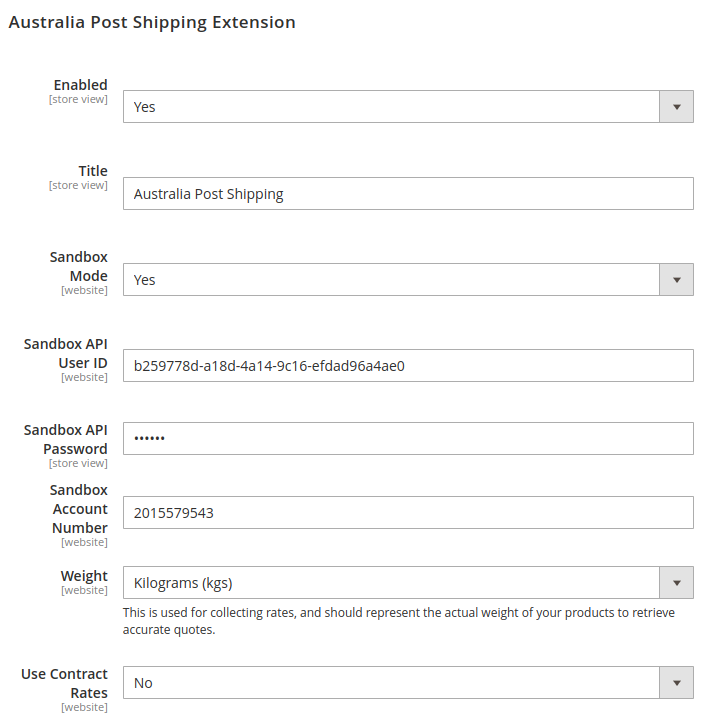
- Enable: Select "Yes" to enable the extension functionality.
- Title: Specify the title displayed for the shipping method at checkout.
- Sandbox Mode: Activate or deactivate sandbox mode for testing purposes.
- Yes: Enable sandbox mode to test shipping methods without affecting live orders.
- No: Disable sandbox mode to process live shipping transactions.
- Sandbox / Live API User ID: Enter the API User ID for sandbox testing / production.
- Sandbox / Live API Password: Enter the API Password for sandbox mode / production access.
- Sandbox / Live Account Number: Enter the account number from your Australia Post Shipping account.
- Weight: Choose between "Kilograms" and "Pounds" as your preferred unit for shipment weight measurement.
- Use Contract Rates: Choose "Yes" if you want to use contract rates for the shipping calculation.
Australia Post Shipping Options
- Domestic Methods for Parcel Choose from the domestic method options for the parcel from Standard, Express, and Courier.

- International Methods for Parcel Select shipping methods for international parcels, like Courier, Express, Standard, etc.

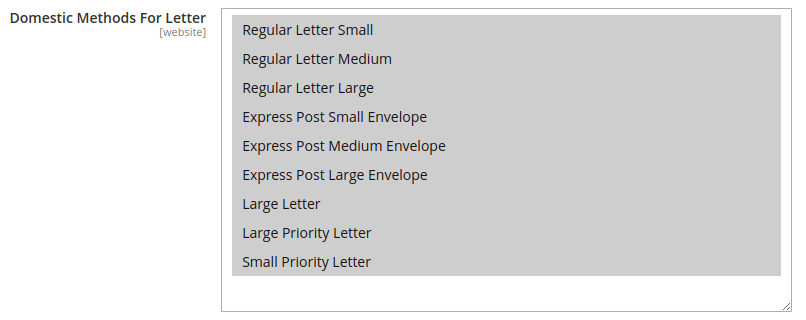
- Domestic Methods for Letter Select available domestic methods for letters, like Regular Letter Small/Medium/Large, Express Small/Medium/Large, etc.
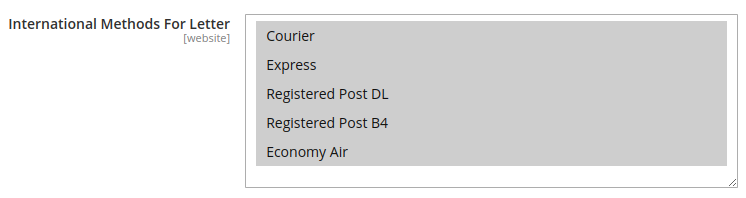
- International Methods for Letter Select the applicable methods for international letters like Courier, Express, Registered Post, etc.
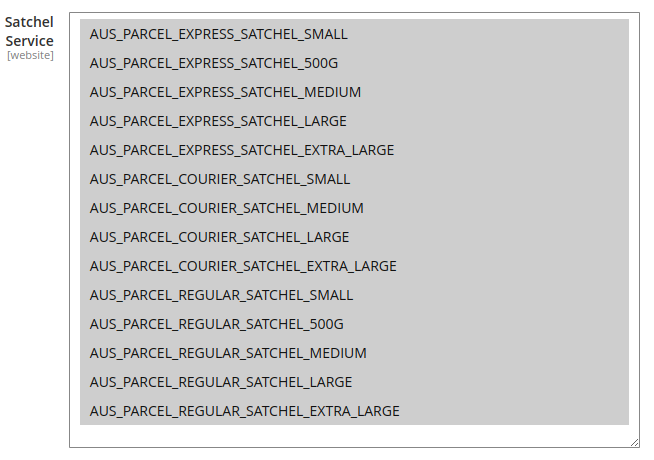
- Satchel Service Select the satchel size and type for shipping parcels. These options provide different levels of service, from express to regular delivery.
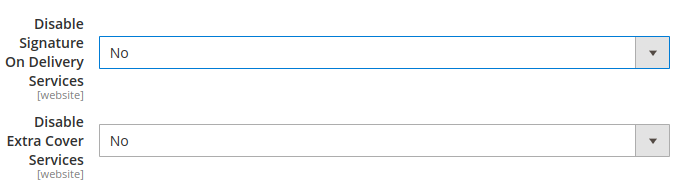
- Disable Signature on Delivery Services: Select whether to enable or disable signature on delivery services.
- Disable Extra Cover Services: Select whether to enable or disable extra cover services.
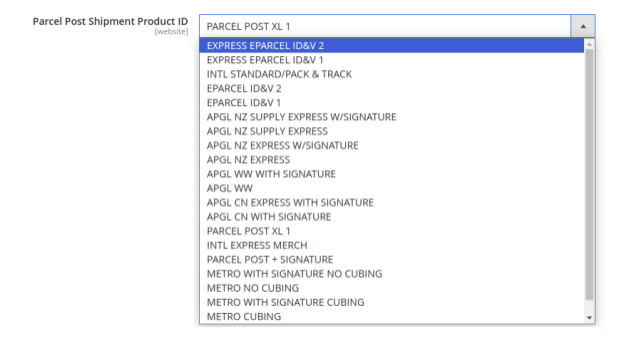
- Parcel Post Shipment Product ID: Choose the appropriate product ID for parcel post shipments.
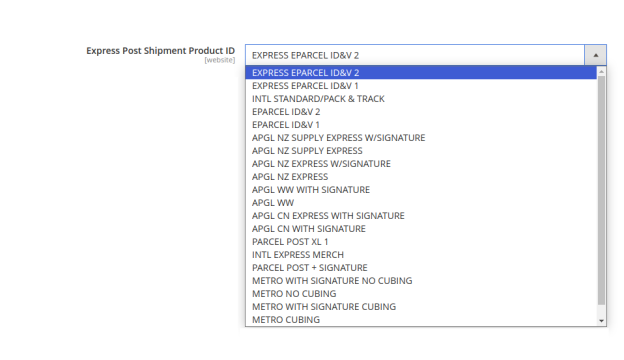
- Express Post Shipment Product ID: Select the product ID for express post shipments (EXPRESS EPARCEL ID&V2, METRO WITH SIGNATURE CUBING, etc.).
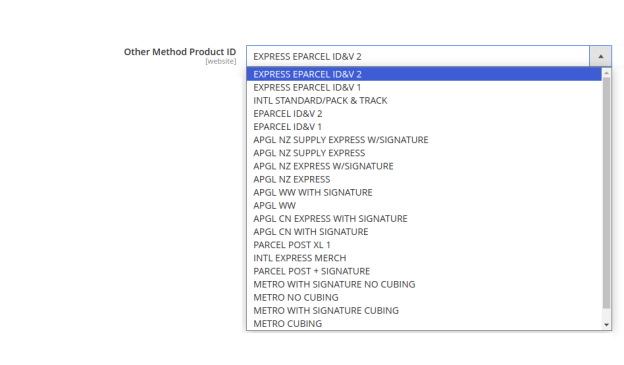
- Other Method Product ID: Select relevant product IDs like EXPRESS EPARCEL ID&V2, EPARCEL ID&V1, APGL WW, etc.
Other Configuration
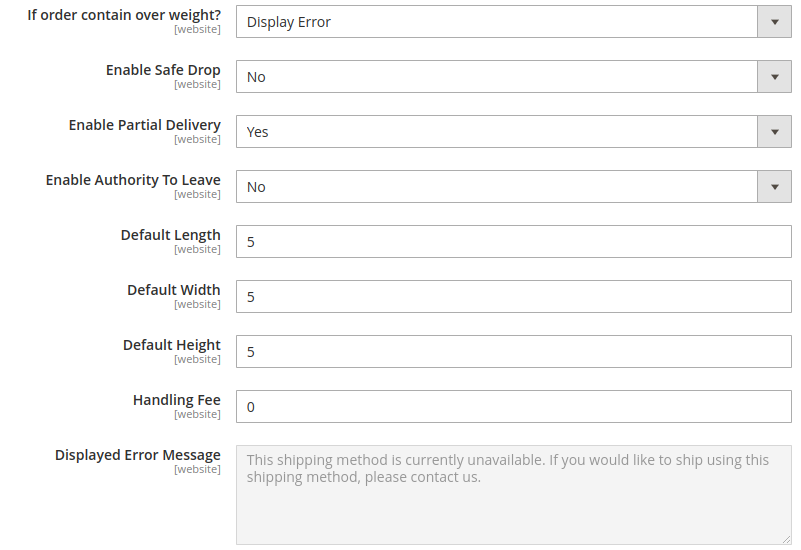
- If Order Contains Overweight:
- Display Error: Prevents the customer from using the shipping method
- Ship Separate Item: Overweight items will be shipped separately into multiple packages
- Enable Safe Drop: Offer the safe drop option to customers while choosing the shipping method
- Enable Partial Delivery: Choose whether items can be shipped partially or only shipped together
- Enable Authority to Leave: Determine if delivery service can leave packages without signature
- Default Dimensions:
- Length: Set default length of packages when not provided
- Width: Set default width of packages when not provided
- Height: Set default height of packages when not provided
- Handling Fee: Set extra fee for handling or packaging expenses
- Displayed Error Message: Message to show when shipping method is unavailable
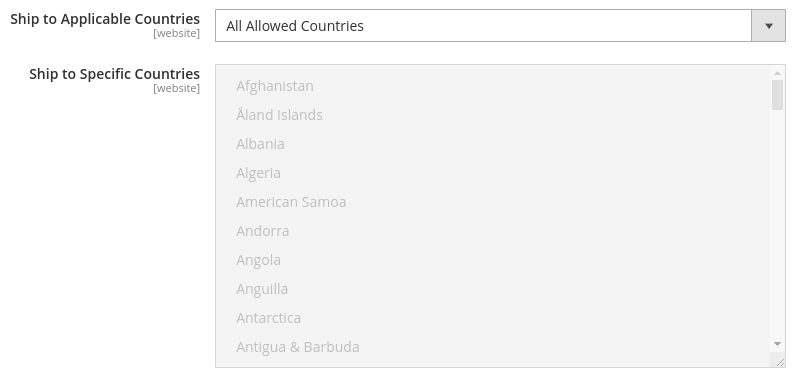
You can also select the countries for the shipping method. By default, it's set to all countries.
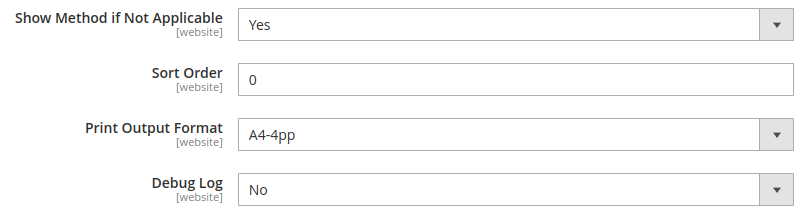
- Show Method if not Applicable: Select "Yes" to display Australia Post shipping method even if unavailable
- Sort Order: Set display order of the shipping method
- Print Output Format: Set format for printed shipping labels
- Debug Log: Enable logging of system errors for troubleshooting
Australia Post Shipping in Frontend
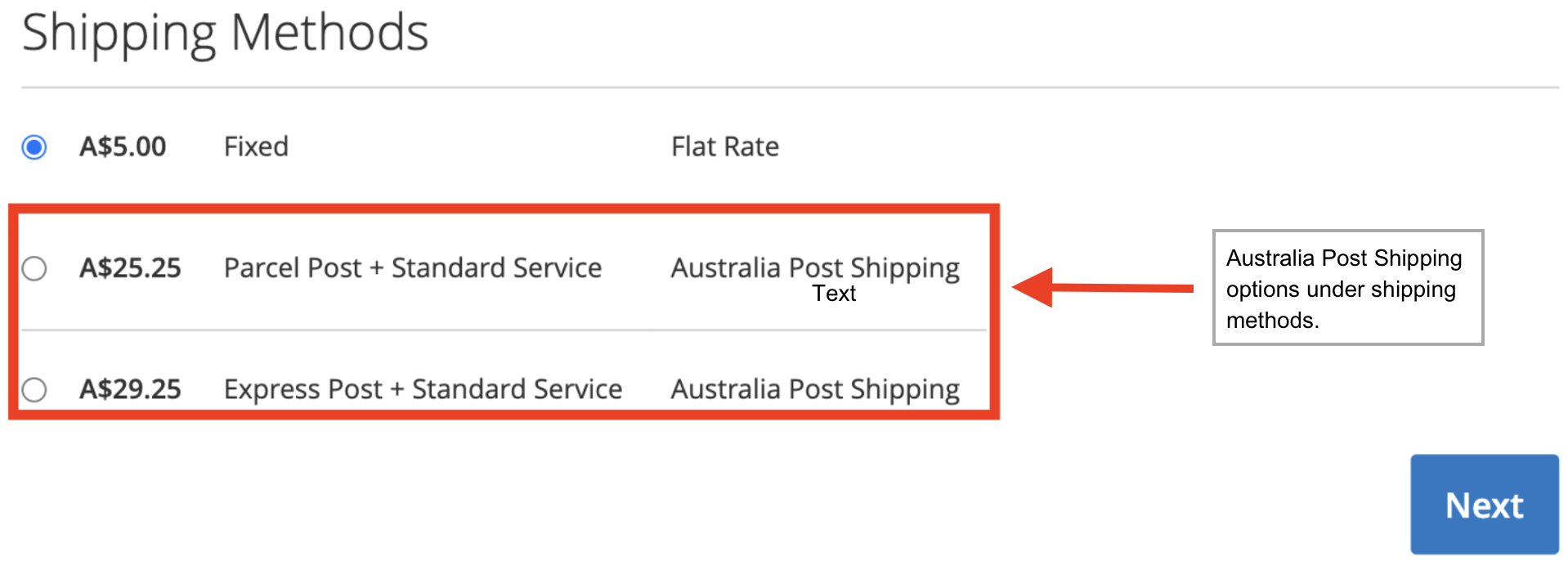
After you have configured the extension, the user can select the shipping options from the Australia Post Shipping option, which you have set.
Astralia Post Shipping in the Backend
After an order is placed, you as a store owner can create a shipping label for the specific order.
For this, head to Sales > Orders > View Order. Scroll down to select Create Shipping Label and click on Submit Shipment.

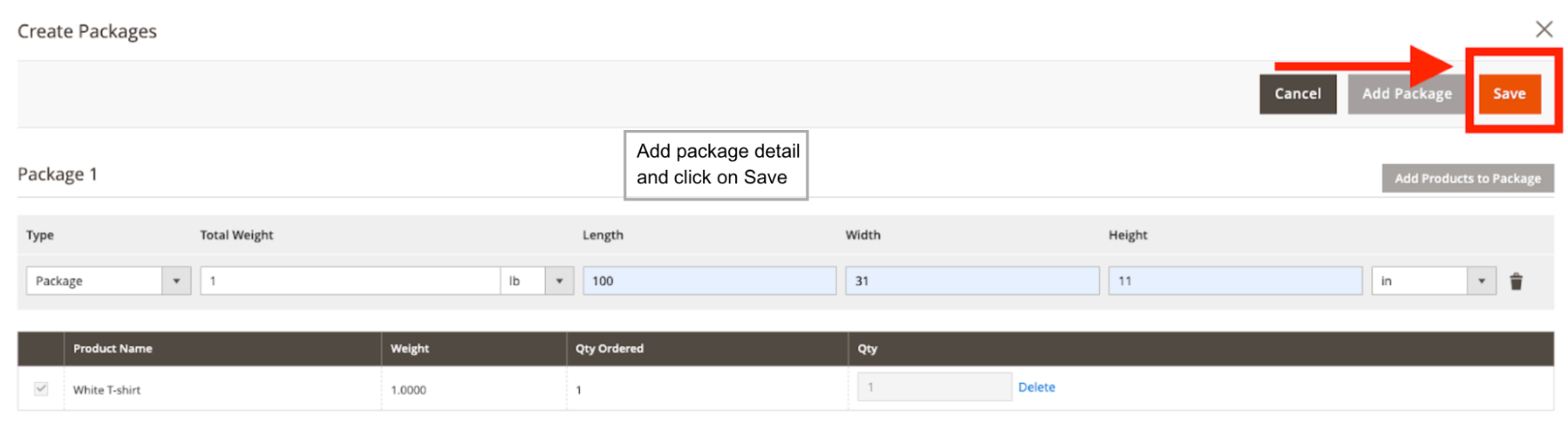
Now, fill in the details to create a package for the shipping. Set the package type, weight, length, width, height, assign the package to products, and click Save.
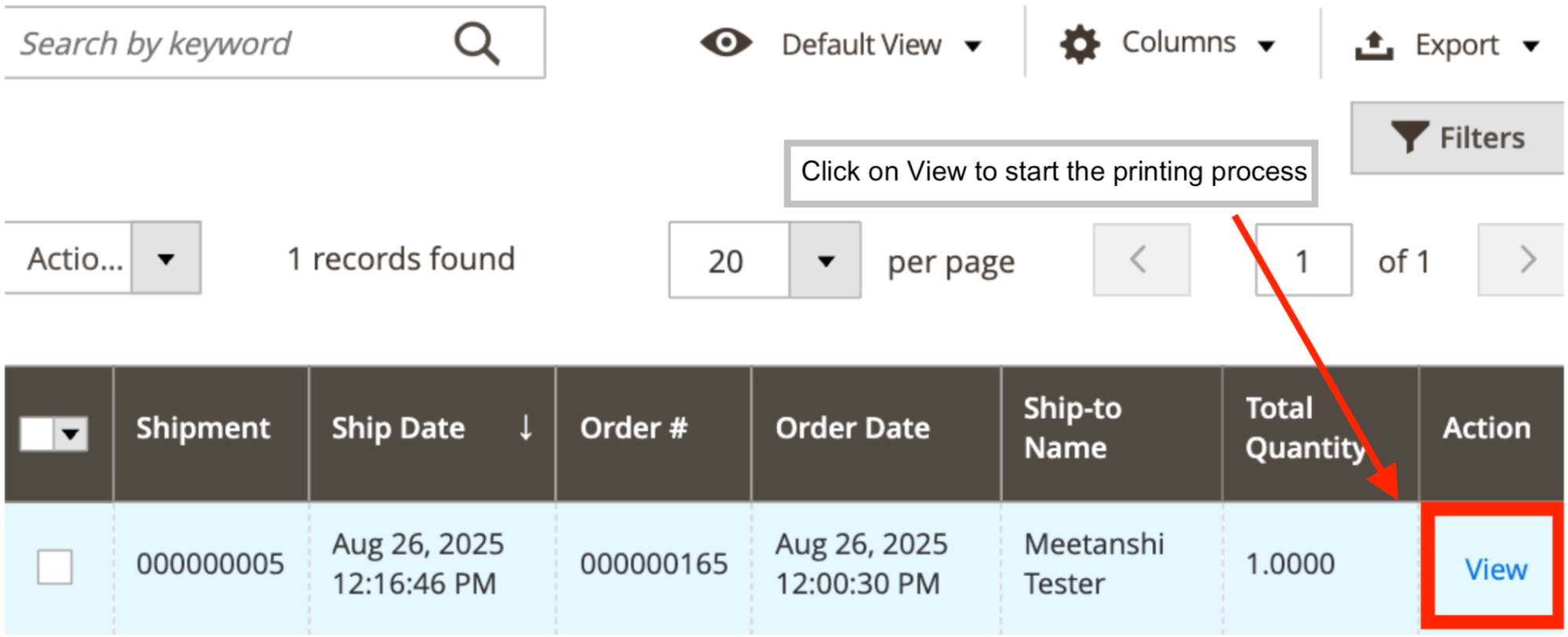
When your shipment package is ready, click on View to start printing the label.
Then, head to Shipping and Tracking Information > Print Shipping Labels.
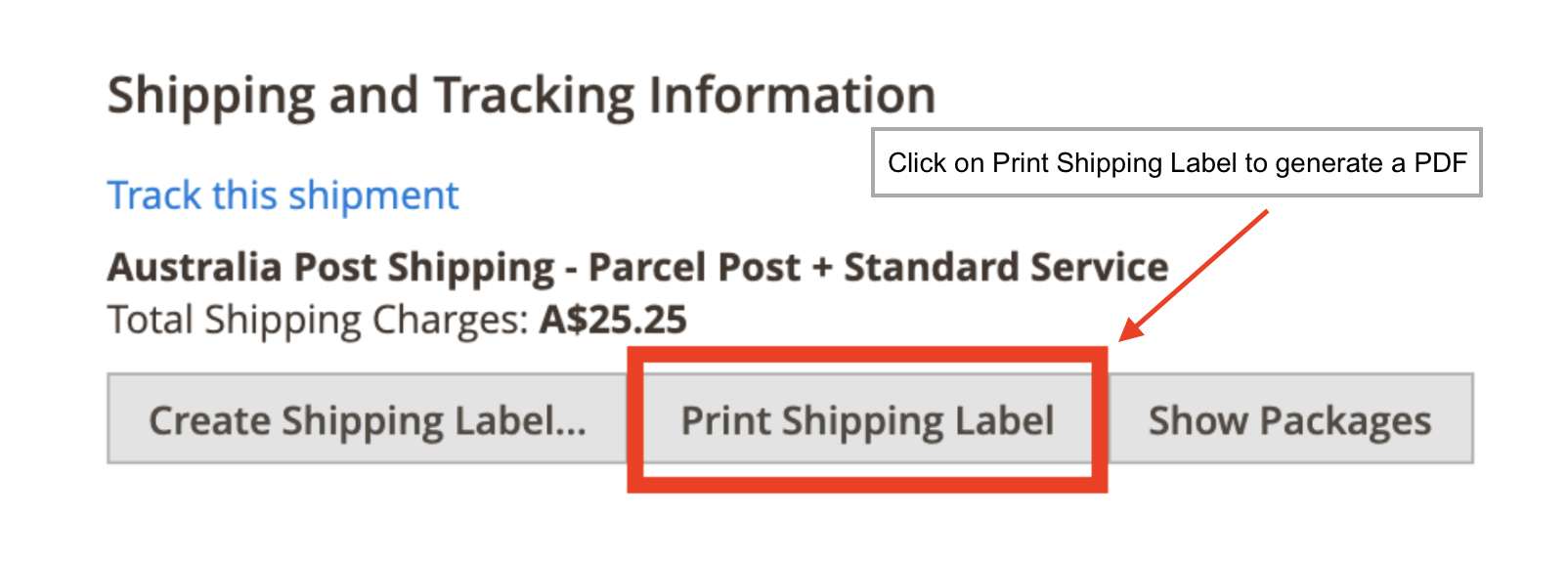
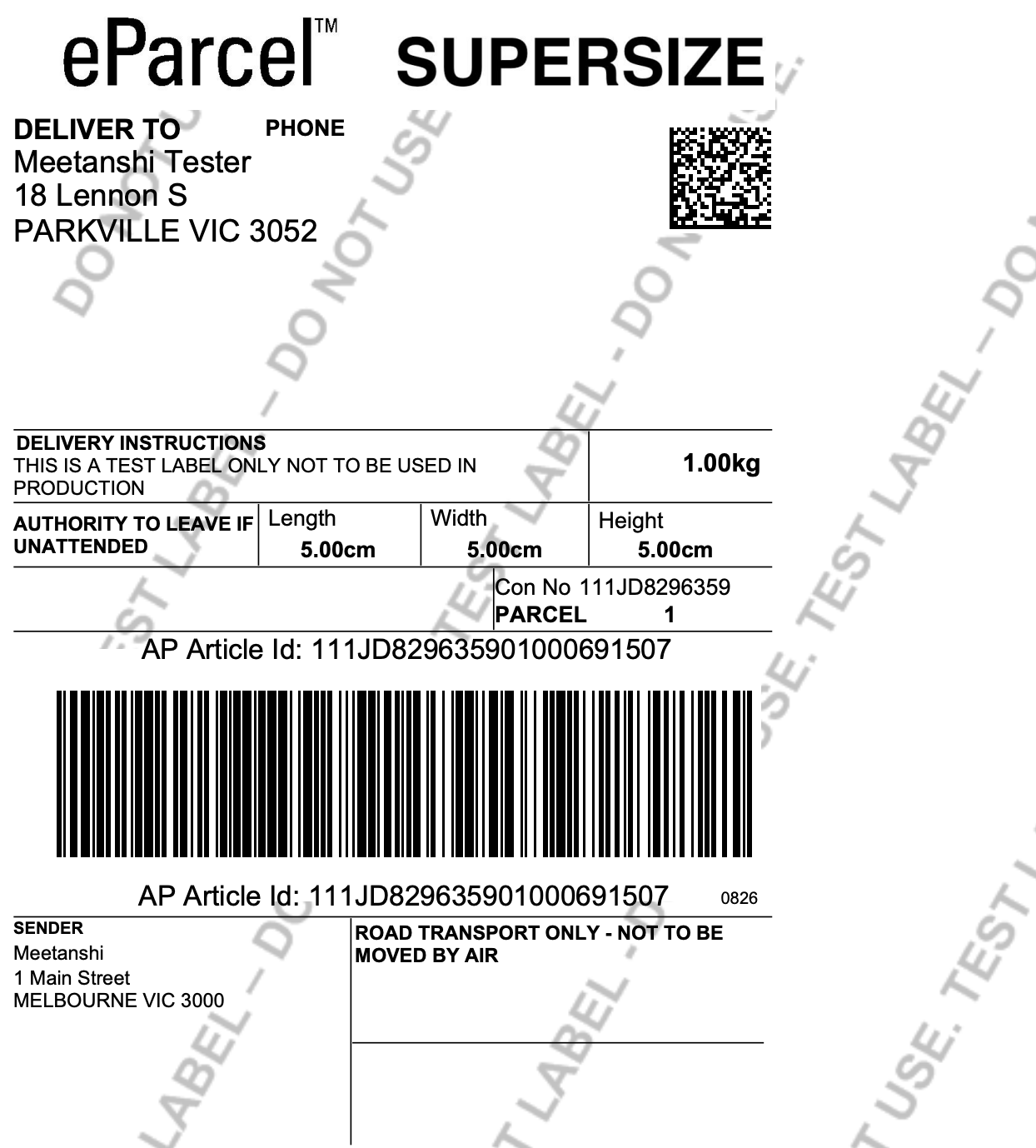
As soon as you click on the button, a PDF will be downloaded with all the information.