AI Translator for Magento 2 - User Guide
Extension Installation
Prerequisites
- Magento 2.3.x – 2.4.x installed and functioning.
- Active Google Gemini API key.
Magento Marketplace Customers Method
- Access your server CLI via SSH and navigate to your Magento root directory.
- Run the Composer command to fetch the extension:
composer require meetanshi/magento-2-ai-translator - Enable the extension module:
php bin/magento module:enable Meetanshi_Translator - Run the upgrade command:
php bin/magento setup:upgrade - Deploy static content based on your Magento version:
- For Magento 2.0.x – 2.1.x:
php bin/magento setup:static-content:deploy - For Magento 2.2.x & above:
php bin/magento setup:static-content:deploy -f
- For Magento 2.0.x – 2.1.x:
- Flush the Magento cache:
php bin/magento cache:flush
Direct ZIP / Meetanshi Customers Method
- Download the extension ZIP file from your Meetanshi account area.
- Extract the archive contents and upload them to your server under
<Magento_Root>/app/code/Meetanshi/Translator/. - Connect to your Magento server via SSH and execute the following commands:
php bin/magento setup:upgrade- For Magento 2.0.x – 2.1.x:
php bin/magento setup:static-content:deploy - For Magento 2.2.x & above:
php bin/magento setup:static-content:deploy -f
php bin/magento cache:flush - For Magento 2.0.x – 2.1.x:
AI Translator for Magento 2 leverages Google Gemini AI to translate catalog products, CMS blocks, and CMS pages into multi-language store views instantly with context preservation.
How to Obtain Google Gemini API Key
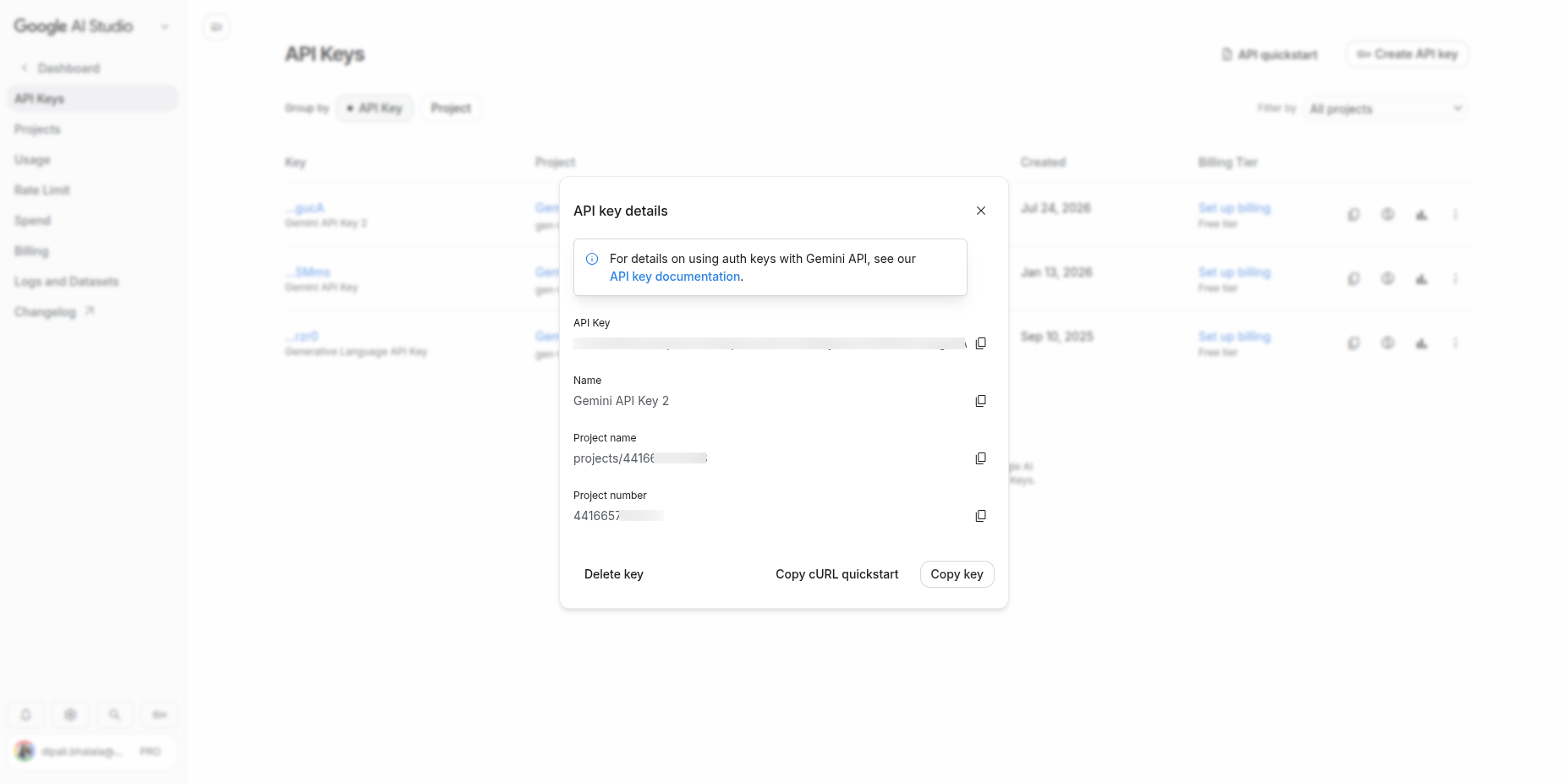
Follow these simple steps to obtain your Google Gemini API key:
- Visit Google AI Studio.
- Log in with your Google account.
- Click the Get API key button in the bottom left or main overview panel.
- Click Create API key (you can select an existing Google Cloud project or create a new one).
- Copy the generated API Key string.
- Paste the copied API key into the Gemini API Key field under Stores > Configuration > Meetanshi > Translator in Magento Admin.
Note: Before proceeding with the configuration, please ensure that you have set up multiple stores corresponding to each language you wish to translate.
General Configuration
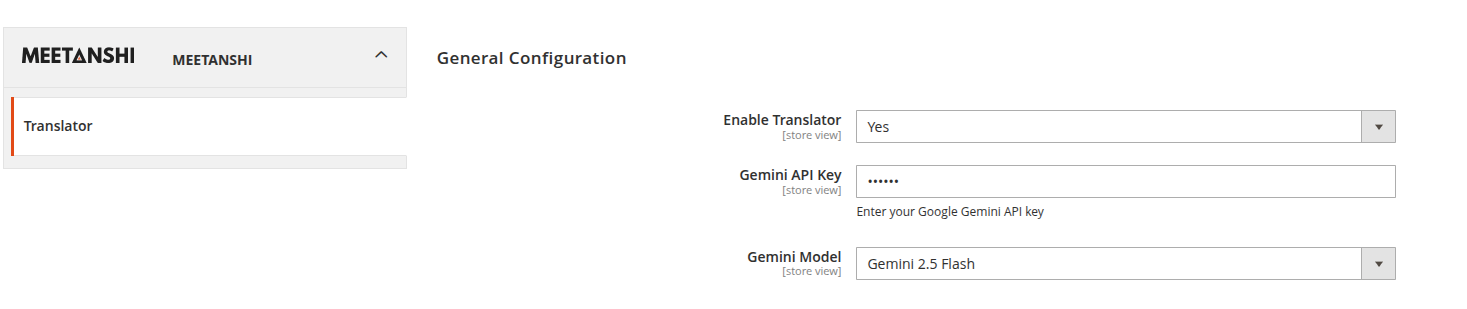
Navigate to Stores > Configuration > Meetanshi > Translator to set up Google Gemini AI credentials.
- Enable Translator: Select Yes to enable AI content translation features in admin.
- Gemini API Key: Enter your Google Gemini API key.
- Gemini Model: Select the desired Gemini AI engine (e.g.,
gemini-1.5-flashorgemini-1.5-pro).
CMS Block & CMS Page Translation
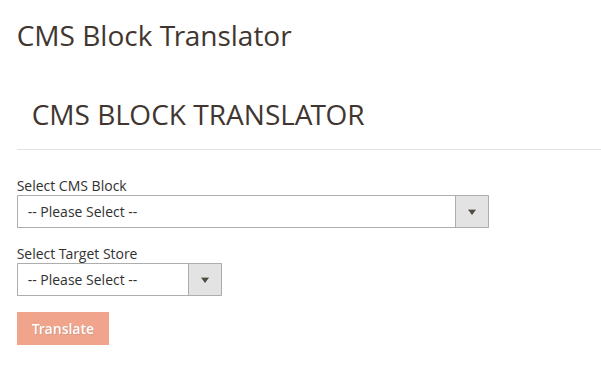
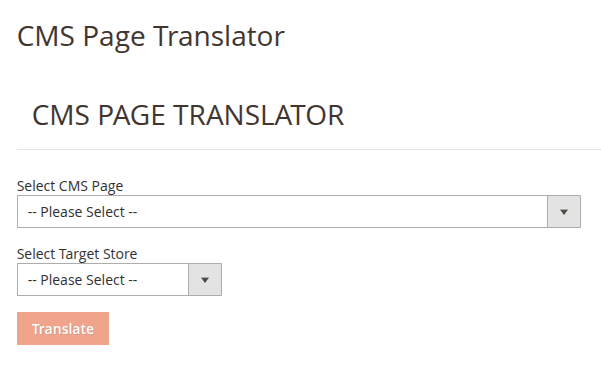
Navigate to Translator > CMS Block Translator or Translator > CMS Page Translator.
- Select Content Items: Multi-select CMS Blocks or CMS Pages to translate.
- Target Store View: Select target store views/languages for translation.
- Translate & Save: Click Translate to generate AI content and save directly into target store views.