Custom Order Number for Magento 2 - User Guide
Extension Installation
- Extract the zip folder and upload our extension to the root of your Magento 2 directory via FTP.
- Login to your SSH and run below commands step by step:
php bin/magento setup:upgrade
For Magento version 2.0.x to 2.1.x -
php bin/magento setup:static-content:deploy
For Magento version 2.2.x & above -
php bin/magento setup:static-content:deploy --f
php bin/magento cache:flush
- That's it.
Custom Order Number Configuration
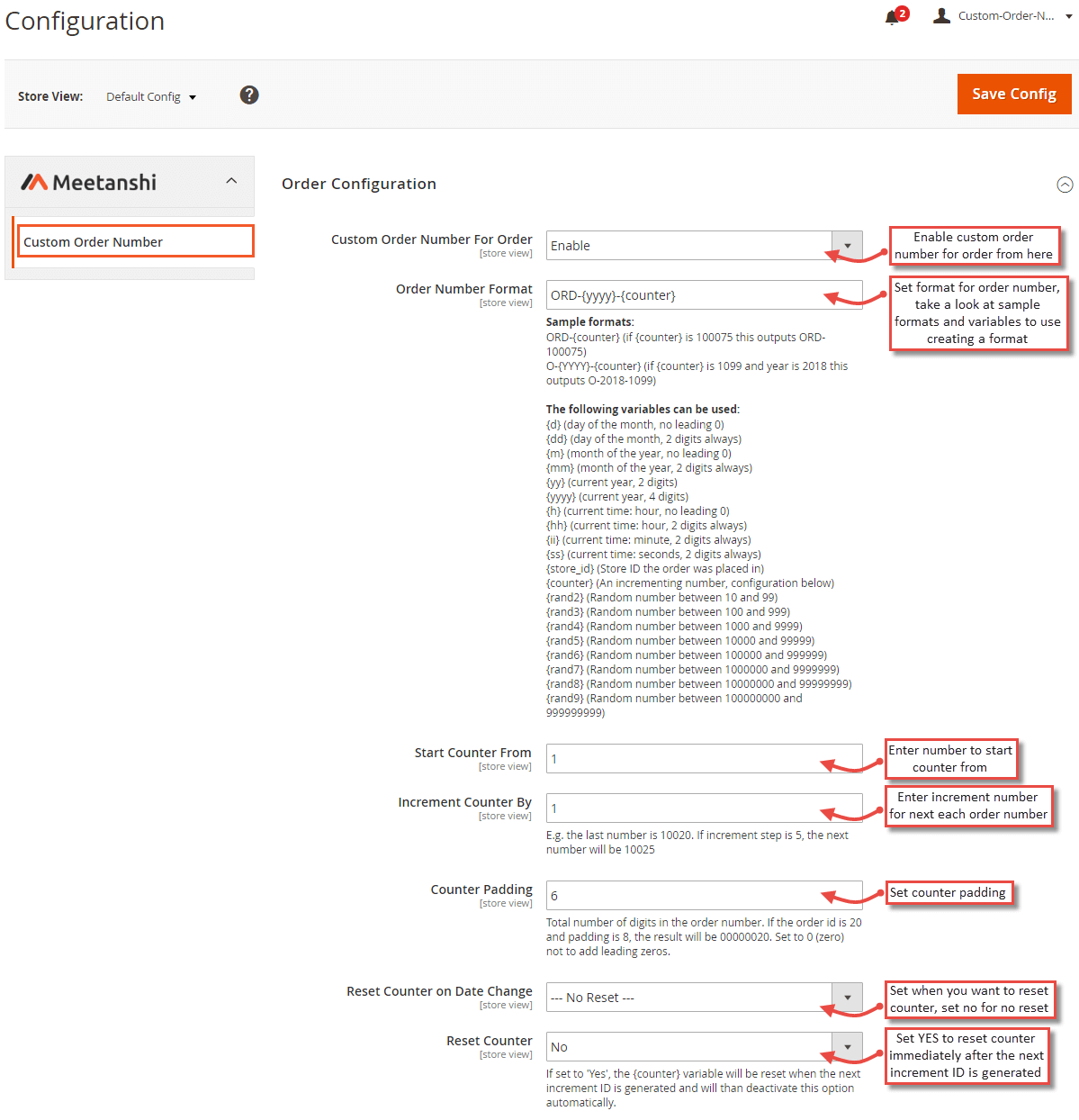
For configuring the Custom Order Number for Magento 2 extension, log in to Magento 2, move to Stores > Configuration where you can find various settings to enable the extension.
- Custom Order Number for Order: Enable or disable to enable custom order number.
- Order Number Format: Set order number format based on the sample formats and variables given. This format will be used to assign order IDs in your Magento 2 stores.
- Start Counter From: Set order counter to start with. If you set 1, order numbers will start with 1.
- Increment Counter By: Set increment counter to add the value to counter for every next order ID. If you set 1, the order number will add it to the previous value assigned.
- Counter Padding: Set number of paddings to order ID. This means if you set it to 5, the order number will add five 0s ahead of the order counter.
- Reset Counter on Date Change: Select specific interval to reset the counter and start over again.
- Reset Counter: Set YES to reset counter immediately once the next increment ID is generated.
Invoice Configuration
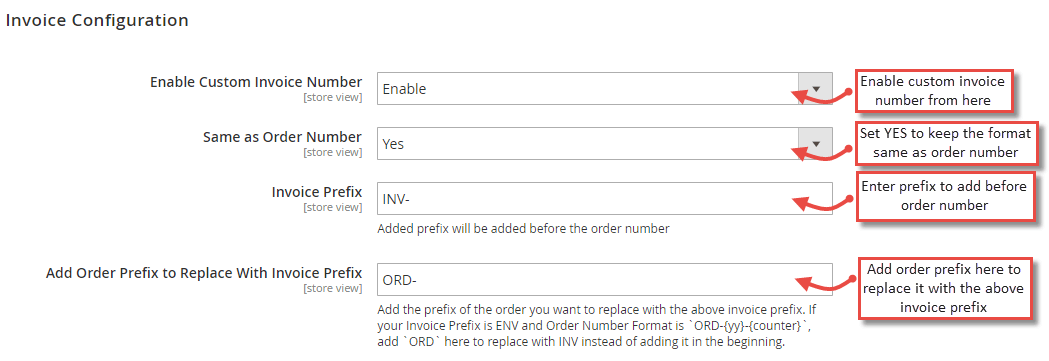
Apart from the order number, the extension also facilitates to assign custom invoice number.
- Custom Invoice Number: Enable or disable to enable custom invoice number.
- Same as Order Number: Set YES to keep the same format as an order number for invoice. If NO, you have to set configuration just as the custom order number.
- Invoice Prefix: Set prefix for the invoice to add before the order number. For example, if your custom order format is ORD-- and the prefix set here is INV, your invoice number will be INV-ORD--.
- Replace in Order Number: When you have set order number format with the prefix, you can replace it with the above invoice prefix. Simply set the order prefix here to replace it with the above one. For example, if your custom order number format is ORD--, you have to add the prefix ORD here to replace and make the invoice number as INV--.
Shipment Configuration
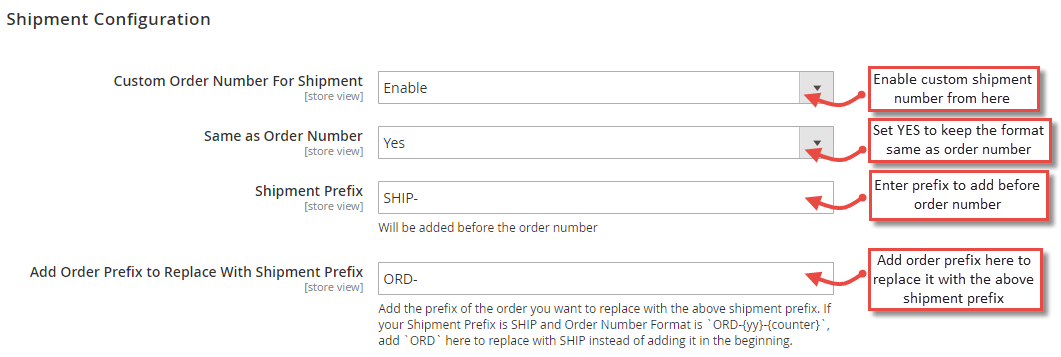
Apart from the order and invoice number, the extension also facilitates to assign custom shipment number.
- Custom Shipment Number: Enable or disable to enable custom shipment number.
- Same as Order Number: Set YES to keep the same format as an order number for the shipment. If NO, you have to set configuration just as the custom order number.
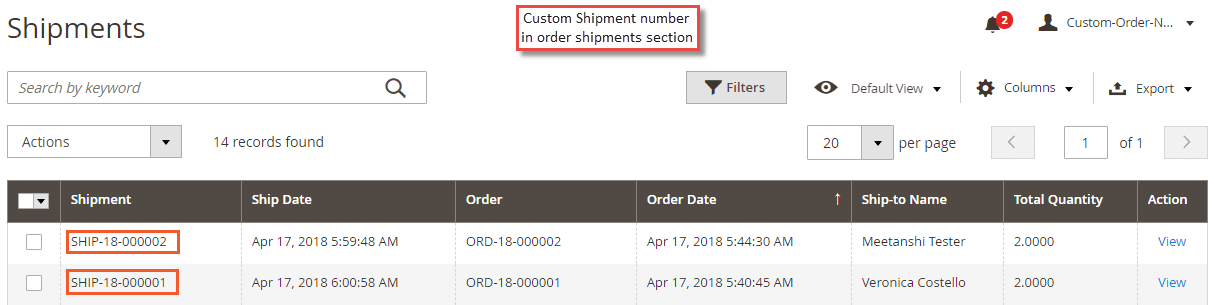
- Shipment Prefix: Set prefix for shipment to add before the order number. For example, if your custom order format is ORD-- and the prefix set here is SHIP, your shipment number will be SHIP-ORD--.
- Replace in Order Number: When you have set order number format with the prefix, you can replace it with the above shipment prefix. Simply set the order prefix here to replace it with the above one. For example, if custom order number format is ORD--, add the prefix ORD here to replace & make the shipment number as SHIP--.
Credit Memo Configuration
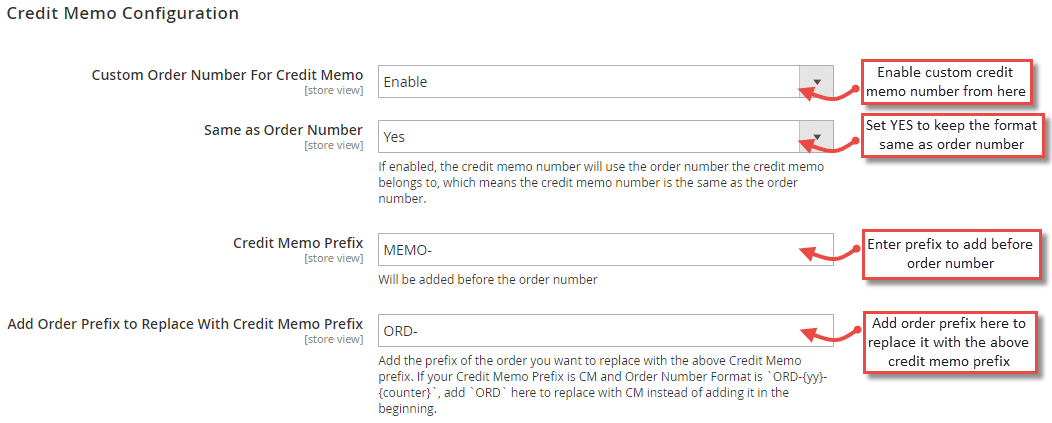
Apart from the order, invoice and shipment number, the extension also facilitates to assign custom credit memo number.
- Custom Credit Memo Number: Enable or disable to enable custom credit memo number.
- Same as Order Number: Set YES to keep the same format as the order number for credit memo. If NO, you have to set configuration just as custom order number.
- Credit Memo Prefix: Set prefix for credit memo to add before the order number. For example, if your custom order format is ORD-- and the prefix set here is CRM, your credit memo number will be CRM-ORD--.
- Replace in Order Number: When you have set order number format with the prefix, you can replace it with the above credit memo prefix. Simply set the order prefix here to replace it with the above one. For example, if your custom order number format is ORD--, you have to add the prefix ORD here to replace & make the credit memo number as CRM--.
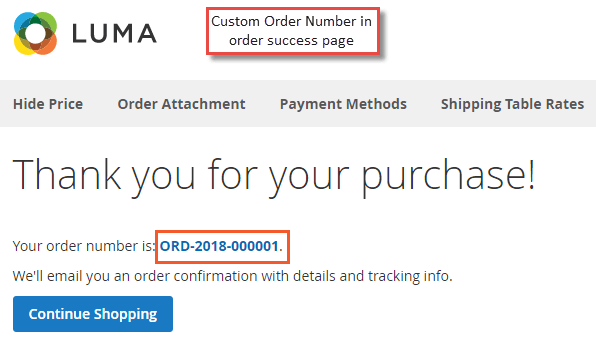
Custom Order Number in Frontend
Once the extension settings are done, you can see custom order number enabled in the frontend. When a customer adds products to cart, proceed to checkout and make the purchase, he can see order success message with custom order ID.
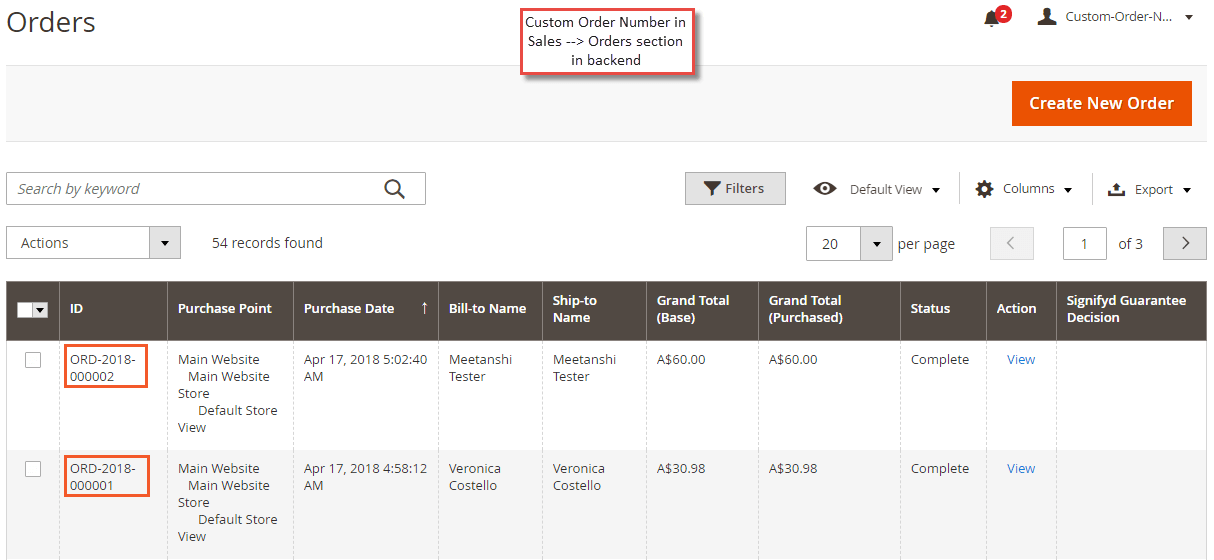
Custom Order Number in Backend
All the orders once placed can be seen enlisted with custom order number under Sales > Orders.
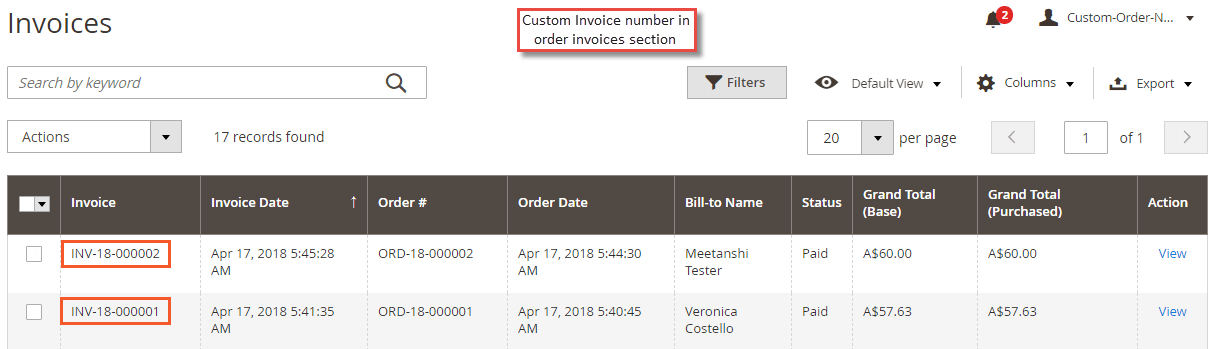
- Custom Invoice Number in backend
- Custom Shipment Number in Backend
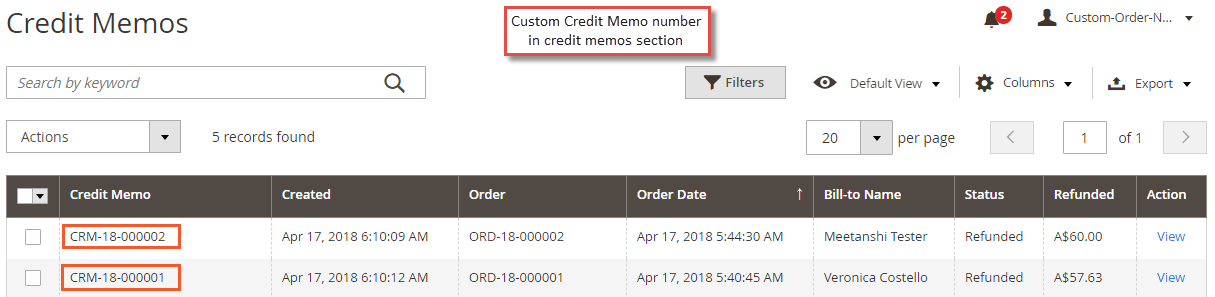
- Custom Credit Memo Number in Backend