Digicel MonCash Payments for Magento 2 - User Guide
Extension Installation
For Magento Marketplace Customers
- Login to your SSH and run:
composer require meetanshi/magento-2-digicel-moncash-payments --ignore-platform-reqs
- Enter your authentication keys . Your public key is your username; your private key is your password.
- Wait for Composer to finish updating your project dependencies and make sure there aren't any errors.
- To verify that the extension is installed properly, run the command:
php bin/magento module:status Meetanshi_Moncash
- By default, the extension is probably disabled. Enable the extension and clear static view files:
php bin/magento module:enable Meetanshi_Moncash --clear-static-content
php bin/magento setup:upgrade
- For Magento version 2.0.x to 2.1.x -
php bin/magento setup:static-content:deploy
- For Magento version 2.2.x & above -
php bin/magento setup:static-content:deploy --f
php bin/magento cache:flush
For Meetanshi Customers
- Extract the zip folder and upload our extension to the root of your Magento 2 directory via FTP.
- Login to your SSH and run below commands step by step:
php bin/magento setup:upgrade
For Magento version 2.0.x to 2.1.x -
php bin/magento setup:static-content:deploy
For Magento version 2.2.x & above -
php bin/magento setup:static-content:deploy --f
php bin/magento cache:flush
Configuration
To configure the Digicek MonCash Payments for Magento 2 extension, login to Magento 2, move to Sales > Payment Methods > Digicel MonCash Payments - Meetanshi where you can find various settings to enable the extension.
- Enabled: Set "YES" to enable the Digicel MonCash Payments extension.
- Title: Set the title for the payment method to be displayed in the frontend.
- Show MonCash Logo: Set YES to show MonCash logo along with the payment method in the frontend.
- Sandbox Mode: Select YES to enable sandbox mode.
- Client ID: Enter client ID copied from your payment gateway settings.
- Client Secret: Enter client secret copied from your payment gateway settings.
Note: In order to integrate MonCash, you first need to perform a test in the sandbox environment.
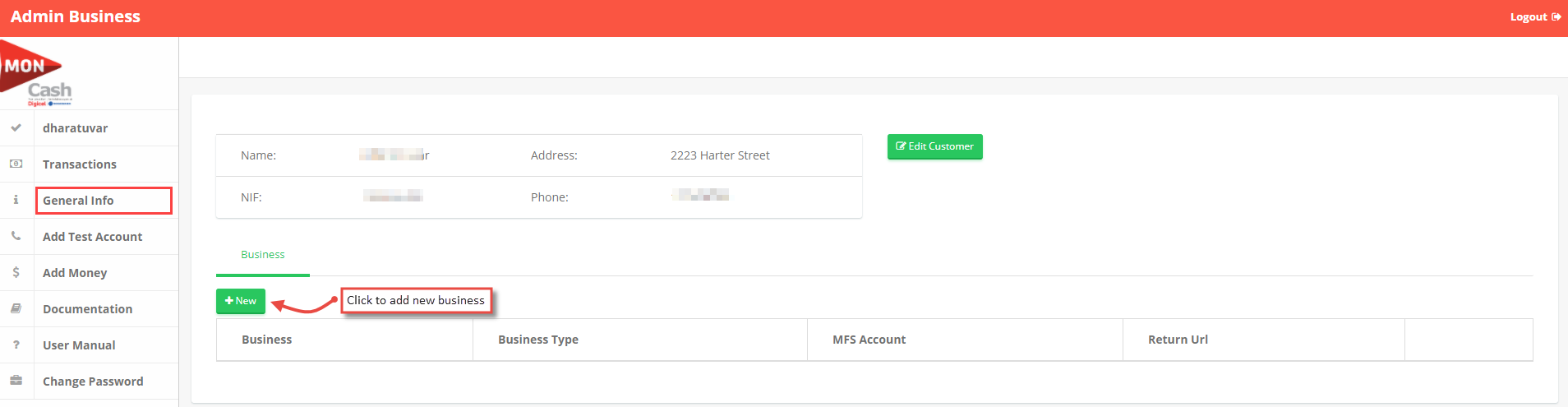
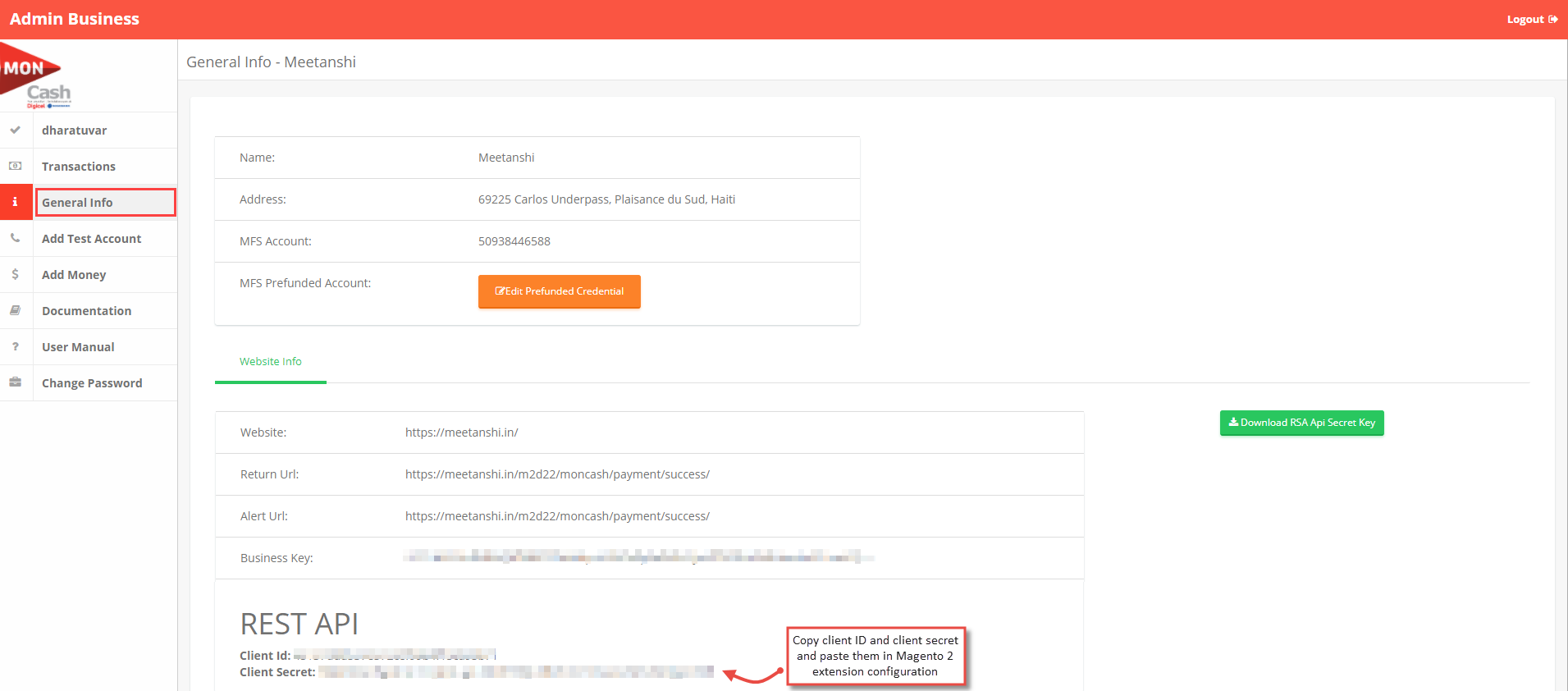
- To get the Client ID and Client Secret, create an account on https://sandbox.moncashbutton.digicelgroup.com/Moncash-business/New , confirm your Email, login to your account, move to the " General Info " tab and
click "New " to add a business.
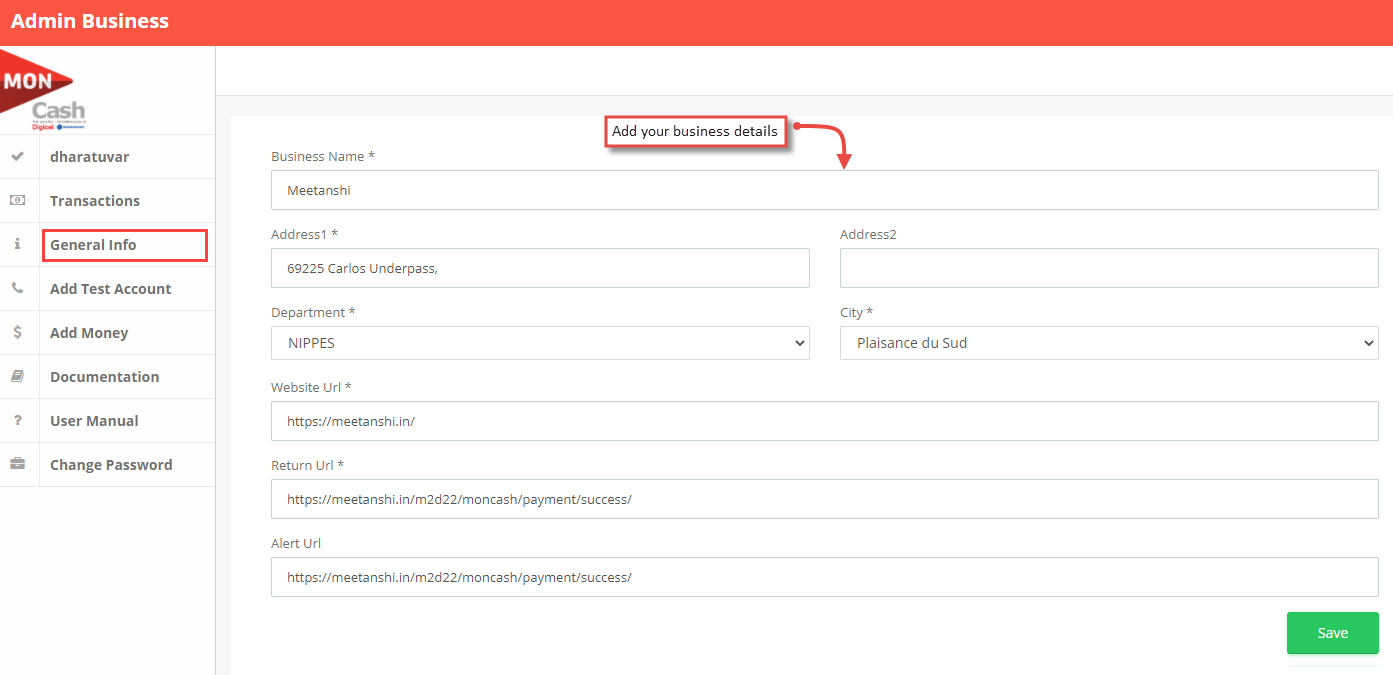
Add your business details, website, return and alert URLs.
Website URL: https://yoursite.com
Return URL: https://yoursite.com/moncash/payment/success
Alert URL: https://yoursite.com/moncash/payment/success
- After saving the details, click to view the business details.
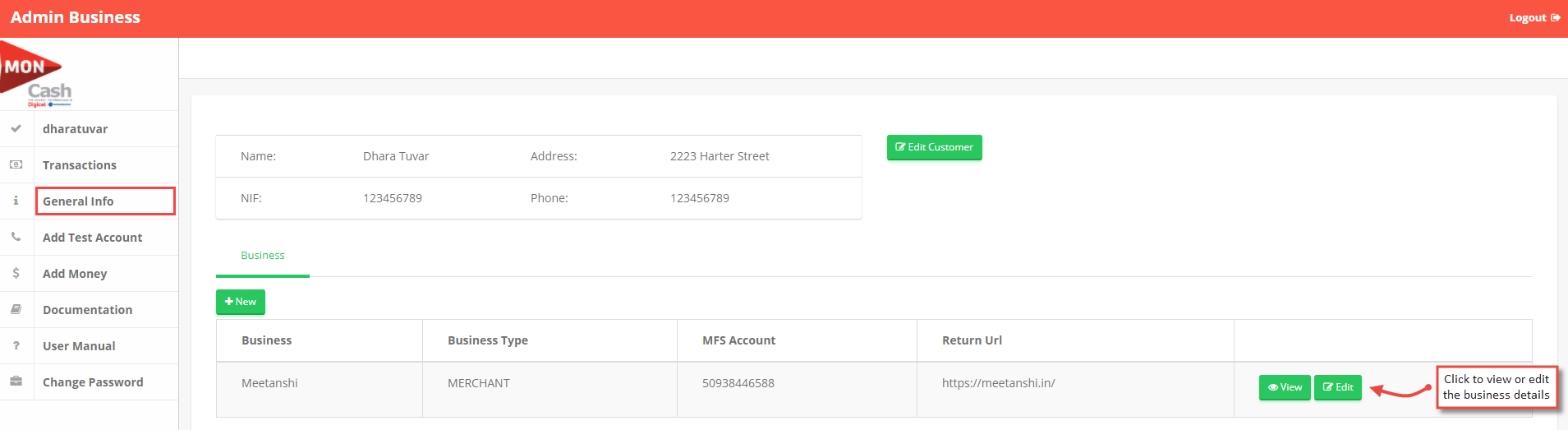
- On click of view button, you can view rest API details having client ID and client secret. Copy both and paste in the extension configuration under the respective fields.
Note: Once the testing is completed, please contact MonCash business team via email at [email protected] in order to move to production/live.
- Auto Invoice: Select YES to automate invoice generation for the orders paid using the Digicel MonCash payment method.
- Payment from Applicable Countries: Select countries to allow using this payment method.
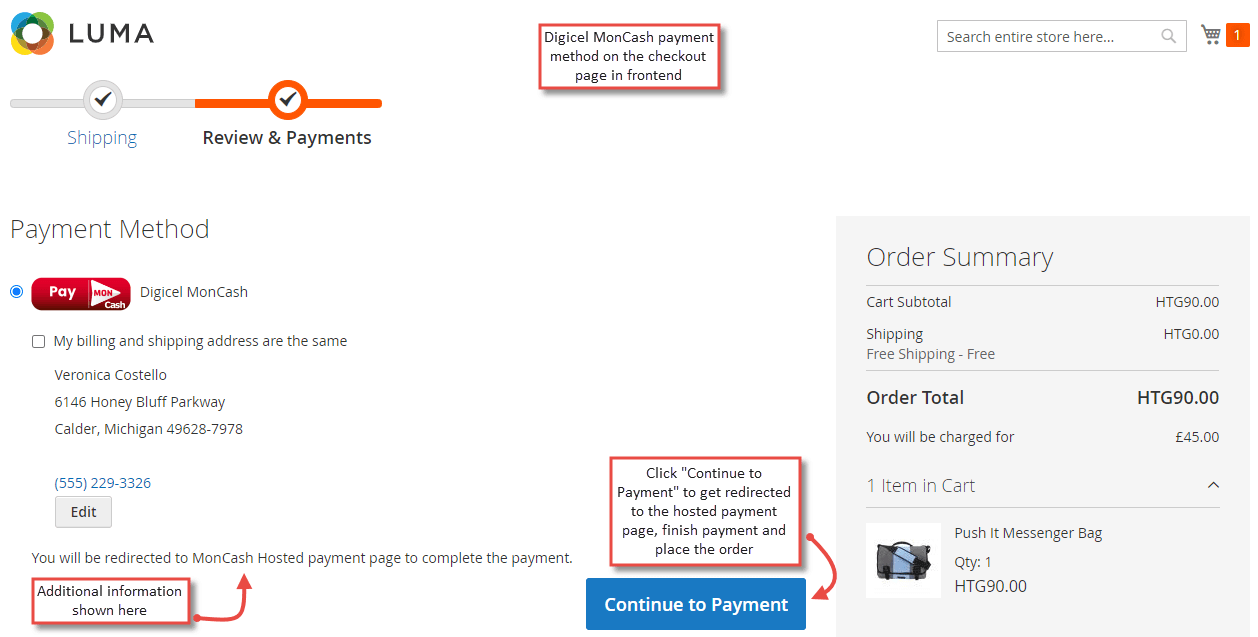
- Additional Information: Enter the additional information to show on frontend along with the payment method.
- Sort Order: Enter Sort Order of the payment method display in the frontend.

MonCash Payment Method in Frontend
Once the payment method is configured, whenever the customers add the products to cart and move to the checkout page, Digicel MonCash payment method is shown. They just select the payment method, click " Continue to Payment " to get redirected to the hosted payment page, add the payment details and complete the payment.
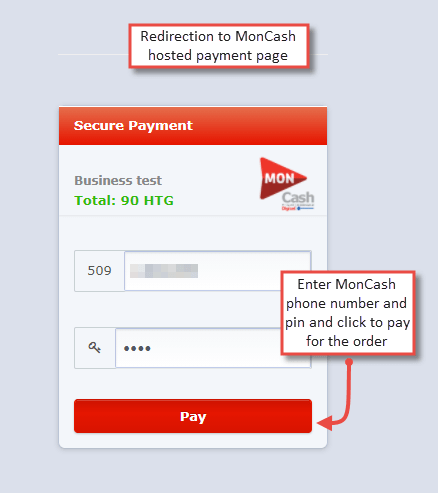
- Redirection to the MonCash Hosted Payment Page
Once the customers get redirected to the Digicel MonCash hosted payment page, they add Digicel mobile number and pin, and click the " Pay " button.
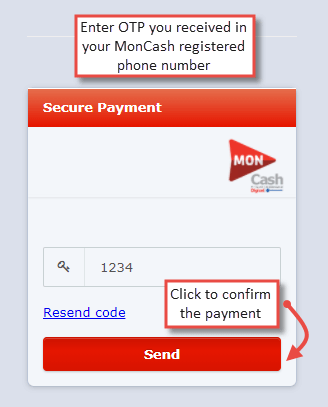
- Immediately after adding the phone number and pin, the customers get OTP on the same number to confirm the payment and pay for the order.
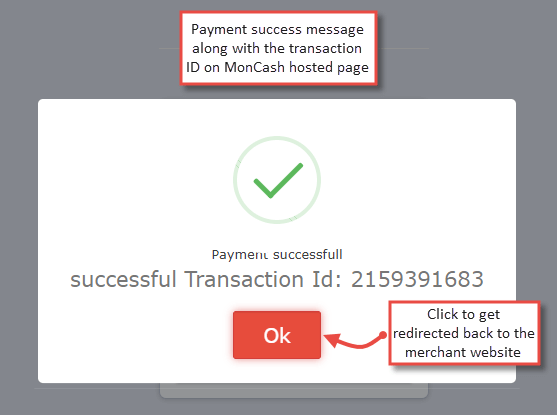
- After the successful payment, customers can see payment success message along with the transaction ID. On click of the "Ok" button, they get redirected back to the merchant website.
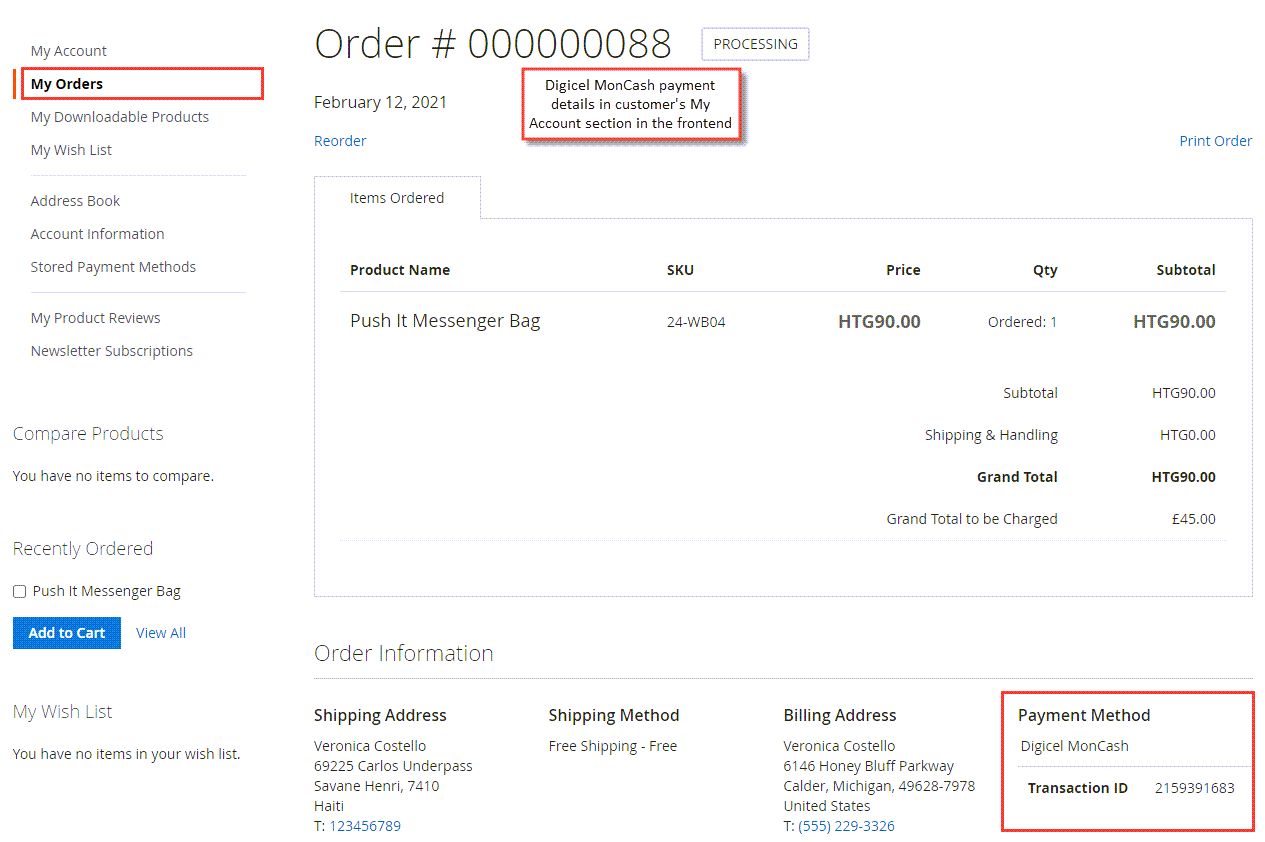
- MonCash Payment Details in Customer's My Account Section
After the successful payment, customers can see the MonCash payment details in their My Account section.
Digicel MonCash Payment Details in Backend
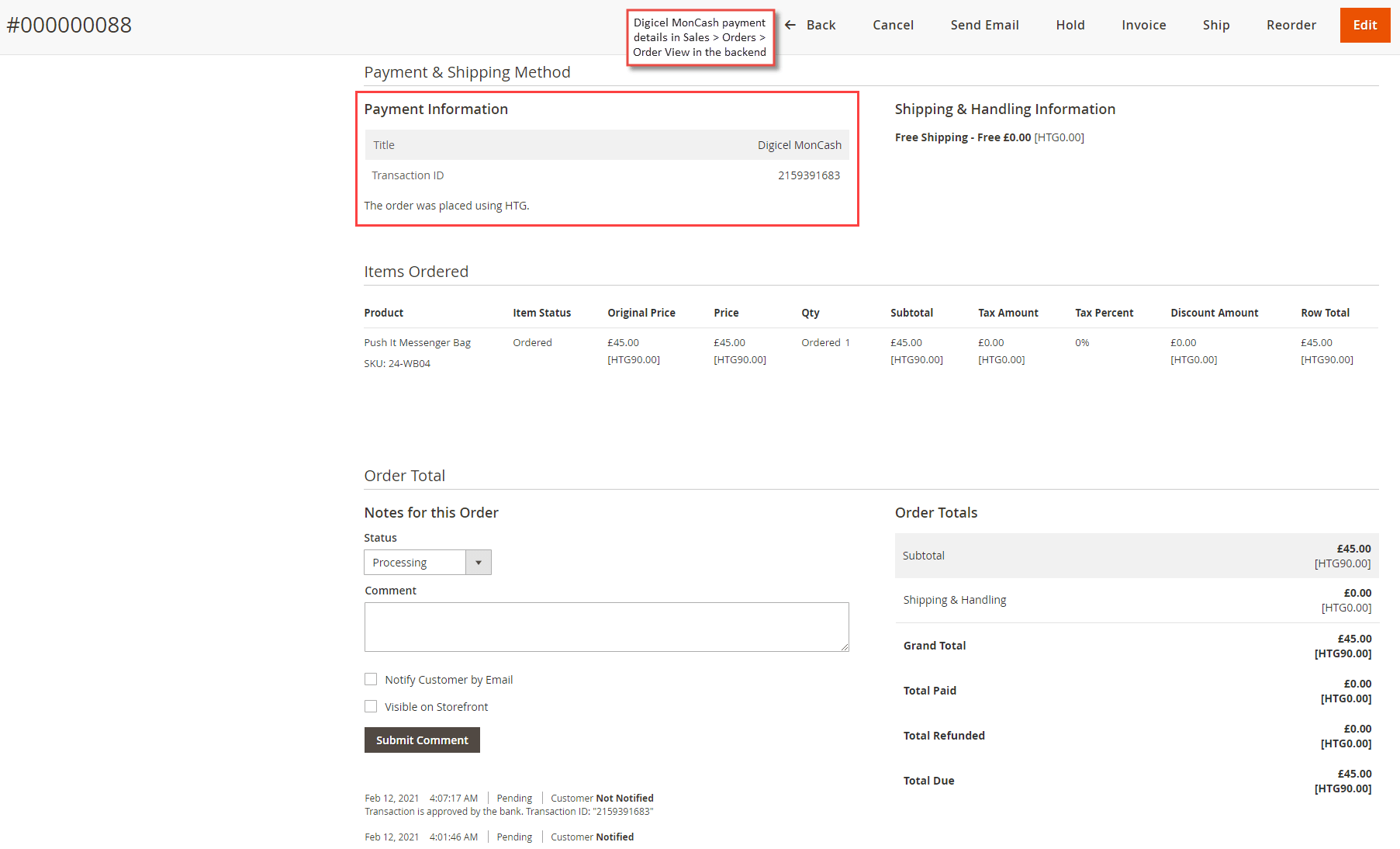
Apart from the customers, the admin can also see the payment details for the orders in the backend. Go to Sales > Orders > Order View to see the MonCash payment details along with the transaction ID.