HDFC Payment Gateway for Magento 2 - User Guide
Extension Installation
- Extract the zip folder and upload our extension to the root of your Magento 2 directory via FTP.
- Login to your SSH and run below commands step by step:
php bin/magento setup:upgrade
For Magento version 2.0.x to 2.1.x -
php bin/magento setup:static-content:deploy
For Magento version 2.2.x & above -
php bin/magento setup:static-content:deploy --f
php bin/magento cache:flush
- That's it.
Configuration
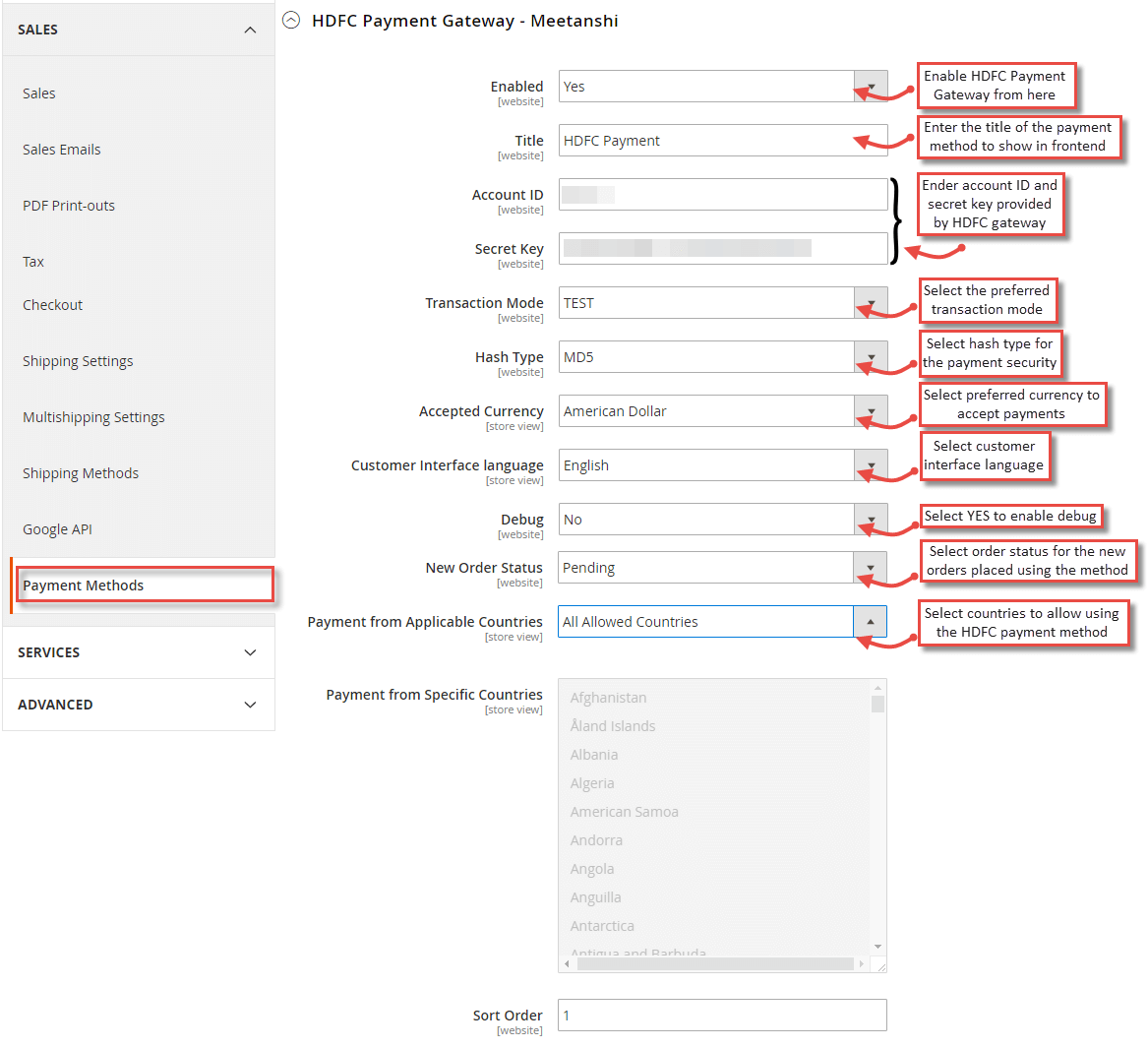
For configuring the HDFC Payment for Magento 2 extension, log in to Magento 2, move to Stores > Configuration > Sales > Payment Methods > HDFC Payment Gateway where you can find various settings to enable the extension.
- Enabled : Enable the HDFC Payment Gateway extension from here.
- Title : Enter the title of the payment method to display in frontend.
- Account ID: Enter account ID provided while registration with HDFC Payment Gateway.
- Secret Key: Enter client secret key provided while registration with HDFC Payment Gateway.
- Transaction Mode: Select the preferred transaction mode.
- Hash Type: Select hash type for payment security.
- Accepted Currency: Select the preferred currency to accept payments.
- Customer Interface Language: Select customer interface language.
- Debug: Select Yes to enable debug.
- New Order Status: Select order status for the new orders placed using the method.
- Payment from Applicable Countries: Select countries to allow using the HDFC payment method.
- Sort Order: Enter sort order to show payment method in frontend.
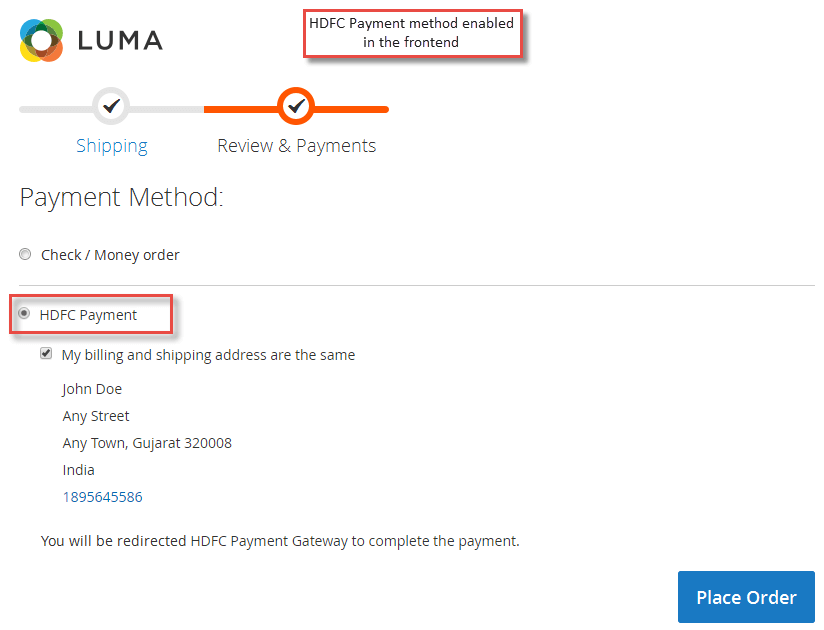
HDFC Payment in Frontend
The extension, once configured, can be seen enabled in the frontend. Whenever a customer adds products to cart and proceeds to checkout, HDFC payment method is seen enabled in the frontend.
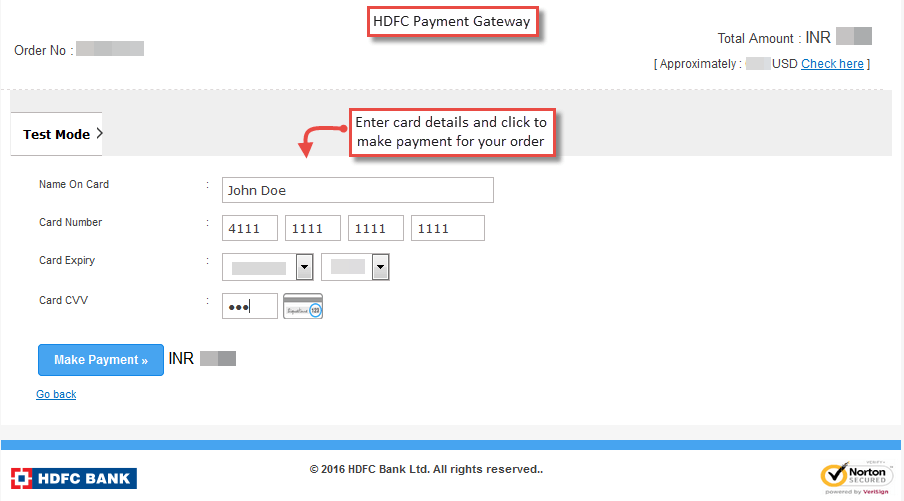
- Once you place an order, it will redirect you to HDFC Payment gateway where you are required to enter card details and finish payment.
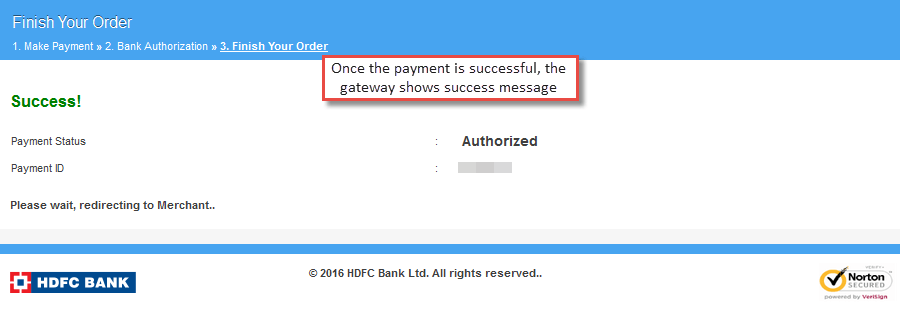
- Success message, as shown below, is displayed, once the payment is successful.
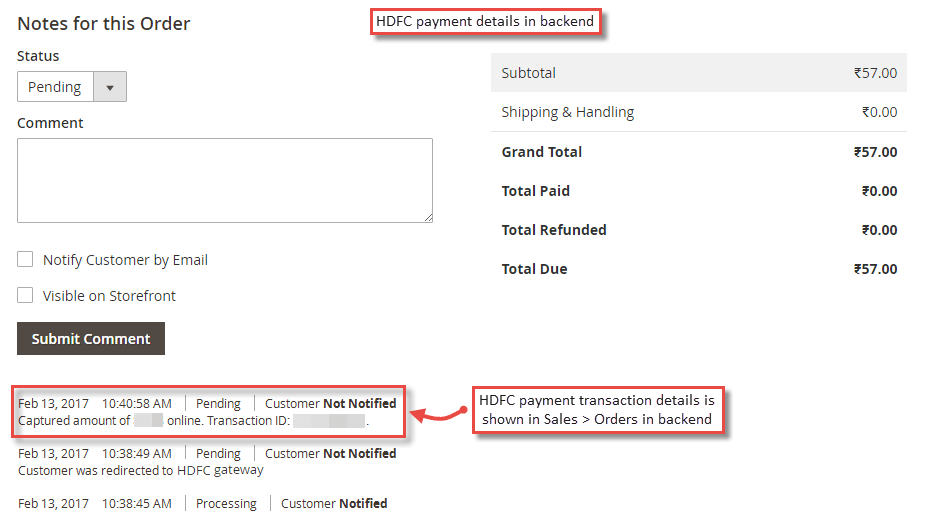
Payment Details in Backend
Once the order is placed and you have paid successfully, payment details can be seen in Sales > Orders under a specific order in backend.