Mass Product Actions for Magento 2 - User Guide
Extension Installation
Prerequisites
- Magento 2.3.x – 2.4.x installed and functioning.
- PHP version compatible with your Magento release.
Magento Marketplace Customers Method
- Access your server CLI via SSH and navigate to your Magento root directory.
- Run the Composer command to fetch the extension:
composer require meetanshi/magento-2-mass-product-actions - Enable the extension module:
php bin/magento module:enable Meetanshi_MassProductActions - Run the upgrade command:
php bin/magento setup:upgrade - Deploy static content based on your Magento version:
- For Magento 2.0.x – 2.1.x:
php bin/magento setup:static-content:deploy - For Magento 2.2.x & above:
php bin/magento setup:static-content:deploy -f
- For Magento 2.0.x – 2.1.x:
- Flush the Magento cache:
php bin/magento cache:flush
Direct ZIP / Meetanshi Customers Method
- Download the extension ZIP file from your Meetanshi account area.
- Extract the archive contents and upload them to your server under
<Magento_Root>/app/code/Meetanshi/MassProductActions/. - Connect to your Magento server via SSH and execute the following commands:
php bin/magento setup:upgrade- For Magento 2.0.x – 2.1.x:
php bin/magento setup:static-content:deploy - For Magento 2.2.x & above:
php bin/magento setup:static-content:deploy -f
php bin/magento cache:flush - For Magento 2.0.x – 2.1.x:
Mass Product Actions for Magento 2 streamlines catalog management by enabling store administrators to update prices, modify categories, search & replace text, manage gallery images, update inventory, and link related products in bulk directly from the admin product grid.
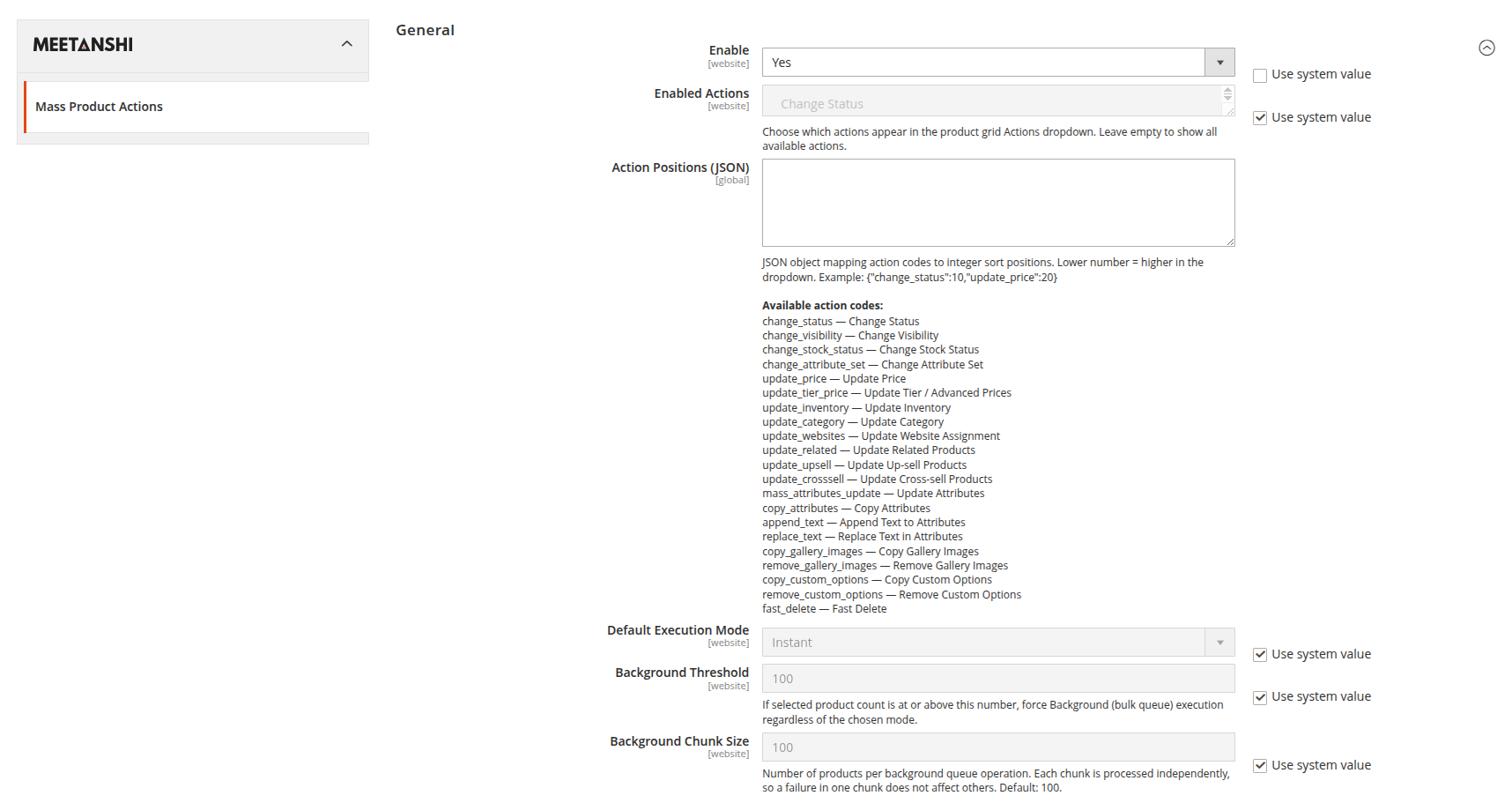
General Settings
Navigate to Stores > Configuration > Meetanshi > Mass Product Actions to configure global execution rules and available mass action options.
- Enable: Select Yes to enable Mass Product Actions on the admin product grid.
- Allowed Mass Actions: Select specific mass actions to make available in the Action dropdown menu.
- Default Execution Mode: Select Direct for instant browser processing, Cron for background cron queue execution, or Queue for asynchronous Message Queue processing.
- Batch Size: Specify the number of products processed per batch iteration (Default:
100).
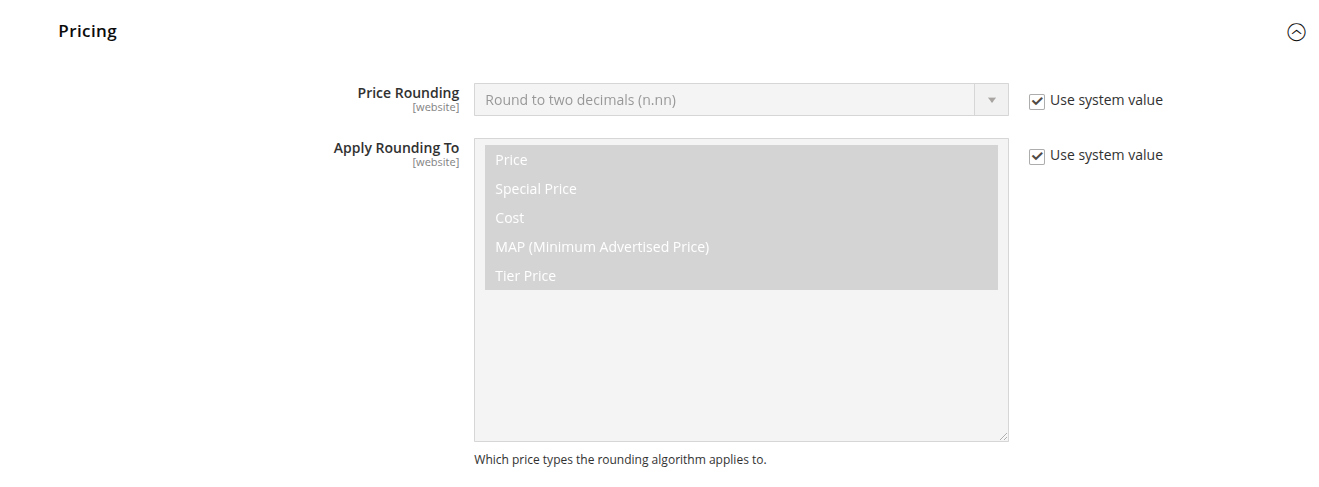
Pricing Configuration
Configure price calculation rounding rules for bulk pricing updates.
- Price Rounding: Select the price rounding format (e.g.,
.99,.95,.00, or Round to Nearest Integer). - Apply Rounding To: Multi-select price fields to apply rounding rules (Price, Special Price, Cost, MSRP).
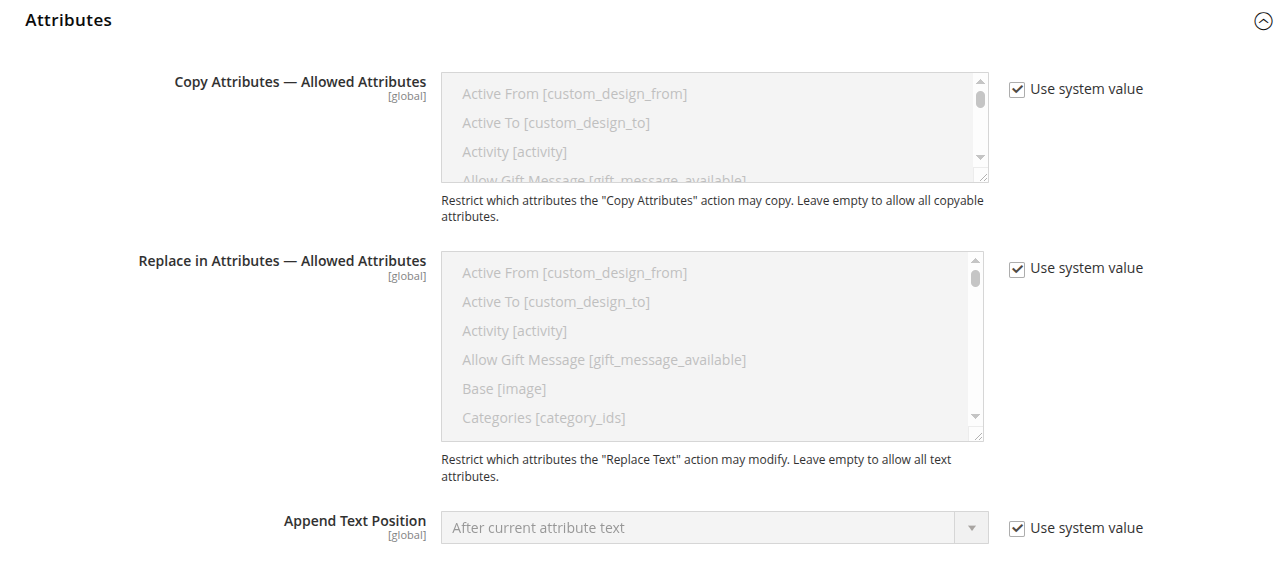
Attributes & Text Configuration
Specify allowed attributes for bulk attribute copying and text replacements.
- Copy Attributes — Allowed Attributes: Multi-select specific attributes that can be copied from one attribute field to another.
- Replace in Attributes — Allowed Attributes: Restrict text search-and-replace actions to specific string/text attributes.
- Append Text Position: Choose Prefix or Suffix as the default insertion position when appending text to product fields.
Categories Configuration
Define default rules for category assignment
- Mode to Select Categories: Choose Tree view or Multiselect dropdown format for choosing categories in mass action modals.
- Redirect Old URL on Replace: Select Yes to generate automatic 301 URL redirects when moving products between categories.

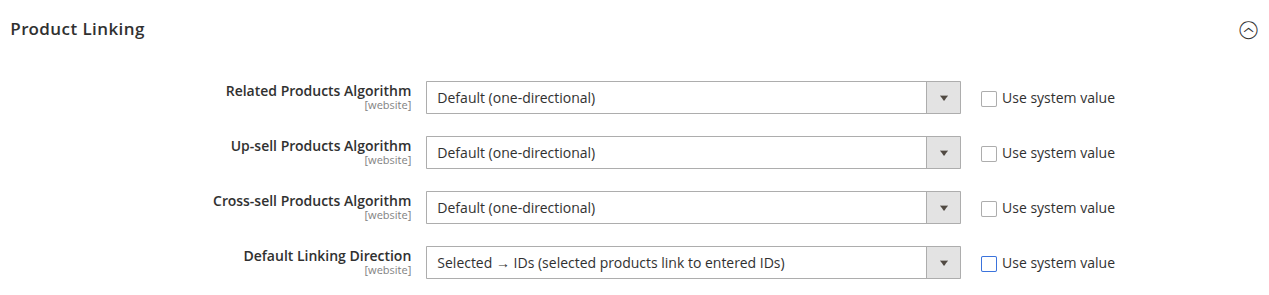
Product Linking Configuration
Define default rules for product relationship linking.
- Related Products Algorithm: Choose Append to preserve existing related products or Replace to overwrite them.
- Up-sell Products Algorithm: Choose Append or Replace for up-sell product linking.
- Cross-sell Products Algorithm: Choose Append or Replace for cross-sell product linking.
- Default Linking Direction: Select Two-Way (bidirectional) or One-Way product linking.
Cron & Job Retention Settings
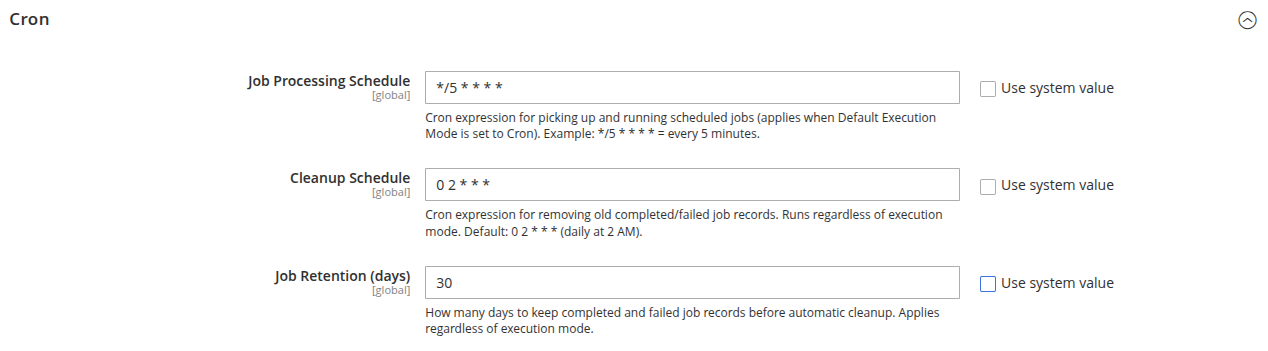
Configure background processing schedule and historical job cleanup rules.
- Job Processing Schedule: Enter a cron expression defining how frequently background jobs run (Default:
*/5 * * * *). - Cleanup Schedule: Enter a cron expression defining when completed/failed job records are deleted (Default:
0 2 * * *). - Job Retention (days): Specify how long job execution logs remain in the system before automatic removal.
Executing Mass Actions from Admin Product Grid
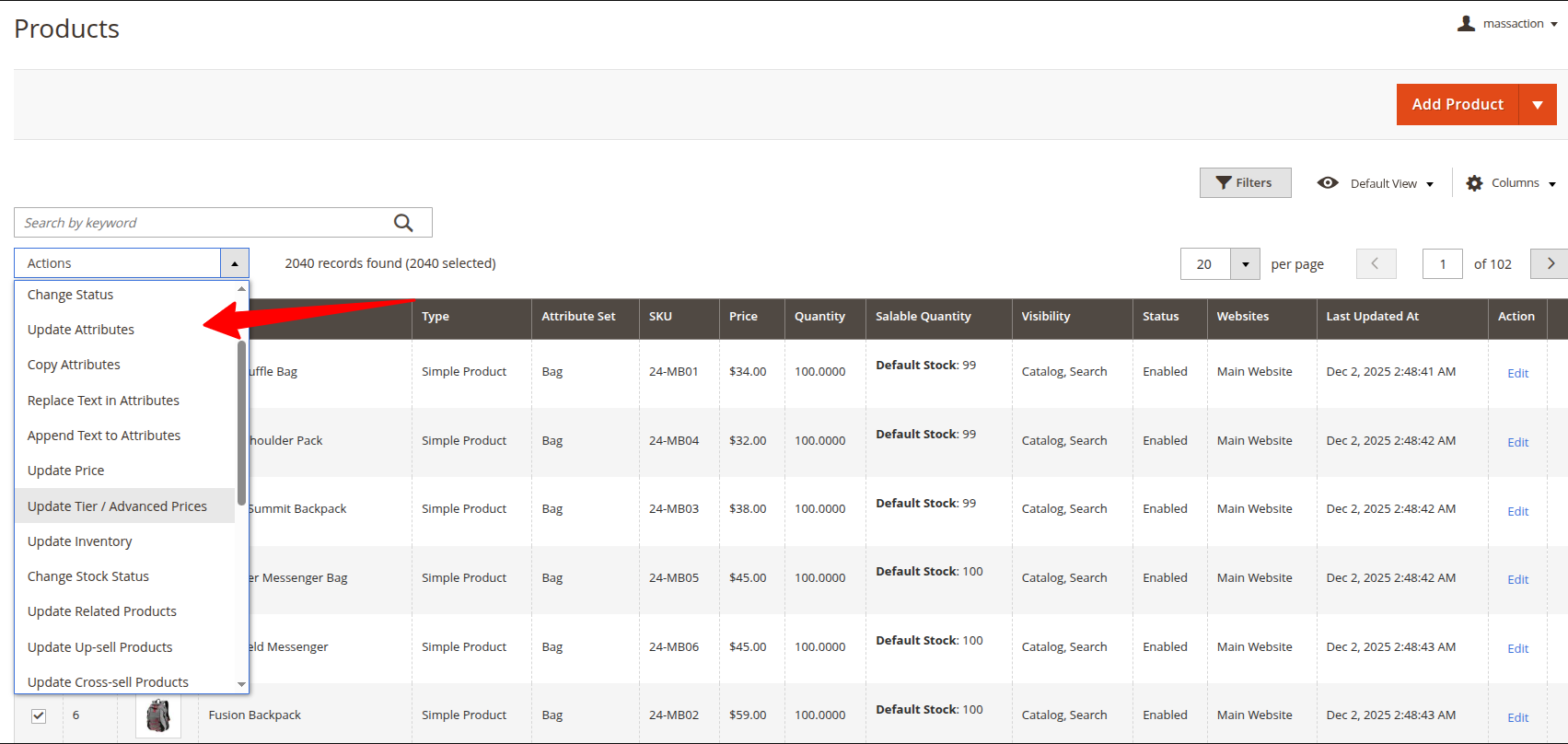
Navigate to Catalog > Products to perform bulk operations across selected items.
- Select products using checkboxes in the admin product grid.
- Open the Actions dropdown menu and select the desired mass action (e.g., Update Price, Assign Categories, Replace Text, Fast Delete).
- Configure the parameters in the popup modal window.
- Click Apply to execute the bulk update synchronously or queue it for background processing.