NMI Payment Gateway for Magento 2 - User Guide
Extension Installation
For Magento Marketplace Customers
- Find the Composer name and version of the extension in the extension's composer.json file.
- Login to your SSH and run:
composer require meetanshi/magento-2-nmi-payment-gateway --ignore-platform-reqs
Enter your authentication keys . Your public key is your username; your private key is your password.
Wait for Composer to finish updating your project dependencies and make sure there aren't any errors.
To verify that the extension installed properly, run the command:
php bin/magento module:status Meetanshi_Nmi--ignore-platform-reqs
- By default, the extension is probably disabled.
- Enable the extension and clear static view files:
php bin/magento module:enable Meetanshi_Nmi--clear-static-content
php bin/magento setup:upgrade
- For Magento version 2.0.x to 2.1.x -
php bin/magento setup:static-content:deploy
- For Magento version 2.2.x & above -
php bin/magento setup:static-content:deploy --f
php bin/magento cache:flush
For Meetanshi Customers
- Extract the zip folder and upload our extension to the root of your Magento 2 directory via FTP.
- Login to your SSH and run below commands step by step:
php bin/magento setup:upgrade
- For Magento version 2.0.x to 2.1.x -
php bin/magento setup:static-content:deploy
- For Magento version 2.2.x & above -
php bin/magento setup:static-content:deploy --f
php bin/magento cache:flush
Configuration
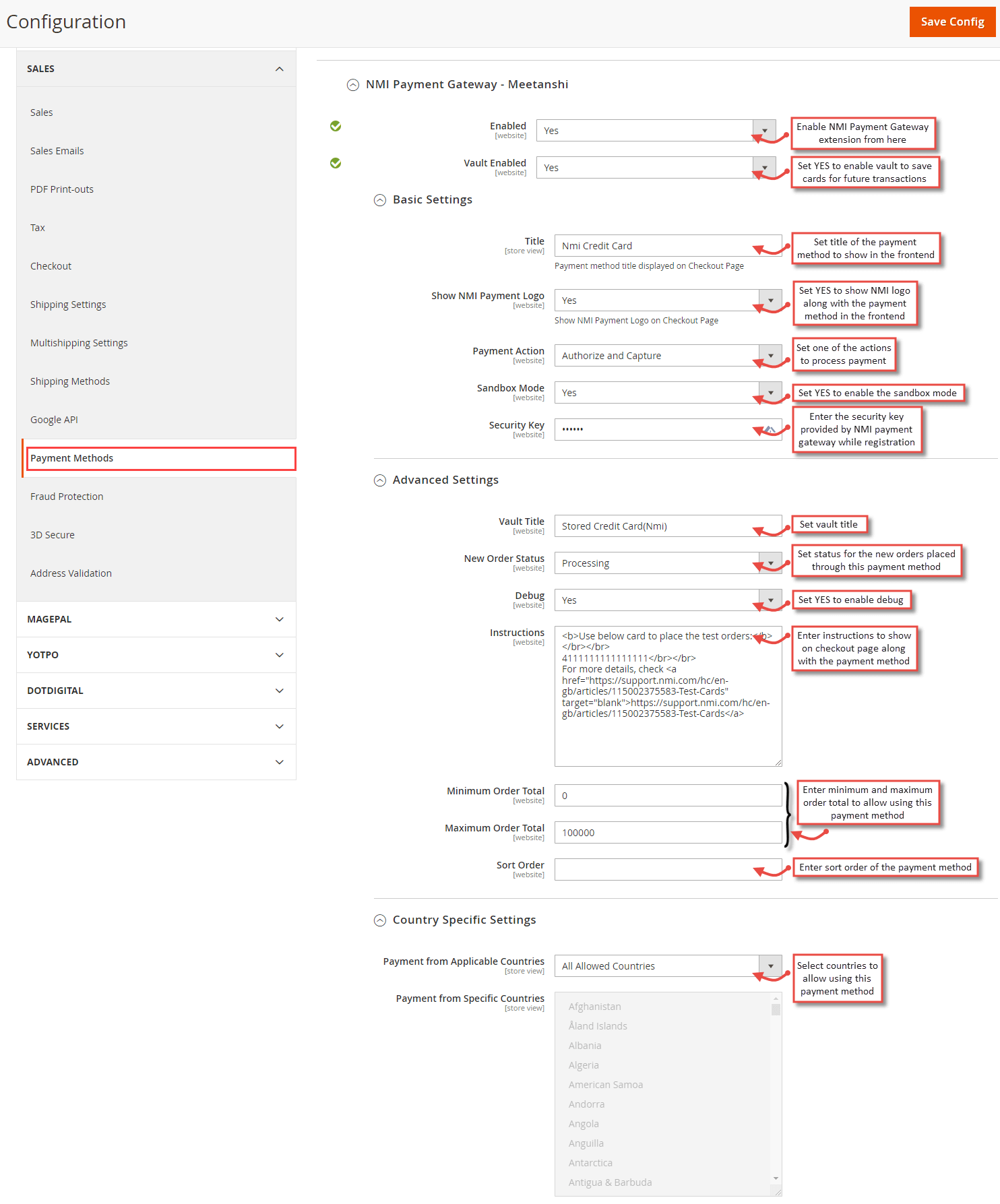
To configure the NMI Payment Gateway for Magento 2 extension, login to Magento 2, move to Stores > Configuration > Sales > Payment Methods > NMI Payment Gateway - Meetanshi , where you can find various settings to configure the extension.
- Enabled: Enable or disable NMI Payment Gateway extension from here.
- Vault Enabled : Set YES to enable vault to allow customers save cards for future transactions.
Basic Settings:
- Title: Enter title for the NMI payment method to show in the frontend.
- Show NMI Payment Logo: Select YES to show NMI payment logo on the checkout page in frontend.
- Payment Action: Select one of the payment actions for the payment capture.
- Authorize: Authorizes and validates card for the order amount. The admin has to manually capture the amount (by generating invoice using " Capture Online " option) within the authorization hold period which is 1 day for NMI Payment.
- Authorize and Capture: Authorizes and captures the order amount immediately.
- Sandbox Mode : Set YES to enable sandbox mode for the payment gateway.
- Security Key: Enter security key provided by NMI payment while registration.
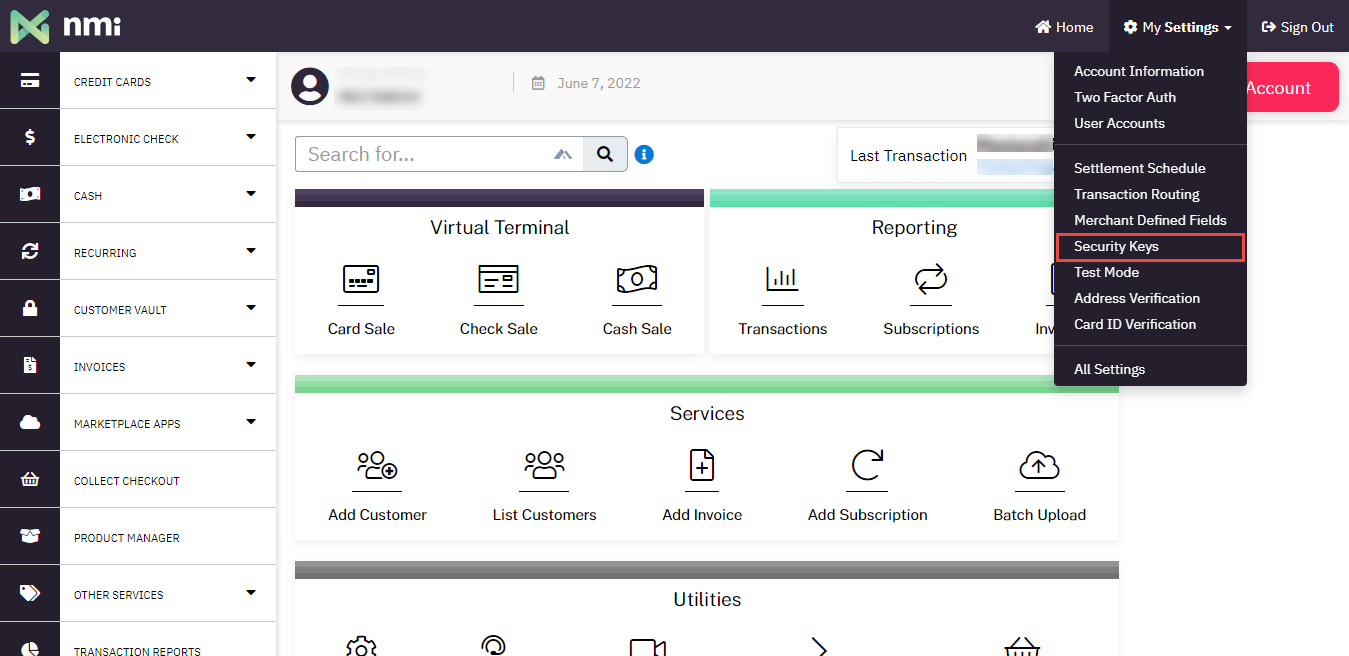
- Login to https://secure.nmi.com/merchants with your credentials. From "My Settings" dropdown, click on "Security Keys".
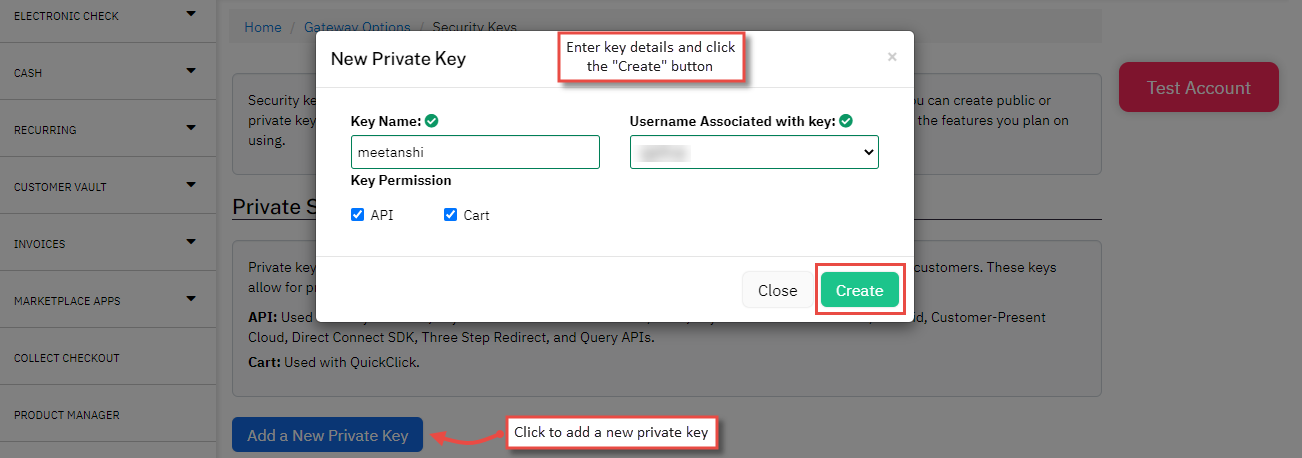
- Click on the "Add a New Private Key" button and a popup will be opened. Enter the key details such as name, user associated with the same, check the permission checkboxes and click "Create".
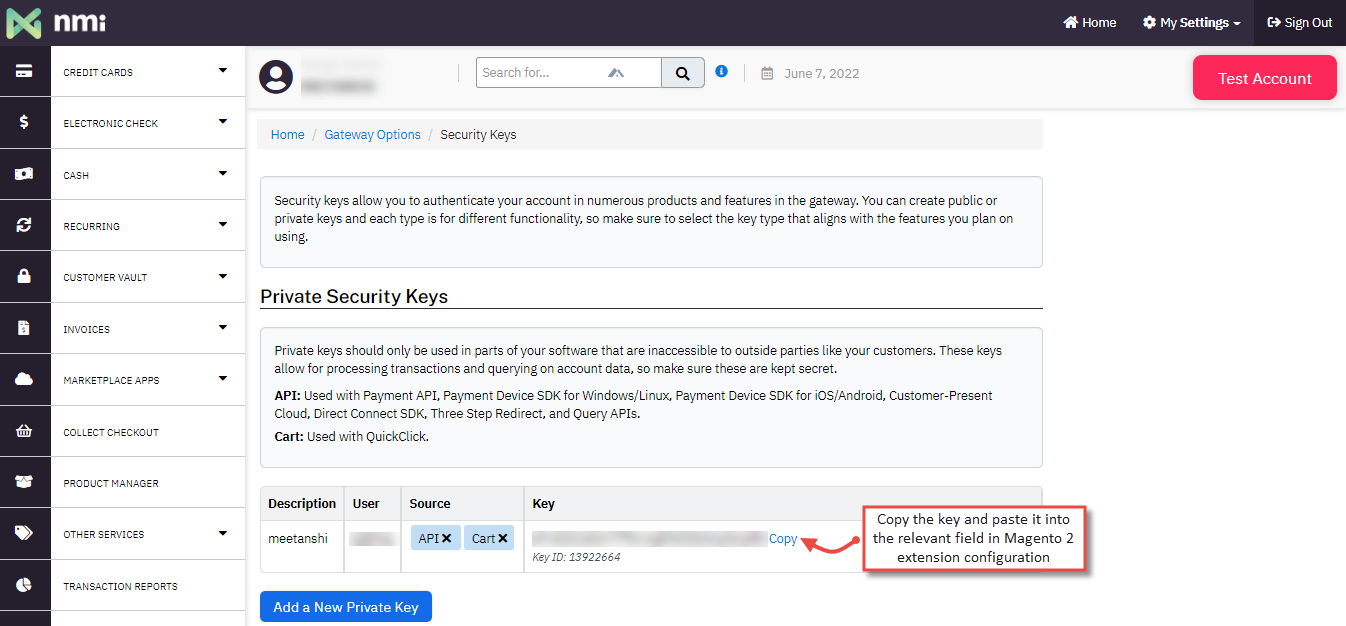
- Copy the key and paste it into the Magento extension
configuration.
Advanced Settings:
- Vault Title: Enter the vault title to show in the email to customers.
- New Order Status: Set status for the new orders placed through NMI Payment method.
- Debug: Select YES to enable debug.
- Instructions: Enter instructions to show on the checkout page in the frontend.
- Minimum Order Total: Enter the minimum order total to allow the use of the payment method.
- Maximum Order Total: Enter the maximum order total to allow the use of the payment method.
- Sort Order: Enter sort order of the payment method.
Country Specific Settings:
- Payment from Applicable Countries: Select all or selected countries to allow payments using NMI Payment.
- Payment from Selected Countries: If you have set selected countries from the above option, select the countries to allow payments using NMI Payment.
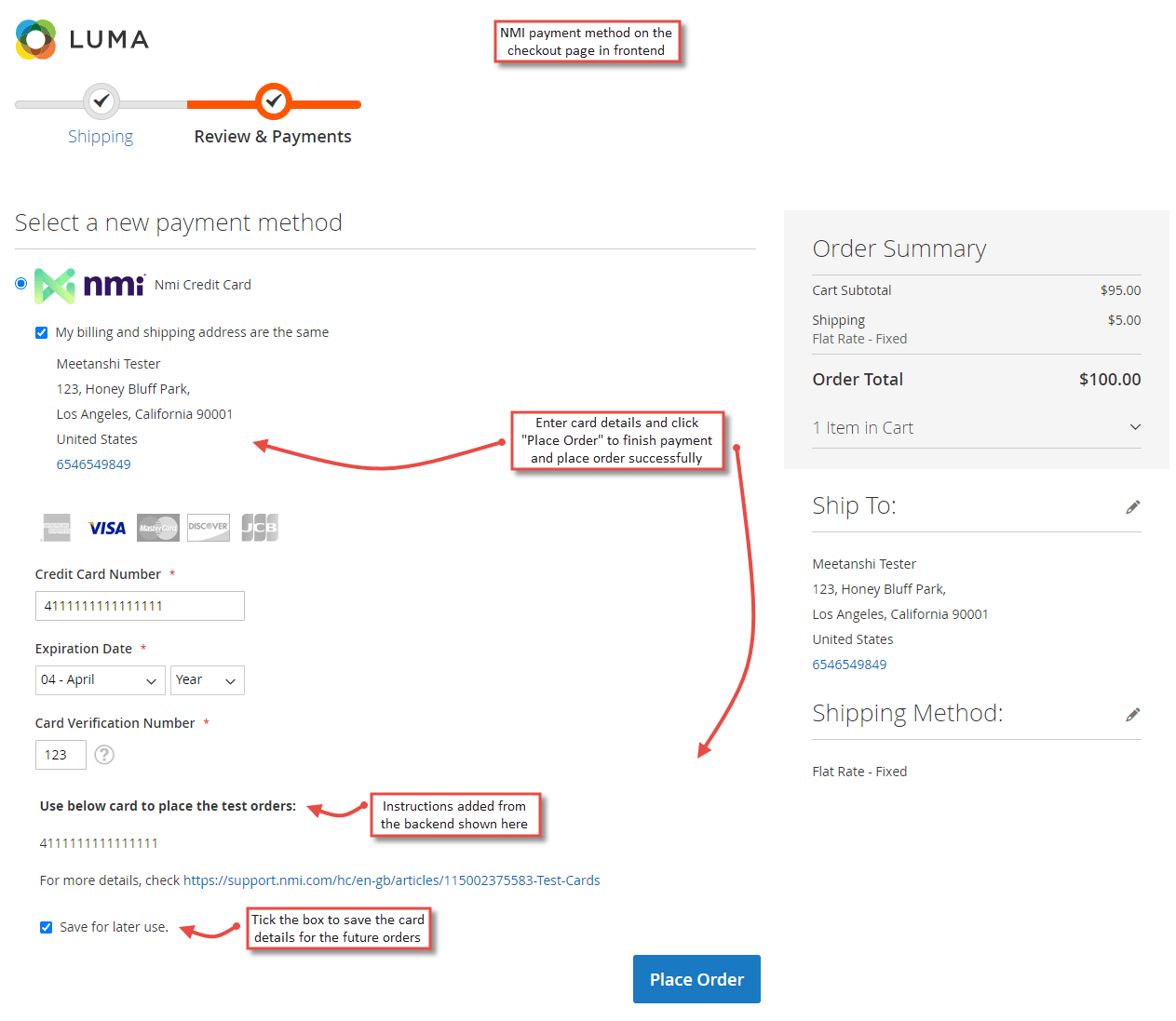
NMI Payment Method in Frontend
Once the extension is configured, it can be seen enabled in the frontend. Simply add products to cart and go to the check out, you can see the NMI Payment Gateway method enabled. Select it, enter the card details and click " Place Order " to finish payment and place the order successfully. The customers can tick the box here to save the card for future transactions.
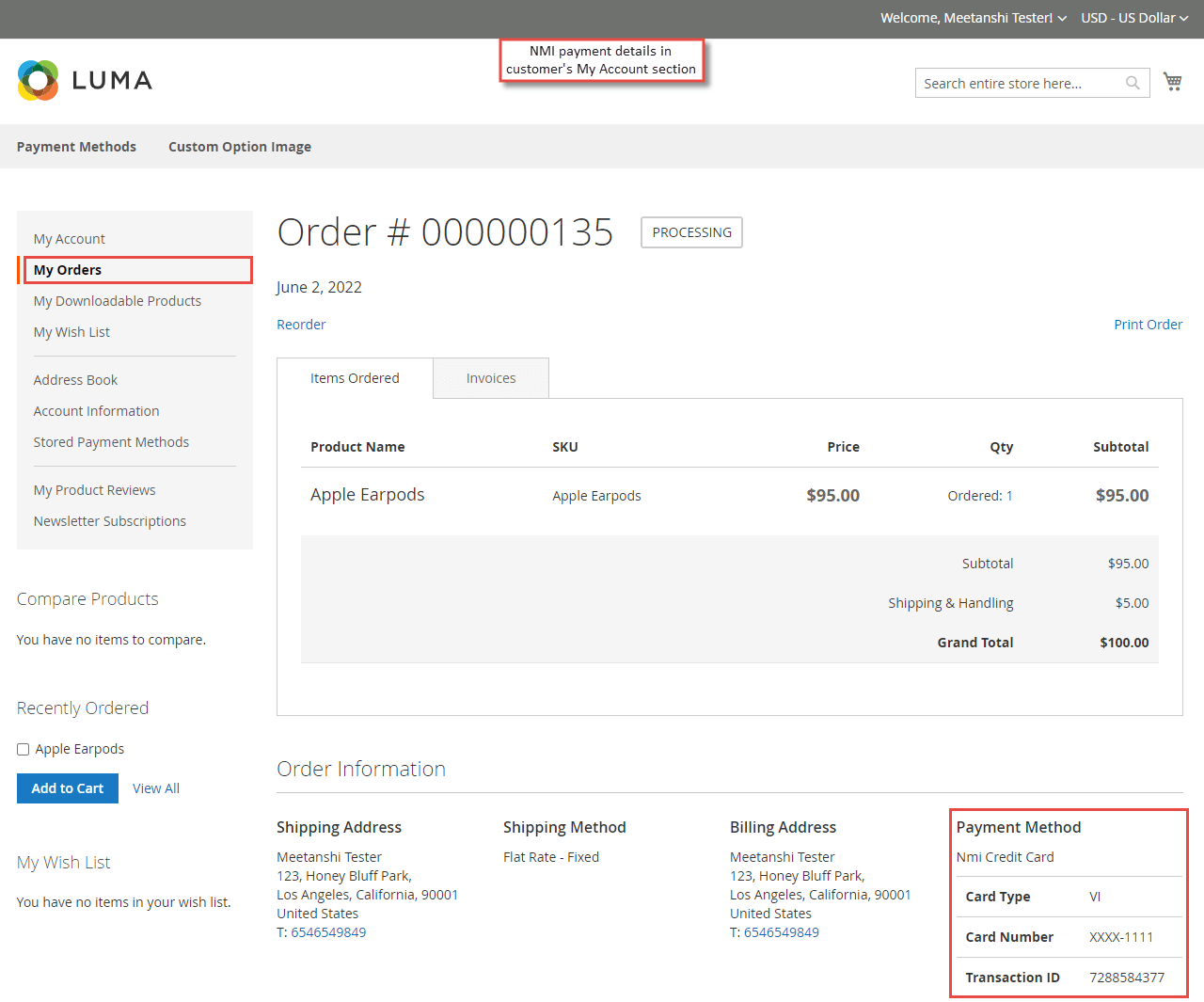
- NMI Payment Details in My Account Section
Immediately after the order is placed, the NMI payment details can be seen in order view tab under the customer's My Account section.
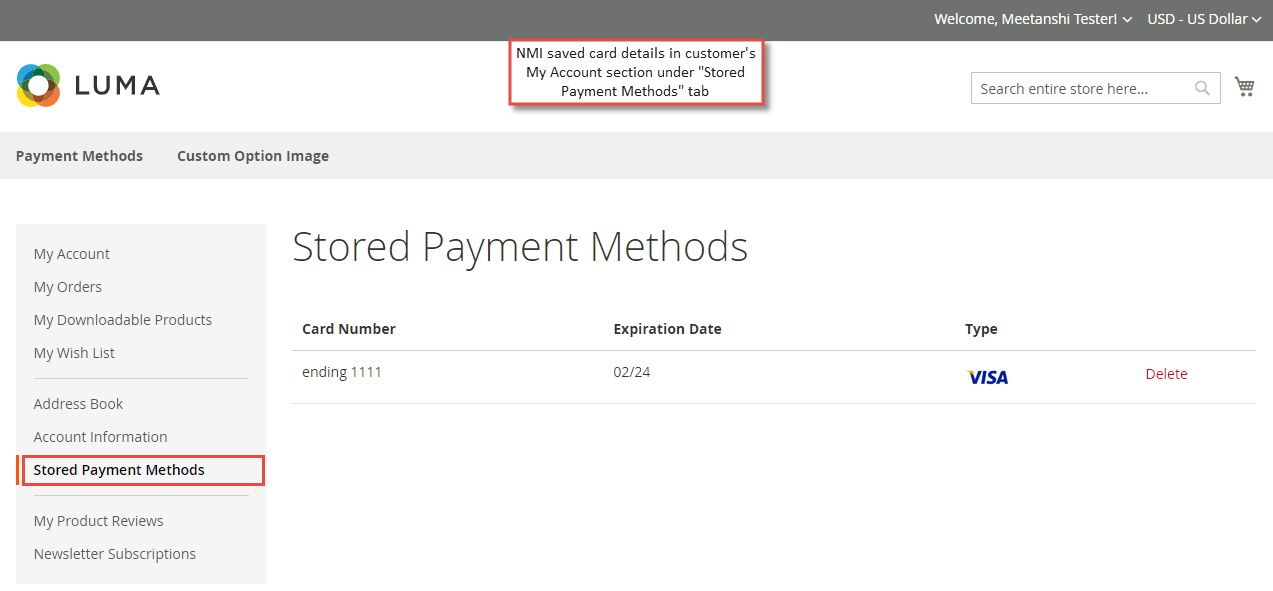
- NMI Payment Stored Cards
If the vault is enabled and the customers have ticked the box from the checkout page to save the cards for the future transactions, they can see PSiGate stored cards in their My Account section under " Stored Payment Methods " tab.
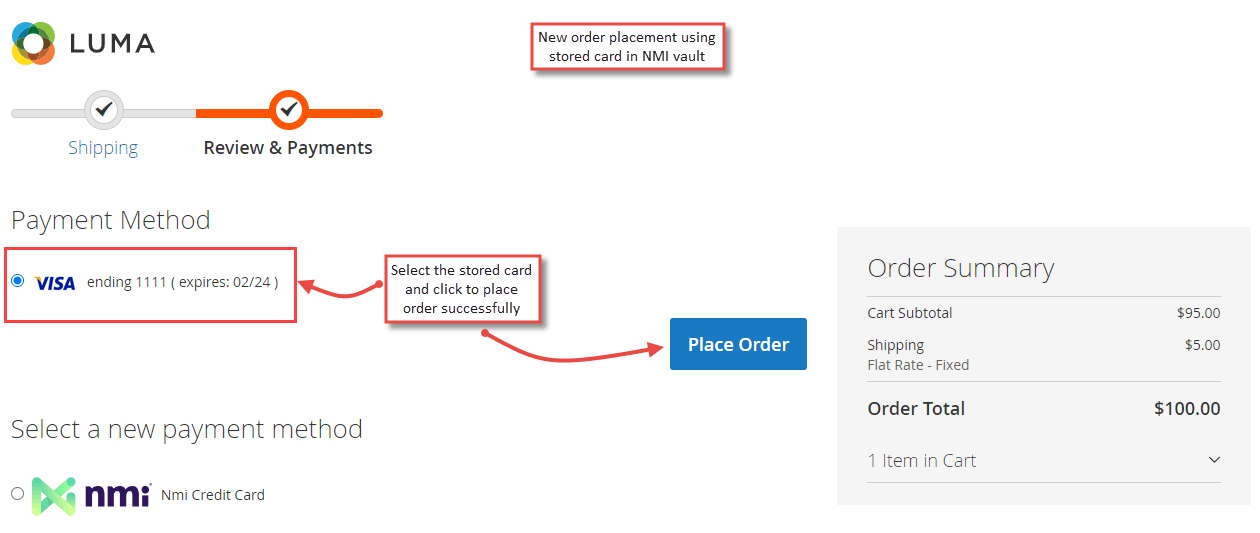
- New Order Placement using Stored Cards
If the vault is enabled and the customer has ticked the box from the checkout page to save the card for the future transactions, he can use the stored card to pay for the new order in future.
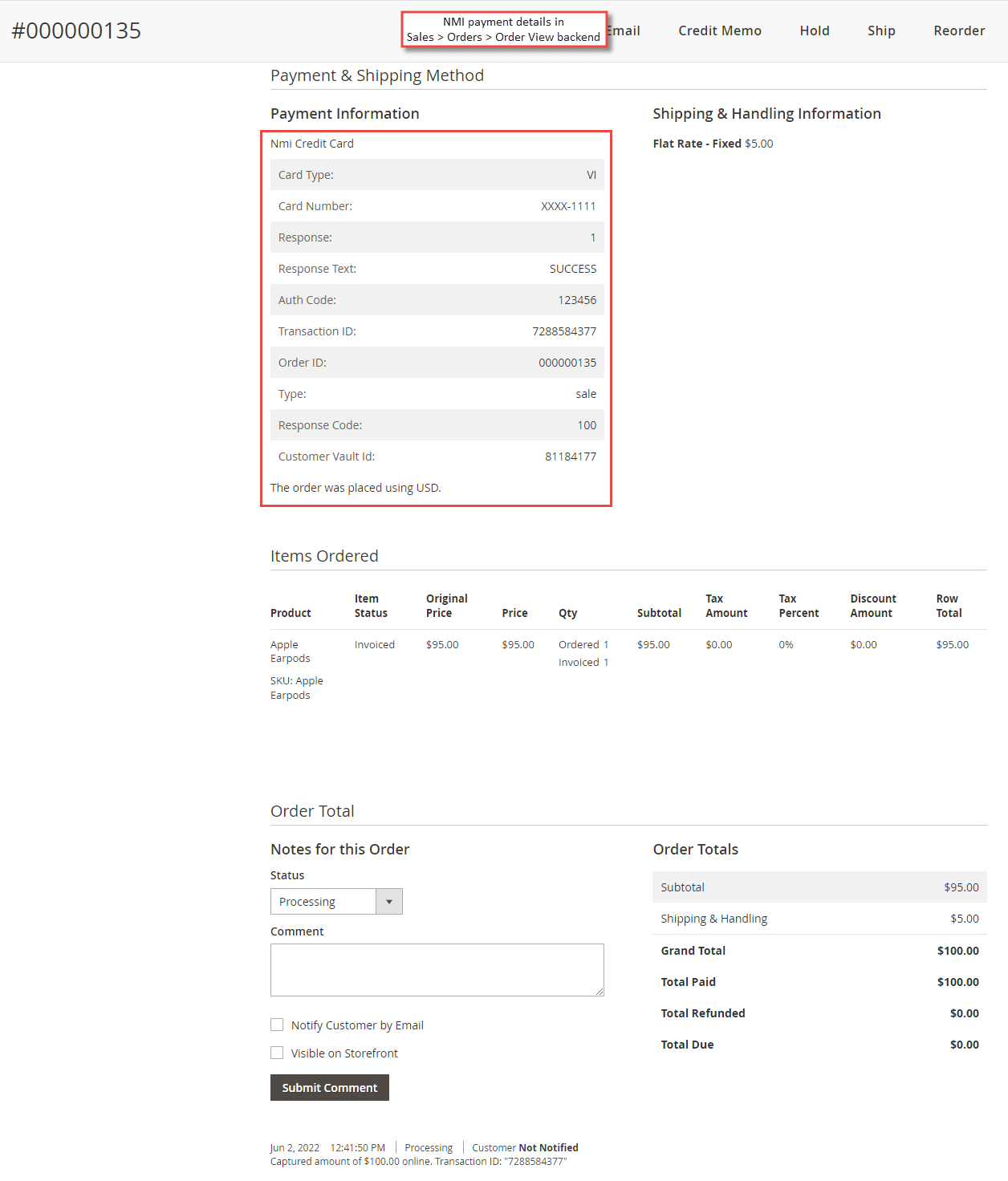
NMI Payment Details in Order View Backend
Apart from the customer's My Account section, the admin can see NMI payment details from the Sales > Orders > Order View section in the backend.
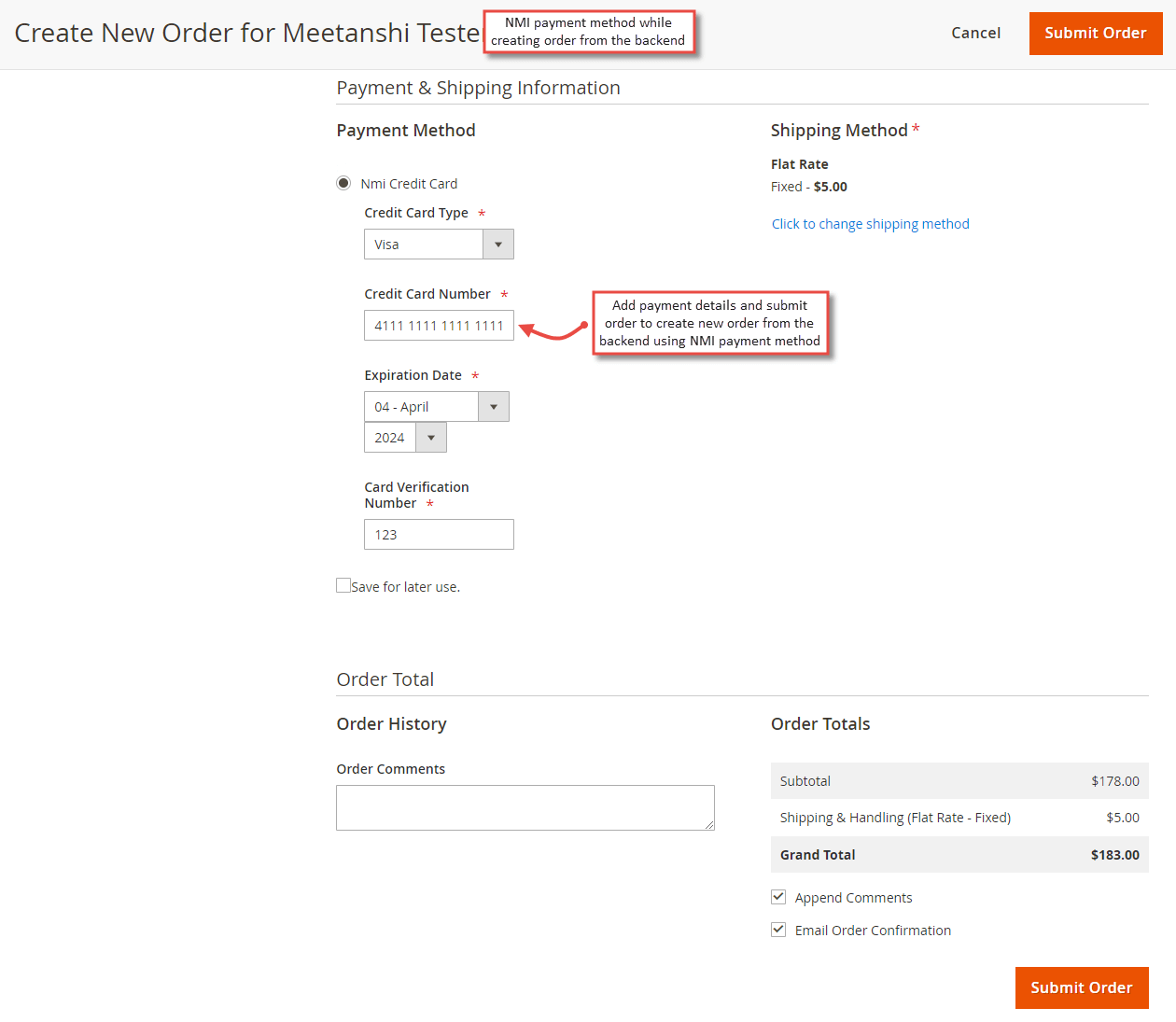
NMI Payment Method for Backend Order
Just as the frontend, NMI Payment method also works with the backend orders. Admin needs to create a new order, select the customer, add products, enter the address details and select NMI Payment method, add card details and click " Submit Order " to place order from the backend using the NMI Payment method.
- New Backend Order Placement using Stored Cards
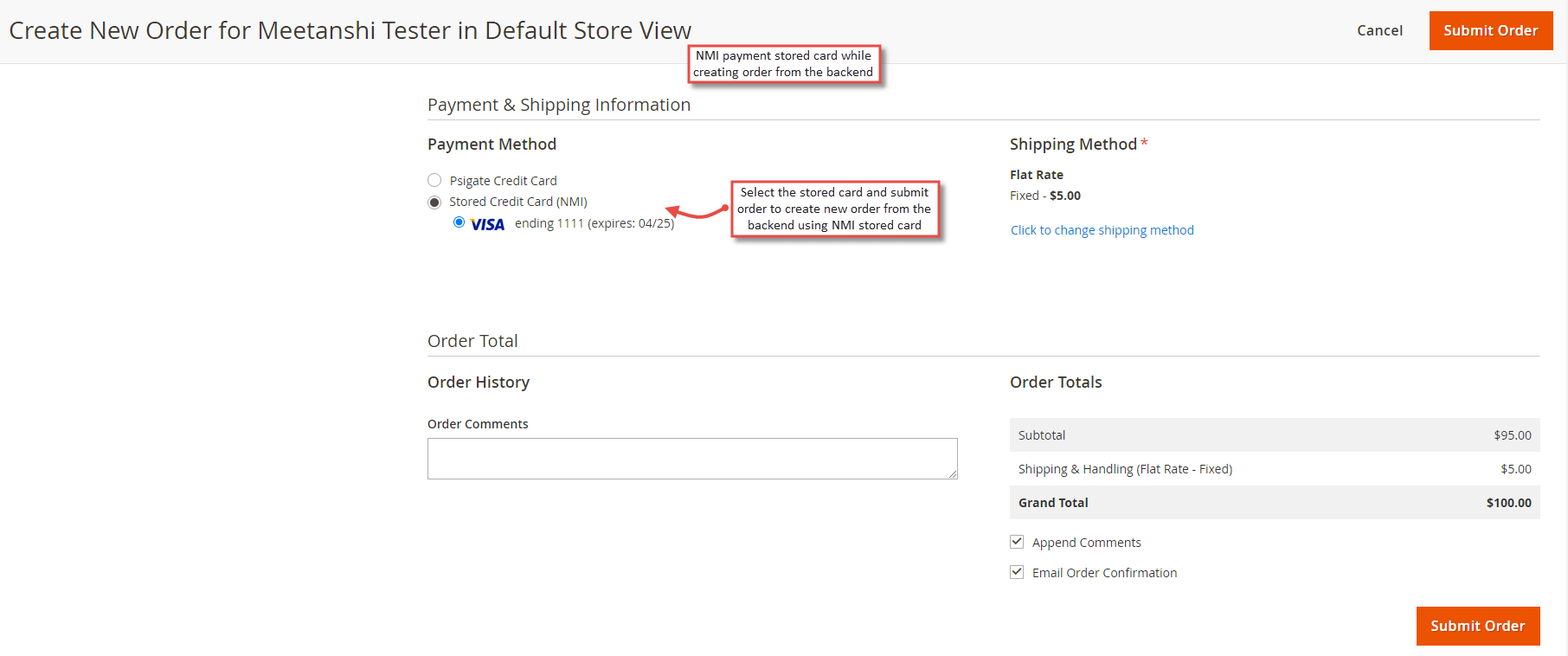
If the customer has stored cards for the future transactions, the admin can use the stored cards while creating a new order from the backend. The admin needs to create a new order, select the customer, add products, enter the address details and select NMI Payment stored card, and click " Submit Order " to place order from the backend using the NMI Payment stored cards.