Force Login for Magento 2 - User Guide
Extension Installation
- Extract the zip folder and upload our extension to the root of your Magento 2 directory via FTP.
- Login to your SSH and run below commands step by step:
php bin/magento setup:upgrade
- For Magento version 2.0.x to 2.1.x -
php bin/magento setup:static-content:deploy
- For Magento version 2.2.x & above -
php bin/magento setup:static-content:deploy --f
php bin/magento cache:flush
- That's it.
Configuration
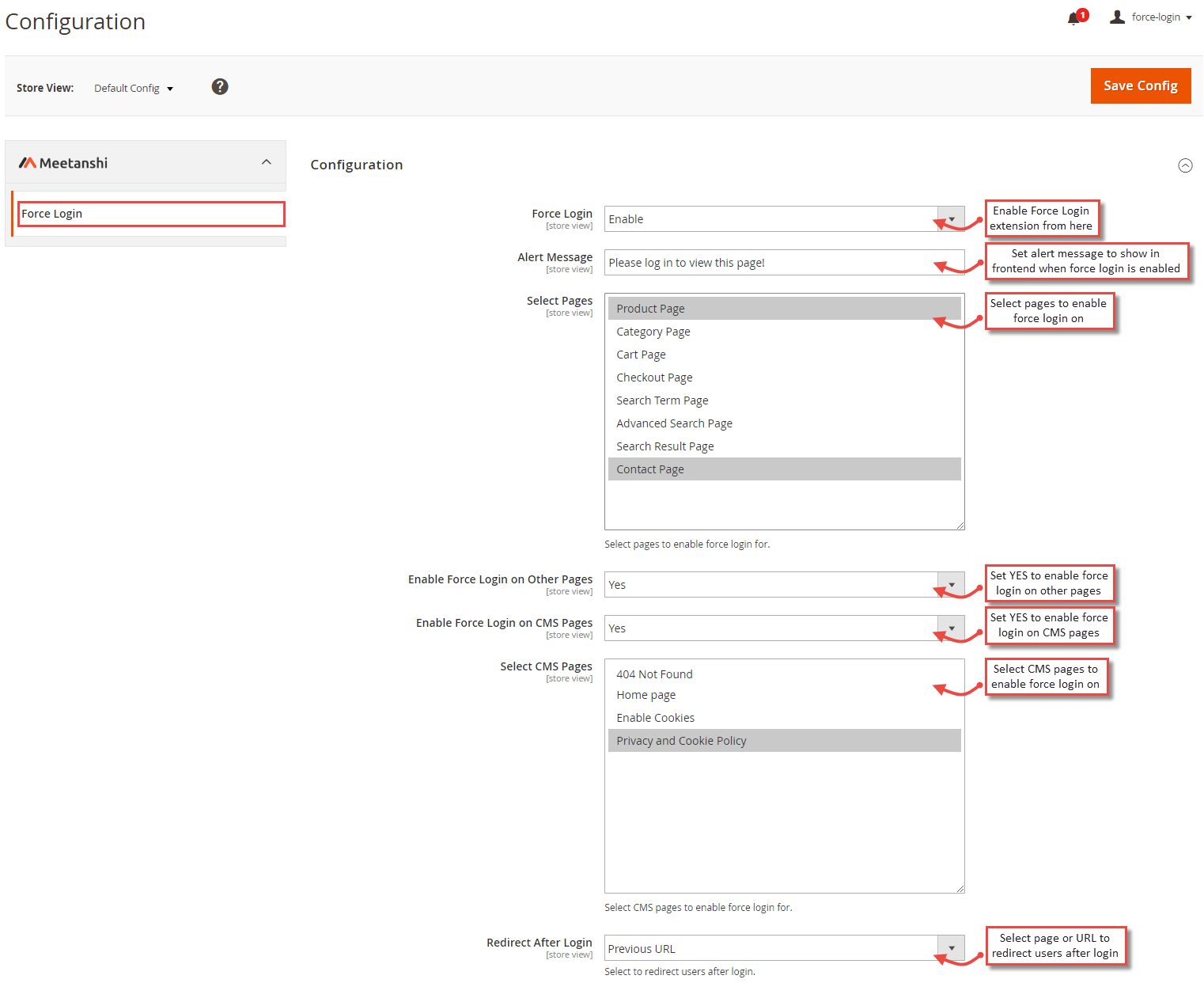
For configuring the Force Login for Magento 2 extension, log in to Magento 2, move to Stores > Configuration > Force Login where you can find various settings to enable the extension.
- Force Login: Enable the Force Login extension from here.
- Alert Message: Enter the alert message to show when the force login is enabled.
- Select Pages: Select pages to enable force login for.
- Enable Force Login on Other Pages: Select YES to enable force login on other pages.
- Enable Force Login on CMS Pages: Select YES to enable force login on CMS pages.
- Select CMS Pages: Select CMS pages to enable force login for.
- Redirect After Login: Select a page or URL to redirect customers after login.
Force Login in Frontend
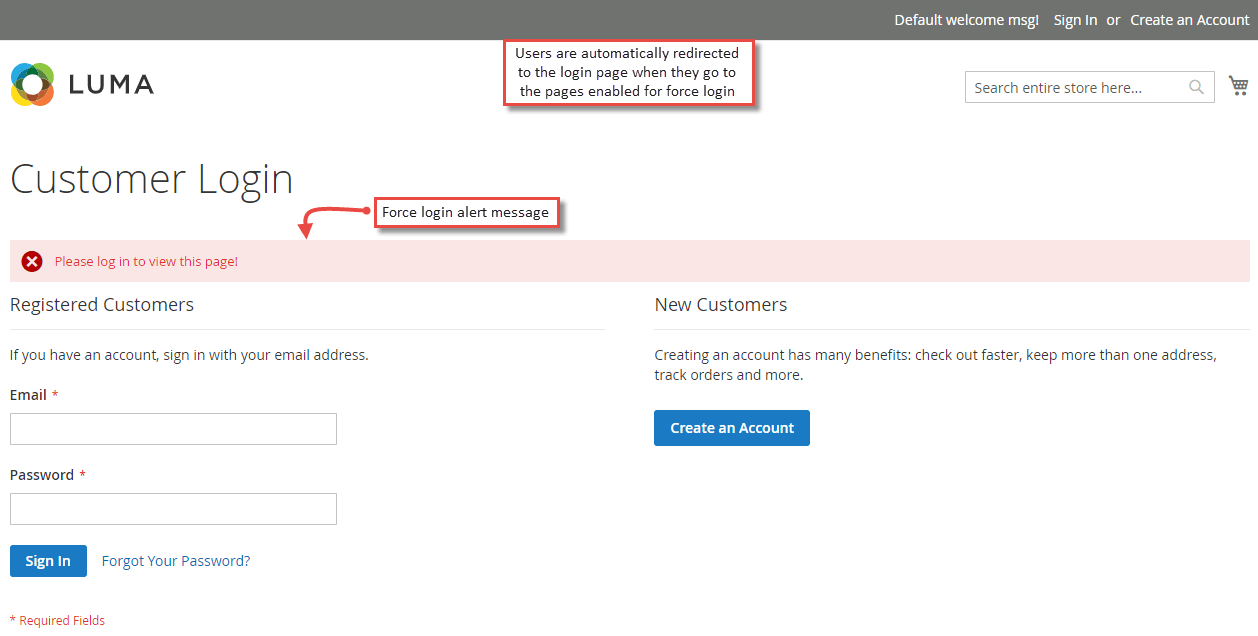
Once the extension is enabled, whenever a user go to the page for which force login is enabled, he gets automatically redirected to the login page with alert message to enter credentials and login to view the page.
- Redirection After Login
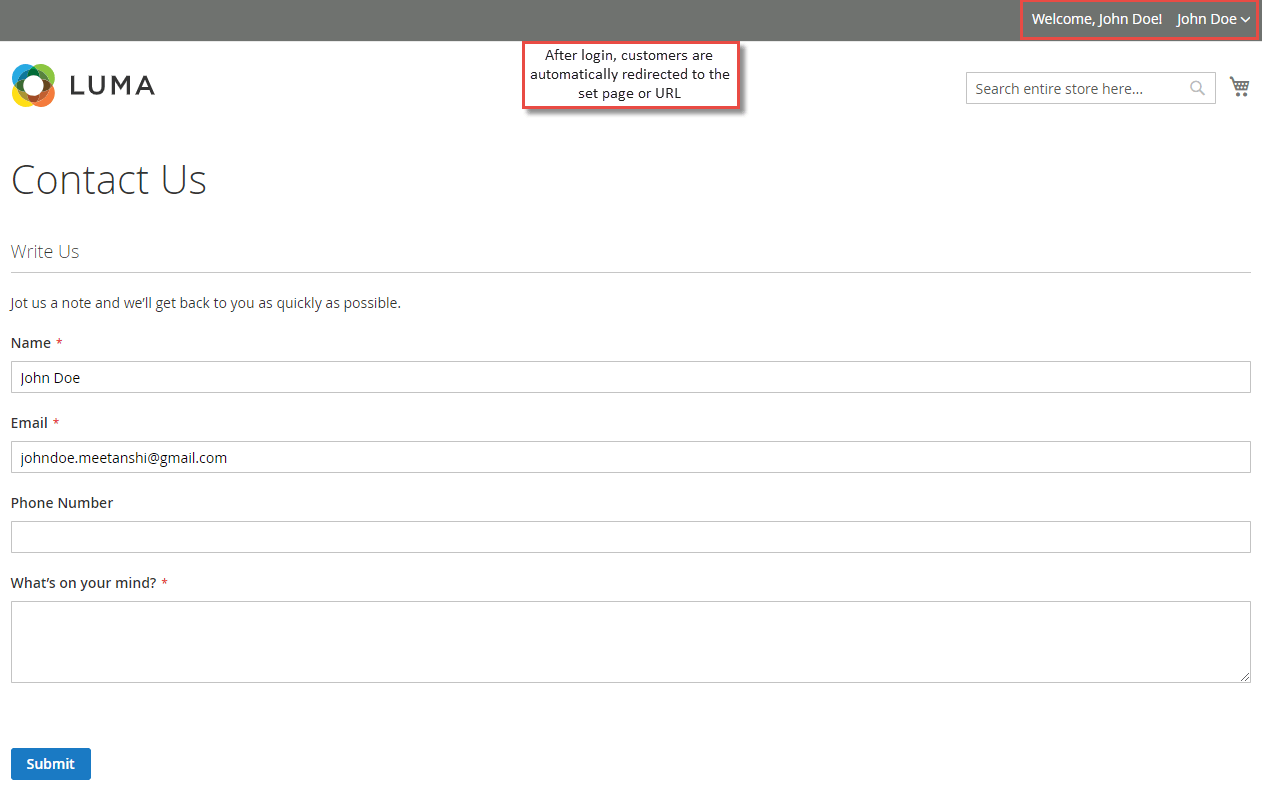
Once the user adds credentials and logs in, he automatically gets redirected to the page or URL set from the backend.