Barclaycard Hosted Payment for Magento 2 - User Guide
Extension Installation
For Magento Marketplace Customers
Find the extension's Composer name and version in its composer.json file.
- Login to your SSH and run:
composer require meetanshi/magento2-barclaycard-hosted-payment
- Enter your authentication keys . Your public key is your username; your private key is your password.
- Wait for Composer to finish updating your project dependencies and make sure there aren't any errors.
- To verify that the extension is installed properly, run the command:
php bin/magento module:status Meetanshi_BarclaycardHosted
- By default, the extension is probably disabled. Enable the extension and clear static view files:
php bin/magento module:enable Meetanshi_ BarclaycardHosted --clear-static-content
php bin/magento setup:upgrade
- For Magento version 2.0.x to 2.1.x -
php bin/magento setup:static-content:deploy
- For Magento version 2.2.x & above -
php bin/magento setup:static-content:deploy --f
php bin/magento cache:flush
For Meetanshi Customers
- Extract the zip folder and upload our extension to the root of your Magento 2 directory via FTP.
- Login to your SSH and run below commands step by step:
php bin/magento setup:upgrade
- For Magento version 2.0.x to 2.1.x - php bin/magento setup:static-content:deploy
- For Magento version 2.2.x & above - php bin/magento setup:static-content:deploy --f
php bin/magento cache:flush
- That's it.
Barclaycard Account Signup and Login
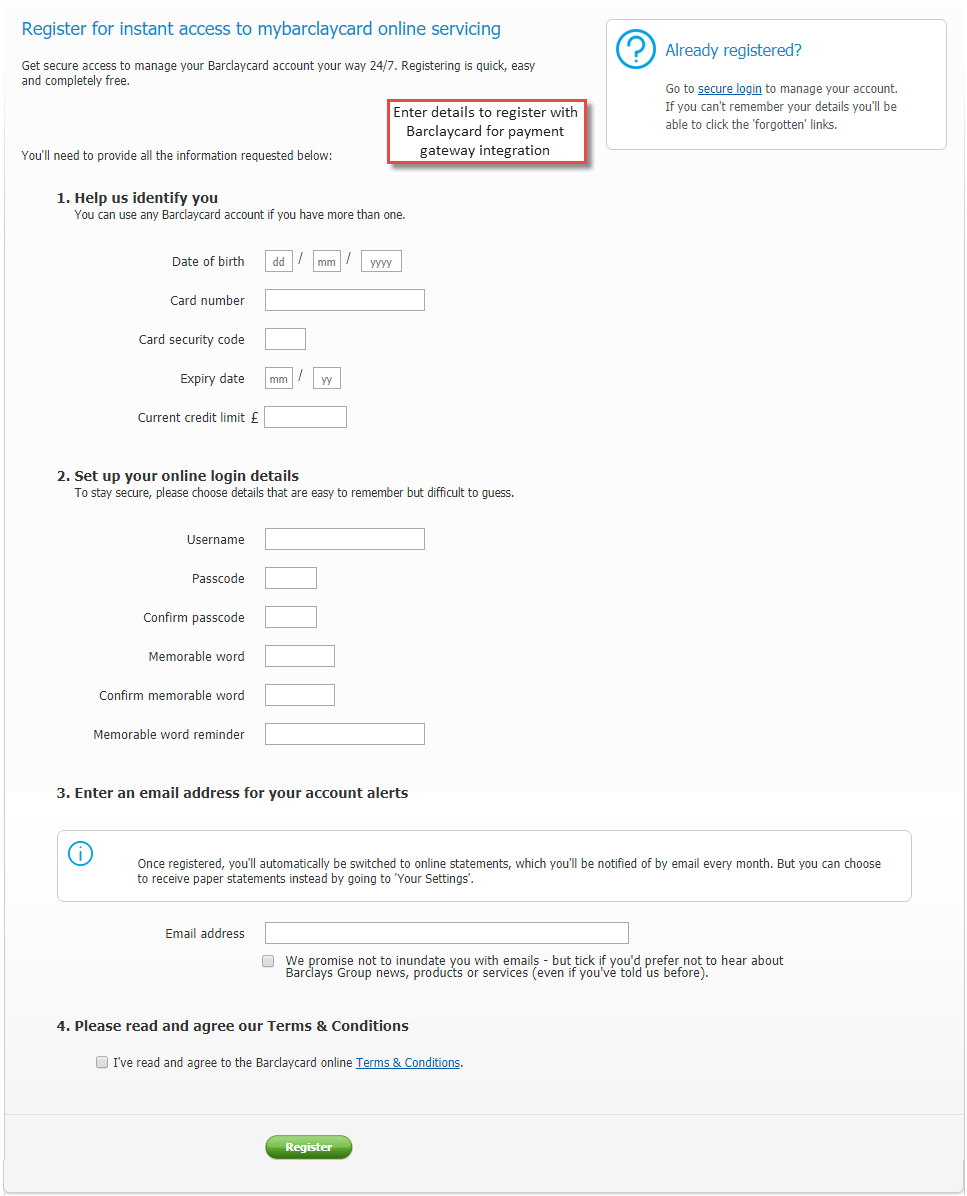
To integrate Barclaycard in Magento 2, you need to create a merchant account. Simply fill the details and submit to successfully register with Barclaycard Payment Gateway.
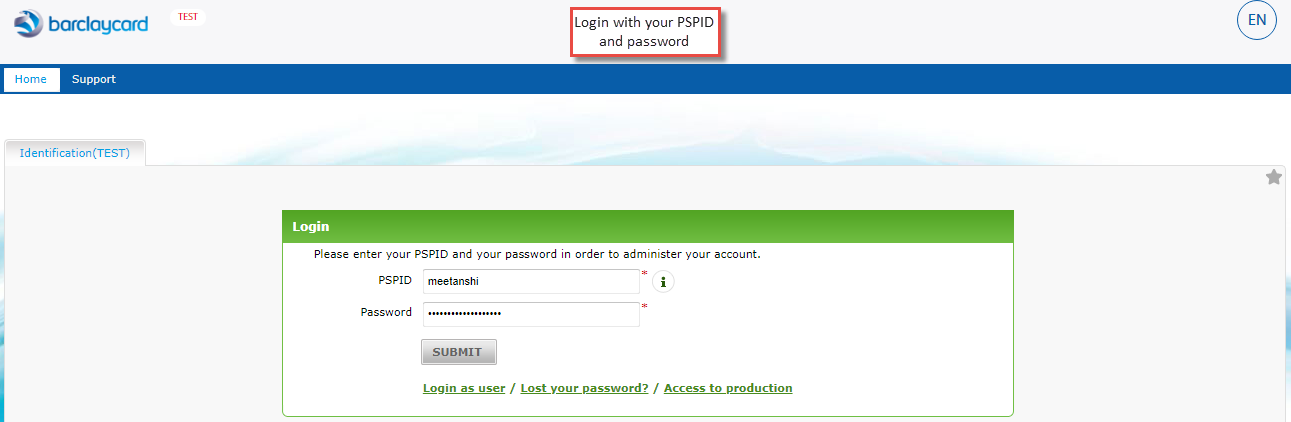
- Once you get registration details, log in to either test or production account using your PSID and password.
Configuration
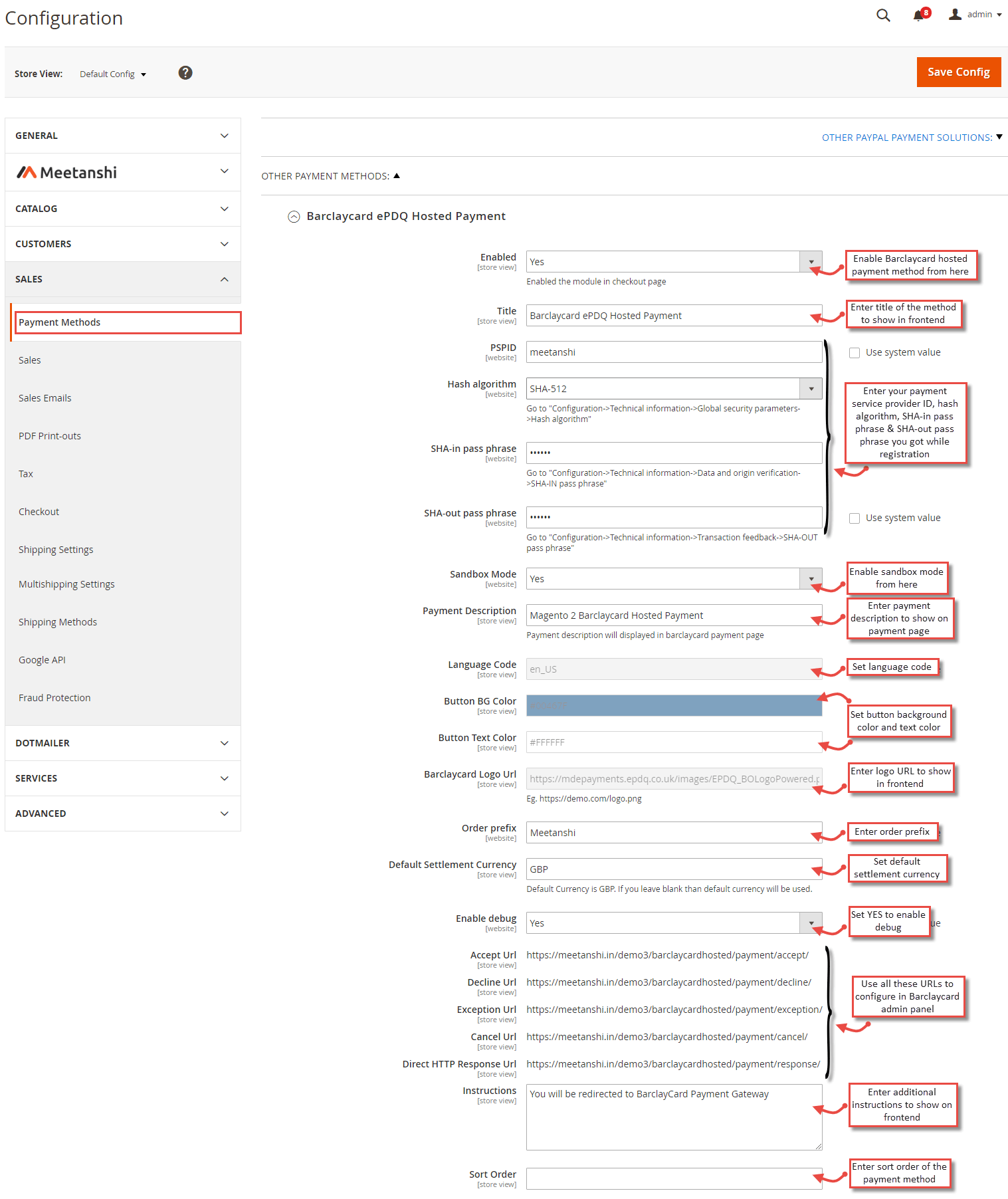
For configuring the Barclaycard Hosted Payment for Magento 2 extension, log in to Magento 2, move to Stores > Configuration > Sales > Payment Methods , find the Barclaycard Hosted Payment to configure.
- Enabled: Enable or disable Barclaycard Hosted Payment extension from here.
- Title: Enter title for the Barclaycard Hosted Payment to show in frontend.
- PSPID: Enter your payment service provider ID (PSPID) you got while registration.
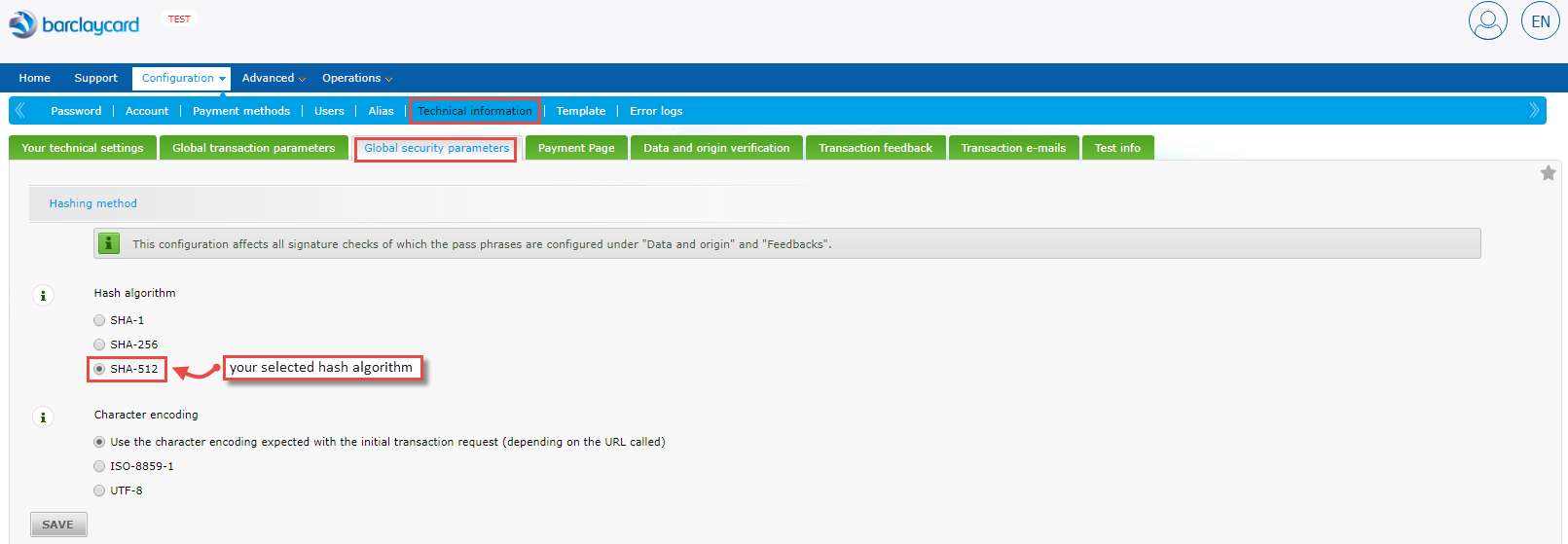
- Hash Algorithm: Here, you have to select the same hash algorithm you set while account creation. To find it, go to Barclaycard Configuration > Technical Information > Global Security Parameters > Hash Algorithm.
- SHA-in Pass Phrase: Enter SHA-in pass phrase for direct link method. You can find it at Barclaycard Configuration > Technical Information > Data & Origin Verification > Checks for Barclaycard Direct Link
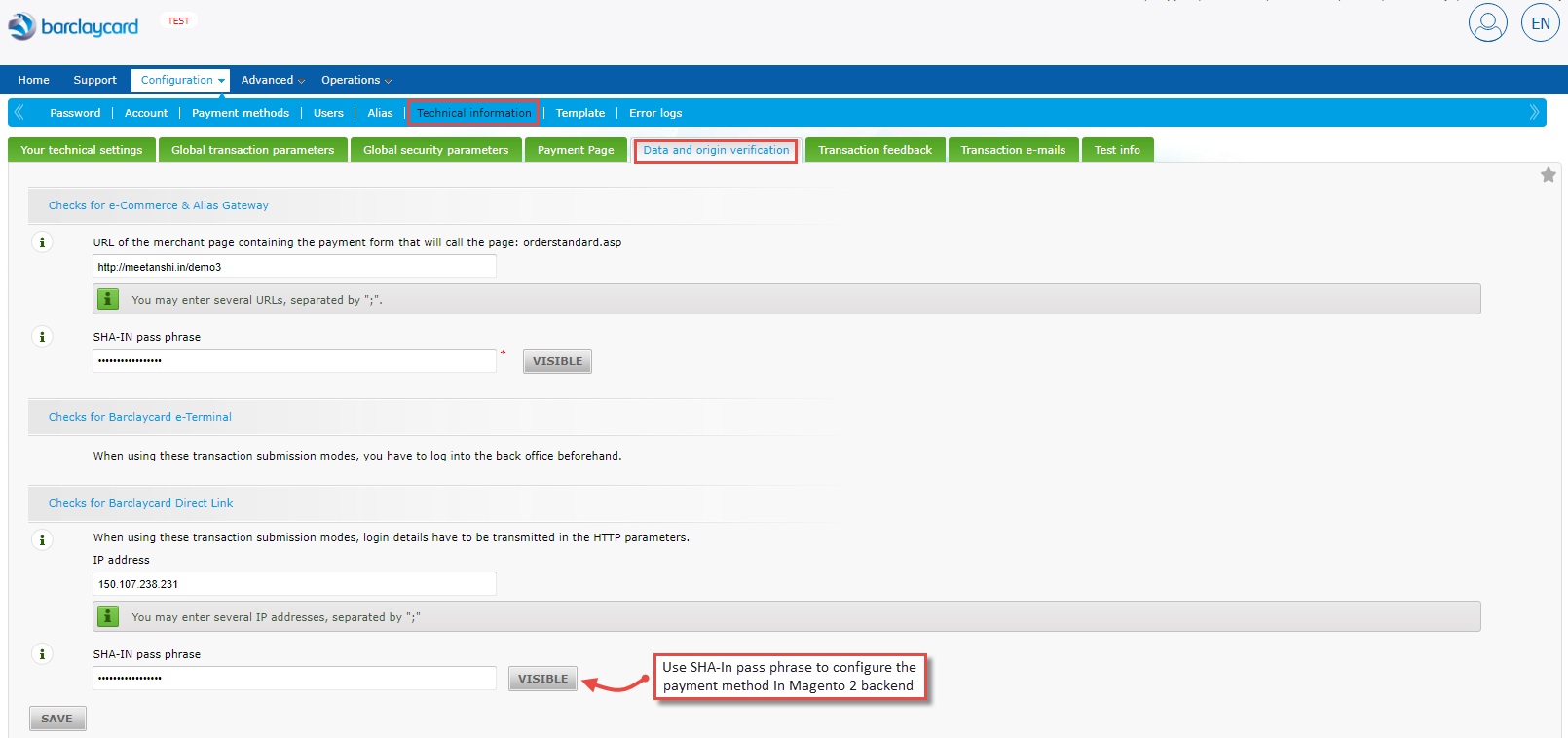
- SHA-out Pass Phrase: Enter SHA-in pass phrase for direct link method. You can find it at Barclaycard Configuration > Technical Information > Data & Origin Verification > Checks for Barclaycard Direct Link

- Sandbox Mode: Set YES to enable sandbox mode for the payment gateway.
- Payment Description: Enter payment description to show on payment gateway page.
- Language Code: Set language code.
- Button BG Color: Set button background color.
- Button Text Color: Set button text color.
- Barclaycard Logo URL: Enter Barclaycard logo URL.
- Order Prefix: Enter prefix for the orders.
- Default Settlement Currency: Set default settlement currency.
- Enable Debug: Set YES to enable debug mode.
- Accept/Decline/Exception/Cancel/Direct HTTP Response URLs: Copy URLs from here and paste them respectively on Barclaycard admin panel.
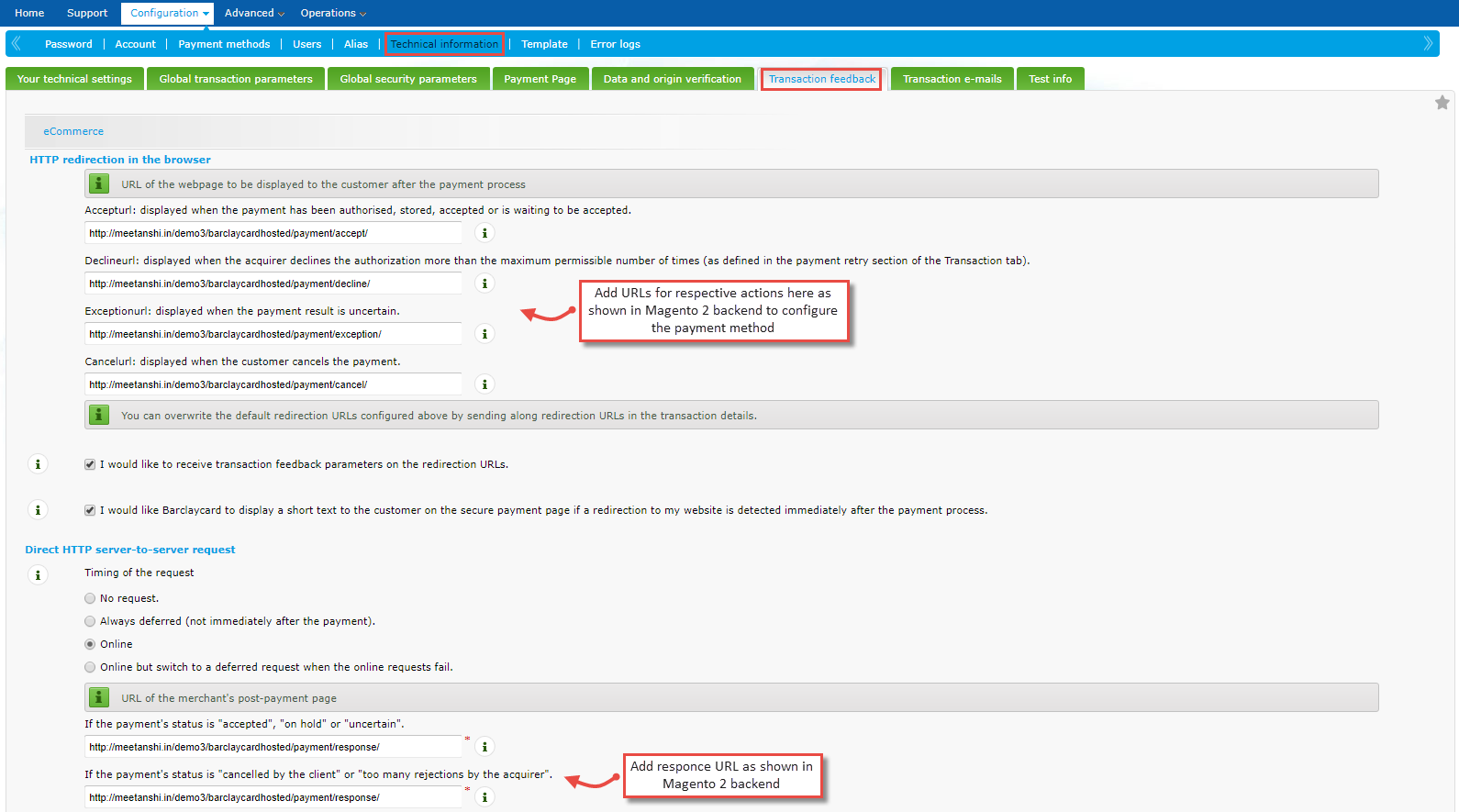
Note: Make sure you have selected the exact 10 parameters listed below under Barclaycard Configuration > Technical Information > Transaction Feedback > Dynamic E-Commerce parameters.
AMOUNT EMAIL CARDNO NCERROR CN ORDERID CURRENCY PAYID ED STATUS

- Instructions: Add instructions to show on frontend.
- Sort Order: Enter sort order of the payment method.
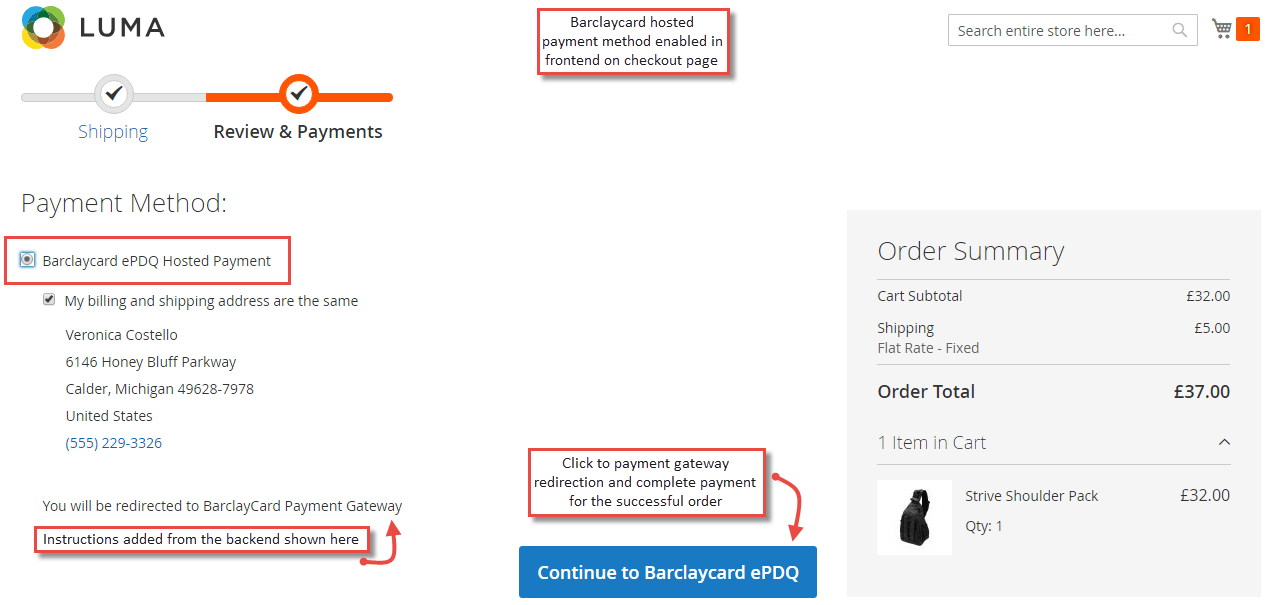
Barclaycard Hosted Payment in Frontend
Once the extension is configured, it can be seen enabled on the frontend. Simply add products to cart and at checkout, you can see payment method option on the checkout page. Select the payment method and click to get redirected to the payment page and finish the payment.
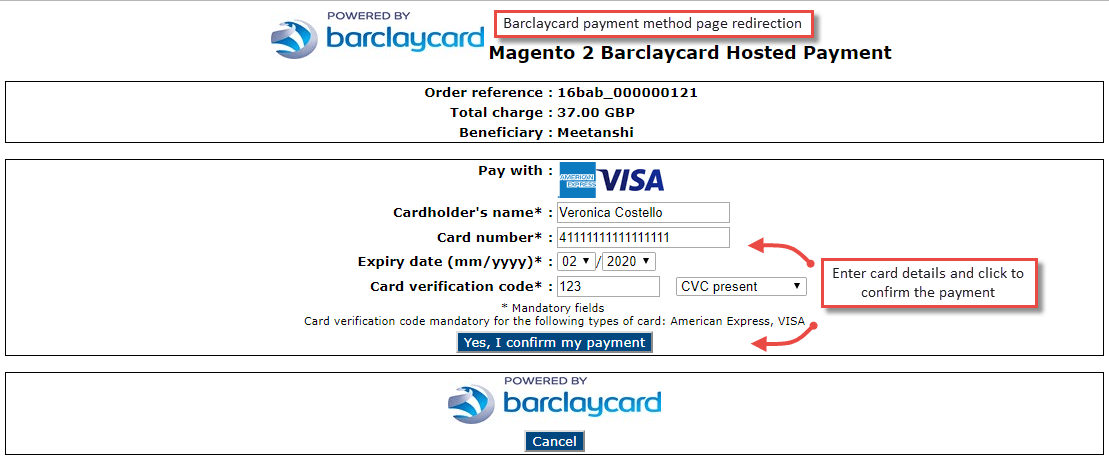
- Barclaycard Payment Gateway Redirection
Immediately after a customer clicks "Continue to Barclaycard ePDQ", he gets redirected to the hosted payment page. Here, he has to enter the card details and confirm the payment.
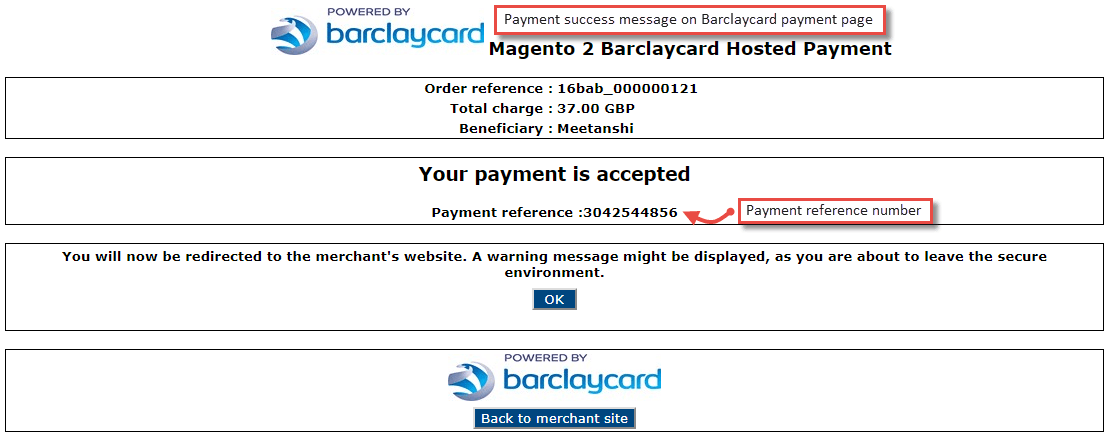
- Barclaycard Payment Success Message
Once the card details are confirmed and payment is successful, the customer can see a payment success message on the hosted payment page.
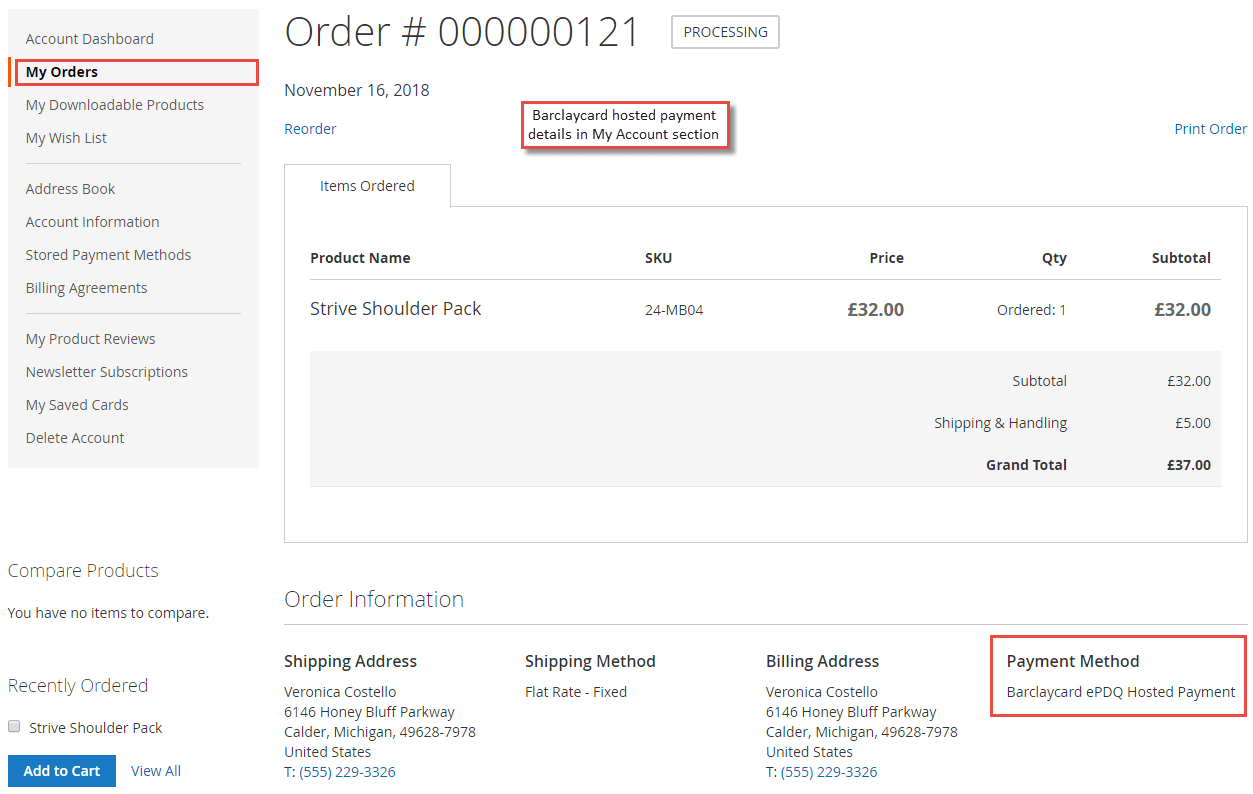
- Barclaycard Payment Details in My Account Section
Immediately after the order is placed, the Barclaycard payment details can be seen in order view under My Account section.
Barclaycard Payment Details in Order View Backend
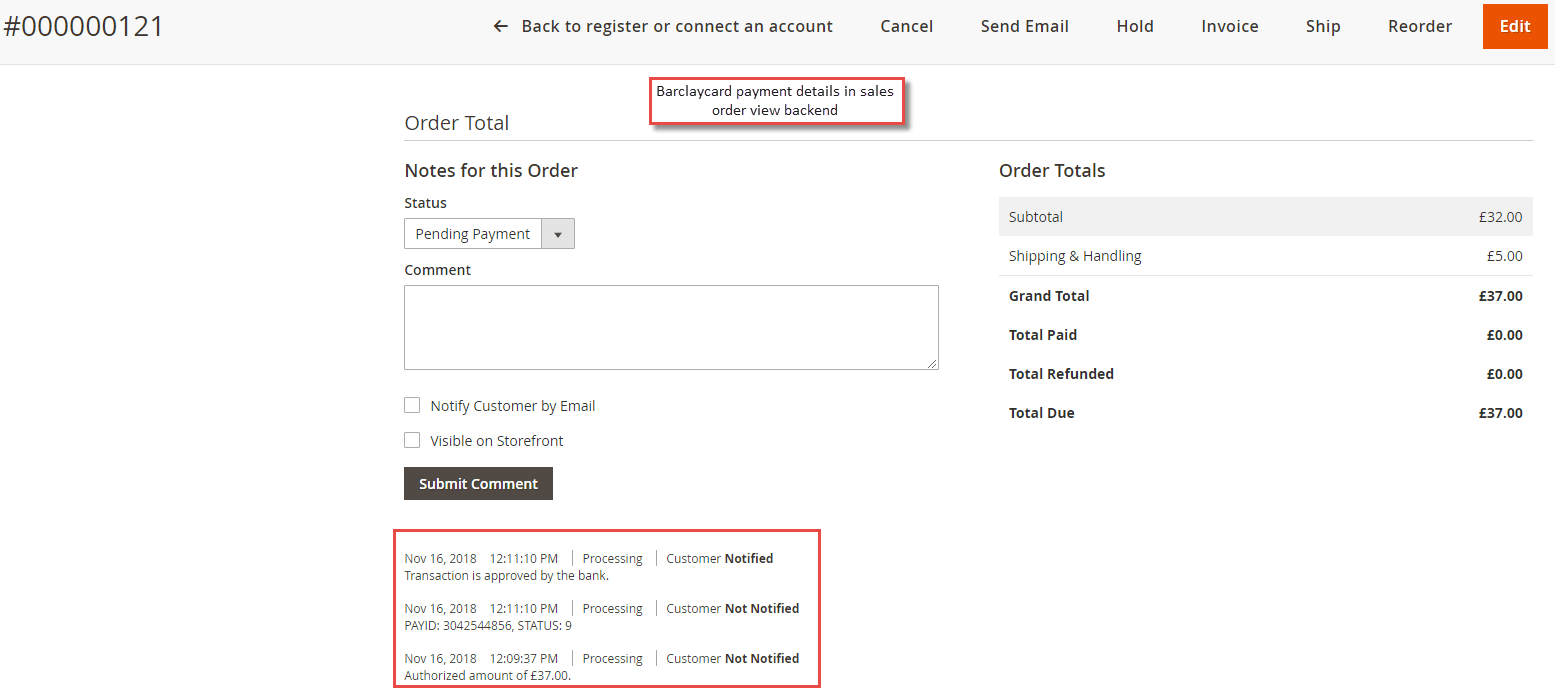
Apart from My Account section, Barclaycard order details can be found in Sales > Orders > Order View section.