User Guide for Magento 2 AI Product Studio
Welcome to the official documentation for the Magento 2 AI Product Studio. This extension integrates advanced Generative AI capabilities directly into your Magento 2 admin panel, allowing you to generate professional-grade product photography, edit existing assets, and maintain visual consistency without leaving your store backend.
Extension Installation
- Download the extension zip file.
- Extract it to your Magento's root directory.
- Login to your SSH and run below commands step by step:
- php bin/magento setup:upgrade
- For Magento version 2.0.x to 2.1.x - php bin/magento setup:static-content:deploy
- For Magento version 2.2.x & above - php bin/magento setup:static-content:deploy --f
- php bin/magento cache:flush
Extension Configuration
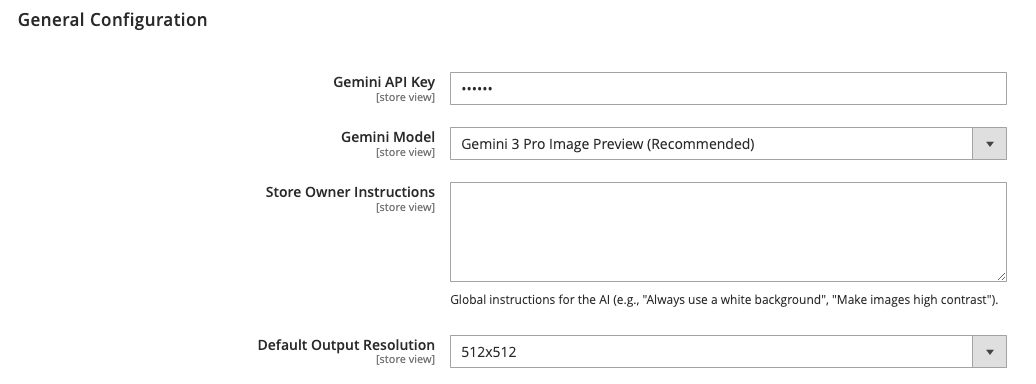
Getting started is simple. Navigate to AI Product Studio > Configuration in your Magento Admin sidebar. Then, fill in the following details:
- Gemini API Key: Enter your Gemini API key.
- Gemini Model: Select your preferred model, from the following:
- Gemini 3 Pro Image Preview (Recommended): Best for high-fidelity, complex scenes, and reasoning.
- Gemini 2.5 Flash Image: Faster generation, ideal for quick iterations and standard edits.
- Store Owner Instructions: This is a powerful feature for branding. Enter "System Prompts" here that apply to all generations. For example: "Always ensure images have a warm, rustic tone. Never generate blurry backgrounds."
- Default Output Resolution: Set your preferred standard size (e.g., 512x512).
Click Save Config to confirm your settings.
Get Started with AI Studio in Edit Product
The AI Product Studio is embedded directly in the Product Edit page.
Go to Catalog > Products. Select any product you wish to edit. Scroll down to the AI Product Studio section tab (usually at the bottom).
Expand the tab to reveal the studio interface.
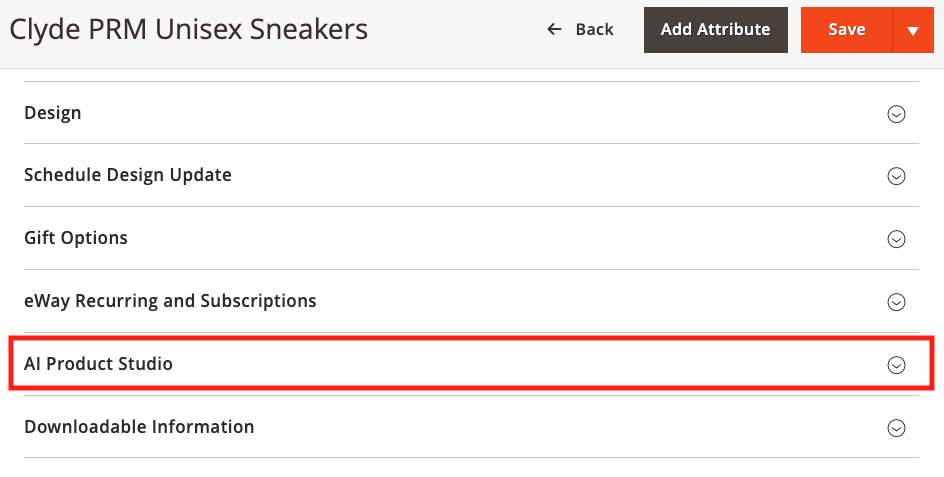
Once expanded, you’ll get the product studio canvas to generate or edit images for the current product.
Feature 1: Generate Images from Scratch
This option is useful to create entirely new product marketing assets without a source image. The Generate New tab is selected by default in the studio.
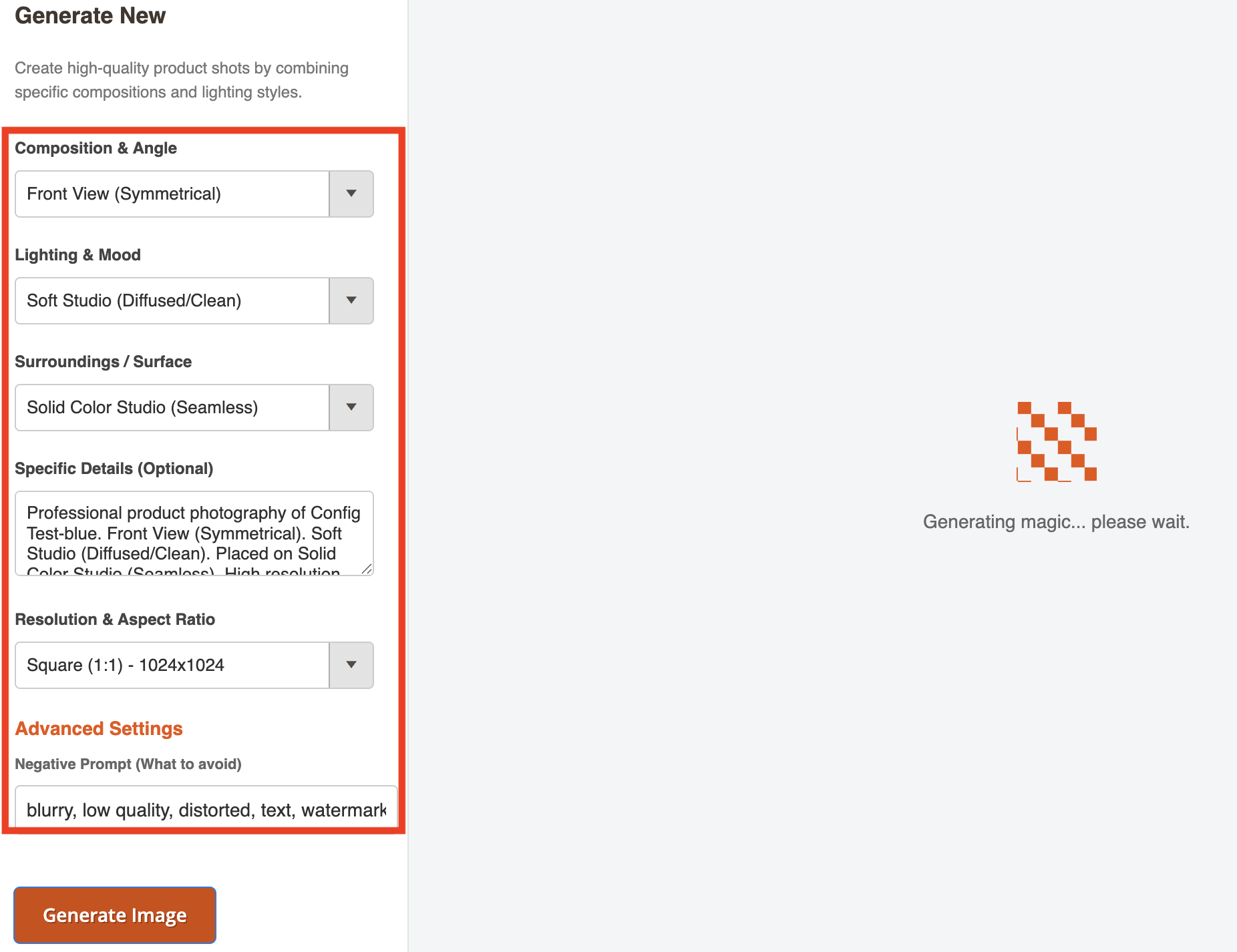
- Composition & Angle: Defines the camera's viewpoint, pick from 5+ angle setting options
- Lighting & Mood: Specifies the style of illumination, using soft, widespread light to reduce harsh shadows.
- Surroundings/Surface: Sets the background for seven different styles.
- Specific Details (Optional): Add a descriptive text prompt that instructs the AI on the exact image to generate.
- Resolution & Aspect Ratio: Determines the final image dimensions and shape, select square, portrait, or landscape output.
- Negative Prompt (Advanced setting): Instructs the AI to actively suppress unwanted visual flaws like blurriness, low quality, and watermarks.
Then, click Generate Image to start the magic happening.
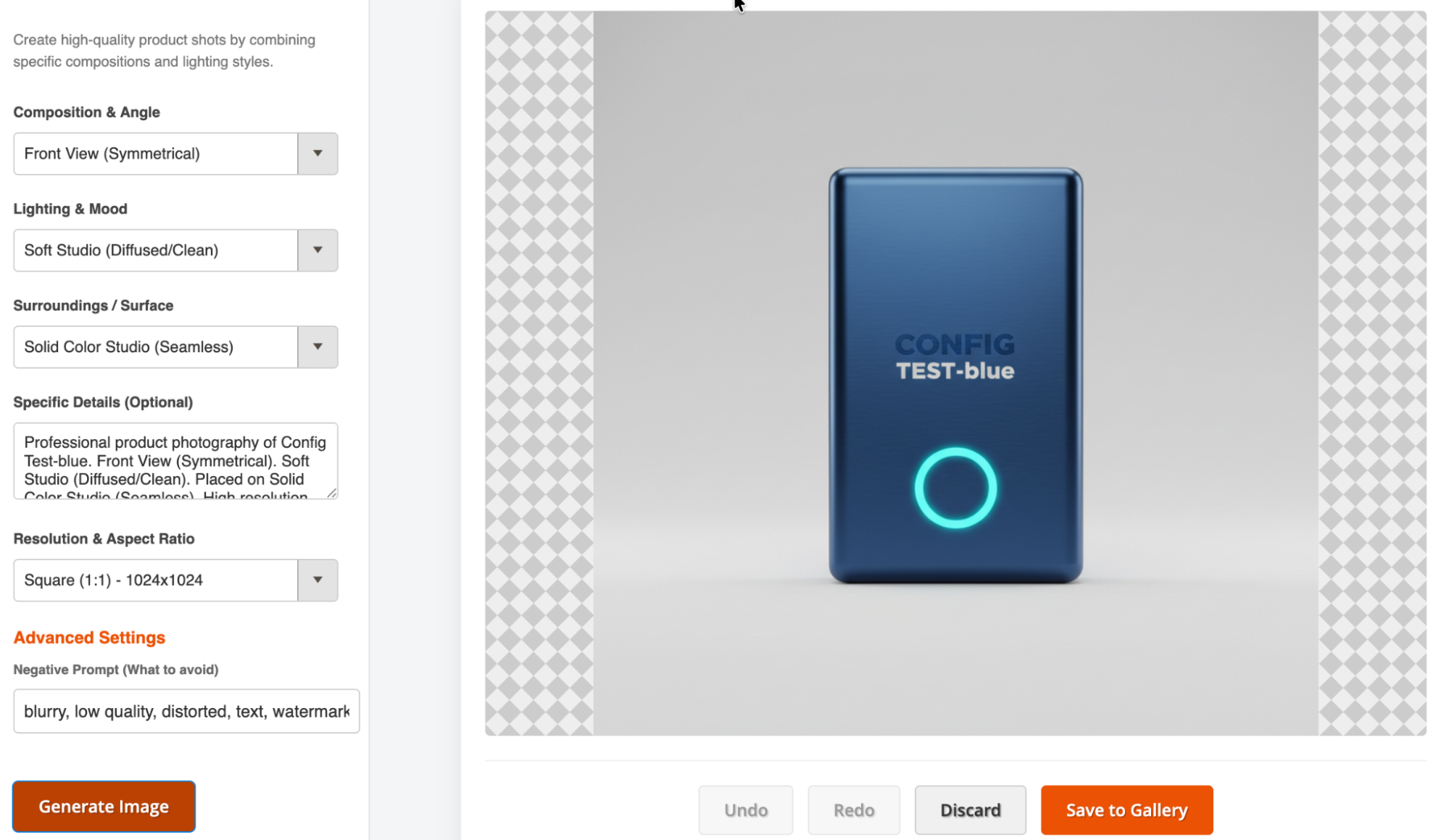
Example output of the text instructions to image generation feature:
Note: It may take up to 20 to 30 seconds for AI to generate the image. This delay is due to AI models taking time to generate images.
There is also an option to Ask for changes and refine the image as required. Once everything looks good, you can click the Save to Gallery button to add the image to the product.
Feature 2: Edit & Enhance Existing Images
You can turn the boring product images into classy product photoshoots using this feature.
To edit your current product images, switch to the Edit Existing and follow these steps:
- Image: Upload an image or choose from an existing product image
- Prompt Presets: You can choose 40+ editing options to make changes in the current image. Some of the popular ones are:
- Remove background
- Replace background
- Water Splash Effect
- Add Glossy Reflection
- Adjust Shadow
- & more
- AI Prompt: Provide context (e.g., "Keep the background darker").
- Output Resolution: Select your output dimension
Once you’re done, click the Apply Edits button to see the magic happening.
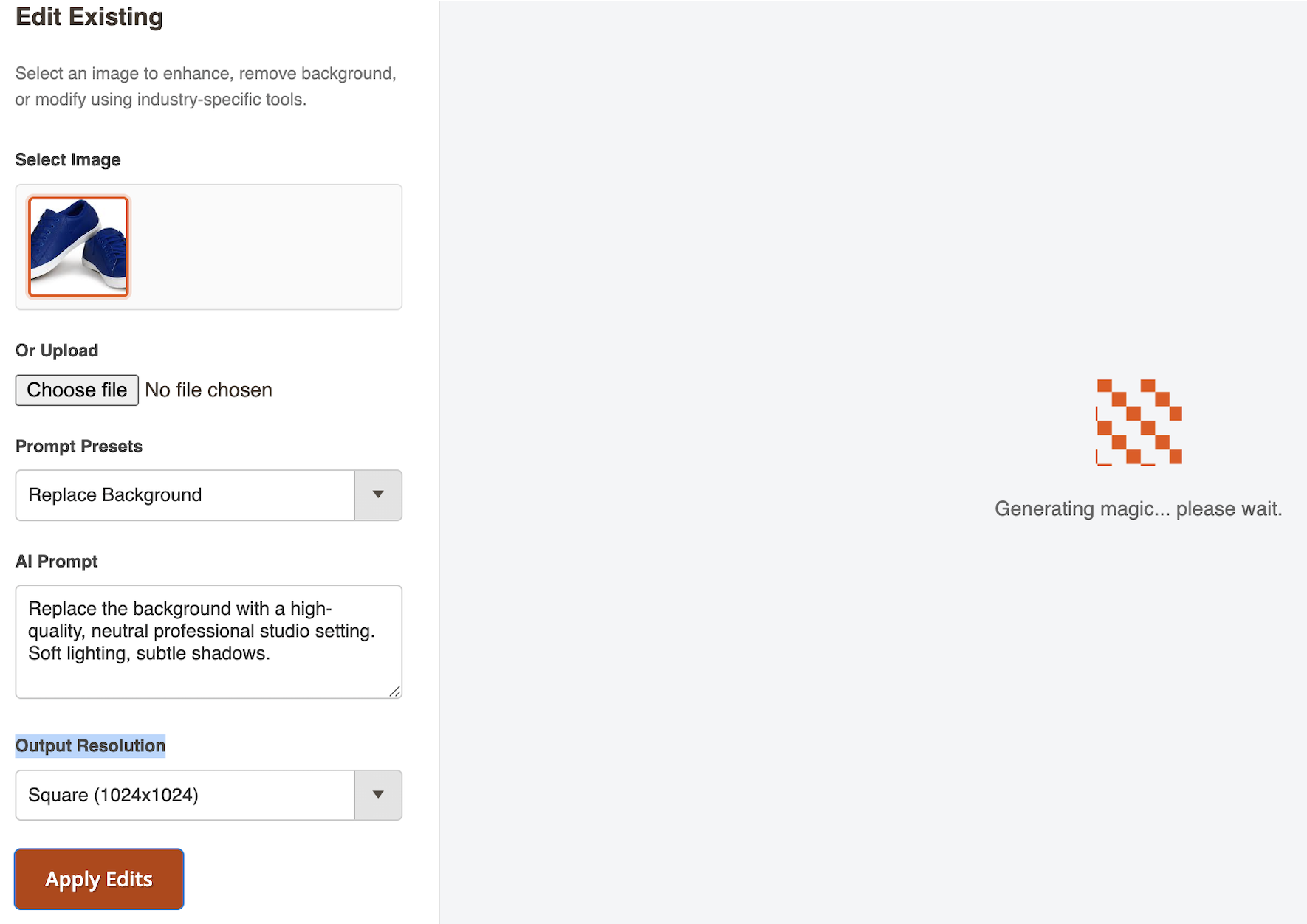
For example, here is the output of an image edited based on instructions:
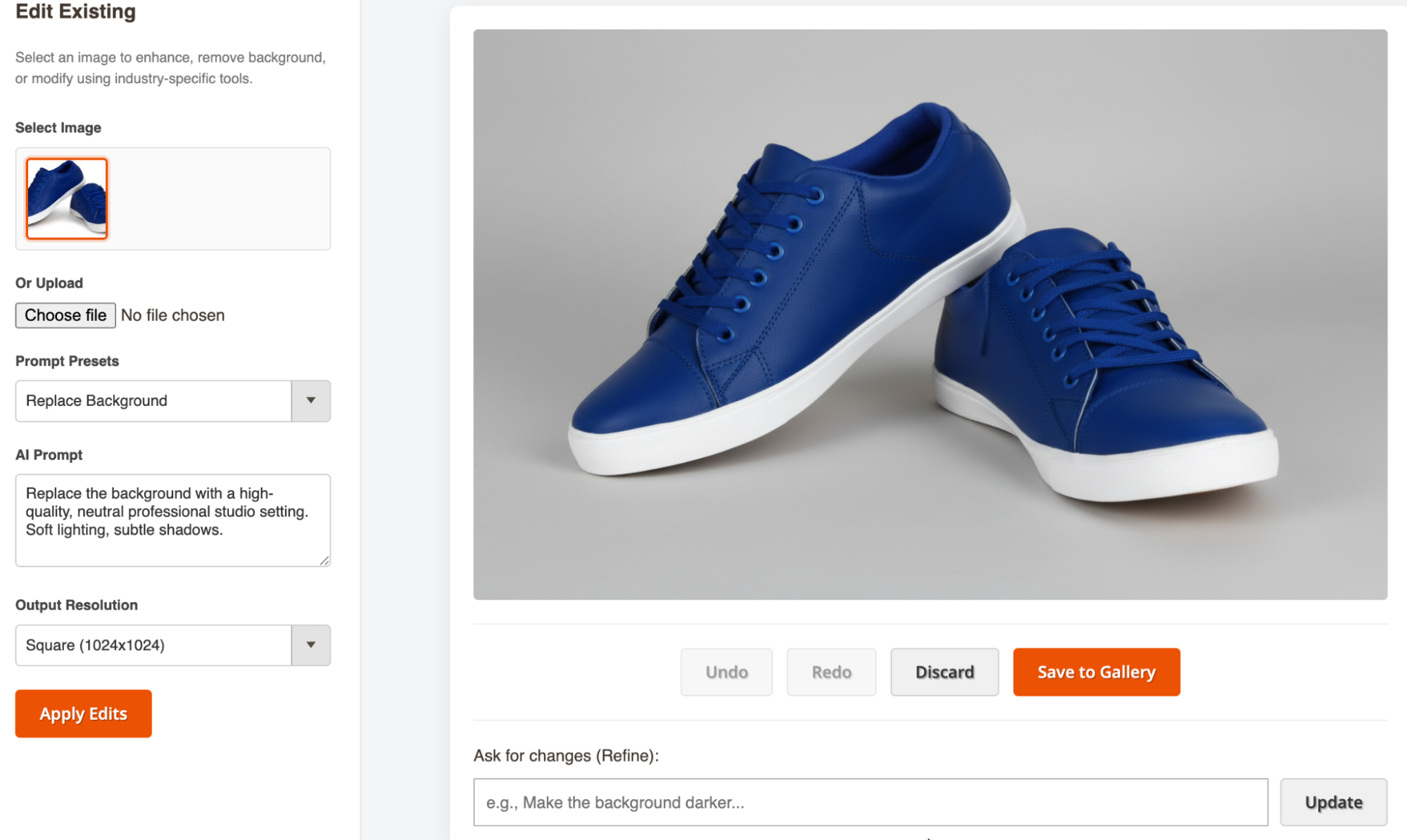
Once everything looks good, click the Save to Gallery button to add the image to the product.
Monitoring Usage & Logs
You can keep track of your AI consumption and history.
Navigate to AI Product Studio > Request Logs in the main sidebar to get detailed logs of your AI image generation requests by model.
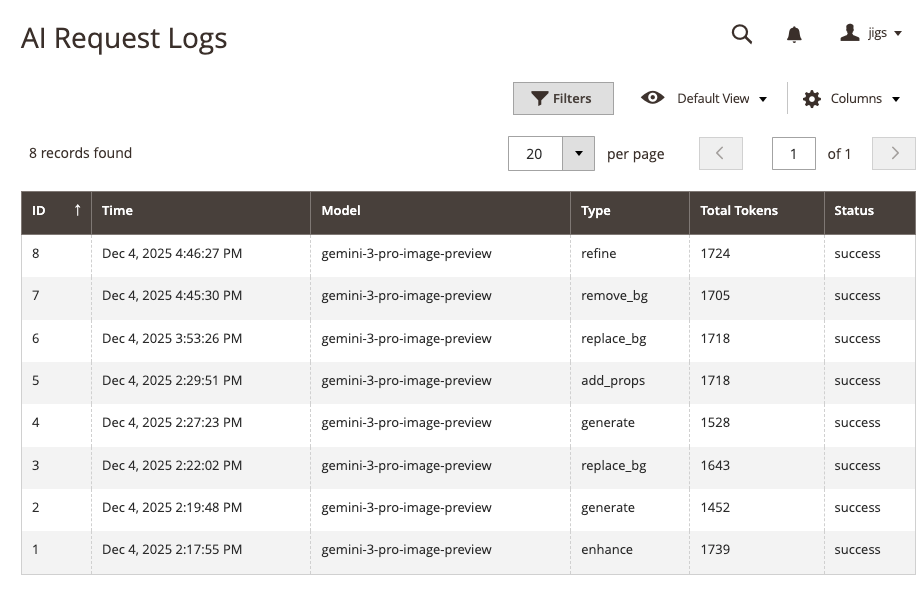
Examples of AI Product Studio Images
| Type | Description | Preview |
|---|---|---|
| Studio Shot | A clean, high-contrast image of a sneaker on a white background. | 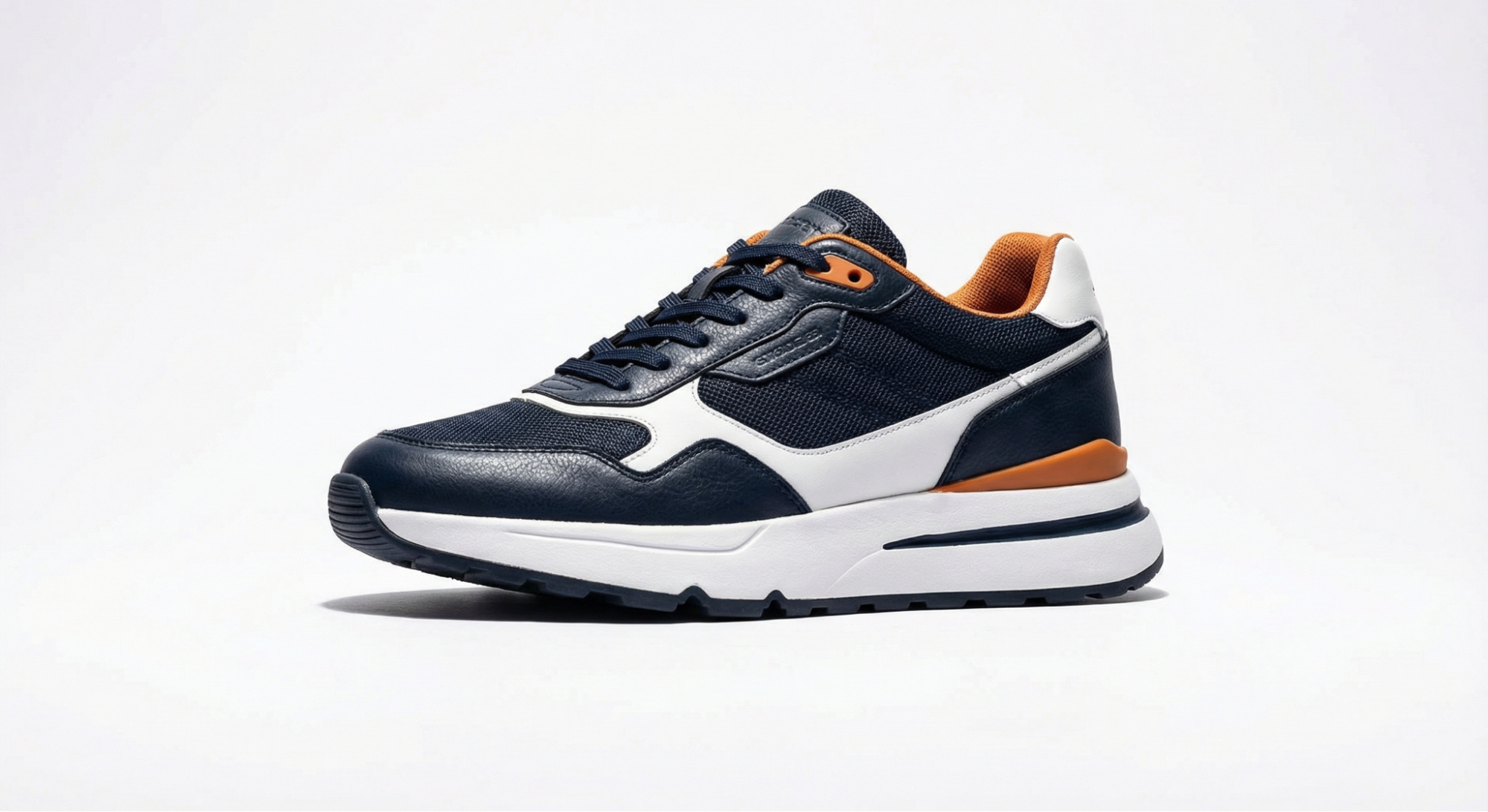 |
| Lifestyle | The same sneaker worn by a person walking on a city street. | 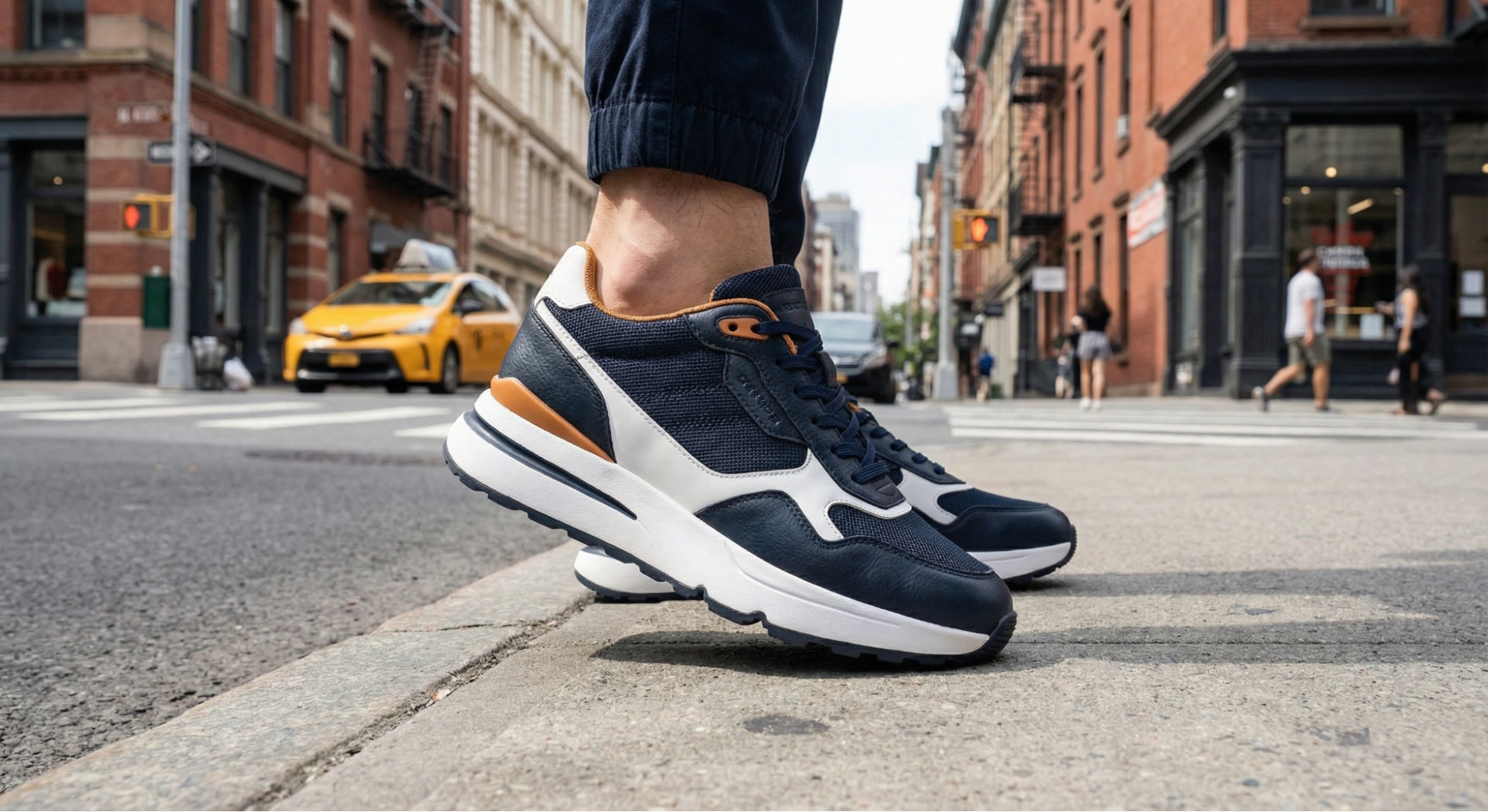 |
| Creative | A perfume bottle floating in a splash of water and rose petals. | 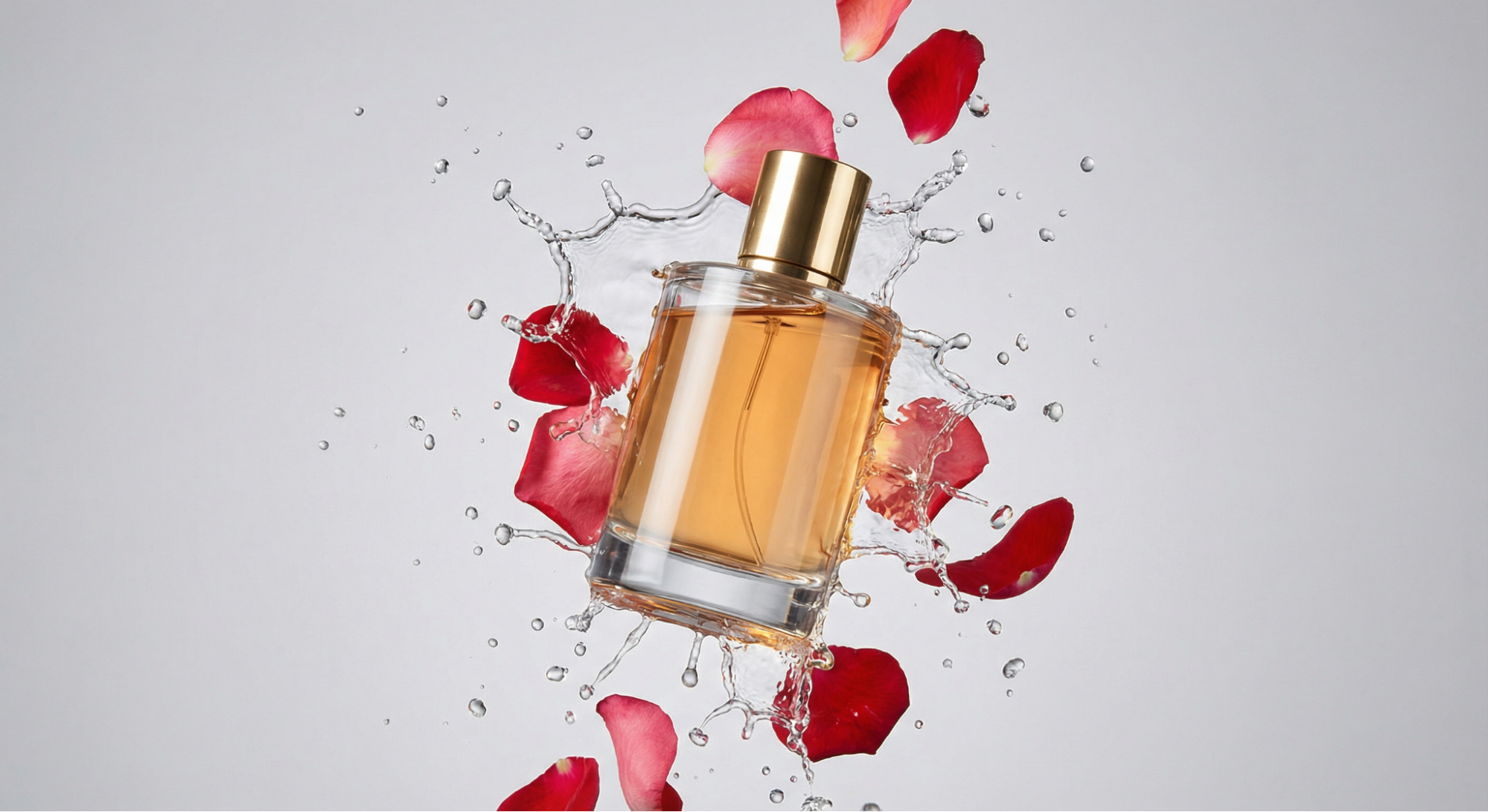 |
Use Cases of Magento 2 AI Product Studio Extension
The extension is designed to solve common e-commerce visual challenges.
Generate Missing Product Images
If you have a product description but no images, use the Generate New feature.
- How: Select Generate New, add the needed setting, and create your new product image.
Enhance or Upscale Product Images
Low-resolution supplier images can hurt conversion rates.
- How: Use Edit Existing > Upscale. The AI will add pixel density and sharpen details without altering the product's fundamental look.
Model Photography with Product
Visualize your product in use without hiring a model.
- How: Use Edit Existing with the "Lifestyle Model-Try On" style setting.
- Prompt Example: "A fitness model jogging in a park wearing these blue running shoes."
Remove or Replace Product Images Background
Create clean, compliant catalog images for marketplaces like Amazon or Google Shopping.
- How:
- Remove: Select Edit Existing > Remove Background to get a transparent image.
- Replace: Select Edit Existing > Replace Background and describe a setting (e.g., "A marble kitchen counter").
FAQs
How to get a Gemini API Key?
You can get an API key from Google AI Studio.
- Go to aistudio.google.com.
- Sign in with your Google account.
- Click on Get API key in the top left.
- Click Create API key and select a project.
- Copy this key and paste it into the Magento Configuration.
Make sure the project you select has billing enabled. This is required to use the paid models within our extension.
Which AI Models are Supported by AI Product Studio?
The extension currently supports:
- Gemini 3 Pro: Google's most capable multimodal model, best for complex reasoning and high-fidelity details.
- Gemini 2.5 Flash: A lightweight model optimized for speed and cost-efficiency.
How Much Does it Cost to Generate or Edit an Image?
Costs depend on the model and usage tier:
- Free Tier: Google offers a generous free tier for testing (rate-limited).
- Paid Tier (Estimates):
- Gemini 2.5 Flash: Approximately $0.039 per image.
- Gemini 3 Pro: Approximately $0.134 - $0.24 per image depending on resolution.
(Note: Prices are subject to change by Google. Check the official pricing page for real-time data).
How to Write Good Prompts to Get Best Results?
Follow this formula: Subject + Context + Lighting + Style.
- Bad: "A shoe."
- Good: "A pair of red leather running shoes (Subject) sitting on a rough concrete surface (Context) illuminated by soft sunset lighting (Lighting), highly detailed 4k product photography (Style)."
Do I Need Paid Gemini API to Use this Extension?
No, you can start with the Free Tier API key. However, for a live production store with high traffic, or to ensure your data is not used for model training, we recommend upgrading to a Pay-as-you-go plan on Google Cloud