Snapchat Pixel for Magento 2 - User Guide
Extension Installation
For Magento Marketplace Customers:
Find the extension's Composer name and version in its composer.json file.
- Login to your SSH and run:
composer require meetanshi/magento-2-snapchat-pixel
- Enter your authentication keys . Your public key is your username; your private key is your password.
- Wait for Composer to finish updating your project dependencies and make sure there aren't any errors.
- To verify that the extension is installed properly, run the command:
php bin/magento module:status Meetanshi_SnapchatPixel
- By default, the extension is probably disabled.
- Enable the extension and clear static view files:
php bin/magento module:enable Meetanshi_SnapchatPixel --clear-static-content
php bin/magento setup:upgrade
- For Magento version 2.0.x to 2.1.x -
php bin/magento setup:static-content:deploy
- For Magento version 2.2.x & above -
php bin/magento setup:static-content:deploy --f
php bin/magento cache:flush
For Meetanshi Customers:
- Download the extension zip file and extract it to your Magento's root directory.
- Login to your SSH and run below commands step by step:
php bin/magento setup:upgrade
- For Magento version 2.0.x to 2.1.x -
php bin/magento setup:static-content:deploy
- For Magento version 2.2.x & above -
php bin/magento setup:static-content:deploy --f
php bin/magento cache:flush
Get Snapchat Pixel Code
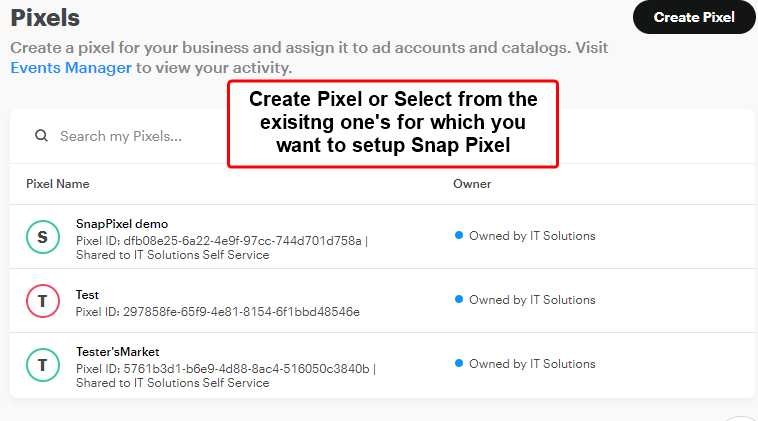
Log into your Snapchat account. Click the Pixel from the left-side menu and select the Pixel Name for which you want to set up SnapPixel.
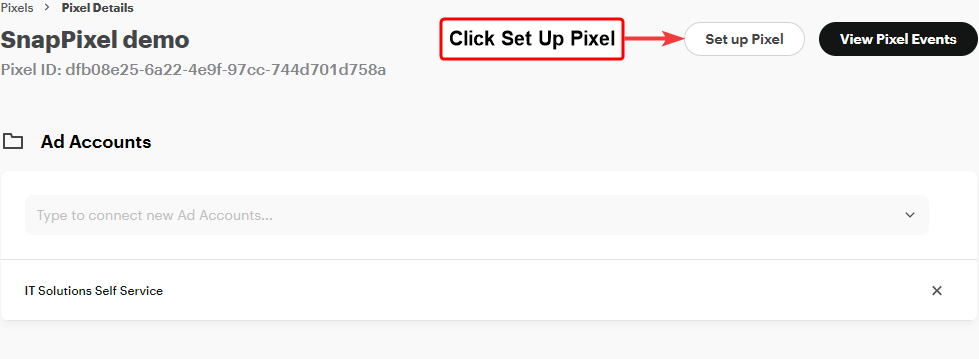
Click Set up Pixel inside Pixel Details
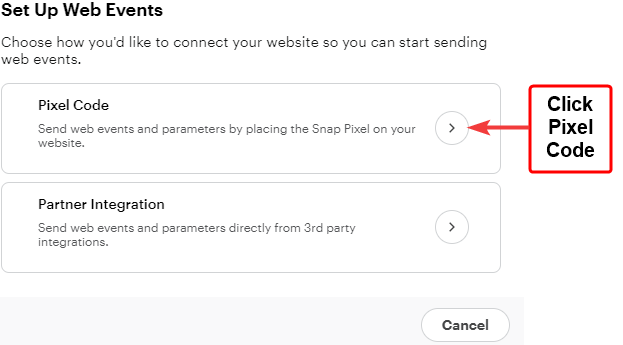
In the pop-up choose Pixel Code
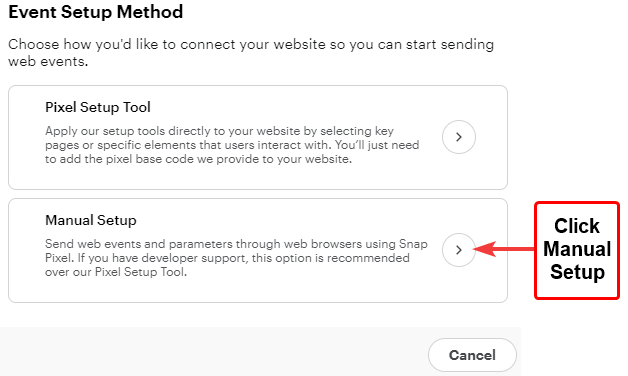
Next, choose Manual Setup
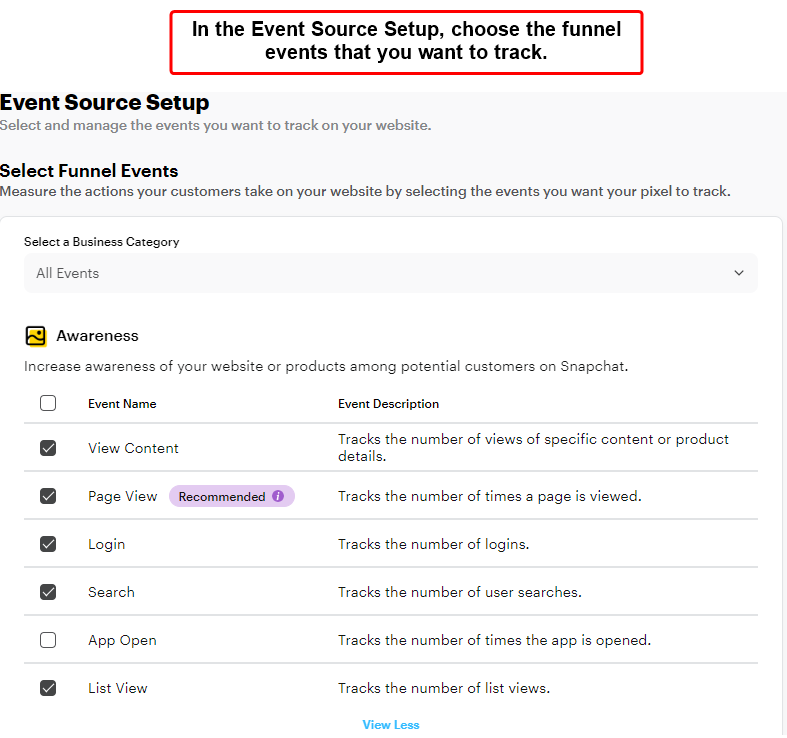
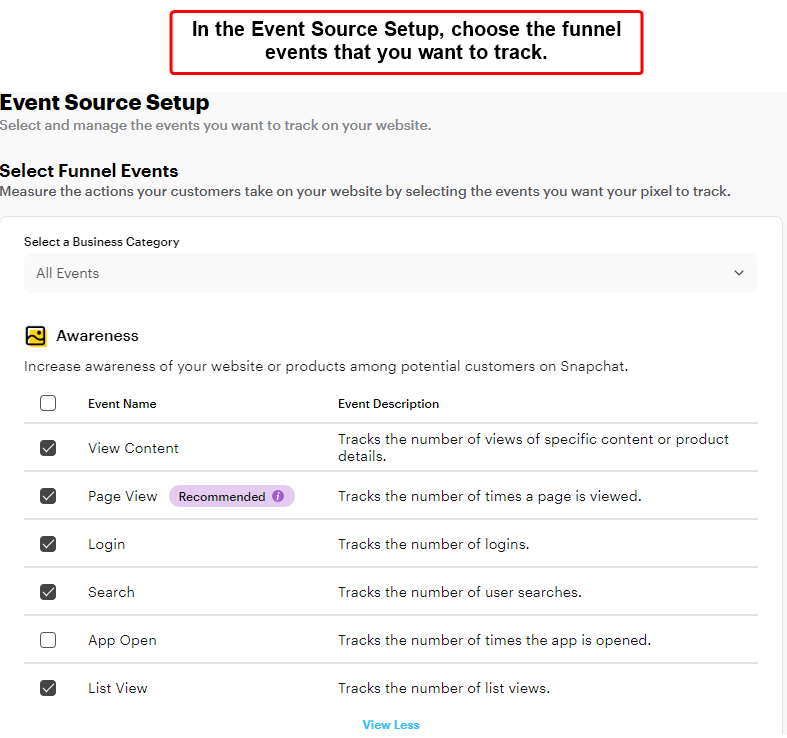
Under Event Source Setup, select "Funnel Events " that you want to track.
You can select the funnel events for awareness, consideration, and conversion as per your preferences.
Next, in the Event Source Setup , the default event parameters will be displayed on the screen.
Click Next to proceed.
(Optionally, you can modify the tracking parameters from here.)
The base code for Snap Pixel will be displayed on the screen.
Copy it.
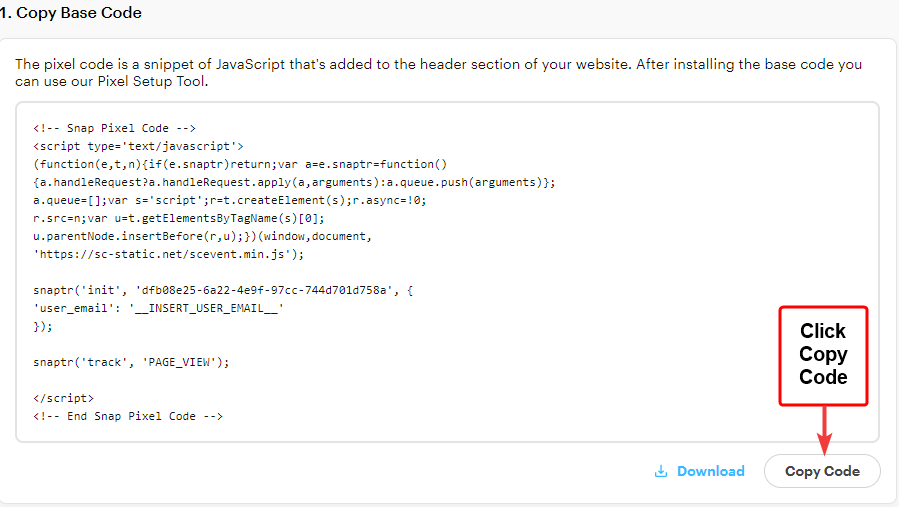
You'll need to enter this base code into the Magento 2 extension configuration for setting up the tracking.
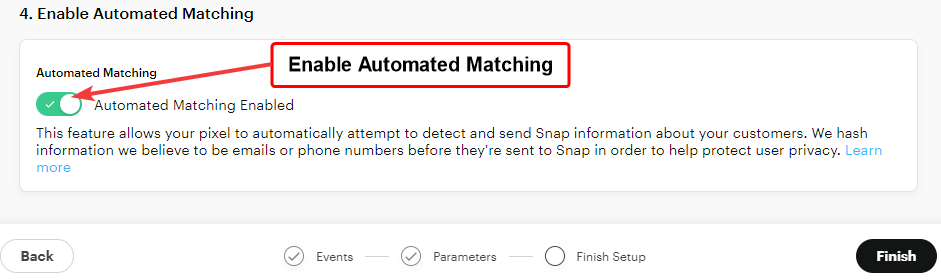
Enable Automated Matching
Keep the automated matching enabled and click " Finish. "
Configure Extension
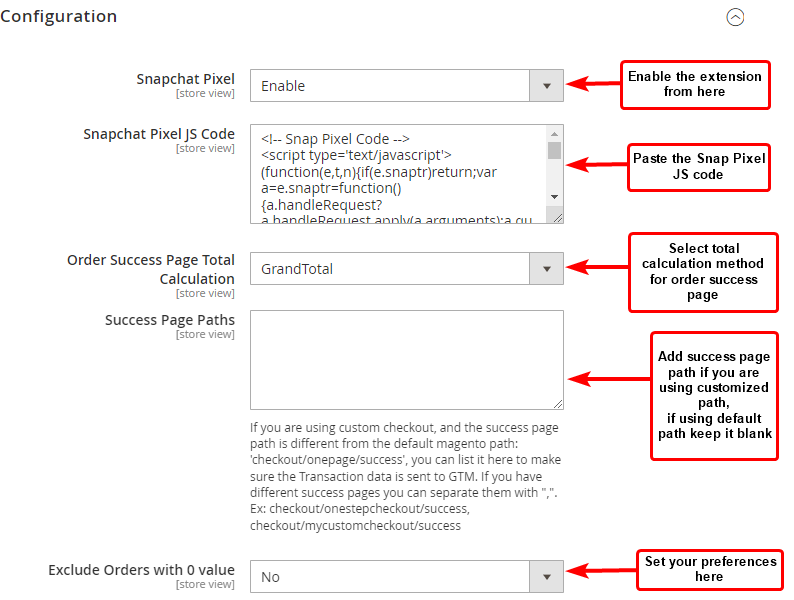
To configure the Snapchat Pixel for Magento 2 extension, go to Stores > Configuration > Meetanshi > Snapchat Pixel and configure the following settings:
- Snapchat Pixel: Enable the extension from here.
- Snap Pixel JS Code: Enter the Snap Pixel JS code [The base code that you copied from the Snapchat Ads Manager]
- Order Success Page Total Calculation: Select the total method for the order success page.
- Success Page Paths: Add success page paths if using a customized checkout page; if not, keep it blank.
- Exclude Orders with 0 Value: Set according to your preferences.
Click the " Save " button.
Test Snap Pixel Events
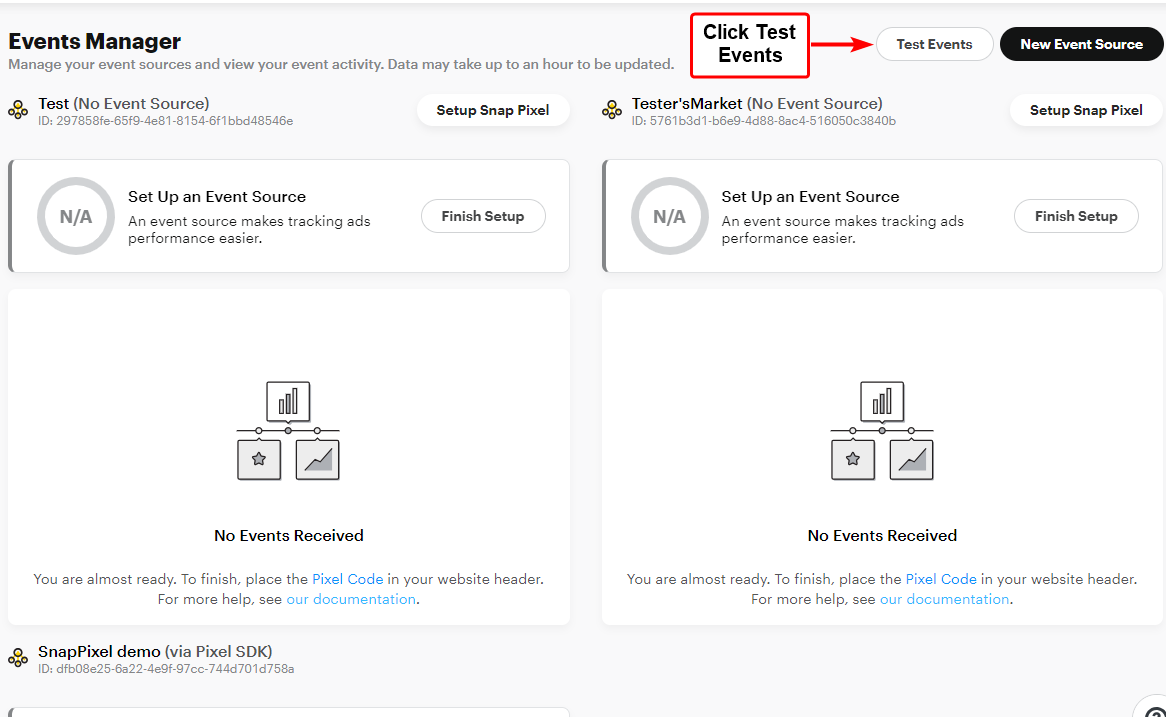
Once the extension is configured, return to your Snapchat dashboard > Create Ads and click Event Manager .
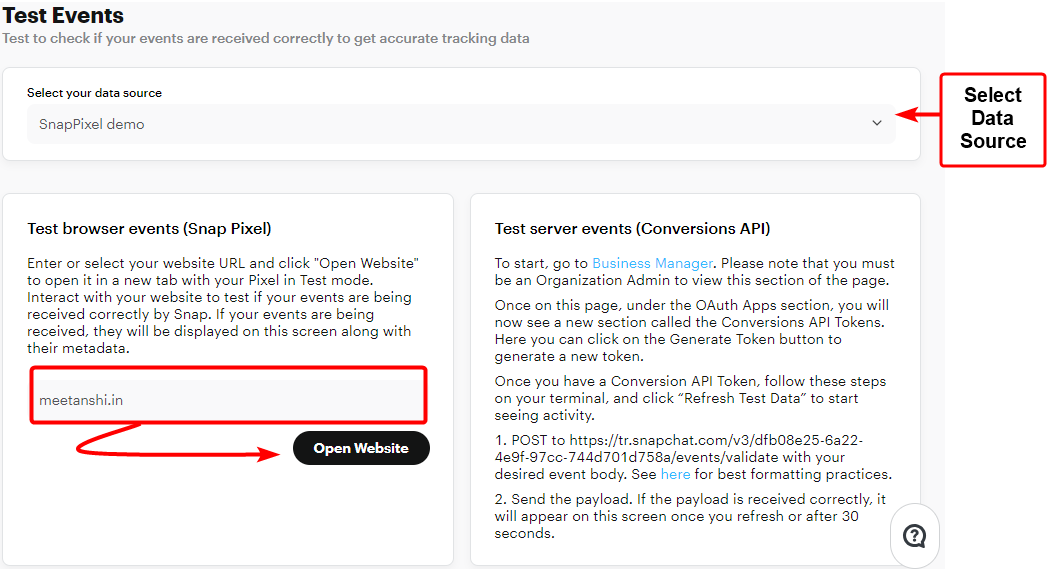
Select your data source from the dropdown and enter the website URL under the Test Browser Events section.
Click " Open Website ."
Now, perform any action on your website; for example page view and add to cart.
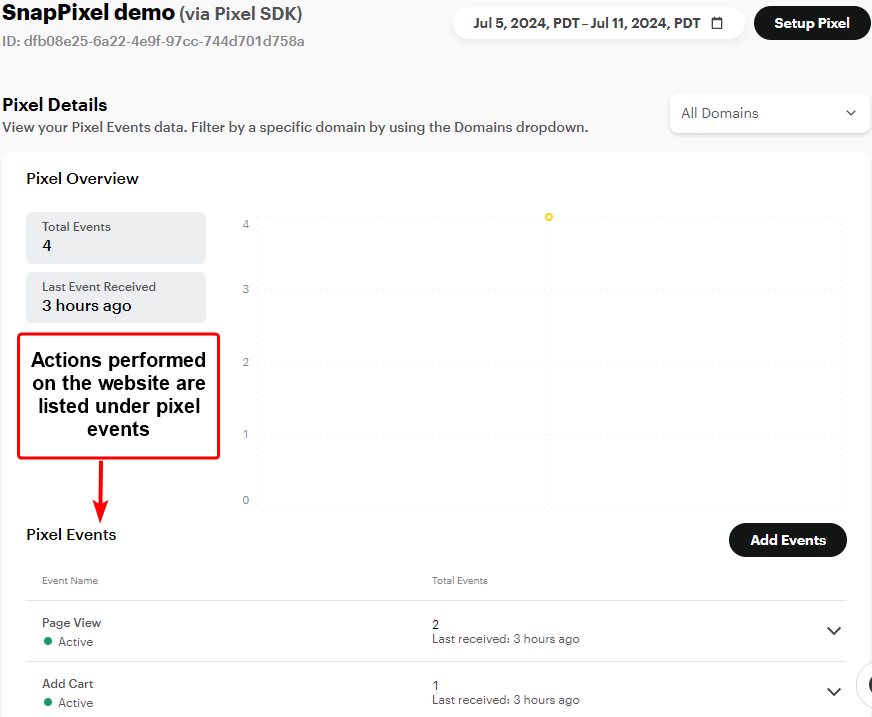
You can see the actions tracked in the Events Manager .