Distance Based Shipping for Magento 2 - User Guide
Extension Installation
For Magento Marketplace Customers
Find the Composer name and version of the extension in the extension's composer.json file.
Login to your SSH and run:
composer require meetanshi/magento-2-distance-based-shipping-calculation --ignore-platform-reqs
Enter your authentication keys . Your public key is your username; your private key is your password.
Wait for Composer to finish updating your project dependencies and make sure there aren't any errors.
To verify that the extension installed properly, run the command:
php bin/magento module:status Meetanshi_DistanceBasedShipping
By default, the extension is probably disabled.
Enable the extension and clear static view files:
php bin/magento module:enable Meetanshi_DistanceBasedShipping --clear-static-content
php bin/magento setup:upgrade
- For Magento version 2.0.x to 2.1.x -
php bin/magento setup:static-content:deploy
- For Magento version 2.2.x & above -
php bin/magento setup:static-content:deploy --f
php bin/magento cache:flush
For Meetanshi Customers
- Extract the zip folder and upload our extension to the root of your Magento 2 directory via FTP.
- Login to your SSH and run below commands step by step:
php bin/magento setup:upgrade
- For Magento version 2.0.x to 2.1.x -
php bin/magento setup:static-content:deploy
- For Magento version 2.2.x & above -
php bin/magento setup:static-content:deploy --f
php bin/magento cache:flush
Configuration
For configuring the Distance Based Shipping for Magento 2 extension, login to Magento 2, move to Sales > Shipping Methods > Distance Based Shipping-- Meetanshi where you can find various settings to enable the extension.
- Enabled: Set "YES" to enable Distance Based Shipping extension.
- Title: Enter title for the shipping method.
- Method Name: Enter the method name for the shipping method.
- Displayed Error Message: Enter the error message to show for shipping unavailability.
- Google Map API Key: Enter the Google map API key to auto calculate distance from the warehouse to the shipping destination for the distance-based shipping amount calculation.
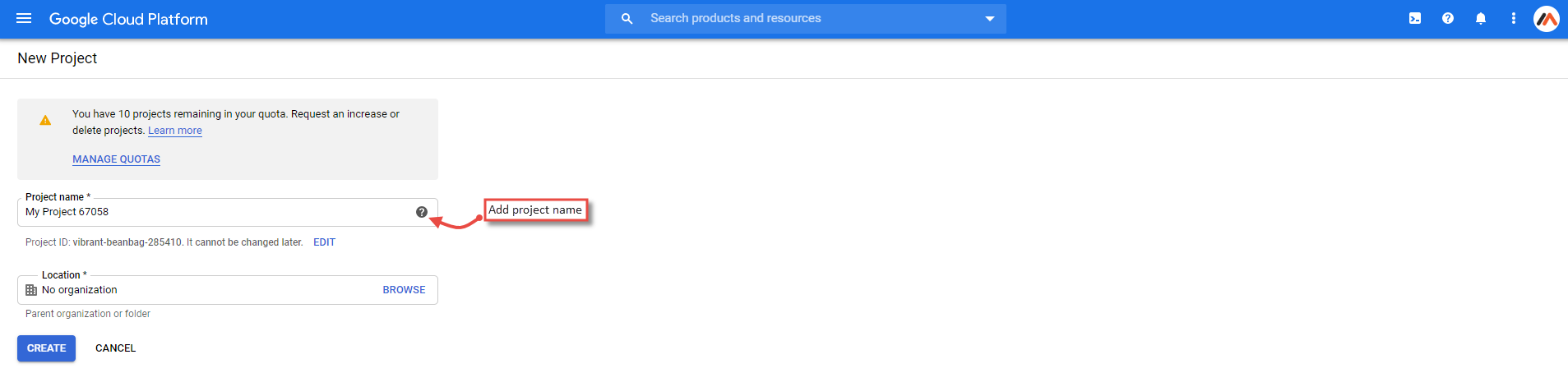
- Go to the Google Cloud Platform Console . Click on "Create New Project", add a project name and click save.
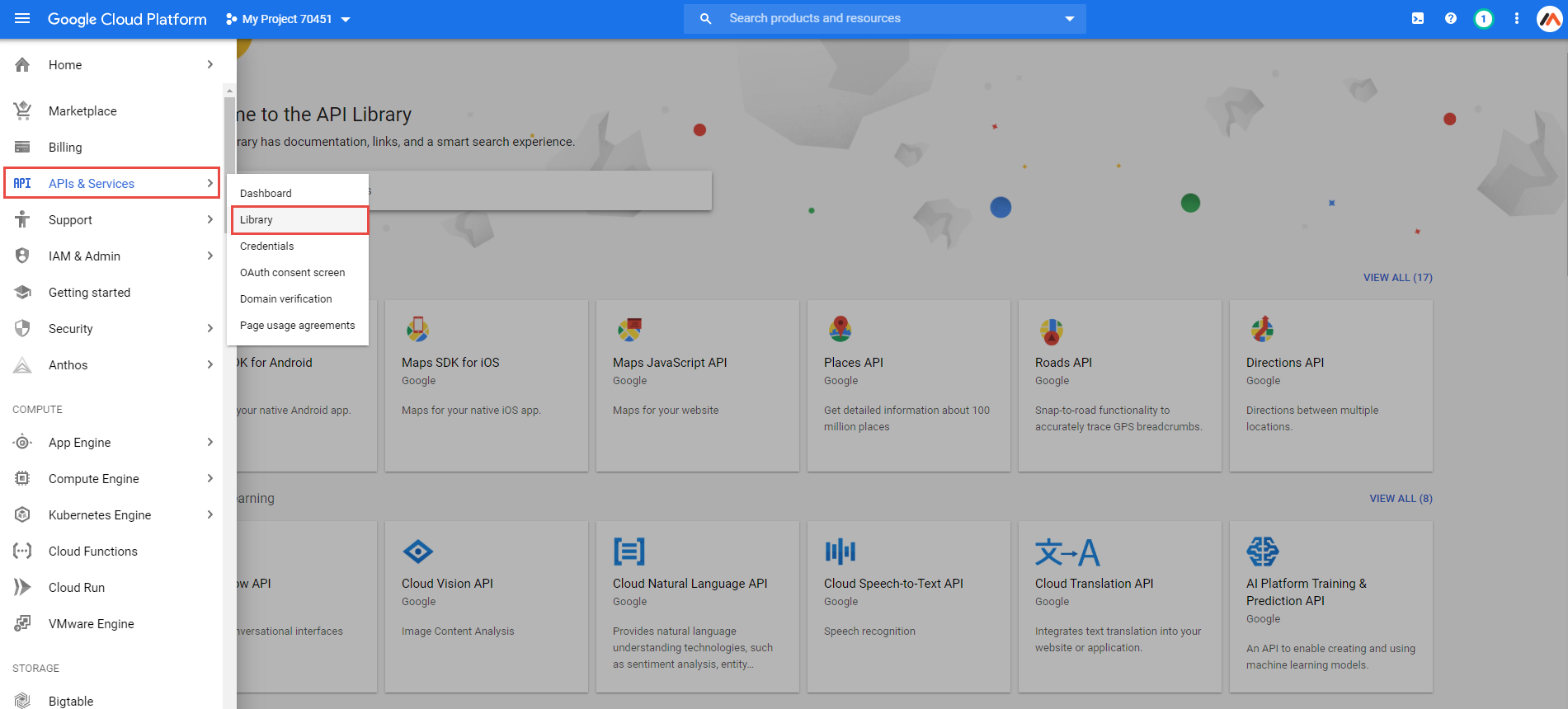 Go to APIs & Services > Library.
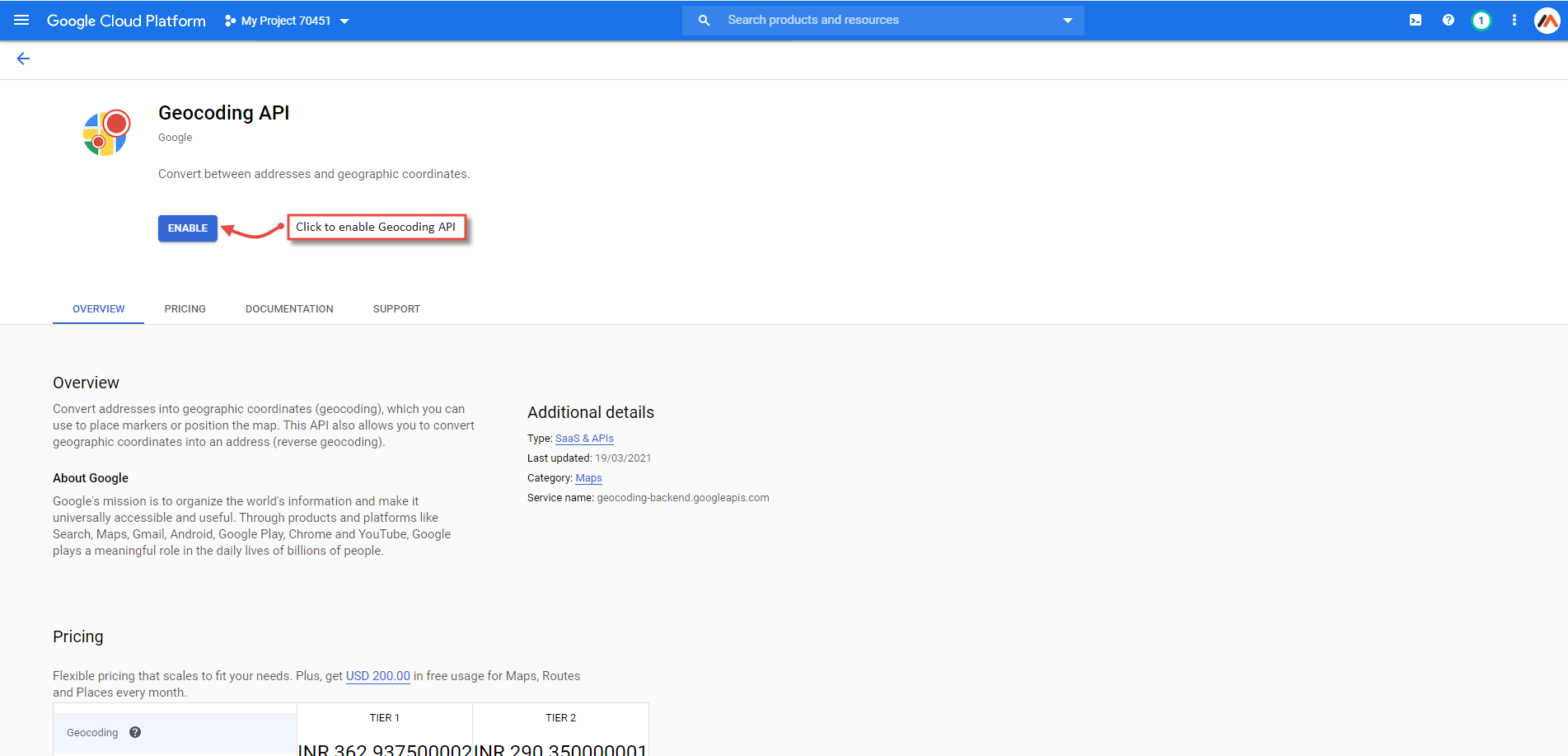
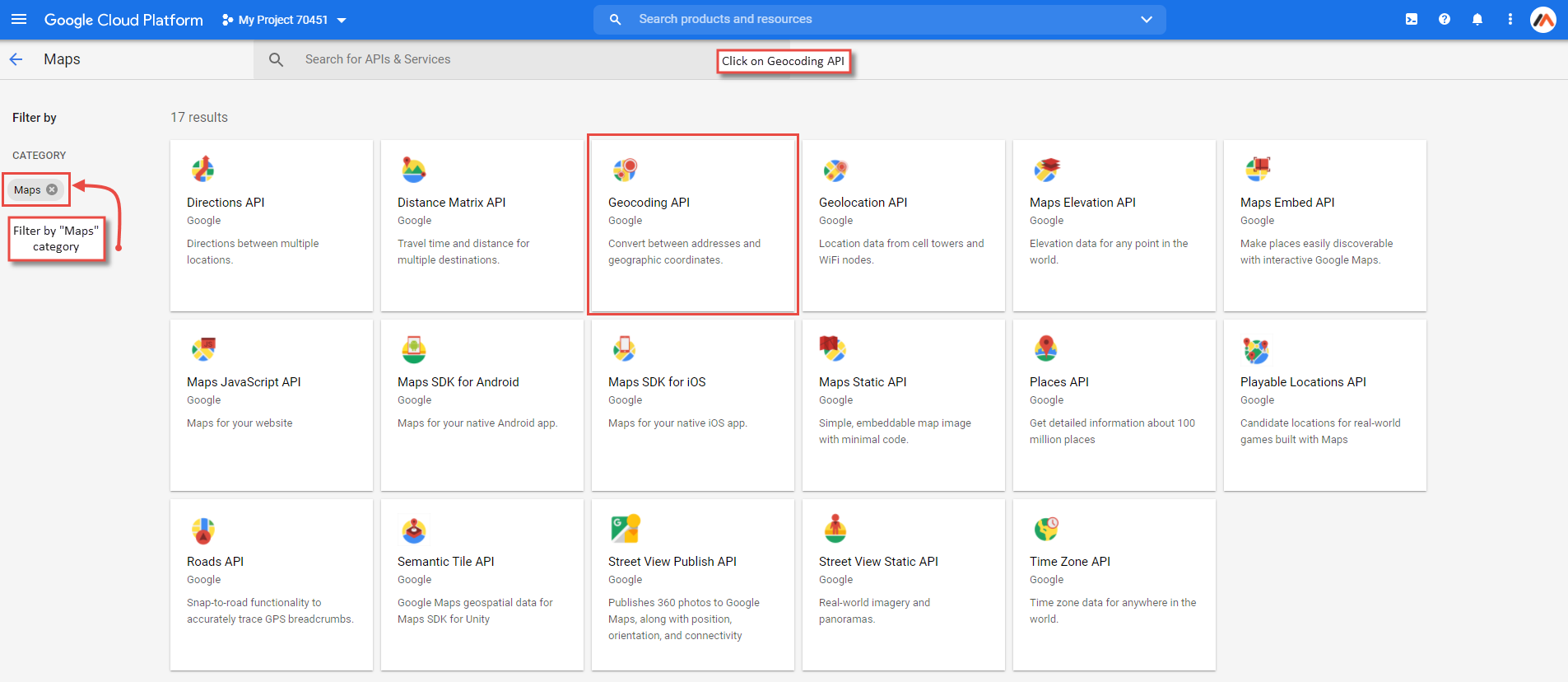 Filter the categories by Maps and click on the Geocoding API.
- Enable the Geocoding API. You need to create and attach a billing account to a Google Cloud Platform project . You can check pricing plans for the Geocoding API here .
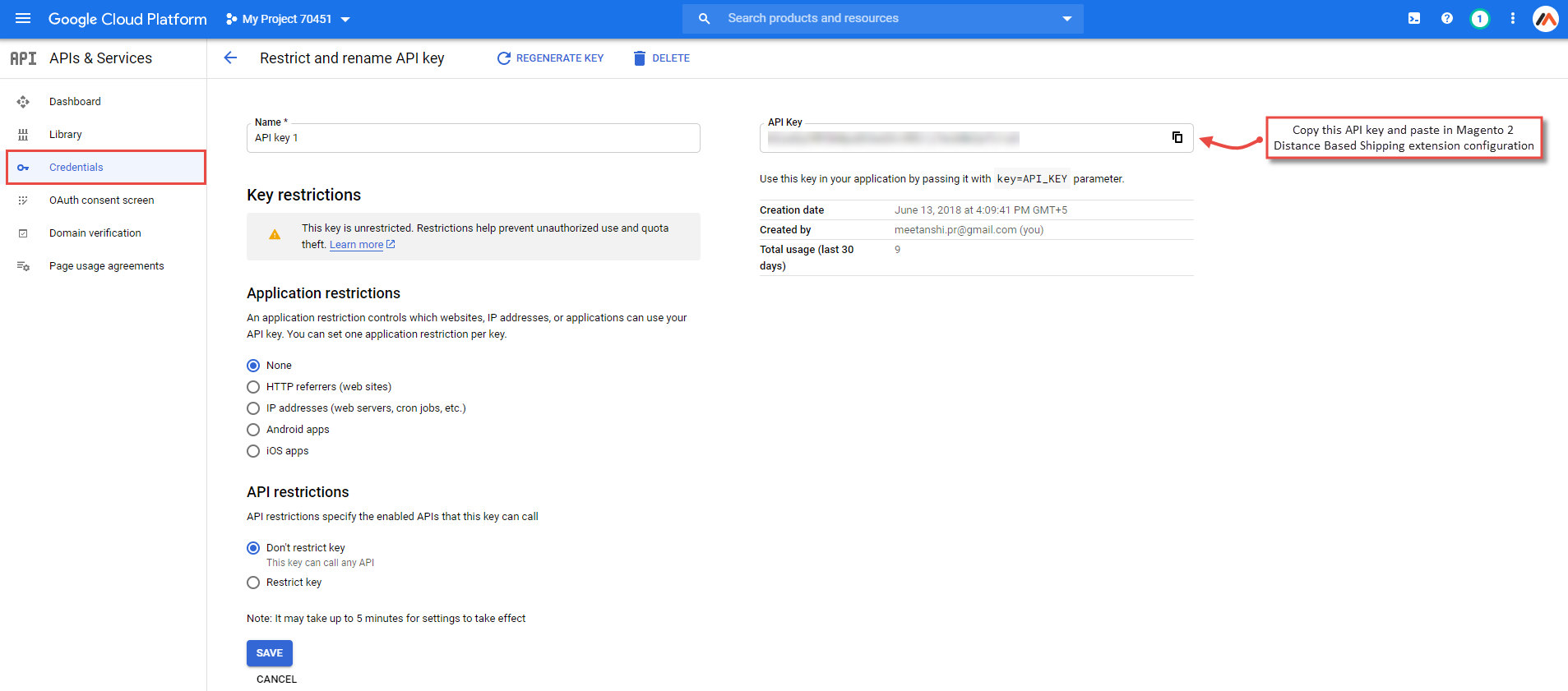
- Click the menu button and select APIs & Services > Credentials . On the Credentials page, click Create credentials > API key Or edit an API if already created. You can copy the Google Map API Key from here.
- Warehouse Selection : Select one of the warehouse selection options.
- Manual : Allows the users to select the preferred warehouse manually.
- Warehouse with Lowest Shipping Cost: Shows the warehouse with the lowest shipping cost.
- Warehouse with Highest Shipping Cost: Shows the warehouse with the highest shipping cost.
- Distance Unit: Select one of the distance units to calculate distance.
- Kilometres
- Meters
- Miles Yards
- Shipping Cost: Set shipping cost based on the calculated distance.
- From (Distance Unit): Set minimum distance.
- To (Distance Unit): Set maximum distance.
- Cost : Set shipping cost.
- Type: Select one the shipping cost calculation types.
- Fixed: Fixed amount as in Cost .
- Per Unit: Distance Calculated x Amount in the Cost .
- Minimum Order Amount: Set minimum order amount to allow using this shipping method.
- Maximum Order Amount: Set maximum order amount to allow using this shipping method.
- Maximum Distance for Shipping: Enter maximum distance to allow shipment.
- Ship to applicable countries: Select all allowed countries to enable Distance Based Shipping for.
- Ship to specific countries: Select countries to enable Distance Based Shipping for.
- Show Method if Not Applicable: Select YES to show the shipping method even if it's not applicable.
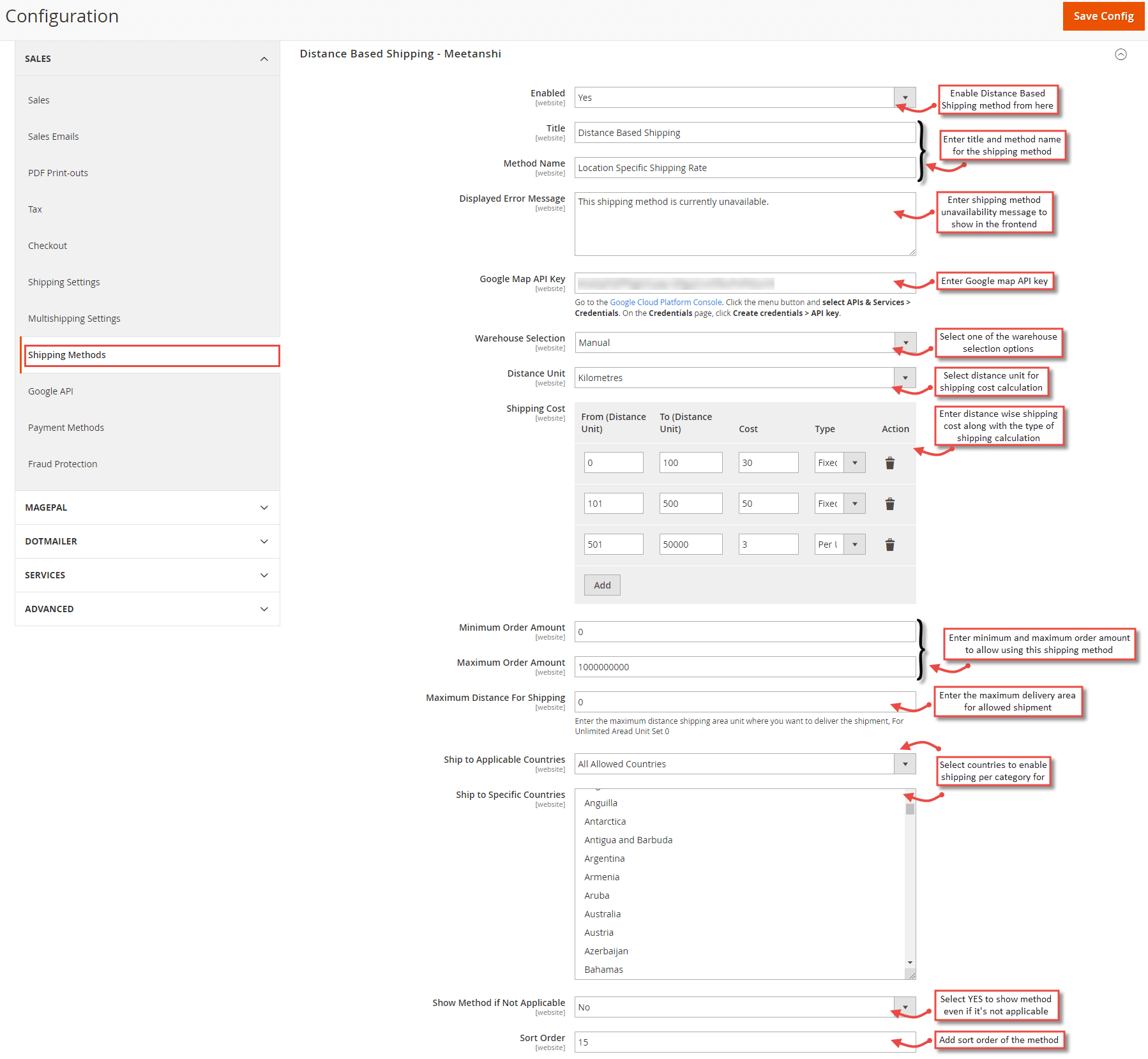
- Sort Order: Add sort order of the shipping method.
Warehouse Manager
The extension facilitates to manage warehouses through a separate backend grid. Go to Distance Based Shipping > Warehouse Manager . All the already created and saved warehouses seen enlisted here.
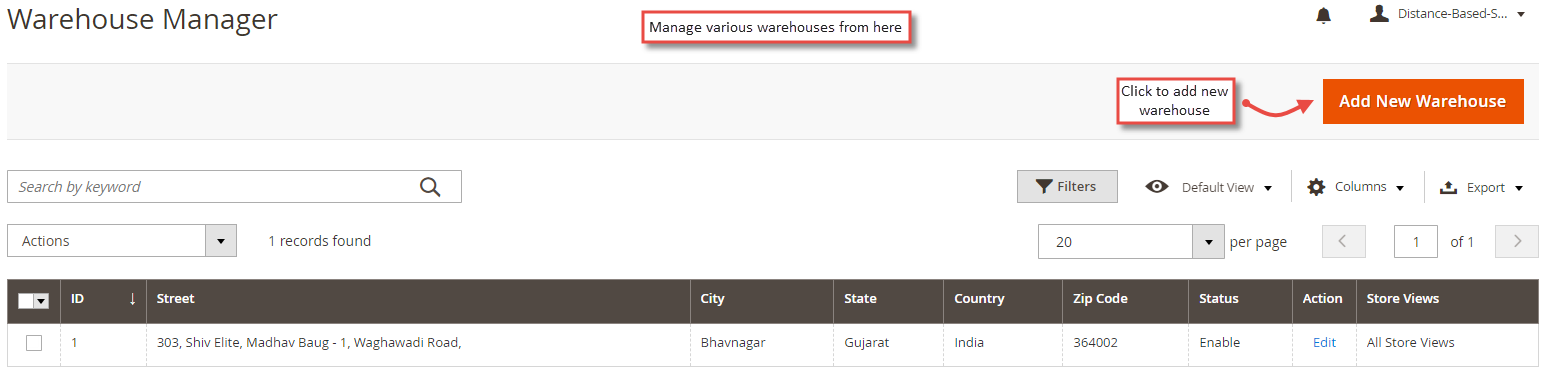
- Click " Add New Warehouse " to add a new warehouse.
- Status: Enable warehouse from here.
- Street: Enter street address for the warehouse.
- City: Enter name of the city in which the warehouse is located.
- Country: Select country in which the warehouse is located.
- State: Select state in which the warehouse is located.
- Zip Code: Enter zip code of the location of the warehouse.
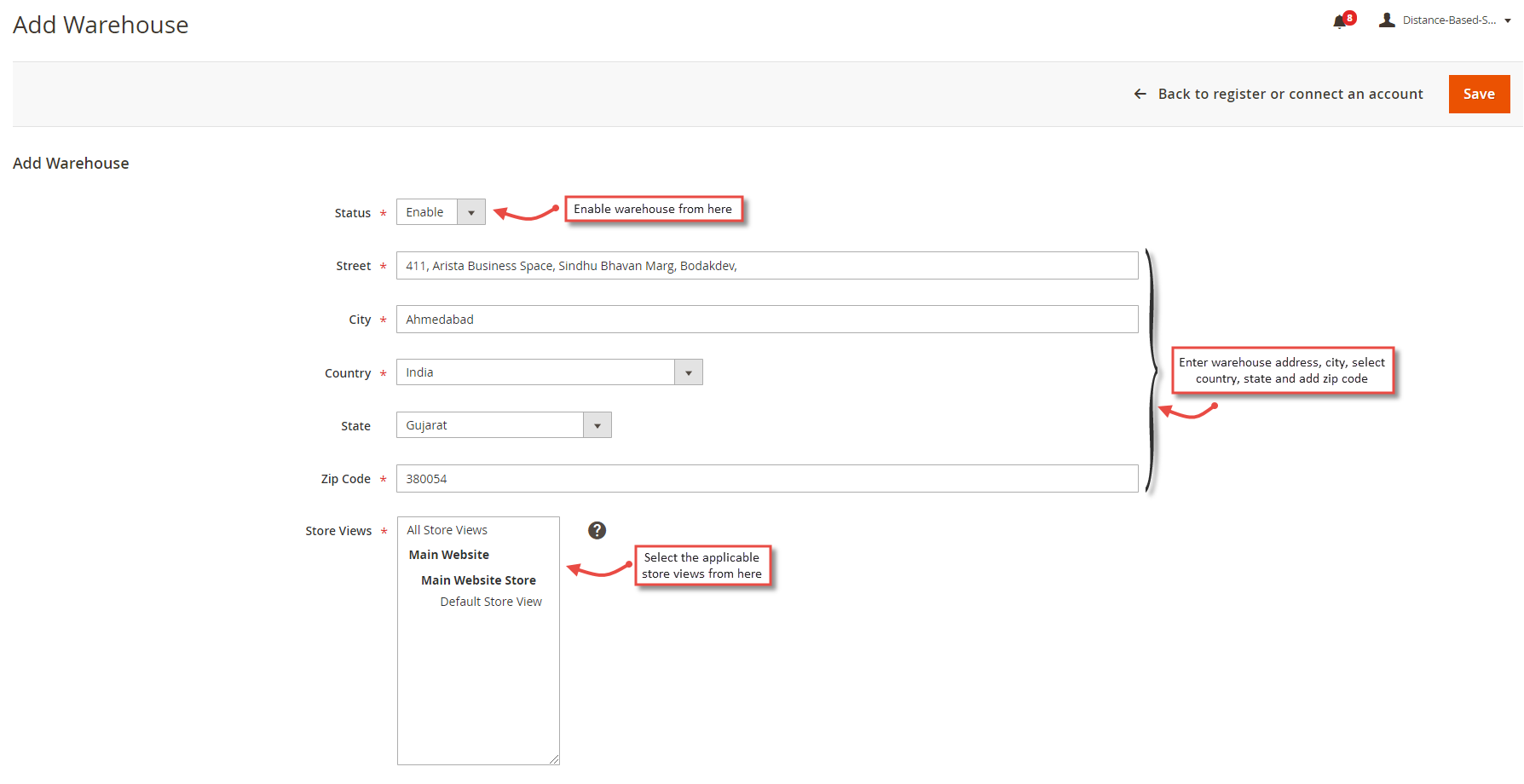
- Store Views: Select the applicable store views for the warehouse.
Distance Based Shipping in Frontend
Once you have set distance-based shipping costs, you can see distance-based shipping rates extension enabled in the frontend. After adding products to cart, the customer selects the warehouse if the admin has set Manual under the warehouse selection .
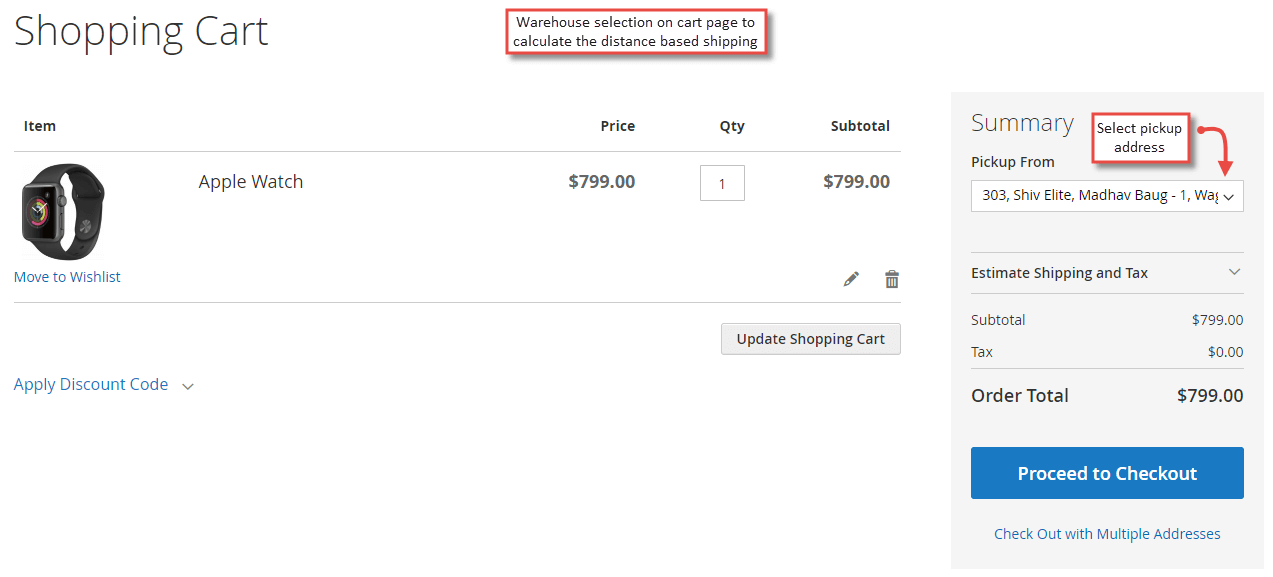
- Distance Based Shipping on Cart Page
Once the customer chooses the shipping address, the Distance Based Shipping rate is calculated and displayed on the cart page under the shipping methods.
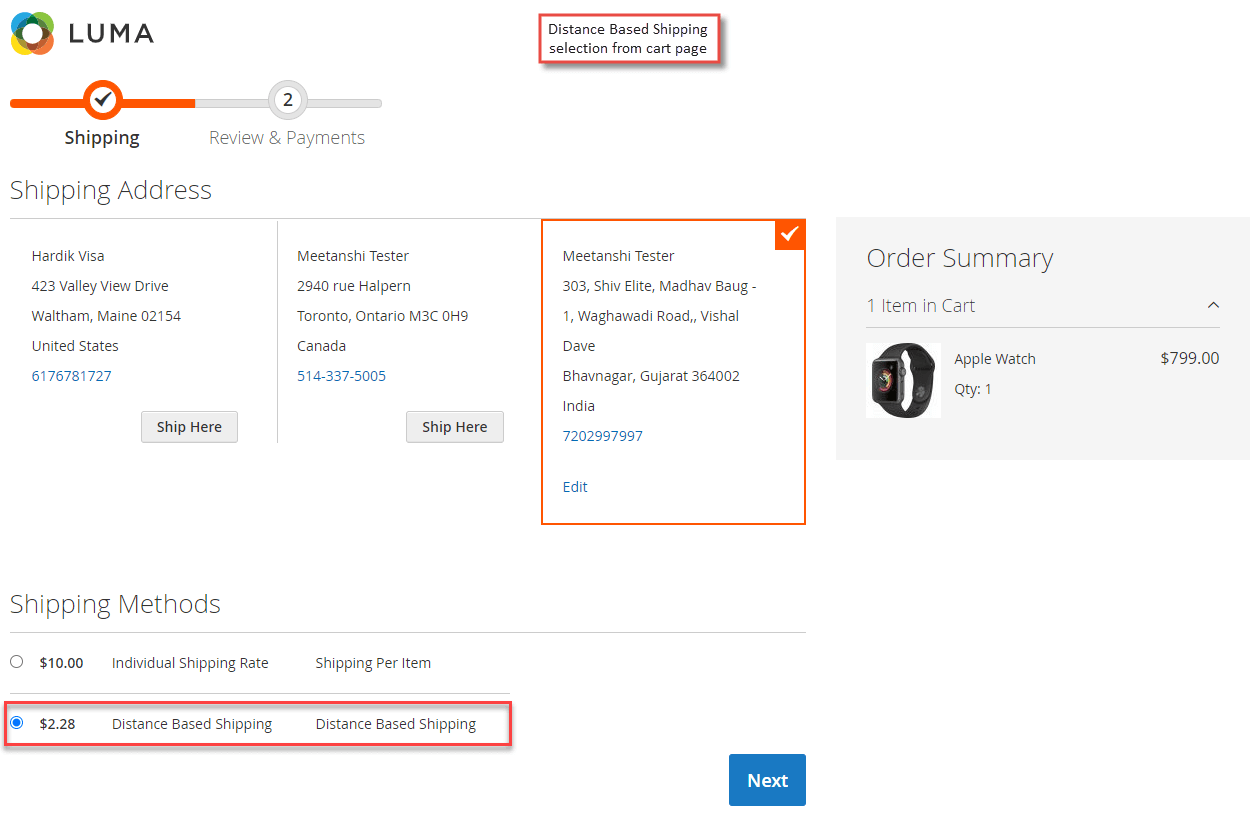
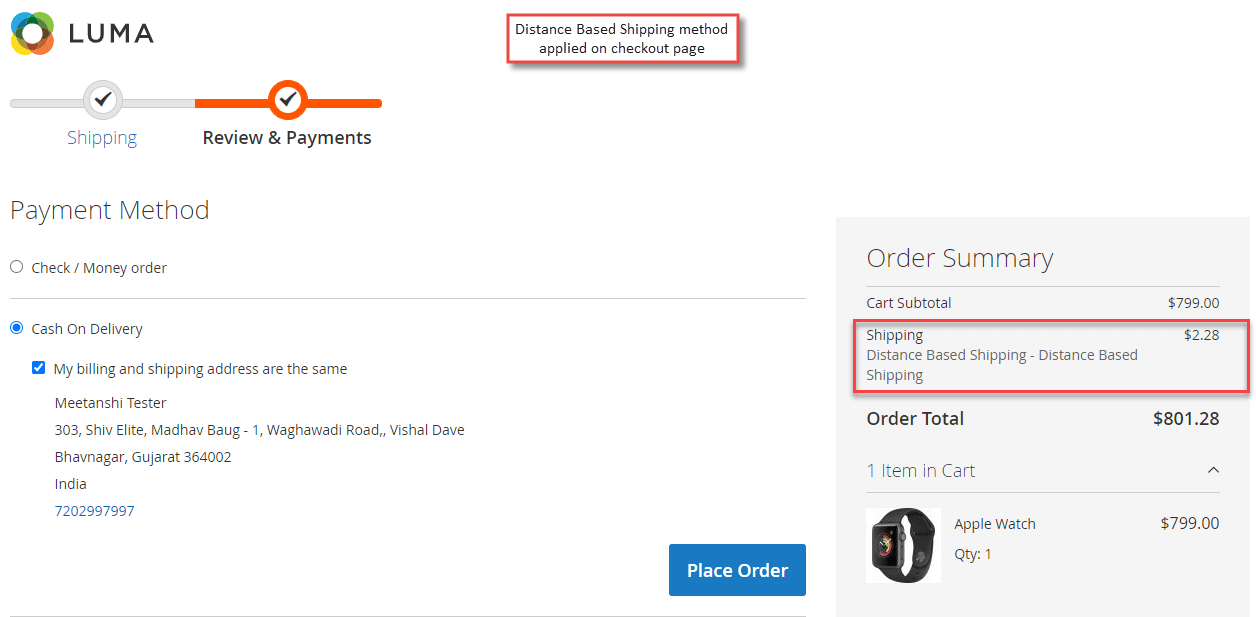
- Distance Based Shipping on Checkout Page
The distance based shipping rate is also displayed on the checkout page under the order summary.
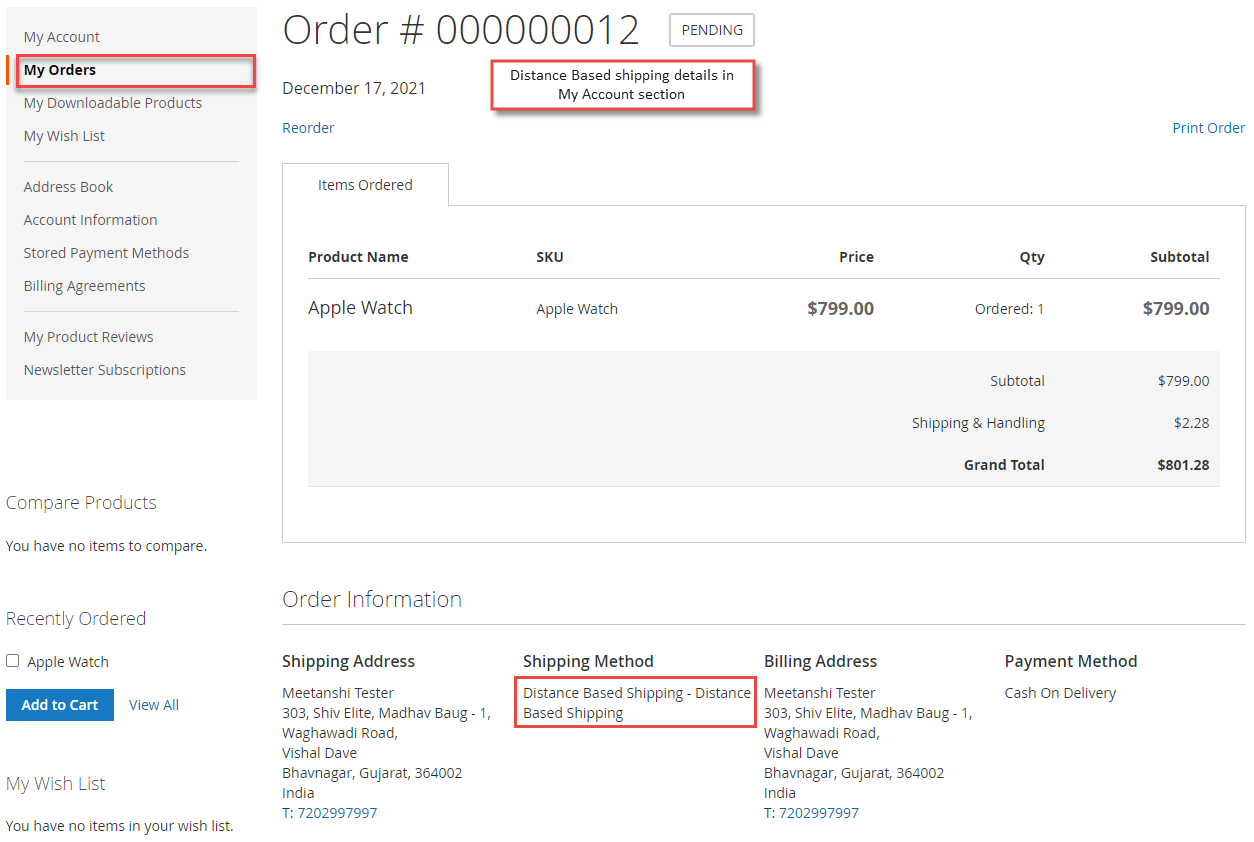
- Distance Based Shipping in "My Account" Section
Once the order is placed using Distance Based Shipping method, under the "My Orders" tab, shipping details are seen.
Distance Based Shipping in Backend
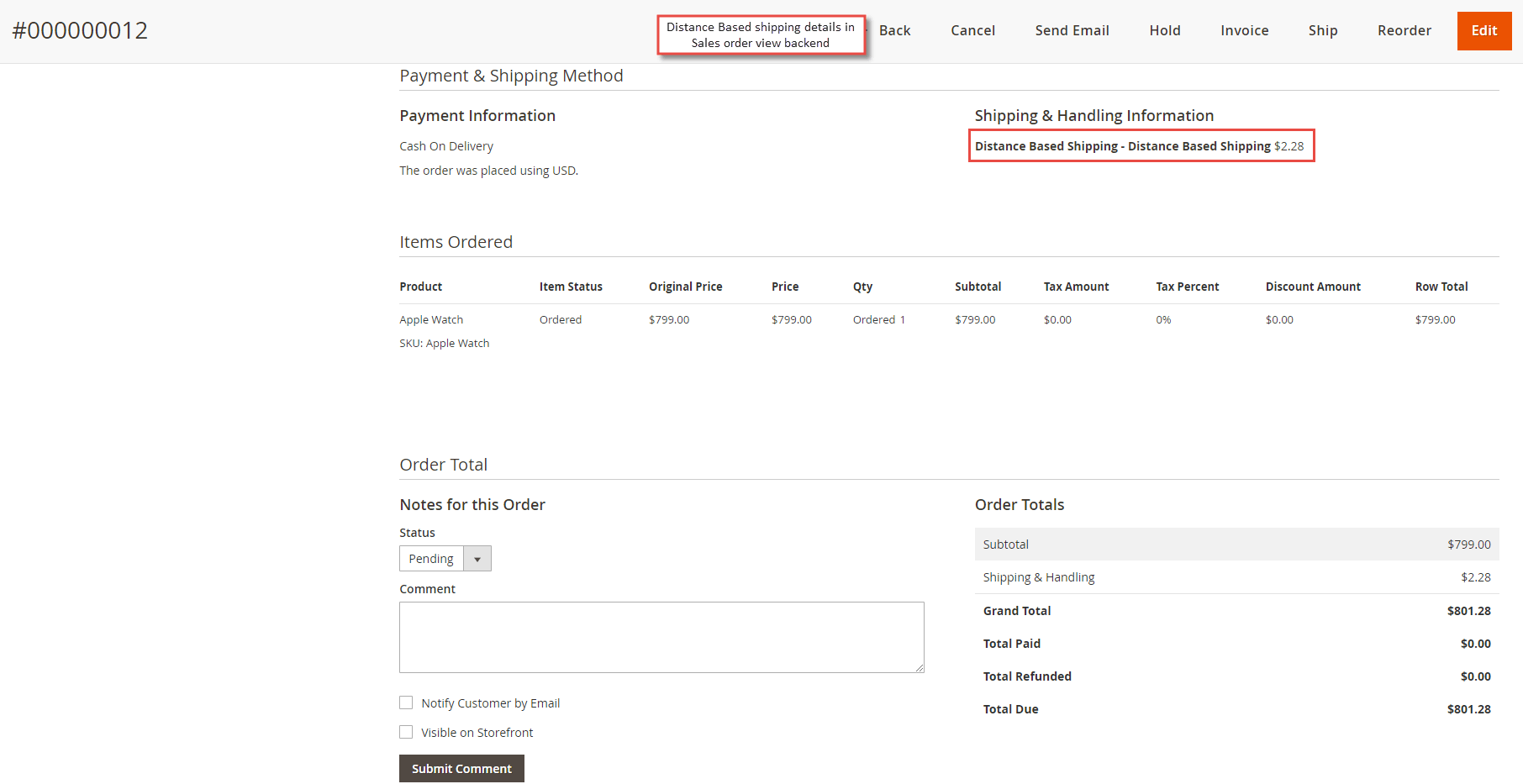
Based Shipping method details can also be seen from the backend under Sales > Orders The below image shows the order view where Distance Based Shipping details are visible.