Coupon Code Link for Magento 2 - User Guide
Extension Installation
For Magento Marketplace Customers
- Login to your SSH and run:
composer require meetanshi/magento2-coupon-code-link --ignore-platform-reqs
- Enter your authentication keys . Your public key is your username; your private key is your password.
- Wait for Composer to finish updating your project dependencies and make sure there aren't any errors.
- To verify that the extension is installed properly, run the command:
php bin/magento module:status Meetanshi_ApplyCoupon
- By default, the extension is probably disabled. Enable the extension and clear static view files:
php bin/magento module:enable Meetanshi_ApplyCoupon --clear-static-content
php bin/magento setup:upgrade
- For Magento version 2.0.x to 2.1.x -
php bin/magento setup:static-content:deploy
- For Magento version 2.2.x & above -
php bin/magento setup:static-content:deploy --f
php bin/magento cache:flush
For Meetanshi Customers
- Extract the zip folder and upload our extension to the root of your Magento 2 directory via FTP.
- Login to your SSH and run below commands step by step:
php bin/magento setup:upgrade
- For Magento version 2.0.x to 2.1.x -
php bin/magento setup:static-content:deploy
- For Magento version 2.2.x & above -
php bin/magento setup:static-content:deploy --f
php bin/magento cache:flush
Configuration
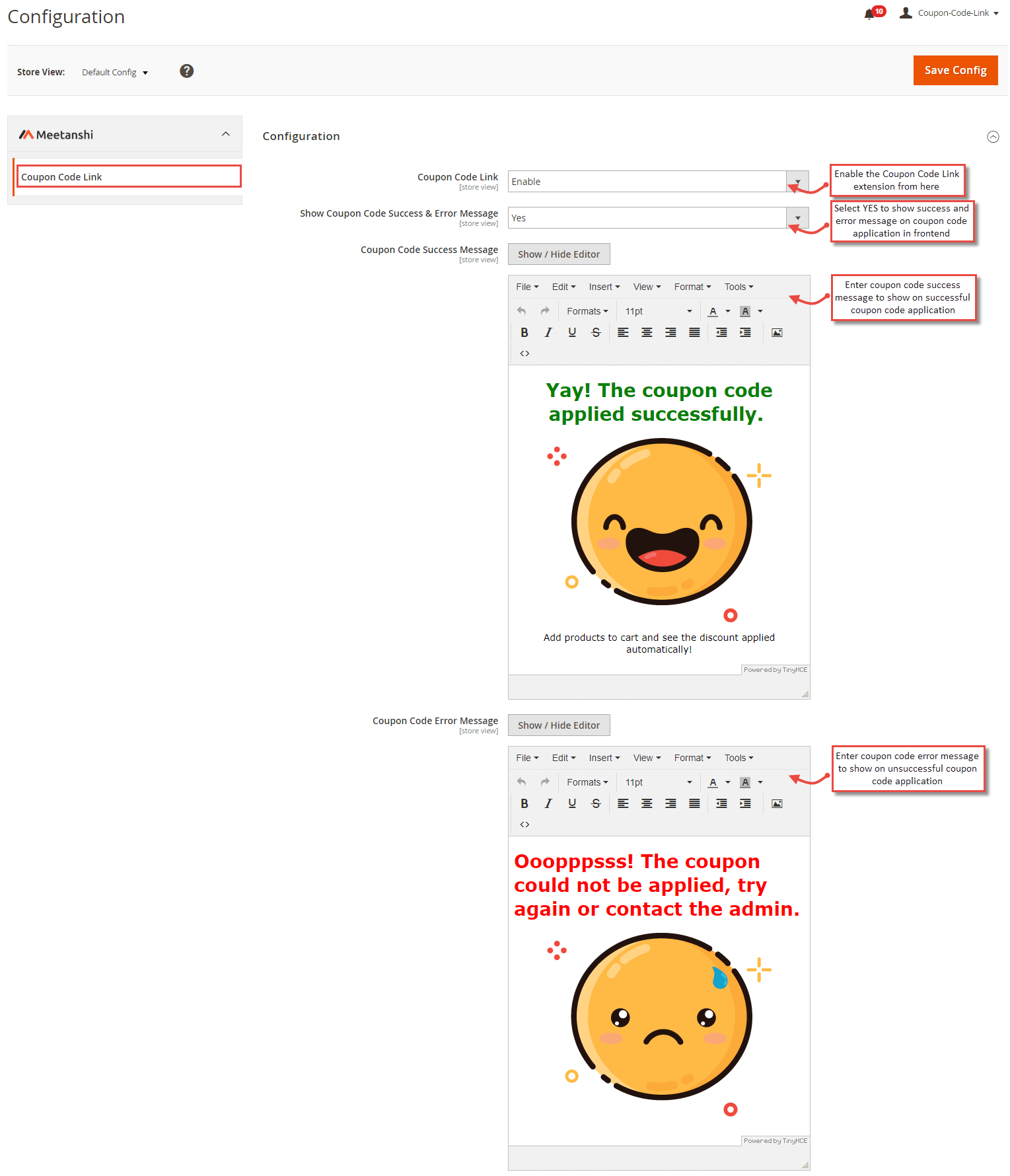
To configure the Coupon Code Link for Magento 2 extension, login to Magento 2, move to Stores > Configuration > Meetanshi > Coupon Code Link where you can find various settings to enable the extension.
- Coupon Code Link: Enable the Coupon Code Link extension from here.
- Show Coupon Code Success & Error Message: Set YES to show success or error message after coupon code application in the frontend.
- Coupon Code Success Message: Enter coupon code success message to show after the successful coupon code application.
- Coupon Code Error Message: Enter coupon code error message to show on unsuccessful coupon code application.
Social Share Settings
The extension facilitates to enable social sharing of the Coupon Code Links.
- Facebook App ID: Enter the Facebook app ID to enable coupon code sharing on Facebook.

Coupon Code Link Email Settings
The extension facilitates to send coupon code links in emails to customers. It encourages users to buy products with a discount.
- Email Sender: Select the Email sender.
- Email Template: Select the Email template for the coupon code link in Email.

Cart Price Rules
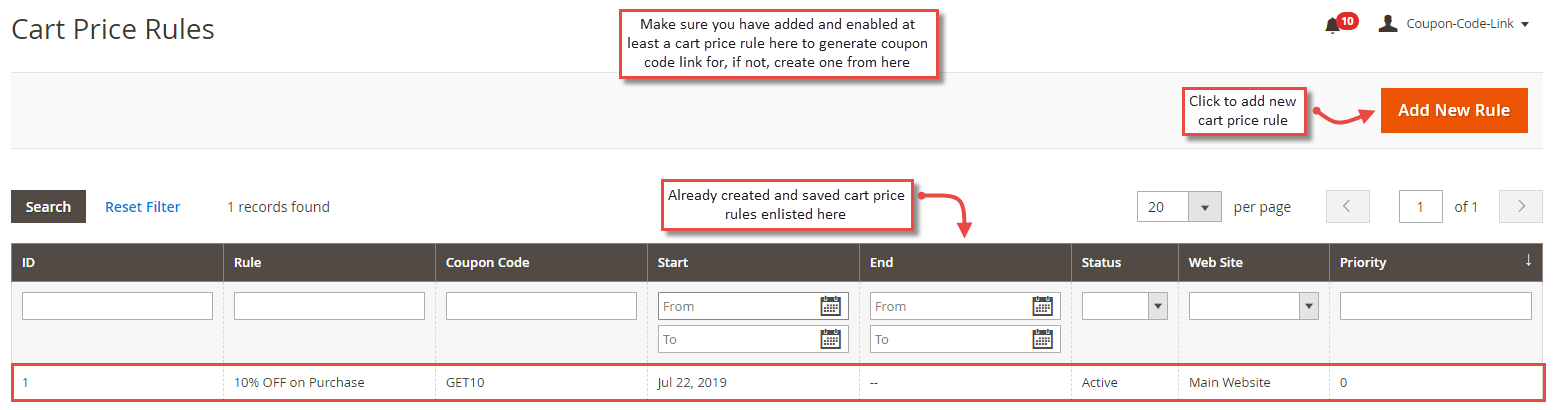
Prior to using the coupon code link extension, you need to make sure you have added at least a cart price rule to generate coupon code link and share it on various social media platforms and in Email. If you haven't added any coupon code discount rule, add new from here.
Manage Coupon Code Links
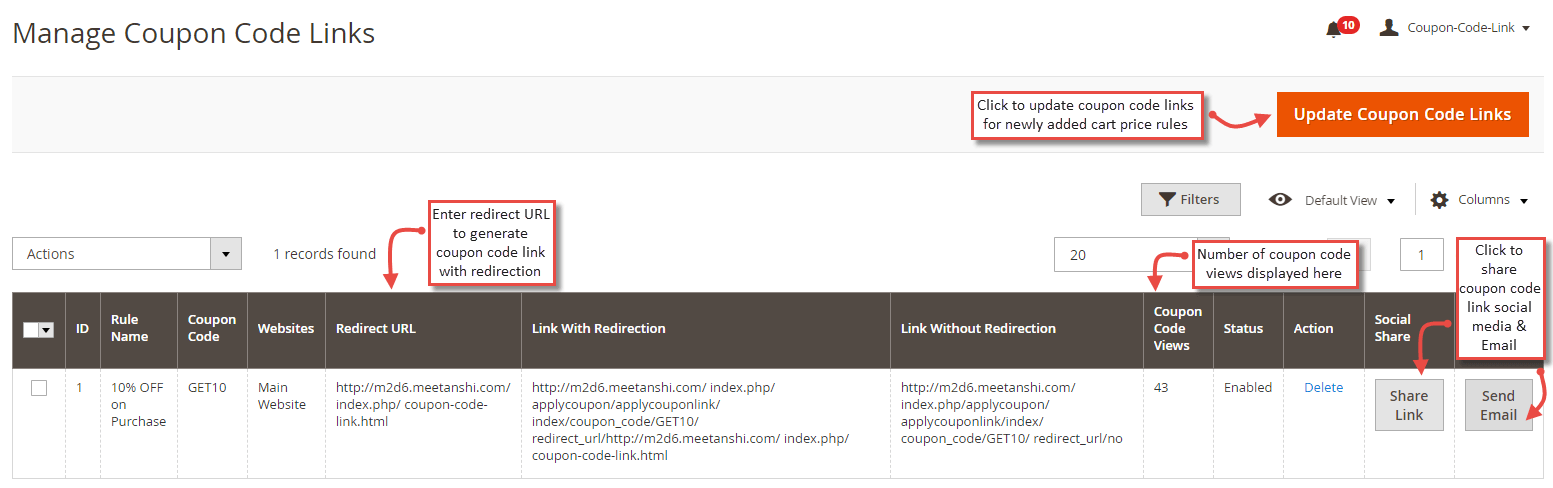
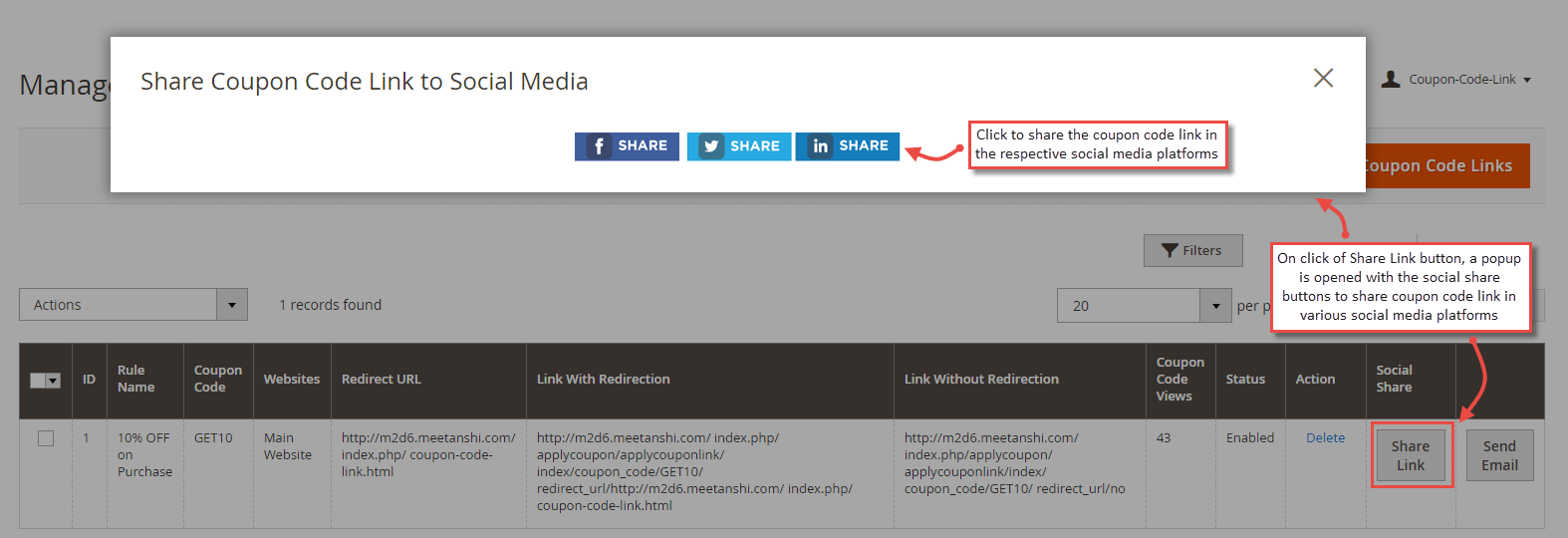
Go to Coupon Code Link > Manage Coupon Code Links and click " Update Coupon Code Links " button to update the coupon code link list based on the cart price rules. Add redirect URL to generate coupon code link with redirection. Here, you can see a number of coupon code views for each coupon code link. Also, the admin can click " Share Link " and " Send Email " buttons to share coupon code link in social media and in Email respectively.
- Share Coupon Code Link to Social Media
On click of the " Share Link " button, a responsive popup is opened with share buttons for the various social media platforms. Click social share buttons to share coupon code link in respective social media platforms.
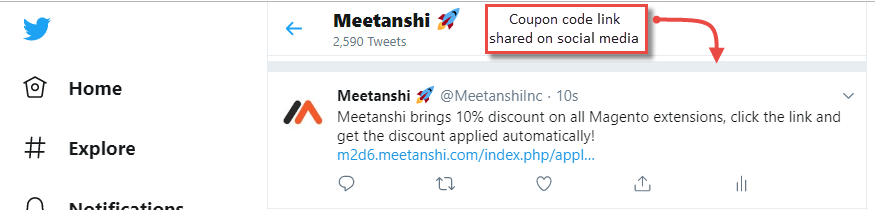
- Coupon Code Link Shared to Social Media
Immediately after clicking the social share button, you can add text and share coupon code link in social media.
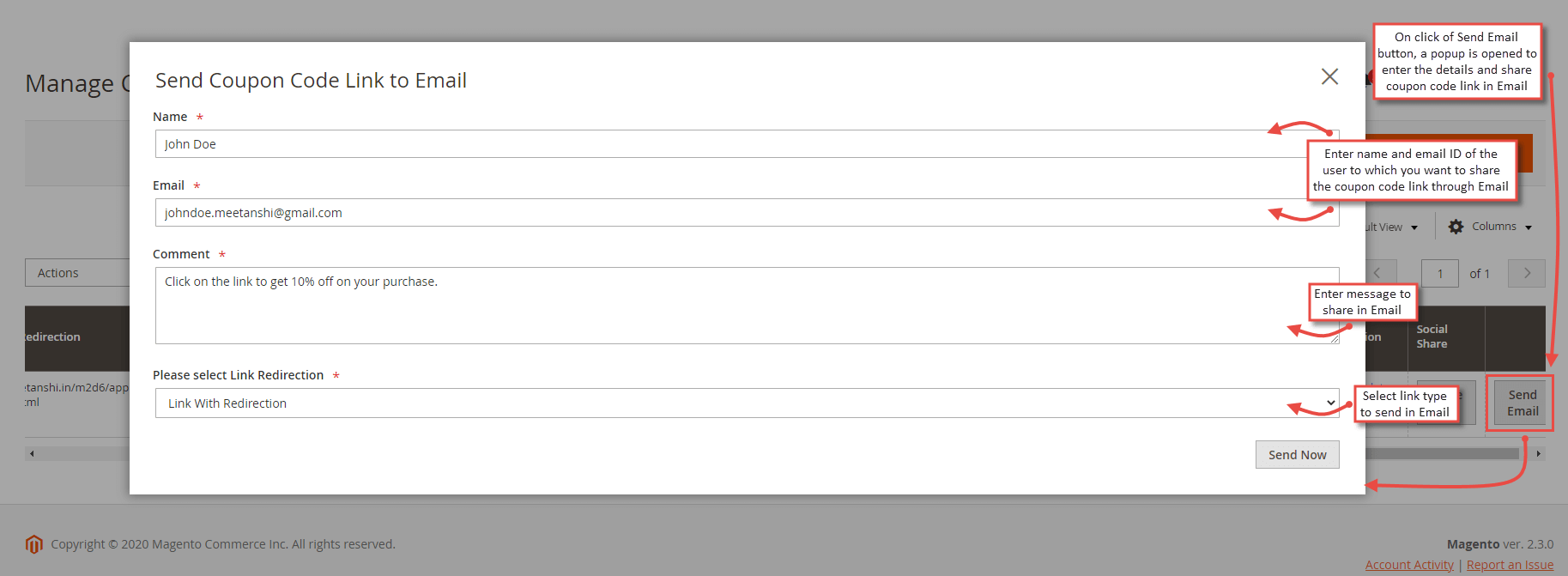
- Share Coupon Code Link to Email
On click of the " Send Email " button, the admin can add user details, message, select coupon code link type, and click " Send Now " button to share coupon code link via Email.
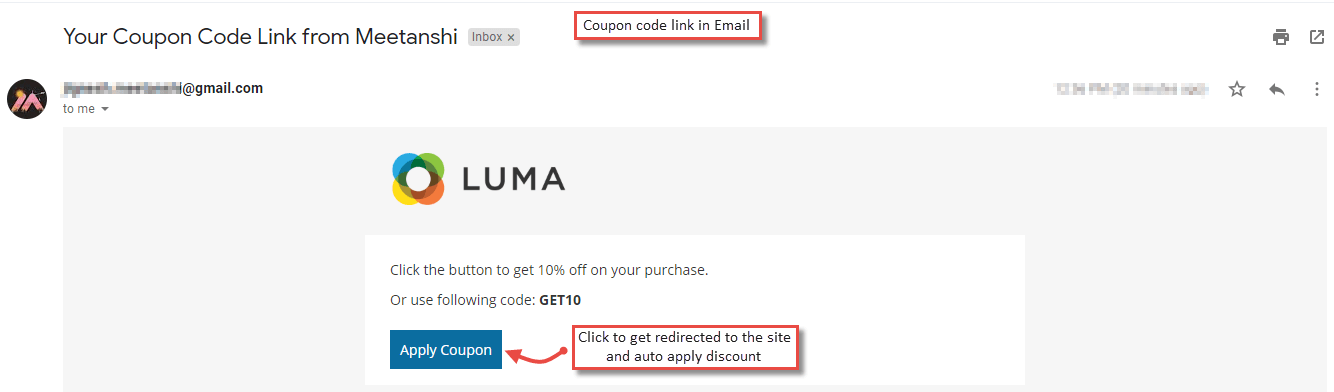
- Coupon Code Link Shared in Email
After clicking the " Send Now " button, the user gets an Email with the coupon code link. He can click the button to get redirected to the website and get the discount code auto-applied.
Coupon Code Link in Frontend
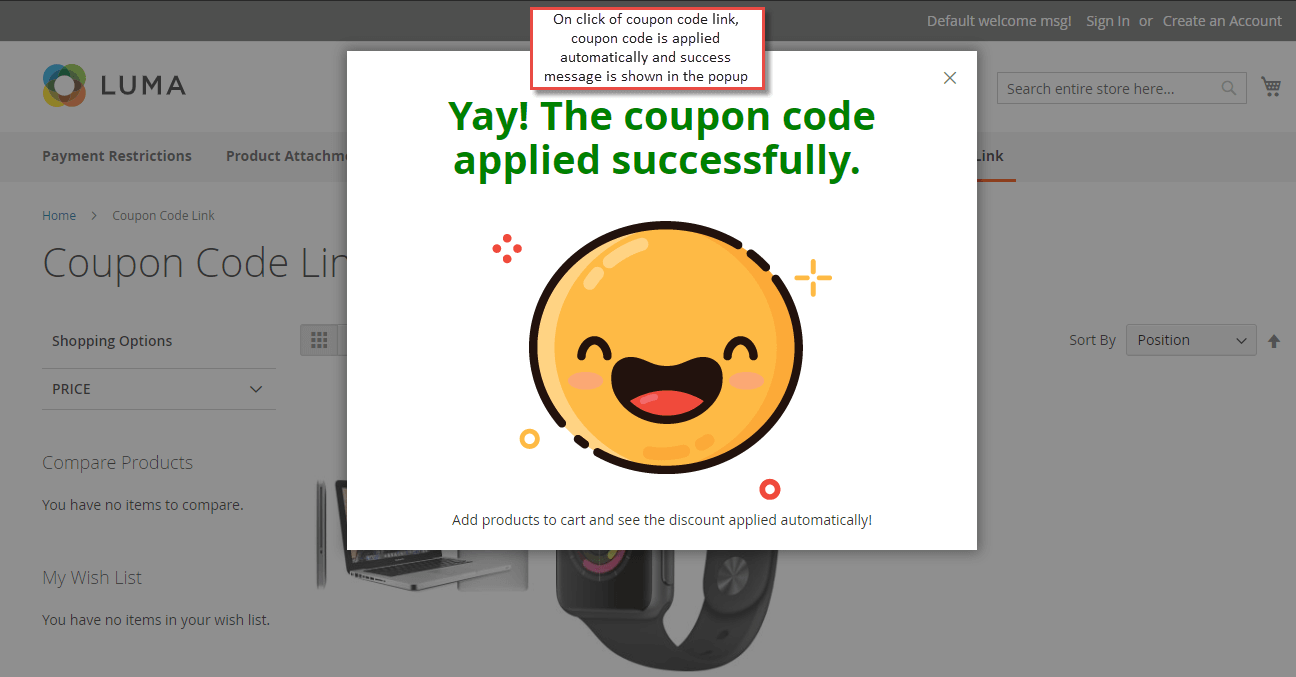
Once the extension is configured, whenever users click on the coupon code link from social media or from an Email, they get redirected to the website with coupon code applied automatically. They can see a successful coupon code application message in a popup.
- Discount Code Applied on Products
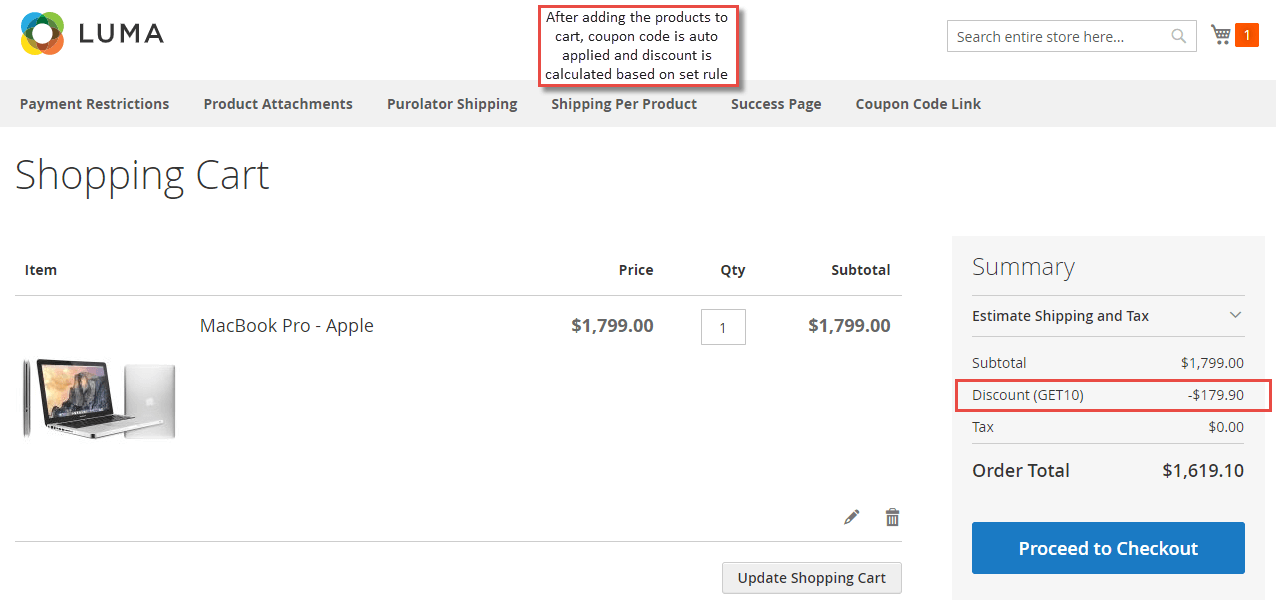
After the successful coupon code application, users add the products to cart and see the discount applied automatically.