Order Attachment for Magento 2 - User Guide
Extension Installation
For Magento Marketplace Customers
- Find the Composer name and version of the extension in the extension's composer.json file.
- Login to your SSH and run:
composer require meetanshi/magento-2-file-upload --ignore-platform-reqs
- Enter your authentication keys. Your public key is your username; your private key is your password.
- Wait for Composer to finish updating your project dependencies and make sure there aren't any errors.
- To verify that the extension installed properly, run the command:
php bin/magento module:status Meetanshi_OrderUpload--ignore-platform-reqs
- By default, the extension is probably disabled.
- Enable the extension and clear static view files:
php bin/magento module:enable Meetanshi_OrderUpload--clear-static-content
php bin/magento setup:upgrade
- For Magento version 2.0.x to 2.1.x -
php bin/magento setup:static-content:deploy
- For Magento version 2.2.x & above -
php bin/magento setup:static-content:deploy --f
php bin/magento cache:flush
For Meetanshi Customers
- Extract the zip folder and upload our extension to the root of your Magento 2 directory via FTP.
- Login to your SSH and run below commands step by step:
php bin/magento setup:upgrade
- For Magento version 2.0.x to 2.1.x -
php bin/magento setup:static-content:deploy
- For Magento version 2.2.x & above -
php bin/magento setup:static-content:deploy --f
php bin/magento cache:flush
Extension Configuration
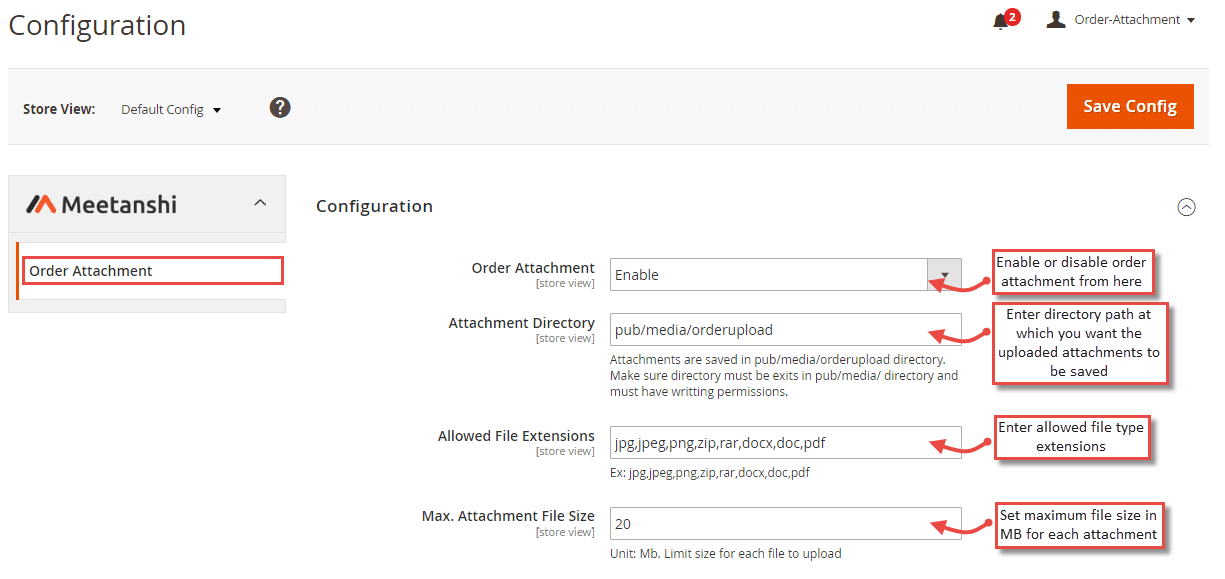
For configuring the Order Attachment for Magento 2 extension, log in to Magento 2, move to Stores > Configuration where you can find various settings to enable the extension.
- Order Attachment: Enable or disable the extension from here.
- Attachment Directory: Specify the directory where the uploaded attachments would get saved.
- Allowed File Extensions: Add file extensions for allowed attachment types.
- Max. Attachment File Size: Set the maximum size of the file to allow for attachment upload.
General Settings
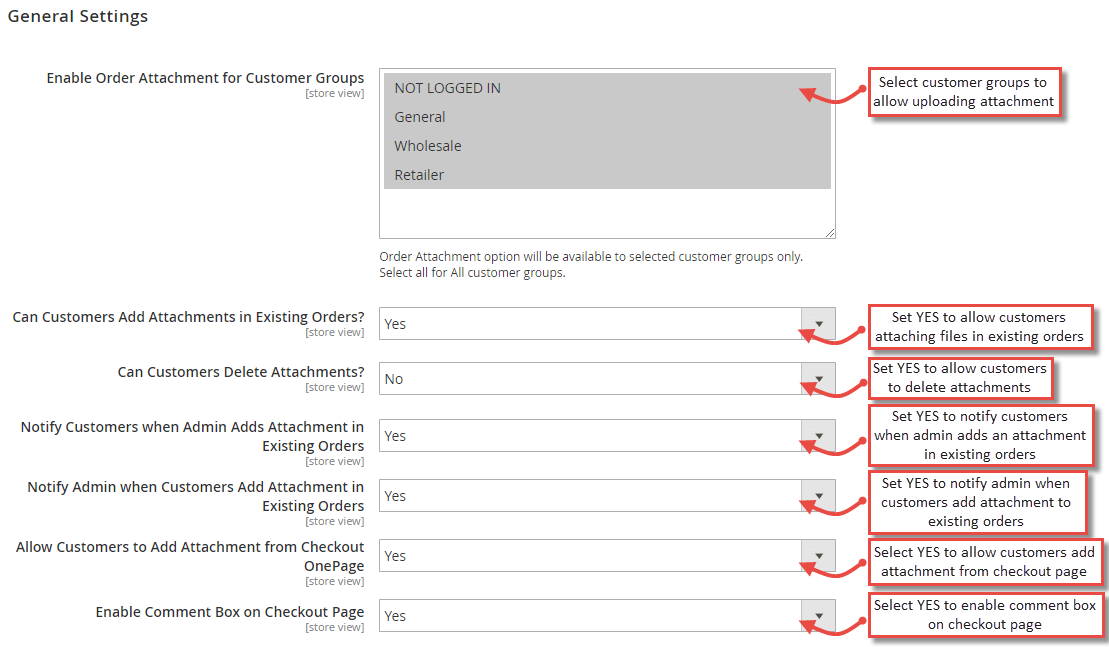
Here you can find various settings related to customer groups and notification emails to both admin and customers.
- Enable Order Attachment for Customer Groups: Select customer groups to allow adding order attachment.
- Can Customer Add Attachments in Existing Orders: If set YES, customers can add attachments in existing orders.
- Can Customers Delete Attachments: If set YES, customers can delete uploaded attachments.
- Notify Customer when Admin Add Attachment in Existing Orders: Set YES to notify customers when admin add an attachment in orders from the backend.
- Notify Admin when Customer Add Attachment in Existing Orders: Set YES to notify admin when customers add an attachment in existing orders.
- Allow Customers to Add Attachment from Checkout One page: Set YES to allow customers to upload attachment files from the checkout one page.
- Enable Comment Box on Checkout Page: Set YES to enable comment box on the checkout page to allow customers to add a comment for the orders.
Email Settings
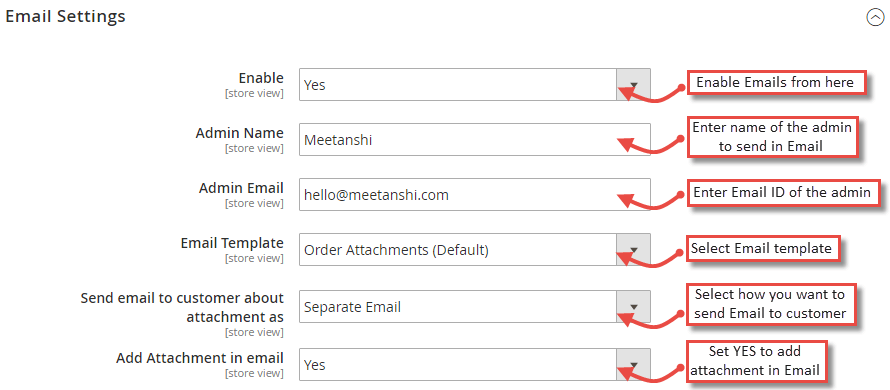
Here you can find various Email settings such as admin name, Email, template, etc.
- Enable: Set YES to enable Email notifications to both admin and customers.
- Admin Name: Enter name of the admin to send in notification Emails.
- Admin Email: Enter Email ID of the admin.
- Email Template: Select template for the notification Emails.
- Send Email to Customer About Attachment As: Select the option for how you want to send order attachment Emails to customers.
- Add Attachment in Email: Set YES to add order attachments in Emails.
Order Attachment in Frontend
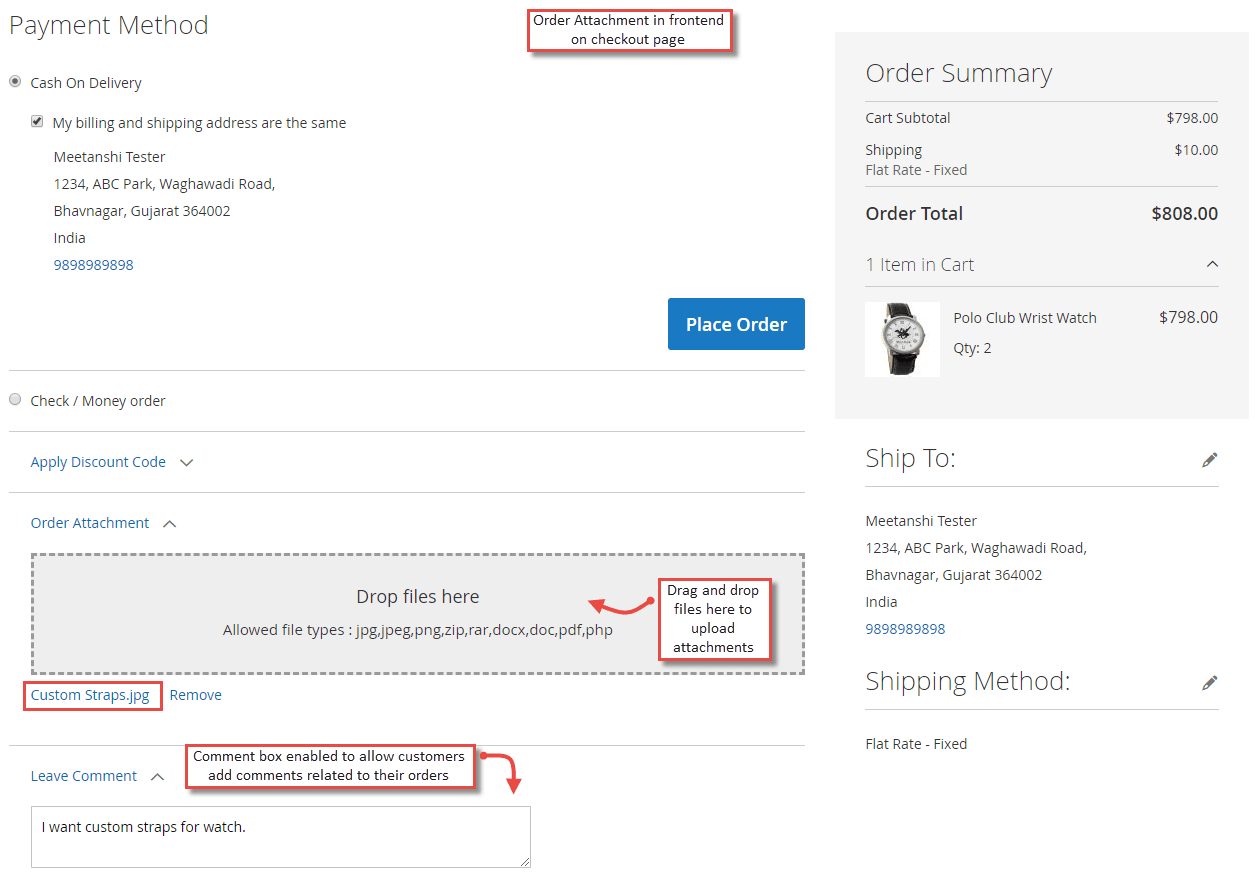
Once you have configured the extension successfully, the Order Attachment can be seen enabled in frontend. Whenever a customer adds products to cart and go to check out, they get drag and drop files selector to upload the attachment files and add a comment to the box.
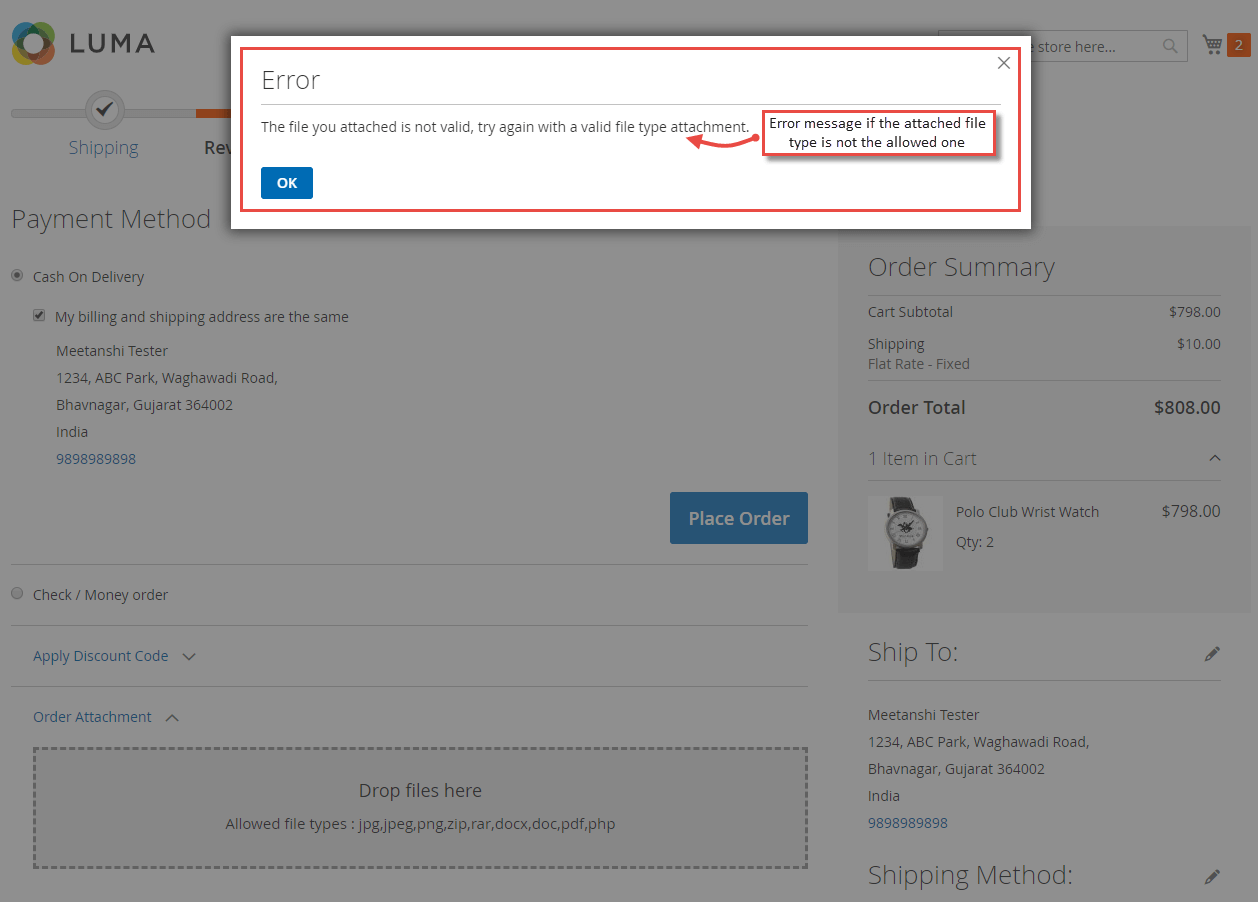
- Order Attachment Error Message If the attachment is not meeting the extension configuration criteria, it flashes error message as shown below.
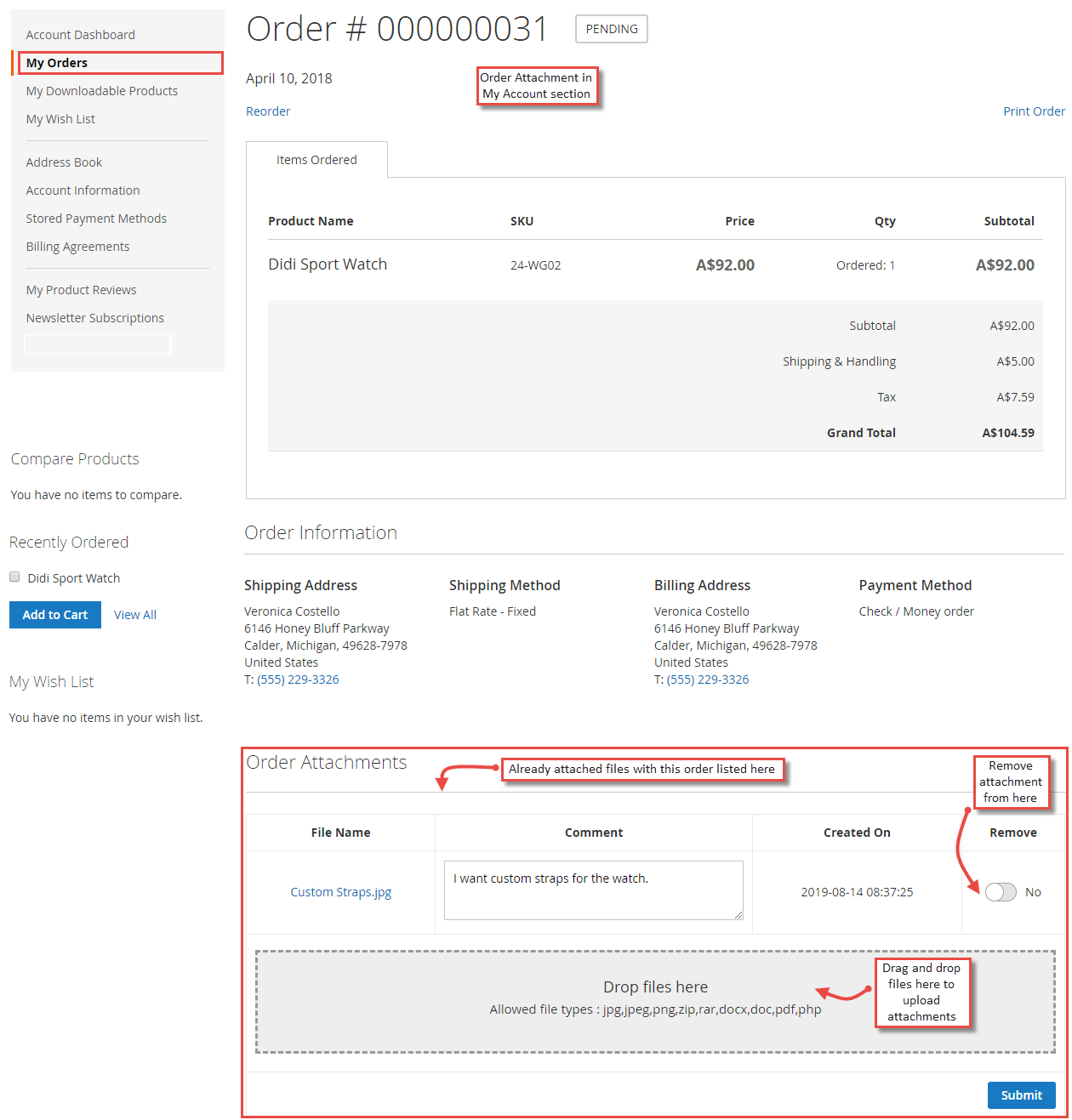
- Order Attachment in an Order Once the order is placed with added attachment, customers can see the attachments in My Orders section under order view. Where customers can even add a comment and submit.
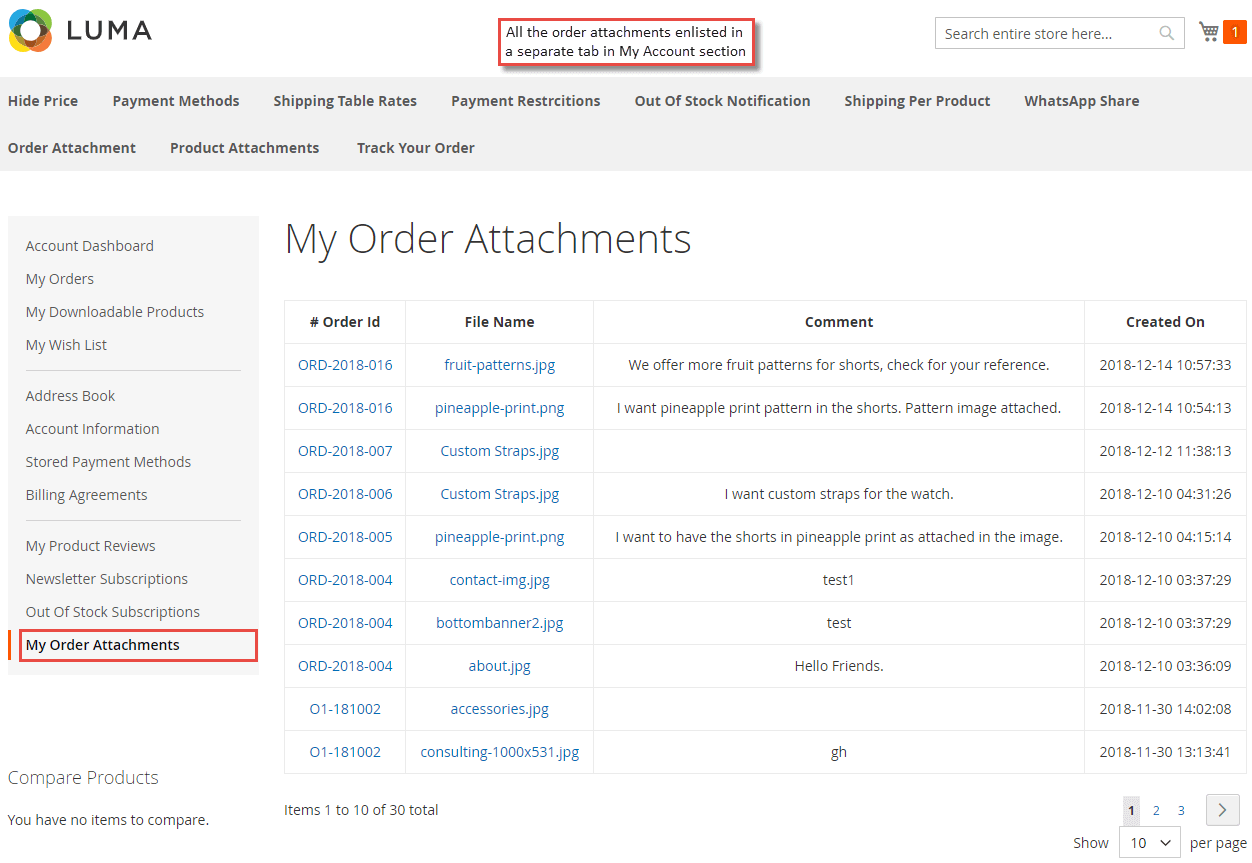
- Order Attachment in "My Order Attachments" Tab The extension facilitates to see all the order attachments together under "My Order Attachments" tab in "My Account" section.
Order Attachment in Backend
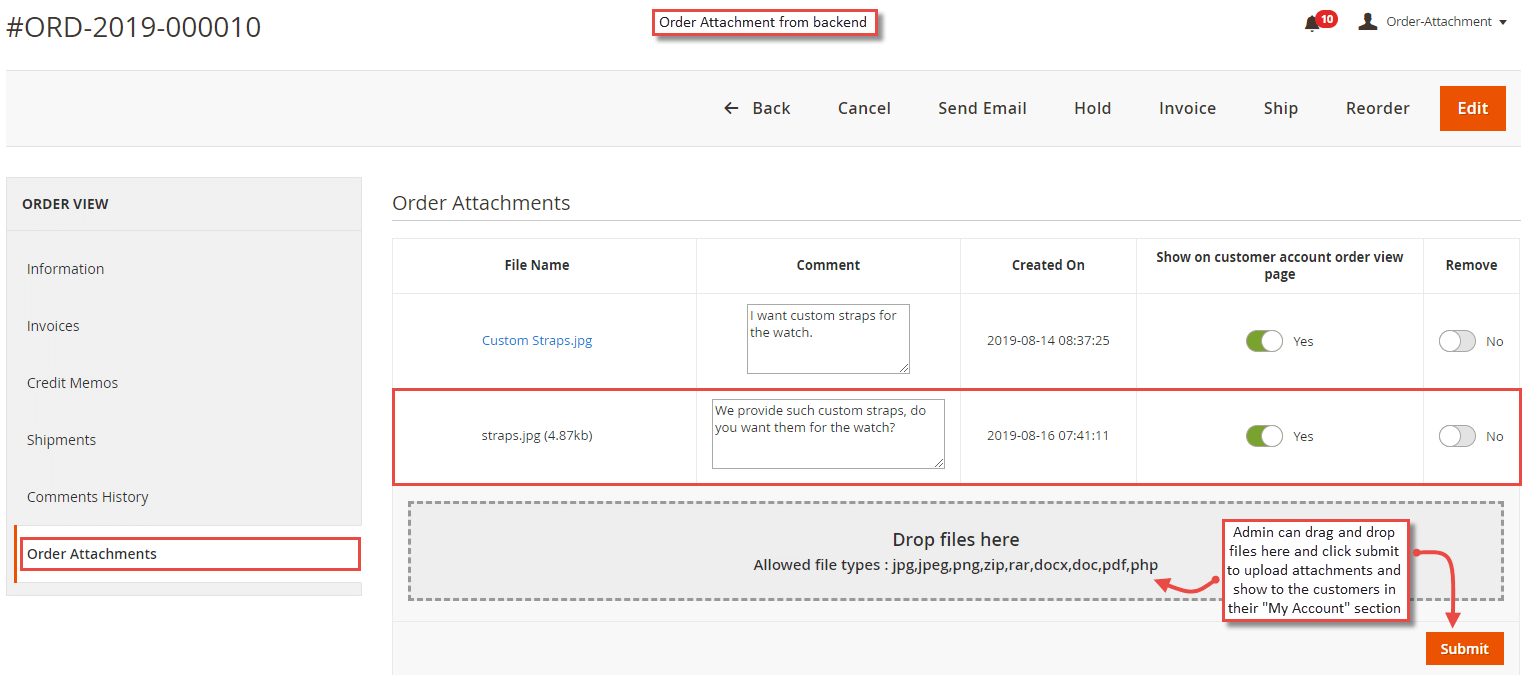
Apart from the frontend, the extension facilitates to add order attachment from backend as well. Under Sales > Orders , a separate tab for order attachment is available from where admin can see attachments added by customers and also drag and drop attachment files to upload and submit the attachments for the customers.
Order Attachment Emails
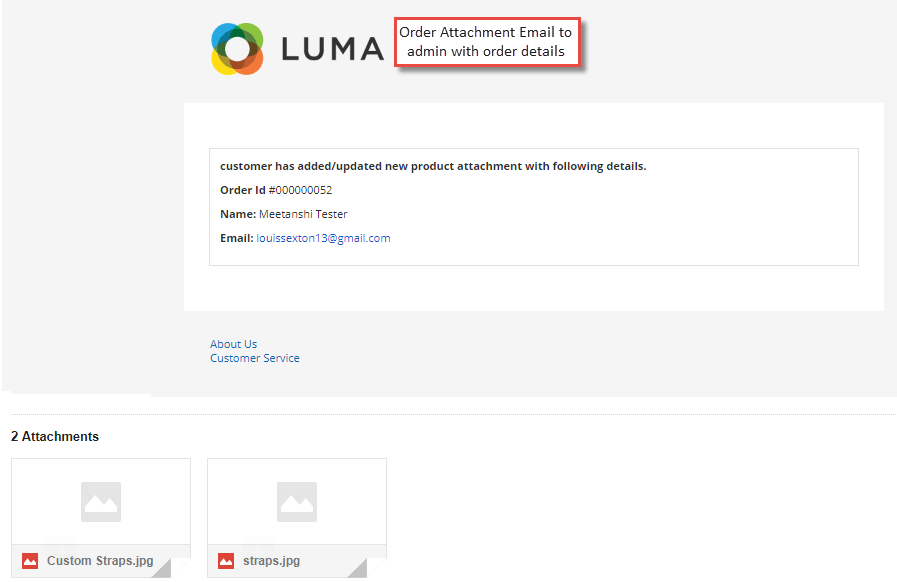
- Order Attachment Email to Admin Once the order attachment is added by customers, admin gets Emails with customers and attachments details.
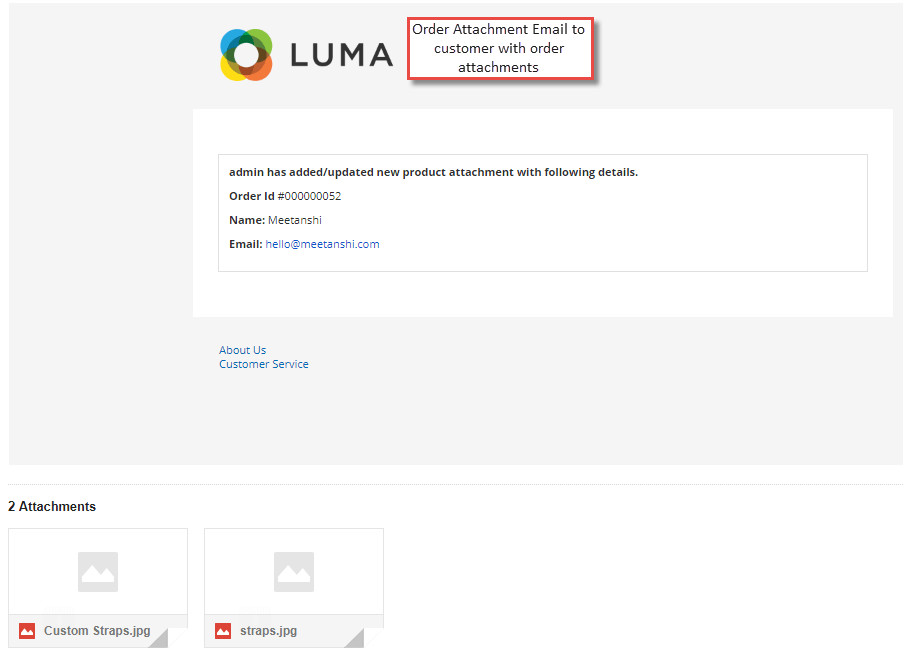
- Order Attachment Email to Customers If admin adds order attachments from the backend, customers get Emails with order and attachments details.