Order Import Export for Magento 2 - User Guide
Extension Installation
For Magento Marketplace Customers
- Find the Composer name and version of the extension in the extension's composer.json file.
- Login to your SSH and run:
composer require meetanshi/magento-2-order-import-export
- Enter your authentication keys. Your public key is your username; your private key is your password.
- Wait for Composer to finish updating your project dependencies and make sure there aren't any errors.
- To verify that the extension installed properly, run the command:
php bin/magento module:status Meetanshi_OrderIE
- By default, the extension is probably disabled.
- Enable the extension and clear static view files:
php bin/magento module:enable Meetanshi_OrderIE --clear-static-content
php bin/magento setup:upgrade
- For Magento version 2.0.x to 2.1.x -
php bin/magento setup:static-content:deploy
- For Magento version 2.2.x & above -
php bin/magento setup:static-content:deploy --f
php bin/magento cache:flush
For Meetanshi Customers
- Extract the zip folder and upload our extension to the root of your Magento 2 directory via FTP.
- Login to your SSH and run below commands step by step:
php bin/magento setup:upgrade
- For Magento version 2.0.x to 2.1.x -
php bin/magento setup:static-content:deploy
- For Magento version 2.2.x & above -
php bin/magento setup:static-content:deploy --f
php bin/magento cache:flush
Configuration
For configuring the Order Import Export for Magento 2 extension, log in to Magento 2, move to Stores > Configuration > Meetanshi > Order Import Export where you can find settings to enable the extension.
- Order Import Export: Enable the Order Import Export extension.

Export Orders
To find the export order function, move to Sales > Meetanshi Order Import Export > Orders Export where you can find settings to export orders.
- Export Orders from Date: Select the from date to export the orders from a specific date.
- Export Orders to Date: Select to date up to which you want to export orders.
Click " Export Orders " button to export the orders in a CSV.

Import Orders
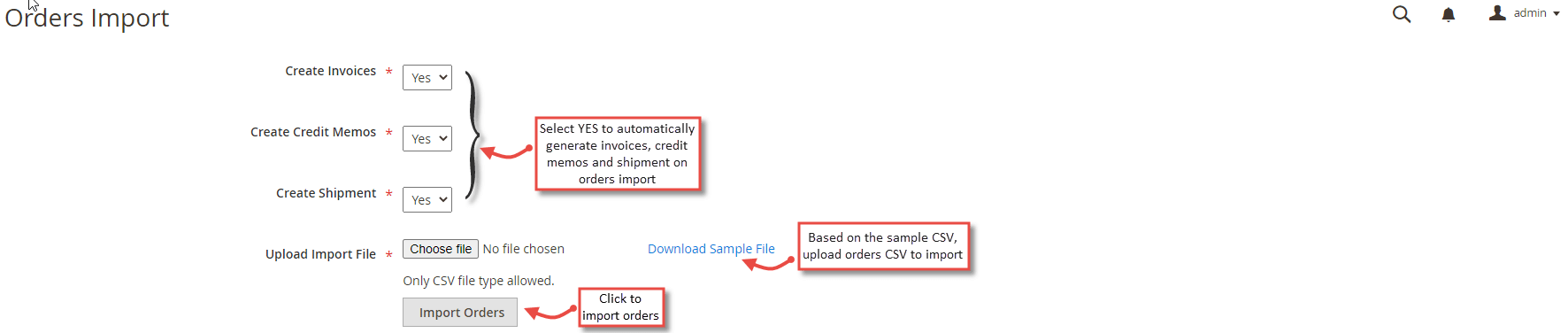
To find the import order function, move to Sales > Meetanshi Order Import Export > Orders Import where you can find settings to import orders.
- Create Invoices: Select YES to automatically generate invoices on order import.
- Create Credit Memos: Select YES to automatically generate credit memos on order import.
- Create Shipment: Select YES to automatically generate shipment on order import.
- Upload Import File: Download the sample CSV file and prepare orders CSV file with the same format and upload it to import orders.
Click " Import Orders " button to successfully import orders.
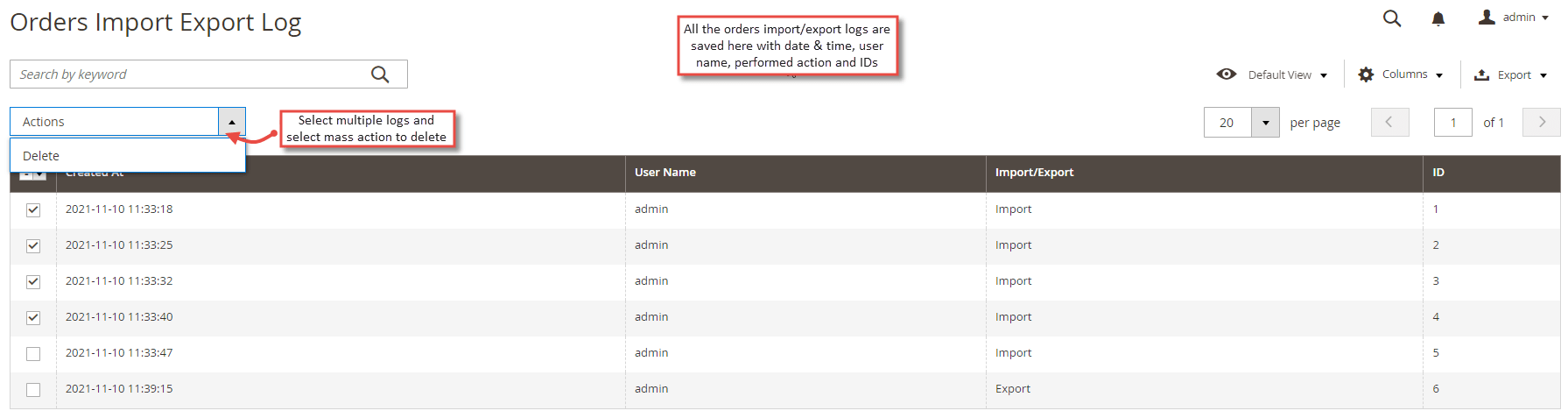
Orders Import Export Log
To find the orders import export log, move to Sales > Meetanshi Order Import Export > Orders Import Export Log where you can find all the orders import export log with the details like date and time of import/export action, admin user name by which the order import/export performed, specific action and ID. You can select multiple log entries and click " Delete " mass action to delete log entries.