Import Export Newsletter Subscribers for Magento 2 - User Guide
Extension Installation
- Extract the zip folder and upload our extension to the root of your Magento 2 directory via FTP.
- Login to your SSH and run below commands step by step:
php bin/magento setup:upgrade
For Magento version 2.0.x to 2.1.x -
php bin/magento setup:static-content:deploy
For Magento version 2.2.x & above -
php bin/magento setup:static-content:deploy --f
php bin/magento cache:flush
- That's it.
Configuration
For configuring the Import Export Newsletter Subscribers for Magento 2 extension, log in to Magento 2, move to System > Import/Export Newsletter Subscribers where you can find various settings to enable the extension.
- Import Subscribers: Choose a CSV file with the proper format to
- Download Sample CSV: Make use of the " Download Sample CSV " link to download a sample CSV and prepare a proper format of the CSV.
- Import: Click the " Import " button to start the import process of the subscribers.
- Export Subscribers: Click the "Export" button to start exporting the newsletter subscribers.

Sample CSV File
The extension facilitates with a sample CSV file to check the format of the CSV files to import the subscribers.

Import Subscribers Success/Error Message
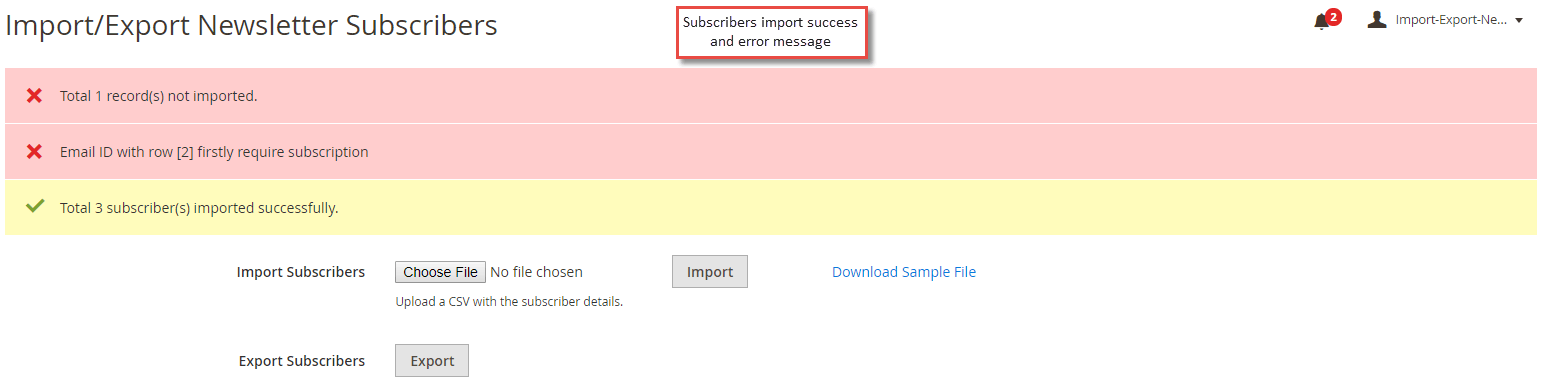
Once you upload the CSV and click " Import " button to import the subscribers, you can see the success message of import successful. If any of the subscribers could not be imported, you can see the error message with the reason.
Subscribers List
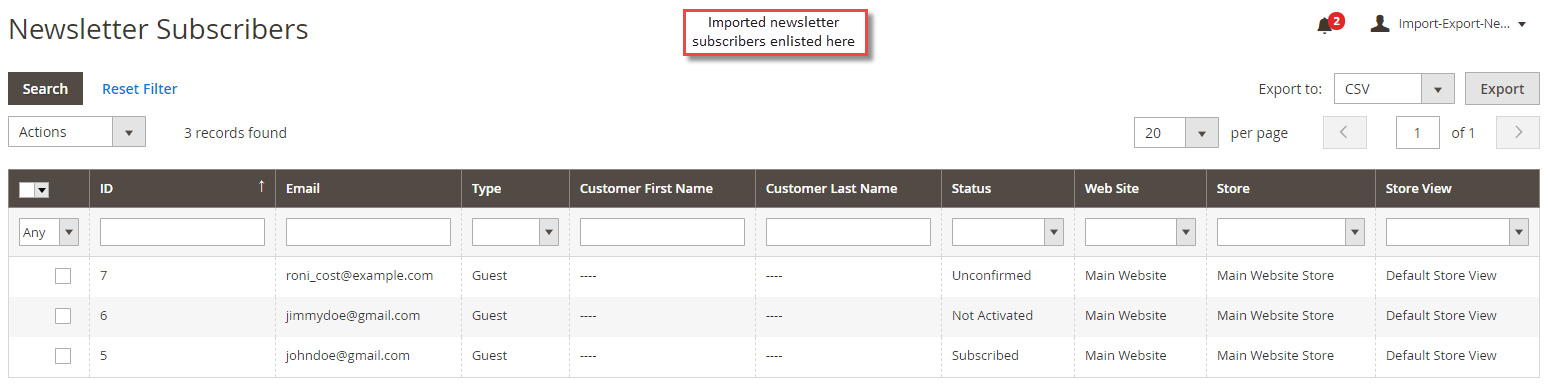
Once the subscribers get imported successfully, you can see the successful subscribers list under the Marketing > Newsletter Subscribers with the Email ID, status and store view details.