Braintree Multi Currency for Magento 2 - User Guide
Extension Installation
For Magento Marketplace Customers
- Find the Composer name and version of the extension in the extension's composer.json file.
- Login to your SSH and run:
composer require meetanshi/magento-2-braintree-multi-currency --ignore-platform-reqs
Enter your authentication keys . Your public key is your username; your private key is your password.
Wait for Composer to finish updating your project dependencies and make sure there aren't any errors.
To verify that the extension installed properly, run the command:
php bin/magento module:status Meetanshi_BraintreeMulti --ignore-platform-reqs
By default, the extension is probably disabled.
Enable the extension and clear static view files:
php bin/magento module:enable Meetanshi_BraintreeMulti --clear-static-content
php bin/magento setup:upgrade
- For Magento version 2.0.x to 2.1.x -
php bin/magento setup:static-content:deploy
- For Magento version 2.2.x & above -
php bin/magento setup:static-content:deploy --f
php bin/magento cache:flush
For Meetanshi Customers
- Extract the zip folder and upload our extension to the root of your Magento 2 directory via FTP.
- Login to your SSH and run below commands step by step:
php bin/magento setup:upgrade
- For Magento version 2.0.x to 2.1.x -
php bin/magento setup:static-content:deploy
- For Magento version 2.2.x & above -
php bin/magento setup:static-content:deploy --f
php bin/magento cache:flush
Configure Braintree Merchant Account
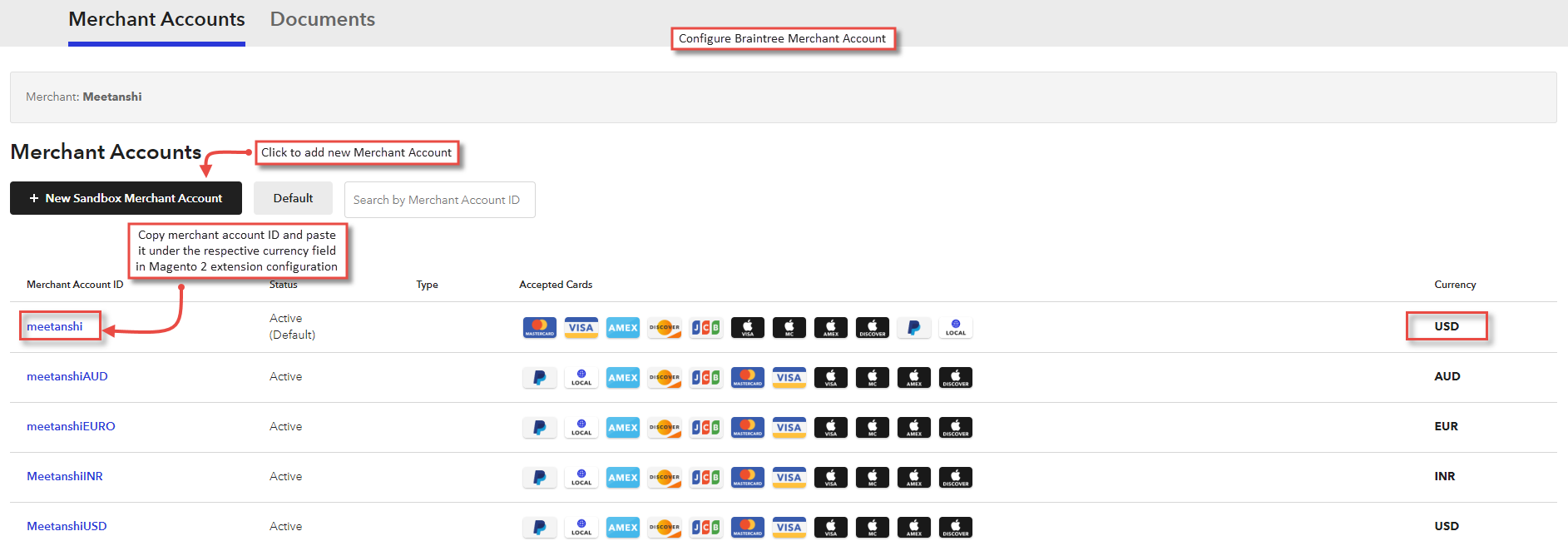
To configure different currencies, login to your Braintree account , go to Settings > Business. You can find here the option to add merchant account ID and respective currency.
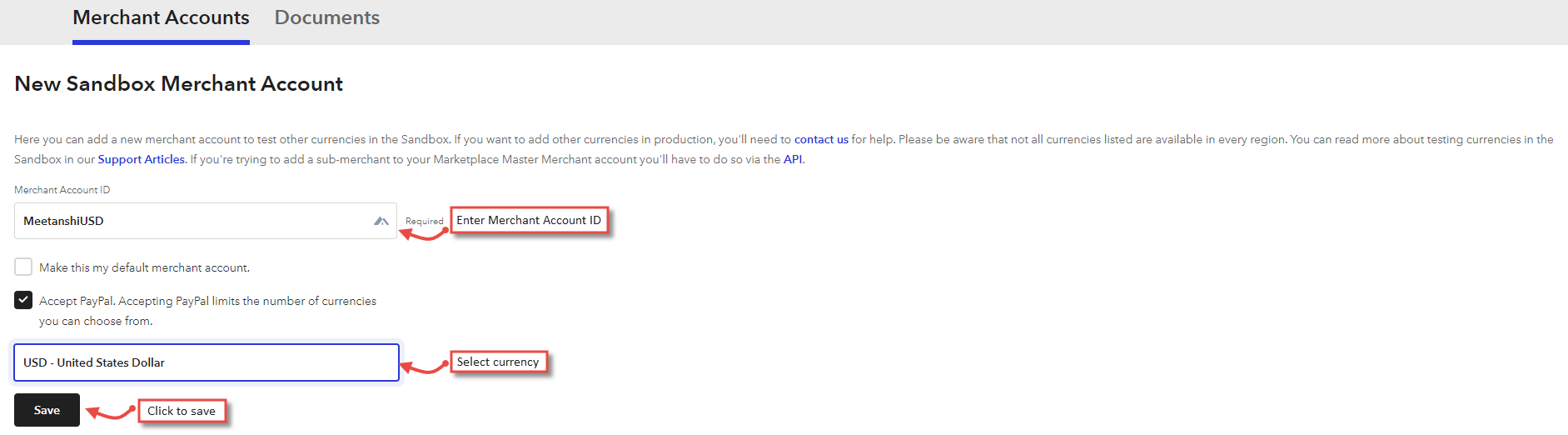
- Click on " New Sandbox Merchant Account " button to add merchant account ID , select currency and save it.
Configuration
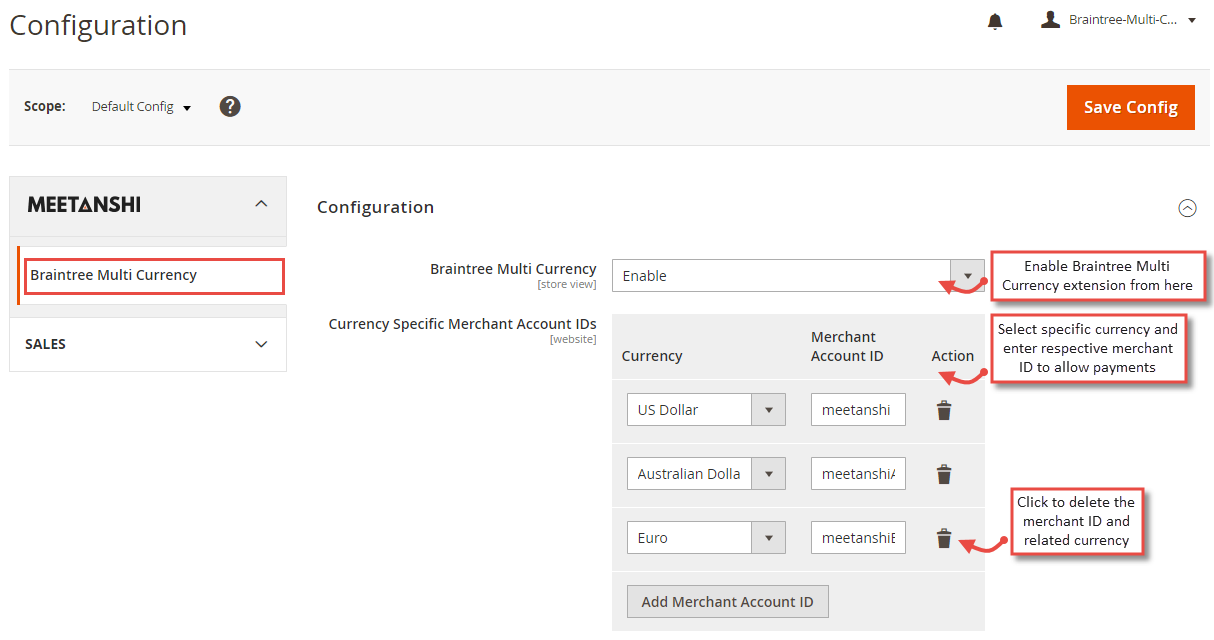
To configure the Braintree Multi Currency for Magento 2 extension, login to Magento 2, move to Stores > Configuration > Meetanshi > Braintree Multi Currency where you can find various settings to configure the extension.
- Braintree Multi Currency: Enable the Braintree multi currency extension from here.
- Currency Specific Merchant Account IDs: Select specific currency and enter respective merchant account ID (#merchant_acc_id) same as added from Braintree to allow payments.
Transactions in Braintree
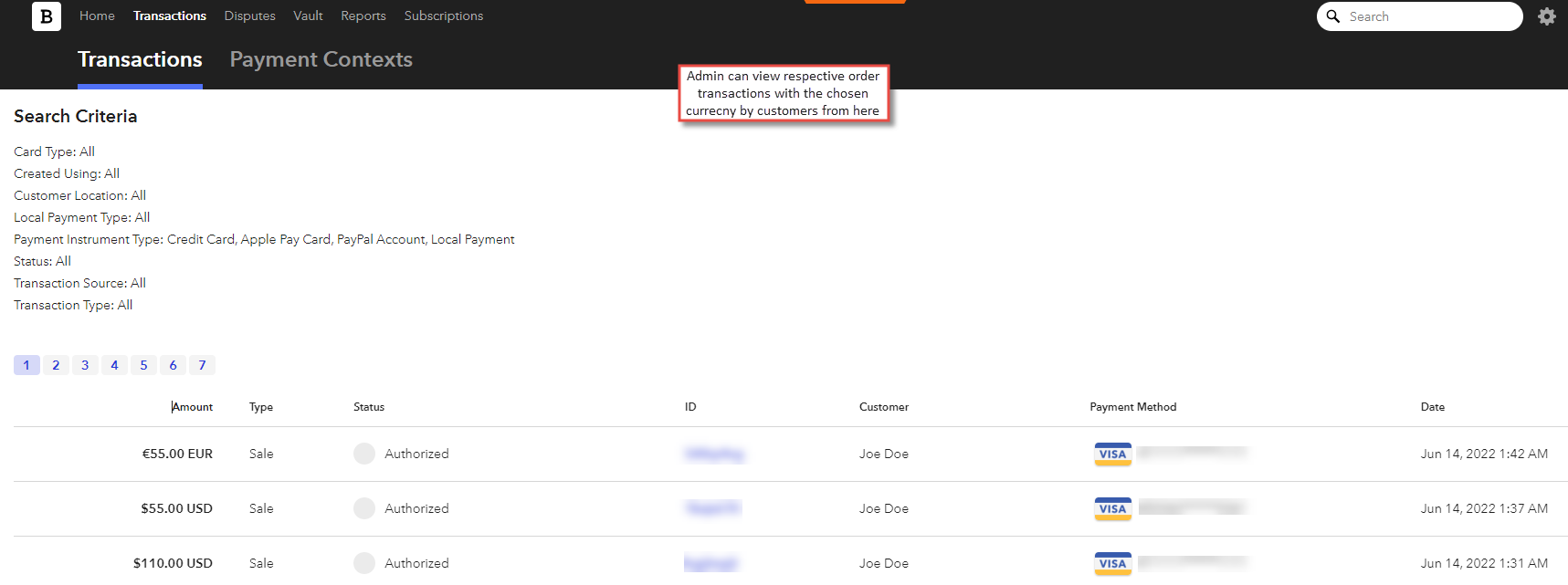
After the successful extension configuration, whenever customers place orders using the PayPal Braintree credit card payment method using the specific currency, the admin can view respective order transactions with the chosen currency by customers in the Braintree panel under the transactions tab.