Alipay Hong Kong Payment for Magento 2 - User Guide
Extension Installation
For Magento Marketplace Customers Find the extension's Composer name and version in its composer.json file.
Login to your SSH and run:
composer require meetanshi/magento2-alipay-hong-kong-payment
- Enter your authentication keys https://experienceleague.adobe.com/en/docs/commerce-operations/installation-guide/prerequisites/authentication-keys . Your public key is your username; your private key is your password.
- Wait for Composer to finish updating your project dependencies and make sure there aren't any errors.
- To verify that the extension is installed properly, run the command:
php bin/magento module:status Meetanshi_Alipay
- By default, the extension is probably disabled. Enable the extension and clear static view files:
php bin/magento module:enable Meetanshi_Alipay --clear-static-content
php bin/magento setup:upgrade
- For Magento version 2.0.x to 2.1.x -
php bin/magento setup:static-content:deploy
- For Magento version 2.2.x & above -
php bin/magento setup:static-content:deploy --f
php bin/magento cache:flush
- For Meetanshi Customers
- Extract the zip folder and upload our extension to the root of your Magento 2 directory via FTP.
- Login to your SSH and run below commands step by step:
php bin/magento setup:upgrade
- For Magento version 2.0.x to 2.1.x - php bin/magento setup:static-content:deploy
- For Magento version 2.2.x & above - php bin/magento setup:static-content:deploy --f
php bin/magento cache:flush
Payment Gateway Configuration
Before starting to configure the Alipay Hong Kong payment extension, you need to configure the payment gateway.
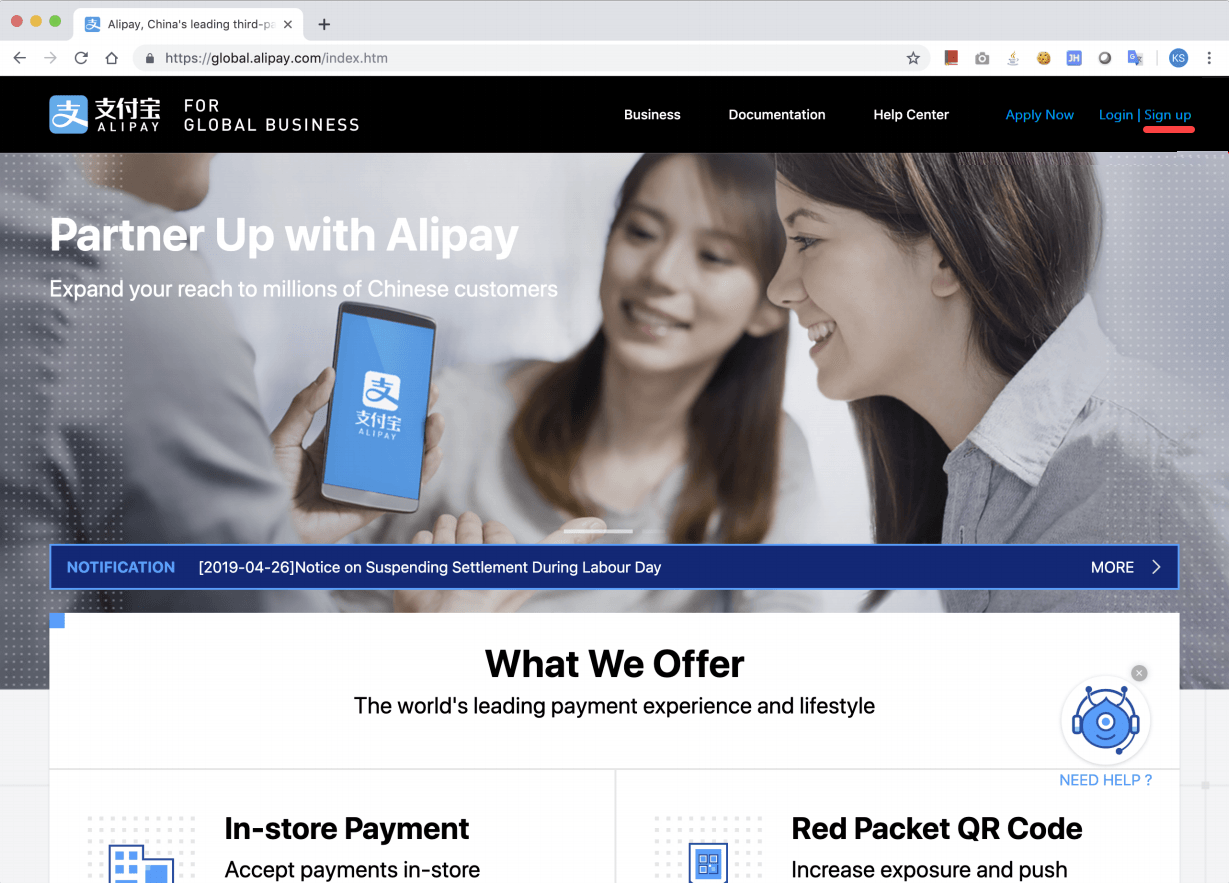
- Go to global.aliypay.com and click on Sign Up.
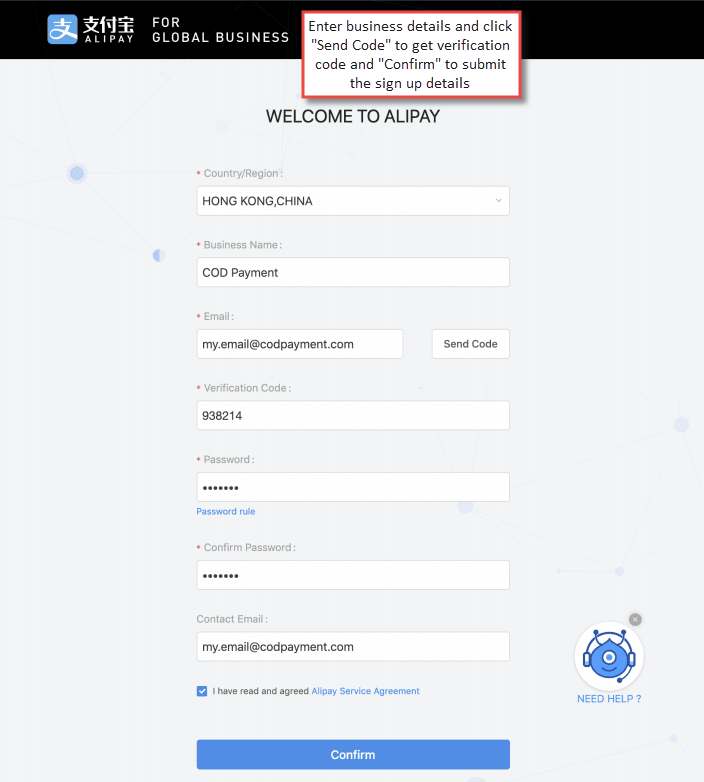
- Fill up the registration form, get verification code on your Email ID and click confirm to submit the registration details.
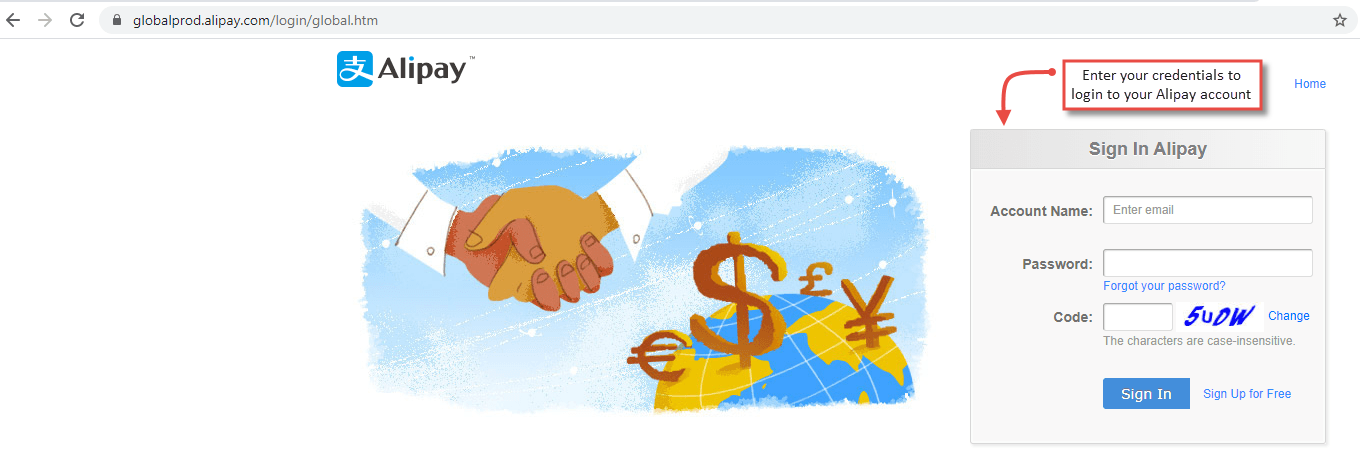
- Now go to https://globalprod.alipay.com/login/global.htm and login with the previously registered account.
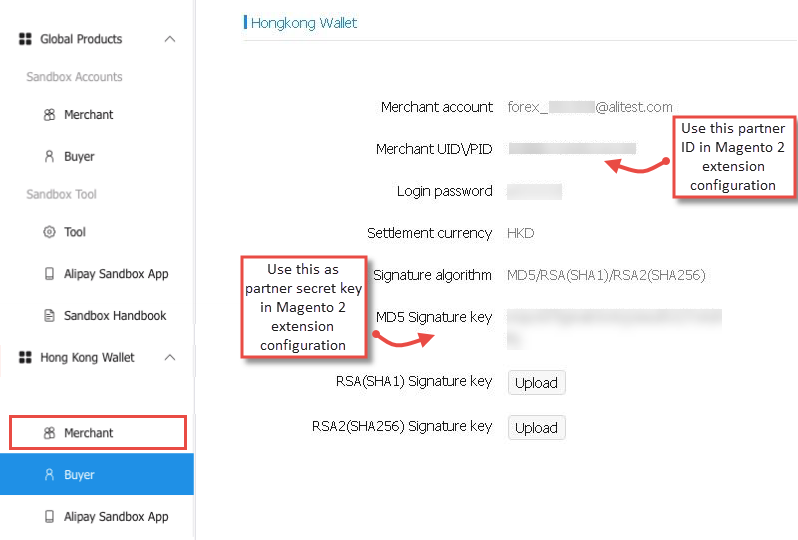
- Expand the Hong Kong wallet tab under which you can find partner ID and partner secret key to be added to your Magento 2 extension configuration.
Configuration
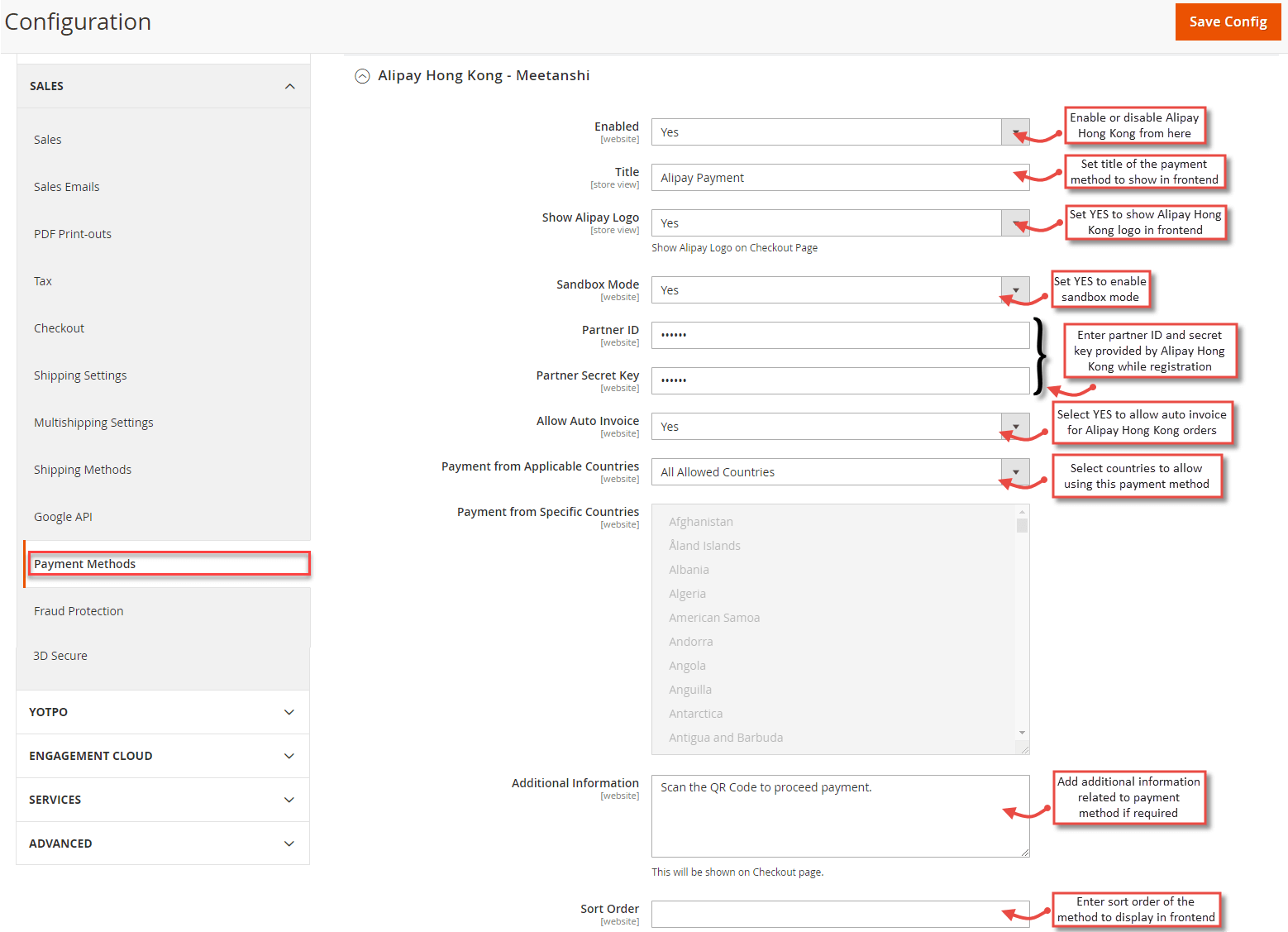
For configuring the Alipay Hong Kong Payment for Magento 2 extension, login to Magento 2, move to Sales > Payments Method where you can find various settings to configure Alipay Hong Kong payment extension.
- Enabled: Set "YES" to enable the payment method.
- Title: Set the title for the payment method to be displayed in the frontend.
- Show Alipay Logo: Select YES to show the Alipay logo along with the payment method in frontend.
- Sandbox mode: Set "YES" to enable the sandbox mode for testing purpose.
- Partner ID : Add partner ID received while registration with Alipay.
- Partner Secret Key : Add partner secret key received while registration with Alipay.
- Allow Auto Invoice: Select YES to allow auto invoice of the orders placed using this payment method.
- Payment from Applicable Countries: Select countries to allow using this payment method.
- Additional Information: You can add any information related to the payment method here to show in frontend.
- Sort Order: Enter Sort Order for the payment method display.
Alipay Hong Kong Payment Method in Frontend
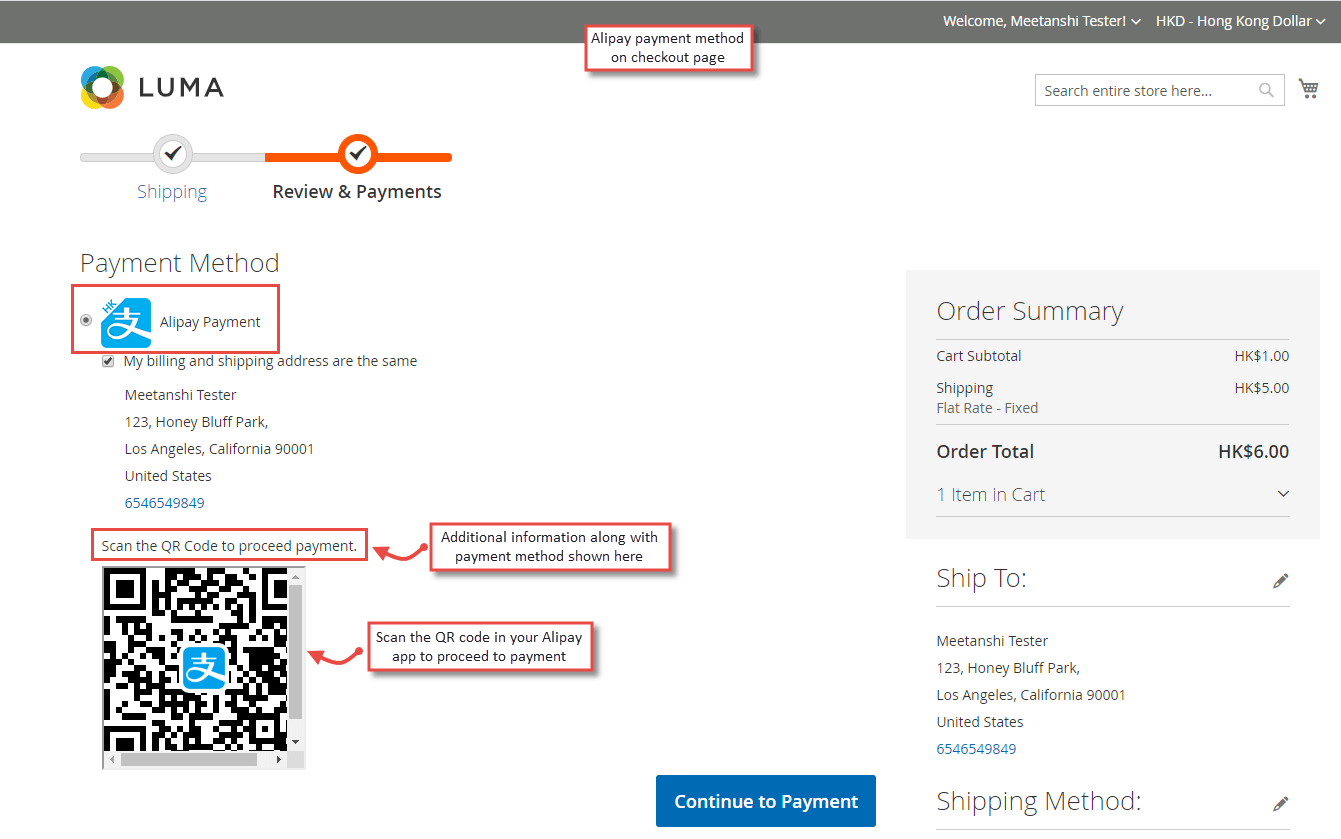
Once the extension is configured properly, when customers add a product to the cart and proceed to checkout, the Alipay payment method can be seen enabled in frontend. Select the payment method and click "Continue to Payment" to get the QR code to scan using the Alipay app from the mobile and pay.
Note: Buyers can download the Alipay app from the below links:
- Payment Confirmation in App
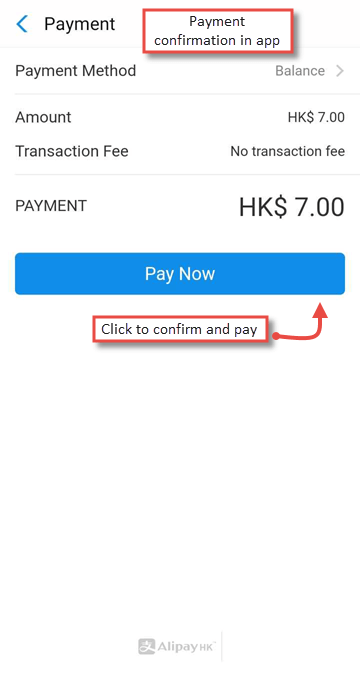
Once you can see the order amount in Alipay mobile app, confirm and click "Pay Now" to finish the payment.
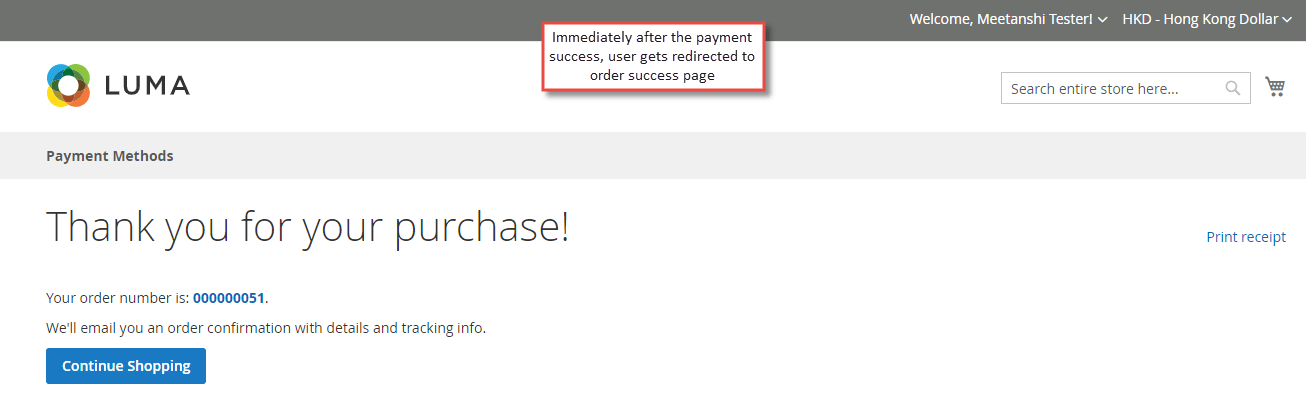
- Order Success Page
Once the payment is successful in app, the customer is automatically redirected to the order success page in the web.
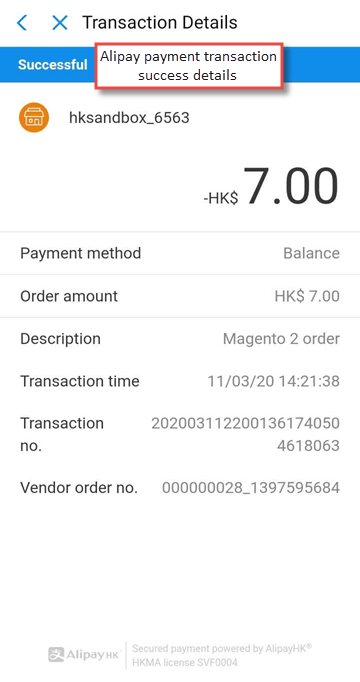
- Alipay Payment Details in App
Immediately after successful payment, customers can see transaction details in app.
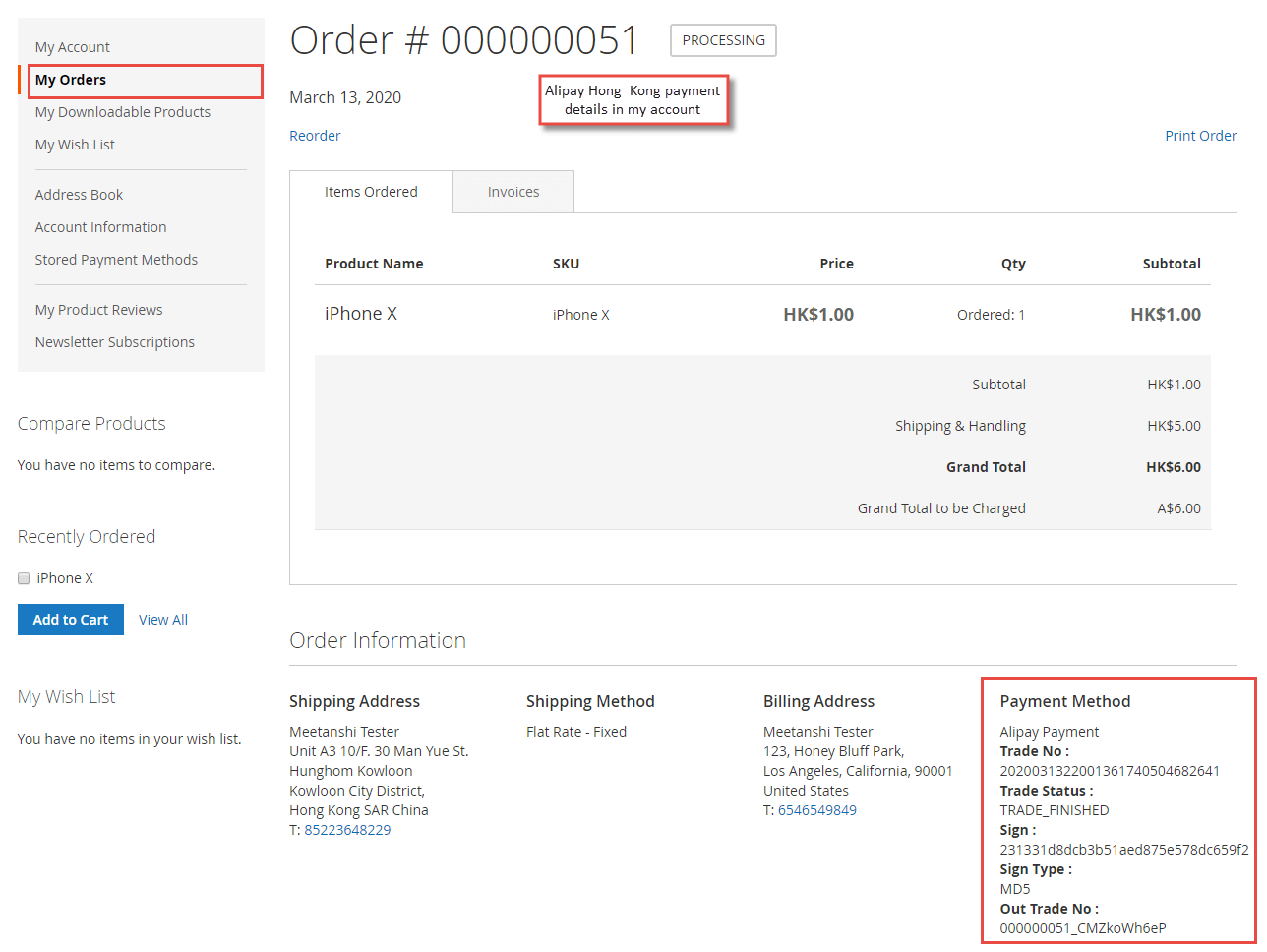
- Alipay Payment Details in My Account
After successful order placement, customers can see Alipay Hong Kong payment details in their My Account section under My Orders tab.
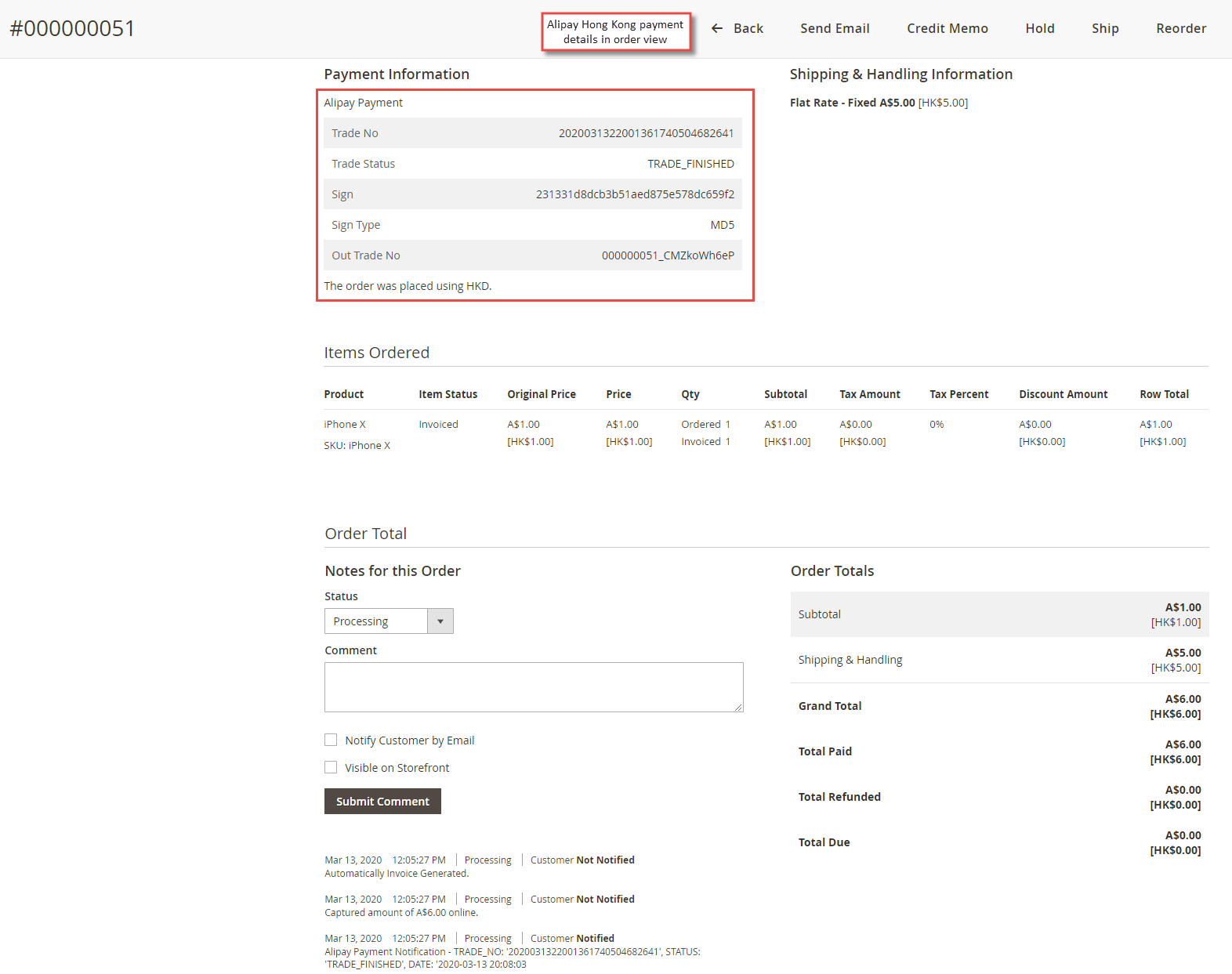
Alipay Hong Kong Payment Details in the Backend
Once the order is placed from the frontend using the Alipay payment method, the details of the transaction can be seen in order view backend.
Alipay Hong Kong Order Placement from Mobile
If customers are using mobile to place an order, they are not asked to scan QR code but they get redirected to the Alipay Hongkong page after clicking "Continue to Pay" from checkout step to login to Alipay account and pay.
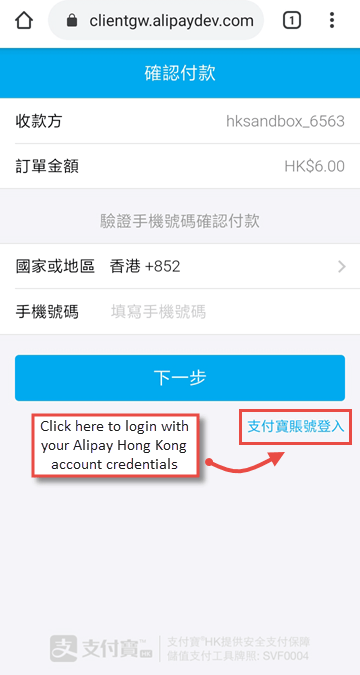
- Login to Alipay Account
The buyer has to enter credentials to log in to the Alipay account.
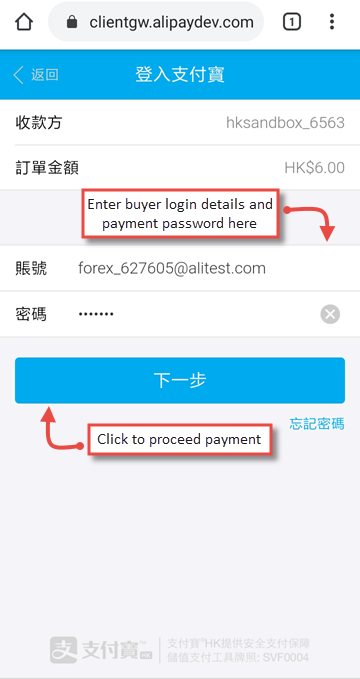
- Payment Confirmation
Immediately after login, the buyer can see the order amount to be paid. He clicks to confirm the payment.
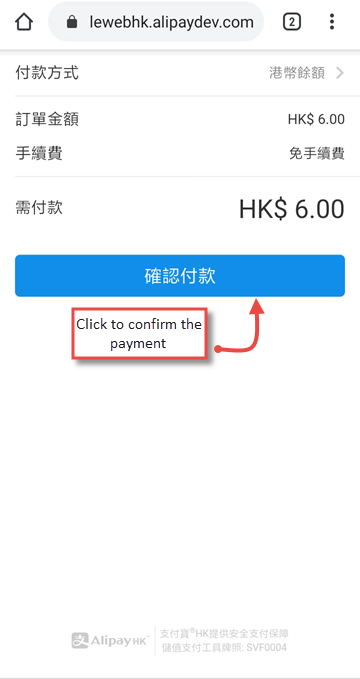
- Payment Success
Once the payment is confirmed and the amount is captured, the user can see payment success in mobile.
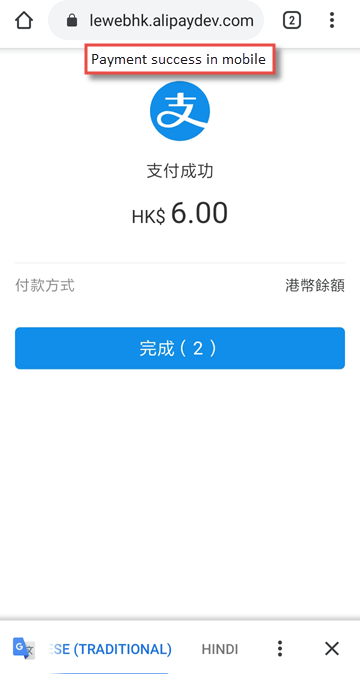
- Redirection back to site on order success page
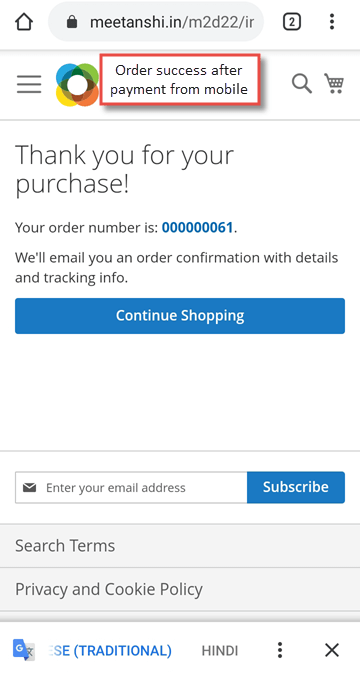
Immediately after the payment is successful, the customer is auto-redirected to the order success page.