Meetanshi Shipping Per Item for Shopify - User Guide
Enable Shipping Method
After installing the app, go to the app settings page from your Shopify admin dashboard.
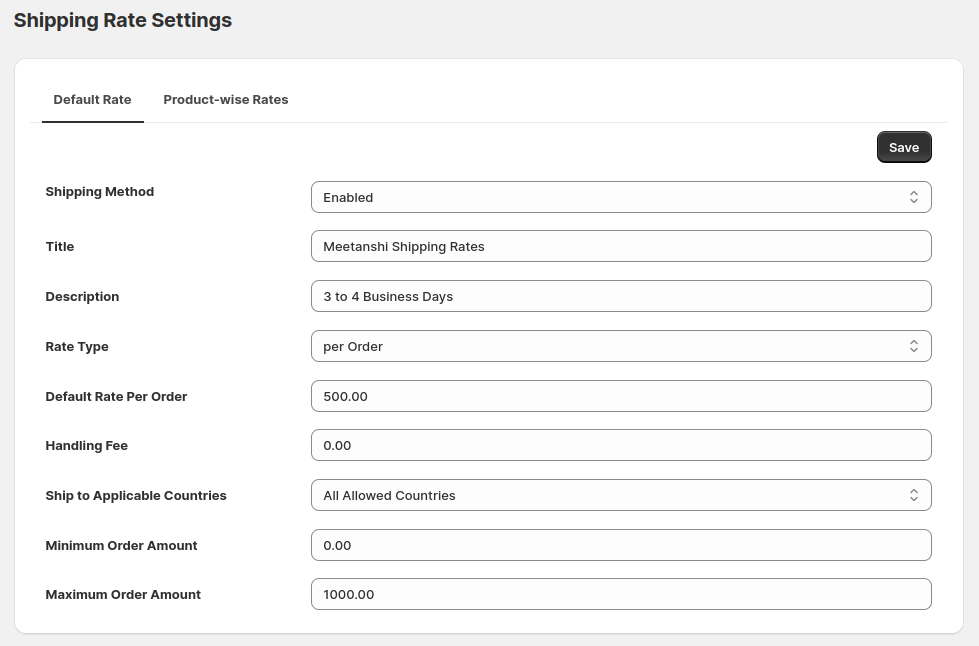
Shipping Method: Toggle the shipping method to "Enabled" to activate the shipping method.
Title: Enter a title for the shipping method that will appear to customers at checkout, for e.g., "Meetanshi Shipping Rates".
Description: Provide a brief description of the shipping method
Warning:
To display calculated shipping rates at checkout, Shopify requires the Third-party carrier-calculated shipping feature to be enabled on your store. Without it, the app cannot display rates.Please check your Shopify plan status below and follow the recommended action.
Shopify Plan Supported? Action Shopify Basic ❌ Not supported Upgrade to a higher plan to use this app. Grow ⚠️ Action required Contact Shopify Support to enable Carrier Calculated Shipping. Tip: this is often free if you switch to Annual billing — otherwise Shopify may offer it as a monthly add-on. Advanced & Plus ✅ Supported Feature enabled by default — no action needed. Note: If you've just upgraded your plan or enabled the Carrier-Calculated Shipping feature, go to App settings → Save to refresh the connection.
Enable Shipping Method
After installing the app, go to the app settings page from your Shopify admin dashboard.
Shipping Method: Toggle the shipping method to "Enabled" to activate the shipping method.
Title: Enter a title for the shipping method that will appear to customers at checkout, for e.g., "Meetanshi Shipping Rates".
Description: Provide a brief description of the shipping method, e.g., "3 to 4 Business Days". This helps customers understand the shipping-related details.
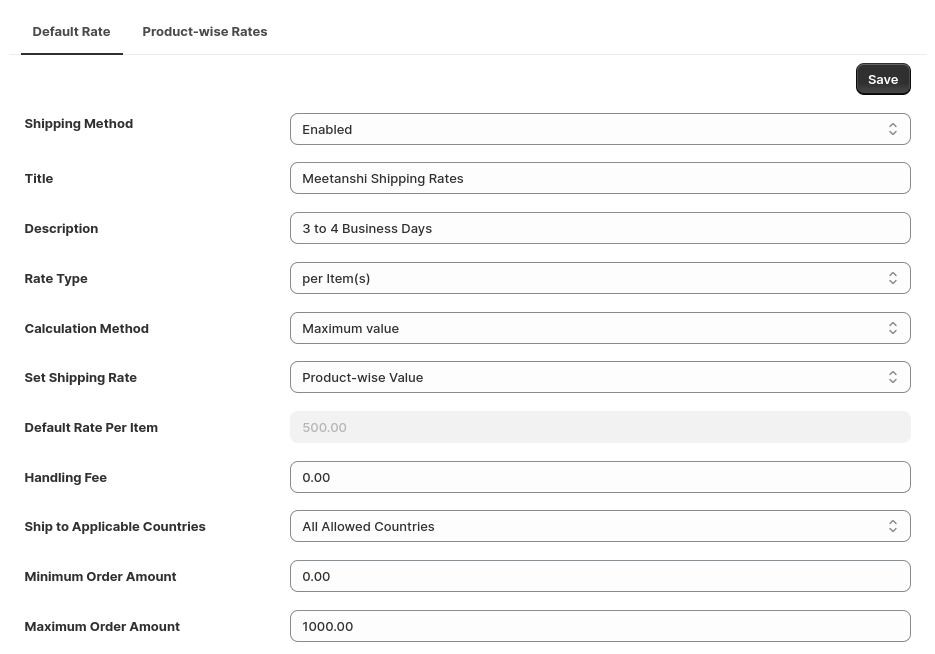
Rate Type: You can choose from:
per Item(s): Lets you define shipping rates for each product.
per Order: Lets you charge a flat rate for the entire order.
Calculation Method: For per item rate, you can choose from the following:
Sum of Rate: The individual shipping rates of each item in the order are added.
Maximum Value: This option will apply the highest shipping rate among the items in the cart. It's useful when different products have different rates.
Minimum Value: Charges the shipping rate of the item with the lowest shipping rate in the order.
Set Shipping Rate: For per item rate calculation, you can choose from two options:
- Default Value: Set a flat default rate for all the items in the store.
- Product-wise Value: Set different shipping rates for the products in the store.
Handling Fee: If applicable, add an extra handling fee that will be applied to the order. This is optional and can be left at 0.00 if not needed.
Ship to Applicable Countries: Define the regions where this shipping method is available. Choose from:
All Allowed Countries: The rate is available globally.
Specific Countries: Limit the shipping method to particular countries.
Minimum Order Amount: Set the minimum order values for which this shipping method will be available.
Maximum Order Amount: Set the maximum order values for which this shipping method will be available. This is useful if you want to offer this shipping rate only for orders within a certain price range.
Set Product-wise Shipping Rate
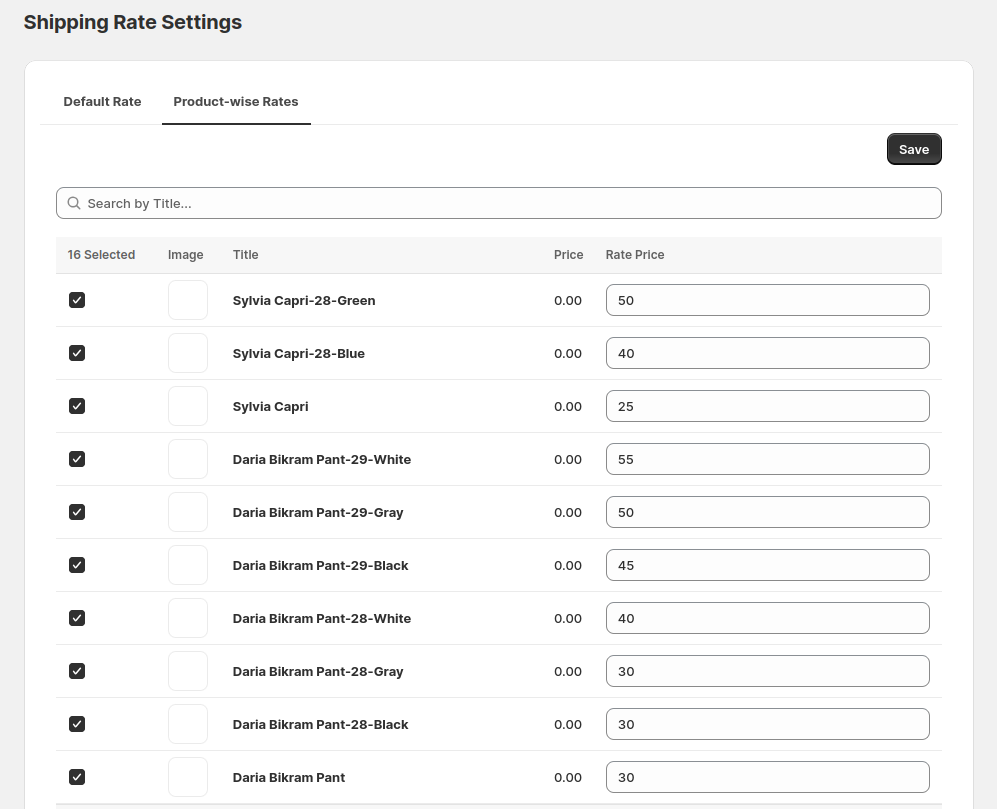
In the app settings, click on the Product-wise Rates tab to configure rates for individual products.
Select Products: Use the search bar to find specific products by title. Select the products you wish to set custom shipping rates for.
Set Rate Price: For each selected product, enter the specific shipping rate in the "Rate Price" field.
Save Product-wise Rates: After configuring the rates for the selected products, click the Save button to apply the changes.
Add Shipping Price from Product Edit Section
You can also set product-wise rates directly from the Shopify product edit section.
Go to Products in your Shopify Admin and select the product you wish to edit.
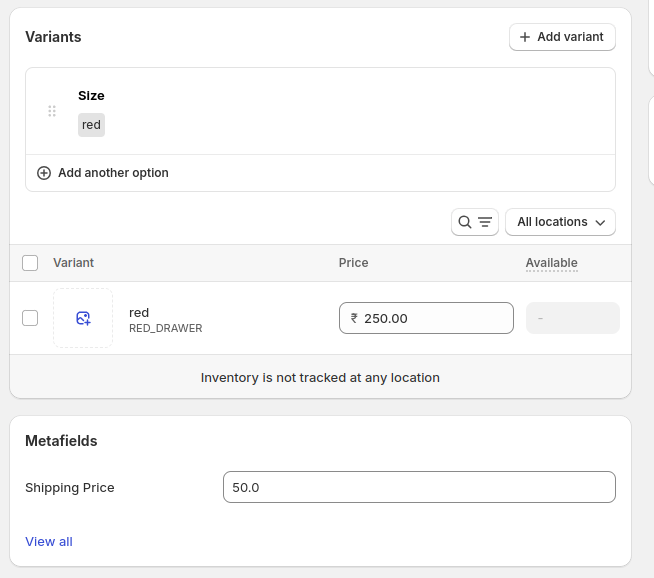
Scroll down to the Metafields section at the bottom of the product edit page.
In the "Shipping Price" field, enter the specific shipping rate for this product variant. This field allows you to define unique shipping rates for different variants of the same product.
After entering the shipping price, click the Save button to apply the settings to the product.
Shipping Rate Applied on Frontend
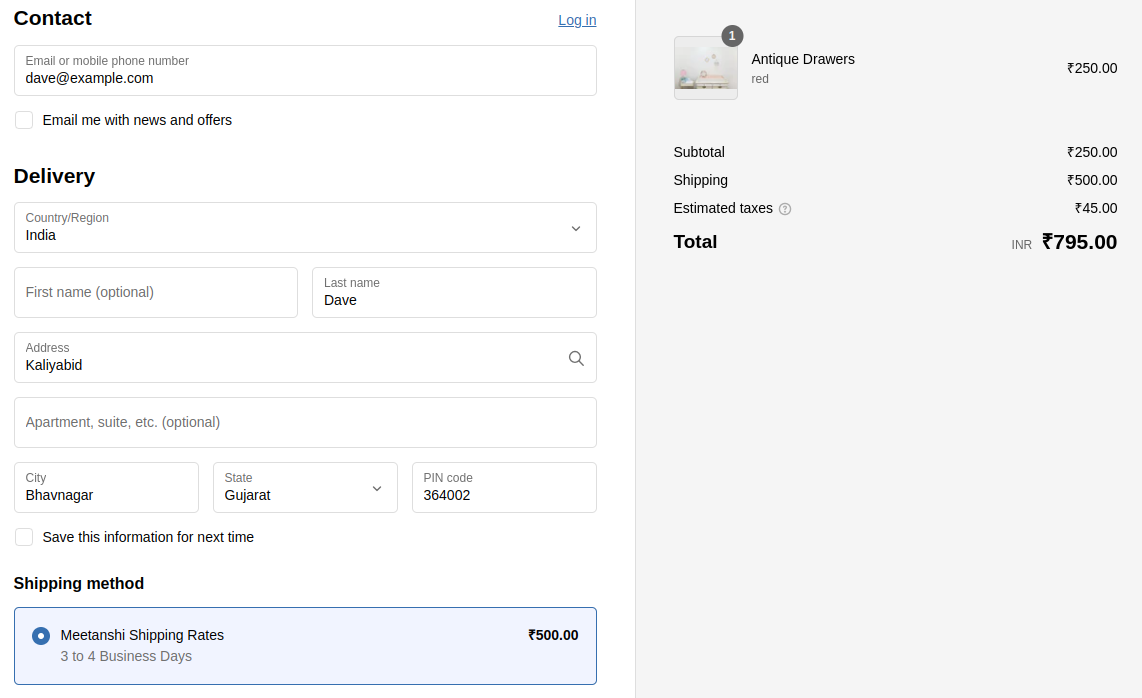
When a customer adds products to their cart and proceeds to checkout, the configured shipping rates will automatically be applied based on the product-specific or default rates set up earlier.
The total shipping cost will be calculated based on the rate type (per item or per order) and any product-specific rates, as configured.
Troubleshooting: If the shipping rates are not appearing at checkout, please ensure you have enabled Carrier Calculated Shipping on your Shopify Plan as detailed in the "Requirements" section at the top of this guide.