Getting Started with MIT Content Protector
MIT Content Protector helps you prevent unwanted copying of your store’s content (text, images, and page elements).
Follow the steps below to enable the app and configure protection settings.
Quick Setup Checklist
- Enable MIT Content Protector in your Shopify theme
- Turn ON Global Protection
- Choose what to protect (Content, Keyboard, Privacy)
Step 1: Activate the App (Enable in Shopify Theme)
Content protection works only after the app is enabled inside your Shopify Theme Editor.
1) Open the Theme Editor
- In the MIT Content Protector dashboard, find the activation banner or popup.
- Click Open Theme Editor.
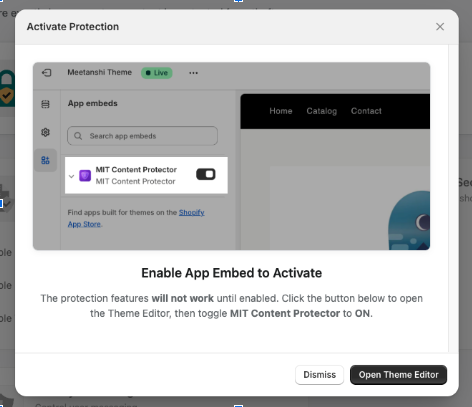
2) Enable the App and Save
- Shopify Theme Editor will open in a new tab.
- Locate the MIT Content Protector toggle in the left-side panel.
- Switch it to ON (blue/green).
- Click Save in the top-right.
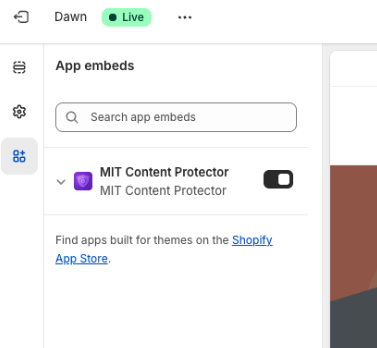
Activation complete.
You can now return to the app dashboard and configure protection settings.
Step 2: Choose Your Protection Settings
Once activated, you can customize what visitors can and cannot do on your storefront.
Master Control (Main Switch)
This is the main power switch for the entire app.
- ON: All selected settings below are active
- OFF: App is paused and your store behaves normally
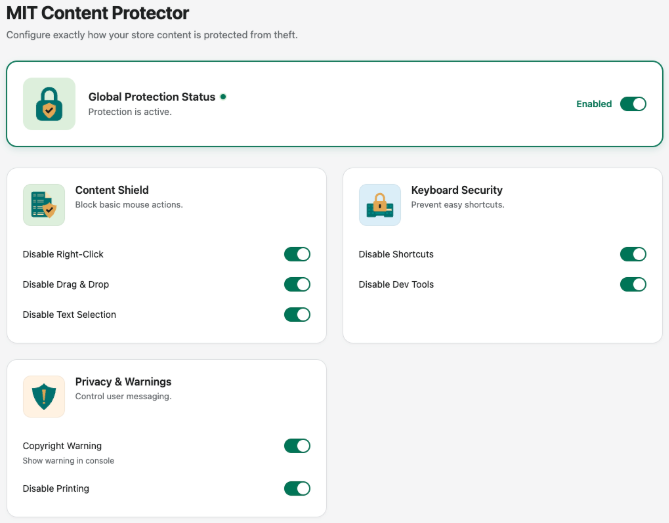
Tip: Keep this ON for full protection. Use OFF if you want to temporarily disable protection without changing individual settings.
Content Shield
Designed to stop basic copy actions like saving images, copying text, or dragging content.
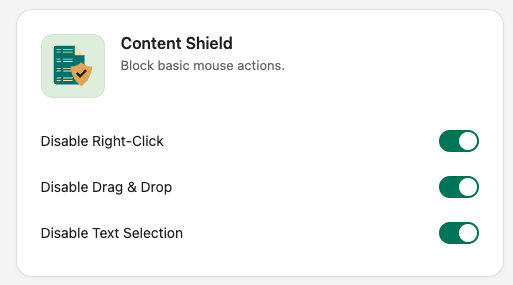
Settings included
Disable Right Click
Blocks the right-click menu to make it harder to use actions like “Save Image As...”.Disable Drag & Drop
Prevents visitors from dragging images to their desktop to save them.Disable Text Selection
Stops visitors from highlighting and copying text from product descriptions, pages, and blogs.
Keyboard Security
Designed to reduce shortcut-based copying and discourage advanced inspection.
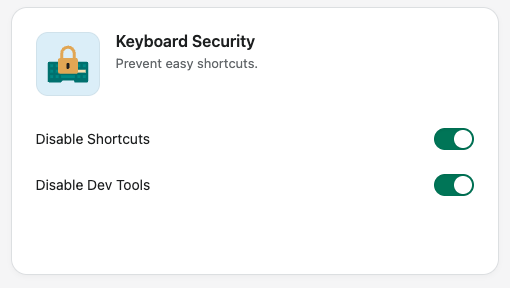
Settings included
Disable Shortcuts
Blocks common shortcuts such as copy and print (example:Ctrl+C,Cmd+C,Ctrl+P).Disable Dev Tools
Attempts to prevent users from opening browser developer tools (inspect element).
Note: No tool can fully stop highly technical users, but these settings significantly reduce casual misuse.
Privacy & Warnings
Control how you communicate protection and restrict printing.
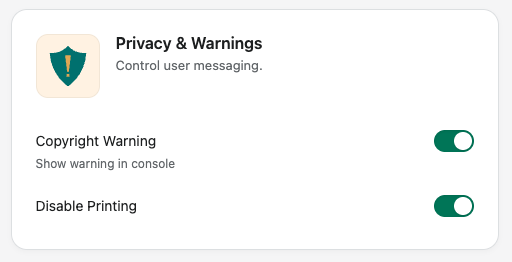
Settings included
Copyright Warning
Shows a message inside the browser console when users attempt to open developer tools.
Disable Printing
Prevents visitors from printing your pages directly from the browser.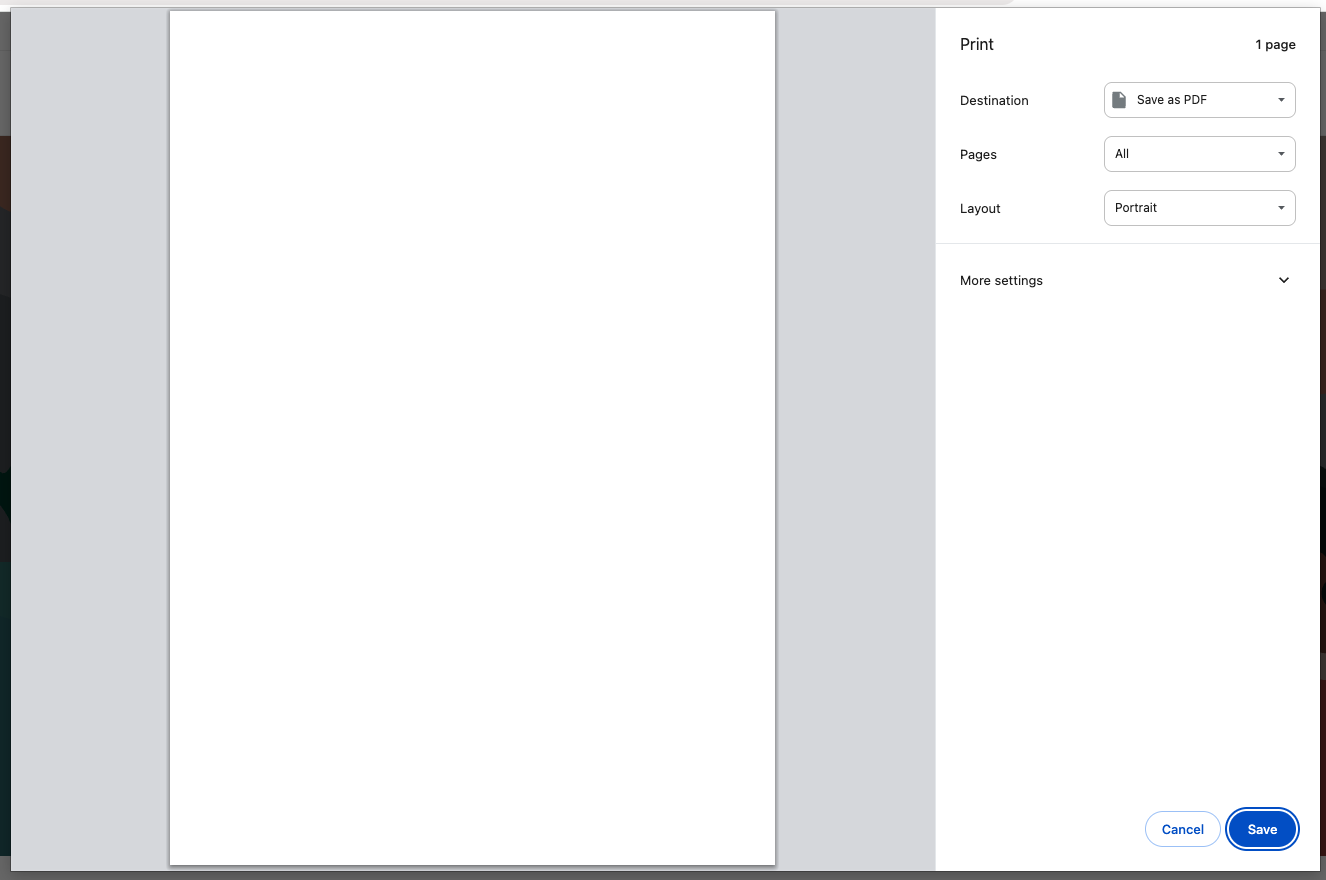
Recommended Setup (Most Stores)
If you want strong protection without over-restricting user experience:
- Enable Global Protection Status
- Turn ON:
- Disable Right Click
- Disable Drag & Drop
- Disable Text Selection
- Disable Shortcuts
- Copyright Warning
- Turn ON Disable Dev Tools only if you want maximum protection (may affect some advanced users)
Troubleshooting
If protection does not appear to work immediately:
- Refresh your storefront page
- Open your store in an Incognito/Private window
- Clear your browser cache
- Confirm the app toggle is enabled in Shopify Theme Editor and Saved
Need Help?
If you need support, contact us directly through the app dashboard.