MIT Custom Robots.txt Rules for Shopify - User Guide
The default robots.txt in Shopify is often difficult to edit. The MIT Custom Robots.txt Rules app enables you to easily modify it in a few clicks without any code changes.
This app helps you control the crawling rules for different search engines and AI crawlers for better SEO and AI optimization.
Dashboard Overview
Once the app is installed, it displays a one-page dashboard with the default robots.txt file content and options to modify it. You can either use the Structured Editor to create rules or the Raw editor to paste rules directly.
In the dashboard, you will also get options to undo, redo, or reset to default robots.txt as you edit.
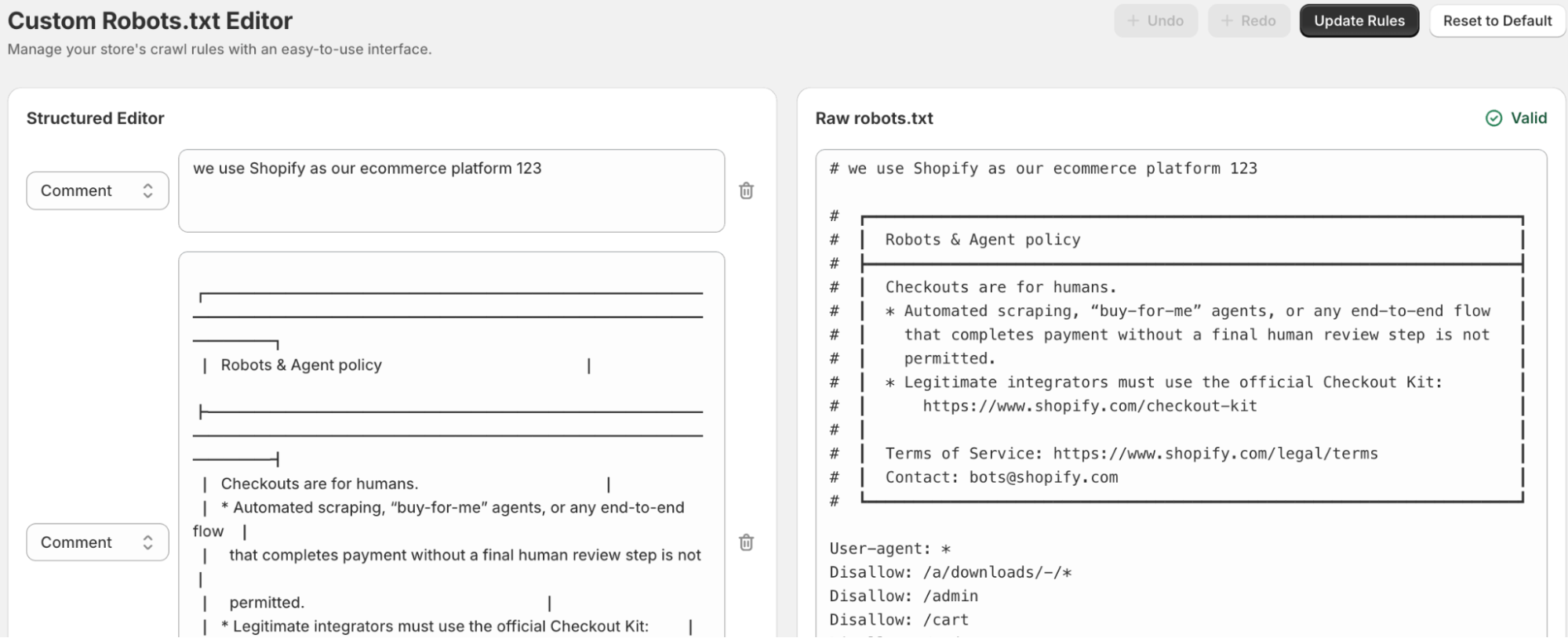
How to Edit Robots.txt in Shopify?
Using the Structured Editor
The Structured Editor on the left side easily lets you add, edit, or delete directives using the simple input fields and dropdowns. All data in this editor is based on the default robots.txt file created by Shopify.
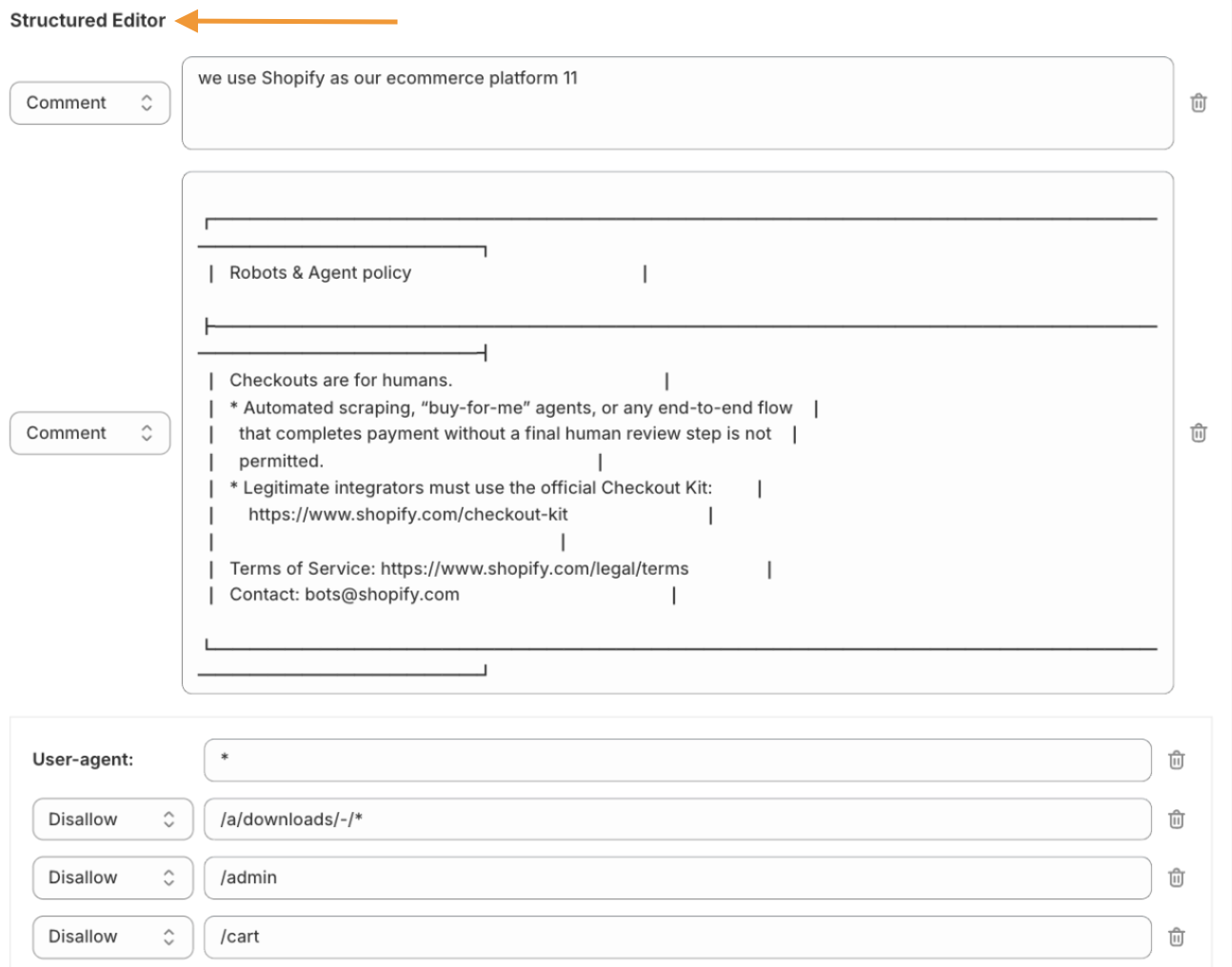
Add & Edit Directives
Click on the +Add directive button within the user agent group. Then, you can choose a particular input for the directive.
- Comment: Add a human-readable note (using
#) to explain the rule. - Allow: Allow the specific path to get crawled.
- Disallow: Block search engine bots from crawling the specified URL.
- Crawl-delay: Instructs a bot to wait a specified number of seconds between page requests.

Based on the action you take, the rule will be created. If you don't want any rule from the user-agent group, simply click the trashcan icon next to the directive you wish to remove.
In order to edit the rule, simply click on the text field of the existing rule or change its path from the dropdown.
Add User-agent Groups
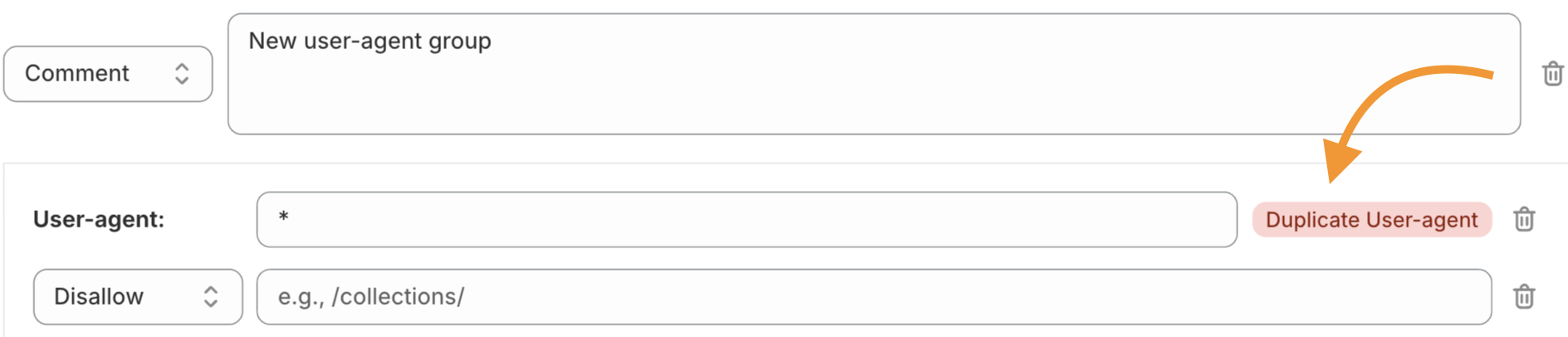
Click on +Add User-agent Group to create specific sets of rules that apply only to certain search engine bots. Then, you can click on +Add directive with the right input to manage your site interactions with bots.
If a duplicate agent is created, the app will notify you to give you a heads-up.
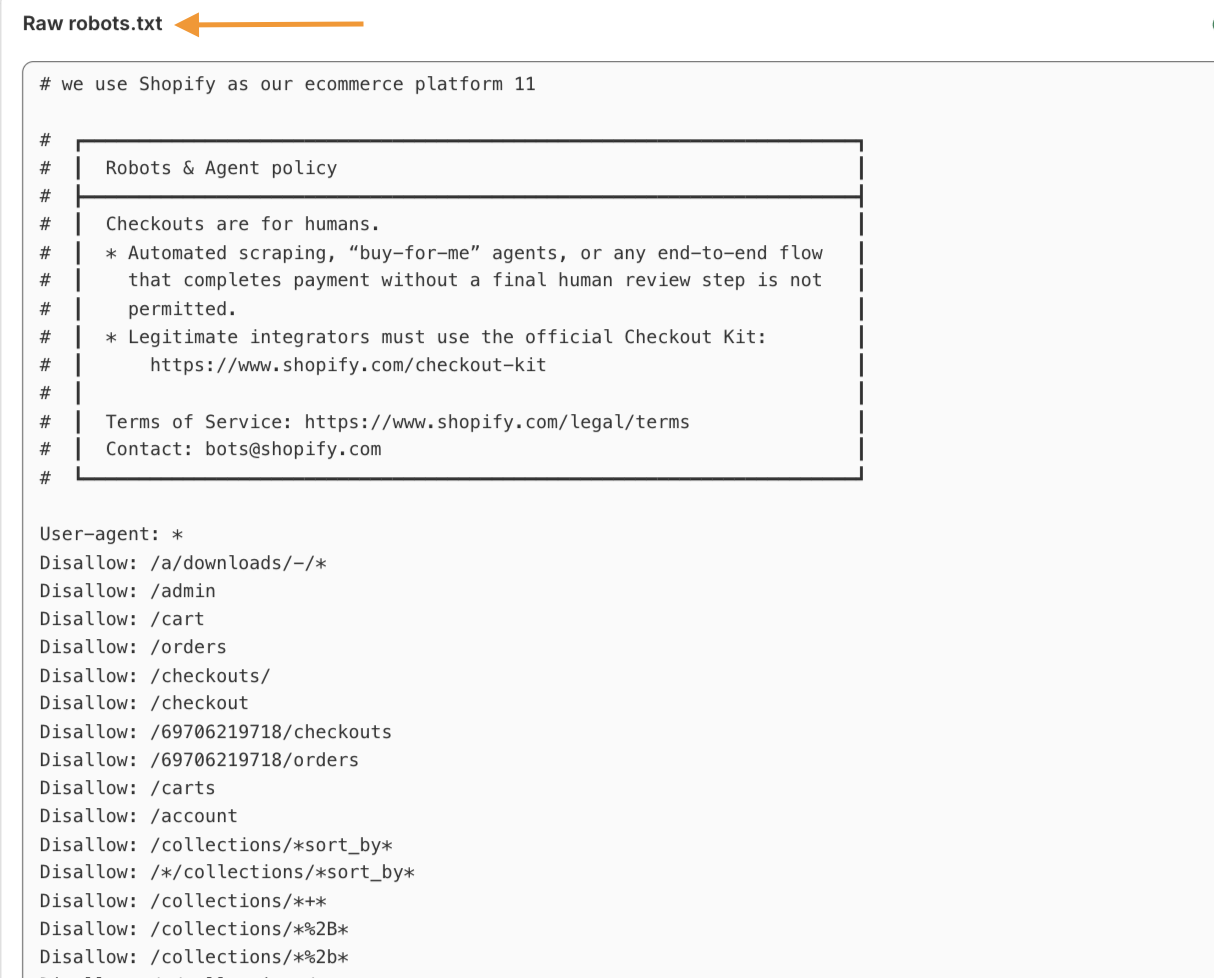
Using Raw robots.txt
If you already have created a robots.txt file, you can paste it here. The Raw editor helps you add rules directly to the robots.txt file. The rules you add here will also appear on the left side structured editor for easy editing.
You can always use these options while editing the robots.txt file:
- Undo: Reverses the last action you performed.
- Redo: Restores the change you just reversed.
- Reset to Default: Reverts the file back to the original default file.
Lastly, before updating the rules, check the in-built verifier status (should say "Valid") to ensure your syntax is correct and will not hinder your SEO.
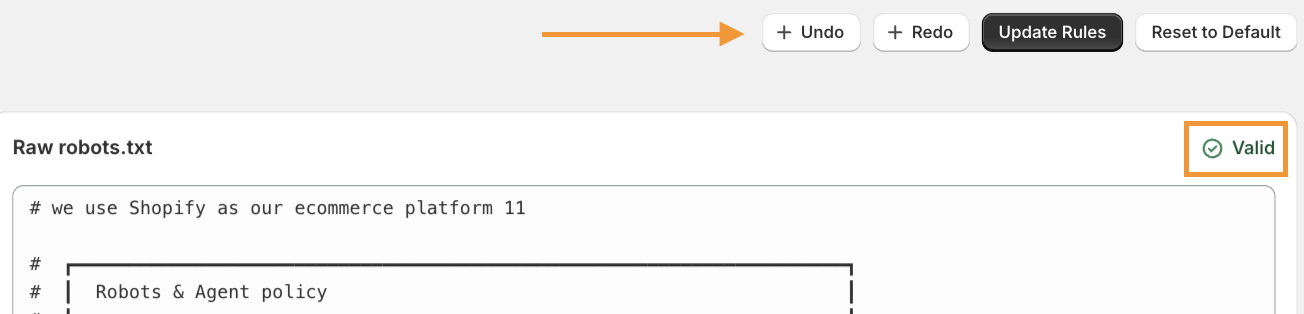
Then, click on Update Rules. Shopify will directly use the newly edited file as your new robots.txt file.