MIT GPSR Compliance for Shopify: User Guide
Dashboard Overview
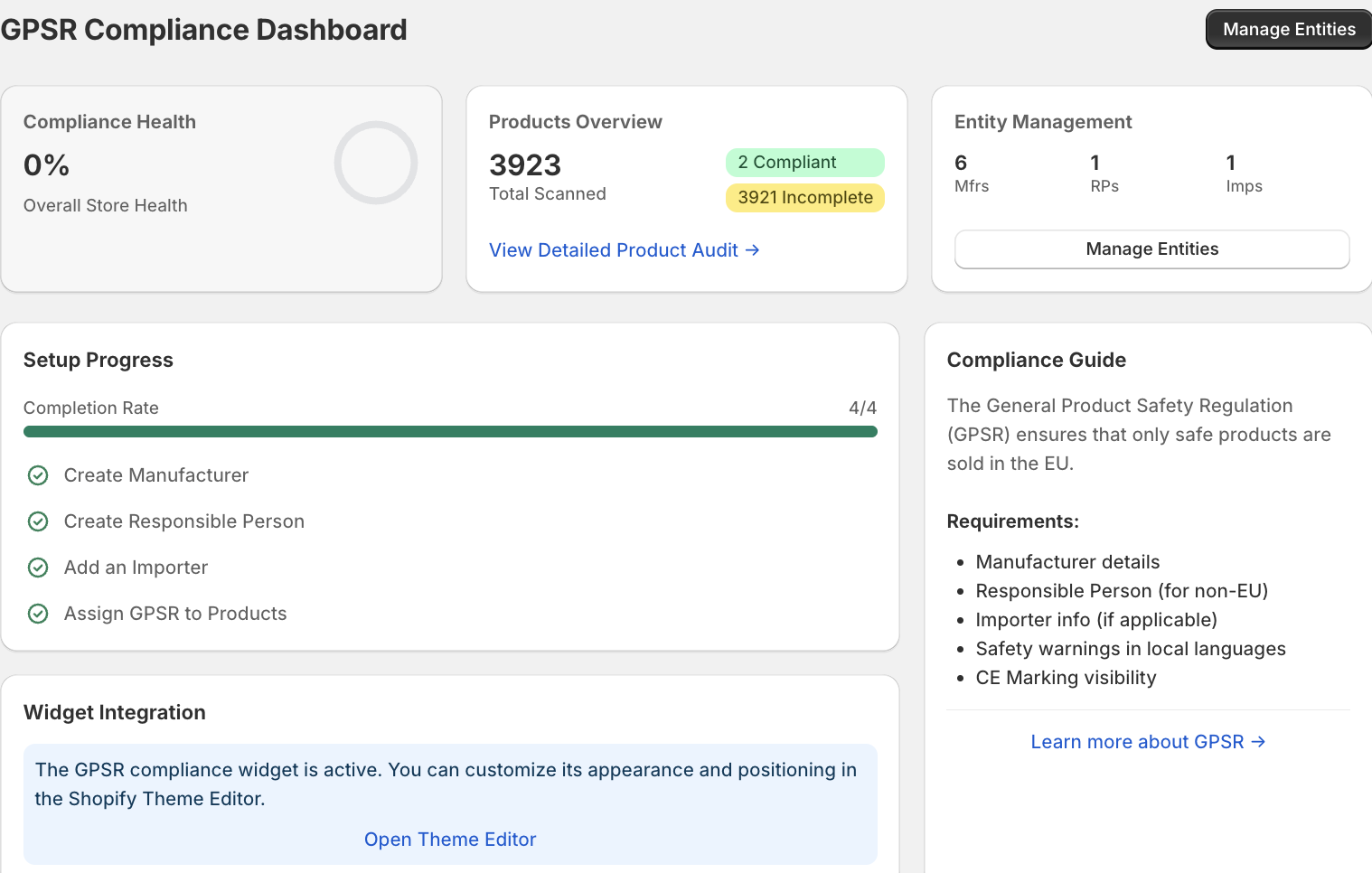
When you first open the app, the GPSR Compliance Dashboard provides a bird's-eye view of your store’s status.
- Compliance Health: Monitor your overall store health via the circular chart.
- Products Overview: See exactly how many products are scanned, how many are "Compliant" (Green), and how many are "Incomplete" (Yellow).
- Setup Progress: Follow the interactive checklist to ensure you’ve created your Manufacturers, Responsible Persons, and Importers before assigning them to products.
Managing Your Entities
Before assigning data to products, you must define your business entities. Navigate to Manage Entities to add:
- Manufacturers: The entities that produce your goods.
- Responsible Persons (RP): Mandatory for non-EU sellers; must be an EU-based address.
- Importers: Required for non-EU products sold by EU retailers.
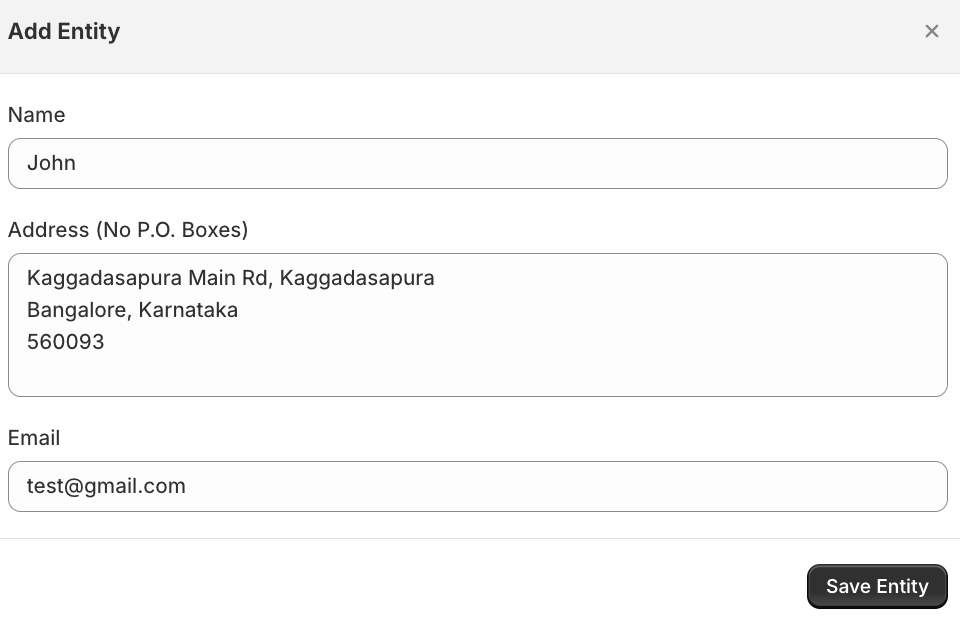
Click Add in the respective section. Fill in the Name, Email/Phone, Address, and Save Entity.
Manage Products
To edit a single product's compliance data, go to Manage Products and click Edit GPSR next to any item.
You will see the "All set" tag if all the needed information is added to the product. If not then the missing fields will be listed.
🟢 All Set: Product is fully compliant and ready for EU sales.
🟡 Incomplete: One or more mandatory fields (like Manufacturer or Safety Warnings) are missing.

Then, start configuring the following details in the missing fields:
- Entity References: Select the pre-saved Manufacturer, RP, or Importer from the dropdown menus.
- Product Identifier: Enter the Model, Batch, or Serial number.
- Safety Warnings: Add mandatory safety instructions.
- Certification & Manuals: Toggle the "Product has CE Marking" checkbox and provide URLs for Conformity Declarations or User Manuals.
- Hazard Pictograms: Select applicable visual symbols
- Traceability Data: Log the Batch Number, Serial Number, and Manufacture Date.
- Restrictions & Disposal: Define age restrictions and disposal instructions.
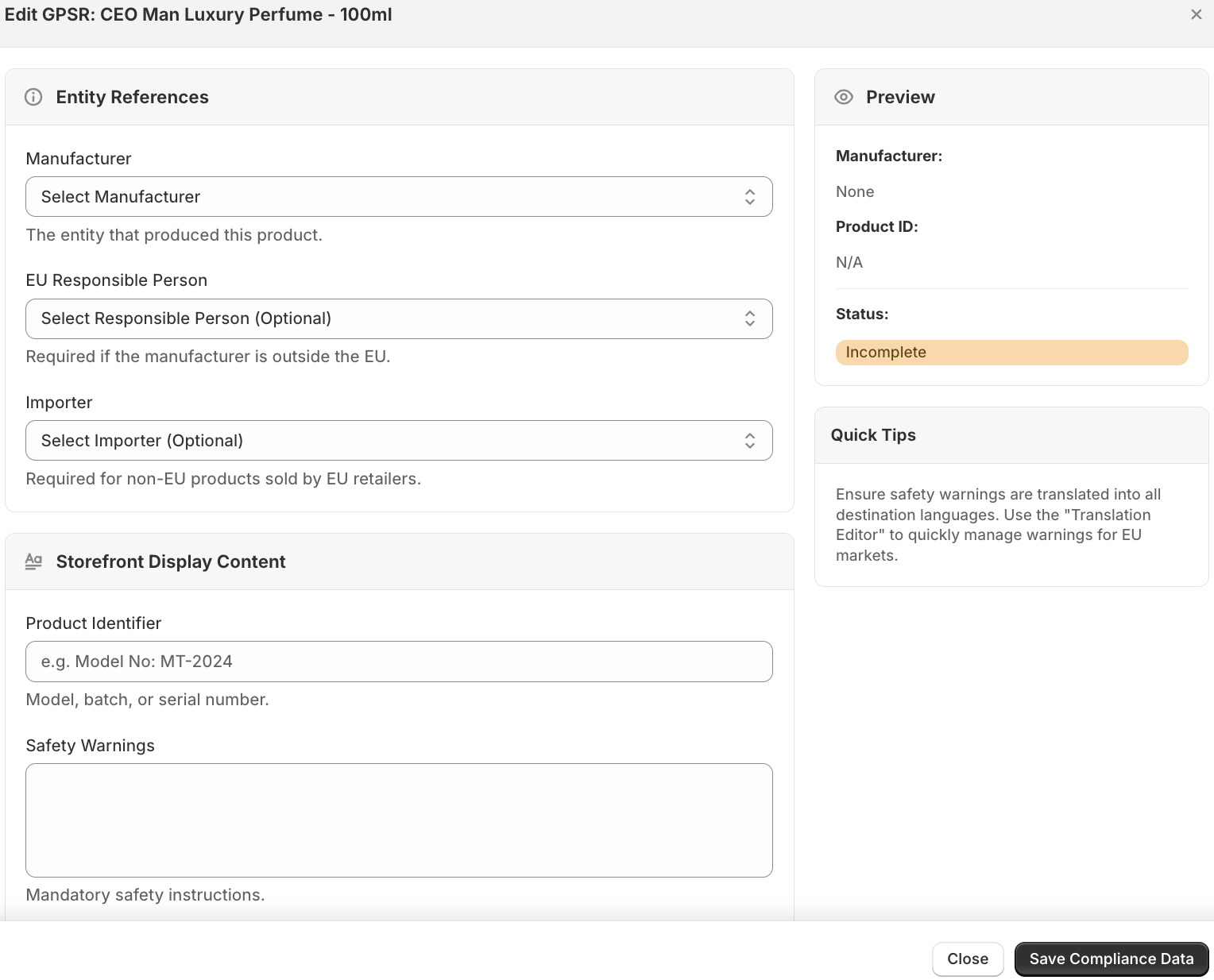
Finish it up by clicking on Save Compliance Data.
Then, from the GPSR Compliance Dashboard, click on Open Theme Editor. This will take you to your current theme editor. Now, click on Add sections > App> GPSR Compliance.
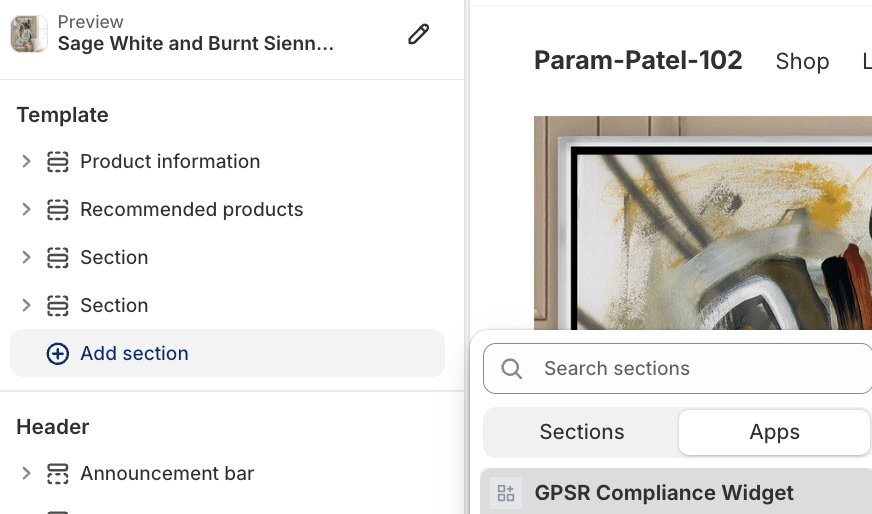
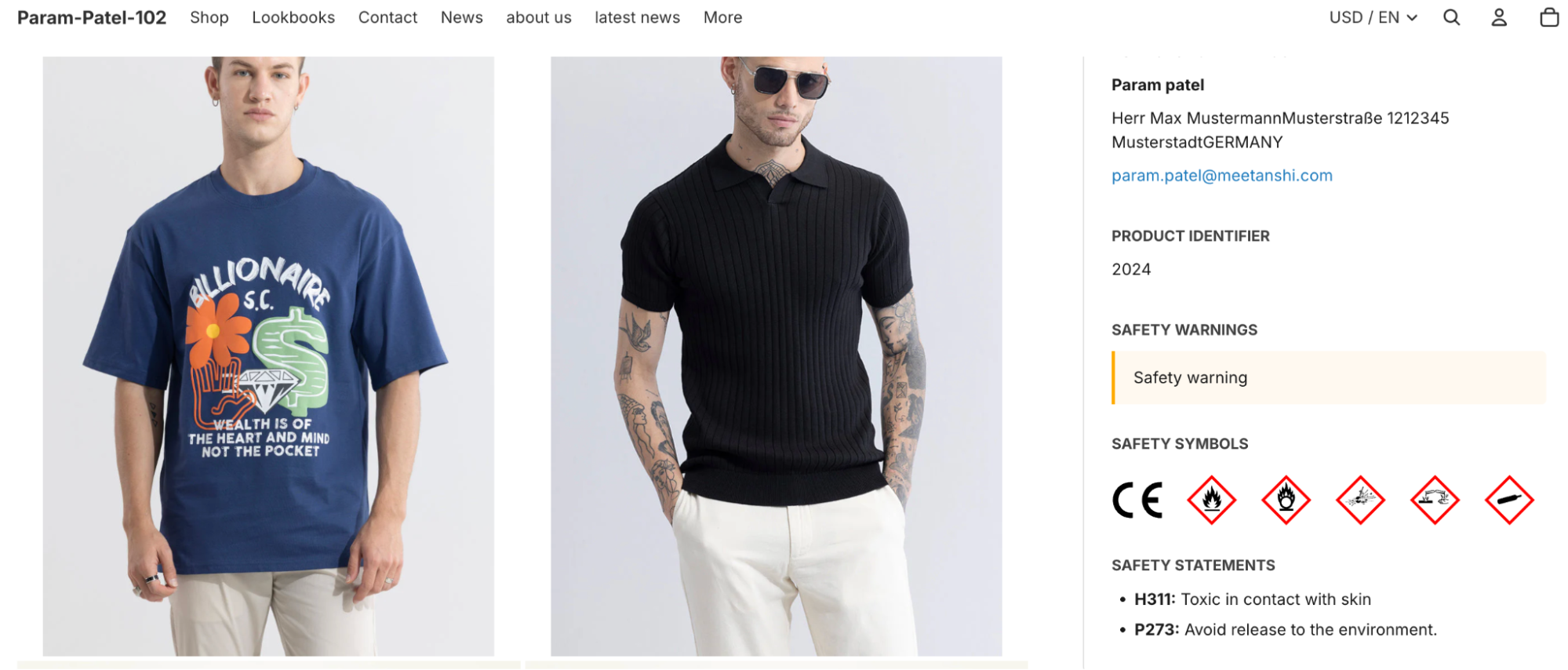
This will help to add the GPSR block on the product page. Then customize the widget and view it in your store frontend.
The app will automatically display a professional, organized block containing the Manufacturer info, RP details, Safety Warnings, and Pictograms that you assigned.
Bulk Manager for Large Catalog
If you have a large catalog, use the Bulk Manager to update hundreds of products at once.
Select multiple products using the checkboxes. Use the Select Entity Type and Choose Entity dropdowns, then click Apply to X Products.
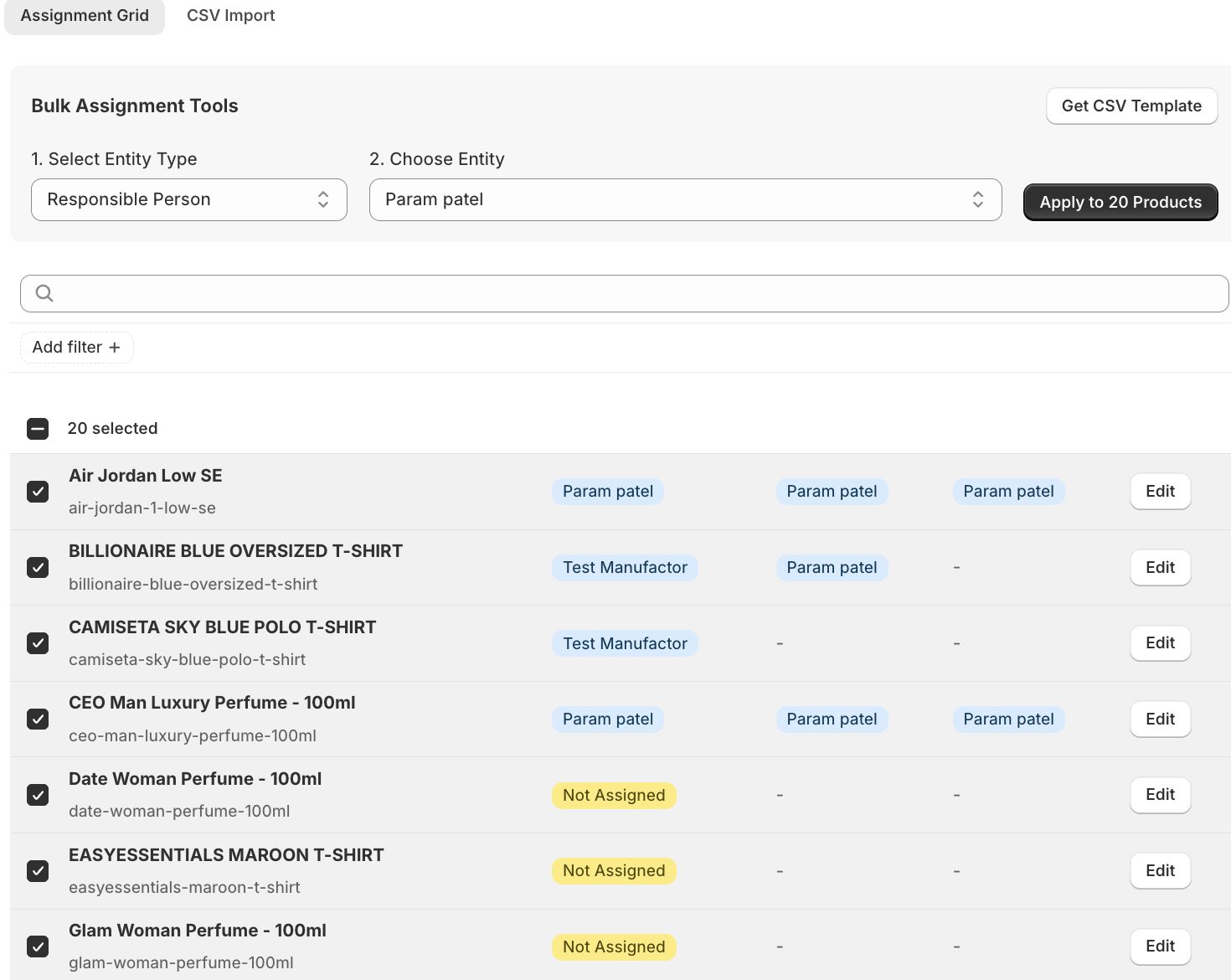
If you want, you can download the provided CSV template, fill in your product handles and compliance data, and re-upload to update your entire store in seconds.