Request Quote & Hide Price for Shopify - User Guide
Prerequisites: Enable the App
Once you’ve installed the app, go to Online Store > Themes > Customize. Then, enable the app in the app embeds.
Then, save the settings. Now, you can configure the app and start using it.
Enable Hide Price & Request for Quote in Shopify
Navigate to Price Display Rules to set the logic for hiding prices.
Under Global Settings, check "Enable Price Hiding" to activate the app functionality across your store.
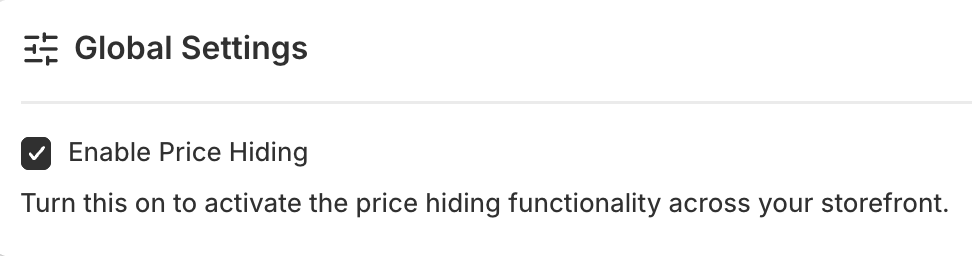 Then, add the following configurations to control the pricing visibility.
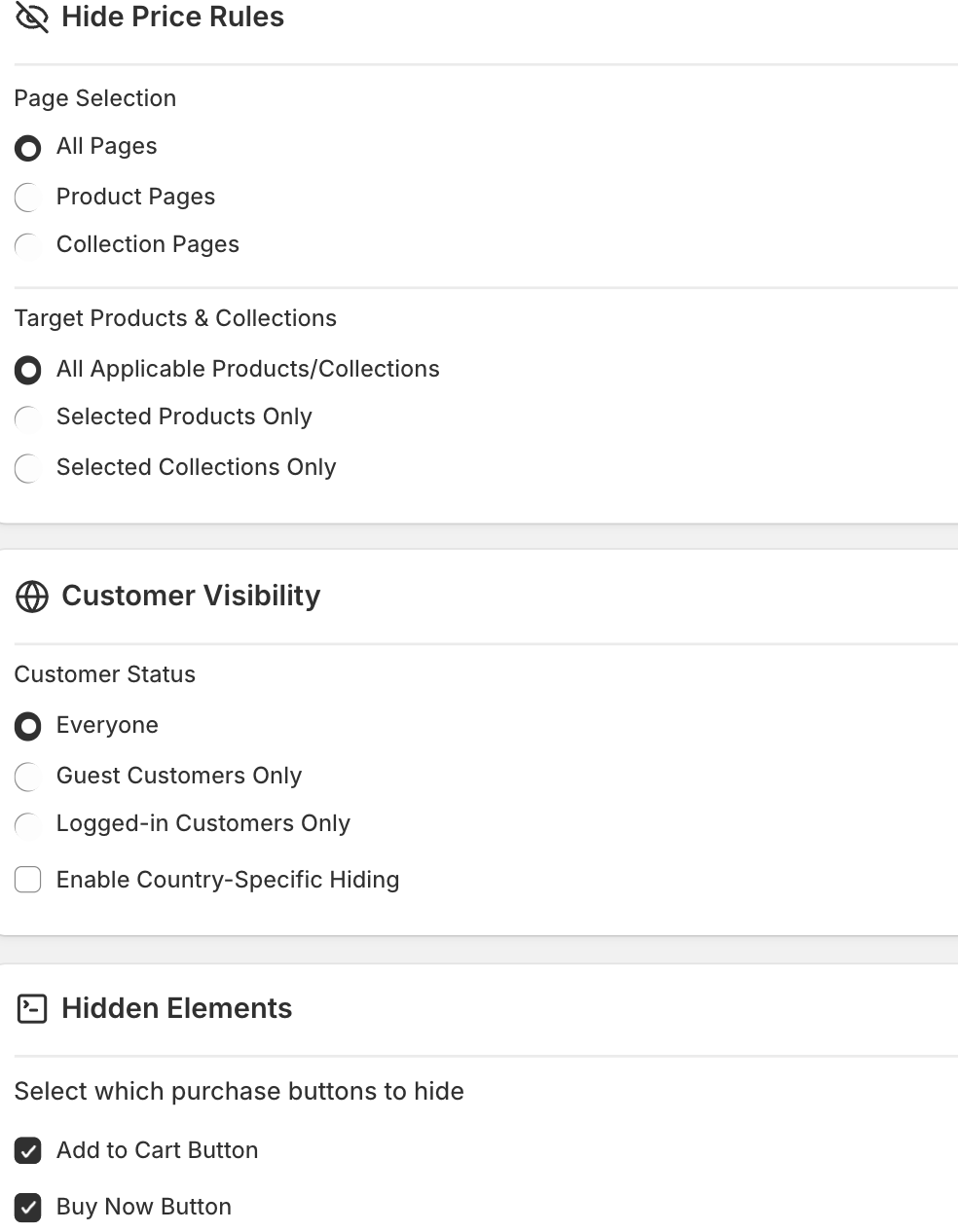
Hide Price Rules:
- Page Selection: Choose to hide prices on All Pages, Product Pages, or Collection Pages.
- Target Products & Collections: Choose to apply rules to All Products, Selected Products Only, or Selected Collections Only.
Customer Visibility:
- Customer Status: Select who can’t see the prices.
- Country-Specific Hiding: Enable this to hide prices only for visitors from specific geographic locations.
- Hidden Elements: Select which purchase buttons to hide (e.g., Add to Cart and Buy Now).
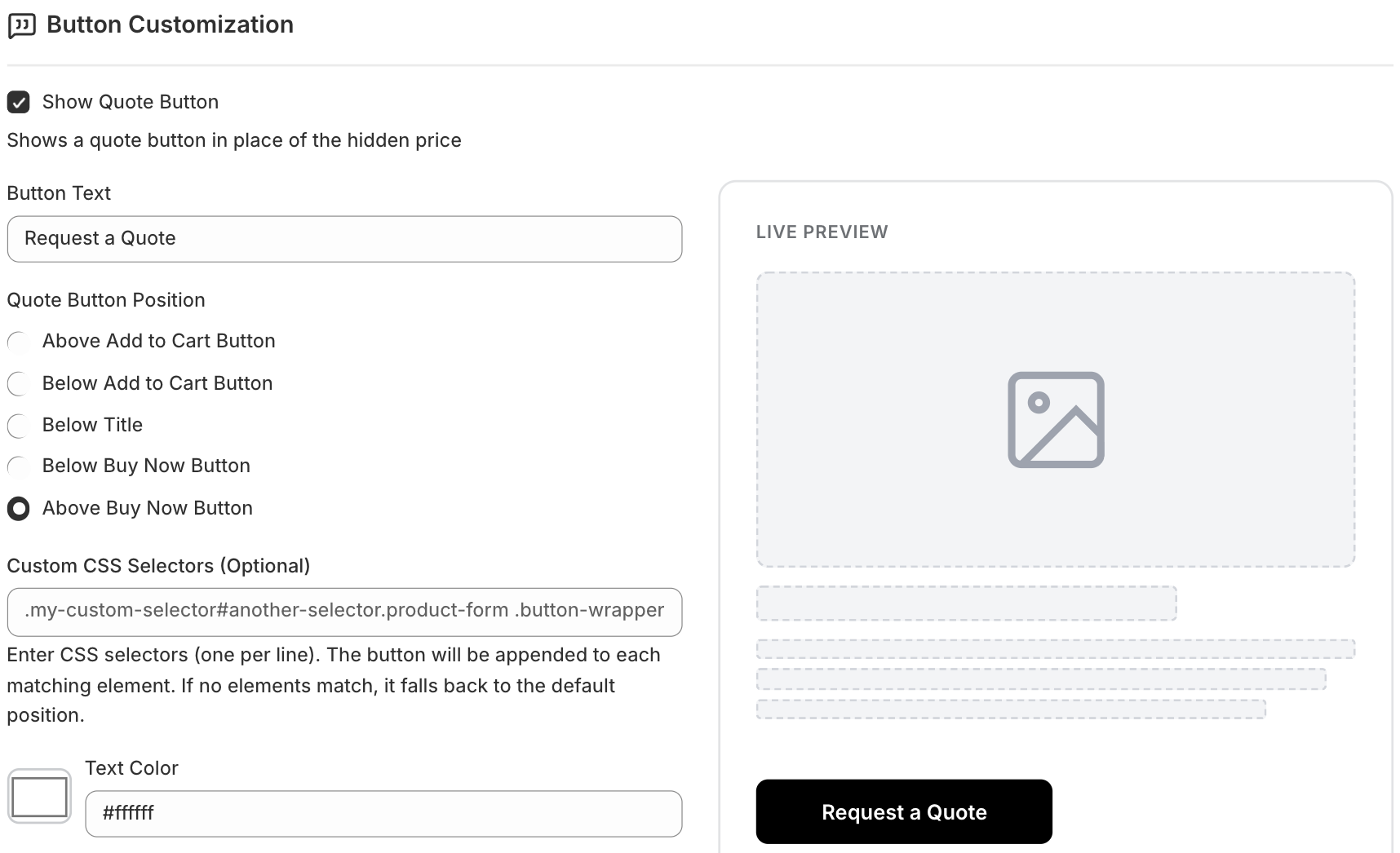
Under the Button Customization section, check the box if you want to show a button that replaces the price.
- Button Text: Enter custom text
- Position: Select where the button should appear (e.g., Above/Below Add to Cart, Below Title, etc.).
- Custom CSS: Enter specific CSS selectors for advanced theme integration. Advanced CSS settings are also available in the app.
- Styling: Customize colors (text, button, border, hover states), width, height, and border radius. Use the Live Preview on the right to see changes in real time.
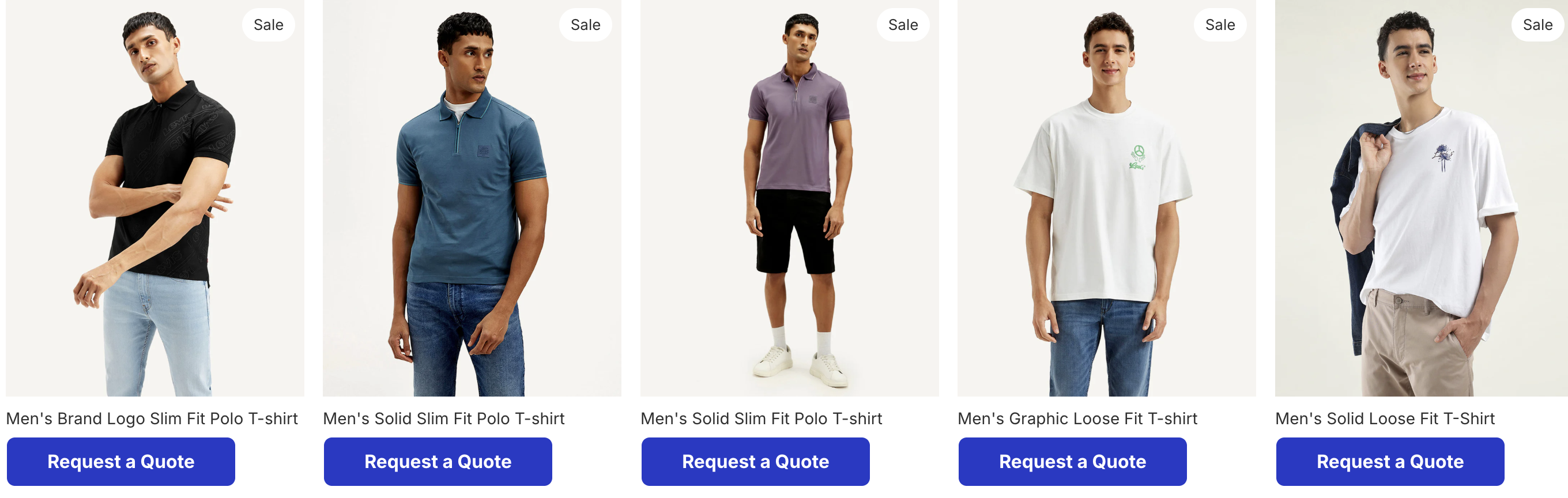
Price hidden on a collection page:
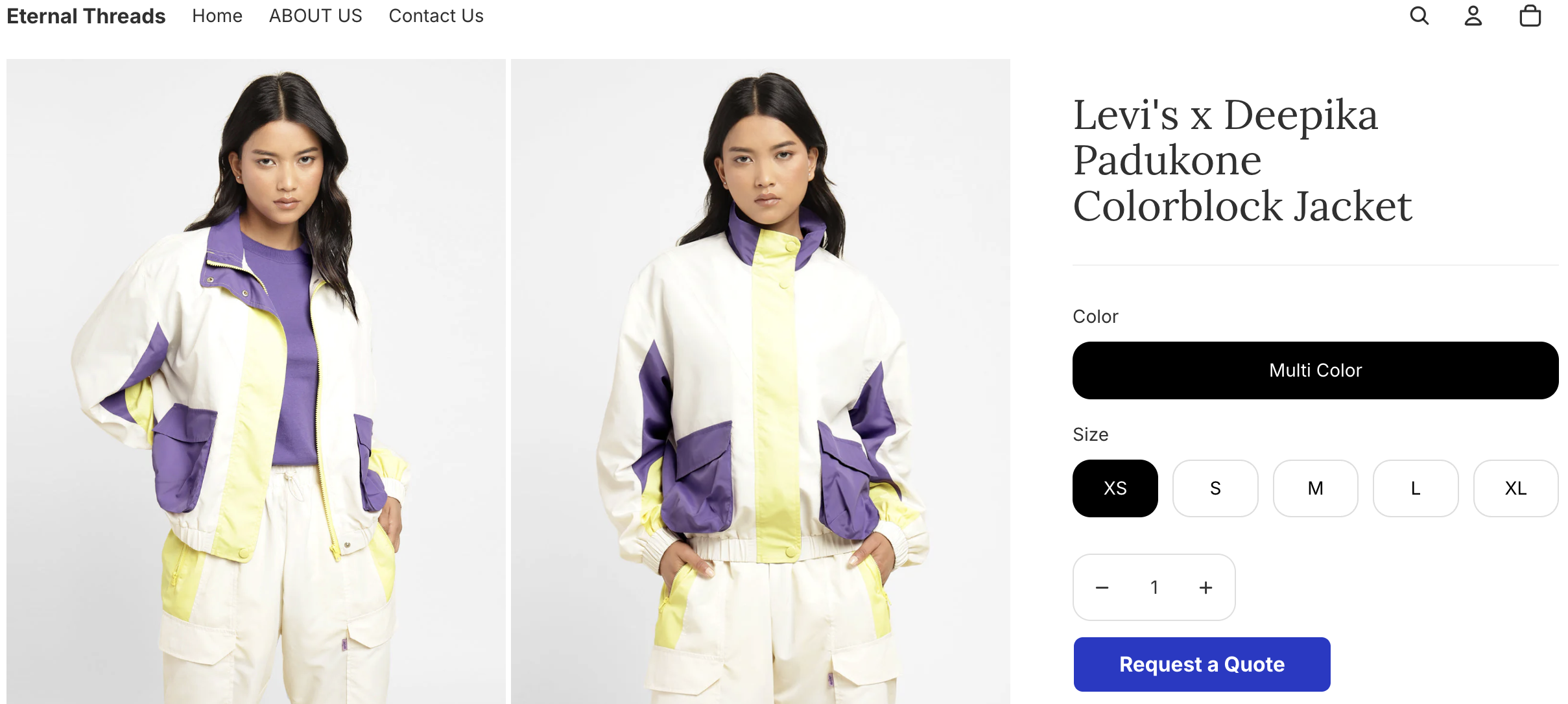
Price hidden on a product page:
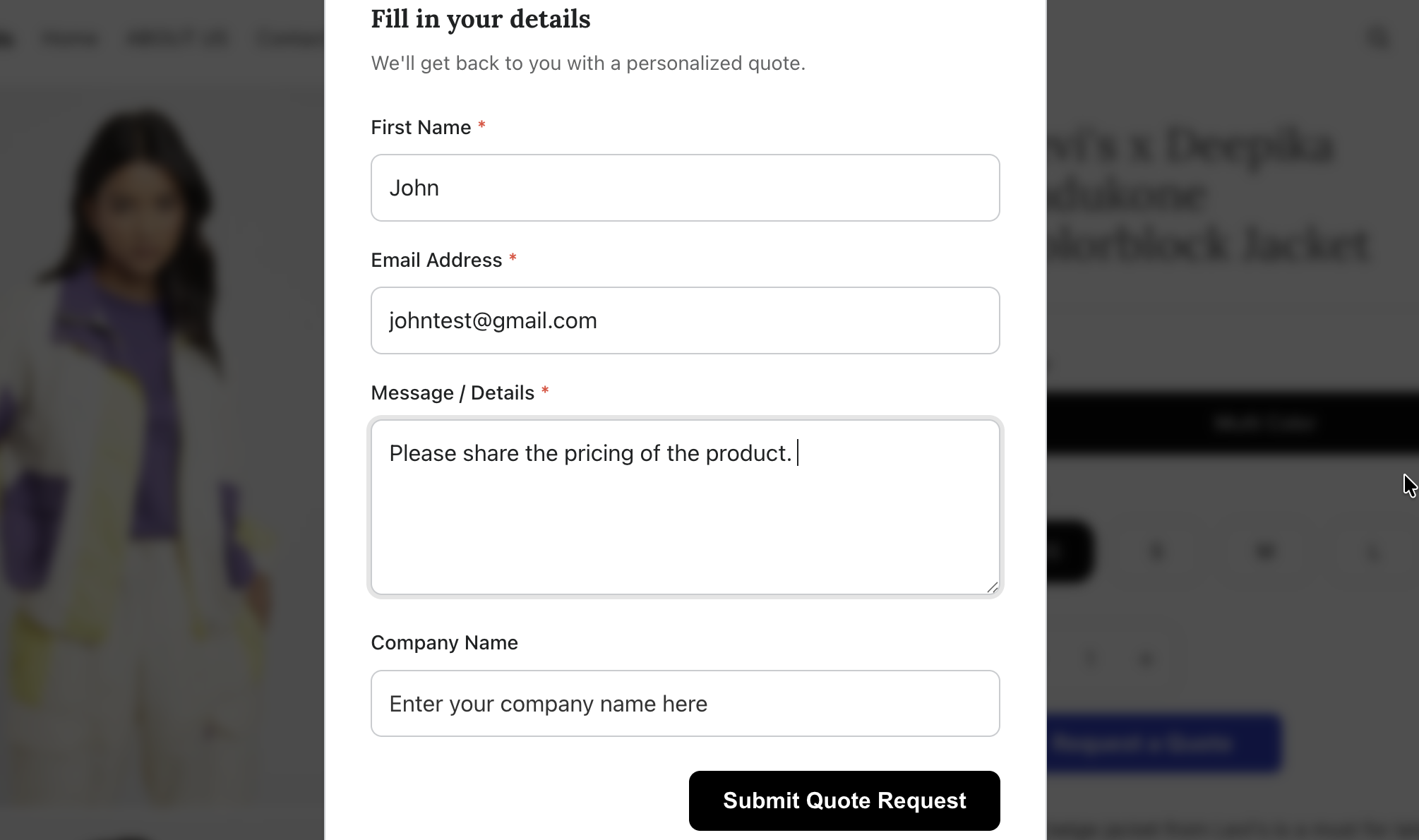
On clicking the request for quote button, a popup form will open where the customers can enter details and submit the inquiry. On successful submission, email notifications will be sent to both customer and store admin (you can configure these email templates from the app.)
Customize the Request a Quote Form
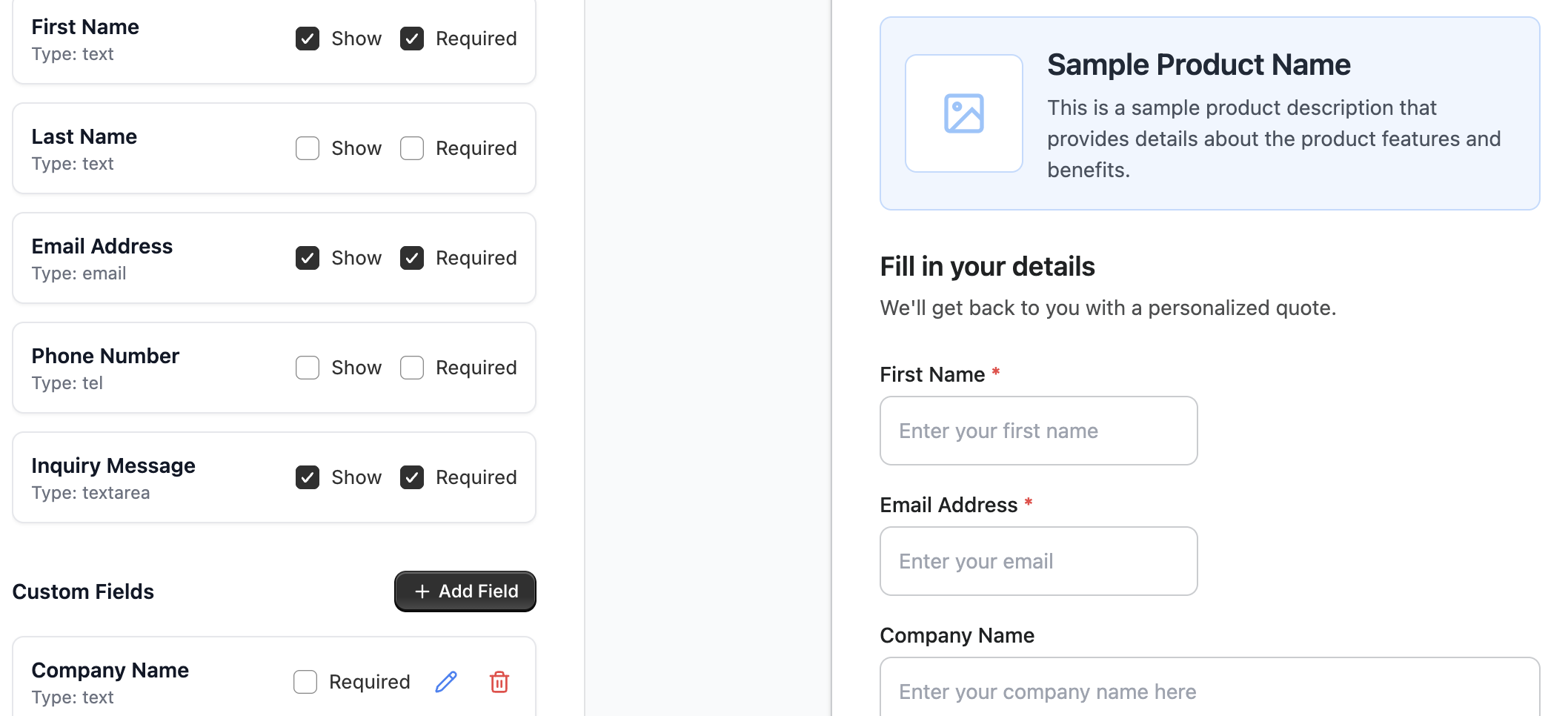
Navigate to Quote Request Form and click Edit Quote Form to edit the in-built form fields.
- Field Configuration: Check "Show" and "Required" for standard fields like First Name, Last Name, Email, Phone Number, and Inquiry Message.
- Custom Fields: Click "+ Add Field" to create unique fields like "Company Name" or "VAT Number."
- Form Styling: Adjust the background color, text color, input borders, and button radius of the popup modal.
- Live Preview: View the mobile/desktop version of the form as you edit.
Manage Templates for Email Notifications
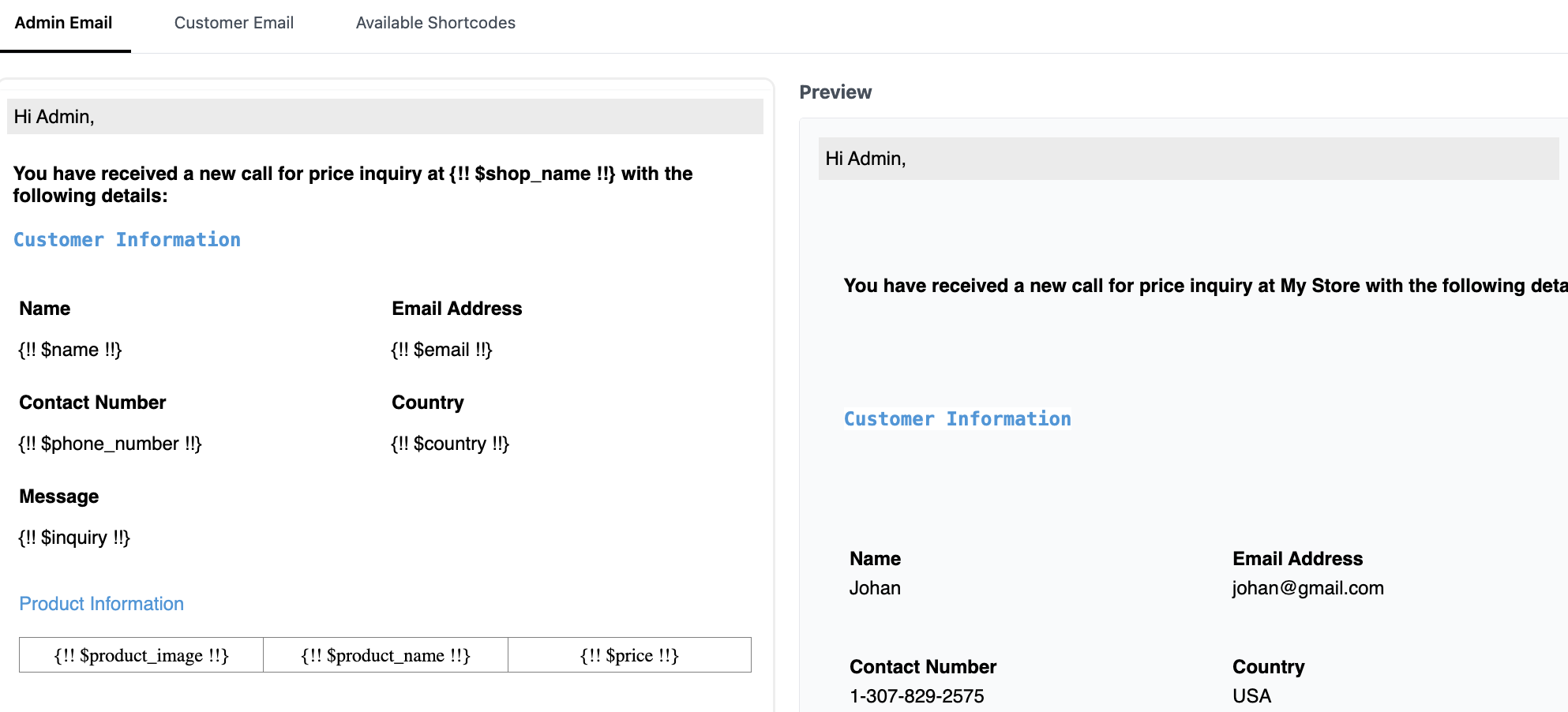
In the app, the Email Template tab allows you to customize the templates for admin and custom notifications for inquiries. You can easily edit the admin and customer template using the shortcodes.
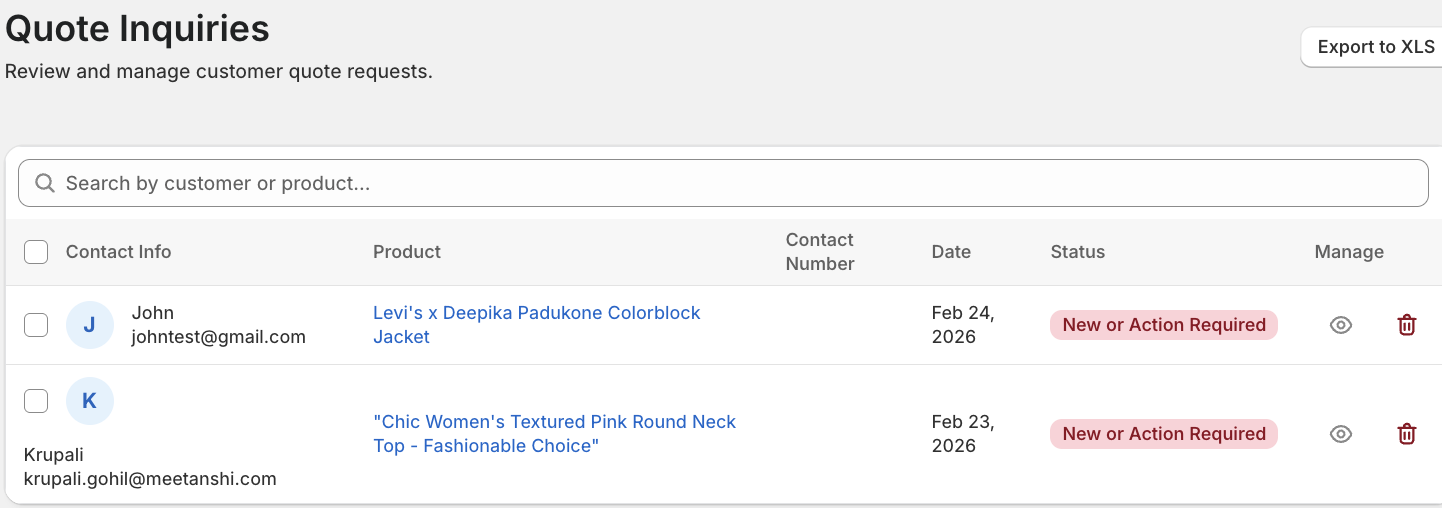
Manage Quote Inquiries Received from Form
In the Inquiries tab, you can see quotations form submissions by customers. This list can also be exported to CSV so that you can follow up later.
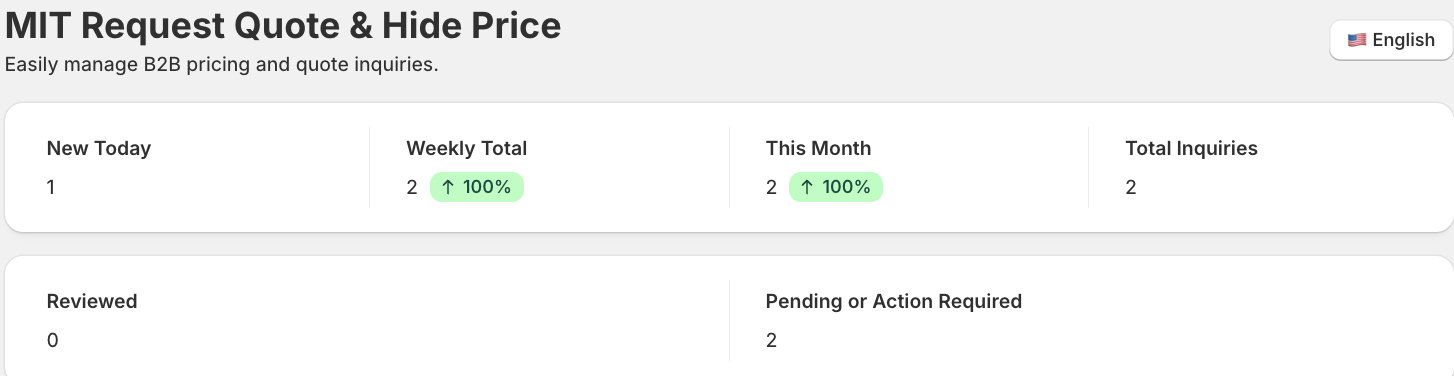
Use the Home screen of the app for a high-level summary of your quote activity. This dashboard displays real-time analytics, including New Today, Weekly Totals, and the current status of all pending inquiries.