MPC: Meetanshi Products Copier for Shopify - User Guide
The MPC: Meetanshi Products Copier app allows you to seamlessly duplicate products across connected Shopify stores with full control over attributes, pricing, and variants.
Dashboard
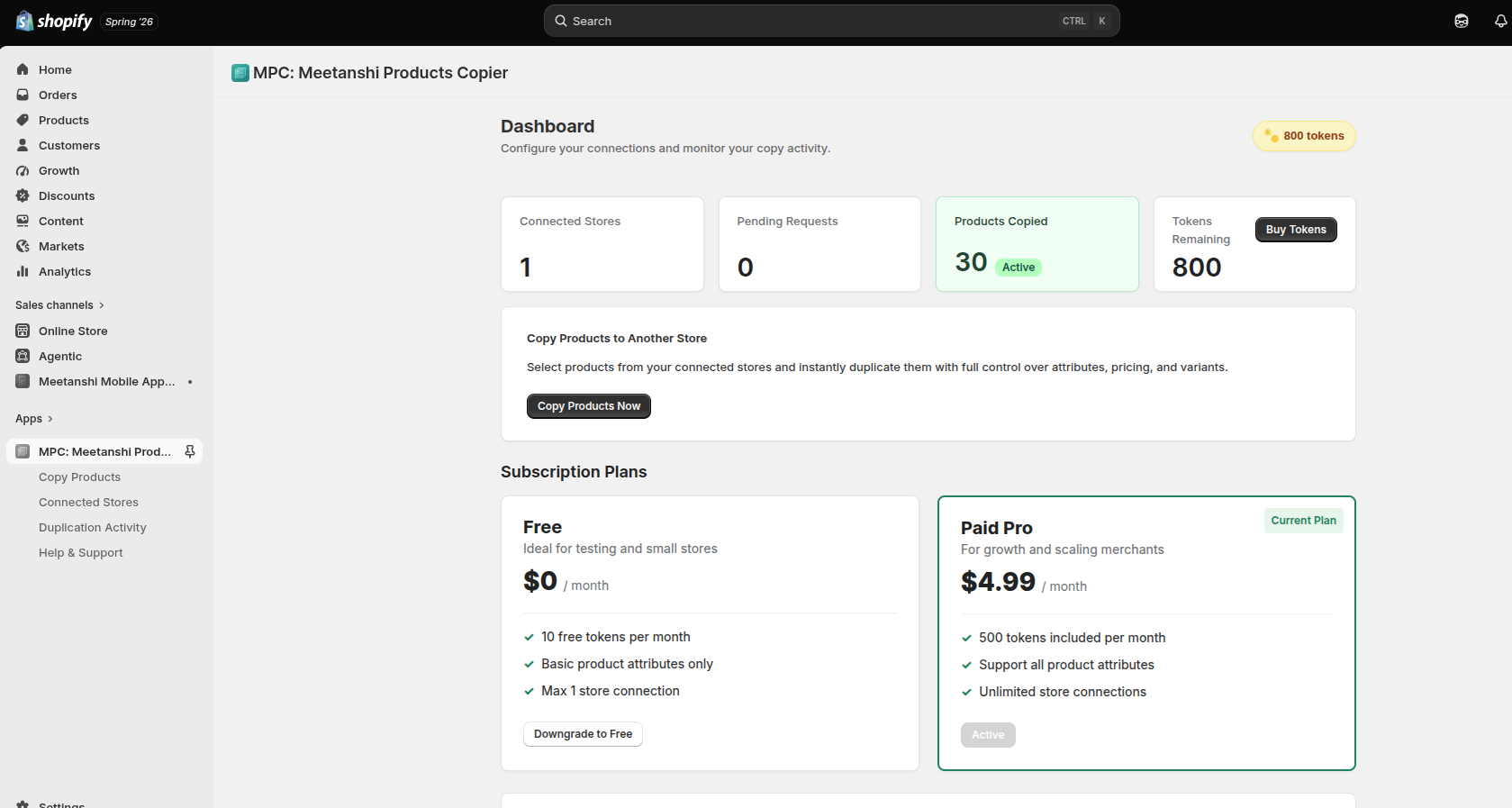
The Dashboard provides a complete overview of your app activity, token usage, and current subscription plan.
App Metrics
Monitor your key statistics at a glance:
- Connected Stores: Total number of partner stores connected.
- Pending Requests: Number of incoming connection requests awaiting approval.
- Products Copied: Total number of successful product duplications.
- Tokens Remaining: Your available token balance for copying products. You can purchase more using the Buy Tokens button.
Subscription Plans
Manage your app subscription tier:
| Plan | Price | Features |
|---|---|---|
| Free | $0/month | Ideal for testing and small stores. Includes 10 free tokens/month, basic product attributes only, and a maximum of 1 store connection. |
| Paid Pro | $4.99/month | For growth and scaling merchants. Includes 500 tokens/month, support for all product attributes, and unlimited store connections. |
Quick Actions
- Copy Products to Another Store: A quick access section to initiate the product duplication process. Click Copy Products Now to get started.
Configuration
To configure the duplication workflow, move through the main tabs where you can find various settings to customize how products are copied.
Copy Products
The Copy Products tab allows you to select a connected provider store, pick products, and start a duplication job via three simple steps:
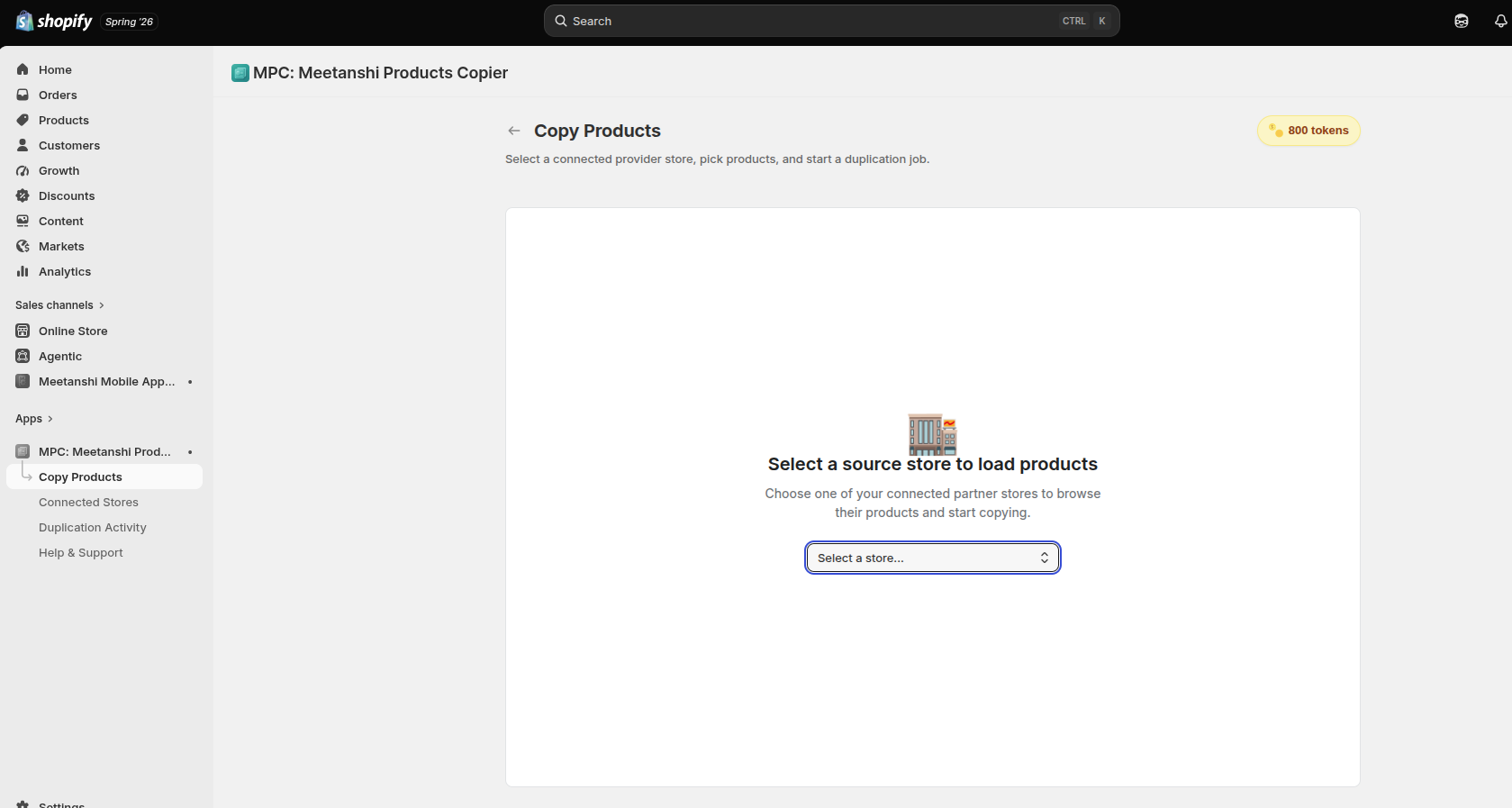
Step 1: Select a Source Store
- If you haven't selected a store yet, the app will prompt you to “Select a source store to load products.”
- Click the Select a store... dropdown menu and choose one of your connected partner stores to browse their products.
Step 2: Pick Products and Attributes
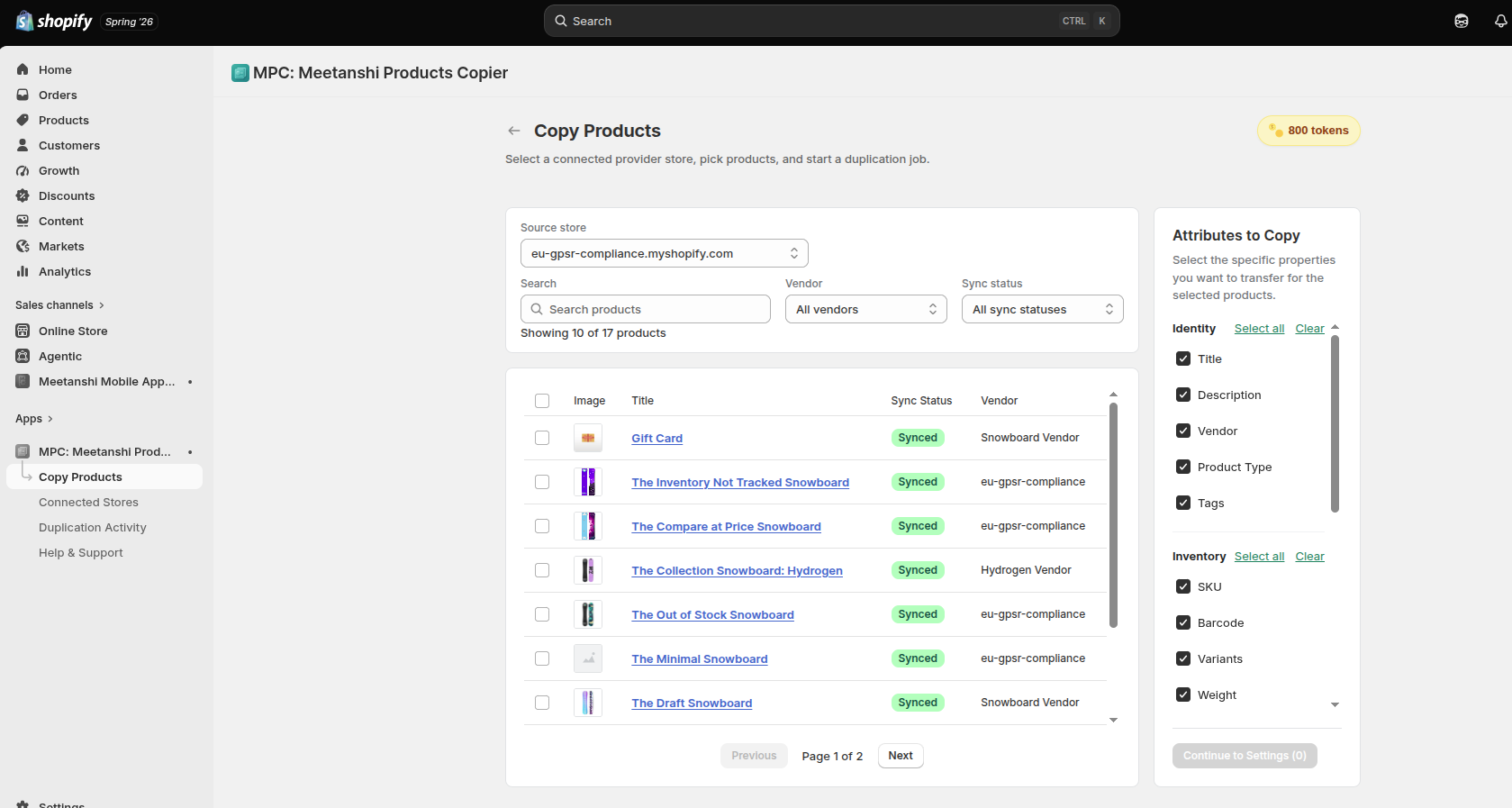
Once a source store is loaded, you will see a list of their available products.
- Search and Filter:
- Use the Search products bar to find specific items.
- Filter products using the Vendor dropdown (e.g., All vendors).
- Filter by Sync status (e.g., All sync statuses).
- Select Products: Browse the list (displaying Image, Title, Sync Status, and Vendor) and check the boxes next to the products you want to copy.
- Attributes to Copy: On the right-hand sidebar, select the specific properties you want to transfer. Use the Select all or Clear links for quick selection.
- Identity: Title, Description, Vendor, Product Type, Tags.
- Inventory: SKU, Barcode, Variants, Weight.
- Click the Continue to Settings button at the bottom right to proceed.
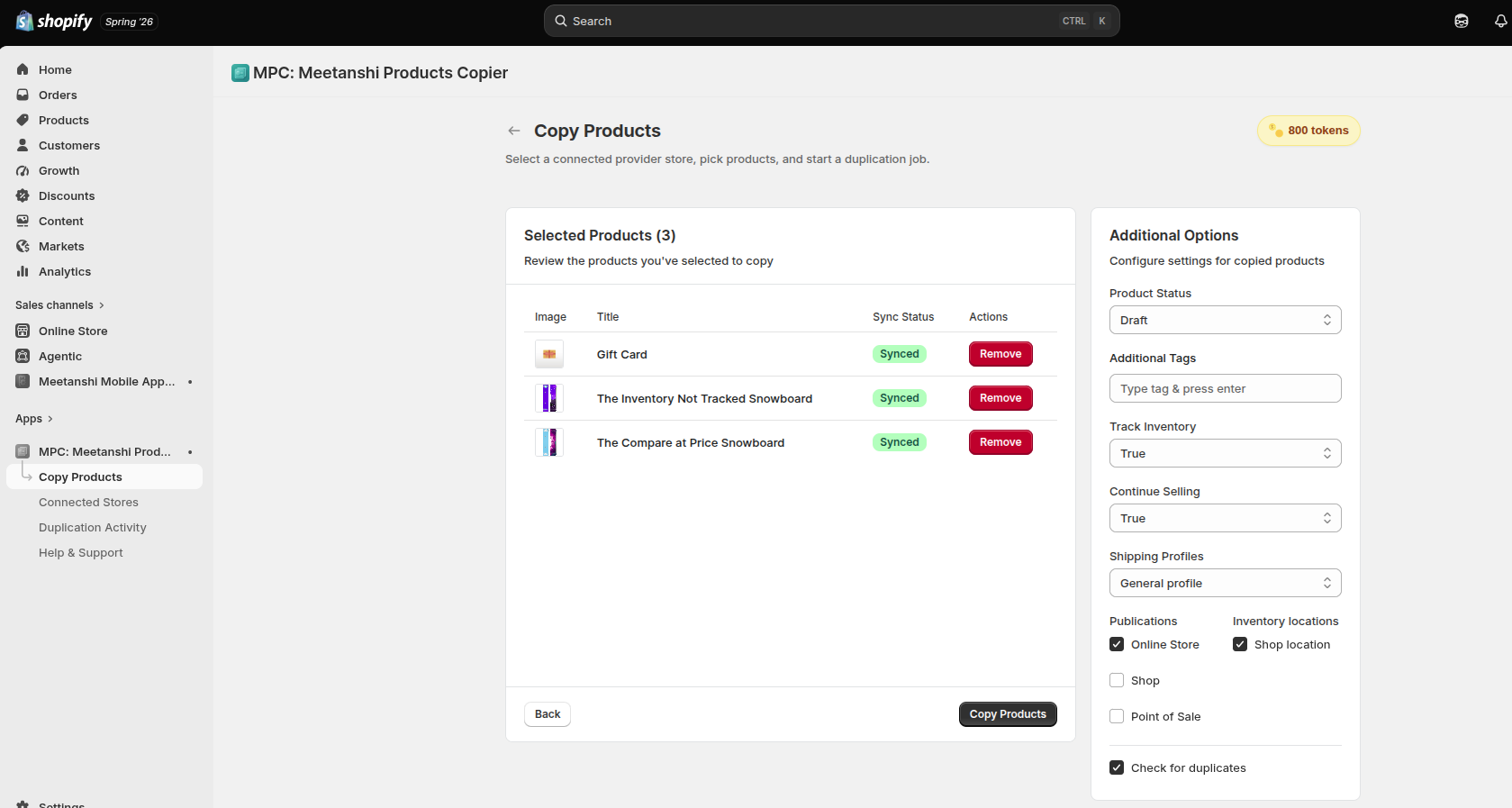
Step 3: Additional Options and Finalize
Review your choices and configure how the products will be created in your store.
- Selected Products Review: View a summary of the products you've selected. Click the Remove button next to any item to exclude it.
- Additional Options (Right Sidebar):
- Product Status: Choose the initial status of the copied products in your Shopify admin (e.g., Draft, Active).
- Additional Tags: Enter any extra tags you want automatically appended (type the tag and press Enter).
- Track Inventory: Select whether Shopify should track inventory for these items (True / False).
- Continue Selling: Choose whether products can continue to be sold when out of stock (True / False).
- Shipping Profiles: Assign the products to a specific shipping profile (e.g., General profile).
- Publications: Select the sales channels where these products should be published (e.g., Online Store, Shop, Point of Sale).
- Inventory locations: Select the specific physical locations for the inventory (e.g., Shop location).
- Check for duplicates: Keep this box checked to ensure the app verifies if the product already exists before copying, preventing unwanted duplicates.
- Click the Copy Products button to initiate the duplication job.
Manage Connections (Connected Stores)
Navigate to Connected Stores from the left sidebar to control incoming and outgoing store relationships, approve requests, and adjust settings.
Source Stores
These are partner stores from which you can import products.
- View your Connected Sources, their active status, and the allowed attributes (e.g., "All attributes").
- Use the Connect a Store button to link a new source store.
- Click Disconnect to terminate a relationship with an existing source store.
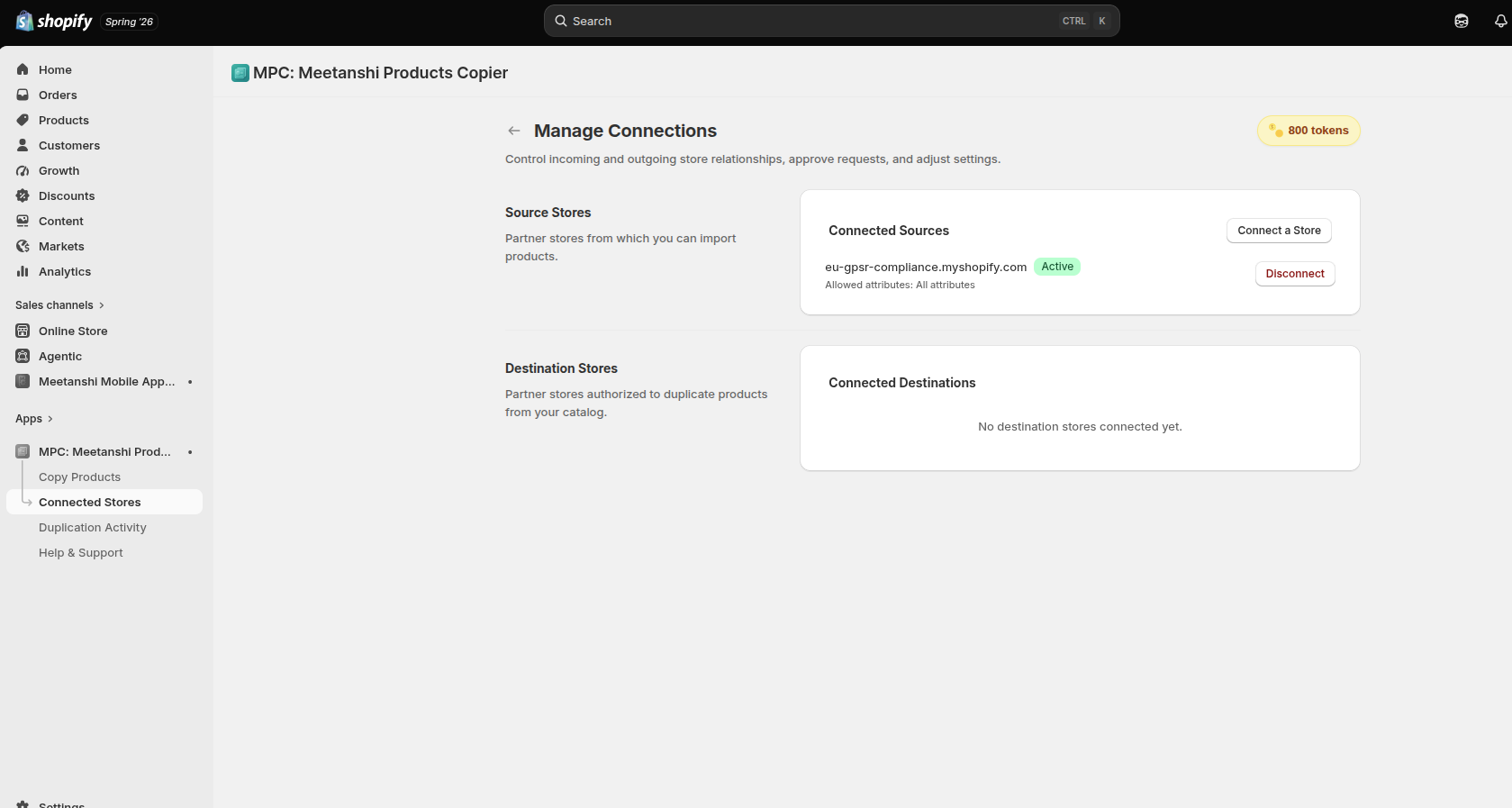
Destination Stores
These are partner stores that are authorized to duplicate products from your catalog.
- You can manage these connections directly in the Connected Destinations section.
Duplication Activity
Navigate to Duplication Activity from the left sidebar to track the progress of current product duplication jobs or view your sync history.
- Filters & Controls: Filter your jobs by specific statuses (e.g., All statuses) and sources (e.g., All sources), or click Create new job to quickly start a new process.
Jobs Table
| Job ID | Submitted | Source Store | Copied | Total Products | Status | Action |
|---|---|---|---|---|---|---|
cc_eu-gpsr-compliance_51 |
Date & Time | Origin Store Name | 5 | 5 | Completed | Show Details |
Note: Need help understanding your jobs? The info box provides a direct link to view the User Guide for tips on managing and monitoring product duplications.
Help & Support (Help Center)
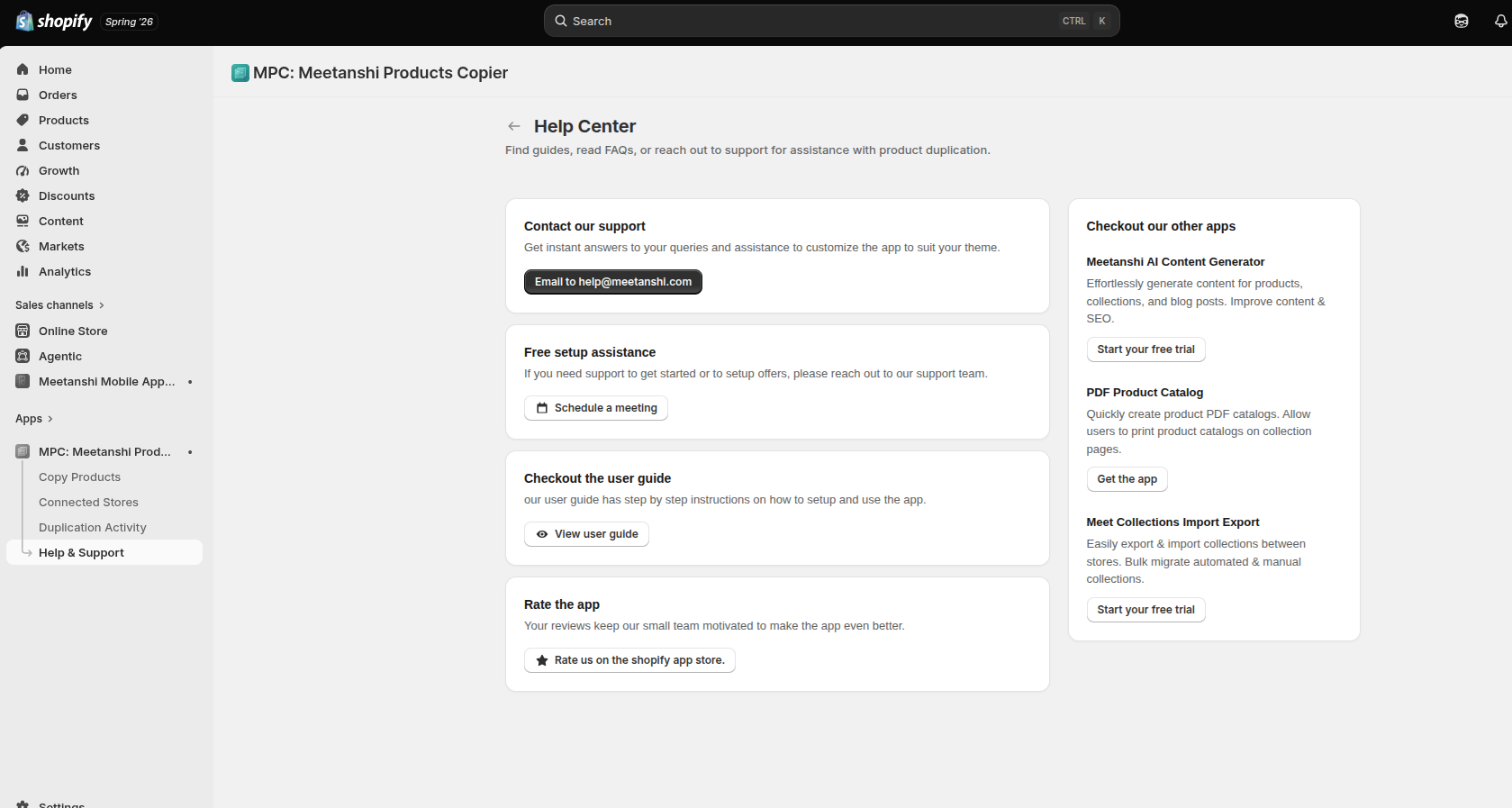
Access the Help & Support section to find guides, read FAQs, or reach out for assistance with product duplication.
- Contact our support: Get instant answers to your queries and assistance to customize the app to suit your theme. Email us directly at
[email protected]. - Free setup assistance: Need help getting started or setting up offers? Click Schedule a meeting to connect with our support team.
- Check out the user guide: Click View user guide for step-by-step instructions on how to set up and use the app.
- Rate the app: Click Rate us on the Shopify App Store to leave a review and support our team.
- Explore our other apps: Discover more useful tools by Meetanshi:
- AI Content Generator
- PDF Product Catalog
- Meet Collections Import Export