MIT Payment Hider for Shopify - User Guide
Introduction to Payment Customizations
Payment customization lets you hide, rename, or rearrange payment methods in your store based on different conditions. Instead of giving every shopper the same checkout experience, you can personalize it depending on things like who the customer is, what’s in their cart, or where they’re shopping from.
For example, you might want to:
- Hide Cash on Delivery for international orders
- Show Bank Transfer only to wholesale customers, etc.
The MIT Payment Hider app gives you full control over how payment methods appear in your store.
With our app, you can:
- Hide specific payment methods [Enable the toggle to hide the payment method]
- Sort payment methods in your desired order [Hold and Drag the payment method to move it to other position]
- Rename payment methods for clarity or branding [Click rename or pen icon to give a new name to your payment method]
In the app dashboard, click Create Customization and start customizing the payment methods.
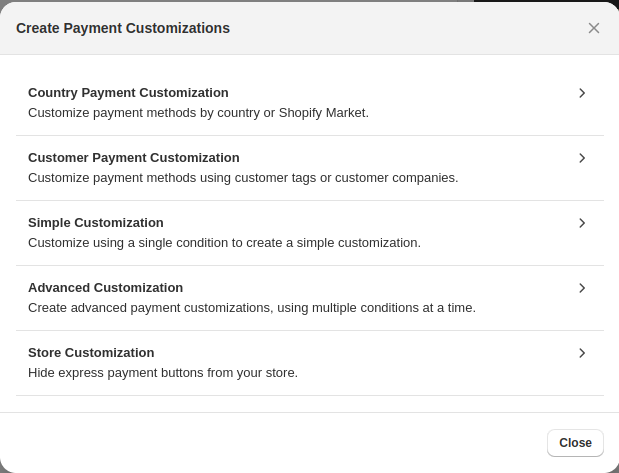
You can create the following types of customizations:
- Country-based: Show, hide or rename payment methods depending on where your customer is from
- Customer-based: Personalize payment methods to different customer groups like Retail or Wholesale
- Simple Conditions: Set basic rules like hiding payment methods for specific products or order values
- Advanced Conditions: Combine multiple rules for more precise control.
- Store Customization: Hide payment buttons from product or cart pages completely
Country-based
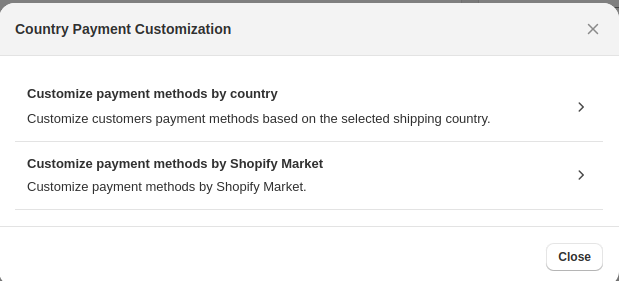
You can use this type of customization to show or hide payment methods based on a customer's country or by Shopify market.
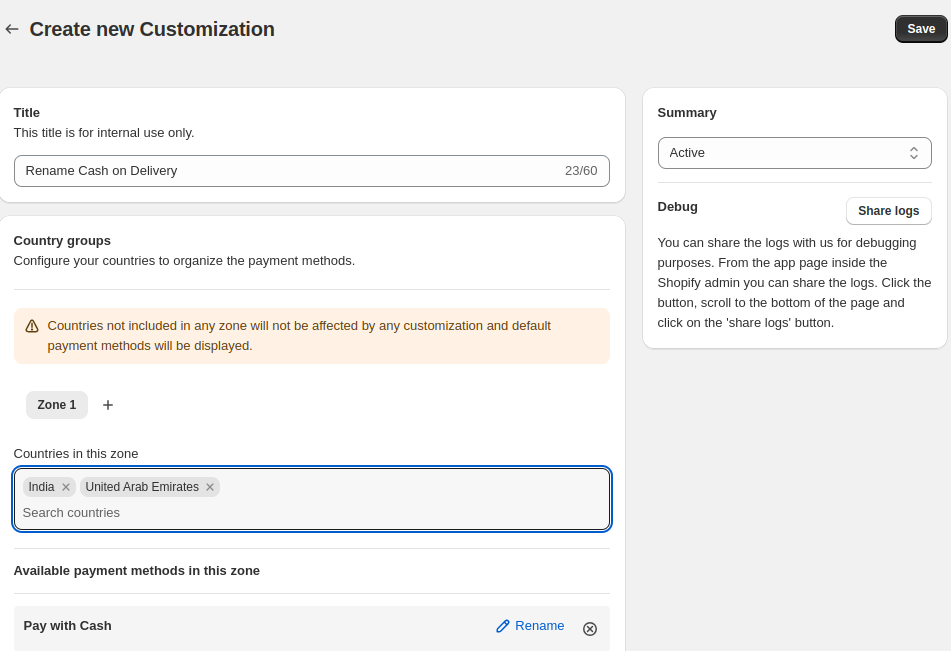
Let’s say you want to rename Cash on Delivery to Pay with Cash for customers in India and UAE.
- Add a title for your rule
- Choose the country group you want this rule to apply to
- You’ll see a list of available payment methods. From here, you can:
- Rename any payment method
- Change the order in which they appear
- Don’t see a method listed? You can add it manually by name.
- Click Save
Now, only customers from India and UAE will see the COD option during checkout.
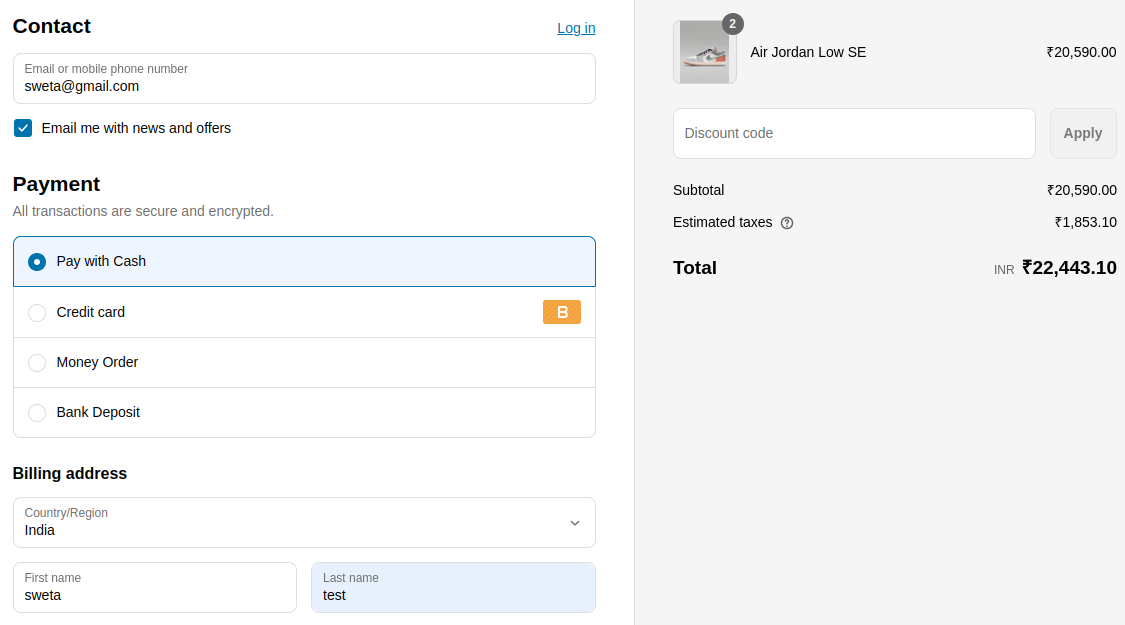
Note: You can only rename and sort the payment methods in country-based payment customization.
Customer-based
Using this customization, you can control payment options based on customer groups like Retail or Wholesale.
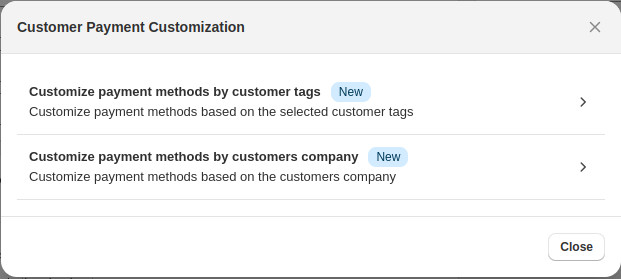
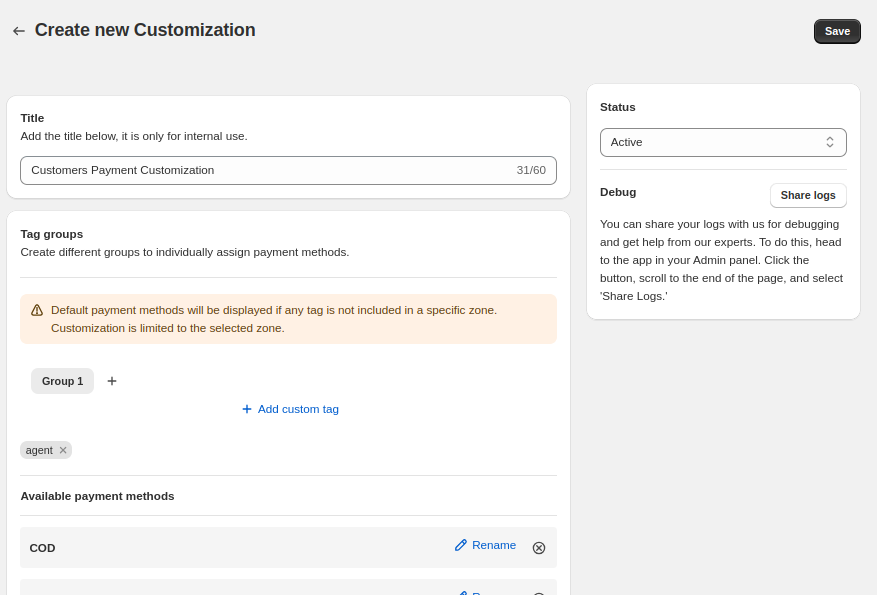
Suppose you want to rename Cash on Delivery as COD for customers tagged as “agent”.
- Enter a title
- Select the customer group
- From the list of available payment methods you can rename them or change the order in which they appear
- If a payment method is missing, just add it by name
- Click Save
After saving customers with a tag “agent”, cash on delivery will be seen as COD.
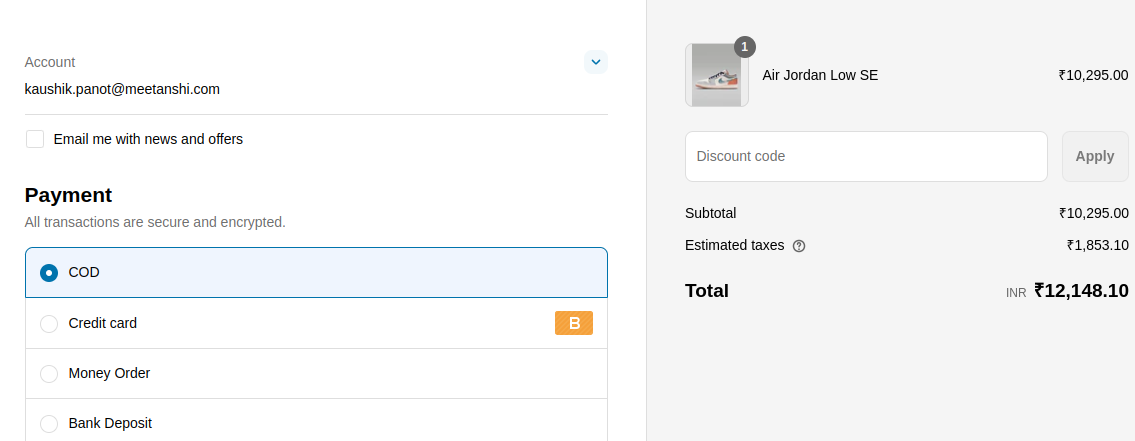
Note: You can only rename and sort the payment method in customer payment customization.
Simple Conditions
You can use the simple conditions to hide or adjust payment methods based on specific conditions — like cart total, product, or discount code.
Let’s say you want to hide COD if the cart total is greater than 10,000.
Here’s how to set it up:
- Pick a parameter — i.e. “Cart total”
- Define your condition — i.e. greater than 10000
- In the payment methods list, choose what you want to hide, rename or sort
- You can also add missing payment methods by name if needed
- Click Save
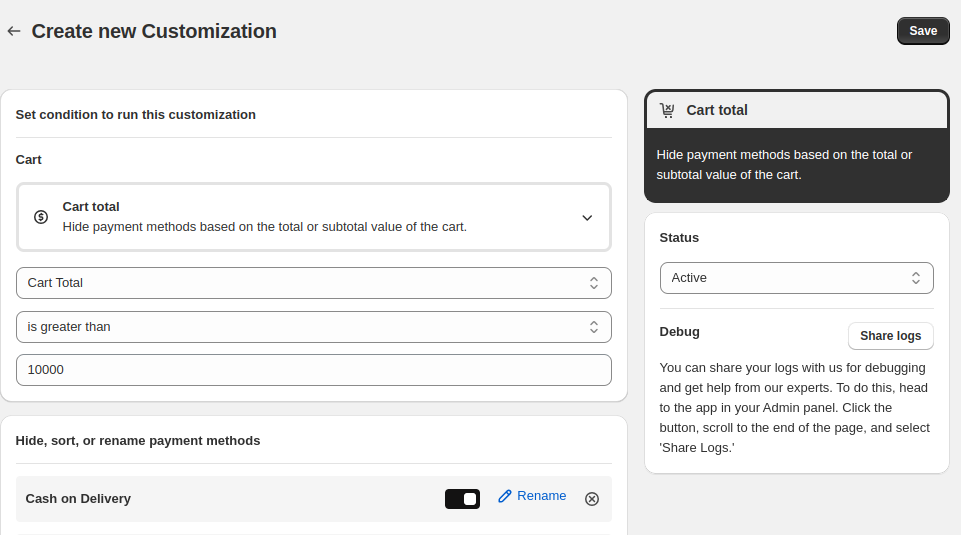
Now, when a customer adds products to their cart with a total more than 10,000 the COD option will no longer show up.
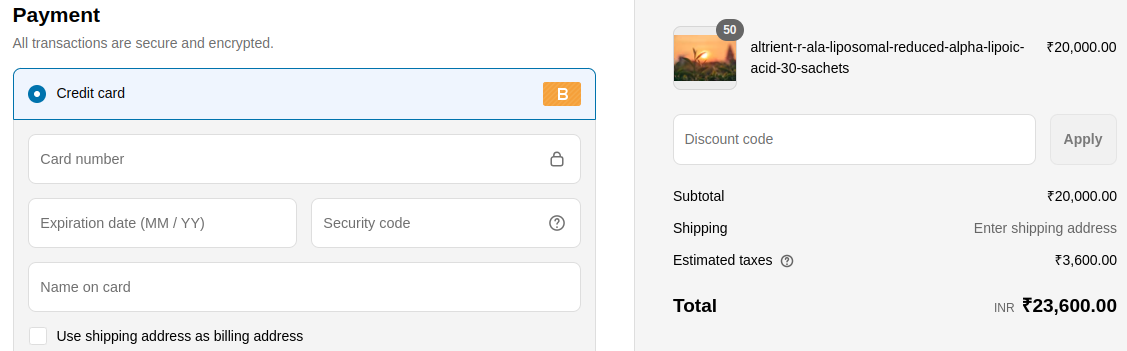
Note: You can hide, rename and sort the payment method in simple customization.
Advanced Conditions
You can combine multiple rules to control when a payment method should be hidden, sorted, or renamed. These are perfect for more specific or layered use cases.
Let’s say you want to hide a payment method when the cart total is greater than ₹100, and the cart currency is Indian Rupee.
Here’s how to set it up:
- In the Advanced Conditions section, set the logic to “And” to ensure both conditions must be true.
- Add the first condition:
- Cart total > 100
- Add the second condition:
- Cart currency = Indian Rupee
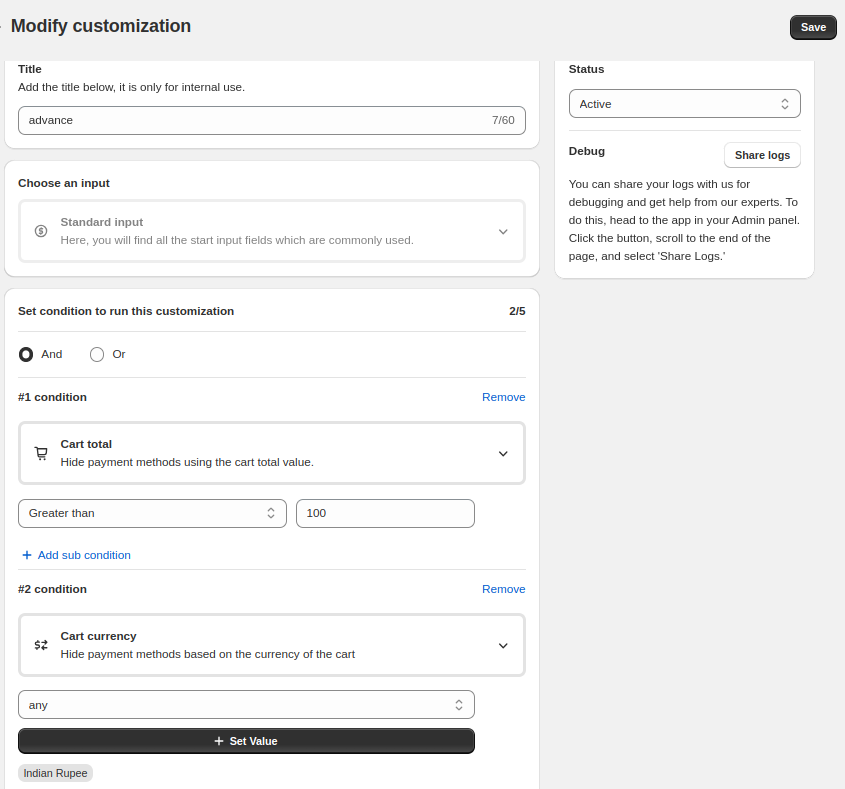
- Choose the payment method(s) you want to hide, rename, or reorder under the available payment methods section.
- If the method isn’t listed, you can add it manually by name.
- Click Save.
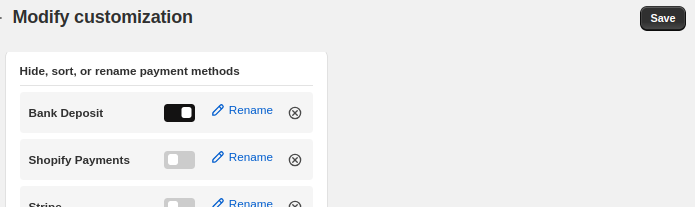
With this rule in place, only customers in India buying that product will see the COD option.
Frontend View,
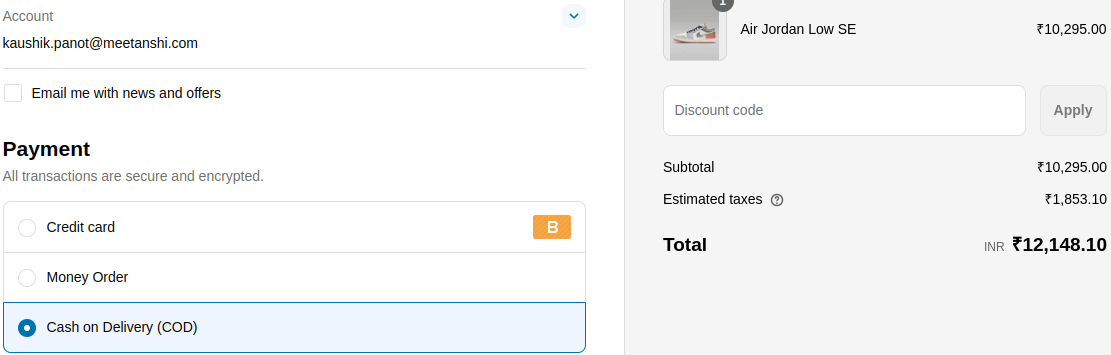
Note: You can hide, rename and sort the payment method in advanced payment customization.
Store Customization (Hide Payment Buttons)
The app also allows you to remove specific payment method buttons from your product or cart pages.
Suppose you want to hide the Amazon Pay button from all pages or any specific pages.
Here’s how to do it:
- Give your rule a title
- Set any optional conditions—or leave it open to apply sitewide
- Use the toggles to disable payment buttons on:
- Product pages
- Cart pages
- Click Save
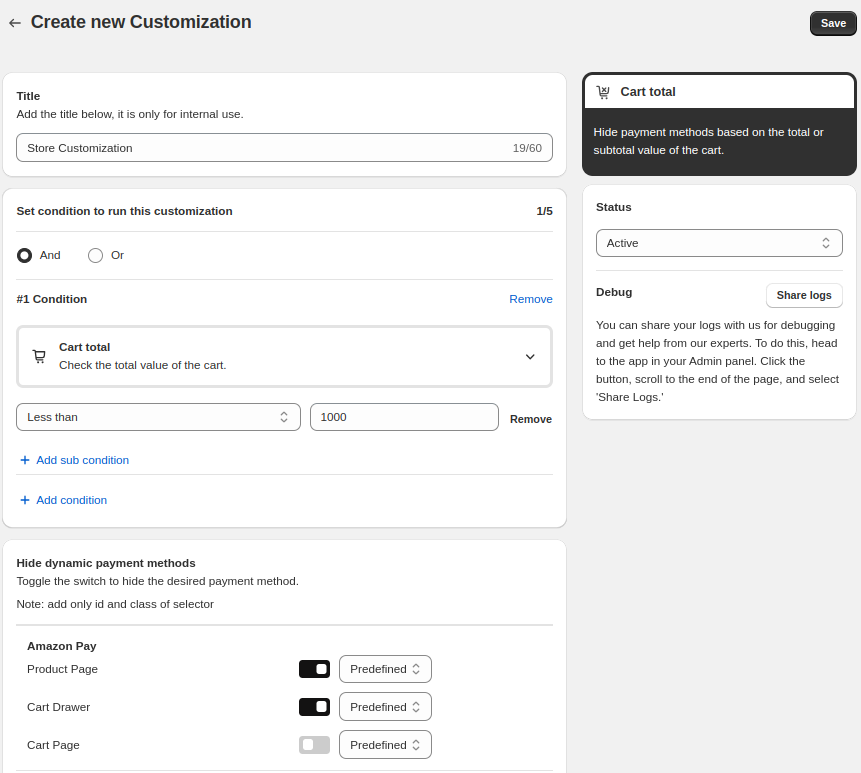 After saving, the Amazon Pay button will no longer appear where you’ve disabled it.