EU Omnibus Price Tracker - User Guide
The EU Omnibus Price Tracker for Shopify helps merchants maintain transparent pricing by tracking product price history and displaying compliant discount information on storefronts. This user guide explains how to install the app, configure tracking settings, and manage price history records with ease.
Dashboard Overview
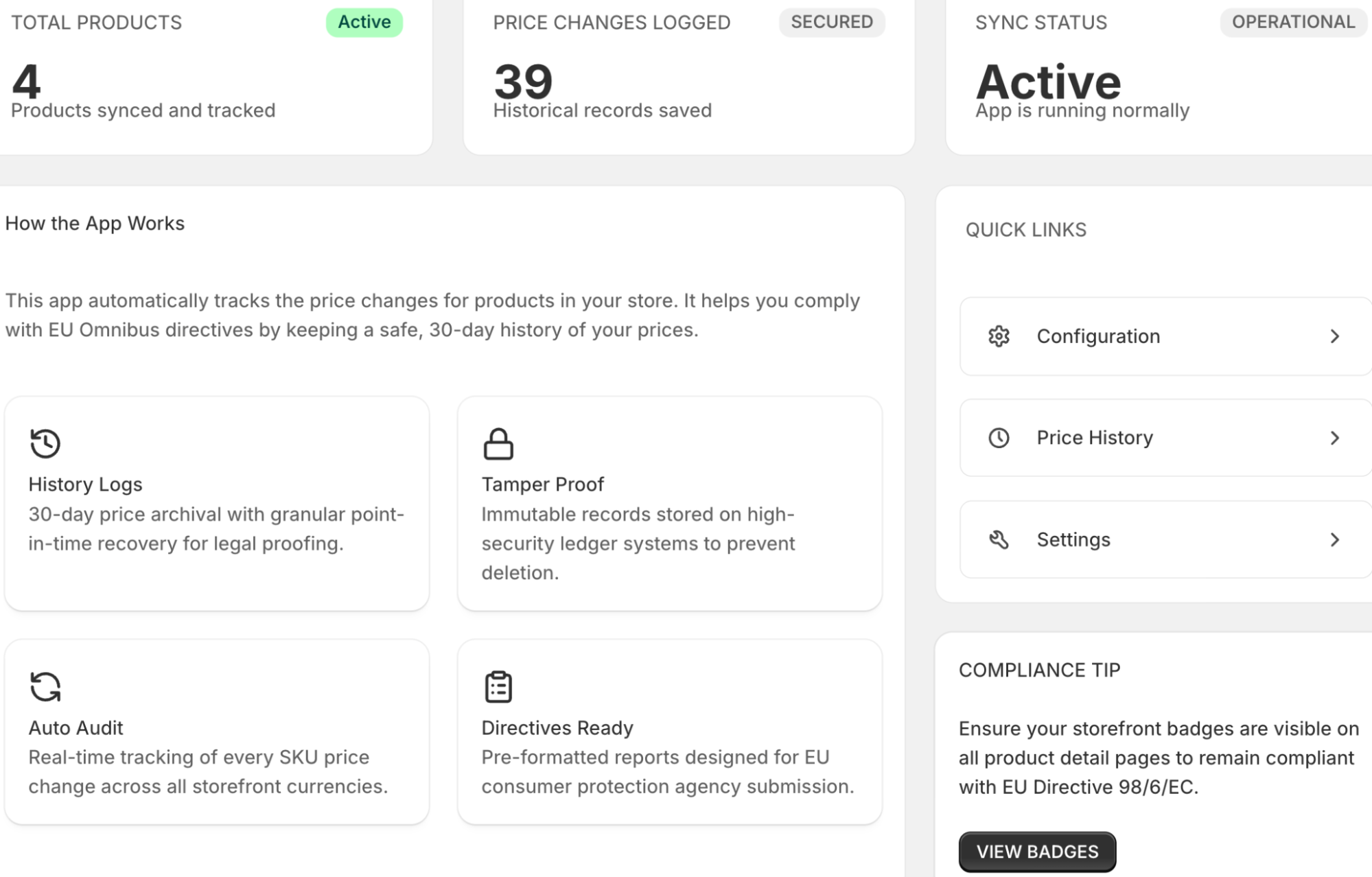
Head to the app dashboard, and get real-time info on your compliance status. Get to know the:
- Number of active products currently being synced and tracked.
- Total count of historical price points saved in your secure ledger.
- App status in monitoring your storefront prices.
Step 1: Add the Omnibus Price Block
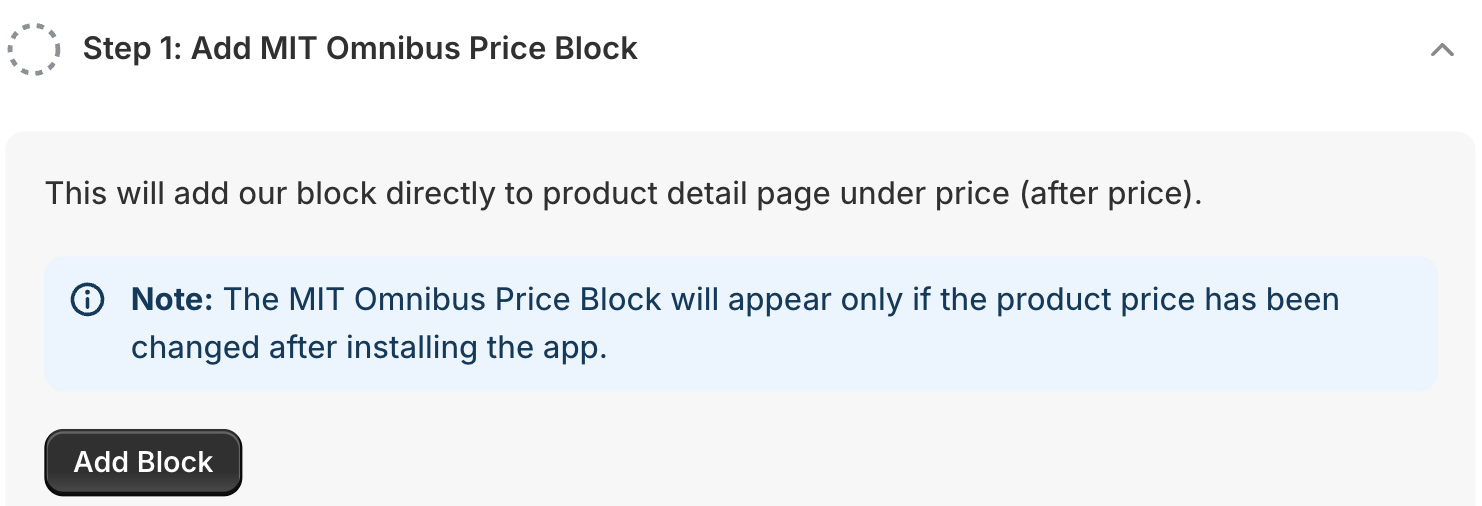
Now, go to the Installation from the left-hand side under the app. Here, you will have to add the MIT Omnibus Price Block for the badge to appear properly in the storefront.
Click on Add Block under Step 1: Add MIT Omnibus Price Block, and it will redirect you to your current store theme editor.
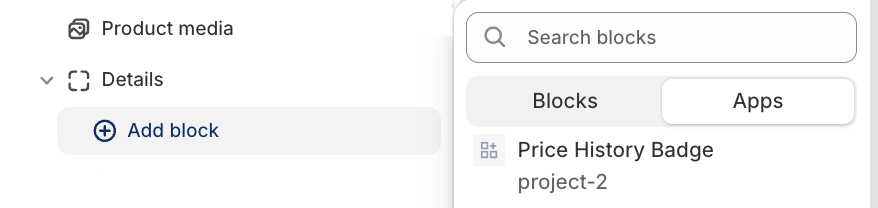
 In your theme editor, in the top section, go to products > add block > apps, then select Price History Badge.
 Then, hit save and go back again to the app dashboard to add other related settings.
Step 2: Configure General Settings
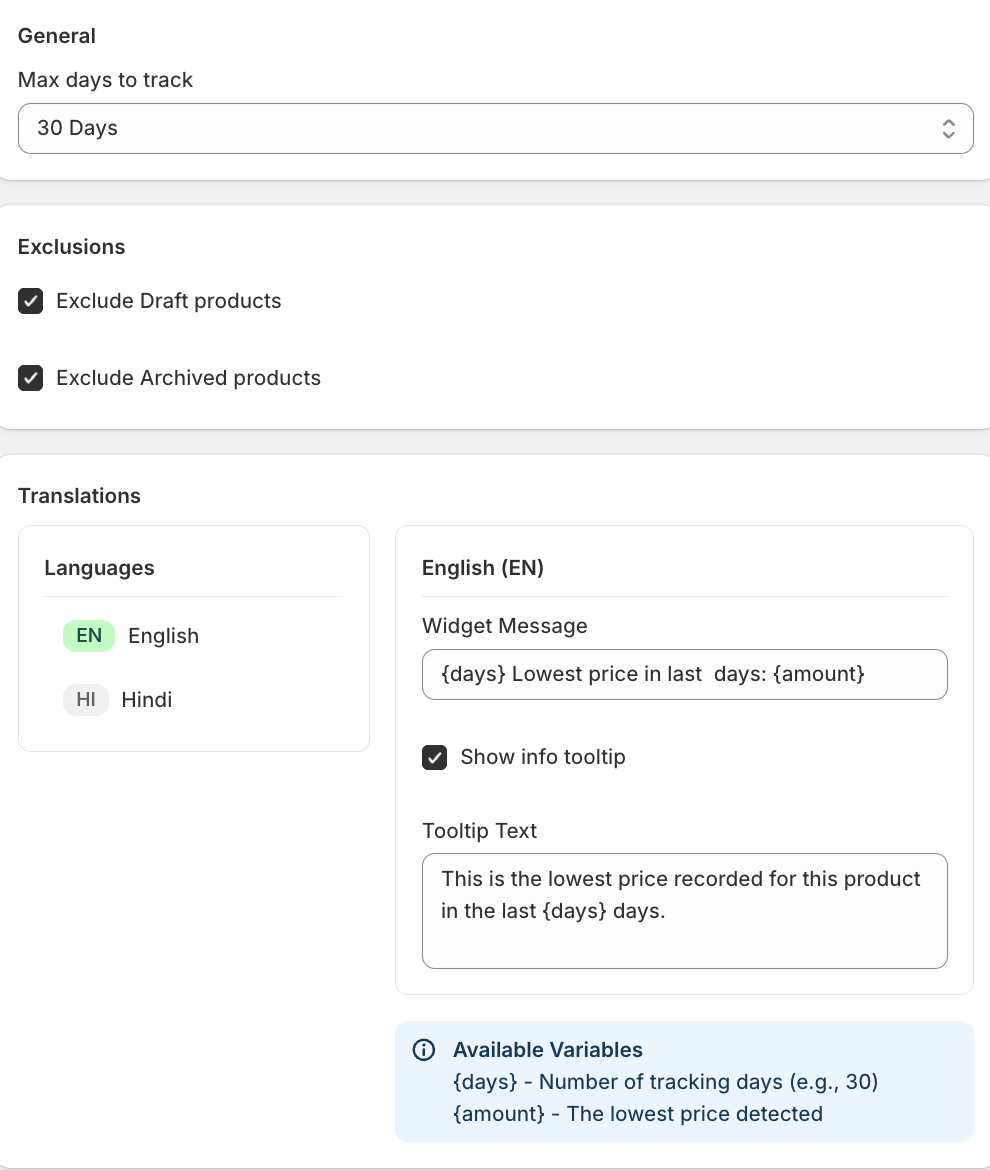
To set your tracking parameters, navigate to the Settings tab and add the following details:
- Max days to track: Use the dropdown to select your lookback period. While the EU Omnibus directive requires 30 Days, you can scale this to 60, 90, or 120 days depending on your regional needs.
- Exclusions: Check the boxes to Exclude Draft products or Exclude Archived products. This keeps your history logs clean and ensures you only track items currently available for sale.
- Translation: Customize the toolkit messages based on your Shopify market. You can set different messages for different markets.
Step 3: View the Omnibus Price Tracker in Frontend
Save the settings above and view the price tracker on any product page. It will look like this:
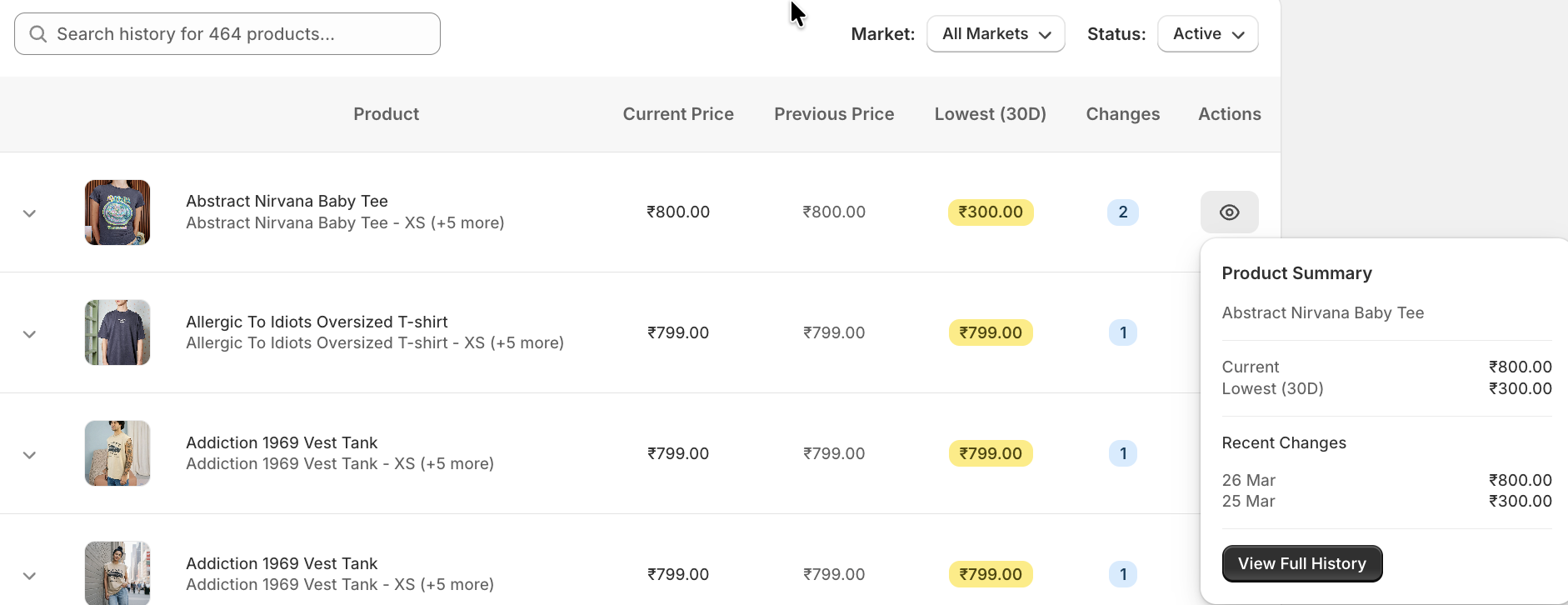
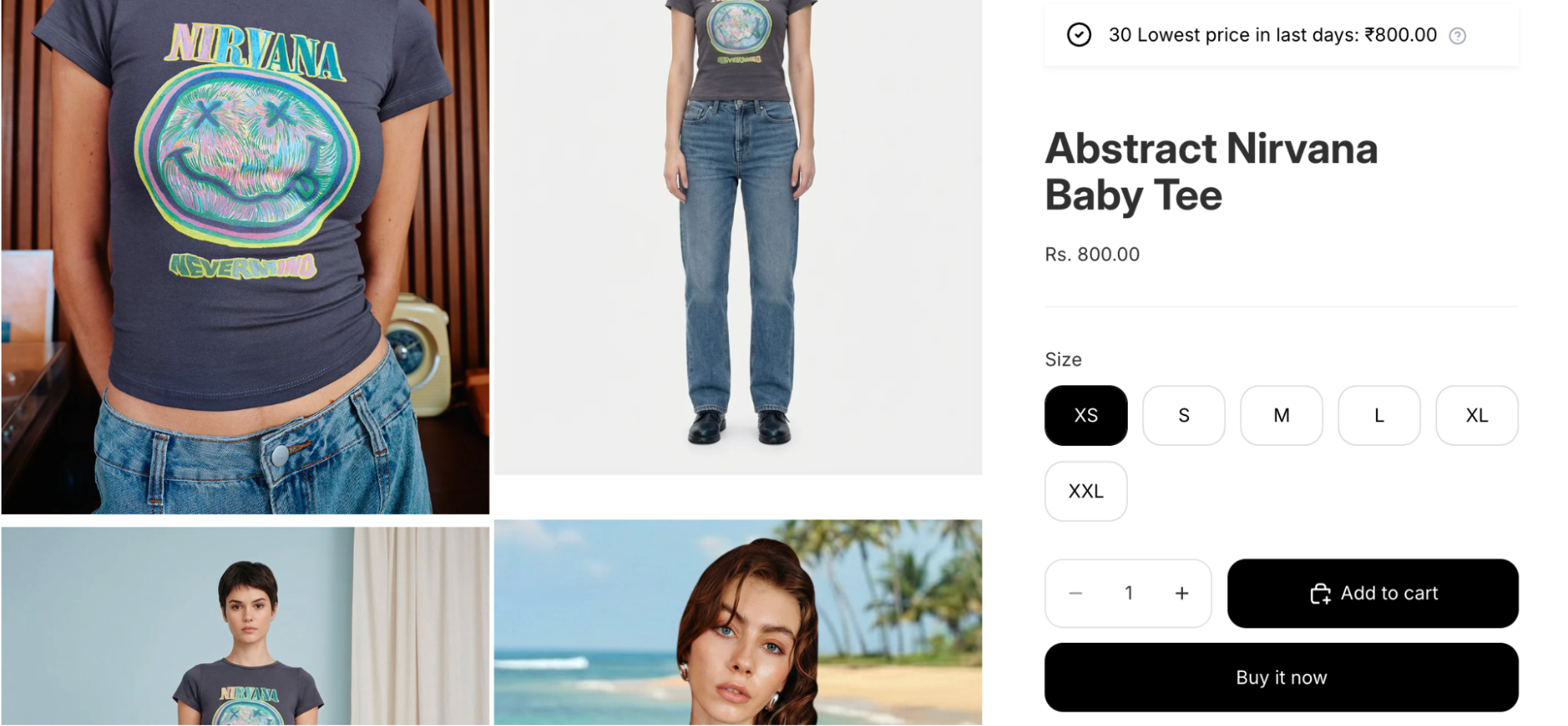 In order to get a complete history of the price changes, head to History from the app dashboard to see an immutable record of every price change.
- SKU Tracking: Each product variant is tracked individually to ensure accuracy across sizes, colors, and styles.
- Lowest (30D): This column automatically identifies the lowest price recorded within your selected timeframe.
- Audit Trail: Use the Search bar to find specific products. This data serves as legal proof if requested by consumer protection agencies.
Need Help?
If you need support, contact us directly through the app dashboard.