Dashboard Overview
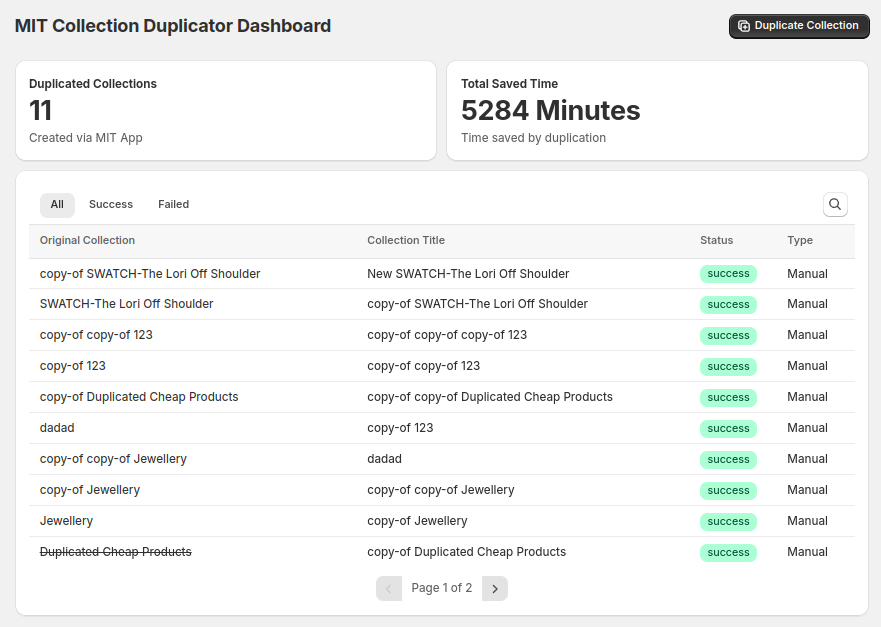
When you open the MIT Collection Duplicator app, the first thing you'll see is the dashboard. This is where all your duplicated collections are listed. It’s a quick way to keep track of everything you’ve copied so far.
Each entry shows you the original collection, the name of the duplicated one, and the type (manual or smart). Most importantly, you'll see the status of each duplication — whether it was a success or failed.
To make it even easier, there are tabs at the top to filter the list:
- All – View every duplication
- Success – Only the ones that worked
- Failed – Any that didn’t go through
This helps you stay organized and quickly spot any issues.
Duplicate a Collection
Duplicating a collection is simple and only takes a few clicks.
- Head over to the Collections Duplicator section inside the app
- You’ll see a list of all your current collections
- Each one will show its name, type (manual or smart), and the number of products it contains
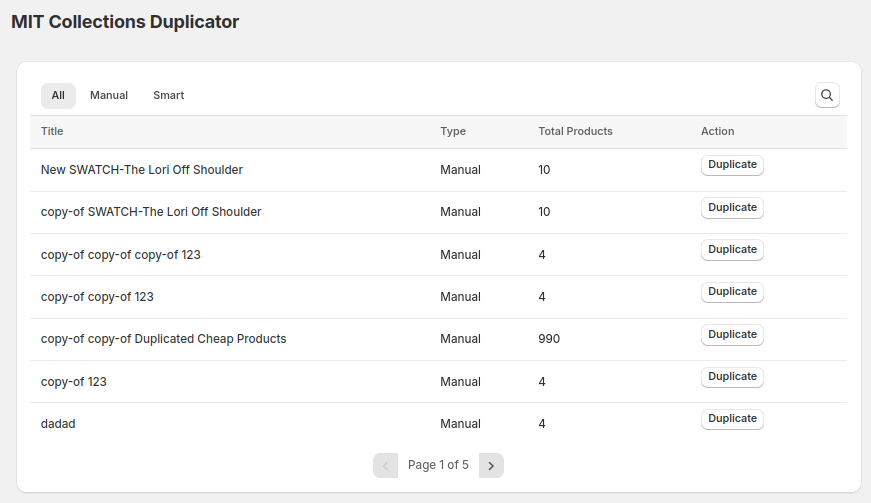
- To make a copy, just click the “Duplicate” button next to the collection you want and fill in the details
- Enter a new title, handle, and description for the duplicate collection
- Choose whether to delete the original collection after duplication using the checkbox.
- Finally, click “Start Job” to begin the duplication process or “Cancel” to exit without making changes.
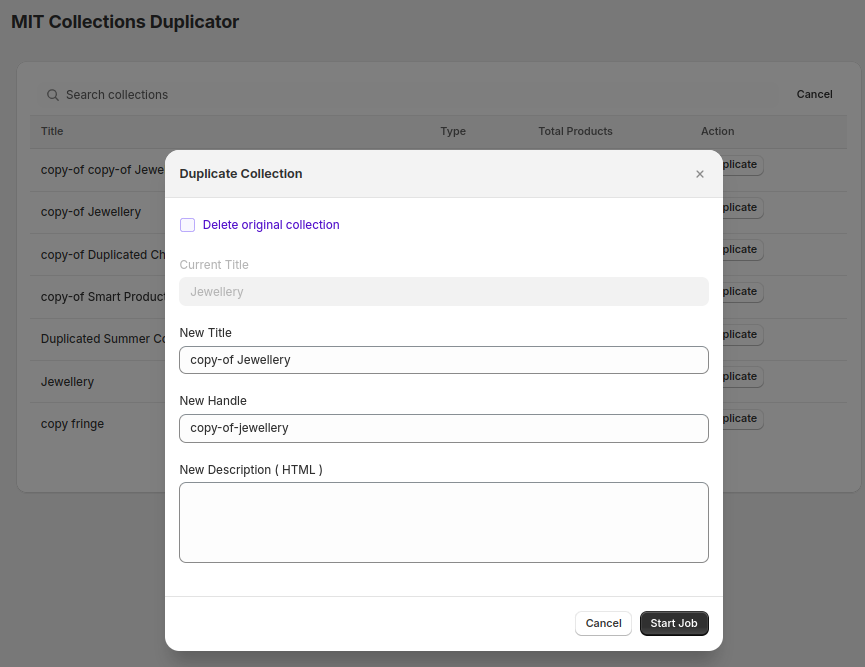
That’s it! The app will create a new collection with the same products and structure, and it’ll automatically name it with a prefix like copy-of. For example, if the original is "Jewellery", the duplicated one will be "copy-of Jewellery".
Check Status / Logs
After duplicating, you can easily check whether it worked.
Go back to the dashboard and look at the Status column. If it says Success, your collection was duplicated without any issues. If it says Failed, something went wrong.
You can use the Success or Failed tabs to quickly filter and review what needs attention. For any failed attempts, you can try duplicating again — most issues are easy to fix with a retry.