

The Magento 2 order on WhatsApp helps customers easily contact you via chat to place orders. This allows you to offer more personalized shopping experiences.
In this tutorial, learn how to add order on WhatsApp Button on Magento 2 product pages.
How Does Order on WhatsApp Work?
Order on WhatsApp is a button displayed on product pages, which starts a direct WhatsApp chat with the business, along with a pre-defined message containing product details. It redirects the customers to the WhatsApp app (if installed) or WhatsApp web.
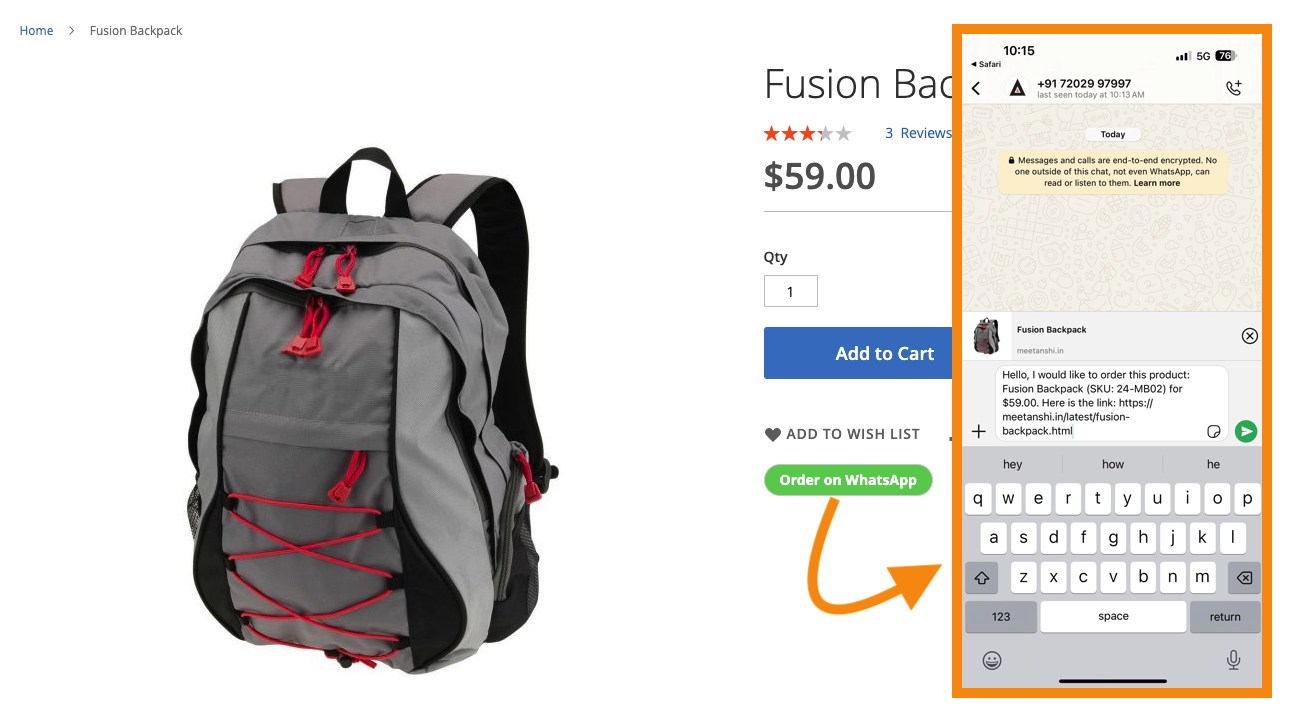
The customers can send their request to purchase a particular product, and you can start creating the order from the backend based on the requirements. Similarly, you can also have a WhatsApp chat widget set up on your website to help customers easily contact you.
Options for Magento 2 Order on WhatsApp
There are two options to let your site visitors place orders via WhatsApp in Magento 2:
- Use an extension – A third-party extension can make this task easier for you but it can be costly, and as the extension can have limited customization features that won’t be so effective in the long run.
- Create a custom widget – You might have to put some manual efforts here from your Magento admin. It is a simple and low-code method which is totally free to do.
Add Order on WhatsApp Button in Magento 2 (without Extension)
To add an order on WhatsApp button to your Magento 2 store, firstly, you will add a custom block and then create a simple widget so that the button is visible on every product page.
Let’s look at the steps in detail.
Log into your Magento 2 admin and go to Content > Elements > Blocks.
Click the “Add a New Block” button.
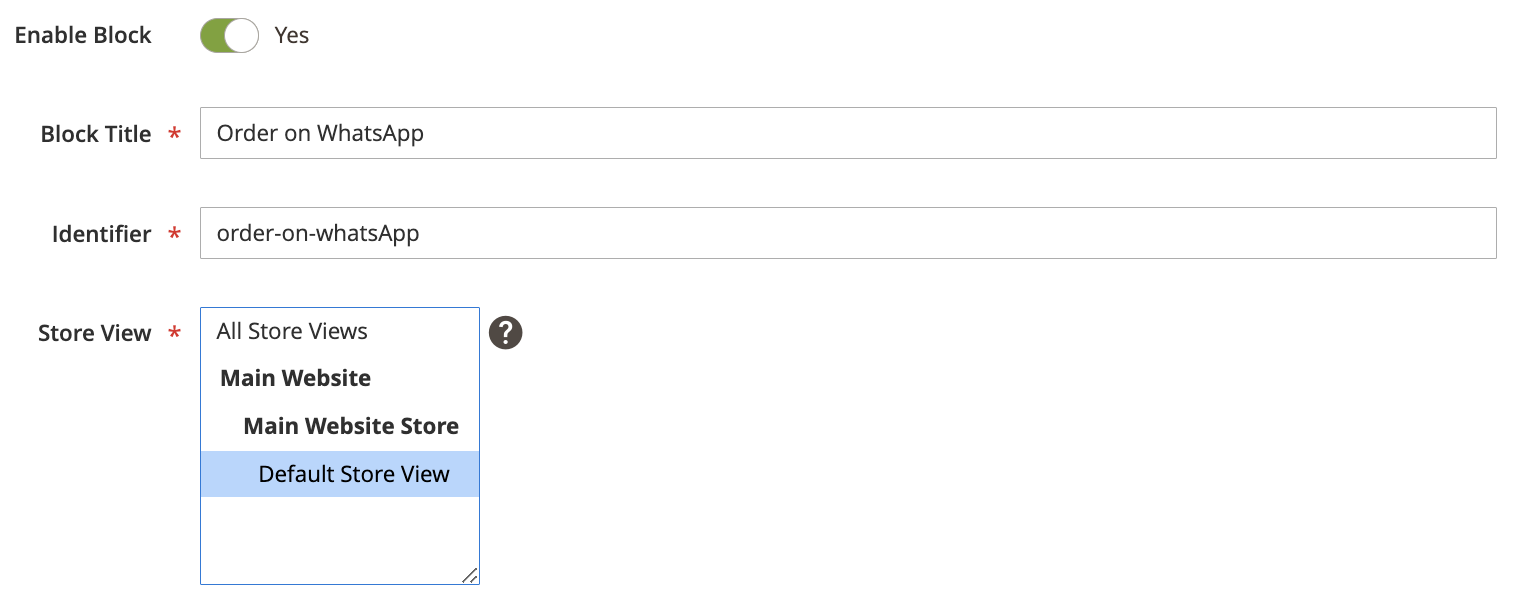
Enter a title for the block, e.g. “Order on WhatsApp” and set ID.
Select the applicable store views where you want to display the order on WhatsApp button.
Click “Edit with Page Builder” and add the following custom code to it:
<div class="order-on-whatsapp">
<button type="button" id="btn-whatsapp" class="btn-whatsapp">Order on WhatsApp</button>
</div>
<script type="text/javascript">
document.addEventListener('DOMContentLoaded', function () {
var productName = document.querySelector('h1.page-title span').innerText;
var productSku = document.querySelector('.product.attribute.sku .value').innerText;
var productPrice = document.querySelector('.price-wrapper .price').innerText;
var productUrl = window.location.href;

var whatsappLink = 'https://wa.me/1234567890?text=Hello, I would like to order this product: ' + productName + ' (SKU: ' + productSku + ') for ' + productPrice + '. Here is the link: ' + productUrl;

document.getElementById('btn-whatsapp').onclick = function () {
window.open(whatsappLink, '_blank');
};
});
</script>
<style>
.btn-whatsapp {
border-radius: 20px;
background-color: #5dc85a;
color: #ffffff;
font-weight: 800;
}

.btn-whatsapp:hover {
border-radius: 20px;
background-color: #55b72e;
color: #ffffff;
font-weight: 800;
}
</style>
Note: Don’t forget to update the link WhatsApp link in the above script to add your number. You can also modify the default message text and modify the style of the button through CSS.
Save the block.
Go to Content > Elements > Widgets and create a new widget to add the Order on WhatsApp button on the product pages.
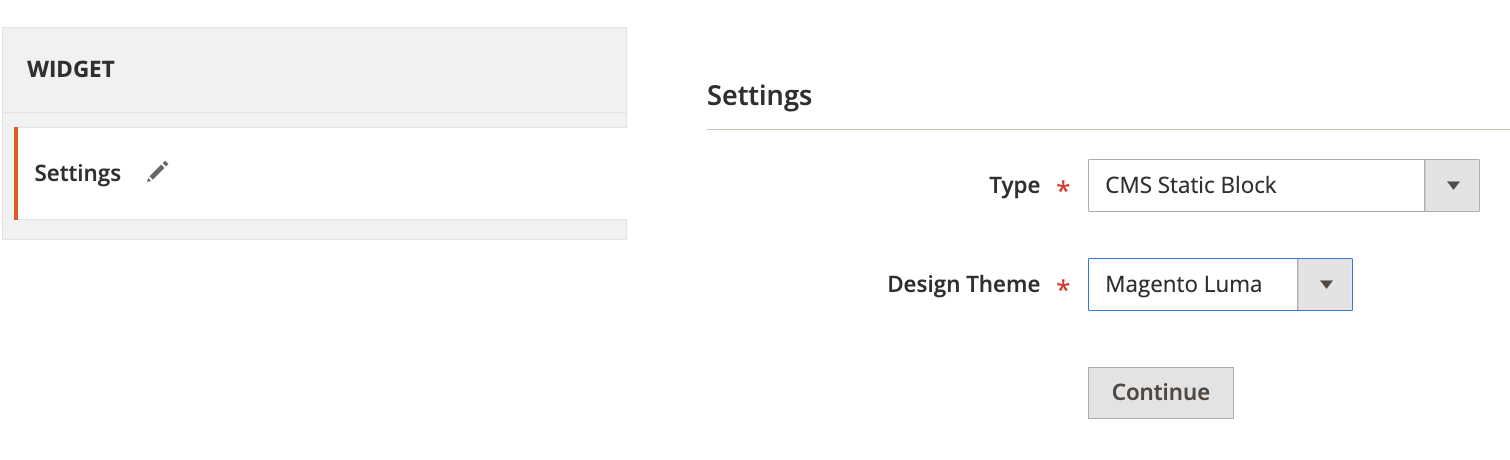
Select the CMS Statis Block type and choose your design theme.
Now, click Continue.
Name your widget, e.g. “Order on WhatsApp”, and select the store view to display it.
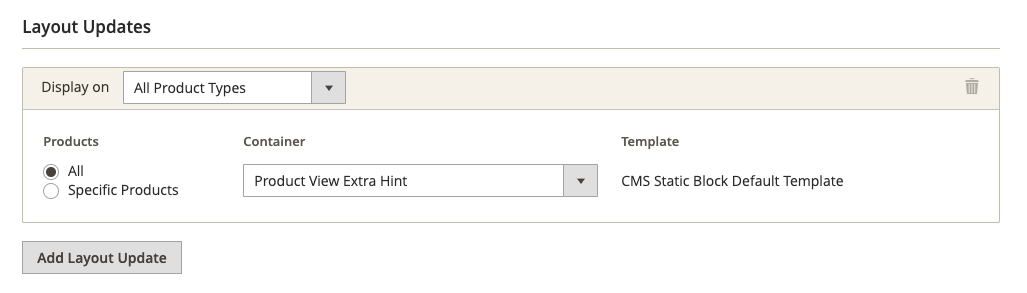
In the Layout Updates, you can choose where to display the button.
Select to display on All Product Types and choose whether you want to add it to add or specific products. Choose the Product View Extra Hint container
Scroll down, and in the Layout Update, select where you want to show the button and add that accordingly.
Save the widget and the order on WhatsApp button will be visible on the product pages. For example, here’s the final result:
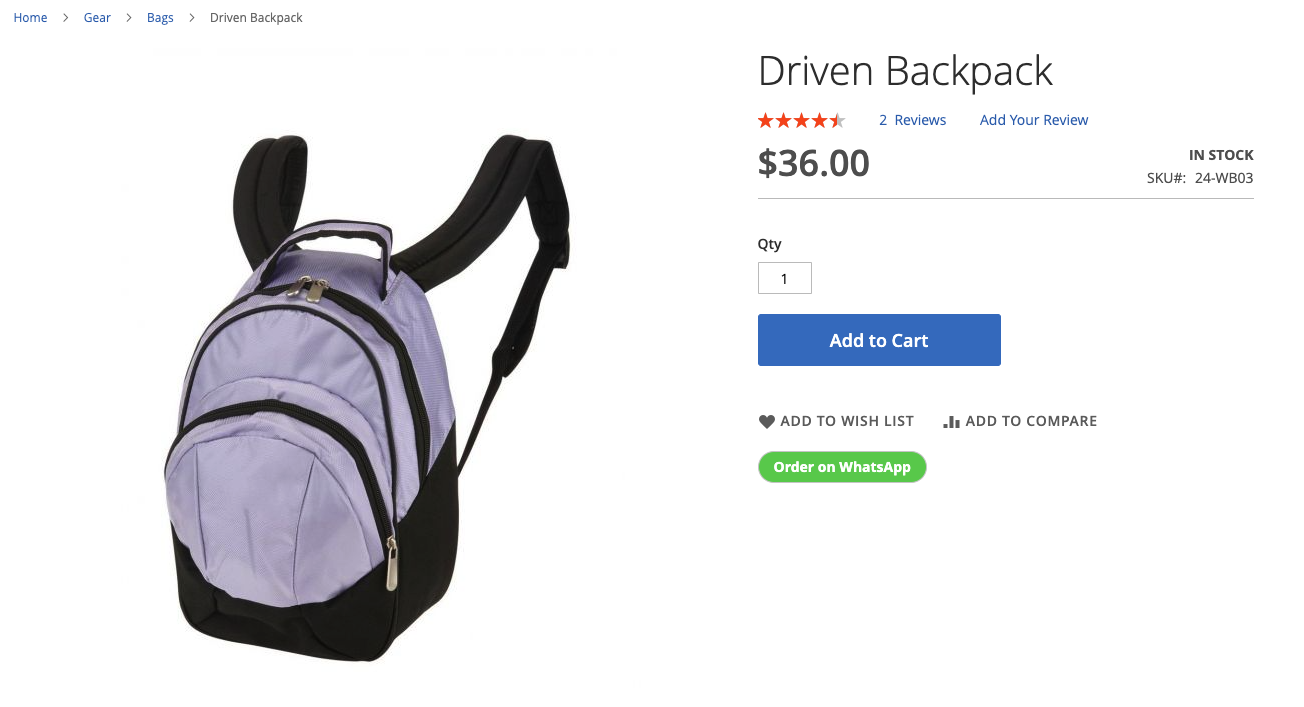
Woohoo! You successfully added the WhatsApp order button in Magento 2 store without an extension or developer’s help.
Allow your customers to contact you instantly on WhatsApp.
Add Contact Now
Bonus Tips for Order via WhatsApp
You can follow the step-by-step method provided above to add WhatsApp order functionality to your store. Here are bonus tips to effectively leverage WhatsApp for Magento 2:
- Write an engaging pre-defined message and correctly set the product details
- Modify the WhatsApp button using custom styles to match your store’s design and brand
- Enable WhatsApp Order Notifications to keep the customers informed of their purchases
If you’re looking for a customer support solution for your store, you can use our WhatsApp Contact extension. It helps you create multiple agents to offer quick support to customers. You can create department-wise agents and streamline support operations via WhatsApp.
