

Shopify collections help you display your products effectively and make it easier for users to navigate and browse.
Better product display enables customers to quickly find products.
But the question is: How do you do that?
In this blog post, we show you exactly how to add collections in Shopify without making it too complicated.
What is a Collection in Shopify?
Shopify collections allow you to group products into certain categories and display them on your site for easy access. You can create collections based on product type, size, price, occasion, and more.
For example, if you are an apparel store for women, you may create collection pages for t-shirts, jeans, dresses, etc.
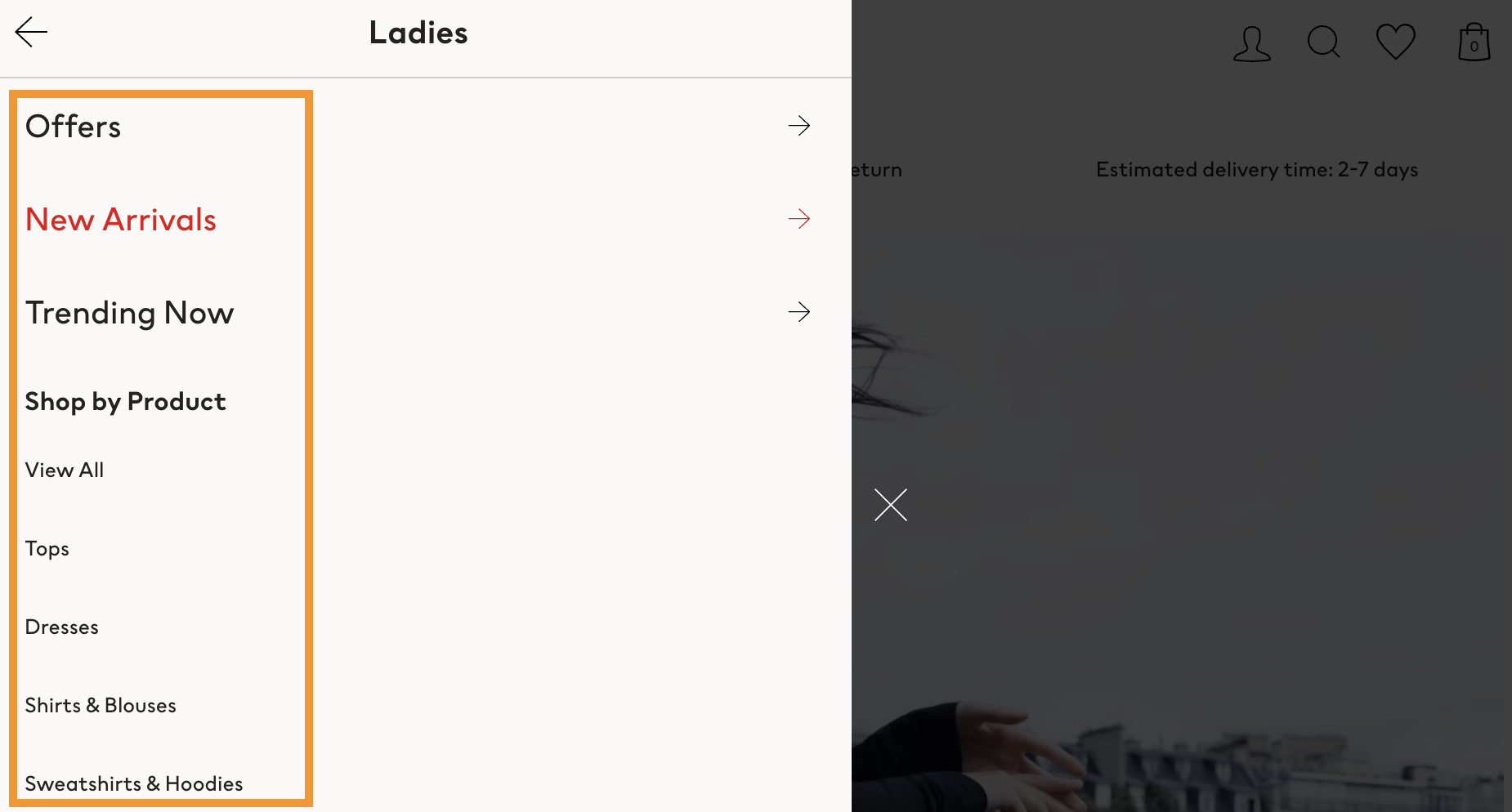
Creating collections in Shopify helps you in diverse ways, such as improving user experience, sales, promotions, and even inventory management.
Here are a few key benefits of creating collections in Shopify:
- Collections help group your products into categories and subcategories and make it easier for customers to find what they are looking for.
- Organizing products into collections improves the shopping experience and enables easier store navigation.
- Create automated or manual collections to display products better and ensure flexibility in managing your inventory.
- Collections help promote specific products or categories during sales seasons―for example, BFCM―for higher sales and profit.
Types of Collections
There are two types of collections in Shopify: Automated collections and manual collections.
- Automated collections: You can create automatic collections using certain conditions. Products that meet these conditions will be added automatically to the collection. Automated collections help save time and manage products better.
- Manual collections: Here, you add products yourself. You can add products based on any criteria you prefer. These types of collections are hard to maintain. Also, you need to add or remove products from collections manually, as needed.
How to Create Collections on Shopify?
Creating a collection in Shopify is not very complex.
Here is a step-by-step guide to follow, if you are wondering how to create a collection on Shopify.
Automated Collection in Shopify
Follow the steps below to add Automated collection to Shopify. Creating a successful Automated collection for your Shopify store has 3 vital stages to it.
Creating Automated Collections in Shopify
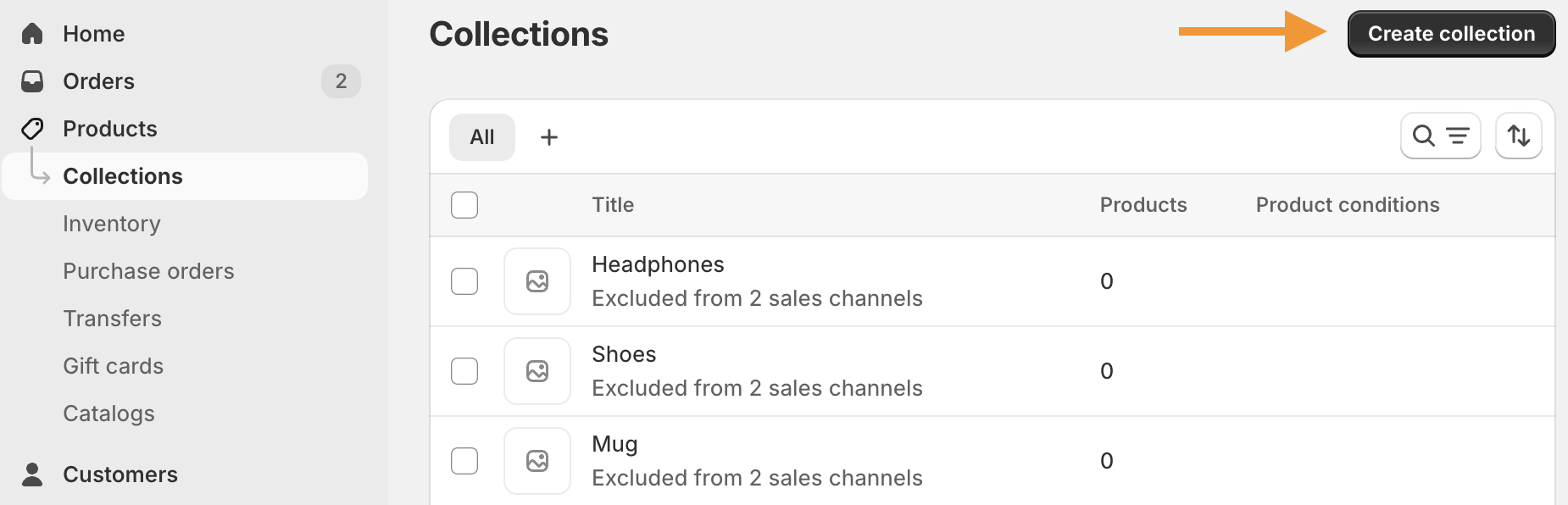
Log in to your Shopify store and go to Products> Collections > Create Collection.
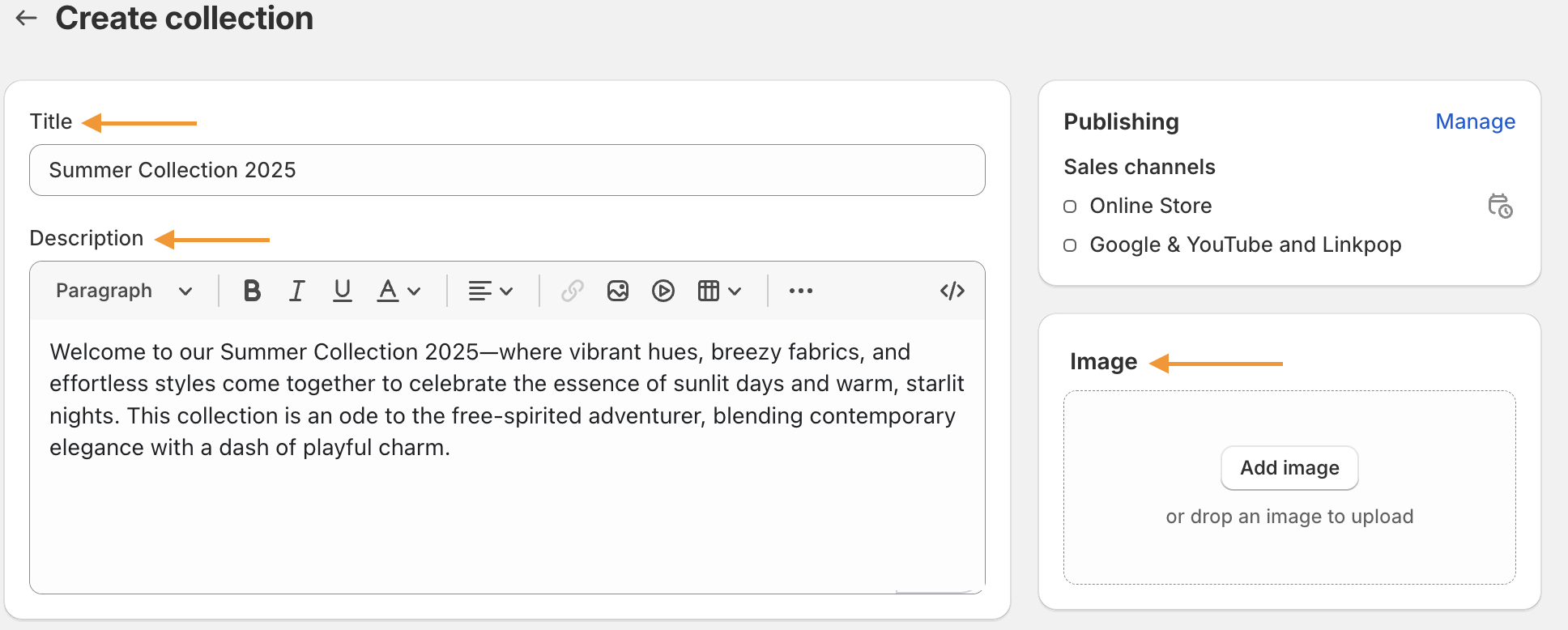
Then, enter the Title and Description (optional) for the collection you create. For creating the title and description, use Shopify AI Content Generator from Meetanshi.
From the right side, set a featured image if needed.
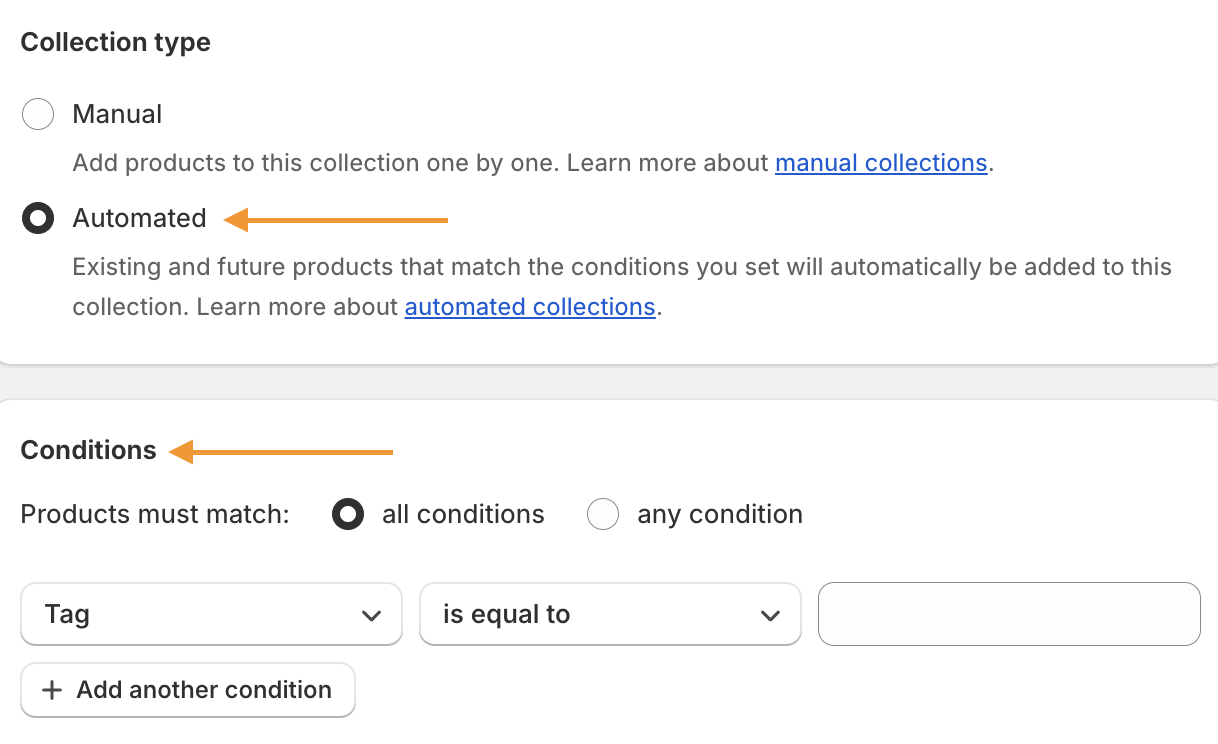
Scroll down and select Automated from the Collection type.
Then, choose the conditions from the dropdown and add your conditions as you want, and click Save.
Once the page refreshes, you can see the products added to the collection according to the conditions.
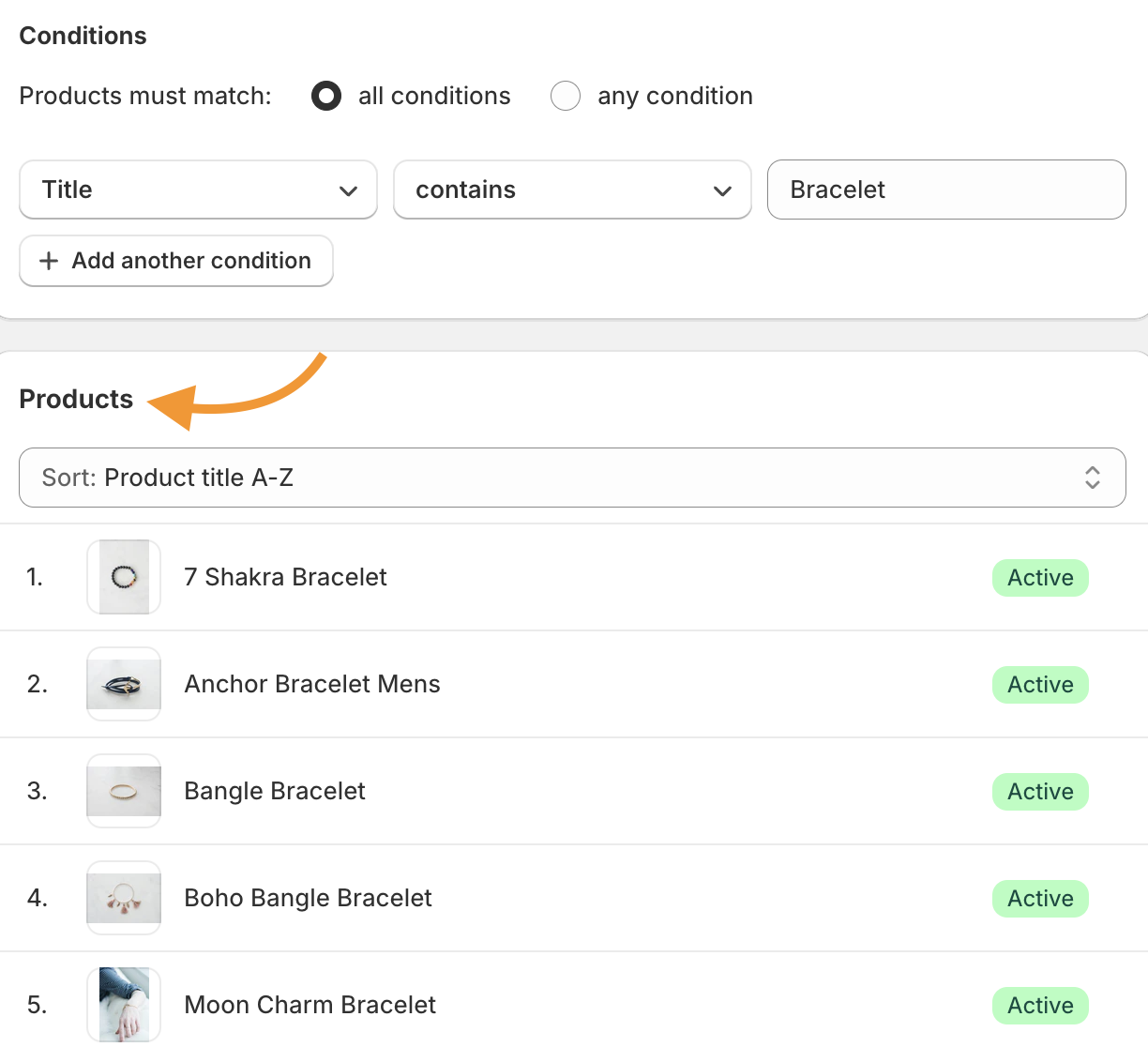
Choose an option from the drop-down menu on the left to set a default sort. You can also choose manually to sort them as you wish.
Click Save to add products to the collection based on the conditions.
Setting Collections Availability
From Collection availability, click all the options you want. Keep the option Online Store checked to make the collection available for your store.
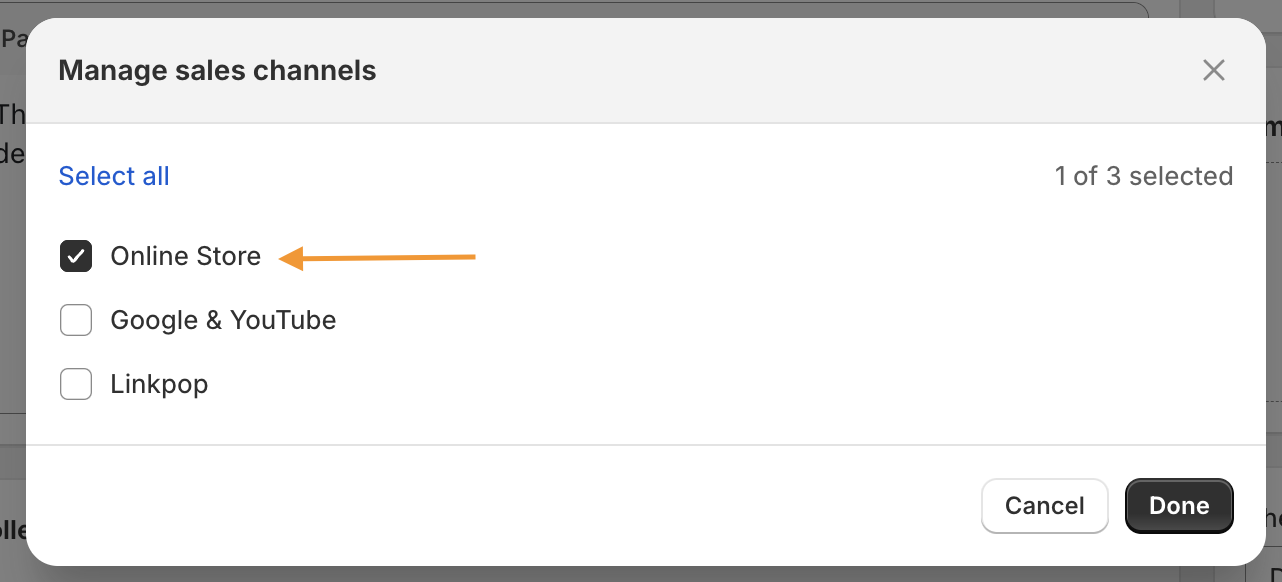
Adding Collections to Your Store Navigation
Now, click Online store> Navigation > Main Menu and Add menu item.
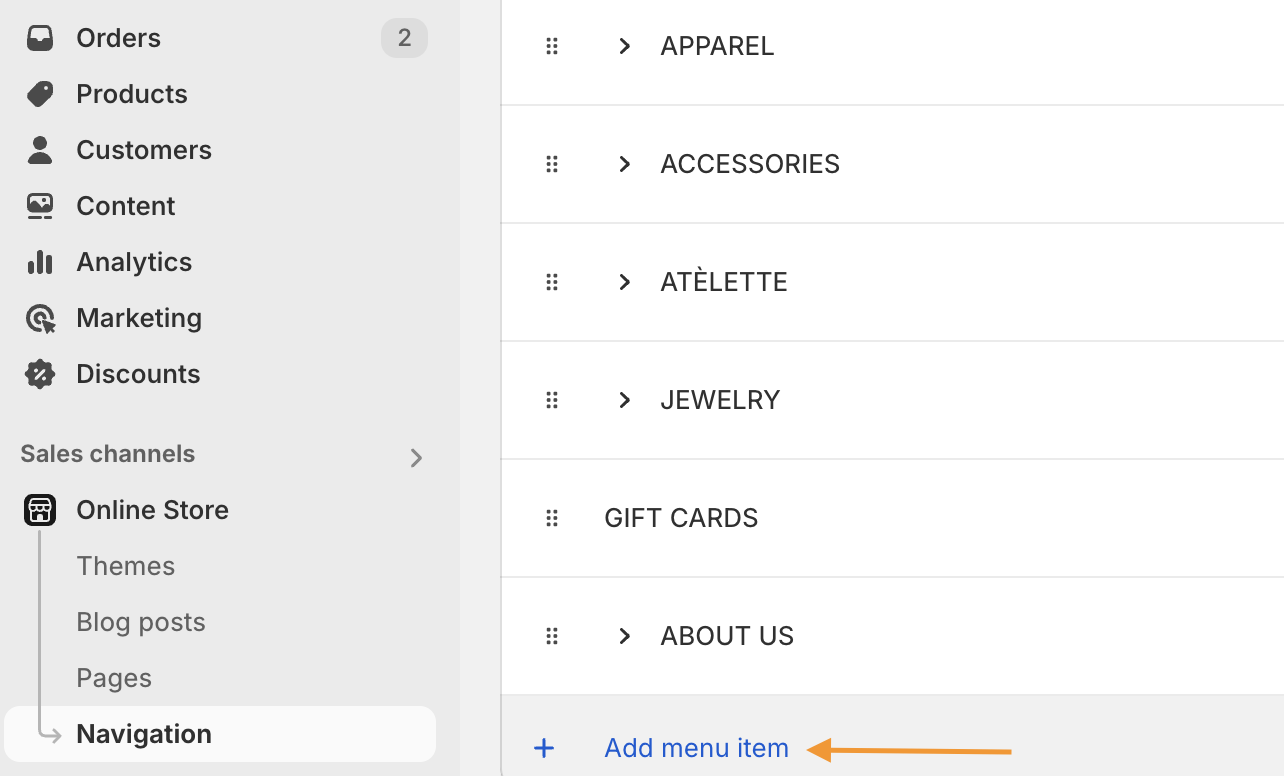
Update the name of the collection on the Name field. From the Link field, choose Collection the collection you just created. Lastly, click Add to finish this process.
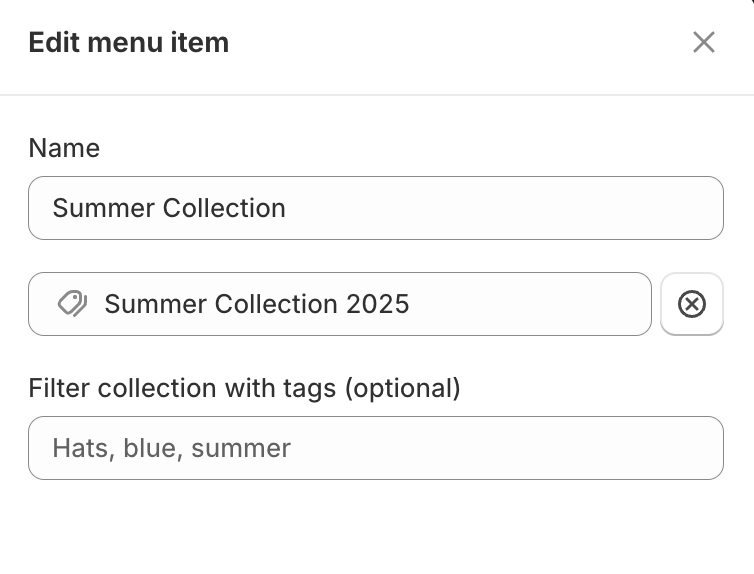
Now, come back to the main menu and click the save menu for the collection to appear on your Shopify store.
Manual collection in Shopify
Follow the steps below to create manual collections in Shopify. It has three major stages―creating the collection, adding items to the collection, and adding the collection to the navigation.
Creating Manual Collection in Shopify
Log in to your Shopify store and go to Products > Collections > Create collection.
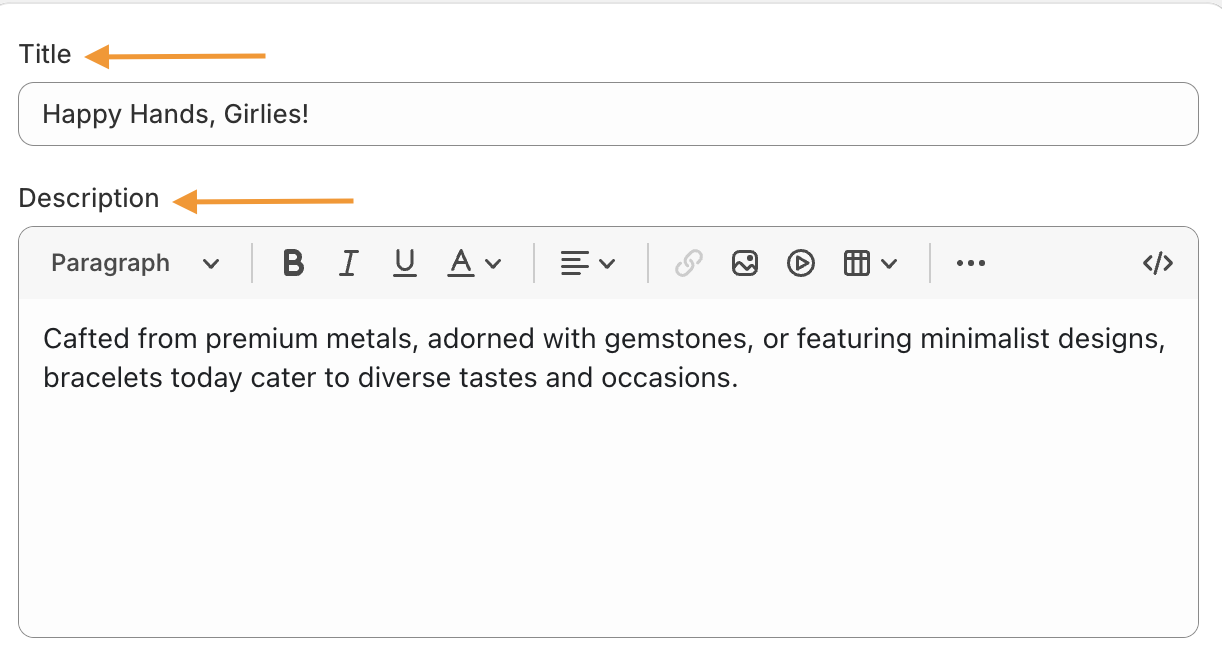
Enter the title and description of the collection. Use the Shopify AI Content Generator from Meetanshi to create details instantly.
Leverage the latest AI models like GPT-4 to speed up your content production.
Start Today
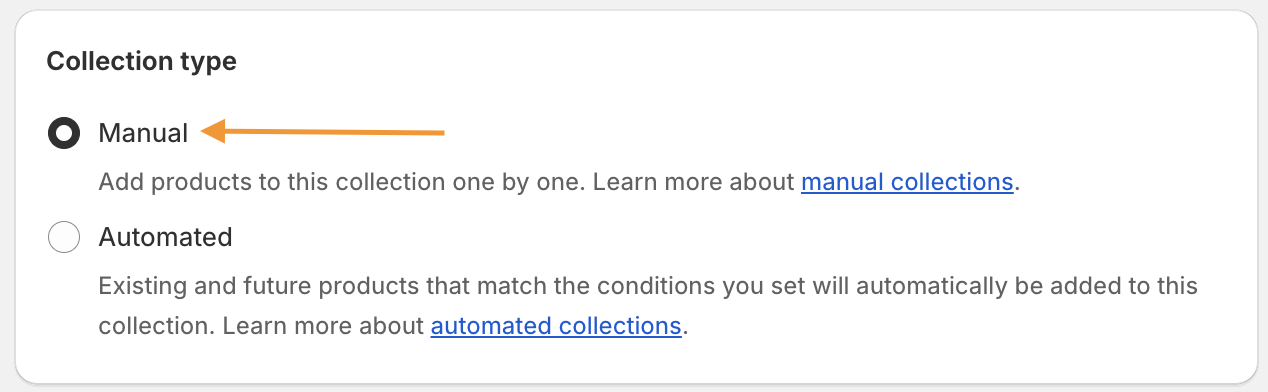
Scroll down and select Click Manual from the Collection type.
Then, edit the SEO details and meta fields.
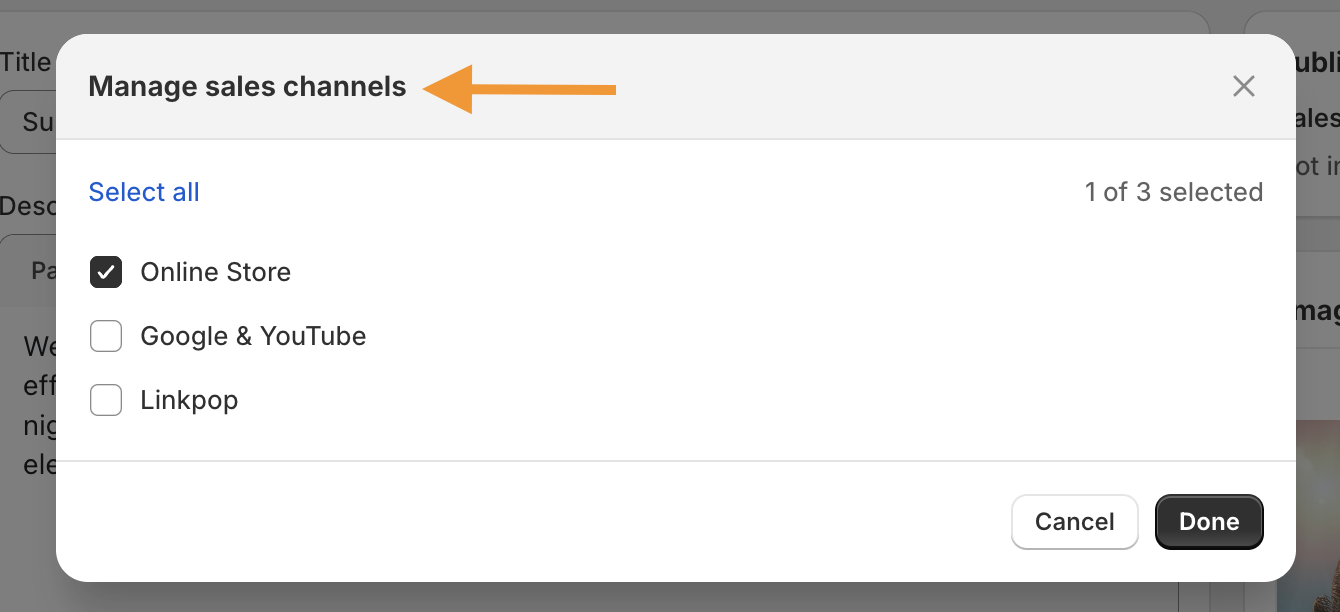
Then, from Collection availability, click all the options you want. Keep the option Online Store checked to make the collection available for your store.
And click Save.
Add Items to Manual Shopify Collections
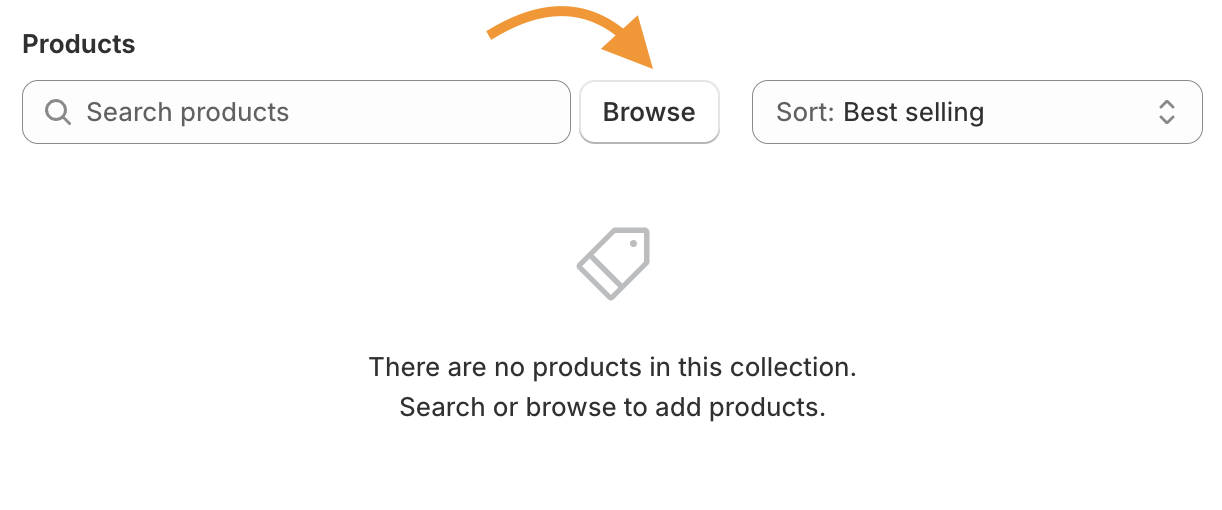
Now, click Browse on the same window to add products to the collection.
Click on the check box beside the products of your choice and click Add to save them.
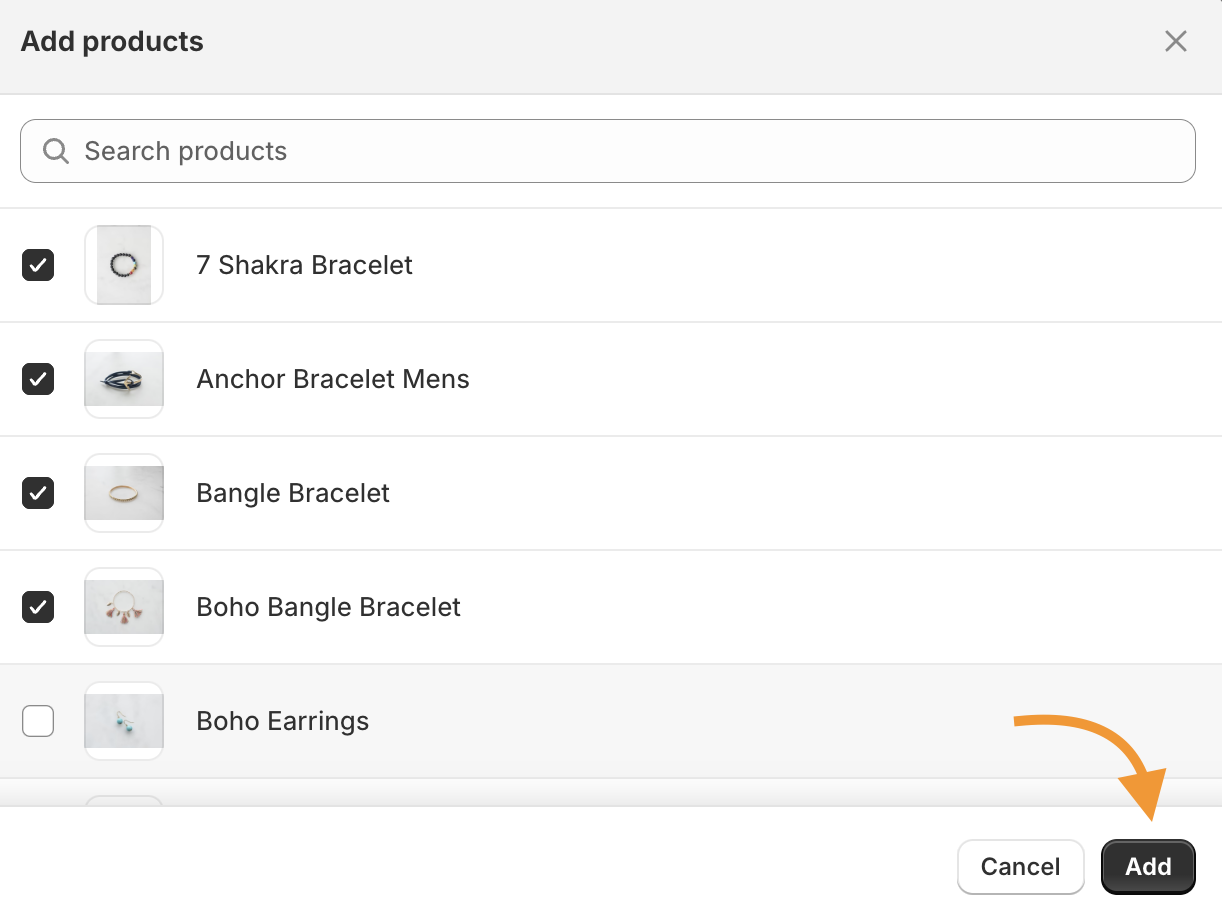
Then, choose an option from the drop-down menu on the left to set a default sort. You can also choose manually to sort them as you wish.
Adding Collections to Your Store Navigation
Now, go to Online store> Navigation to display the collection on your site navigation.
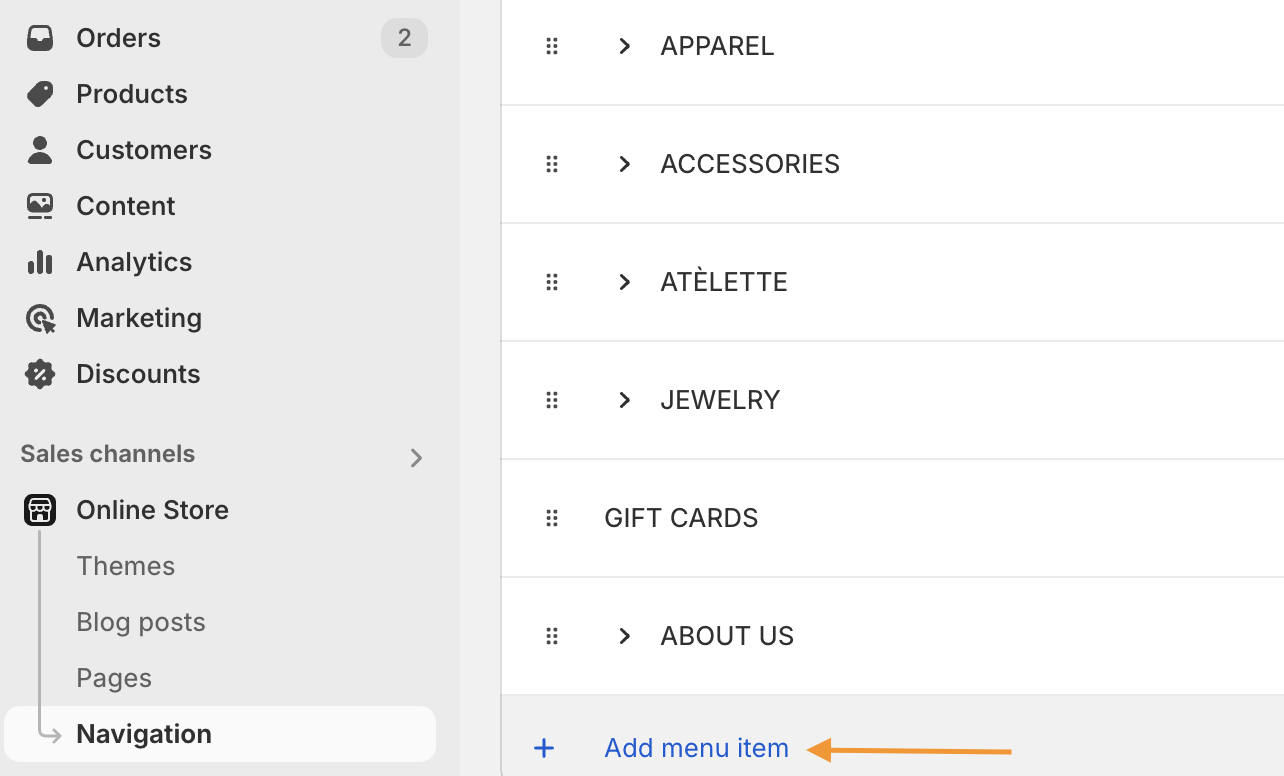
Go to the Main Menu and click Add menu item. Update the name of the collection in the Name field.
From the Link field, click Collection, and pick the collection you just created, and click Add.
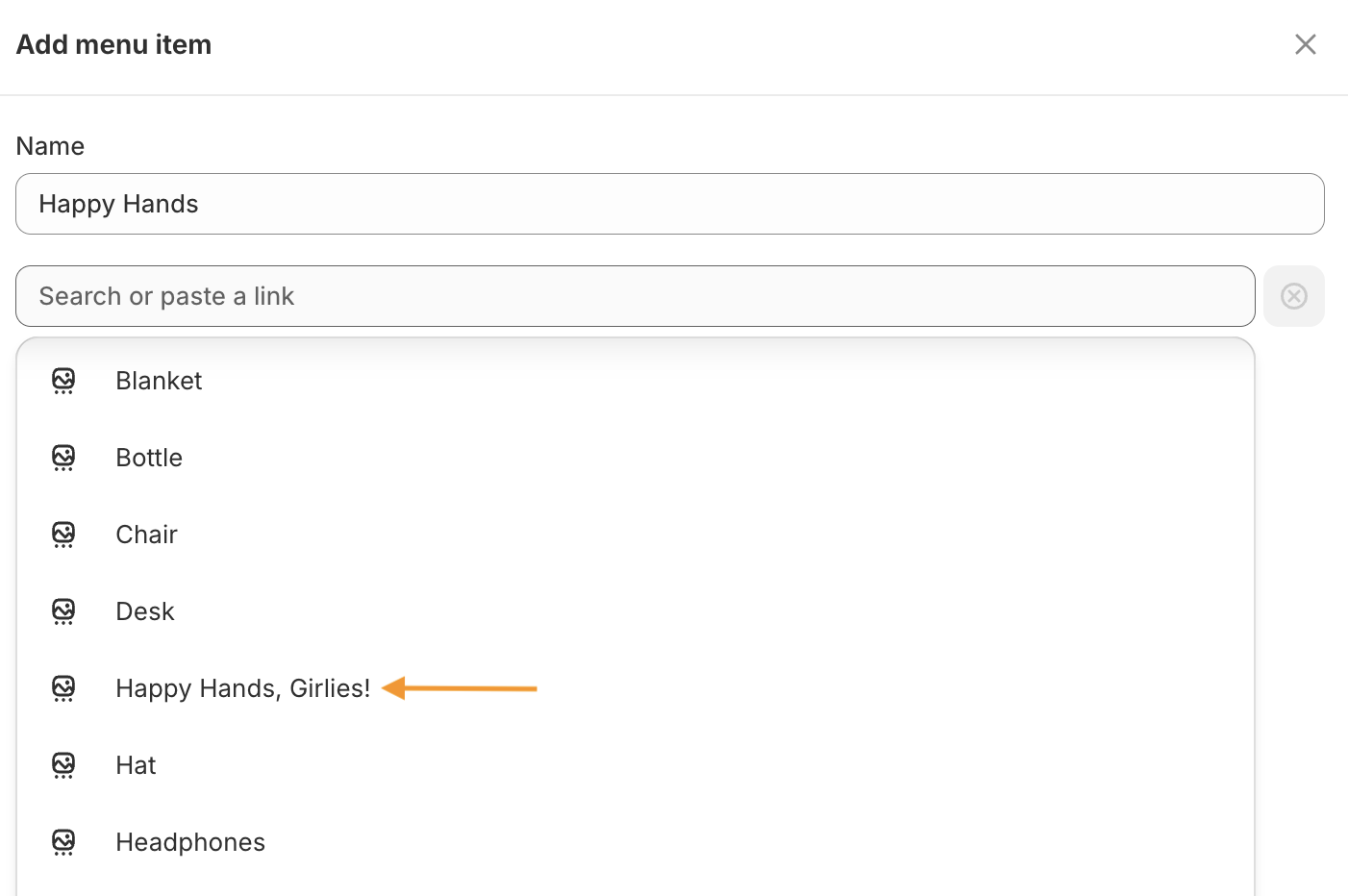
Head back to the main menu and click on Save Menu. This way, you can create a manual collection for your Shopify store.
How to Add a Collection to a Page on Shopify?
Adding featured collections to a page on Shopify has numerous benefits. It helps you present your collections more to your visitors, which can drive up the sale.
You can add different collections to your most-visited pages. Depending on the theme, you can display the collections in grids, collages, etc.
And if you are wondering how to add featured collections in Shopify, here is how.
- Head themes > Customize >click Add section.
- Click Collection list and choose a collection from the collection boxes.
- Click on one of the blocks. You will get a new Collection menu on the right-hand side. Click Select collection from the menu.
- This will open all the collections you have created on your Shopify store.
- Choose one collection that you want to add to the page. Click select to add the collection to the block.
- Repeat this process for other blocks
- Save the changes to finish the process.
How to Add a Collection from One Shopify to Another?
Shopify does not provide an option to import or export collections from one Shopify store to another. However, with the Meet Collections Import Export app, you can quickly do this.
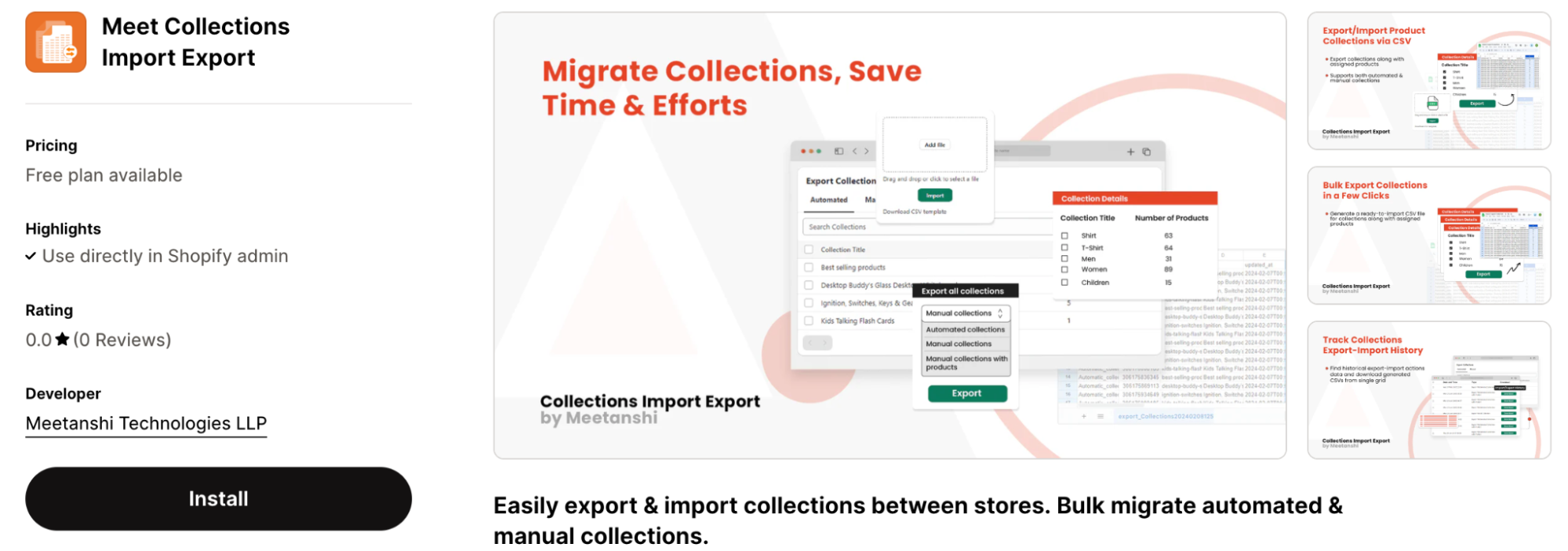
The application allows you to:
- Import and export collections in Shopify using CSV files.
- Use selective conditions to export automated collections in Shopify.
- Export your store’s manual collections with/without product data.
- Track all your collection exports and imports history.
Here is a complete guide to migrate your collection in Shopify.
You can also use the Meet Collections Import Export app to migrate bulk collections and products together to your target store from your source store with a few clicks.
Best Shopify Collection Optimization Tips
Creating collections pages in Shopify is a strategy to ensure better sales and conversions. However, many Shopify merchants fail to do it the right way. They just create collections and leave it.
That’s wasted potential. Here are a few tips to make collections work for you more effectively.
Optimize Shopify Collections for SEO
You want the collections to show up on search engines when customers search for them. The best way to do it? Optimize it for SEO.
Here are a few things to keep in mind:
- Improve the metadata of the collections page.
- Add the primary keyword to the page URL and H1.
- Display social proof like reviews, ratings, UGC, etc.
- Interlink resources like blogs, how-to guides, and tutorials.
Use Persuasive CTA for Actions
This is another way to optimize the collections page and improve sales. Using clear and persuasive CTA to encourage customers to buy from the collection.
If you wish, you can also add exclusive discounts on future purchases to drive more sales.
Use Benefit-driven Headlines
Add a unique value proposition to the page heading that shows the benefit to the customers. It also helps Google to take notice and improve your search ranks.
Show your Top-selling Products First
Another way to optimize the collection for better sales is to find your top-selling products and display them in a Shopify collection list. It allows you to capture the attention of the customers faster.
With social proofs to support, you can let customers know that others are already buying from you. This allows them to decide faster.
Make Your Shopify Store Navigation Easy
Collection pages help display your products to suit your customers’ expectations. Using collections smartly ensures a faster shopping experience and makes customers return for more.
We hope this blog has helped you learn how to add a collection page to Shopify, and migrate your collection using the Meet Collections Import Export from Meetanshi.
So, use this guide and start preparing your collection now!
