Your Magento 2 store data is a gold mine.
Loaded with essential information that helps to keep your business operations smooth.
You can easily export the Magento 2 data in a CSV file, which you can then use to make any updates in your product, for store analysis, or to maintain the overall structure of your store.
In this blog, I will show you all the methods to export data in Magento 2 CSV and share tips to streamline this process.
Options to Export Data
You have three options to export the data CSV file in Magento 2. As per your requirements, you can choose from the following;
- Export via Admin: Basic export from Magento’s built-in tools
- Third Party Extensions: For advanced export options
- Magento 2 API: For programmatic and automated exports
Each of the above mentioned methods works differently. If you just want to export basic data like customers or products, you can use the built-in admin panel option. But if you want more flexibility, then other two types of methods are best for you.
Each method has its own use case. We’ll explore all of them one by one in the sections below.
How to Export CSV in Magento 2 via Admin Panel?
Magento 2 has built-in export feature that is easy to use.
It is the simplest way to export a data file without the need for any tool. You just have to follow a few steps to get the needed data in a CSV format.
Here are the steps to export data using the admin panel.
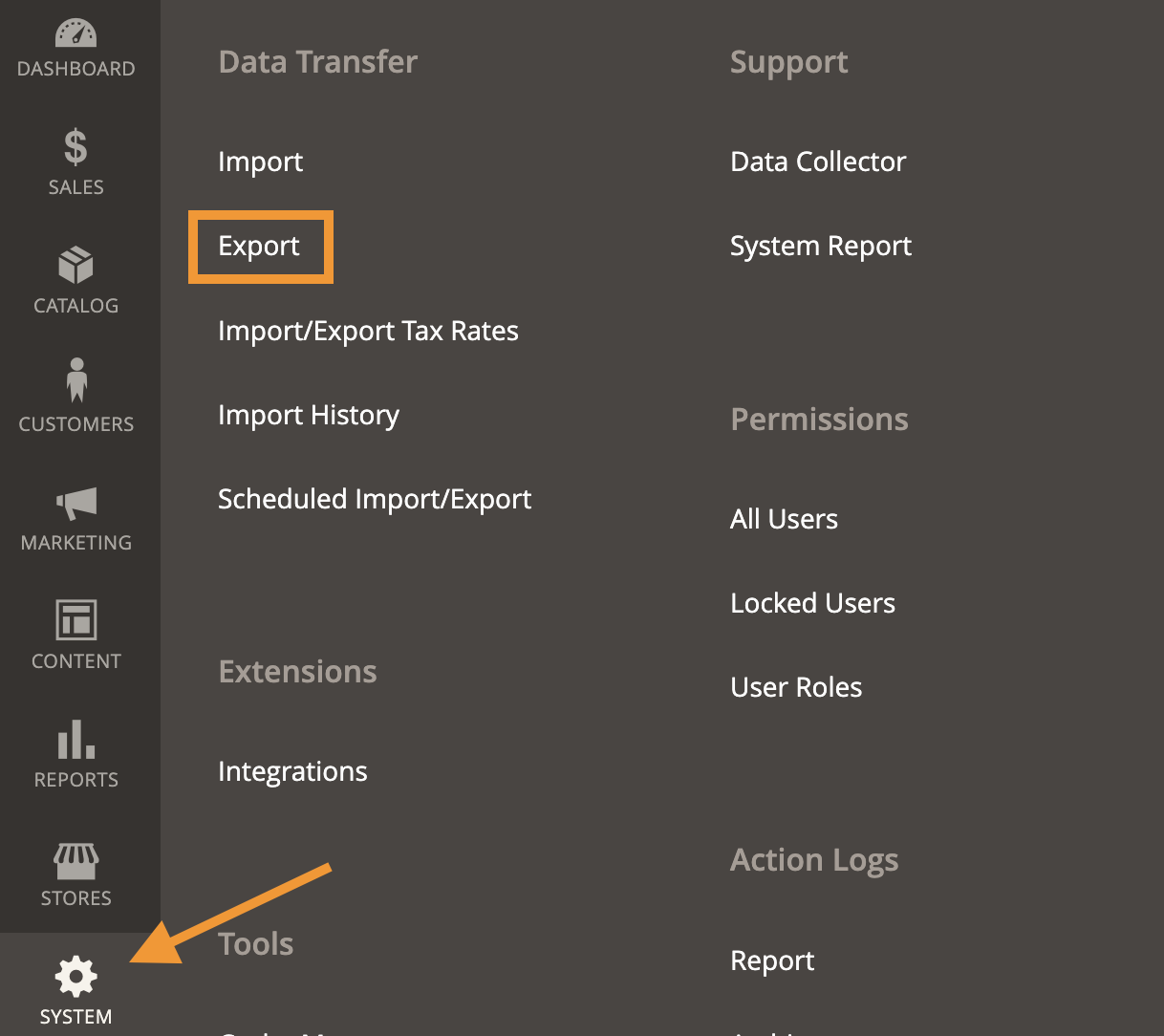
Step 1: Navigate Export from Magento 2 Admin
Log in to your Magento 2 admin panel and navigate to System > Data Transfer > Export.
Step 2: Add Export Settings
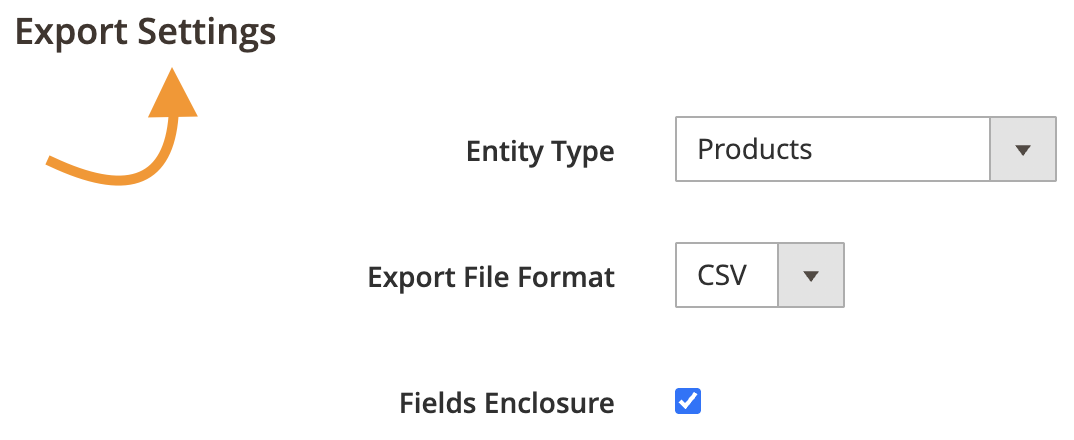
Now, add the export settings. Select your Entity Type, Export File Format
CSV, and Field Enclosure.
Then scroll down, and add the needed filters depending on what you want to include/exclude in your CSV file.
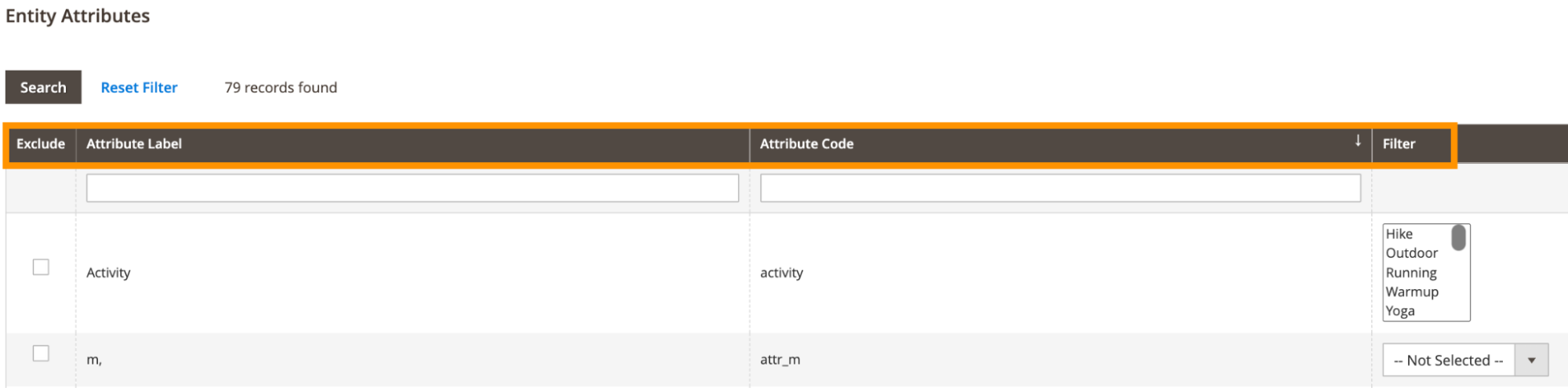
Step 3: Start Exporting Data
Now, scroll till the end and find the continue button.
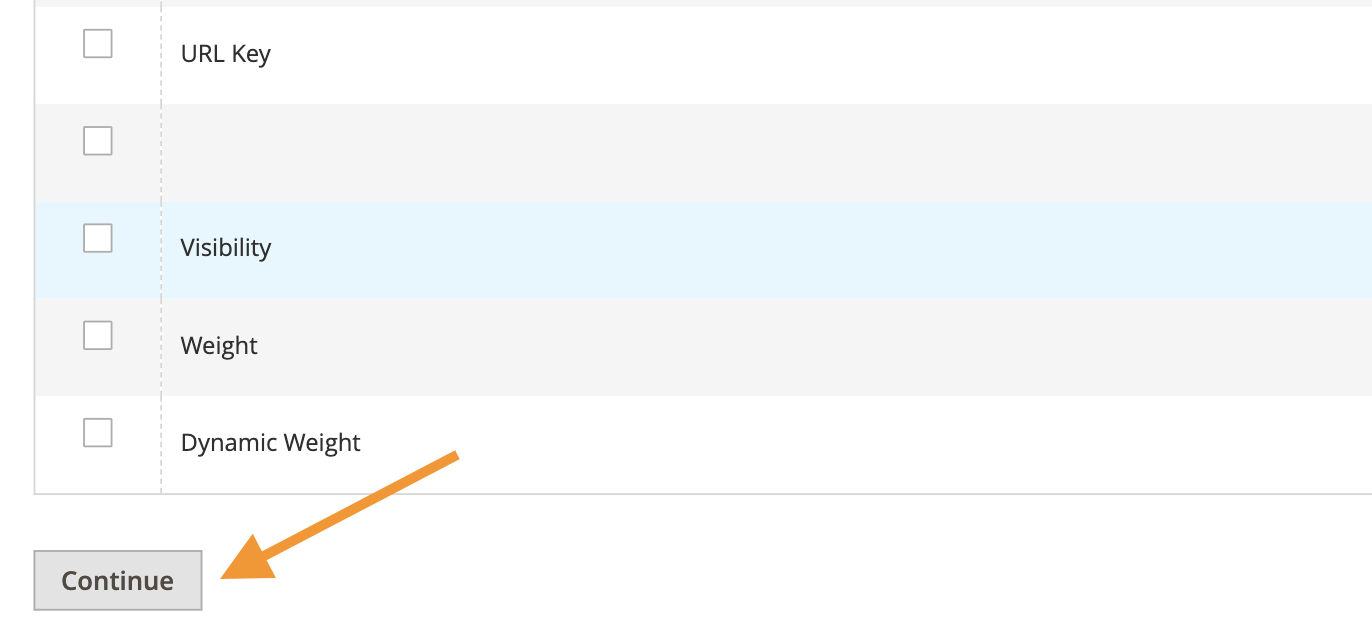
Click Continue, then your export process will start, and after the cron runs, the products will get exported in a CSV file.
You will see a success message like this.

Using this method, Magento 2 allows you to export various data entities like;
- Products CSV file
- Customers Finance
- Customer Address
- Customers main file
- Stock Sources
- Advanced Pricing
Extension to Export Data from Magento 2 to CSV
Using the Magento 2 admin panel is good but it has limitations.
The Magento built-in tool lacks customization. That’s where third-party extensions can help.
If you want full control and flexibility over exporting the data, you must use third-party extensions. These tools are specifically built to make exporting easy, fast and customized.
Here are some popular extensions you can explore:
| Extension Name | Description | Learn More |
| Magento 2 SQL Report Builder | Create and export custom reports from any Magento data table. Supports CSV/JSON and scheduling | View Extension |
| Magento 2 Order Import Export | Helps you to import and export order details including status, billing and shipping info. | View Extension |
| Magento 2 Product Reviews Import Export | It allows you to export the reviews from your store site to CSV | View Extension |
Export ANY Data from Magento 2 to CSV Using Meetanshi SQL Report Builder
The default Magento 2 doesn’t allow exporting all the needed data, but using the Meetanshi Magento 2 SQL Report Builder, you can export specific columns, CMS pages with metadata or even create custom reports.
This extension lets you create custom SQL queries to fetch any type of data from your Magento 2 database and export it directly into CSV or JSON format.
Let’s see some use cases to download different types of data using the extension.
Example 1: Export Orders Data to CSV
Here’s how to export orders in Magento 2 using the Meetanshi SQL Report Builder extension.
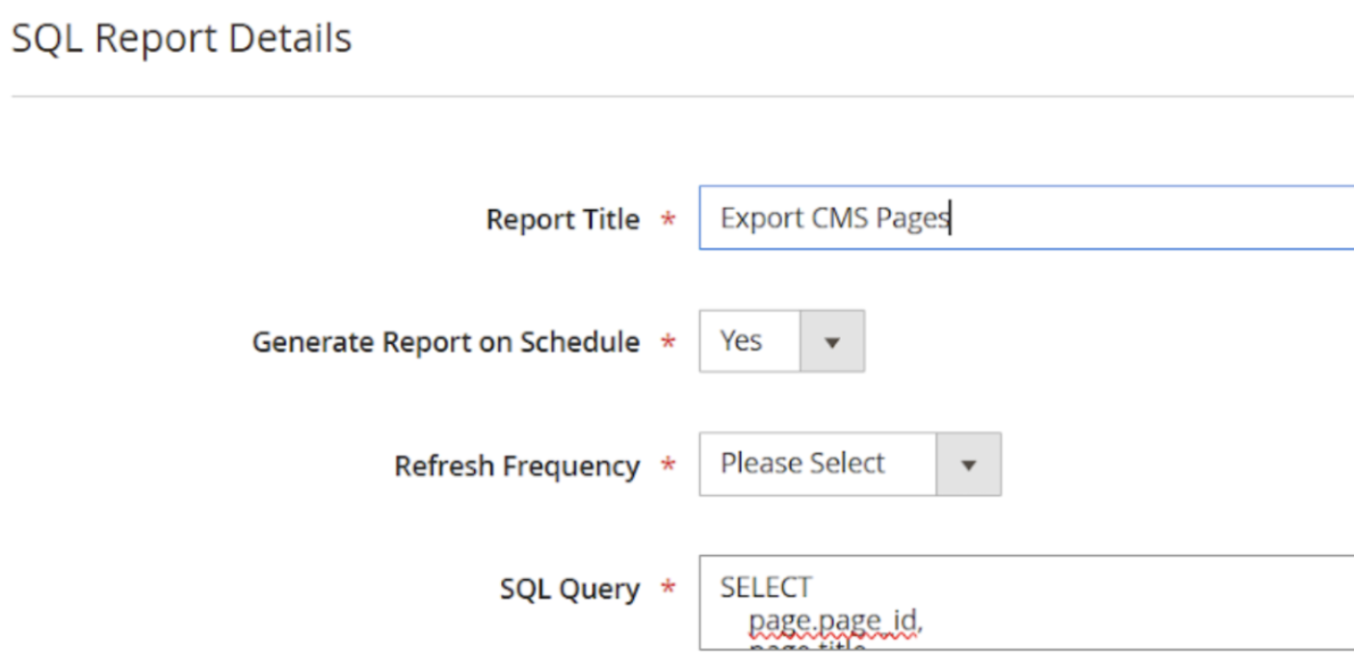
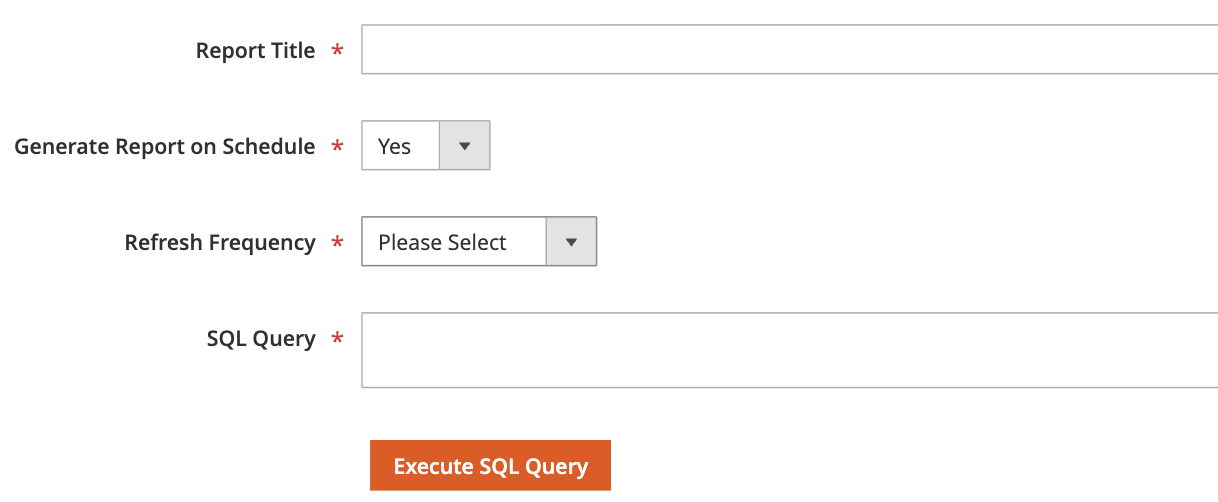
Install the Meetanshi SQL Report Builder and then create a new SQL report with your query. Fill in the details and click in Execute SQL Query.
Then, in the SQL Report grid, find your report and click on CSV to export the data. You will get a link to download the report directly.

Example 2: Export CMS Pages to CSV
Here, again, go to the Manage SQL Reports and click select Add New SQL Report. Fill in all the requirements based on the CMS page details and click on Execute SQL Report.
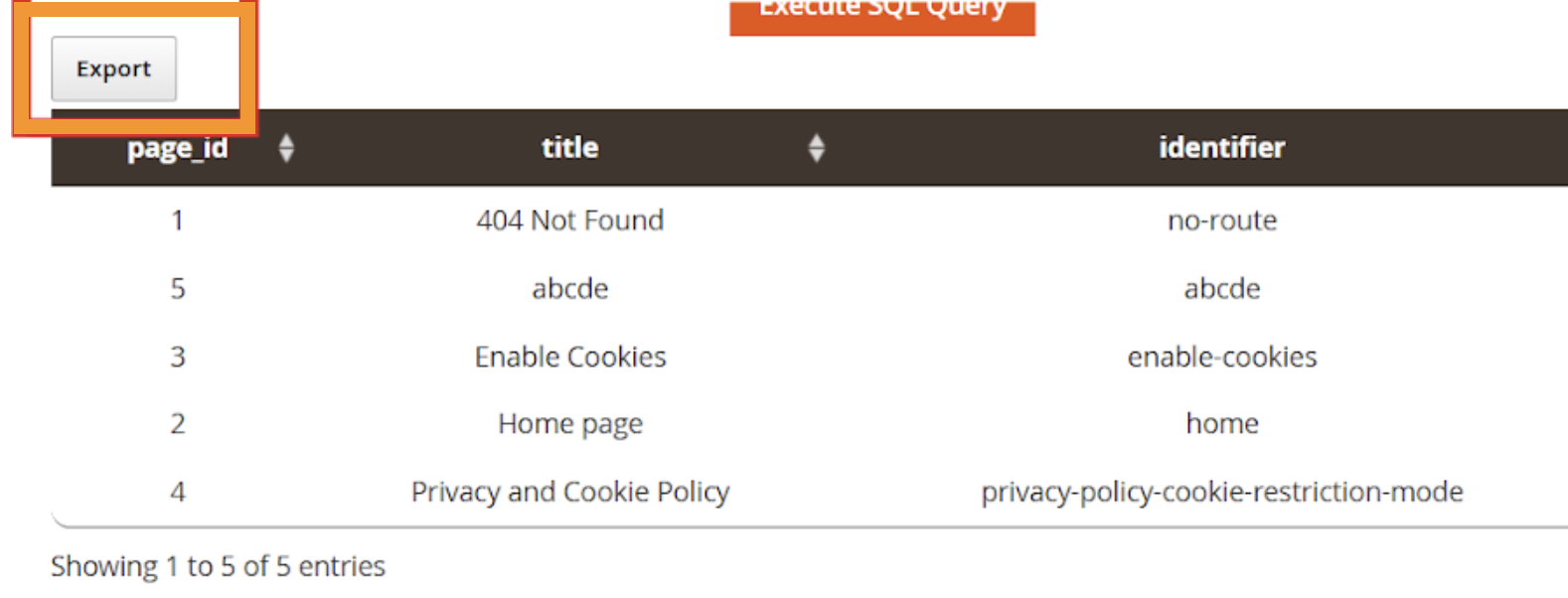
When the result appears, click Export to download as CSV. You will get the CSV link which you can make the final download.
Example 3: Export Categories to CSV
For this, go to SQL Report Builder → Manage SQL Reports. Click Add New SQL Report and fill the required details.
Click Execute SQL Query to preview and click Export to download as CSV.
How to Programmatically Export Data Using Magento 2 API?
If you are comfortable with coding, you can use Magento 2 API to get full control over your data.
Using APIs, you can export whatever you want, including products, customers, orders and much more directly into CSV or JSON format. This is the best option for automating exports or integrating Magento with other platforms.
Step 1: Enable API Access in Magento 2
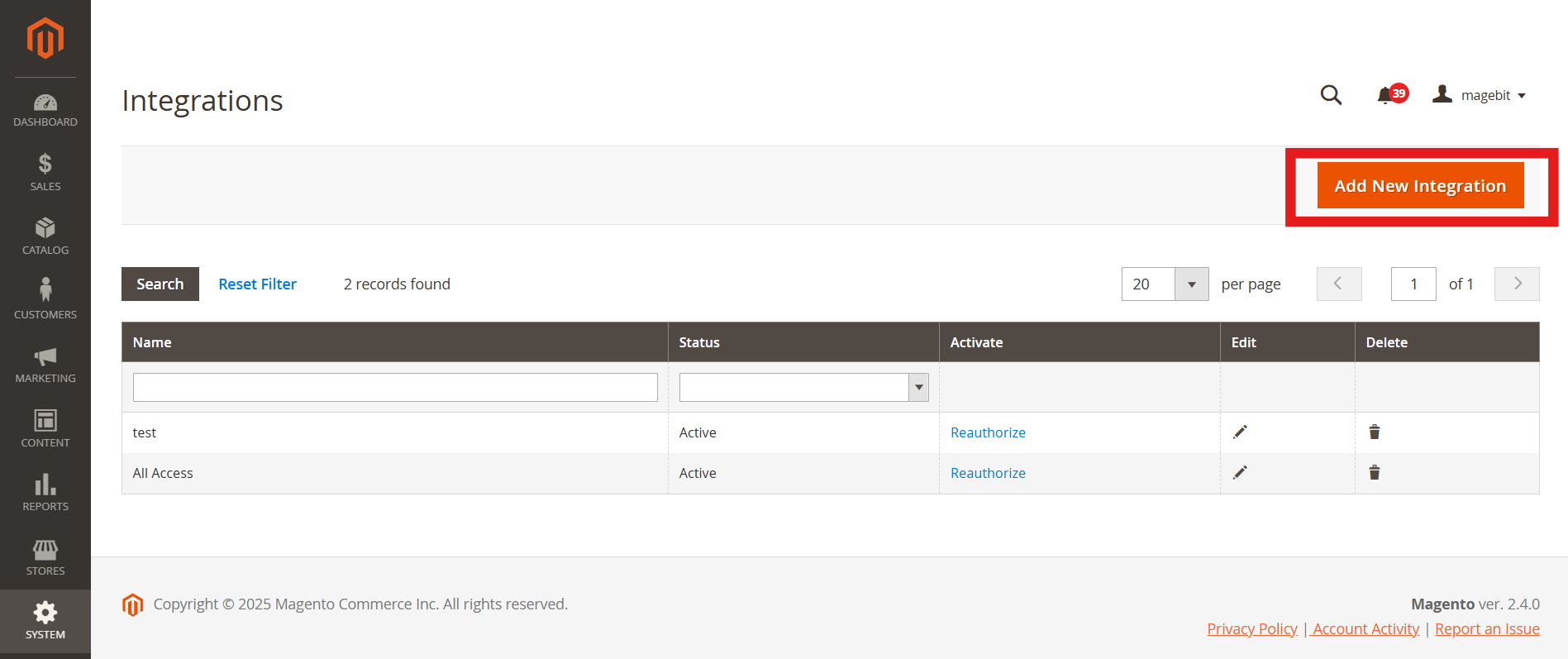
Go to System > Integration in the admin panel. Then, click on Add New Integration.
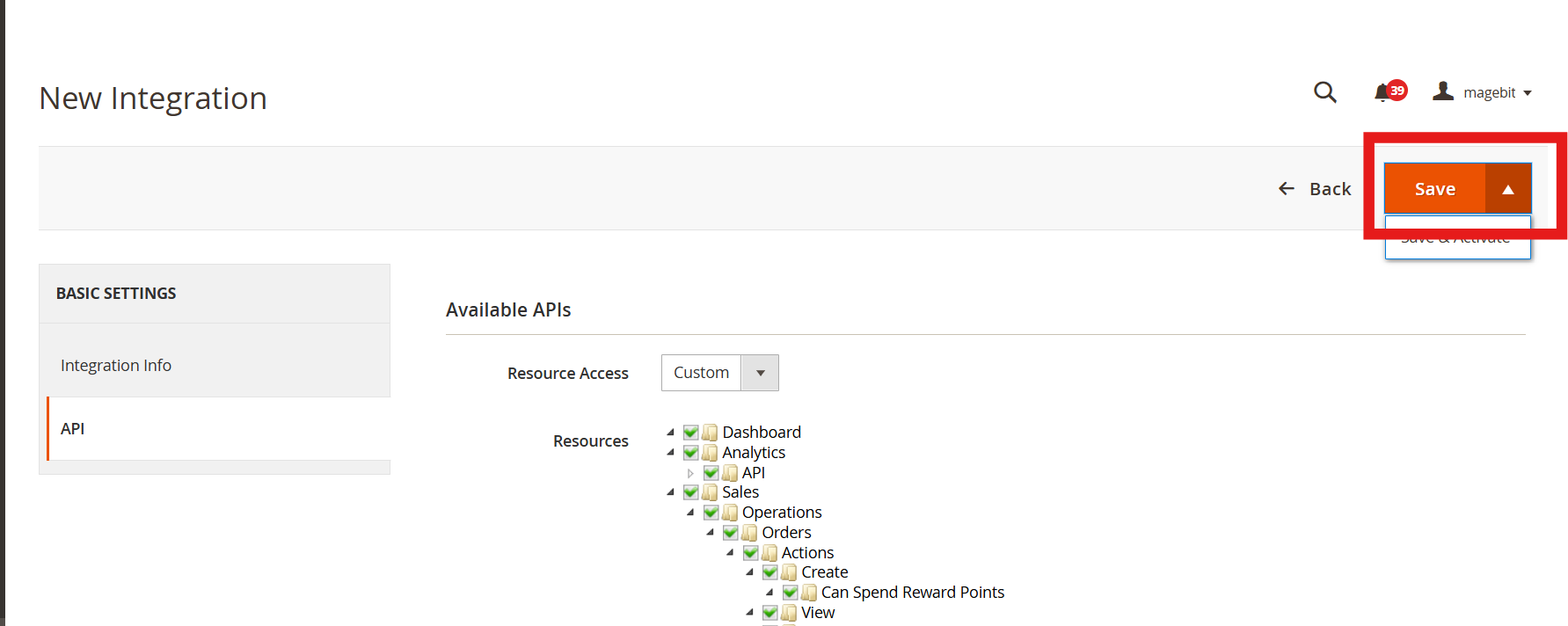
Step 2: Add API Resources
Fill in the required details like name, email and other.
Then, go to the API tab (located under the Integration Info) and choose the resources you want to access. (Products, orders, etc) and Save the integration.
Step 3: Get API Credentials
After activating the integration, Magento will show you access Token. This token allows your script to communicate with your store data.
Step 4: Use Python Script to Fetch Data
Now, let’s write a Python script to interact with the Magento 2 API and export data. We’ll use the requests library for making HTTP requests.
For example, here’s a script that saves products to CSV:
import requests
import json
import csv

# --- Configuration ---
MAGENTO_BASE_URL = "http://your-magento-domain.com/rest/V1/"  # Replace with your Magento domain
ACCESS_TOKEN = "YOUR_MAGENTO_ACCESS_TOKEN"  # Replace with the token you copied in Step 3
OUTPUT_FILE_CSV = "products_export.csv"
OUTPUT_FILE_JSON = "products_export.json"

# --- API Endpoint for Products ---
PRODUCTS_API_ENDPOINT = "products"

def get_products():
    """Fetches product data from Magento 2 API."""
    headers = {
        "Authorization": f"Bearer {ACCESS_TOKEN}",
        "Content-Type": "application/json"
    }
    url = f"{MAGENTO_BASE_URL}{PRODUCTS_API_ENDPOINT}"

    print(f"Attempting to fetch data from: {url}")

    try:
        response = requests.get(url, headers=headers)
        response.raise_for_status()  # Raise an exception for bad status codes (4xx or 5xx)

        data = response.json()
        print("Successfully fetched product data.")
        return data

    except requests.exceptions.RequestException as e:
        print(f"Error fetching data: {e}")
        if hasattr(e, 'response') and e.response is not None:
            print(f"Response status code: {e.response.status_code}")
            print(f"Response content: {e.response.text}")
        return None

def save_to_csv(data, filename):
    """Saves product data to a CSV file."""
    if not data or 'items' not in data:
        print("No data to save or 'items' key not found.")
        return

    items = data['items']
    if not items:
        print("No products to write to CSV.")
        return

    # Extract headers from the first item
    headers = items[0].keys()

    try:
        with open(filename, 'w', newline='', encoding='utf-8') as csvfile:
            writer = csv.DictWriter(csvfile, fieldnames=headers)
            writer.writeheader()
            for item in items:
                writer.writerow(item)
        print(f"Data successfully saved to {filename}")
    except IOError as e:
        print(f"Error saving to CSV: {e}")

def save_to_json(data, filename):
    """Saves product data to a JSON file."""
    if not data:
        print("No data to save.")
        return
    try:
        with open(filename, 'w', encoding='utf-8') as jsonfile:
            json.dump(data, jsonfile, indent=4)
        print(f"Data successfully saved to {filename}")
    except IOError as e:
        print(f"Error saving to JSON: {e}")

if __name__ == "__main__":
    products_data = get_products()

    if products_data:
        # Save to CSV
        save_to_csv(products_data, OUTPUT_FILE_CSV)

        # Save to JSON
        save_to_json(products_data, OUTPUT_FILE_JSON)
You may need to replace your store details and credentials in the above script as per your needs.
Build Automatic Reports from Magento 2
Exporting data manually is okay for one-time needs; but if you need reports regularly, automation can be your best option.
By using extensions like the Meetanshi SQL Report Builder, store owners can easily fetch the data from the store’s database.. This extension allows you to generate SQL reports with custom columns as per your requirements. It manages all saved reports at one place in the backend.
Goodbye manual reporting forever; get our no-code solution to auto-update your data.
Get Now