

You don’t need to spend hours creating fresh reports each time you want to analyze your store.
Easily load your Magento 2 store data to the readily accessible Microsoft Excel tool and generate real-time reports.
In this blog post, I will show how to connect Magento 2 to Excel without much effort.
Ways to Integrate Magento 2 to Excel
There is no default way to connect your Magento 2 data to Excel. You can either opt for:
- Magento 2 extension (recommended)
- Create a custom solution
- Use an ETL Platform
Here is an overview of each method.
Magento 2 Extension
Use the Meetanshi SQL Report Builder extension to generate reports regularly without any coding.
You only need to download your store data in a CSV and connect it to Microsoft Excel; it comes with an auto-refresh feature, so when you check the sheet again, you have fresh data in hand.
Custom Solution
This method comes with a need for excellent coding knowledge.
If you are building this solution, you have to create a custom data script using the Magento 2 API to integrate with Excel. Additionally, you must be well-versed with tools like Python.
ETL Platforms
An ETL platform acts as a data channel between your Magento 2 store and Excel.
Many platforms claim it to be a “zero coding” process but you will need to know about API credentials, data schemas, and more, coming with a steep learning curve. Additionally, the platform has a monthly fee that varies depending on the size of your data set, which some users may find disappointing.
Comparing the three options the Meetanshi Meetanshi SQL Report Builder stands out in terms of:
✅ No recurring fees
✅ No technical skills needed anywhere
✅ Direct integration
Magento 2 Extension Integration Using SQL Report Builder – Steps
Install the Meetanshi SQL Report Builder extension in your store. Now, follow these steps to generate regular automated reports:
- Create Your Report
- Get the CSV of the Report
- Load Data into Excel
Step 1: Create Your Report
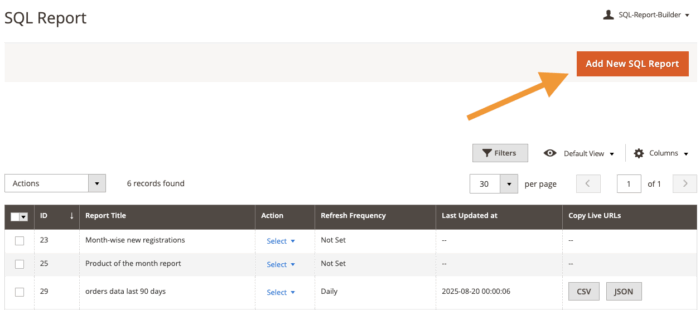
Head to SQL Report Builder > Manage SQL Reports and click on Add New SQL Report on the top right.
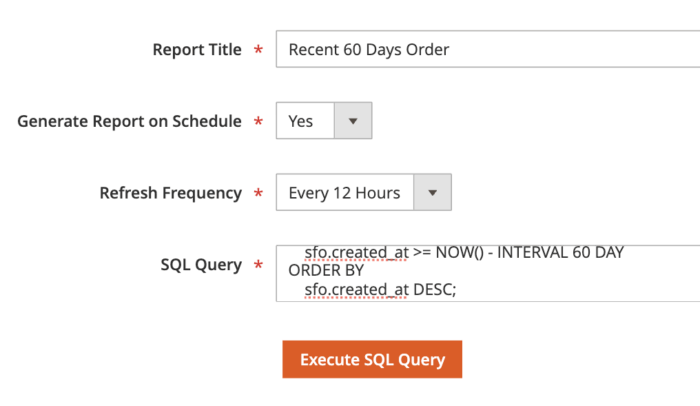
Then, fill out the details about your report.
- Report Title: Add the report title for the SQL Report (for example, New customer data for 30 days).
- Generate Report on Schedule: Enable this setting to auto-generate your reports.
- Refresh Frequency: Set the frequency for the system to regenerate the report (daily, weekly, or monthly).
- SQL Query: Add a custom SQL query to generate your report (easily use an AI tool to get the custom query).
Finish it up by clicking Execute SQL Query.
Now, the system will run & fetch the needed data and show you the results in a grid format.
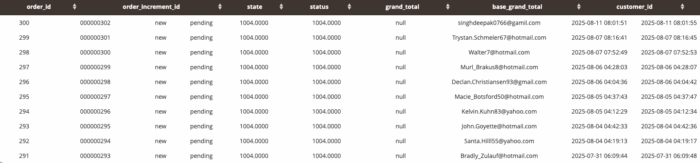
If everything looks good, click on Save Report.
Step 2: Get the CSV of the Report
Head to the SQL Report page in the extension dashboard and click on the CSV button to copy the file you have created.

The link is auto-updated based on the refresher frequency you have set.
Step 3: Load Data into Excel
Go to Excel and open a new workbook. Then, go to Data from the top ribbon and head to Get Data > From Web.
Note: You need to have Microsoft 2016 versions or higher, which includes this Power Query feature.
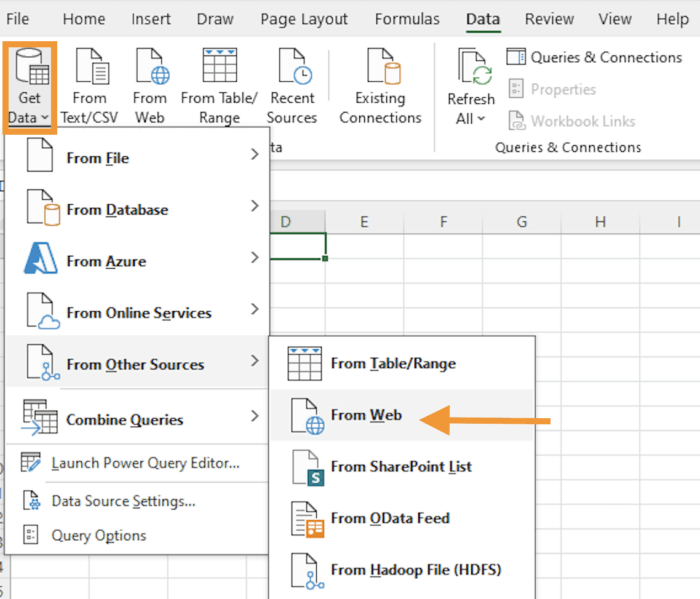
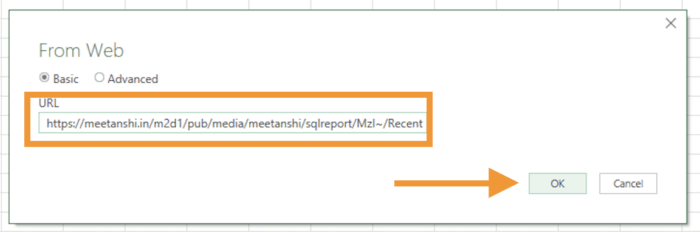
A dialogue box will open; from there, paste your CSV URL and click OK.
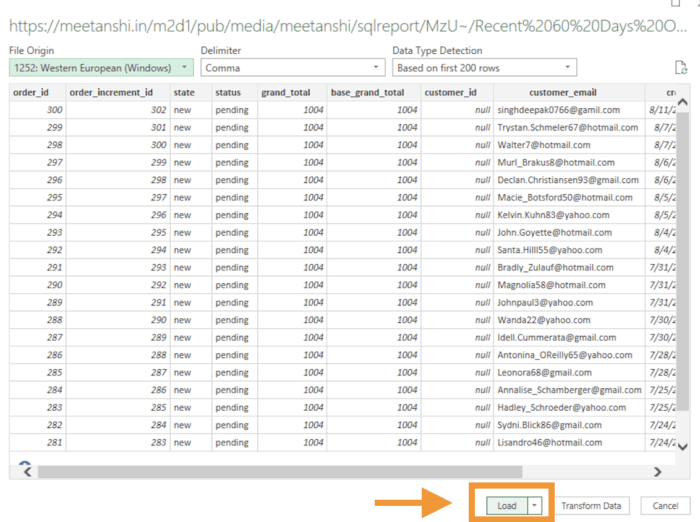
When Excel completes importing all your data, click on Load.
After a few second, you will see you Magento 2 store data in the sheet, like this:
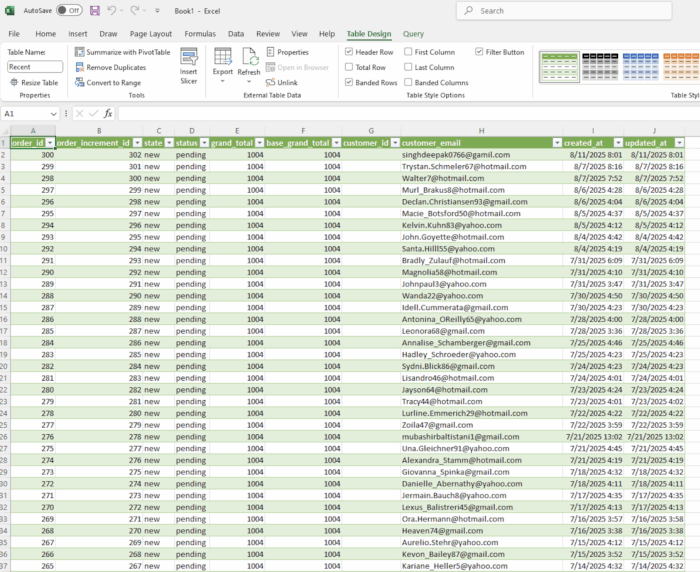
This completes your Magento 2 to Excel integration. You have easily automated your reporting and made it flexible.
Now, whenever you want to analyze your recent order, directly open this Microsoft Excel sheet; no need to navigate elsewhere.
Goodbye manual reporting forever; get our no-code solution to auto-update your data.
Get Now
Automate Reporting With No Monthly Cost
The Meetanshi SQL Report Builder extension is a cost-effective solution that comes with a one-time fee, saving you the trouble of paying every month that changes based on your data.
Whether you’re working with Microsoft Excel or using Google Sheets for your reporting, creating custom reports and managing your data shouldn’t be a headache using the right solution.
