

As a store owner, you put hours of work into high-quality product photography and unique descriptions. The last thing you want is for competitors to copy-paste your hard work in seconds.
One of the most effective “first lines of defense” against content theft is disabling the right-click context menu. In this guide, we will cover why you should do this and show you two methods to get it done: the easy way (using a free app) and the technical way (using code).
Why Disable Right Click?
Before we dive into the “how,” let’s look at the “why.” Disabling right-click functionality is primarily about deterrence.
- Prevent Easy Image Theft: It stops casual users from simply right-clicking and selecting “Save Image As.”
- Protect Your Copy: It makes it difficult for copycats to highlight and copy your product descriptions or blog content.
Maintain Brand Uniqueness: By protecting your assets, you ensure your store remains the original source of your content.
Method 1: Using a Free App (Recommended)
The safest and easiest way to protect your store is by using a dedicated app. We recommend MIT Content Protector because it is completely free and uses Shopify’s modern App Embed framework, meaning it won’t clutter your theme code.
First, go to the Shopify App Store and install the free MIT Content Protector app.
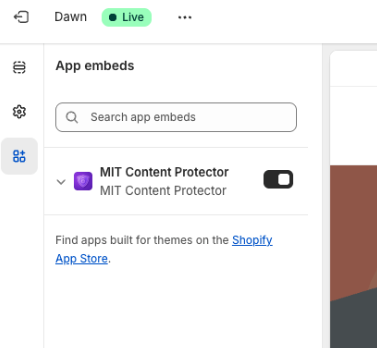
Enable App in Theme Editor
Once installed, you need to activate the app in your theme.
- In the MIT Content Protector dashboard, look for the activation banner or popup.
- Click Open Theme Editor. This will take you directly to your Shopify theme customization page.
- Locate the MIT Content Protector toggle in the left-side panel (under “App embeds”).
- Switch it to ON.
Click Save in the top-right corner.
Toggle the “Disable Right Click” Option
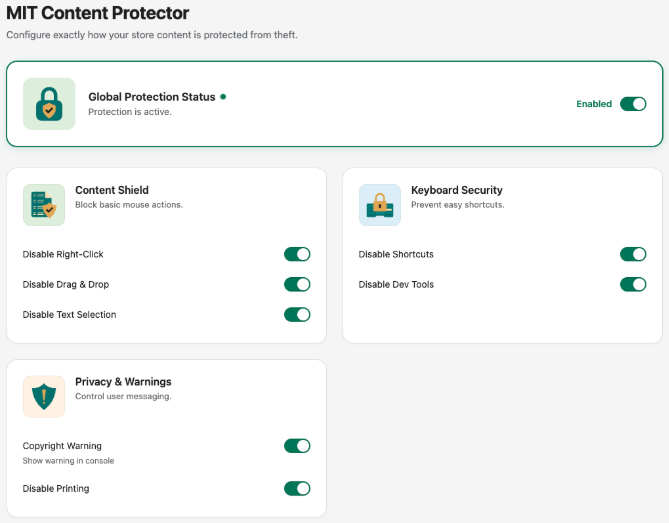
Now that the app is active, you can configure your protection settings.
- Go back to the App Interface.
- Ensure the Master Switch is turned on.
Under the “Content Shield Options,” toggle the Disable Right Click switch.
Bonus Features:
Beyond just right-click protection, MIT Content Protector allows you to activate other security layers to fully secure your store:
- Disable Drag & Drop: Stops users from dragging images to their desktop.
- Disable Text Selection: Prevents users from highlighting your text.
- Disable Keyboard Shortcuts: Blocks shortcuts like Ctrl+C (Copy) or Ctrl+U (View Source).
Install the FREE MIT Content Protector app and secure your store in seconds.
Install Now
Method 2: Liquid Code Method (Manual)
If you are comfortable editing your theme files and prefer not to use an app, you can manually add a JavaScript snippet to your store.
⚠️ Warning: Always create a backup of your theme before editing code. A small mistake here can break your site’s layout.
- Go to Online Store > Themes.
- Click the three dots (…) next to your current theme and select Edit code.
- In the Layout folder, open the theme.liquid file.
- Find the closing </head> tag.
- Paste the following code immediately above it:
<script>

  document.addEventListener('contextmenu', function(event) {

    event.preventDefault();

  });

</script>
- Click Save.
While this method works for basic right-click disabling, it does not offer the advanced toggles (like allowing right-click on specific elements) or the extra copy-paste protections that the MIT Content Protector app provides automatically.
Install the FREE MIT Content Protector app and secure your store in seconds.
Install Now
