

You spend hours crafting the perfect product descriptions and capturing stunning product photos. The last thing you want is for a competitor to come along, highlight your text, drag your images to their desktop, and use them on their own store.
To protect your hard work, you need to go beyond just disabling the right-click menu. You need to prevent text selection and image dragging. In this guide, we will show you how to do this using two methods: a free app (recommended) and manual code.
Why Disable Copying?
It’s not just about annoyance; it’s about business protection.
- Protect SEO Rankings: Duplicate content can hurt your SEO. If someone scrapes your descriptions, search engines might not know who the original author is.
- Maintain Visual Exclusivity: Your images define your brand. Preventing “drag and drop” makes it much harder for lazy copycats to steal your visual assets.
Method 1: Using MIT Content Protector (Free & Easy)
The easiest way to secure both your text and images is by using the MIT Content Protector app. It provides a comprehensive shield that covers right-clicks, text selection, image dragging, and keyboard shortcuts.
First, get the free MIT Content Protector app from the Shopify App Store.
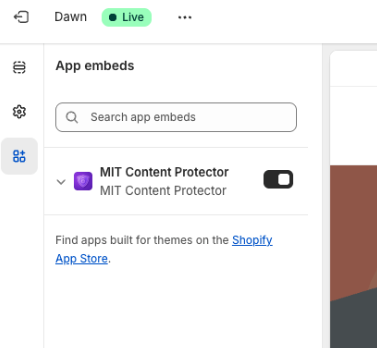
Activate App in Theme Editor
After installing, you must enable the app embed to make it work on your live site.
- In the app dashboard, click Open Theme Editor.
- Find MIT Content Protector in the “App Embeds” section (left sidebar).
- Toggle the switch to ON.
- Click Save.
Configure Content Protection Settings
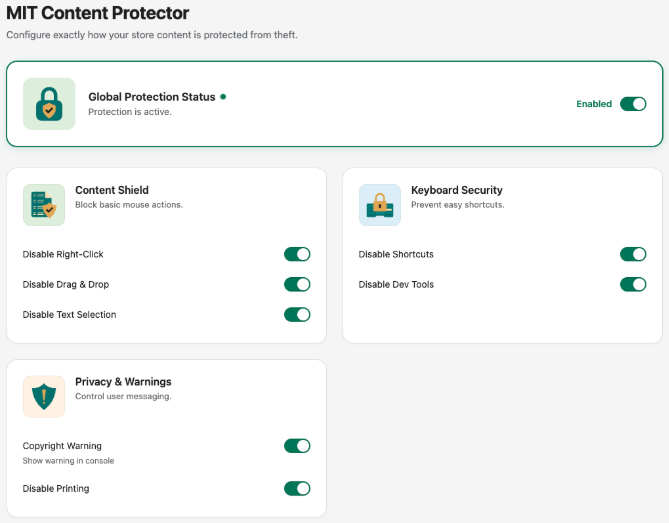
Once enabled, go back to the app dashboard to choose what you want to block.
- Ensure the Master Switch is ON.
- Scroll to Content Shield Options.
- Turn on the Disable Text Selection toggle. This prevents users from highlighting any text on your site.
- Turn on the Disable Drag & Drop toggle. This stops users from dragging an image off your site to save it.
You can also turn on Disable Keyboard Shortcuts to block Ctrl+C (Copy), Ctrl+A (Select All), and others.
Once the app is configured, you can test the content protection. Refresh your website and try dragging an image or copying a text; it won’t work. This will help you prevent the majority of content thefts on your website.
Further, you can also use the other options in the app to disable dev tools, display copyright warning in console, and prevent users from printing your website pages into PDFs.
Install the FREE MIT Content Protector app and secure your store in seconds.
Install Now
Method 2: Manual Code (CSS & JavaScript)
If you prefer to edit your theme files directly, you can achieve similar results using CSS.
⚠️ Warning: Always backup your theme before making changes.
1. Disable Text Selection (CSS)
This prevents users from highlighting text with their mouse.
- Go to Online Store > Themes > Edit code.
- Find your main CSS file (usually base.css, theme.css, or global.css in the Assets folder).
- Paste this code at the bottom of the file:
/* Disable Text Selection */
body {
  -webkit-user-select: none; /* Safari */
  -moz-user-select: none; /* Firefox */
  -ms-user-select: none; /* IE10+/Edge */
  user-select: none; /* Standard */
}
2. Disable Image Dragging (CSS)
This prevents users from dragging images to their desktop or another tab.
Add this to the same CSS file:
/* Disable Image Dragging */
img {
  -webkit-user-drag: none;
  -khtml-user-drag: none;
  -moz-user-drag: none;
  -o-user-drag: none;
  user-drag: none;
}
3. Disable Right Click (JavaScript)
For a complete shield, you should also disable the context menu.
- Open theme.liquid in the Layout folder.
- Paste this script above the </head> tag:
<script>
  document.addEventListener('contextmenu', event => event.preventDefault());
</script>
Summary
While manual code works, it can be tricky to manage if you want to allow copying on specific pages (like a blog post you want people to share). The MIT Content Protector app makes this easier by giving you simple toggles to manage all these protections in one place without touching code.
Install the FREE MIT Content Protector app and secure your store in seconds.
Install Now
