

A slider turns your static collections into an interactive, swipeable showcase that keeps shoppers engaged. In this guide, we’ll show you how to add a collection slider section in Shopify and make your storefront more dynamic.
Ways to Add a Collection Slider List in a Shopify Store
There are basically three ways to add a collection slider,
- Via Shopify Theme Editor – Some themes offer a built-in collection list slider, which lets you easily showcase collections without coding, but with very minimal functionality.
- Create a Custom Code – If your theme lacks a slider or you need additional features, you can manually add a collection slider via custom code. It requires strong technical skills and significant time.
- Using a Shopify Section App – The most often accessible method is to use a Shopify section app. It offers pre-built, customizable collection slider sections that work with many themes and can be added with just a few clicks.
Directly Add Shopify Collection Slider Section Without Code
Using our app, MIT Sections Pro, you will be able to create a section exactly like this. It offers a seamless and code-free way to enhance your store’s design.
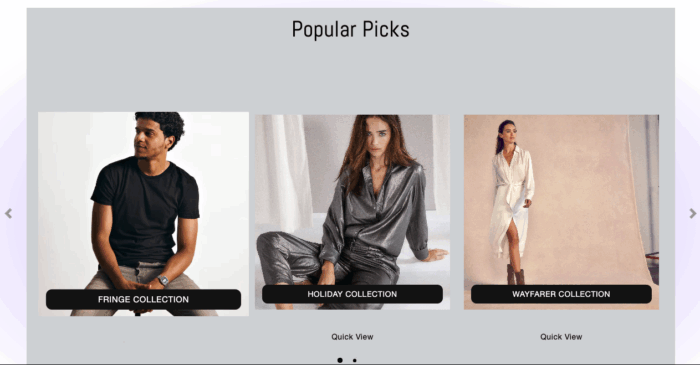
Unlike Shopify’s in-built sections, MIT Sections Pro goes further. You can add a button instead of linking only to a collection, set different fonts for desktop and mobile, include navigational dots for easier browsing, and much more.
With a vast library of pre-built, fully customizable sections, professional design becomes accessible to everyone.
Let’s see the steps for it.
Step 1: Install & Find Your Desired Section
Install the MIT Sections Pro app from the Shopify App Store, and then from the app dashboard, click Browse sections and search for the Collection Slider section.
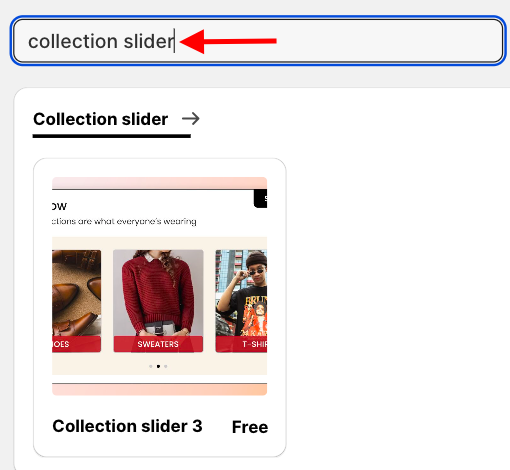
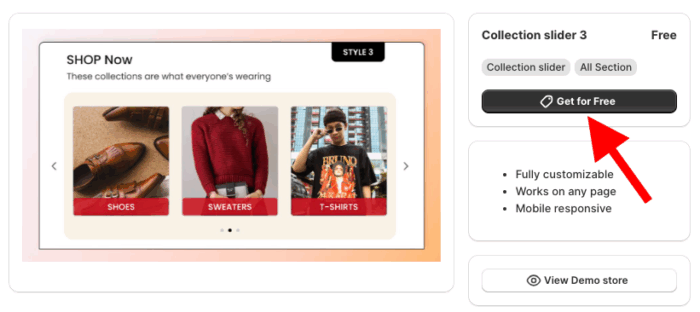
Step 2: Click on the “Get for Free” Button
Select the section and click Get for Free to acquire the section with zero cost.
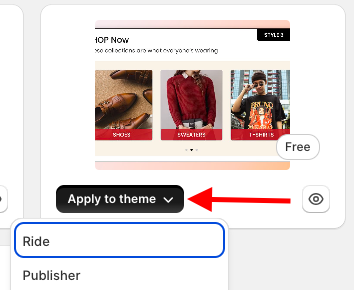
Go to My Sections in the app dashboard. Click on Apply to Theme in the collection slider section. Then, select the theme you want to use for this section.
Then, from the above top bar, click Customize theme and select the theme. This will redirect you to your theme editor.
Step 3: Directly Add Section to Your Theme
From the theme editor, click Add sections and find the Meetanshi collection slider 3, select it.
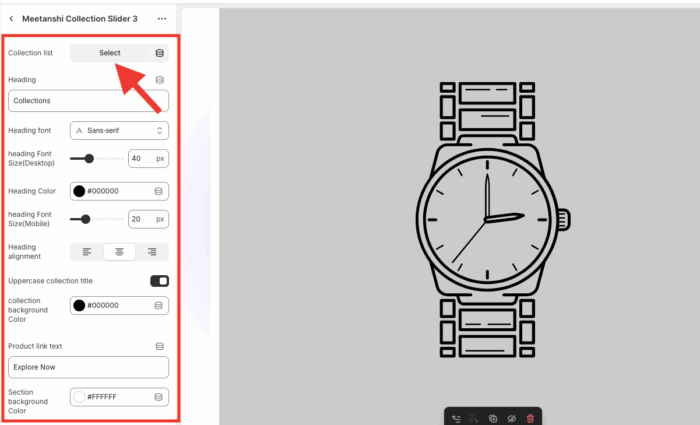
After this, you can add collections from here and also configure other changes as per your requirements.
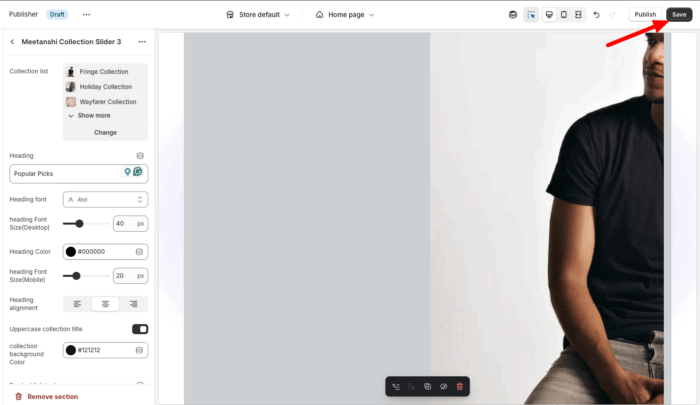
Once you are done making the changes, save them.
Create a Collection Slider in Shopify Using Theme Editor
If your theme supports this feature, you can add it in just a few clicks. Here we are using the Horizon theme. Other themes like Heritage and Savor also support the collection slider section.
Follow these steps to add a Shopify collection slider.
Step 1: Head to Your Theme Customizer
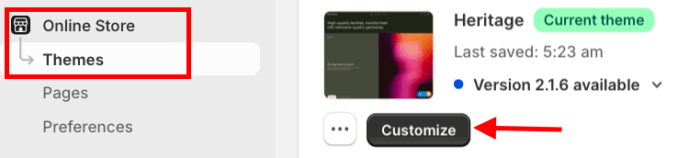
To add this element, head to your Online store > Themes and click Customize to add a section.
Step 2: Click on the Add Section
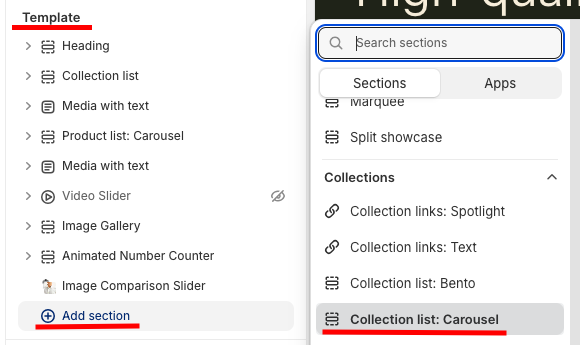
Now is the time to add the section to your store. For that, click the Add section under templates and find Collection list: Carousel.
Step 3: Select “Collection list: Carousel”
Once you find the section, select it and to add a collection, click Select.
For store owners handling many collections, you might want to bulk edit collections in Shopify to save time before adding them to your slider.
Many other customization options are available; you can configure it as per your requirements.
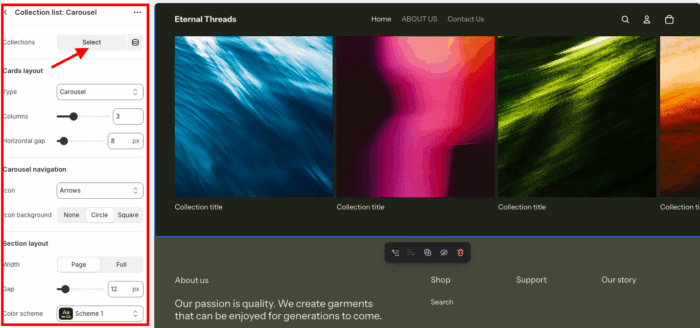
Once you are done, save the changes, and this is how it’ll look, basic and nothing extra.

However, not all Shopify themes include a collection slider; some only offer a static list. To get a collection slider, you’ll need custom code or a third-party Shopify app.
If you like, you can also show your collection in a video grid section to capture your shoppers’ attention as soon as they land on your Shopify store.
Why Create Using the MIT Pro Section?
The decision to build your store with MIT Pro Sections is about more than just adding features; it’s about choosing a smarter way to add beautiful sections without any manual efforts.
But it doesn’t stop at just the collection slider section. Our app offers over 130 free and premium sections, including banners, testimonials, and FAQs, to help you build an impressive Shopify store.
Using the app:
- Access a wide range of pre-designed, professional sections for every storefront need
- Start with a free template, or choose a premium option for advanced customization
- Easily add, configure, and replace sections anytime with zero technical knowledge
- Works seamlessly with all Shopify themes while maintaining fast page speed
- Enjoy unrestricted customization, with no locked features
- Add or swap sections as your store grows to keep your design fresh
- Free to install with transparent, reasonable pricing for all business sizes
- A free trial lets you test compatibility before committing
Your all-in-one solution to create a professional Shopify store
Install App Now
