

In eCommerce, efficient order management is paramount for the success of any Magento 2 store.
While Magento 2 provides robust features, native support for importing orders is missing.
But fear not! We have the perfect solution. This guide will walk you through seamlessly how to import and export orders in Magento 2 using the Meetanshi Magento 2 Order Import Export extension.
This extension is your answer if you aim to streamline order processes, migrate data from one Magento 2 to other, or boost store efficiency.
Let’s get right into it!
Is it Possible to Import & Export Orders in Magento 2?
Magento 2 does not natively support the import or export of orders. This can pose a significant challenge, especially when migrating data from one Magento 2 store to another.
Meetanshi offers the Magento 2 Order Import Export extension to address this limitation. This third-party solution empowers Magento 2 store owners to import orders seamlessly.
With this extension, you can efficiently migrate orders from your other Magento 2 store, streamline order processing workflows, and enhance operational efficiency.
Using the Meetanshi Magento 2 Order Import Export extension, you can—
- Export Orders: Whether you need to analyze sales trends, generate reports, or synchronize data with external systems, this feature provides the flexibility and convenience you require.
- Import Orders: Whether you’re migrating from another Magento 2 store or need to import orders in bulk, this functionality ensures a smooth transition while maintaining data integrity.
- Enhanced Order Management: You can streamline your order management process, automate repetitive tasks, and improve efficiency.
Now, let’s get into the meat of this article and see a step-by-step guide to exporting orders in Magento 2.
How to Export Orders from Magento 2 Admin?
Magento 2 order export is a straightforward process that allows you to extract order data in CSV or XML format for various purposes, such as analysis, reporting, and integration with external systems.
Follow these simple steps to export orders from the Magento 2 Admin:
- Step 1: Navigate to Sales > Orders Grid
- Step 2: Choose Export Format
- Step 3: Download Exported File
Step 1: Navigate to Sales > Orders Grid
Log in to your Magento 2 Admin panel and navigate the Sales section. From the dropdown menu, select Order to access the Orders Grid.
In the Orders Grid, use filters and search functionality to locate the orders you want to export. You can filter orders based on keywords, order status, date range, customer name, etc.
Once you’ve identified the orders to Export, select them by ticking the checkbox next to each order.
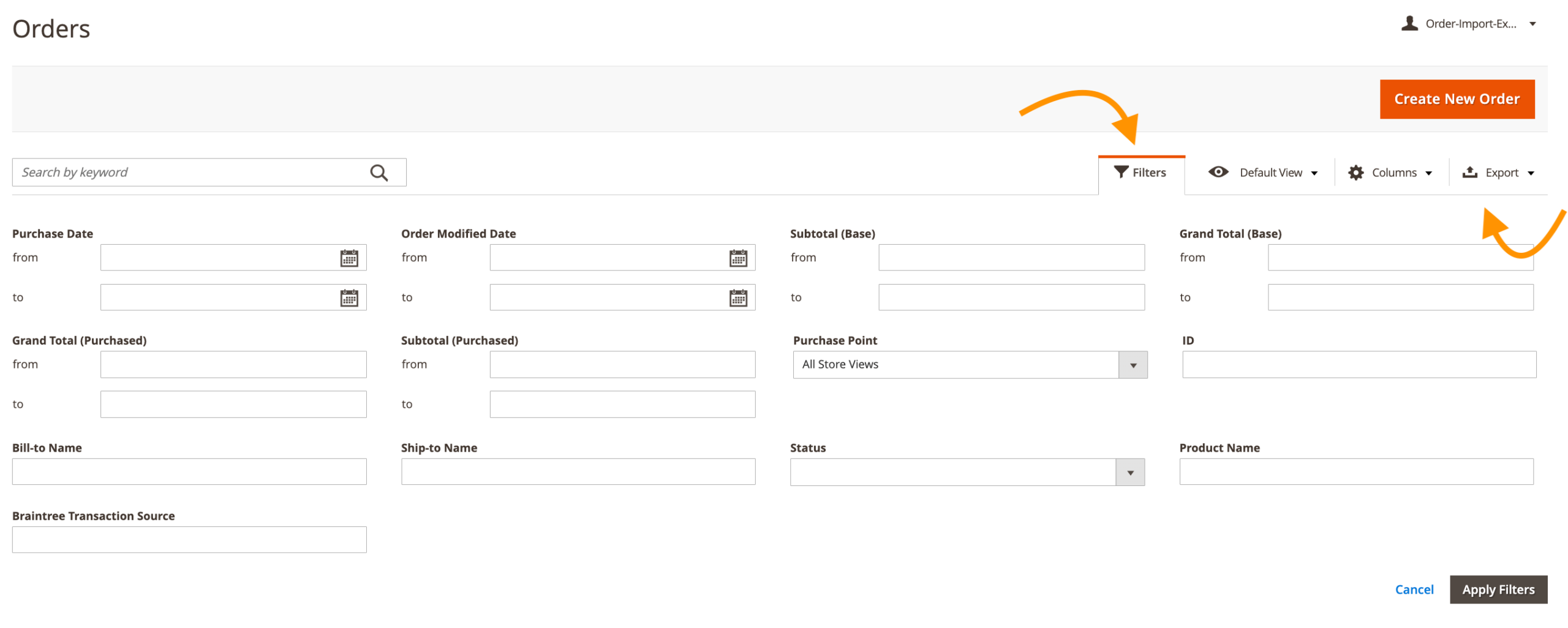
Step 2: Choose Export Format
With the desired orders selected, proceed to the upper right corner of the Orders Grid.
Locate the “Export” dropdown menu and click on it. Based on your requirements, choose whether to export the orders in CSV or XML format from the dropdown menu.
After selecting the export format, click the “Export” button to initiate the export process.

Step 3: Download Exported File
Once the export process is complete, a download prompt will appear on your screen. Click on the prompt to download the exported file containing the order data. The file will be saved to your local device for further analysis or integration with external systems.
Following these steps, you can effortlessly export orders from your Magento 2 store’s Admin panel, leveraging order data for analysis, reporting, and integration with external systems.
How to Import and Export Orders in Magento 2 Using an Extension
Using the Meetanshi Magento 2 Order Import Export extension, you can efficiently manage the import and export of orders, including invoices, credit memos, and shipments.
Here are the detailed steps to use this powerful extension for exporting and importing orders in Magento 2.
Export Orders Data from Magento 2
- Step 1: Install and Configure the Extension
- Step 2: Navigate to Orders Export
- Step 3: Download Exported File
Step 1: Install and Configure the Extension
Ensure that the Meetanshi Order Import Export extension is properly installed and configured.
- Navigate to Stores > Configuration.
- Select Meetanshi > Order Import Export from there and Enable the extension.
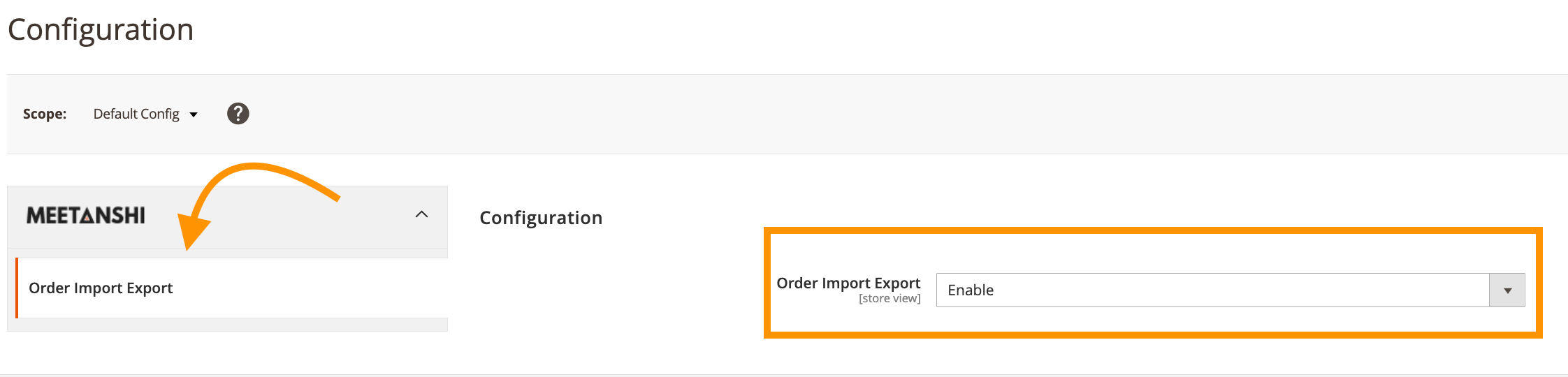
Step 2: Navigate to Orders Export
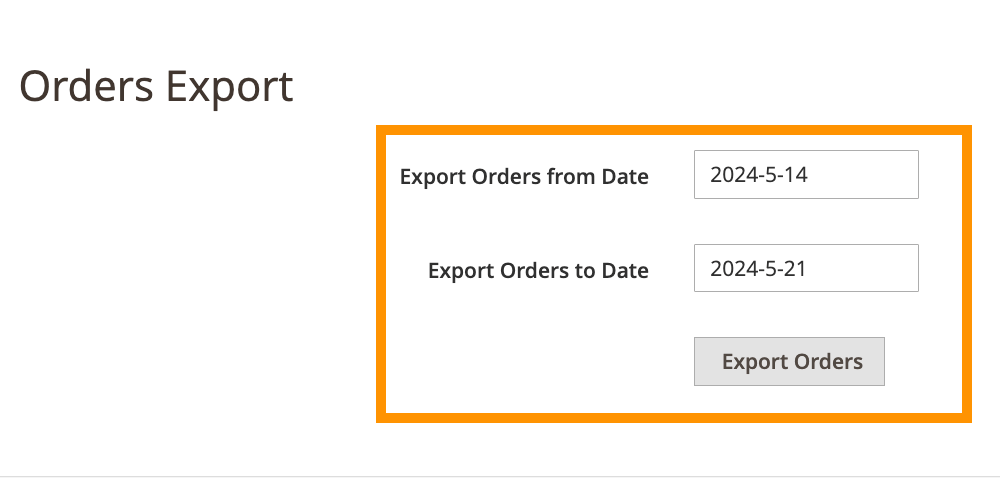
Go to the Admin Panel and navigate Sales > Meetanshi Order Import Export > Orders Export to set export parameters:
From here, you can do two things—
- Export Orders from Date: Select the start date from which you want to export orders.
- Export Orders to Date: Select the end date you want to export orders.
- After this, Click the “Export Orders” button. The system will generate a CSV file containing the order data for the specified date range.
Step 3: Download Exported File
A download link for the CSV file will be provided after the export process. Click on the link to download the file to your local device.
Import Orders into Magento 2 with Invoice, Memo, and Shipment
- Step 1: Navigate to Orders Import
- Step 2: Set Import Options
- Step 3: Import Orders
Step 1: Navigate to Orders Import
In the Admin Panel, go to Sales > Meetanshi Order Import Export > Orders Import.
Step 2: Set Import Options
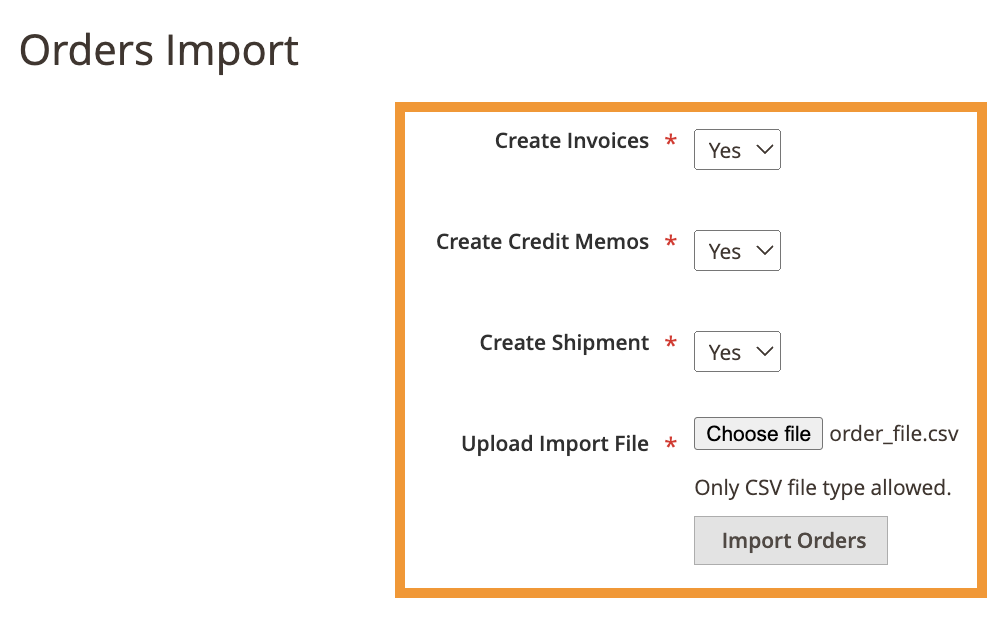
Magento 2 import orders functions allow you to customize your list further—
- Create Invoices: Select “Yes” to automatically generate invoices for the imported orders.
- Create Credit Memos: Select “Yes” to automatically generate credit memos for the imported orders.
- Create Shipment: Select “Yes” to automatically generate shipment for the imported orders.
And this, click on the “Upload Import File” button and select the CSV file you prepared. Ensure the file adheres to the required format.
Step 3: Import Orders
After uploading the file, click the “Import Orders” button. The system will process the file and import the orders into Magento 2, creating invoices, credit memos, and shipments as specified.
Orders Import Export Log
To track the history of your import and export actions, you can use the Orders Import Export Log: Go to Sales > Meetanshi Order Import Export > Orders Import Export Log.

Here, you can view all the logs of import and export actions along with details such as the date and time of the action, admin username, specific action performed, and order ID.
You can select multiple log entries and use the “Delete” mass action to remove unnecessary logs, helping you keep the log area organized.
By following these steps, you can leverage the full capabilities of the Meetanshi Magento 2 Order Import Export extension to streamline your order management processes and ensure smooth and efficient operations in your Magento 2 store.
Easily bulk export/import your old order data into a new store without any hassle.
Start Now
Effectively Import And Export Orders in Your Store
Managing orders is crucial for the success of your Magento 2 store. By utilizing the Meetanshi Magento 2 Order Import Export extension, you can overcome the limitations of the default Magento setup and streamline your order management processes.
This saves time and ensures data accuracy and integrity during the import-export process.
