

Shoppers don’t always come to buy right away, they often search to compare products, understand quality, or learn more.
That’s where blog posts help.
Unlike product pages, blogs let you explain details and guide users. Here, learn how to add a blog post to Shopify in a few simple steps.
Does Shopify Have a Built-In Blog Feature?
Yes, Shopify includes a built-in blogging engine that allows you to create and manage content without needing external plugins.
You can easily write posts, categorize them with tags, and manage comments directly from your admin dashboard.
While it is simpler than dedicated platforms like WordPress, it provides all the essential tools to improve your SEO and engage your audience.
How to Add a Blog Post to Shopify?
To display blog posts on your Shopify homepage, you can easily pull in your latest content using the built-in Shopify theme editor. Here are the three steps to get it set up:
Step 1: Access the Theme Editor
Log in to your Shopify Admin and navigate to Content > Blog posts. Click the Add blog post button to open the editor.
Step 2: Add Content & Configure Settings
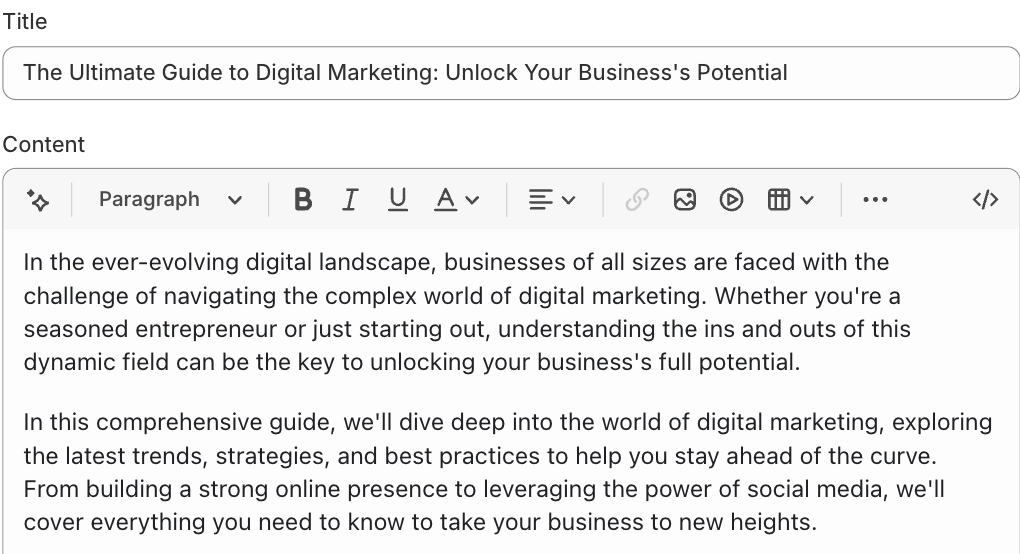
Then, add the content in this section. Start by entering the blog Title (up to 255 characters) and write your post in the Content section. Use proper images, formatting, and content structure to write your blog post.
Under the Organization section on the right side, select the correct Author and Blog category.
Additionally, you can also:
- Add a featured image to display on the blog landing page
- Include a summary for better previews
- Use tags to organize posts by category or topic
- Edit the search engine listing (SEO title, meta description, URL) for better visibility
Step 3: Set Visibility & Save
In the upper right side Visibility section, select Visible to publish now or schedule a future date. Once configured, click Save to complete the process.
And this is how it will look on your frontend.
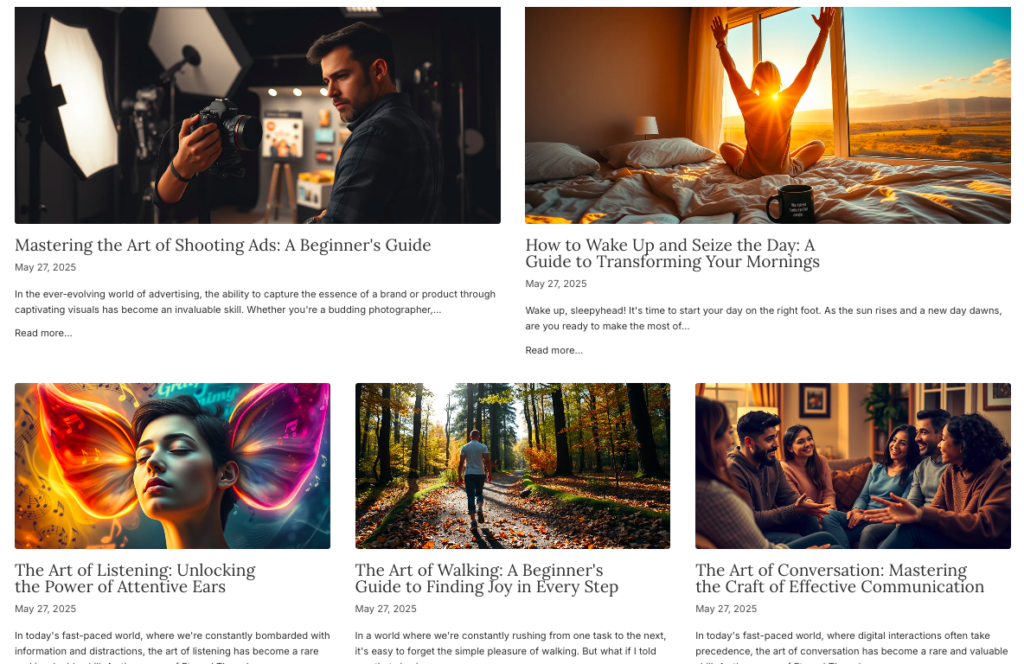
And that’s how simple it is to add a blog post to Shopify.
Create a New Blog Category
Creating a new blog in Shopify allows you to organize your content into different categories (e.g., News, Style Tips, Recipes) rather than having all posts in one list.
Here’s how to do it:
Head to Content > Blog posts > Manage blogs in your Shopify admin
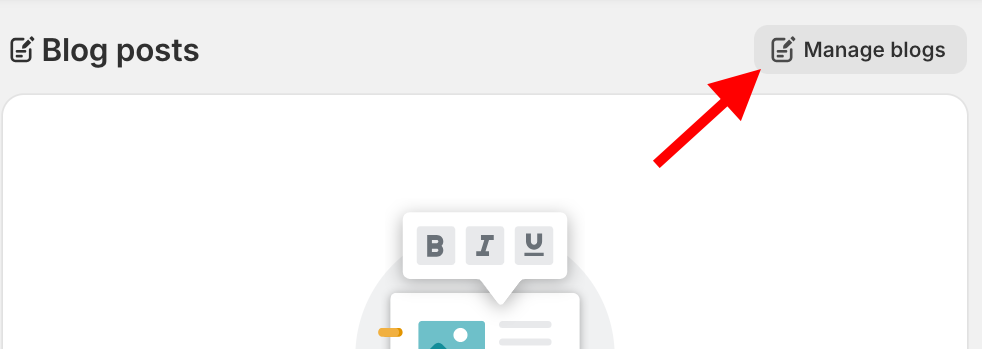
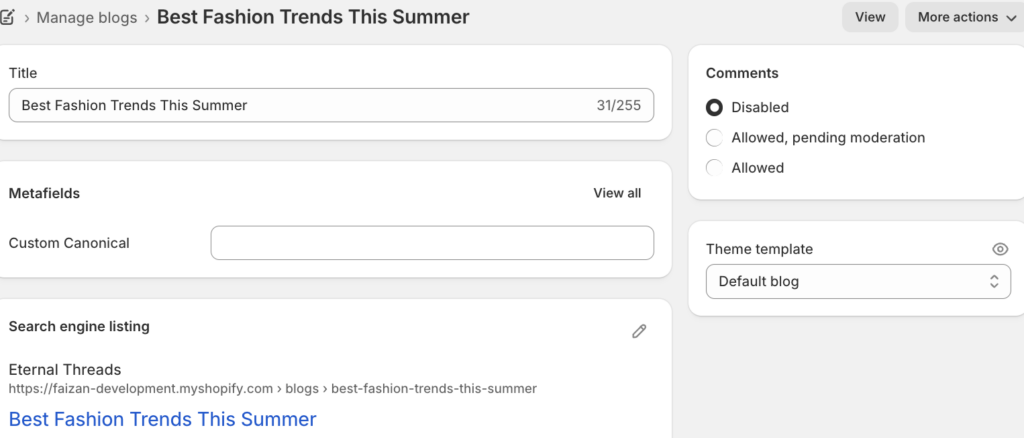
Then click Add blog and write the Title. Optionally, you can set how you want to manage comments, choose a Shopify blog template, and edit SEO details. At last, save everything.
How to Feature Shopify Blog Posts on the Homepage
Many Shopify themes, like Dawn, have a built-in Featured Blog section that makes it easy to show your posts. Here are the steps to feature a blog using the Shopify theme editor without touching any code:
Step 1: Access the Theme Editor
Log in to your Shopify Admin and navigate to Online Store > Themes > Edit theme.
Step 2: Add a Blog Section
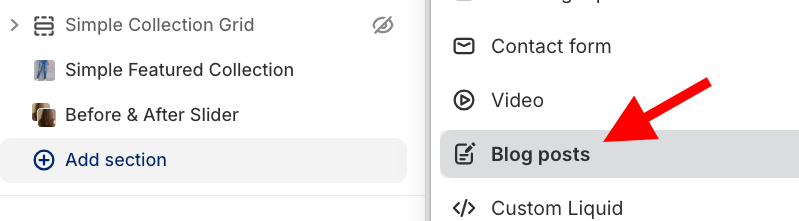
You’ll be redirected to the theme editor, and in the left-hand sidebar, click the Add section. Search for and select Blog posts.
Step 3: Customize the Layout
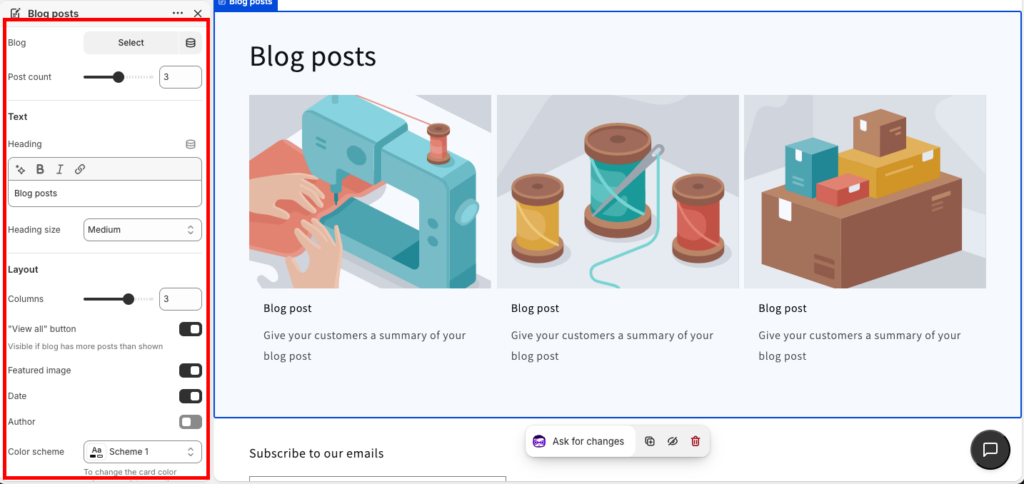
Once the section is added, click on it to configure the settings:
- Select the blog you want to display
- Post limit
- Show featured image
- Show date and author
And at last save everything.
Tips to Optimize Shopify Blog Posts for SEO
Once your content is ready, make sure search engines can find it. Here are some practical tips to improve the blog SEO-wise:
- Include your main keyword naturally in the title, headings, URL, and throughout the content without overstuffing
- Create clear, engaging titles and concise meta descriptions (up to characters) to improve click-through rates from search results
- Avoid H1 in your content; Shopify already uses it for the title. Use H2 and H3 for better page structure
- Link to relevant products, collections, or other blog posts to improve navigation and SEO value. You can also add Shopify widgets to your posts to showcase related products or categories dynamically.
- Compress images for faster loading and add descriptive alt text with keywords
- Shorten the URL and handle to 3-4 words that include your main keyword (e.g., /blogs/news/shopify-seo-tips)
Common Issues When Adding Blog Posts in Shopify (+Fixes)
Even with an easy-to-use platform, you may face some pitfalls. Here are common issues and how to fix them.
| Issue | Fix |
| Blog post not visible | Check the Visibility settings and set it to Visible, or correct the schedule |
| Wrong blog selected | Select the correct blog under the Organization section |
| Missing SEO details | Fill in the meta title, description, and URL in the Search engine listing |
| Images not displaying properly | Use optimized images (compressed, correct format like JPG/PNG) |
| Formatting issues | Use proper headings (H2, H3), spacing, and consistent formatting |
| No tags added | Add relevant tags to group similar content |
| Unoptimized URL | Edit the URL to keep it short and keyword-focused |
| Slow page speed | Reduce image size, limit heavy media, and avoid unnecessary embeds |
Frequently Asked Questions
How many blog posts can you add to Shopify?
There is no limit to the number of blog posts you can create on Shopify.
Can you schedule blog posts on Shopify?
Yes, you can set a specific publishing date and time in the Visibility section of the post editor.
Can Shopify blogs rank on Google?
Yes, Shopify blogs are highly indexable and can rank well if you optimize your titles, meta descriptions, and content.
Can you add images and videos to the Shopify blog?
Yes, you can easily insert images and embed videos using the rich text editor’s media tools.
Add Shopify Sections
While Shopify’s default editor is great for text, adding dynamic sections can truly set your content apart. Create an engaging look across your store. You can customize your theme or add sections to product pages in Shopify.
To make this process even simpler without touching any code, you can use our MIT Section Pro Shopify app. It has 130+ free and paid ready-to-use sections like product galleries, testimonials, and more, giving you better control over your store design and user experience.
Your all-in-one solution to create a professional Shopify store
Install App Now
